

Zendesk ticket AI triage
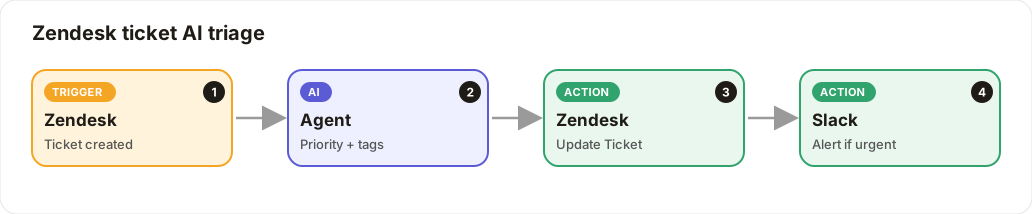
New Zendesk tickets get an AI priority and tags; urgent ones alert Slack.
Level: Intermediate · Time: about 15 minutes · Category: Support, content & operations
Watch the workflow being built in BeeGentic (no sound).
What it does
When a Zendesk ticket is created, the AI reads it and sets the priority and tags, and urgent tickets alert your team in Slack.
You'll need
- Zendesk: subdomain, admin email and API token (
ZENDESK_TOKEN) - Slack
Build it step by step
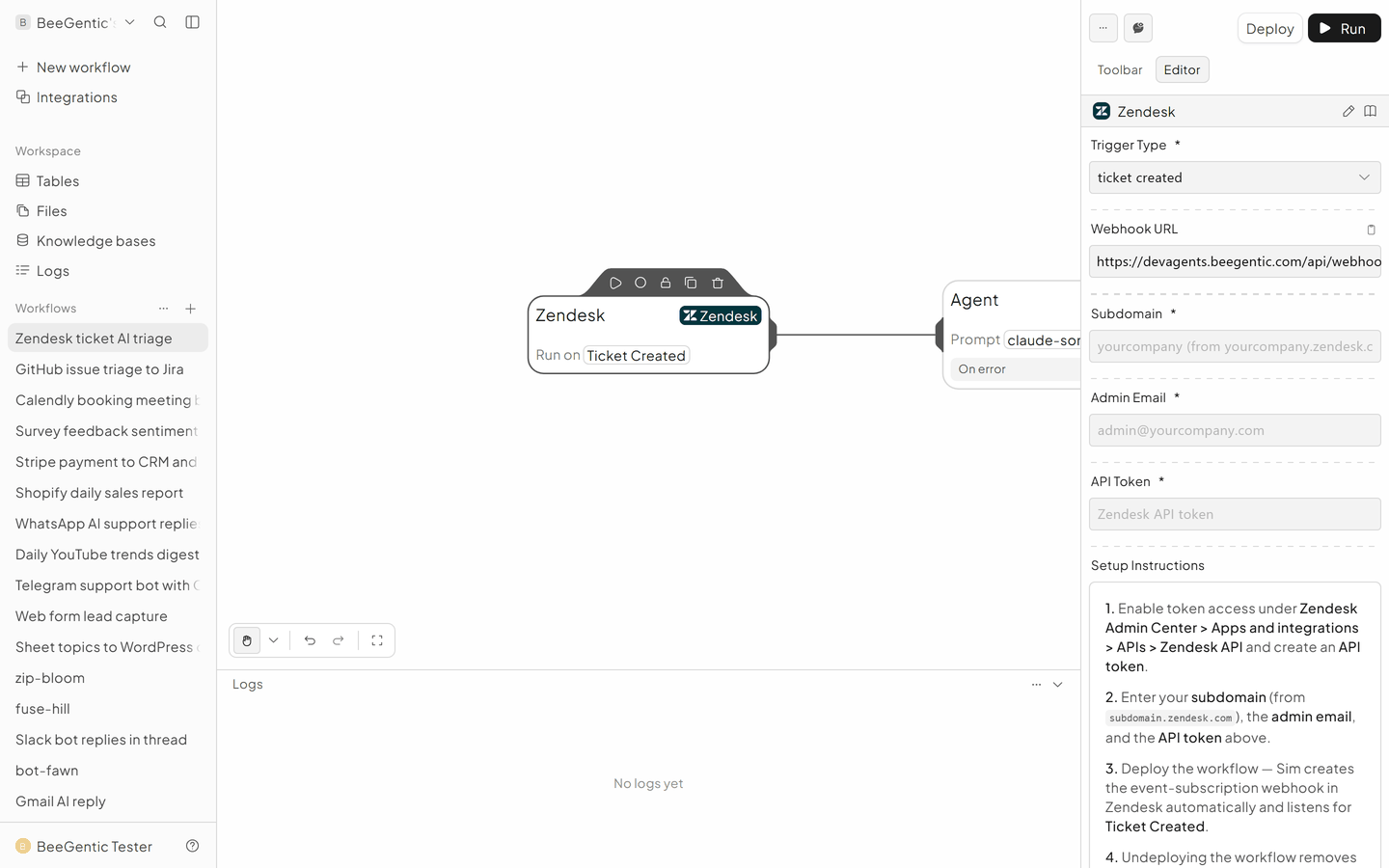
Add the Zendesk trigger
Triggers → Zendesk → Ticket Created. Subdomain, Admin Email, API Token: {{ZENDESK_TOKEN}}. BeeGentic sets up the webhook in Zendesk when you deploy.
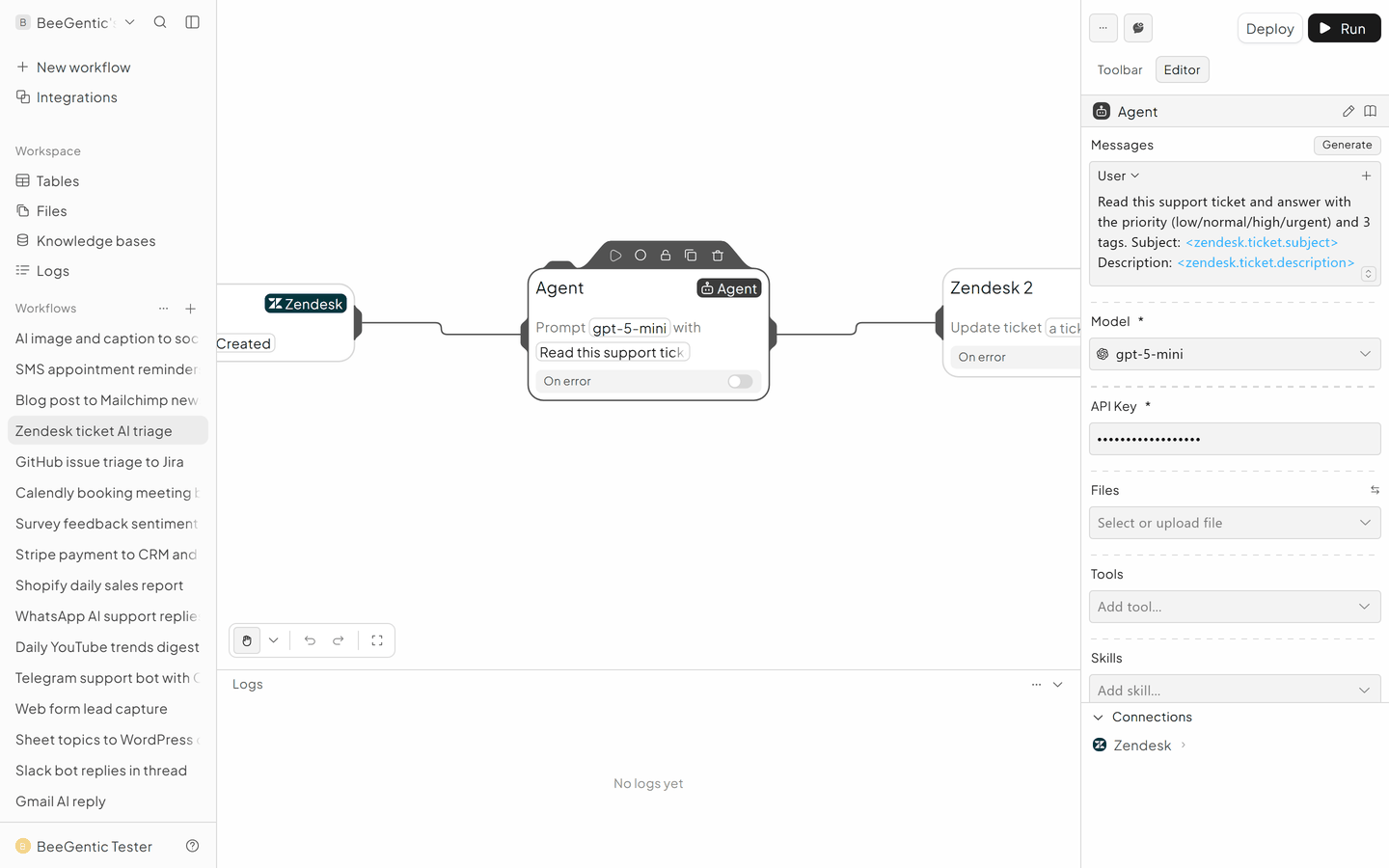
Triage with the Agent
User: Read this support ticket and answer with the priority (low/normal/high/urgent) and 3 tags. Subject: <zendesk.ticket.subject> Description: <zendesk.ticket.description>
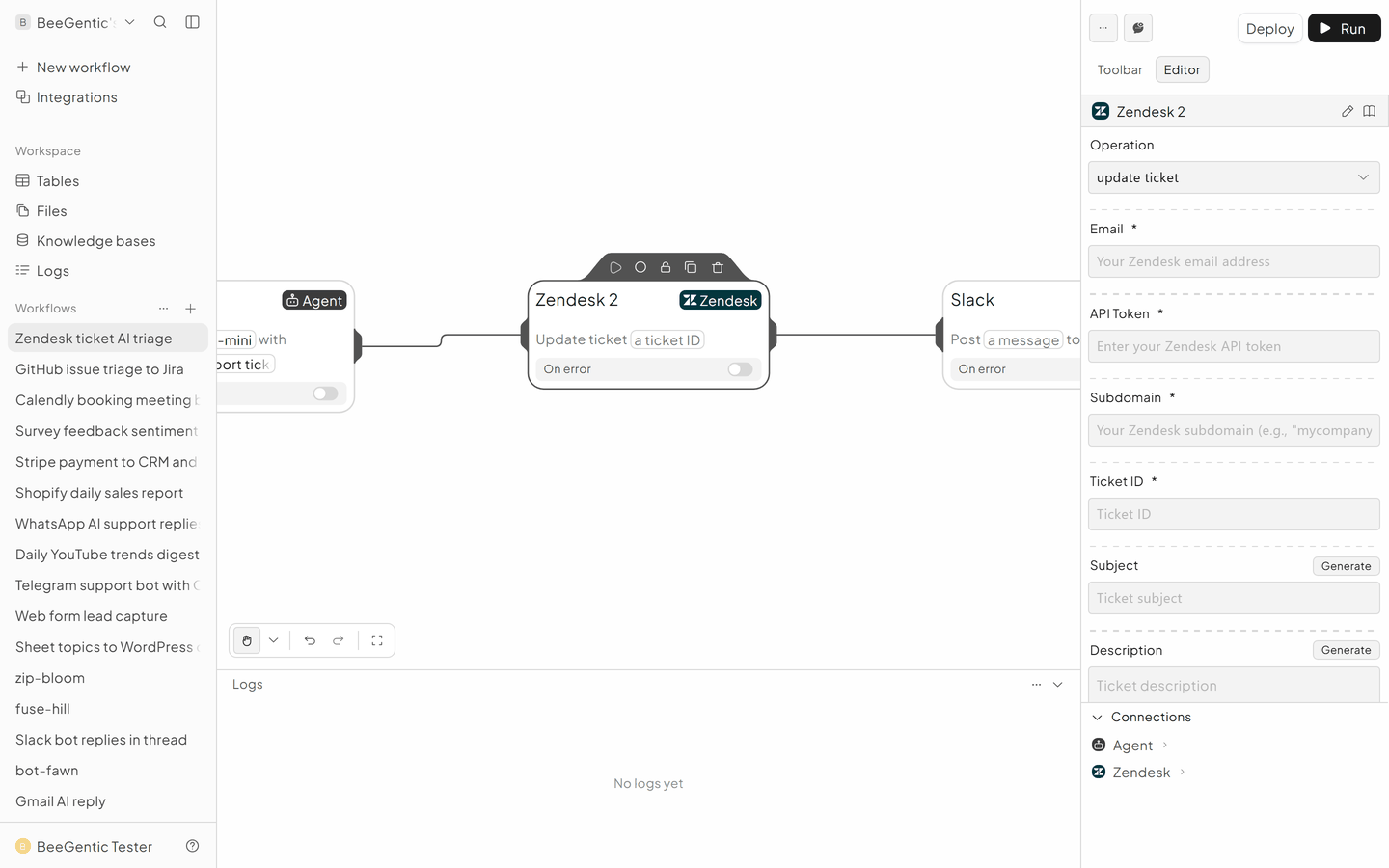
Update the ticket
Integrations → Zendesk (Zendesk 2).
- Operation: Update Ticket
- Ticket ID:
<zendesk.ticket.id> - Priority and Tags from the Agent. Ask the Agent for JSON if you want exact values.
Alert Slack
Slack → #support: Urgent ticket: <zendesk.ticket.subject>. Put a Condition before it so only urgent tickets alert.
The finished workflow

Example result
We ran the AI step of this recipe in BeeGentic (model gpt-5-mini) with a sample input. The text below is the actual output, unedited.
Sample input:
Read this support ticket and answer with the priority (low/normal/high/urgent) and 3 tags. Subject: Checkout broken - customers cannot pay Description: Since this morning every customer gets "payment failed" at checkout. We are losing sales. Please help ASAP.What BeeGentic produced:
Priority: urgent

Tags: payments, checkout, outage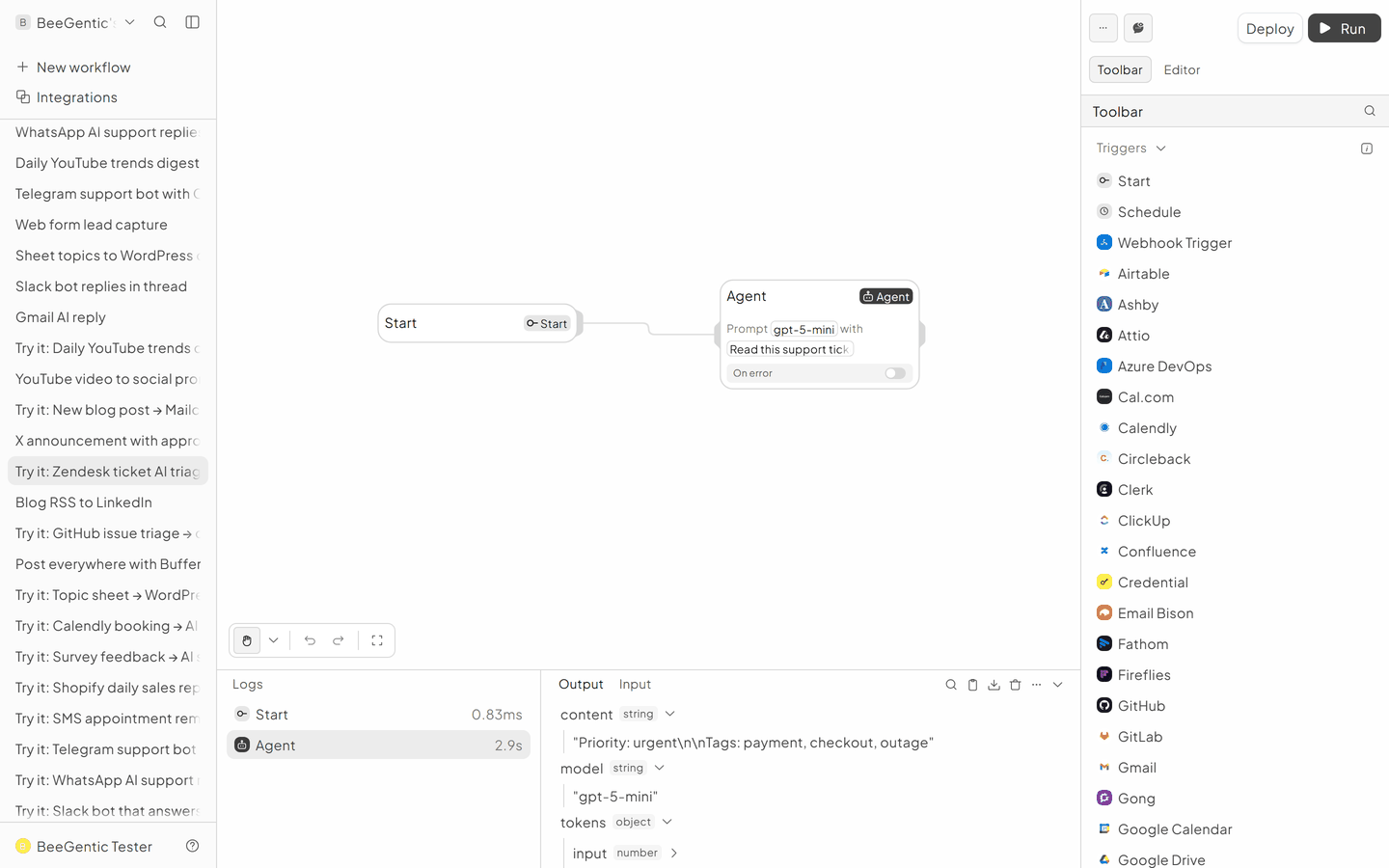
AI output varies from run to run. Change the wording of your prompt to change the style, length or tone.
Test it and switch it on
Deploy, then create a test ticket in Zendesk.
Make it yours
- Draft the answer: a second Agent writes a reply and posts it as an internal note for your agent to review.
Something not working? See Troubleshooting or get help.