


Run a workflow on a schedule
Start a workflow automatically every few minutes, hourly, daily, weekly, monthly or on a cron schedule, in your time zone. Step by step with a narrated video and a real automatic run.
What you'll build: a workflow that runs by itself every morning at 9:00, where an AI writes a productivity tip of the day. Two blocks: Schedule → Agent. About 5 minutes.
Not supported: one-off runs on a single date, intervals shorter than 1 minute, skipping holidays or chosen dates, several different times in one block (use a cron expression or a second Schedule block), and time zones for Every N minutes and Hourly (they don't need one).
Narrated walkthrough (about 2½ min), with captions (CC button). Each step below also has a short silent clip. The orange numbers in each screenshot match the # column under it. Click a screenshot to enlarge it.
Before you start
| You need | Why |
|---|---|
| A BeeGentic workspace | The schedule runs on BeeGentic's servers, so your computer can be off. |
An AI key saved as a secret, e.g. OPENAI_API_KEY | The Agent writes the tip. See References and secrets. |
A schedule only runs by itself when the workflow is deployed. You'll do that in Part 3.
Part 1: Add the Schedule trigger
Create the workflow
+ New workflow → name it Daily tip (Schedule). A timed workflow doesn't need the Start block: select it and press Delete (or click the bin icon above it).
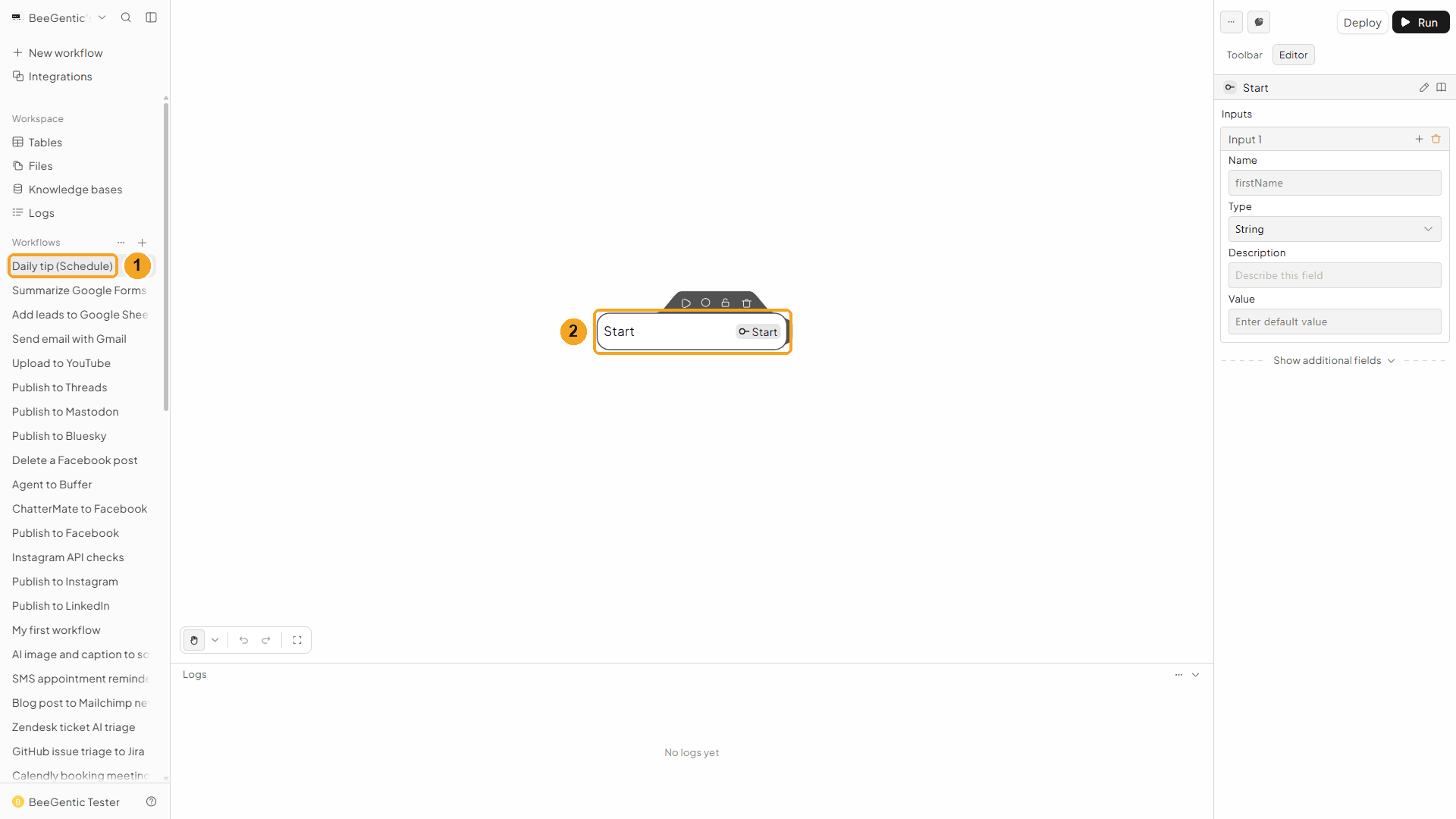
| # | What you see |
|---|---|
| 1 | Your new workflow in the sidebar. |
| 2 | The Start block. Select it, then delete it. |
Watch this step
Add Schedule from the Toolbar
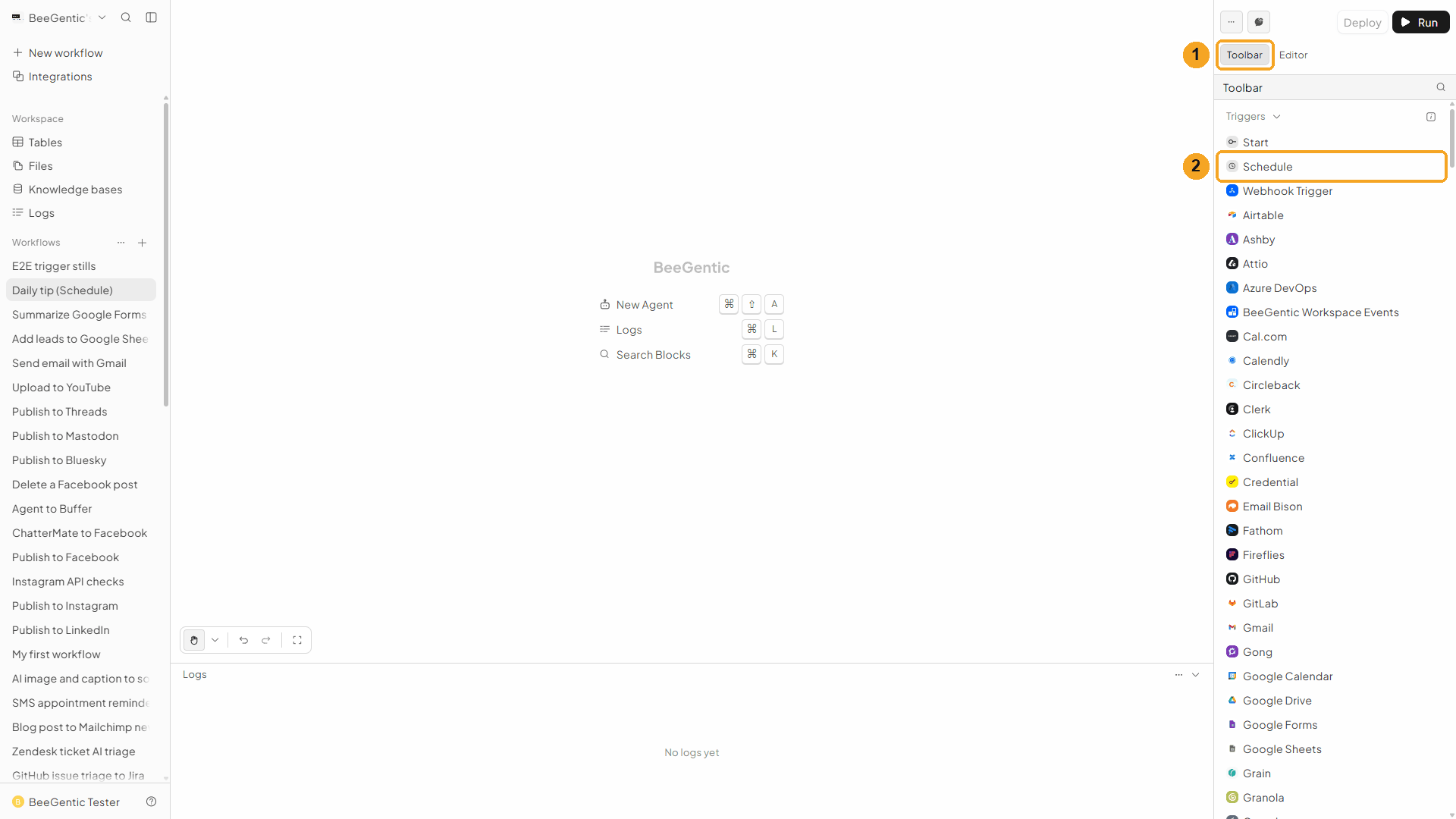
| # | What to do |
|---|---|
| 1 | Open the Toolbar tab. |
| 2 | Under Triggers, click Schedule. It lands on the canvas and its settings open on the right. |
Watch this step
Choose how often it runs
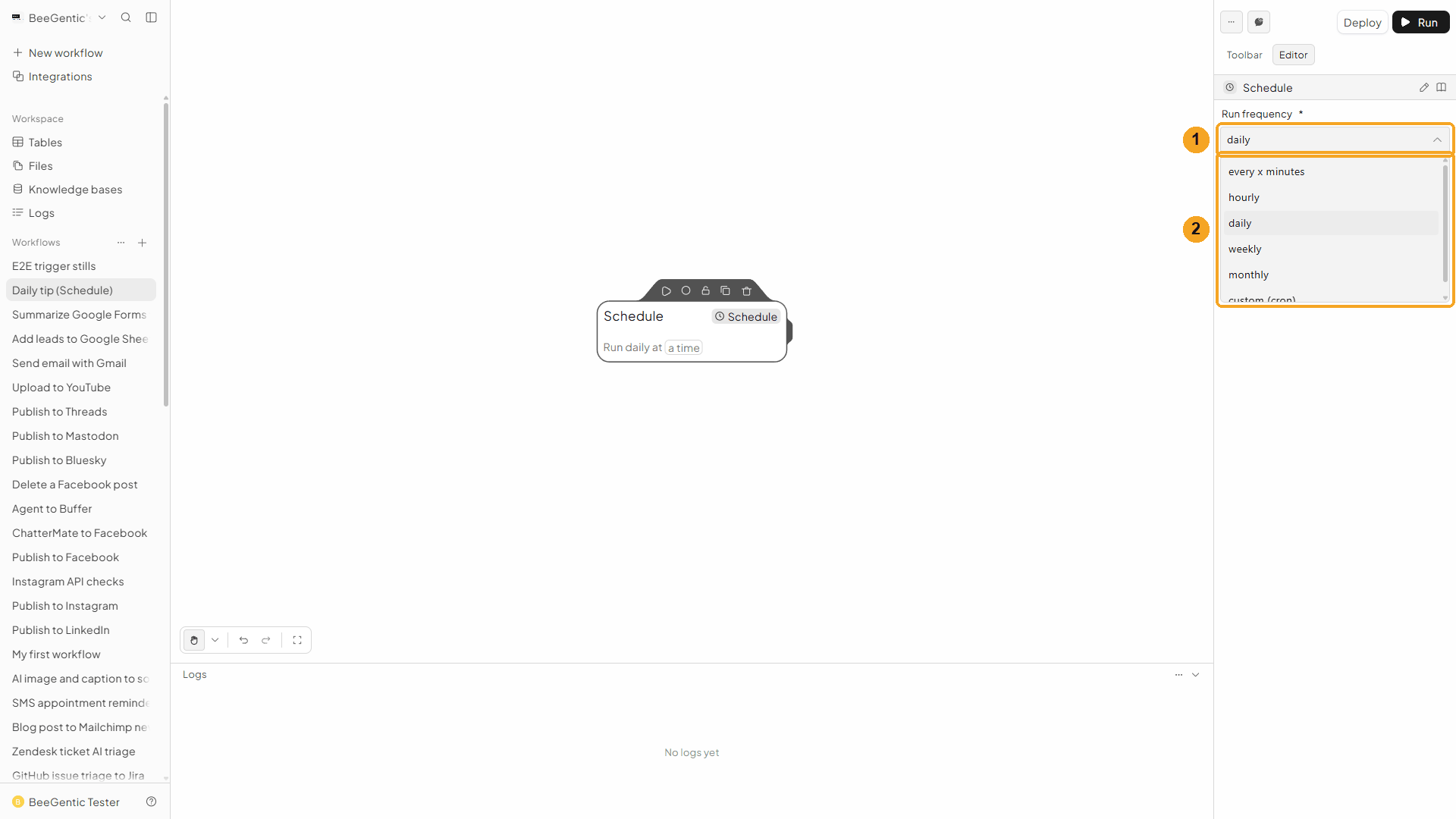
| # | What you see |
|---|---|
| 1 | Run frequency. New Schedule blocks start on Daily. |
| 2 | The options, explained below. |
| Run frequency | You also set | Example |
|---|---|---|
| Every X Minutes | Interval (minutes) | 15 runs every 15 minutes |
| Hourly | Minute (0–59) | 30 runs at 10:30, 11:30, 12:30 … |
| Daily | Time + Timezone | 9:00 AM every day |
| Weekly | Day of week, Time + Timezone | Monday at 8:00 AM |
| Monthly | Day of month (1–31), Time + Timezone | the 1st at 9:00 AM |
| Custom (Cron) | Cron expression + Timezone | 0 9 * * 1-5 (weekdays at 9:00) |
Watch this step
Optional: a custom cron schedule
Pick Custom (Cron) when the other options aren't enough, e.g. weekdays only.
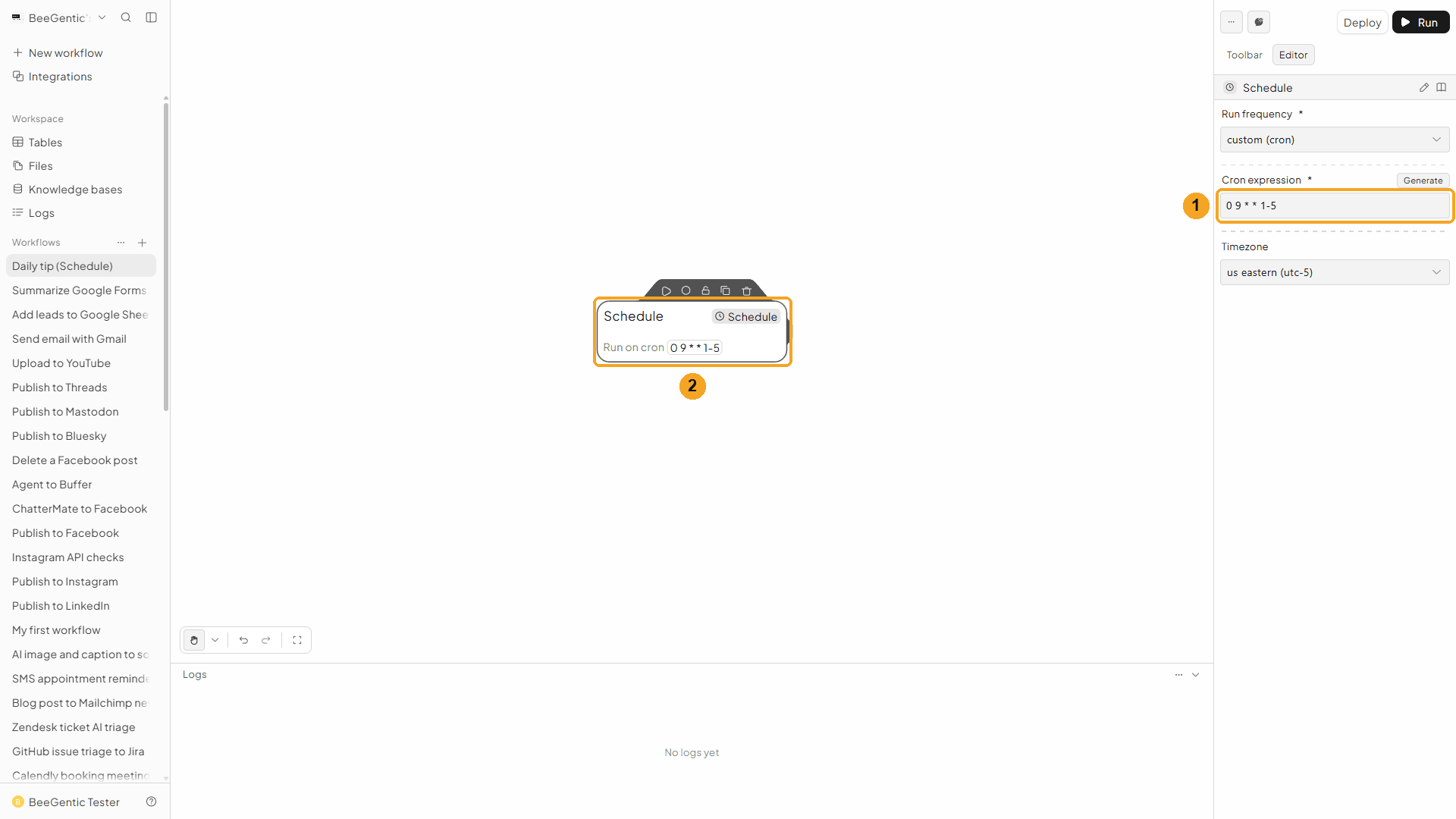
| # | What you see |
|---|---|
| 1 | Cron expression: 0 9 * * 1-5 means minute 0, hour 9, Monday to Friday. Not sure how to write one? Click Generate and describe it, e.g. every weekday at 9am. |
| 2 | The block sums up the schedule: Run on cron 0 9 * * 1-5. |
Watch this step
Daily at 9:00 AM
Set Run frequency back to Daily, then open Time.
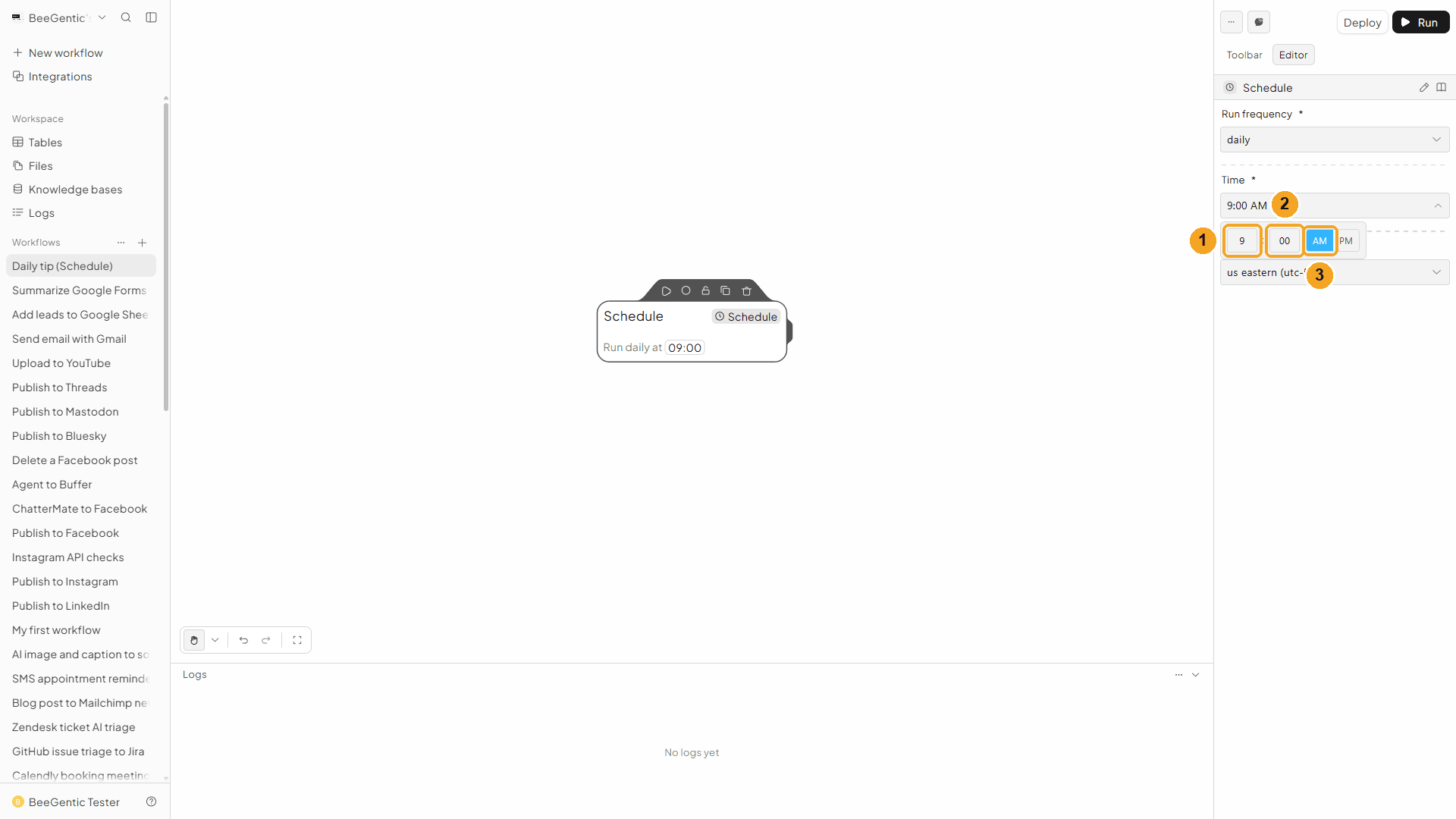
| # | Field | Value |
|---|---|---|
| 1 | Hour | 9 |
| 2 | Minute | 00 |
| 3 | AM / PM | AM |
The block now reads Run daily at 09:00.
Watch this step
Pick your time zone
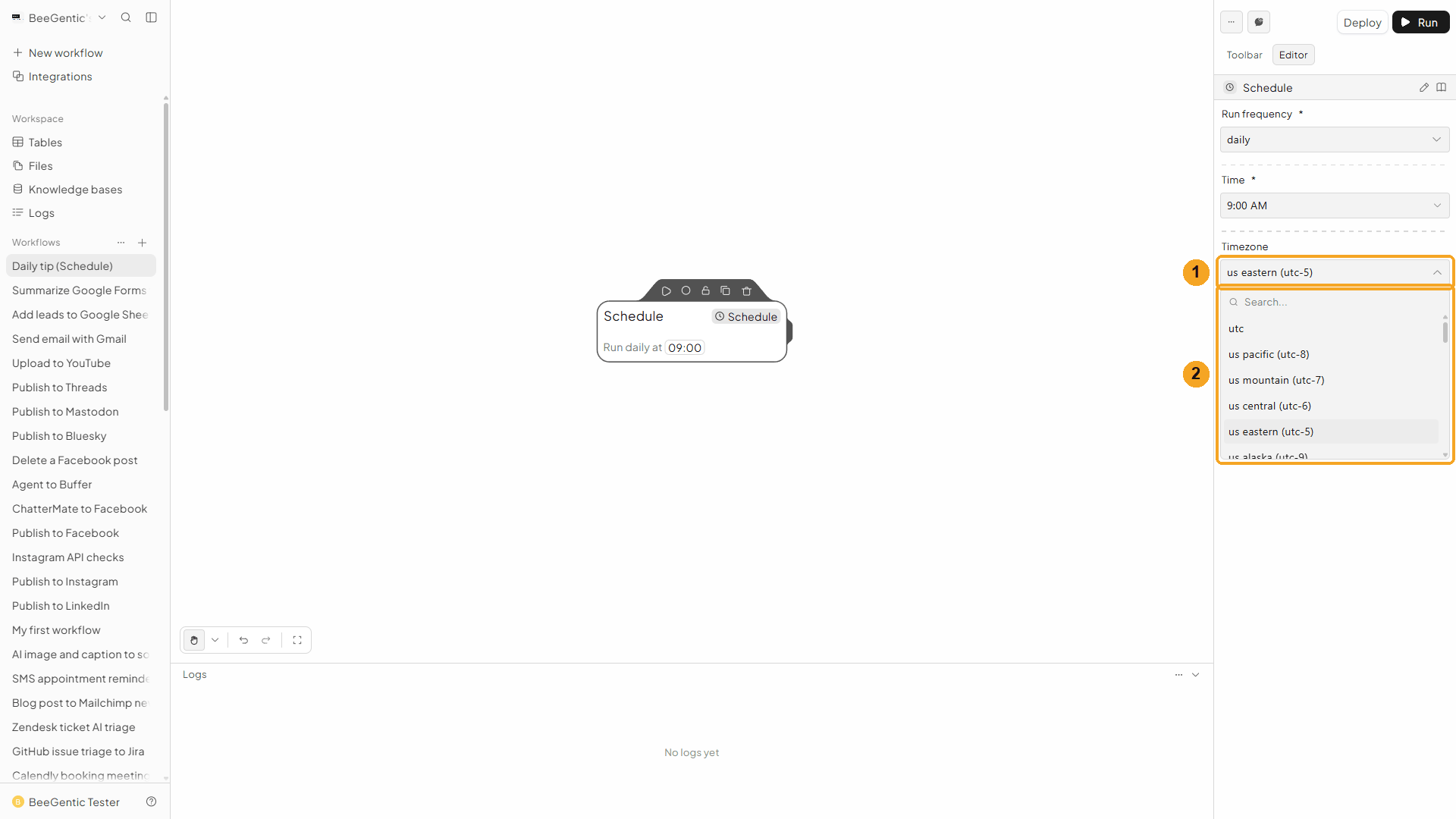
| # | What you see |
|---|---|
| 1 | Timezone starts on your browser's time zone. We kept US Eastern (UTC-5). |
| 2 | The list. Type in Search… to find yours, e.g. London or India. |
Watch this step
Part 2: Add the Agent and test it
Add the Agent
With the Schedule block selected, click Toolbar → Agent. It connects to the Schedule automatically. In Messages:
Write one productivity tip of the day for a busy professional. Two short sentences, practical and friendly. Return only the tip.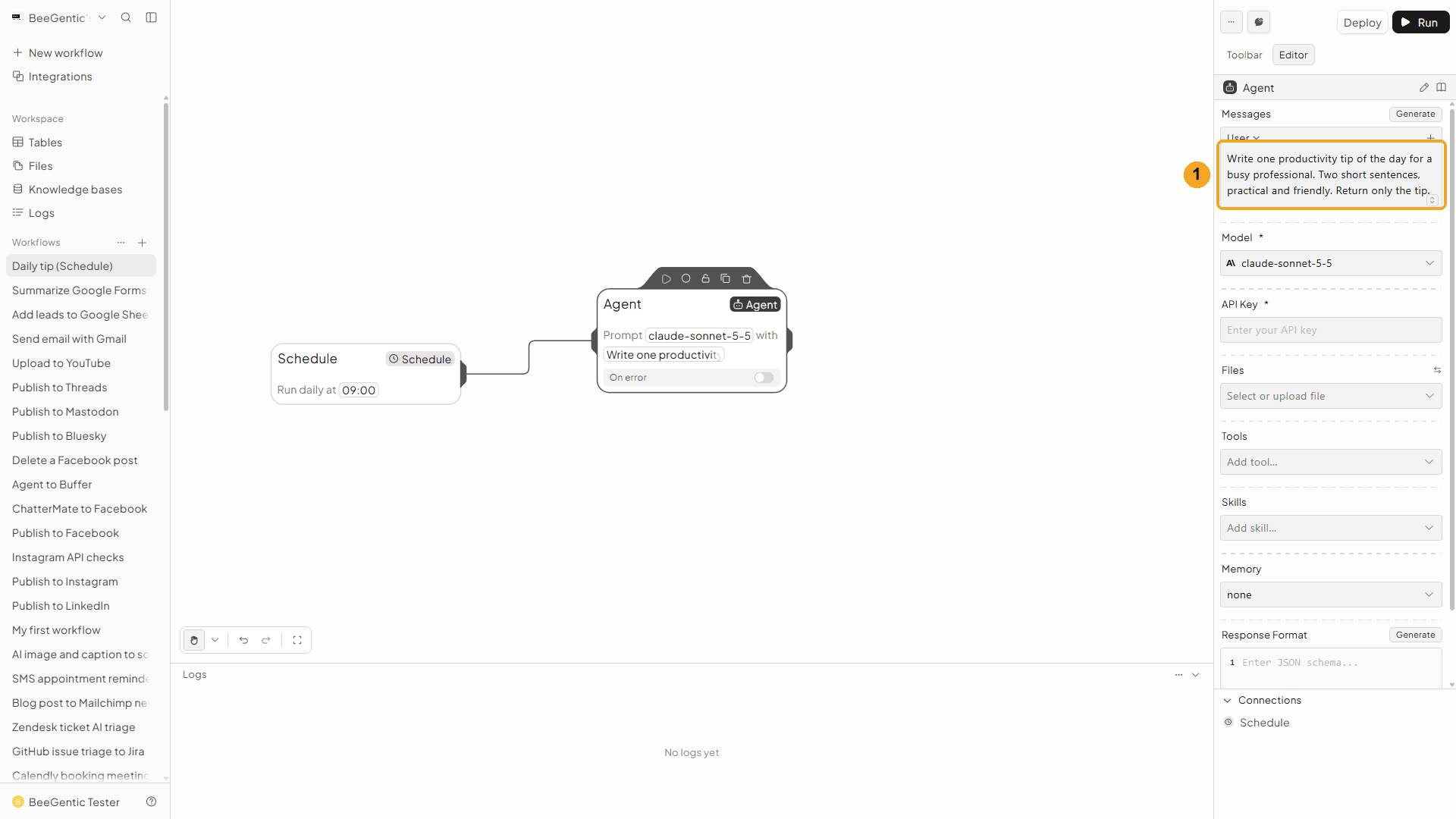
| # | What you see |
|---|---|
| 1 | The message. A schedule has no input from a person, so everything the Agent needs is in this message. |
Watch this step
Choose the model and key
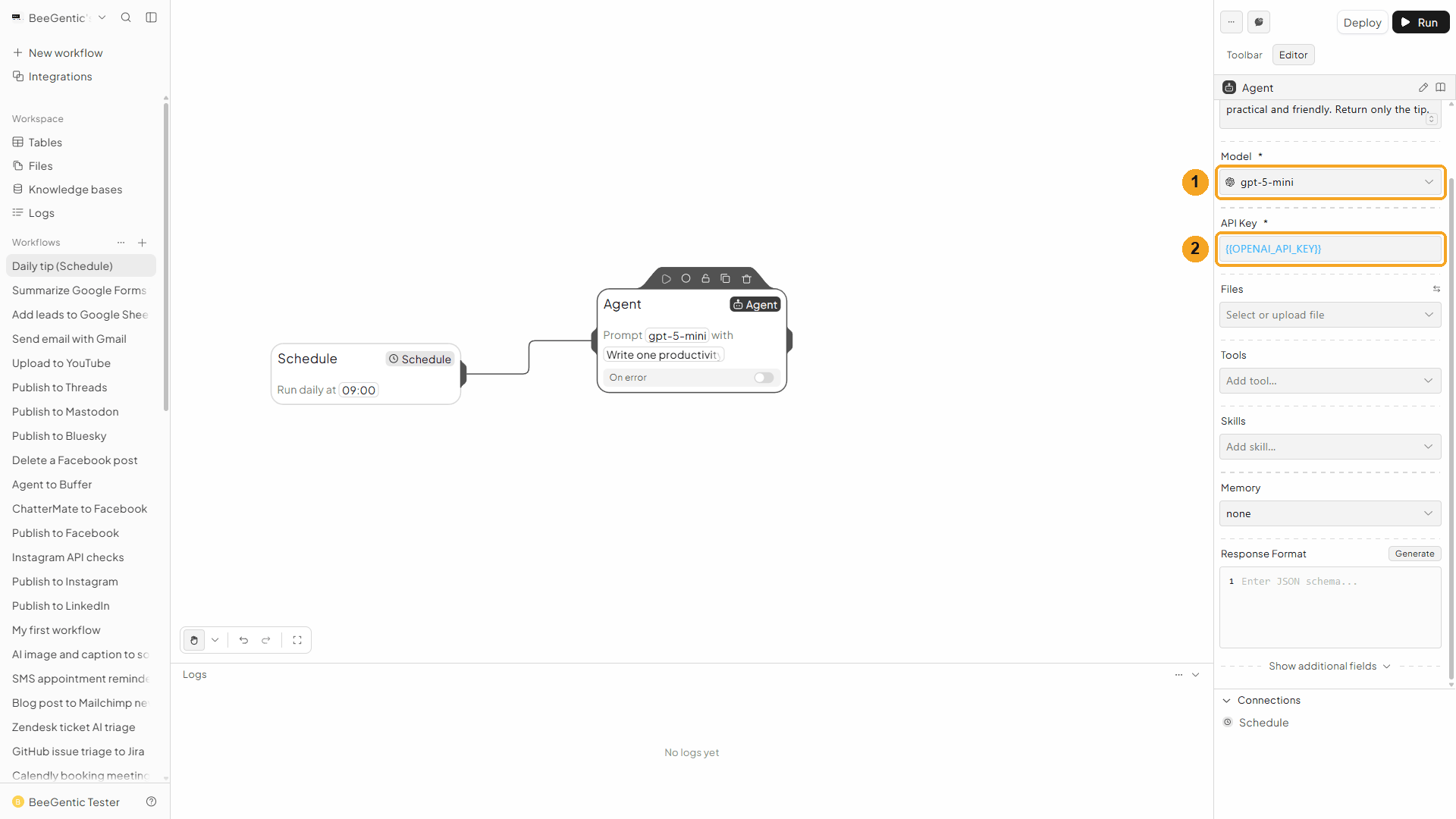
| # | Field | Value |
|---|---|---|
| 1 | Model | gpt-5-mini |
| 2 | API Key | {{OPENAI_API_KEY}}. BeeGentic fills in the real value when it runs. |
Press Shift + L to tidy the canvas:
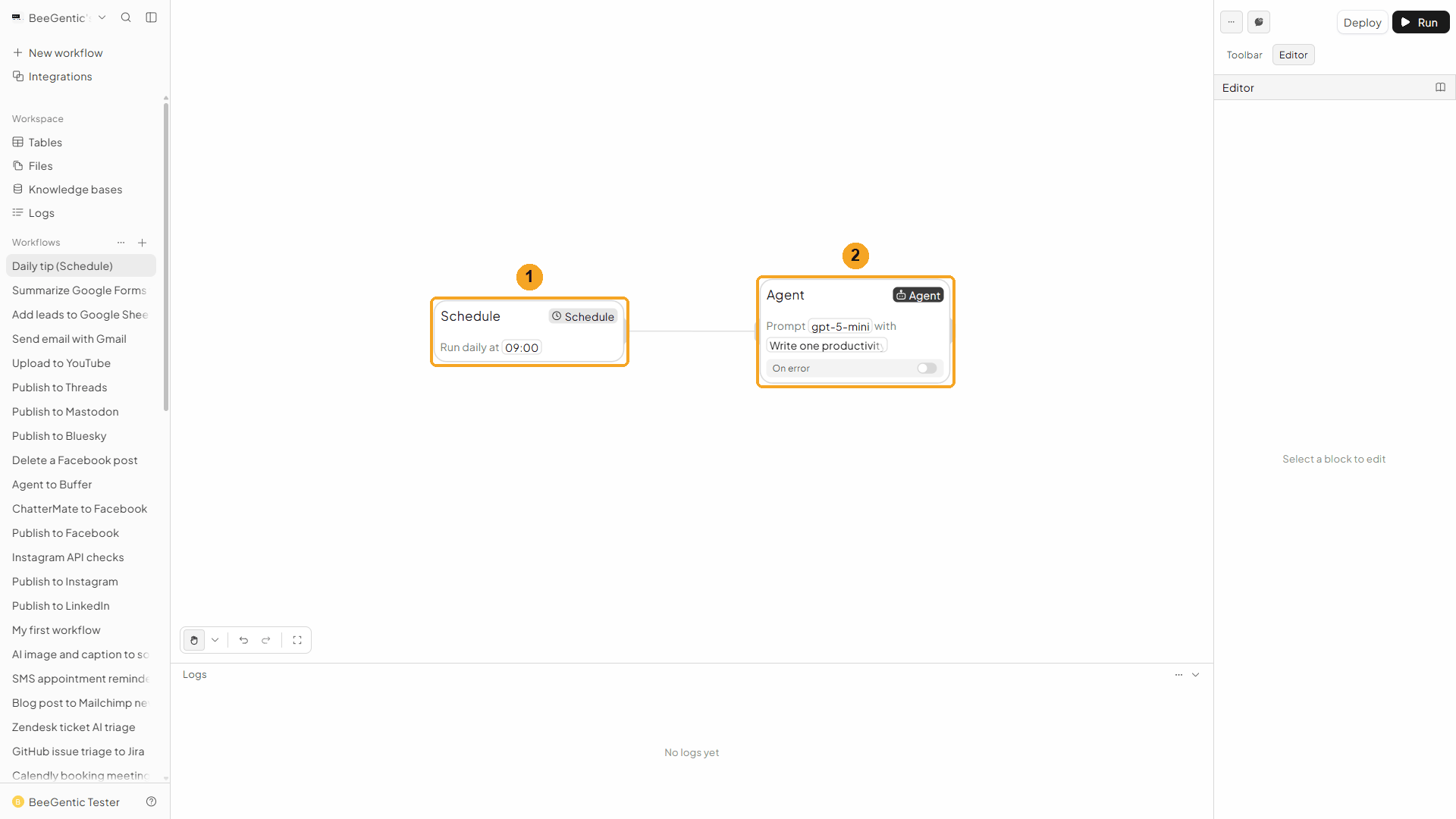
| # | Block | What it does |
|---|---|---|
| 1 | Schedule | Starts the workflow daily at 9:00 |
| 2 | Agent | Writes the tip |
Watch this step
Test it now
You don't have to wait until 9:00 to check it works.
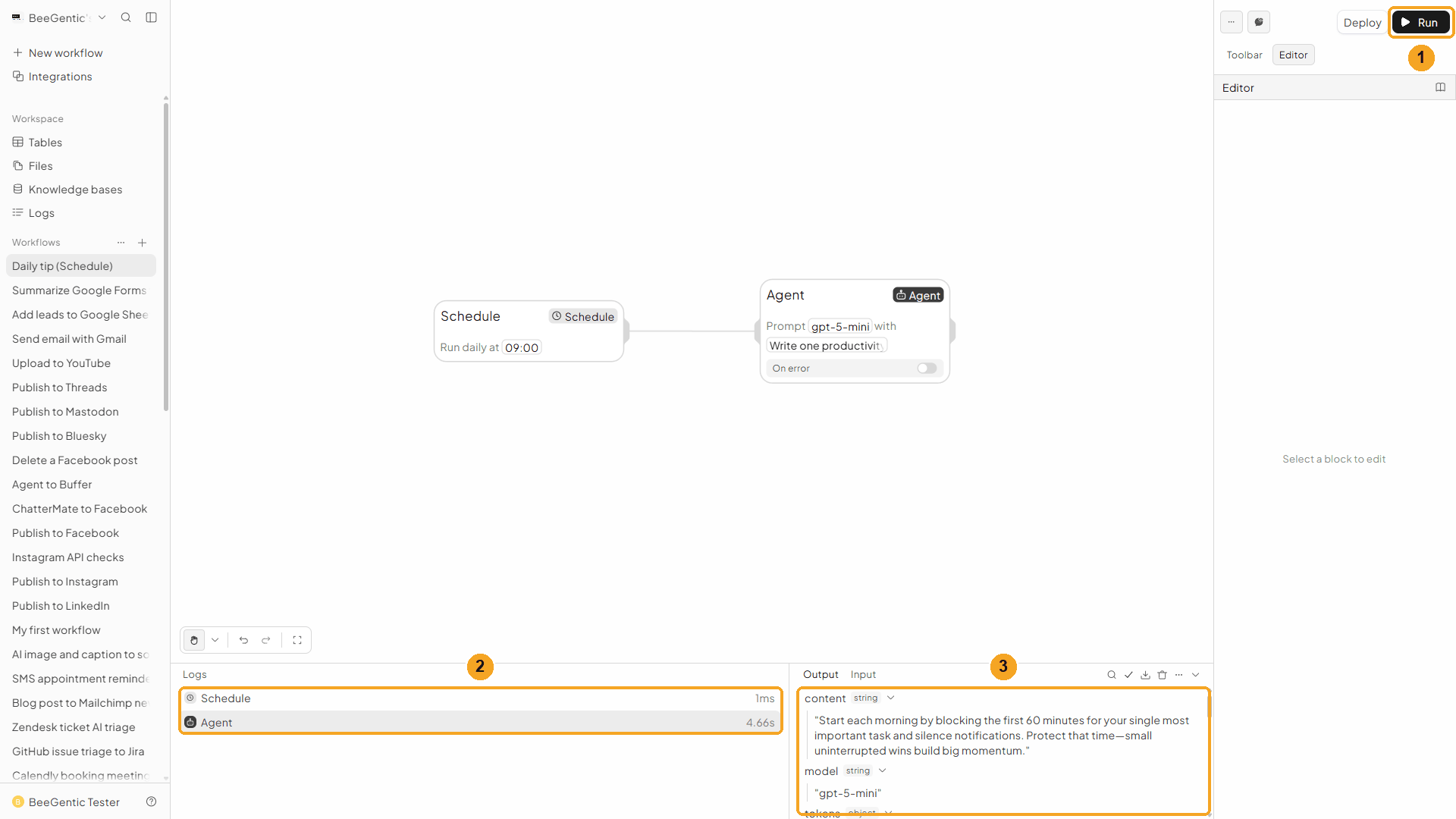
| # | What you see |
|---|---|
| 1 | Click Run. The workflow runs once, right now. |
| 2 | Each block's run time: Schedule 1 ms, Agent about 4.7 s. |
| 3 | The output: content is the tip. |
The real tip from our test run:
Watch the run
Part 3: Deploy, and watch it run by itself
Deploy
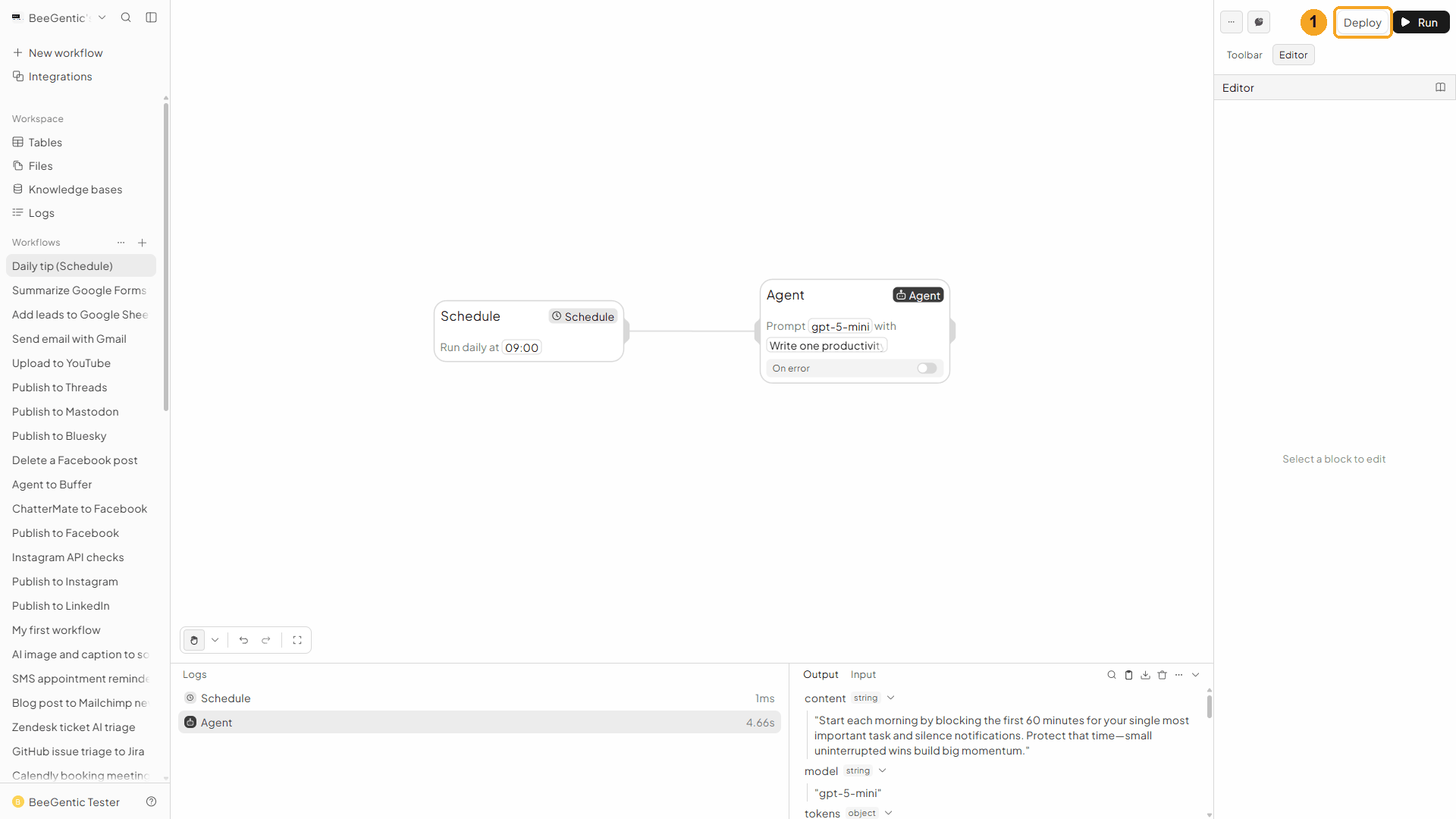
| # | What to do |
|---|---|
| 1 | Click Deploy (top right). |
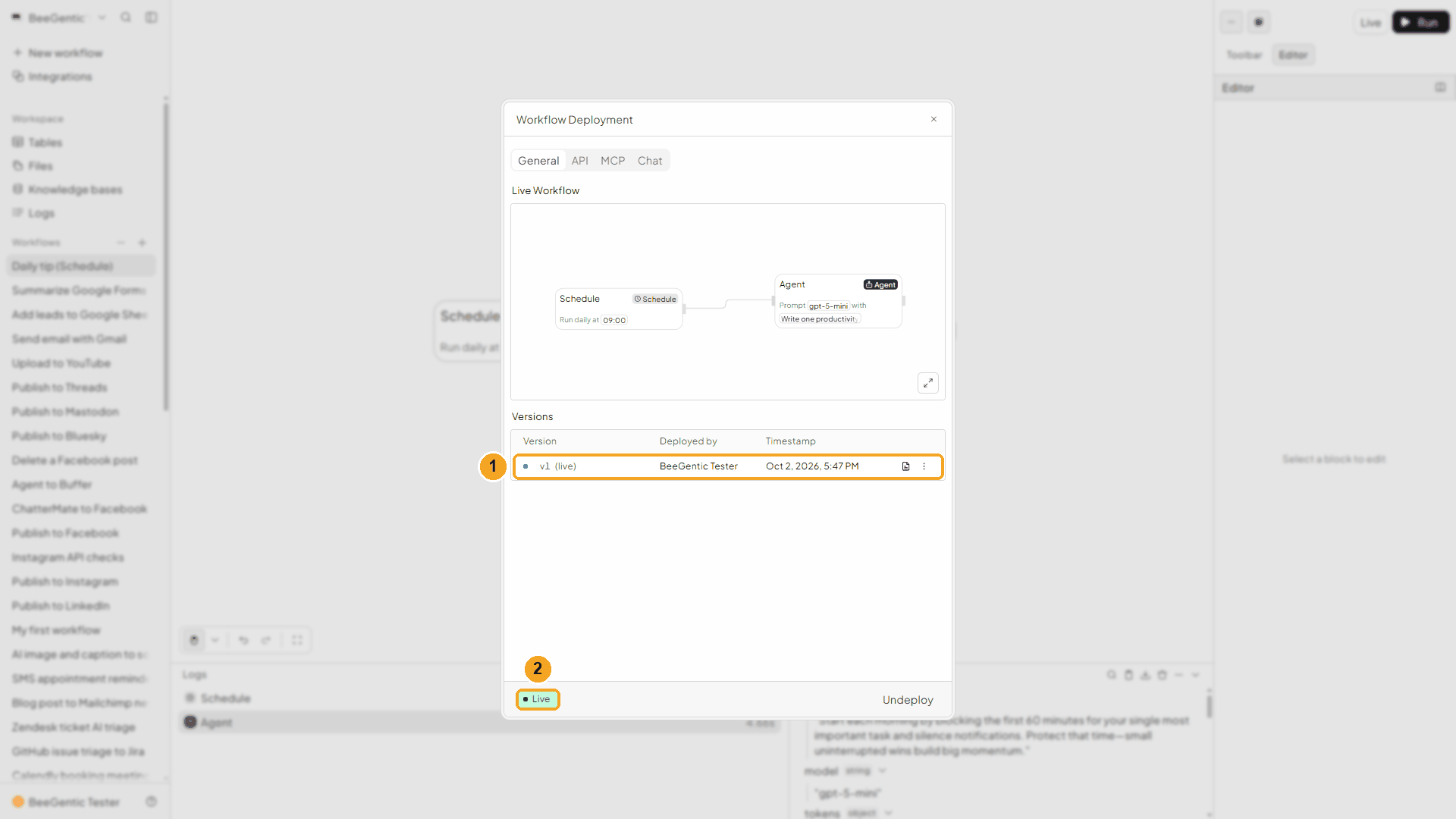
| # | What you see |
|---|---|
| 1 | Version v1 (live): the version the schedule runs. |
| 2 | Live. Close the window. The top button now says Live. |
Watch this step
Check the next run
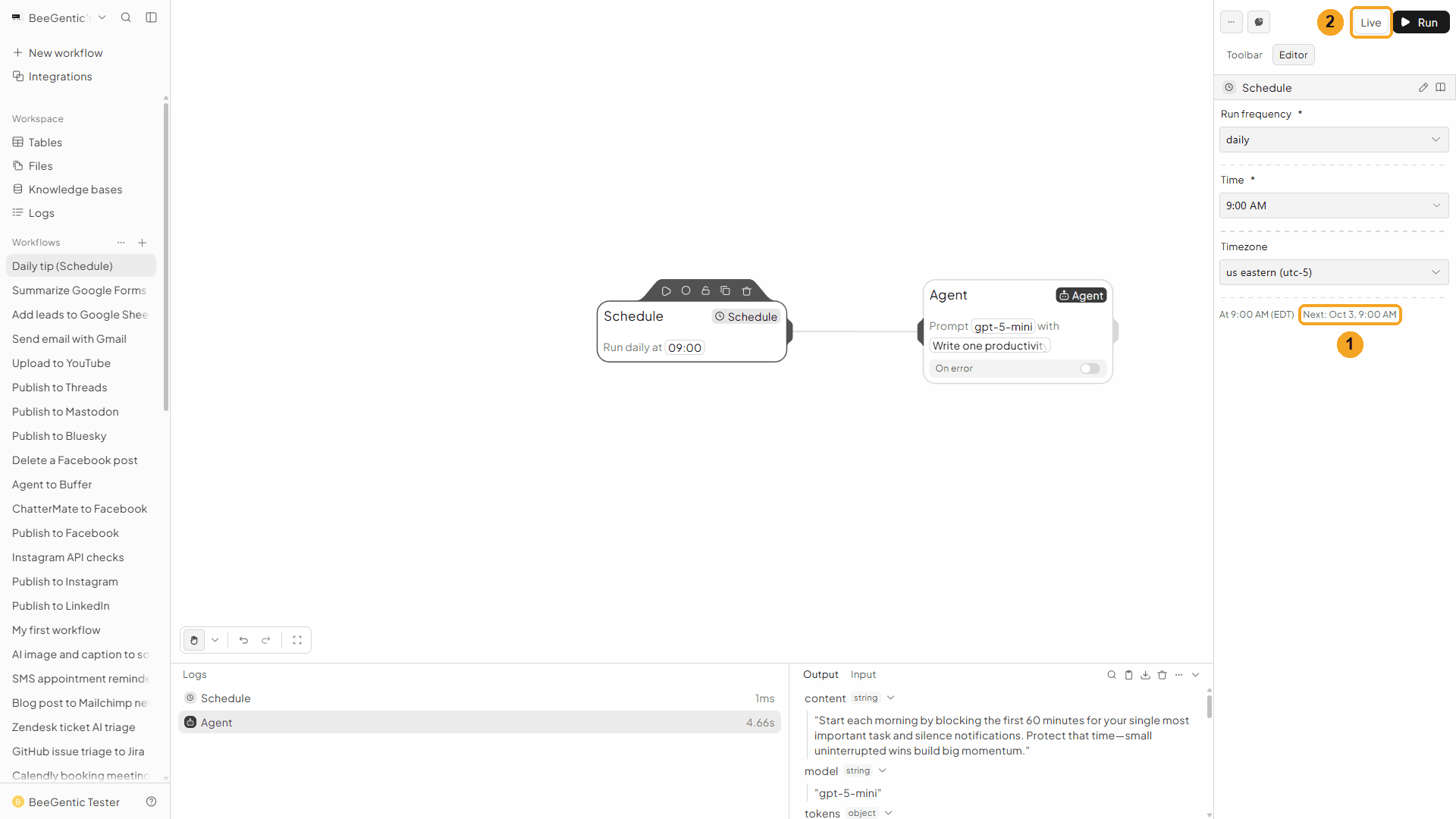
| # | What you see |
|---|---|
| 1 | Under the settings: At 9:00 AM (EDT) · Next: Oct 3, 9:00 AM. |
| 2 | Live: the deployed version is running the schedule. |
After you change the schedule, the button turns into Update. Click it, then Update in the window, or the old schedule keeps running.
Prove it: run every minute
To see an automatic run without waiting until tomorrow, switch for a moment to a 1-minute schedule.
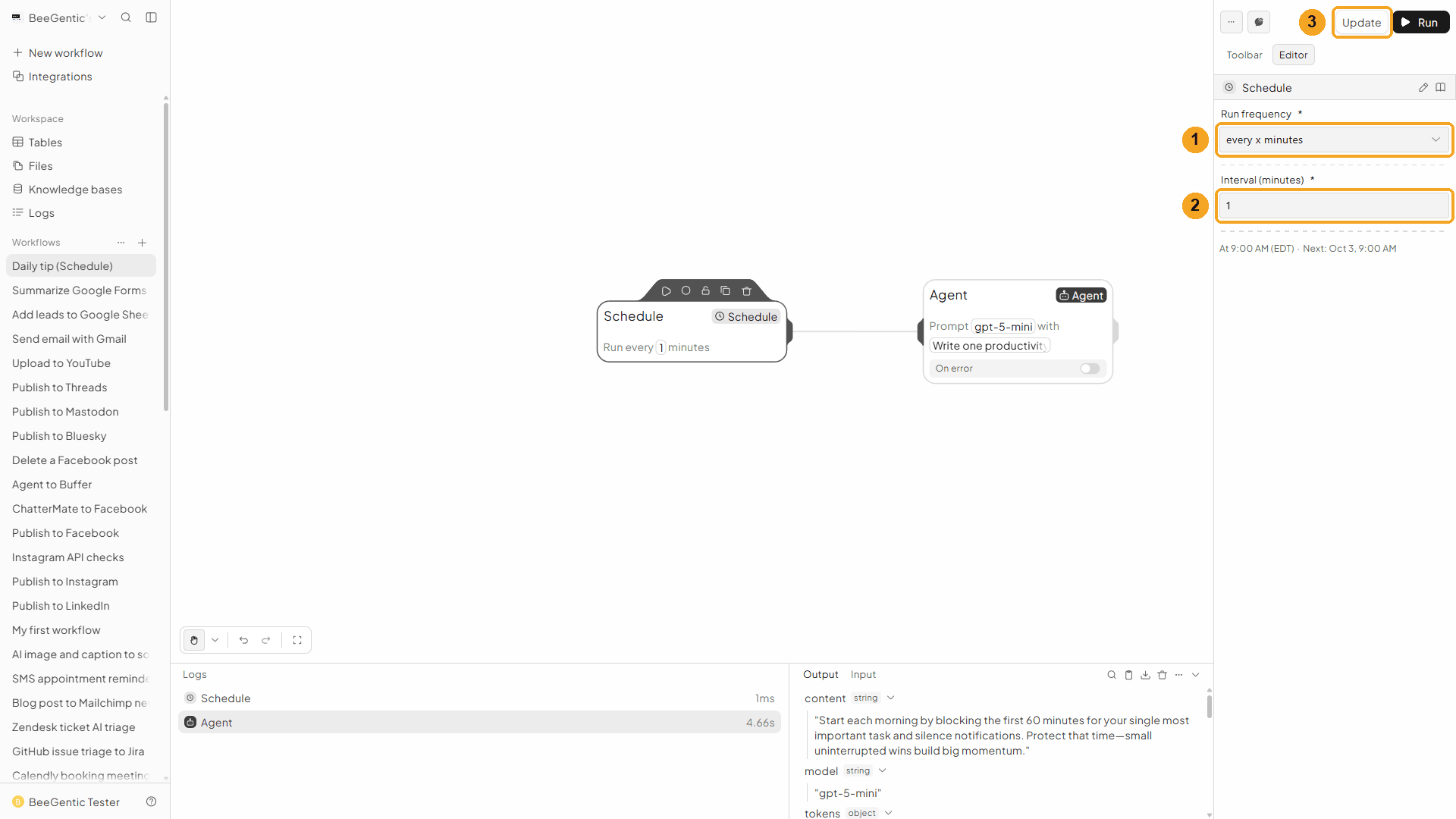
| # | What to do |
|---|---|
| 1 | Run frequency → Every X Minutes. |
| 2 | Interval (minutes): 1. |
| 3 | Click Update … |
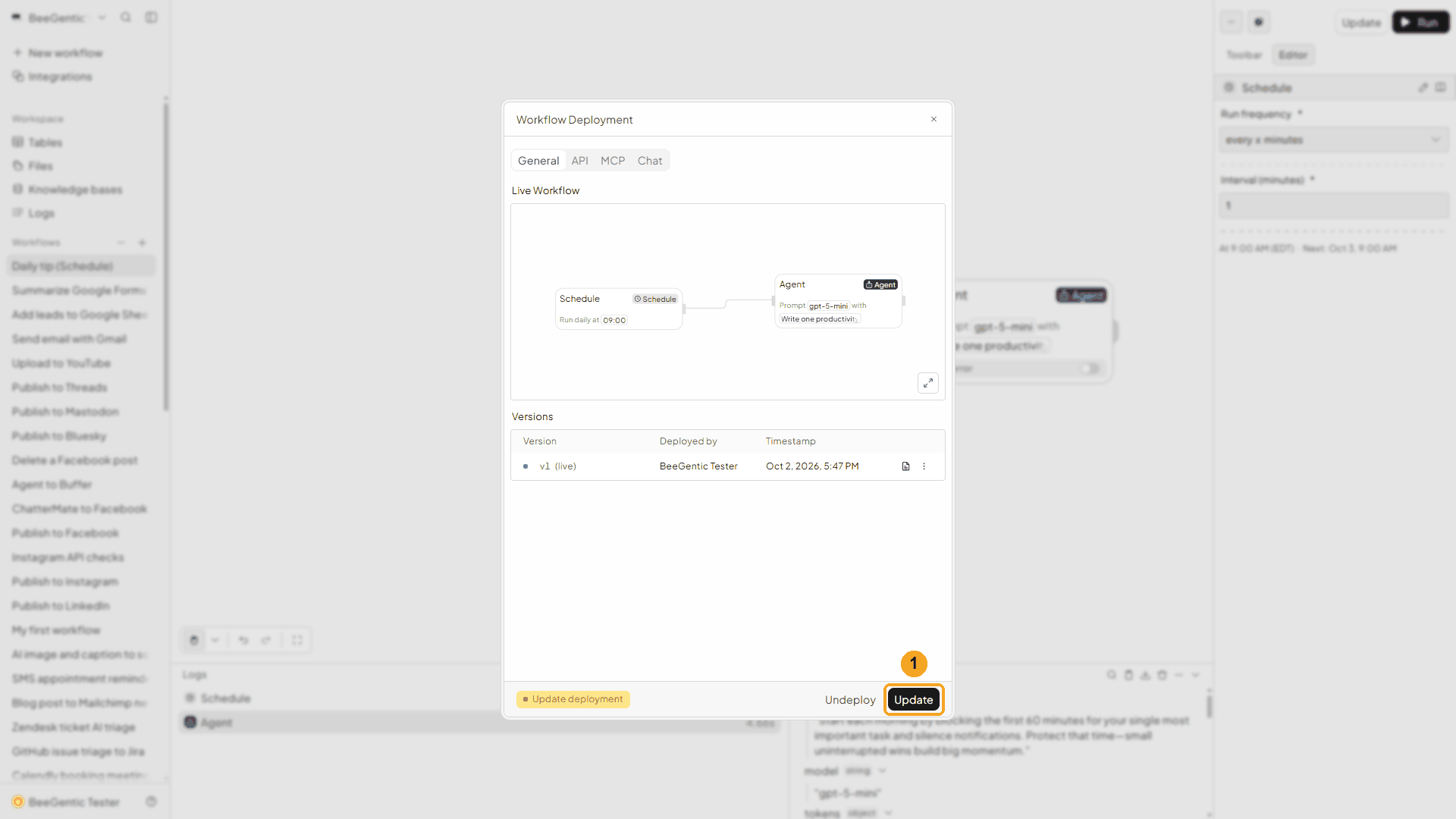
| # | What to do |
|---|---|
| 1 | … then Update in the window. |
Watch this step
See the automatic run in Logs
Open Logs in the sidebar. Within a minute or two:
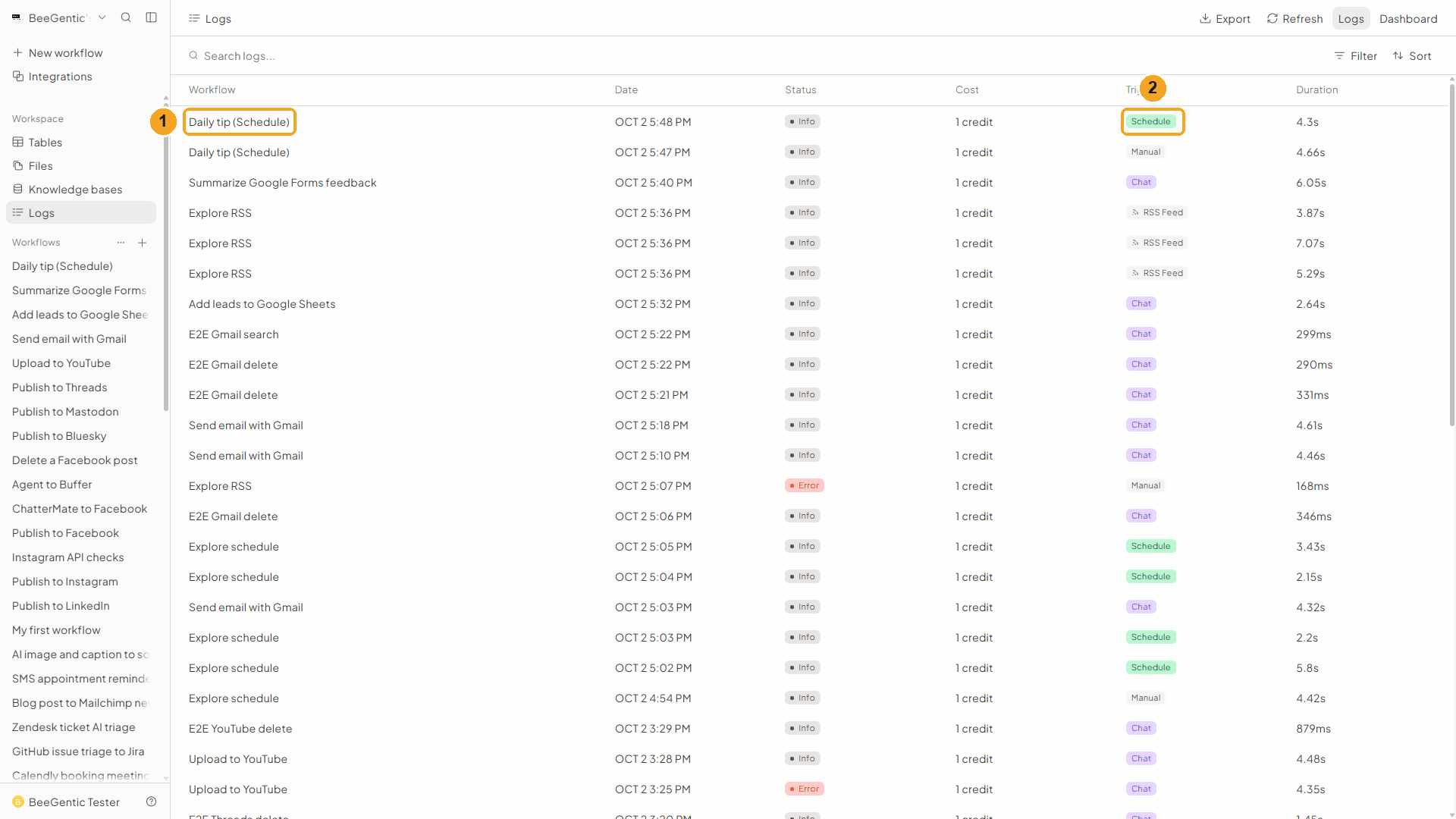
| # | What you see |
|---|---|
| 1 | A new run of Daily tip (Schedule) at 5:48 PM. Nobody clicked anything. |
| 2 | Trigger: Schedule. Your test run from Part 2 shows Manual. |
Watch this step
Open the run
Click the row.
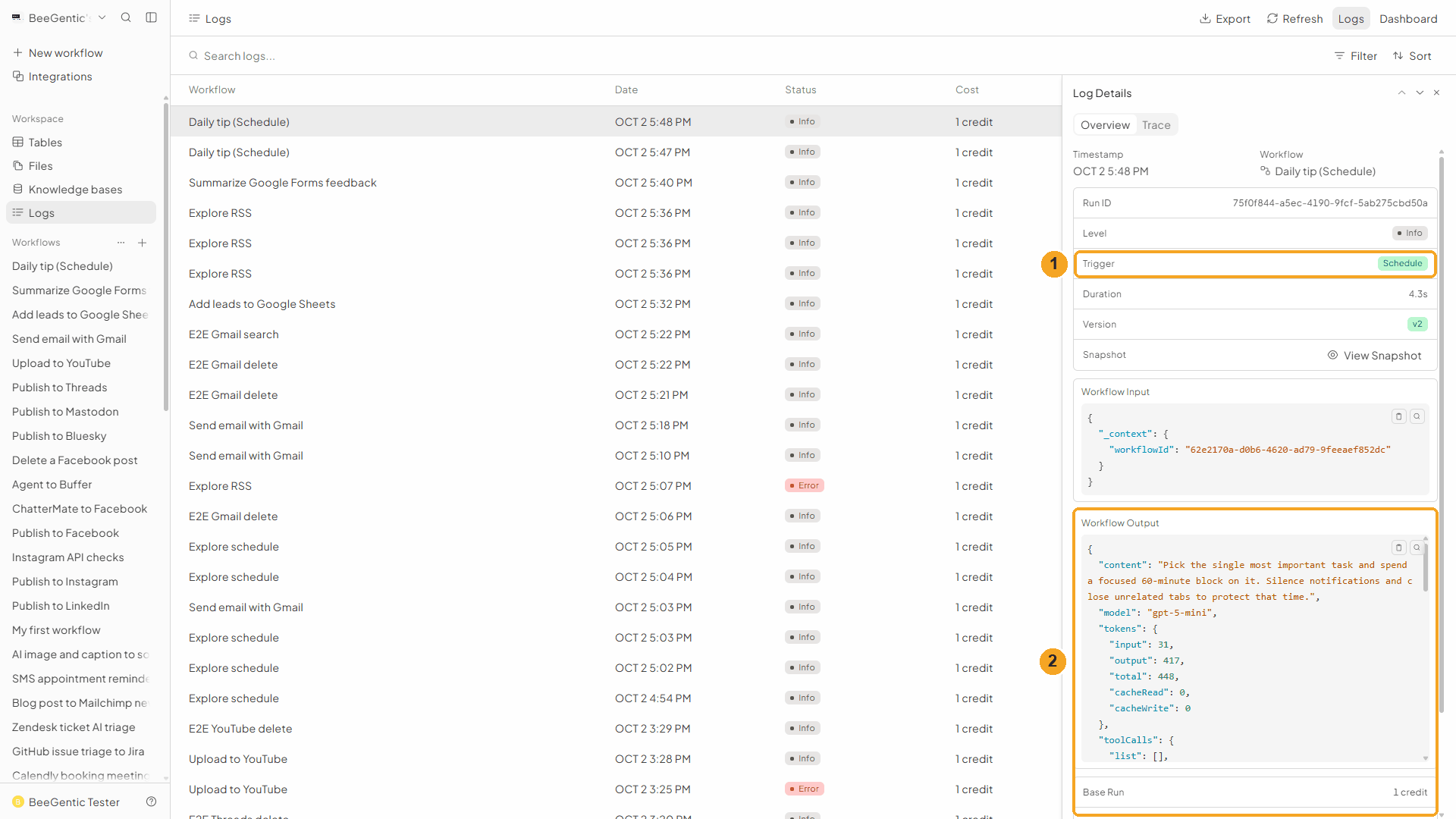
| # | What you see |
|---|---|
| 1 | Trigger: Schedule, the version that ran (v2) and how long it took (4.3 s). |
| 2 | Workflow Output: the tip the Agent wrote on its own, and the cost (1 credit). |
The real tip from the automatic run:
Watch this step
Set it back to daily at 9:00
Every run costs credits, so don't leave a 1-minute schedule running. Set Run frequency back to Daily, check Time is 9:00 AM, and click Update → Update.
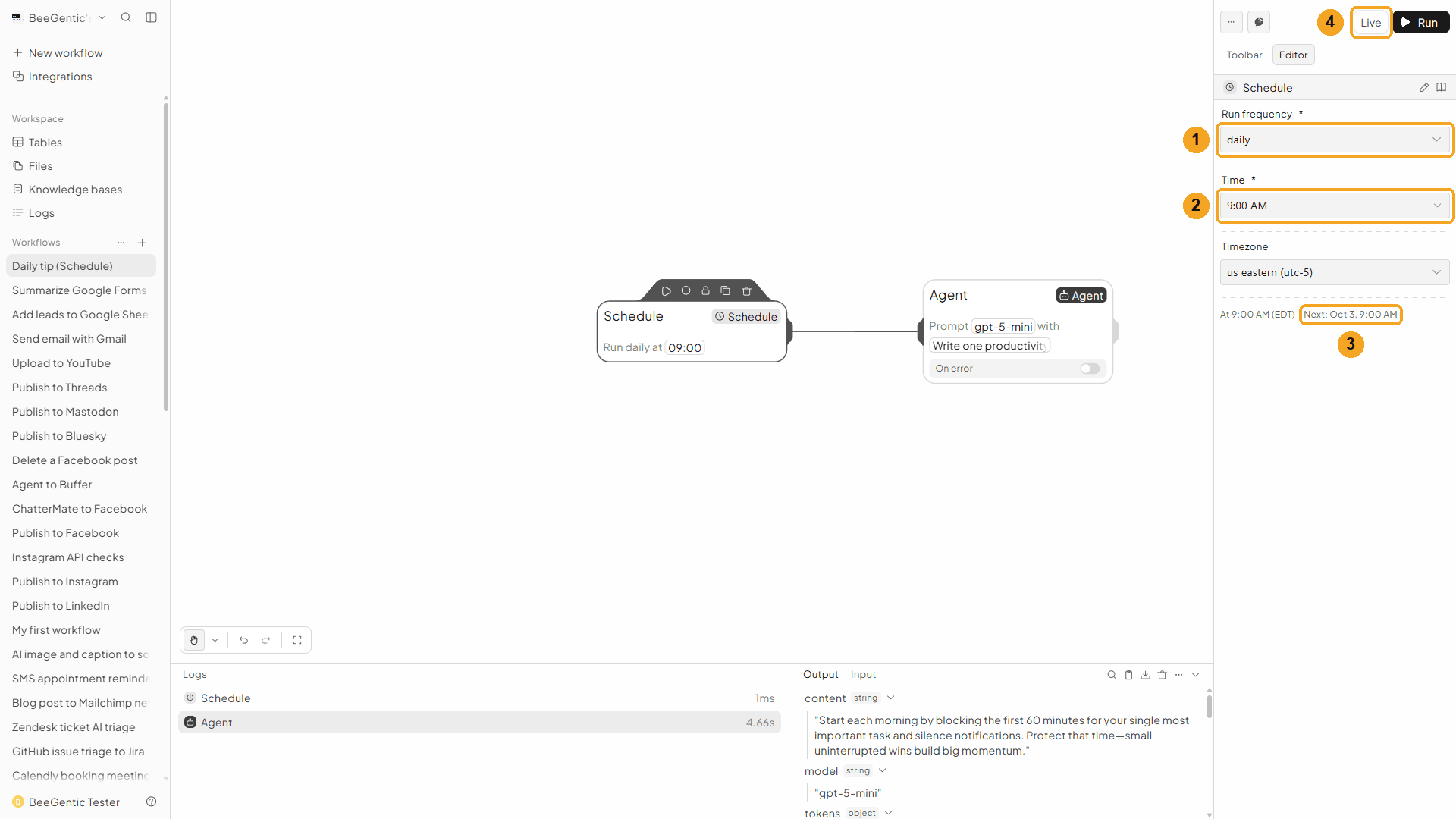
| # | What you see |
|---|---|
| 1 | Run frequency: Daily |
| 2 | Time: 9:00 AM |
| 3 | Next: Oct 3, 9:00 AM: tomorrow morning. It updates as soon as you deploy. |
| 4 | Live: the update is deployed. |
We undeployed this demo workflow afterwards, so it no longer runs.
Watch this step
Example settings
Trigger:        Schedule
Run frequency:  Daily
Time:           9:00 AM
Timezone:       US Eastern (UTC-5)
Agent model:    gpt-5-mini
Agent message:  Write one productivity tip of the day for a busy professional.
                Two short sentences, practical and friendly. Return only the tip.
⚡ Make it useful
The Agent's tip only lives in Logs so far. Send it somewhere by adding a block after the Agent and using <agent.content>:
| You want | Add after the Agent |
|---|---|
| The tip in your inbox every morning | Gmail → Send Email, body <agent.content> |
| A log of every tip | Google Sheets → Append Data: a row with the date and <agent.content> |
| A daily post on social | Bluesky, LinkedIn, Mastodon |
| A weekly report | Set Weekly, Monday 8:00 AM, and ask the Agent to summarize last week's form responses |
| React to new content instead of a clock | RSS Feed: start when a blog publishes something new |
Ideas
| Idea | Schedule |
|---|---|
| Morning motivation in Slack or email | Daily, 8:30 AM |
| Weekly team digest | Weekly, Friday 4:00 PM |
| Monthly invoice reminder | Monthly, day 1, 9:00 AM |
| Check a website every 15 minutes | Every X Minutes, 15 |
| Weekday stand-up prompt | Custom (Cron), 0 9 * * 1-5 |
Troubleshooting
| Problem | Fix |
|---|---|
| It never runs on its own | The workflow must be deployed: the top button should say Live. Run only tests once. |
| It still runs on the old schedule | You changed the block but didn't deploy the change. Click Update, then Update in the window. |
| It runs at the wrong hour | Check Timezone. For cron, the hours in the expression are in that time zone. |
| "Time is required for daily schedules" | Set Time in the block. Weekly and monthly also need a day: "Day and time are required for weekly schedules". |
| "Cron expression is required for custom schedules" or "Invalid cron expression: …" | Use five fields separated by spaces, e.g. 0 9 * * 1-5, or click Generate. |
| A disabled badge and "Disabled after 100 consecutive failures" | The workflow failed 100 times in a row. Open Logs to see why, fix it, then click the disabled badge to redeploy the schedule. |
| Too many runs or credits | Use a longer interval, or Live → Undeploy to stop the schedule completely. |
Tool guides
Step-by-step guides with narrated videos for the most-used BeeGentic tools, from schedules and RSS to Gmail, Google Sheets, Calendar, Drive and Forms.
Start a workflow from an RSS feed
Run a workflow every time a blog, news site or podcast publishes something new. Use the article's title, link, author and text in your blocks. Step by step with a narrated video and real automatic runs.