


Save files to Google Drive
Create, upload, share, move and search Google Drive files from a workflow, or start a workflow when a file changes. Step by step with a narrated video and a real result.
What you'll build: you type a quick summary of a meeting in Chat, an AI writes tidy meeting notes, and BeeGentic saves them as a Google Doc in a Drive folder. Three blocks: Start → Agent → Google Drive. About 5 minutes.
Connect with: 🔐 Sign in with your account · You need: A Google account with Google Drive, and an AI key for the Agent
Not supported: Editing the text inside an existing Google Doc (Update File changes name, description, star and folders only) · Formatting documents (headings, bold, tables) · Creating new shared drives · Instant reactions to changes: the trigger checks every few minutes
✅ action you can add to a workflow · ⚡ event that can start a workflow
Narrated walkthrough (about 2½ min), with captions (CC button). Each step below also has a short silent clip. The orange numbers in each screenshot match the # column under it. Click a screenshot to enlarge it.
Before you start
| You need | Why |
|---|---|
| A Google account (Gmail or Google Workspace) | BeeGentic saves files to your Drive as you |
| A folder for the notes (optional) | Keeps the files together. We made BeeGentic demo. Without a folder, files go to the top of My Drive. |
An AI key saved as a secret, e.g. OPENAI_API_KEY | The Agent writes the notes. See References and secrets. |
Part 1: Connect Google Drive (once)
Make a folder in Drive
In Google Drive: New → New folder, name it, e.g. BeeGentic demo.
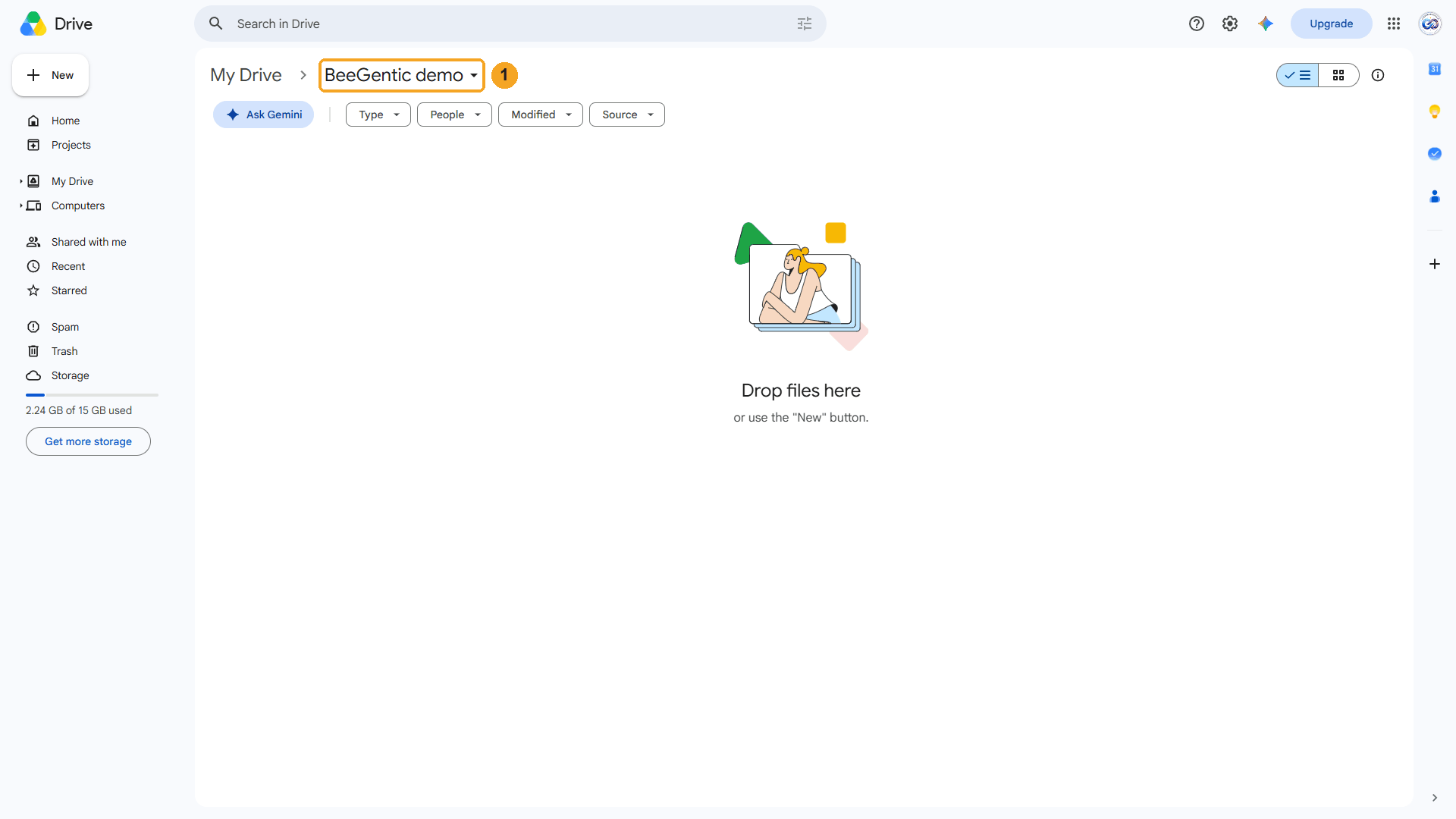
| # | What you see |
|---|---|
| 1 | The empty BeeGentic demo folder. The workflow will save the notes here. |
Watch this step
Find Google Drive in Integrations
In BeeGentic: Integrations → search Google Drive.
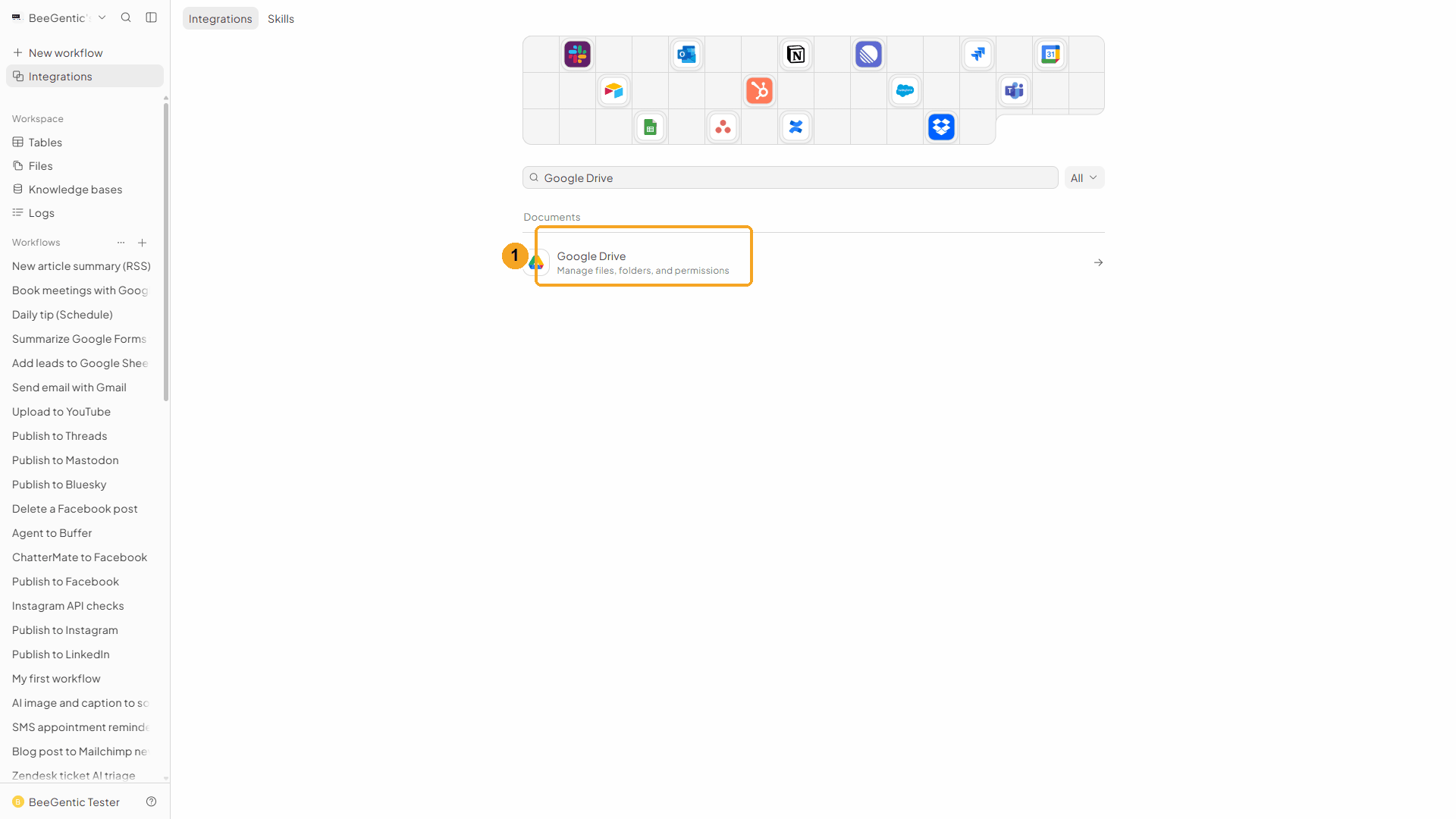
| # | What to do |
|---|---|
| 1 | Click Google Drive, then Add to BeeGentic. |
Watch this step
Confirm and connect
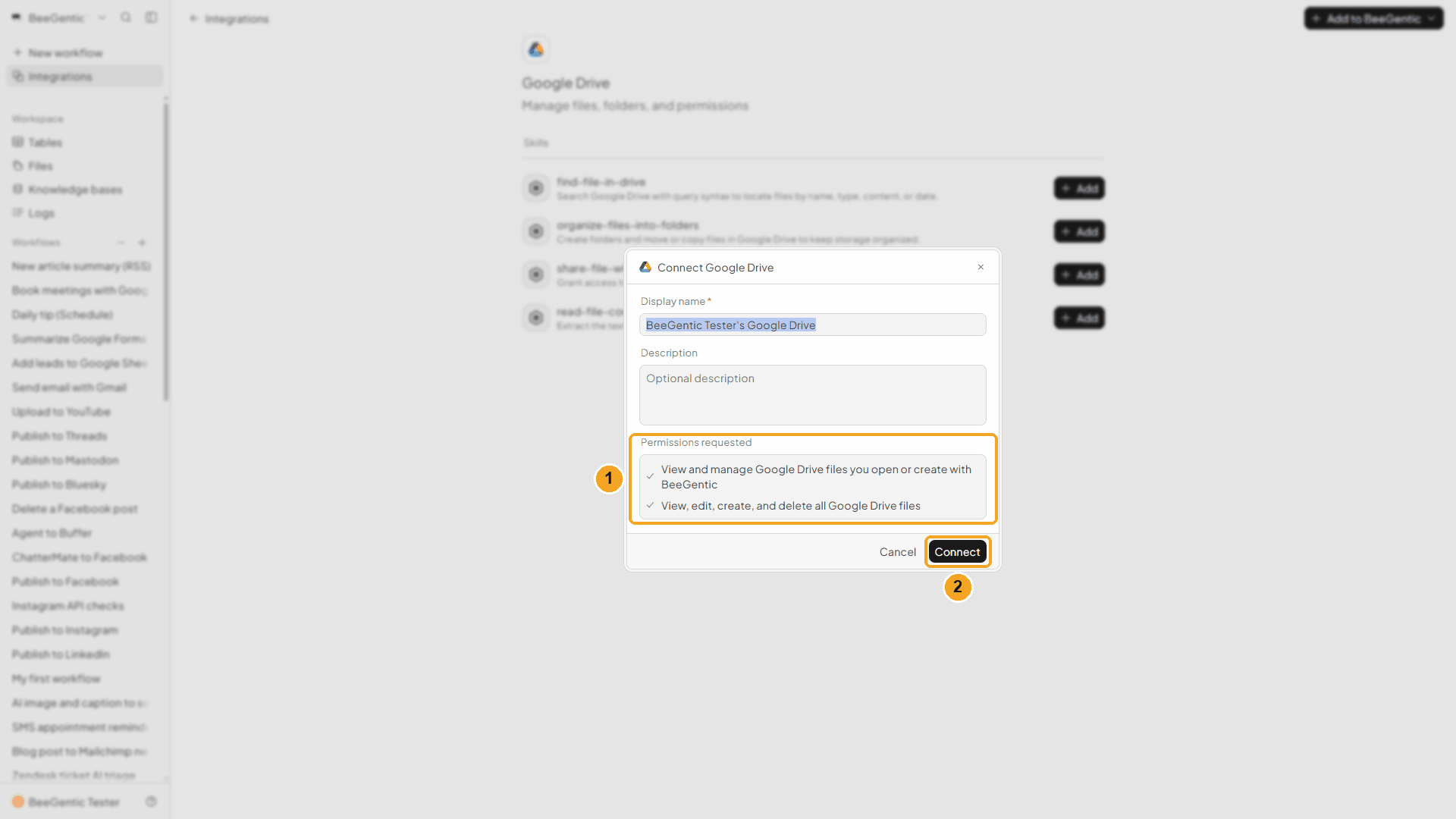
| # | What it means |
|---|---|
| 1 | What BeeGentic may do: view and manage Google Drive files you open or create with BeeGentic, and view, edit, create and delete all Google Drive files. The second one is what lets you pick any folder or file from a list. |
| 2 | Click Connect. Google opens. |
Watch this step
Pick your Google account
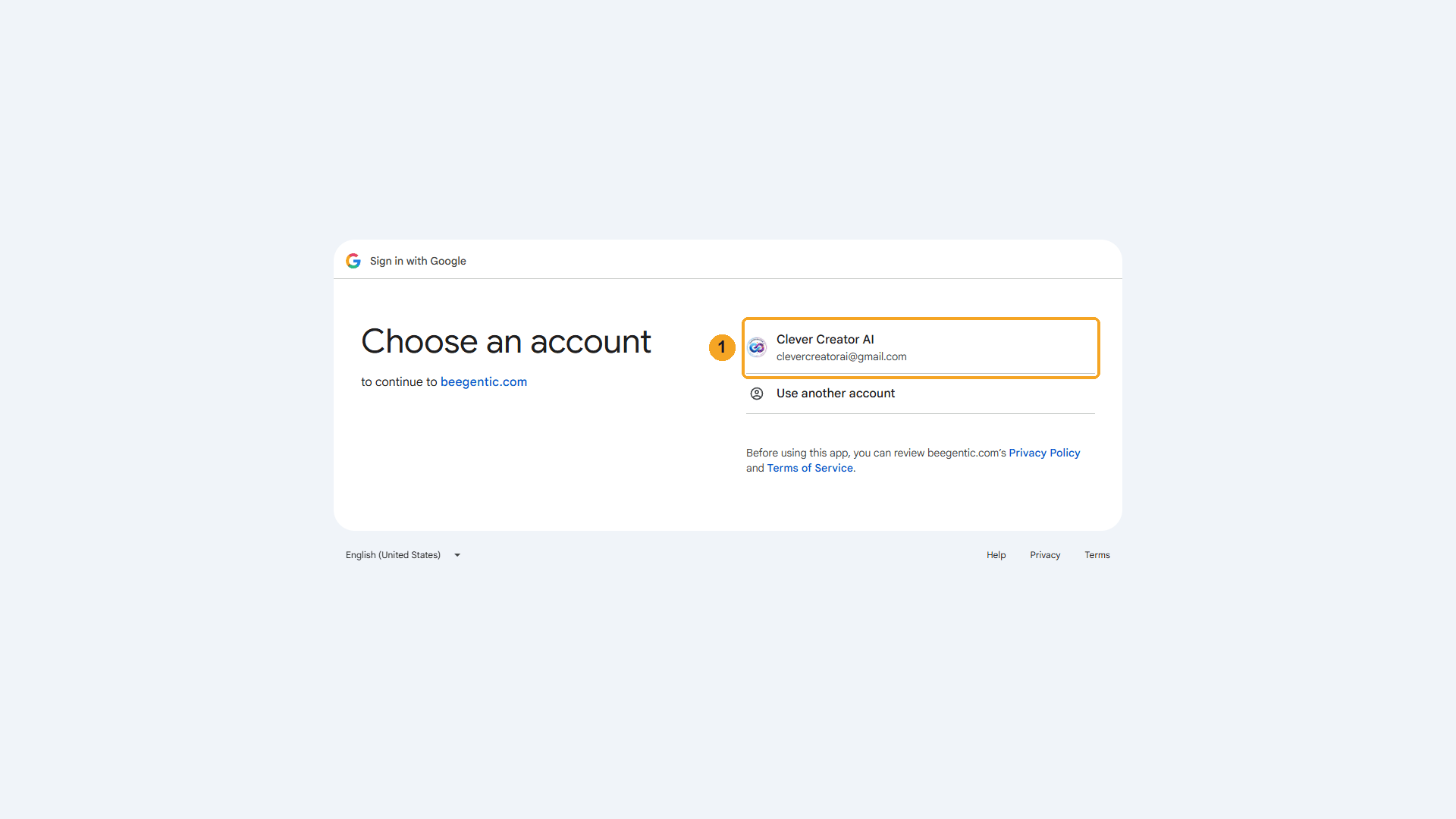
| # | What to do |
|---|---|
| 1 | Click the account that owns the Drive, then allow access. You're sent back to BeeGentic, connected. |
Watch this step
Part 2: Build the workflow
Create the workflow and add the Agent
+ New workflow → name it Save meeting notes to Google Drive. Then Toolbar → Agent. In Messages:
Write short meeting notes from this summary: <start.input>. Plain text: a title line, then the sections Summary, Decisions and Next steps, each with 2 or 3 short bullet points that start with "- ".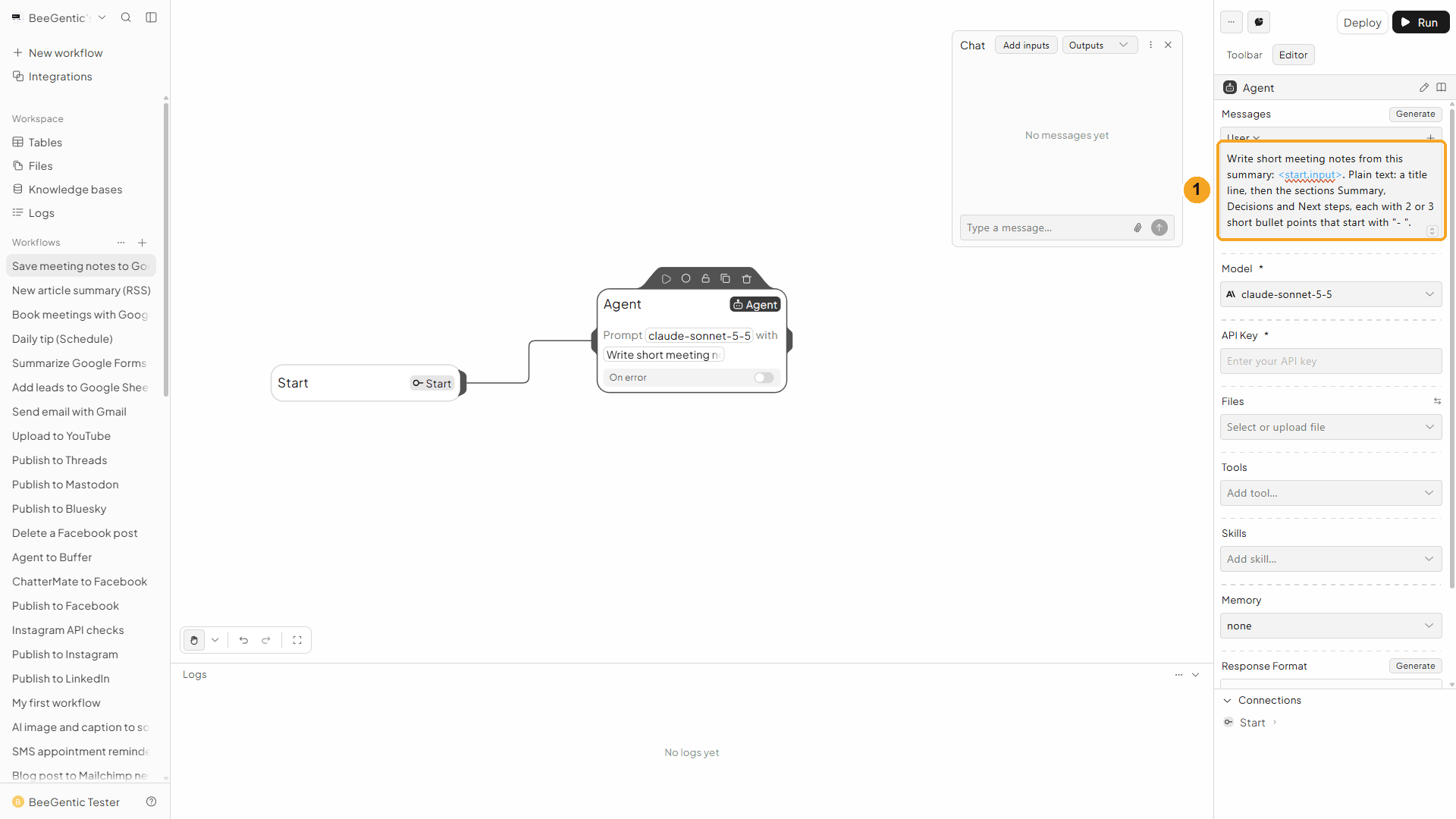
| # | What you see |
|---|---|
| 1 | The message. <start.input> is replaced by what you type in Chat. We ask for plain text, because Drive saves the text exactly as written (**bold** would show up as stars). |
Watch this step
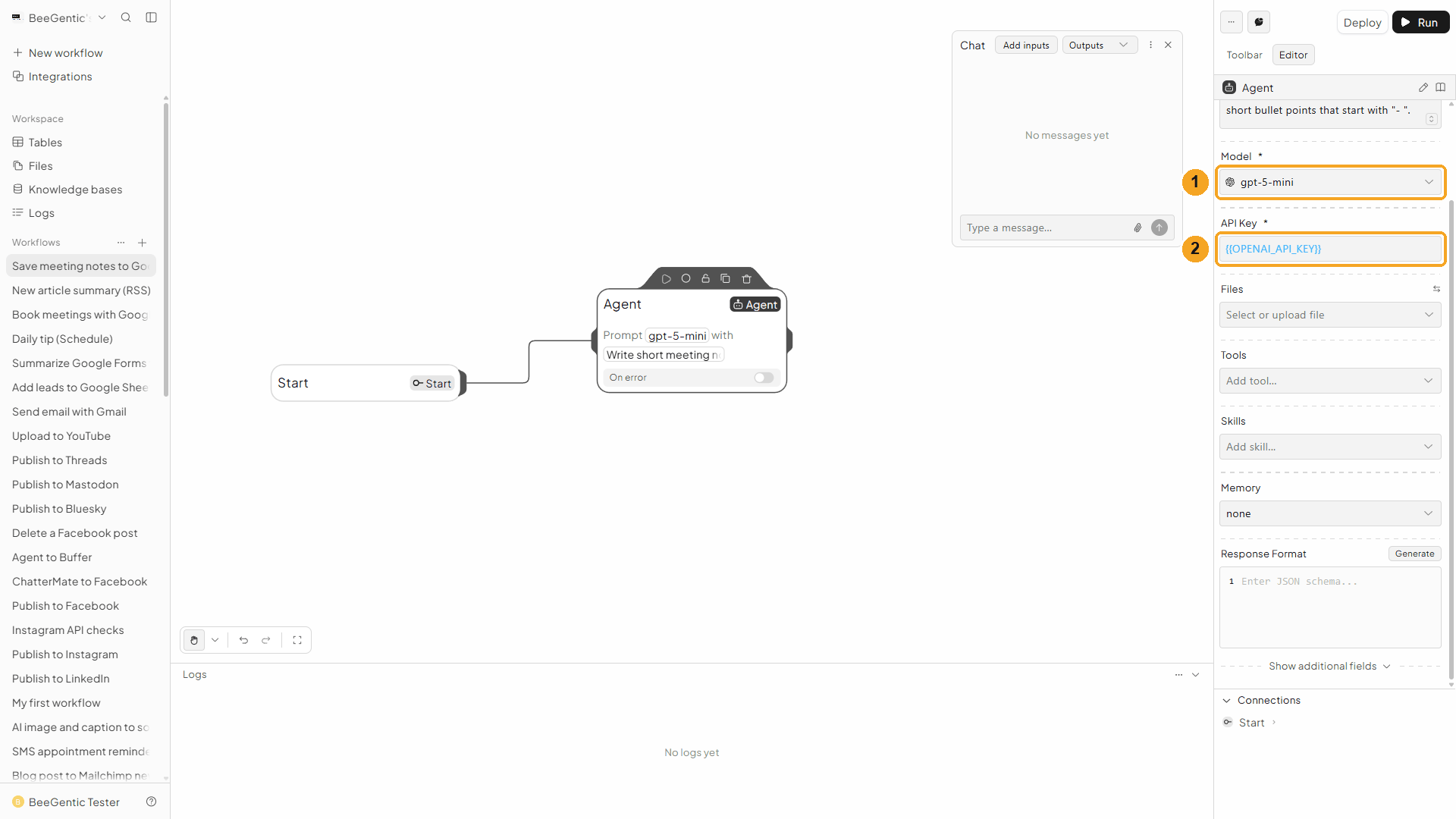
Add the Google Drive block
Toolbar → Google Drive (in the tools list, not the one under Triggers). It connects to the Agent automatically.
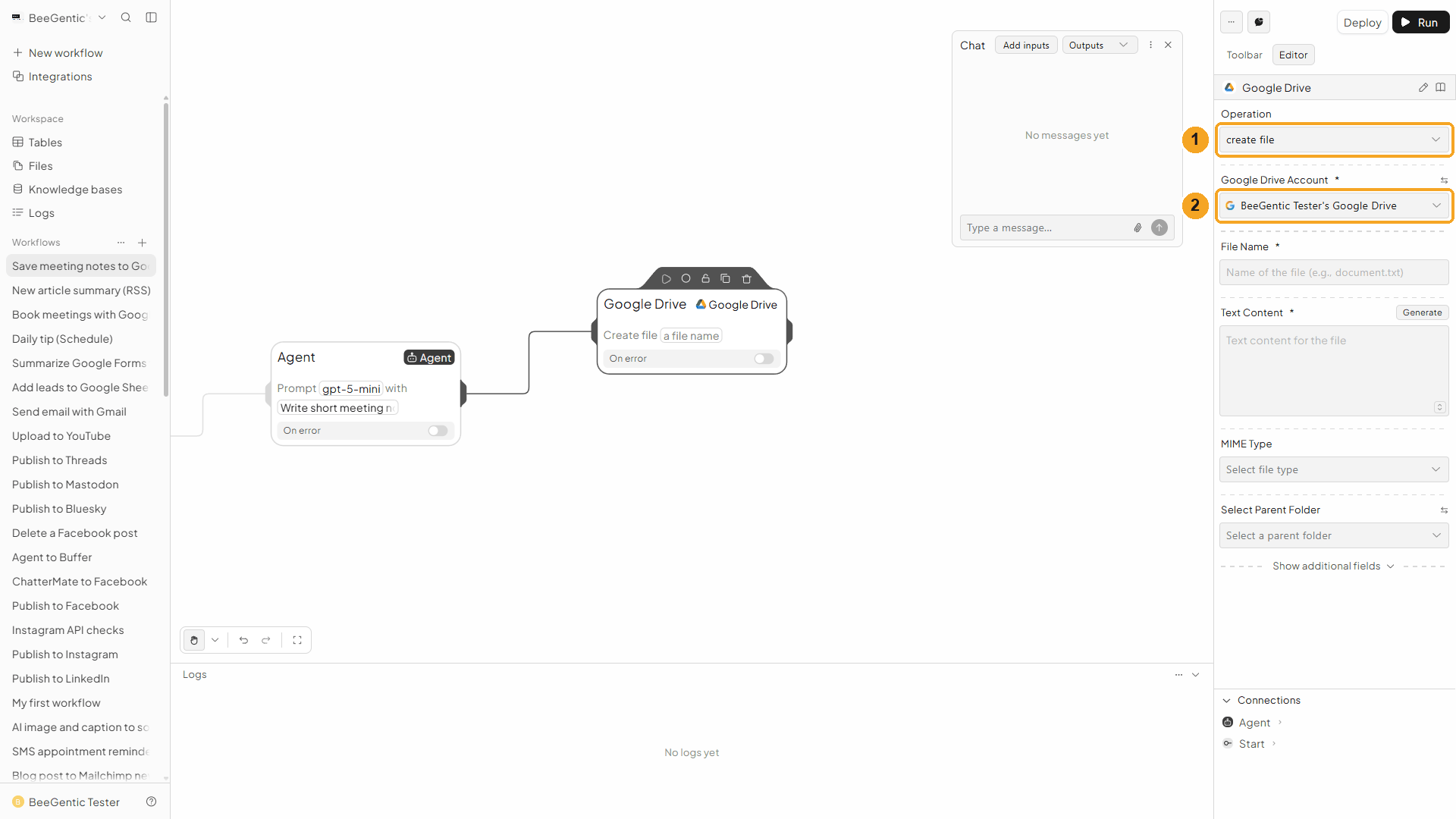
| # | Field | Value |
|---|---|---|
| 1 | Operation | Create File |
| 2 | Google Drive Account | The connection from Part 1 |
Watch this step
Name, content and file type
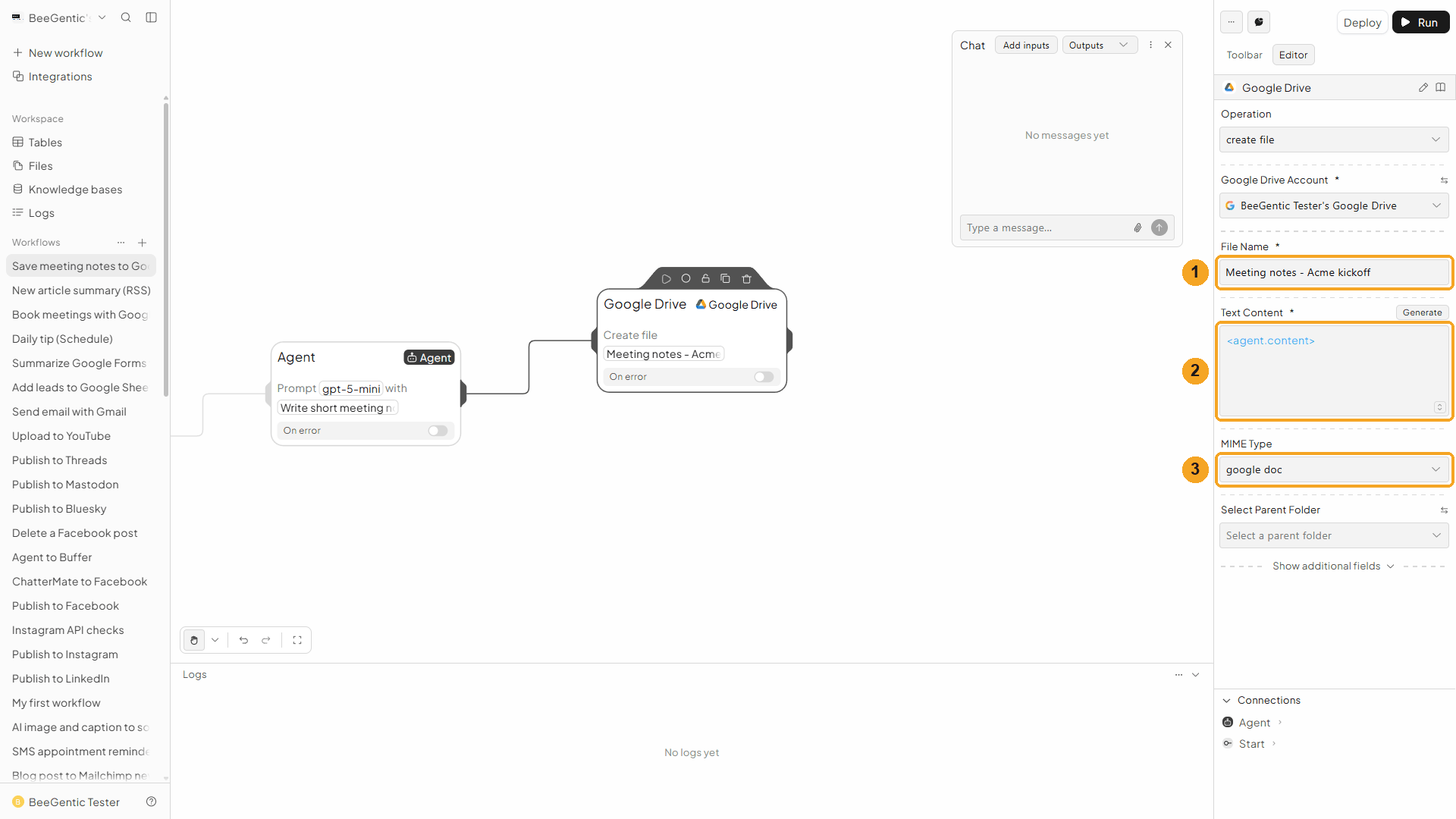
| # | Field | Value |
|---|---|---|
| 1 | File Name | Meeting notes - Acme kickoff. You can mix in references, e.g. Notes <start.input>. |
| 2 | Text Content | <agent.content>: the notes the Agent wrote |
| 3 | MIME Type | Google Doc, so Drive turns the text into a Google Doc you can edit |
The other MIME types: Plain Text, Google Sheet (send CSV text), Google Slides, HTML, CSV and PDF. To send a real file (an image, a PDF from an earlier block) use Upload File instead.
Watch this step
Pick the folder
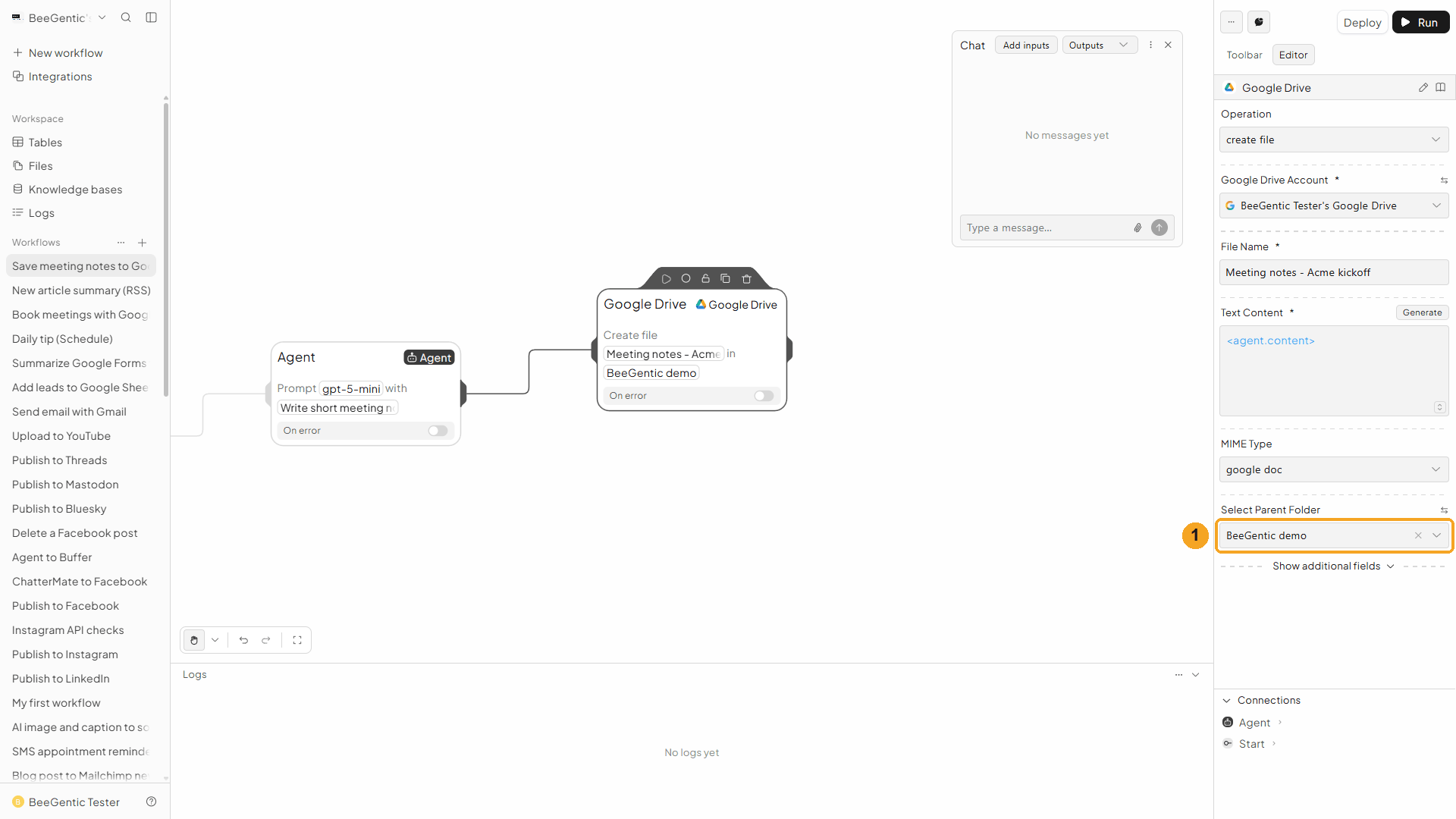
| # | Field | Value |
|---|---|---|
| 1 | Select Parent Folder | Click it and type part of the name, e.g. BeeGentic demo, then pick it. (The list of your other folders is blurred in the video.) Leave it empty to save in My Drive. |
The ⇆ icon next to the label switches to typing a Parent Folder ID instead: it's the last part of the folder's web address, after /folders/.
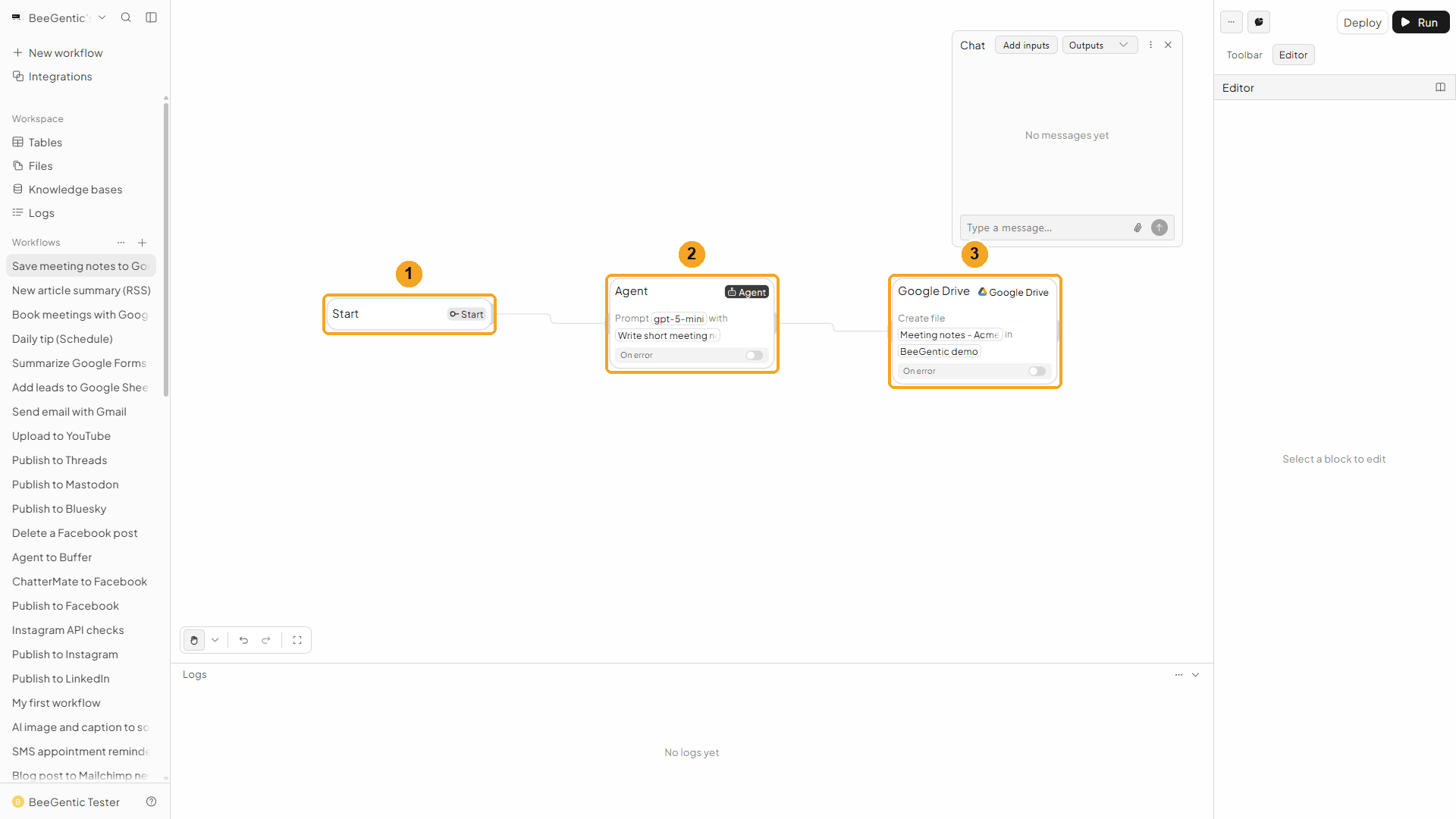
Press Shift + L to tidy. Your finished workflow:
| # | Block | What it does |
|---|---|---|
| 1 | Start | Your chat message becomes <start.input> |
| 2 | Agent | Writes the meeting notes |
| 3 | Google Drive | Saves them as a Google Doc in the folder |
Watch this step
Part 3: Run it and check the result
Type the meeting summary in Chat
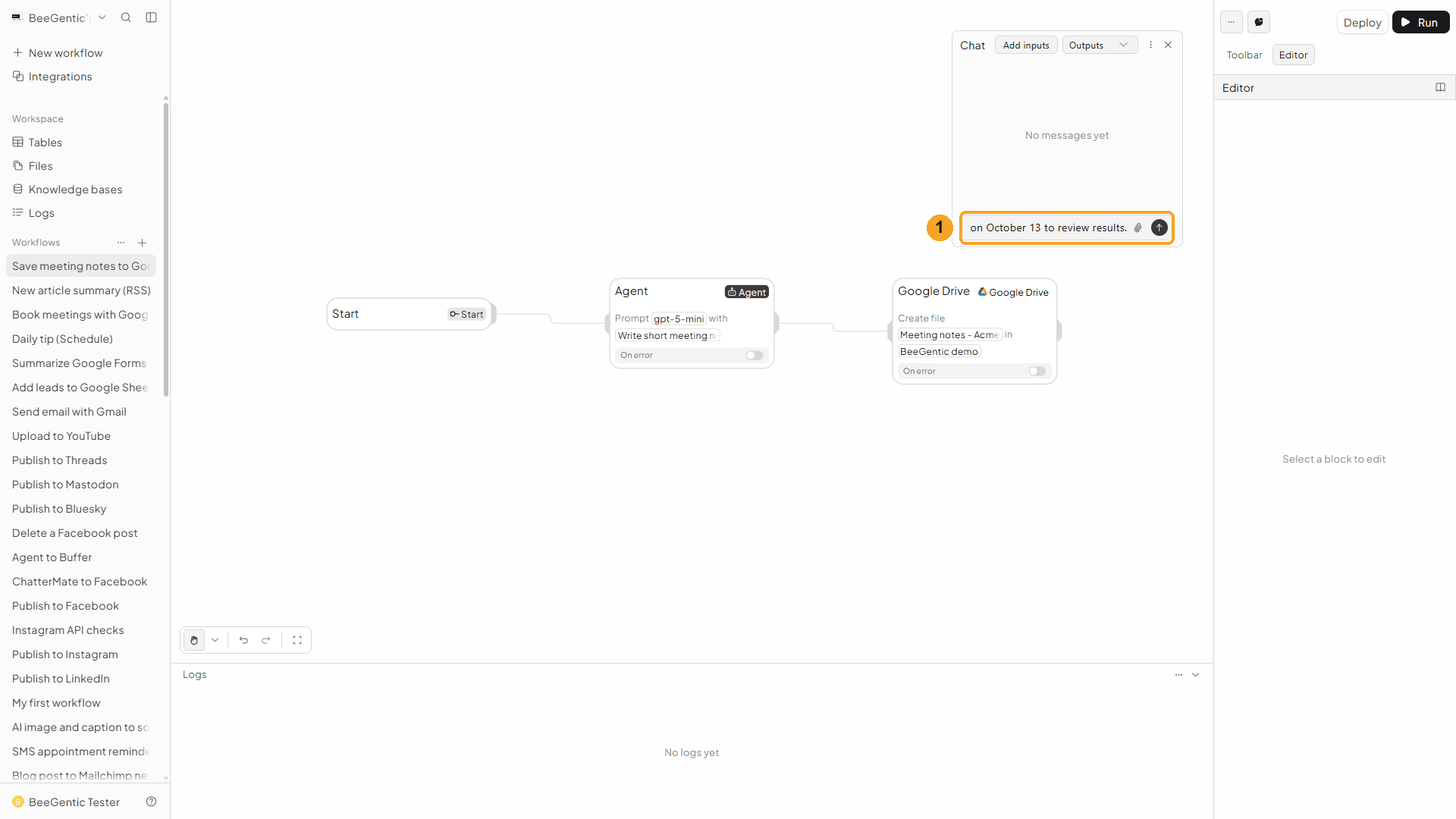
| # | What to do |
|---|---|
| 1 | Open Chat (speech-bubble button), type a few lines about the meeting and press Enter. |
Example message we sent:
Kickoff call with Acme today: we agreed on a two-week pilot with 5 users, Sam sends the contract by Friday, and we meet again on October 13 to review results.Read the output
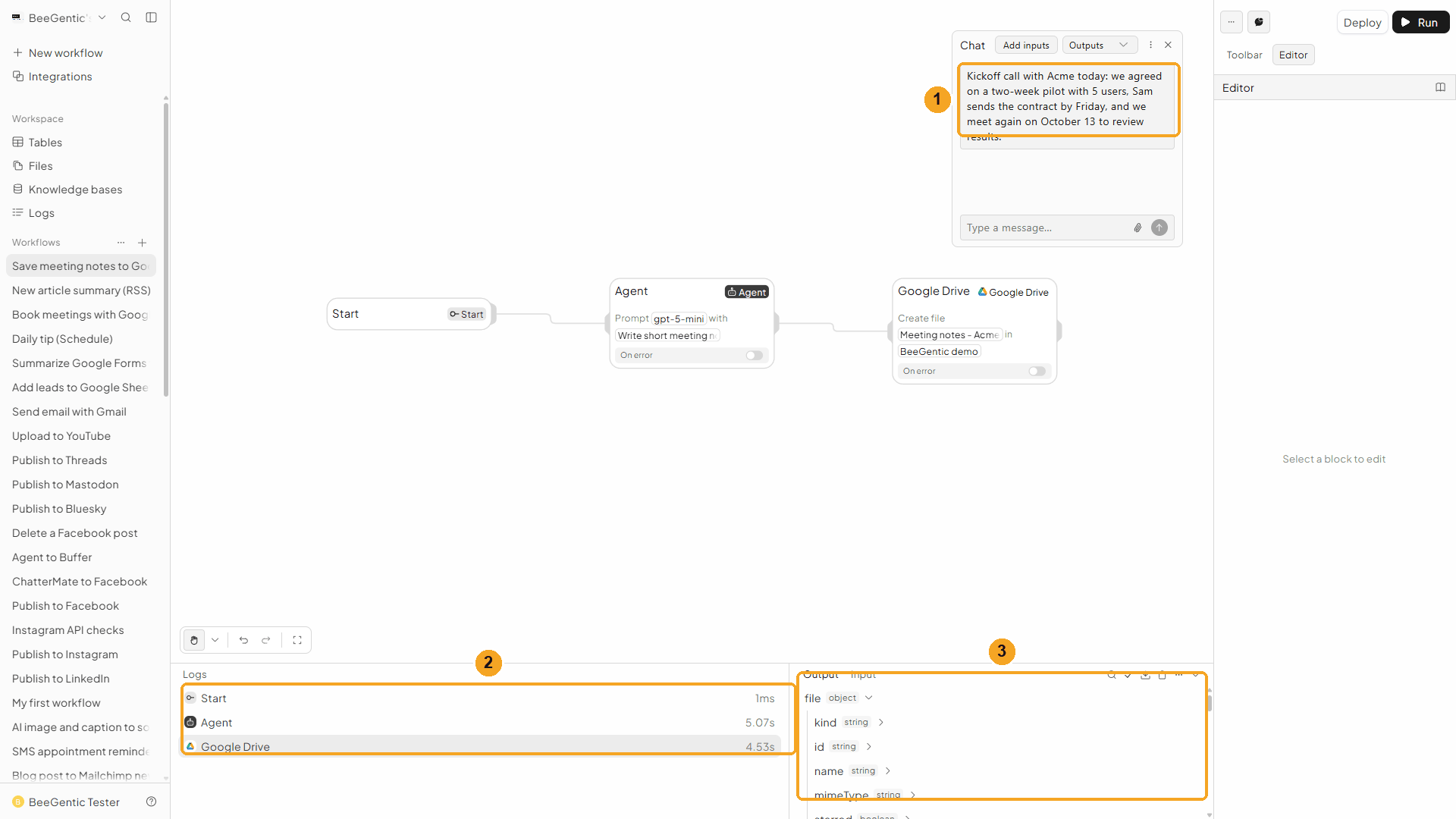
| # | What you see |
|---|---|
| 1 | Your message. |
| 2 | Each block's run time: the Agent about 5 s, Google Drive about 4.5 s. |
| 3 | The output: a file object with the file's id (here 1K6-1SH7ZmaFvU7fIkEdnYWT87LSy97Xb1W3H8LJnIl0), name, mimeType (application/vnd.google-apps.document, a Google Doc), parents (the folder's ID) and webViewLink, the link that opens the doc. |
Watch the run
See it in Drive
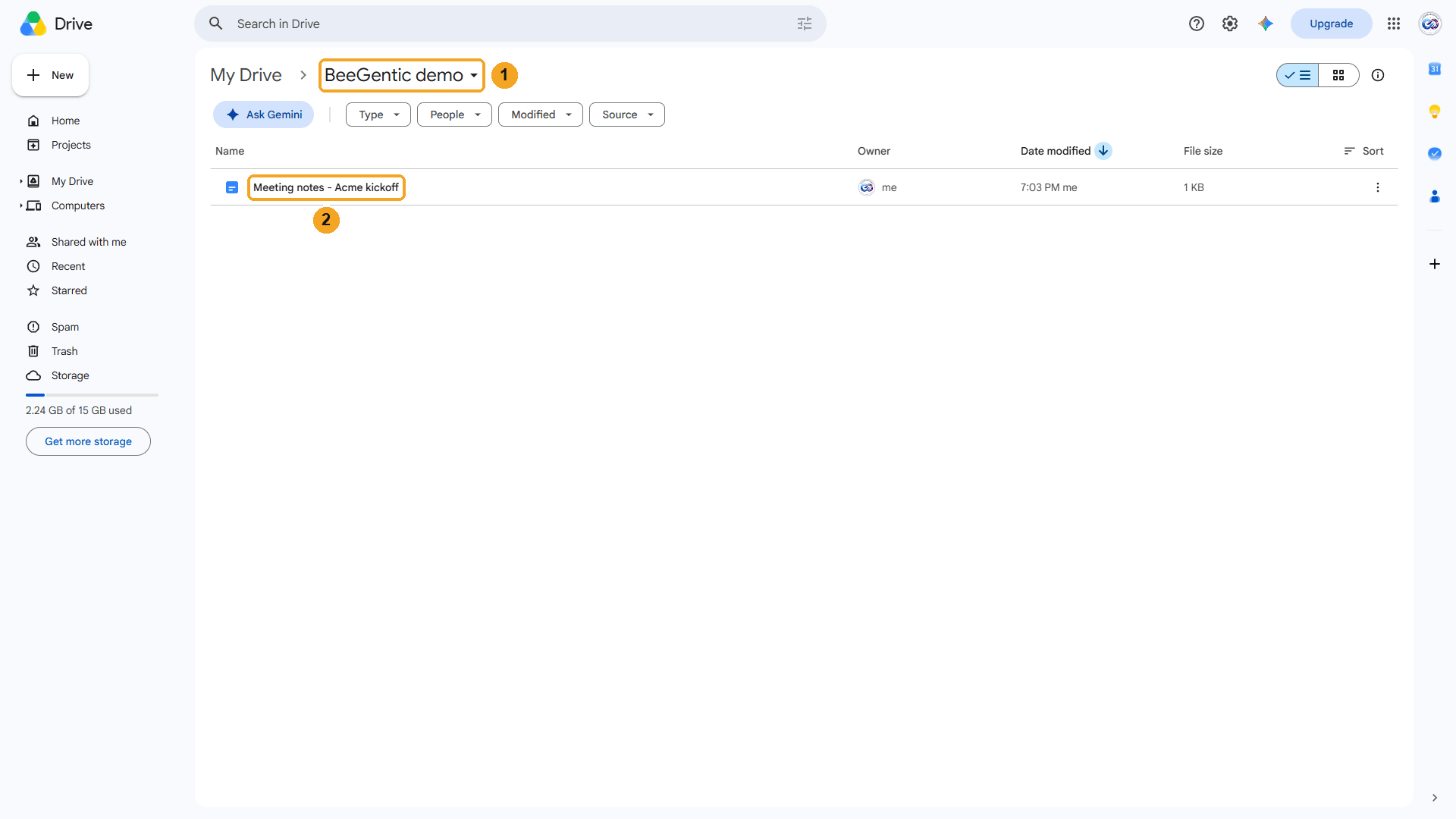
| # | What you see |
|---|---|
| 1 | The BeeGentic demo folder. |
| 2 | The new Google Doc, Meeting notes - Acme kickoff, created by the workflow. |
Watch this step
Open the doc
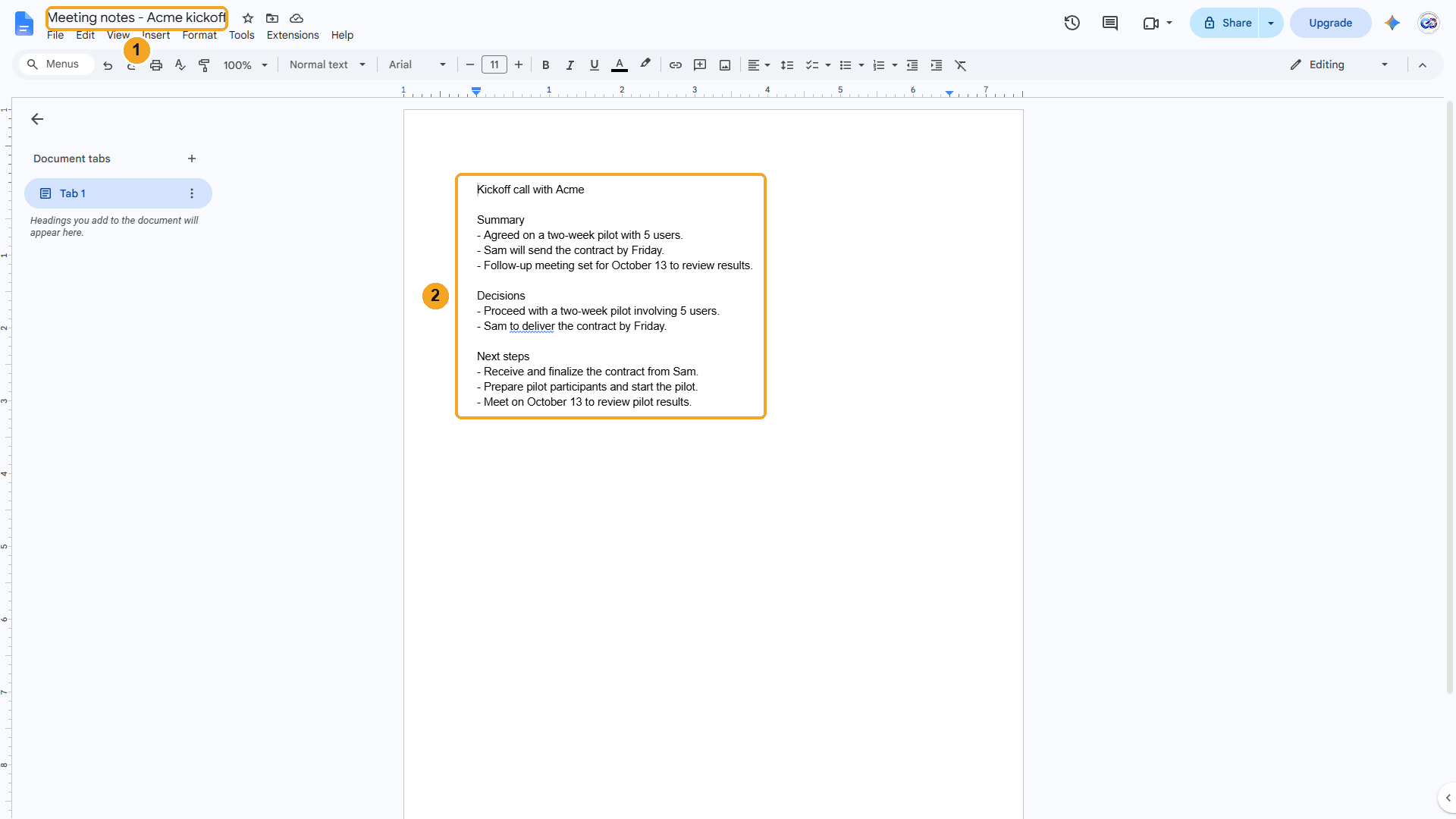
| # | What you see |
|---|---|
| 1 | The file name from File Name. |
| 2 | The notes the Agent wrote, as an editable Google Doc. |
The real notes BeeGentic saved:
Summary
- Agreed on a two-week pilot with 5 users.
- Sam will send the contract by Friday.
- Follow-up meeting set for October 13 to review results.
Decisions
- Proceed with a two-week pilot involving 5 users.
- Sam to deliver the contract by Friday.
Next steps
- Receive and finalize the contract from Sam.
- Prepare pilot participants and start the pilot.
- Meet on October 13 to review pilot results.
We deleted this test doc afterwards with Delete Permanently (below) and kept the empty folder.
Watch this step
⚡ Make it automatic
| You want | Do this |
|---|---|
| Email the notes to the team | Add a Gmail Send Email after Google Drive and put the doc's webViewLink from the Google Drive output in the body. Or attach a file with Gmail's Attachments. |
| Keep a list of every doc | Add a Google Sheets Append Data with the file name and link. |
| Save every form answer as a doc | Google Forms → Agent → Google Drive. |
| A weekly report file | Schedule trigger → Agent → Google Drive Create File. |
| Let someone else open it | Add a second Google Drive block with Share File (below), using the file id from the first one. |
| React to new files in a folder | Use the Google Drive File Trigger (below). |
Google Drive File Trigger
Starts the workflow when a file is created, changed or deleted. In the Toolbar it's Google Drive under Triggers.
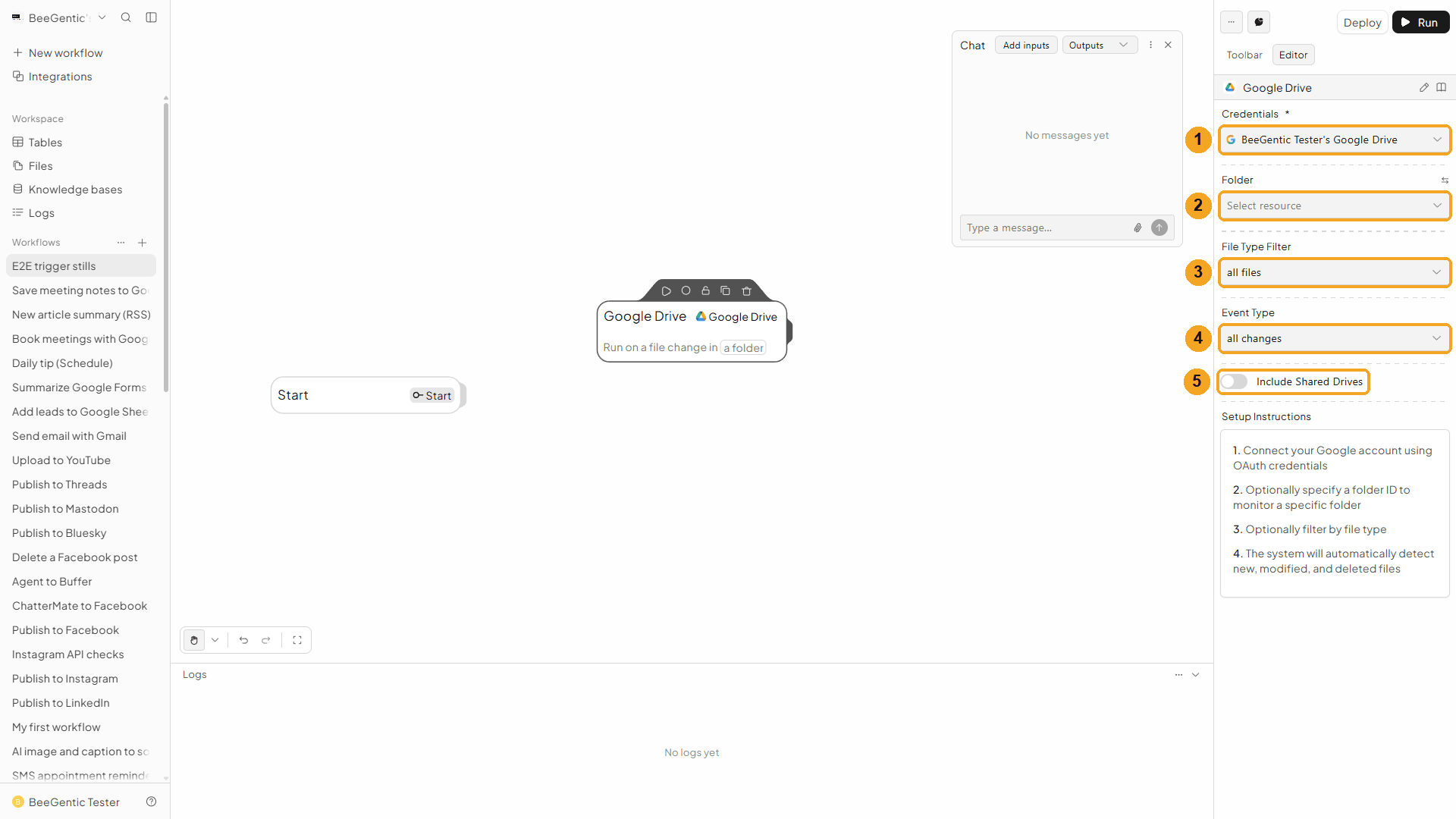
| # | Field | What it does |
|---|---|---|
| 1 | Credentials | Your Google Drive connection |
| 2 | Folder | Only files in this folder. Leave it empty to watch your whole Drive. |
| 3 | File Type Filter | All Files, or only Google Docs, Google Sheets, Google Slides, PDFs, Images or Folders |
| 4 | Event Type | All Changes, or only File Created, File Modified, File Deleted or Created or Modified |
| 5 | Include Shared Drives | Also watch shared drives you belong to |
BeeGentic checks Drive on a timer (it polls Google Drive), so a run can start a few minutes after the change. The trigger output has a file object with id, name, mimeType, modifiedTime, createdTime, size, webViewLink, parents, lastModifyingUser, shared and starred, plus eventType (created, modified or deleted) and timestamp. Deploy the workflow to turn it on.
🧰 Other operations
| Operation | What it does |
|---|---|
| Upload File | Uploads a real file: one you upload in the block, or (under advanced fields) a file from an earlier block |
| Create Folder | Makes a folder, optionally inside another folder |
| List Files / Search Files | Lists the files in a folder, or finds files with a Drive search query, e.g. name contains 'invoice' |
| Get File Info / Get File Content | A file's details, or its text (Google Docs and Sheets are exported, e.g. as plain text or CSV) |
| Download File / Export File | Gets the file itself, or converts a Google Doc, Sheet or Slides file to PDF, Word, Excel, PowerPoint, CSV and more |
| Copy File / Move File | Copies a file (with a new name or folder) or moves it to another folder |
| Update File | Renames a file, changes its description, stars it, or adds and removes folders |
| Share File | Shares a file with a person, a group, a domain or anyone with the link, as viewer, commenter or editor |
| Remove Sharing / List Permissions | Removes or lists who has access |
| Move to Trash / Restore from Trash / Delete Permanently | Bins, restores, or deletes a file for good |
| List Revisions / Get Revision | A file's version history |
| List Comments / Create Comment / Delete Comment | Comments on a file |
| Get Drive Info | Your account and storage quota |
🛠️ Troubleshooting
| Problem | Fix |
|---|---|
Failed to upload file to Google Drive | Drive refused the file. Reconnect Google Drive in Integrations and approve every permission, and check you can add files to the folder you picked. |
Failed to share Google Drive file | Check the email or domain. Google Workspace admins can block sharing outside your company or with "anyone with the link". |
| The doc shows stars, hashes or one long line | The Agent used Markdown. Ask for plain text with - bullets, as in our message. |
| The file isn't in the folder | Select Parent Folder was empty, so the file went to the top of My Drive. Pick the folder, or type its ID. |
| The folder isn't in the list | Type part of its name to search, or switch to Parent Folder ID (⇆ icon) and paste the ID. |
| Two files with the same name | Drive allows duplicates, so every run creates a new file. Put something unique in File Name, e.g. a reference to the meeting. |
| "Google hasn't verified this app" | Click Advanced → Go to beegentic.com (unsafe) (see Part 1). |
| The trigger doesn't start | Deploy the workflow, check Folder, File Type Filter and Event Type, and wait a few minutes. |
Create events with Google Calendar
Create, list, update and delete Google Calendar events from a workflow, or start a workflow when an event changes. Step by step with a narrated video and a real result.
Summarize Google Forms responses
Read Google Forms responses in a workflow and let an AI summarize them, or start a workflow on every submission. Step by step with a narrated video and a real result.