


Create pages in Notion
Create Notion pages, add content, read pages, query databases, add database rows and comments from a workflow, or start a workflow when a page changes. Step by step with a narrated video and a real result.
What you'll build: you type rough meeting notes in Chat, an AI turns them into tidy notes with decisions and action items, and BeeGentic saves them as a new page in your Notion. Three blocks: Start → Agent → Notion. About 5 minutes.
Connect with: 🔐 Sign in with your account · You need: A Notion account, a page to hold the new pages, and an AI key for the Agent
Not supported: Pages you haven't shared with BeeGentic · Uploading files or images into a page · Bold, links and tables in Create Page content (use Append Block Children for those) · Notion AI, Notion forms and Notion's own automations
✅ action you can add to a workflow · ⚡ event that can start a workflow
Narrated walkthrough (about 2¼ min), with captions (CC button). Each step below also has a short silent clip. The orange numbers in each screenshot match the # column under it. Click a screenshot to enlarge it.
Before you start
| You need | Why |
|---|---|
| A Notion account (free works) | BeeGentic adds pages to your workspace |
| A page to hold the new pages | New pages are created inside a parent page. We made an empty page called BeeGentic demo. |
An AI key saved as a secret, e.g. OPENAI_API_KEY | The Agent writes the notes. See References and secrets. |
Part 1: Connect Notion (once)
Look at your parent page
Open the Notion page that will hold the new pages, so you can spot the new one later.
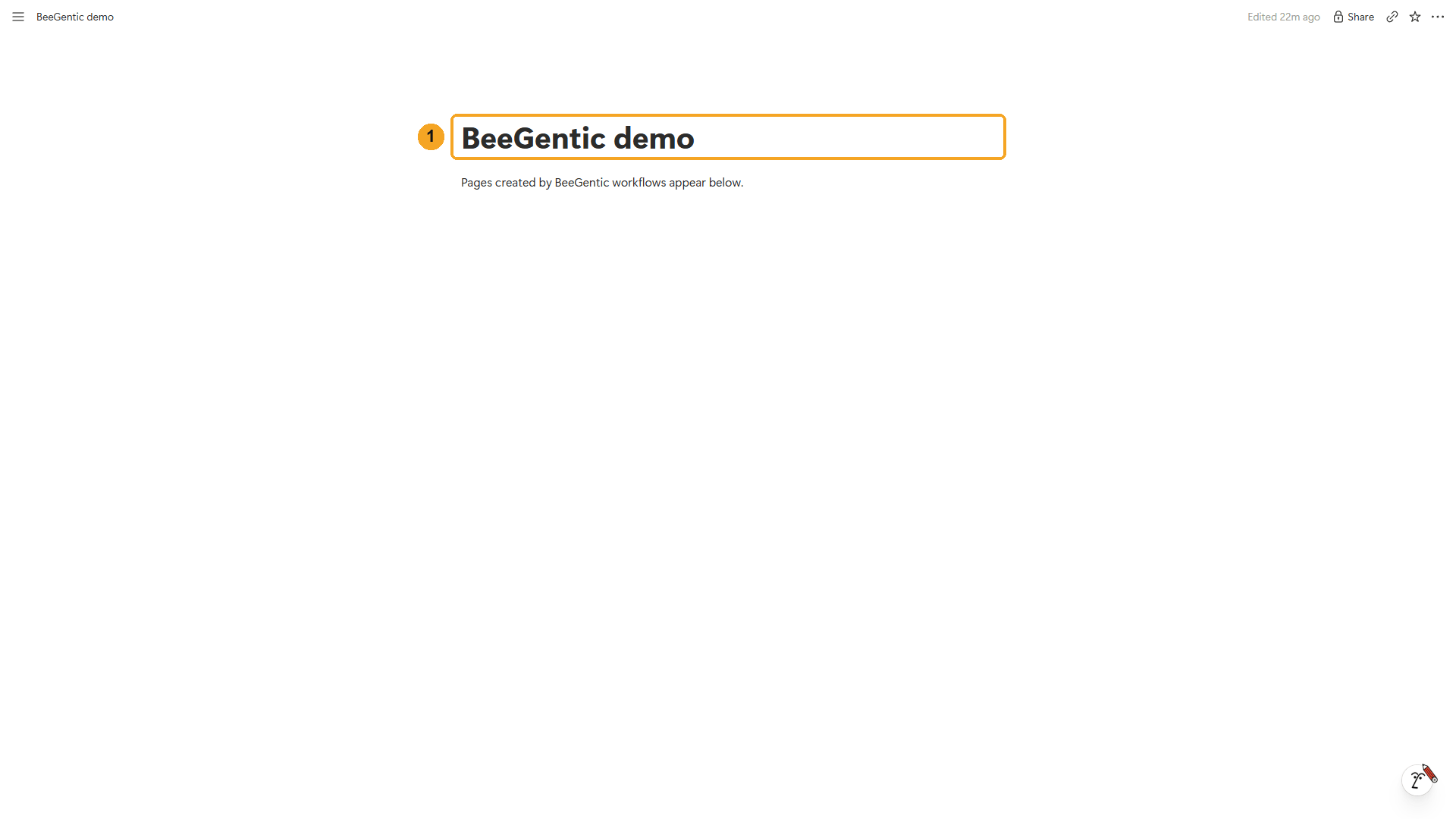
| # | What you see |
|---|---|
| 1 | BeeGentic demo: no pages inside it yet. |
Watch this step
Find Notion in Integrations
In BeeGentic: Integrations → search Notion.
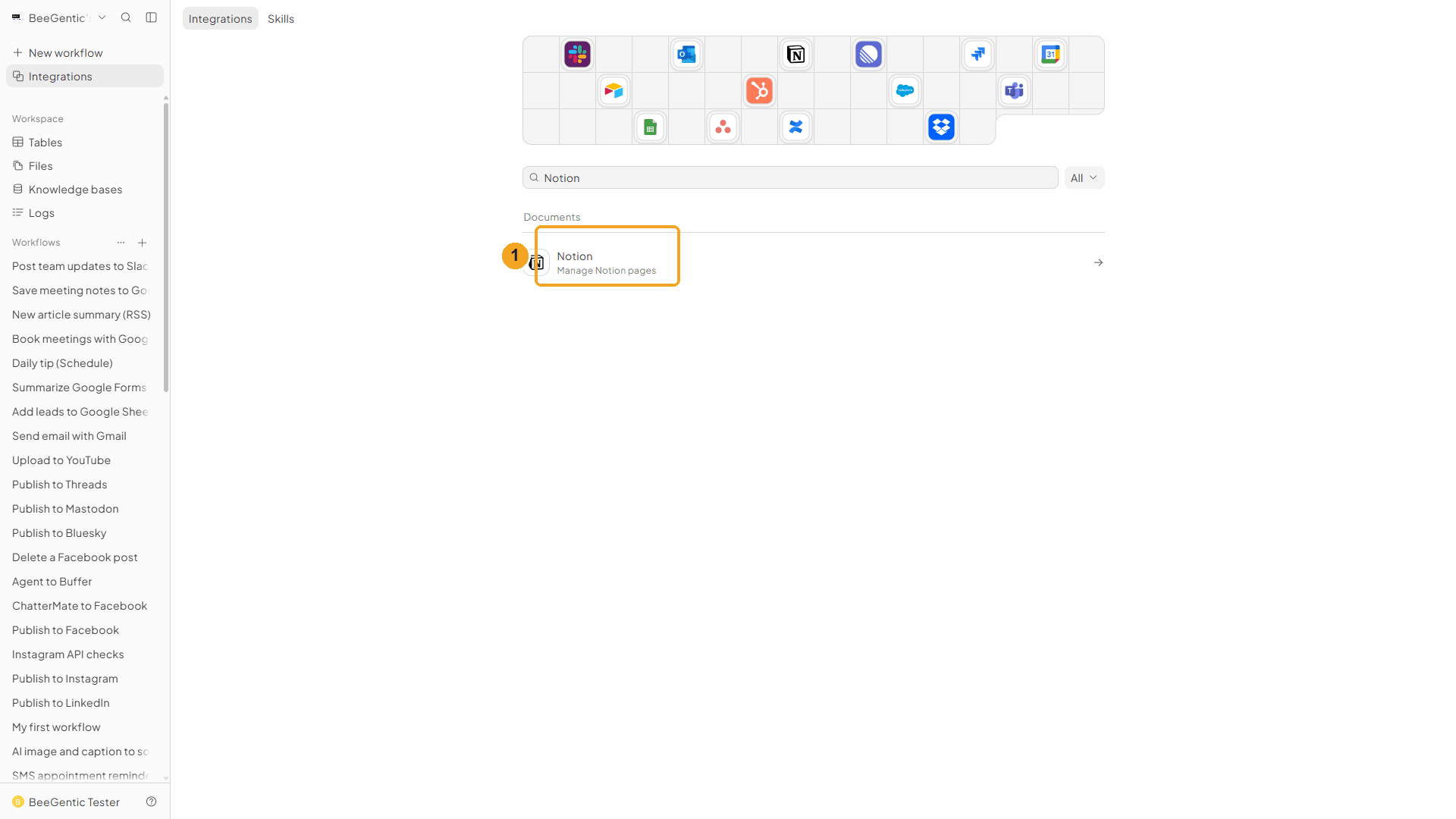
| # | What to do |
|---|---|
| 1 | Click Notion, then Add to BeeGentic → Connect with OAuth. |
Watch this step
Name the connection and connect
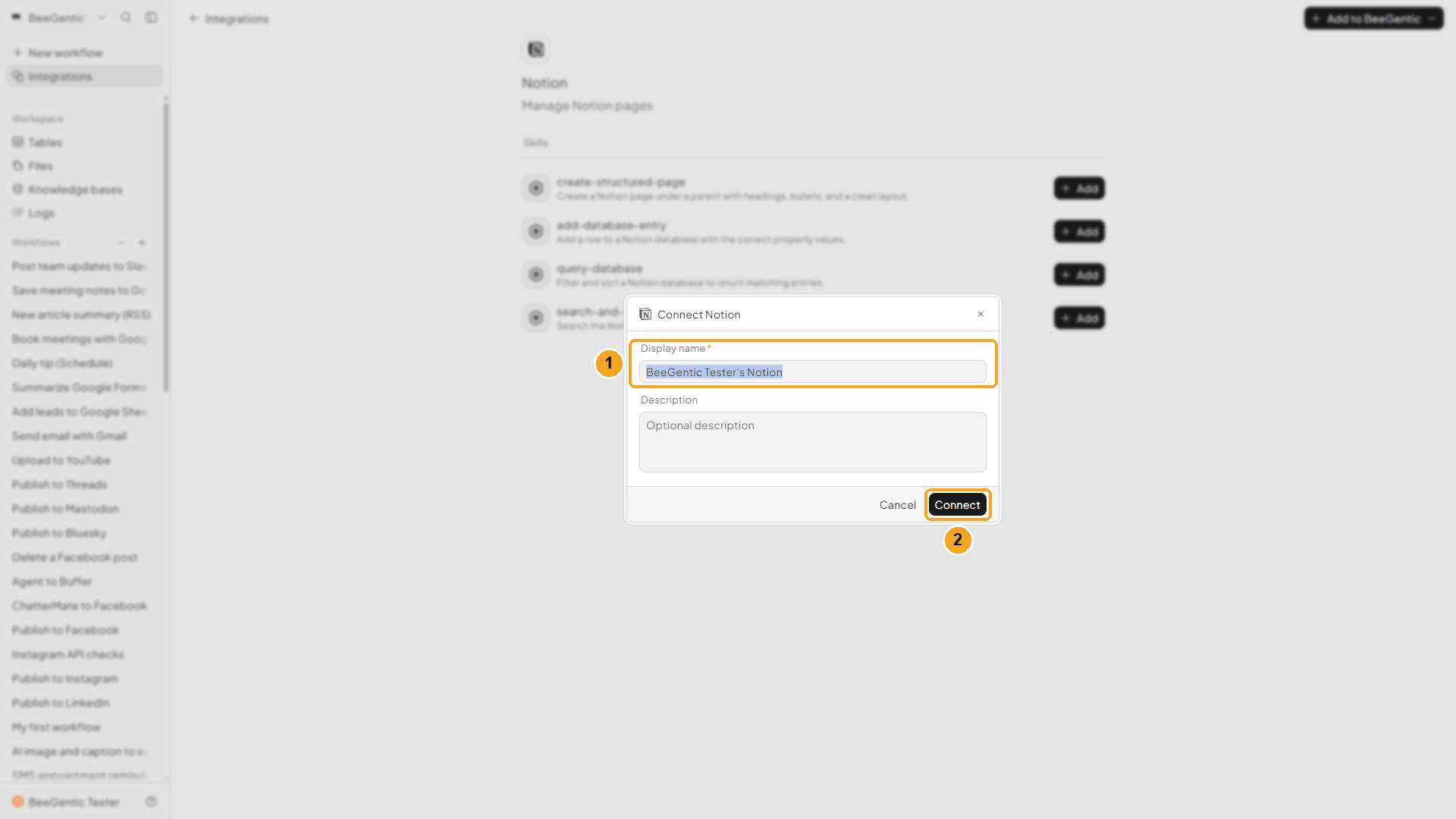
| # | What it means |
|---|---|
| 1 | Display name: rename it if you like, e.g. Work Notion. |
| 2 | Click Connect. Notion opens. |
Watch this step
Check the permissions
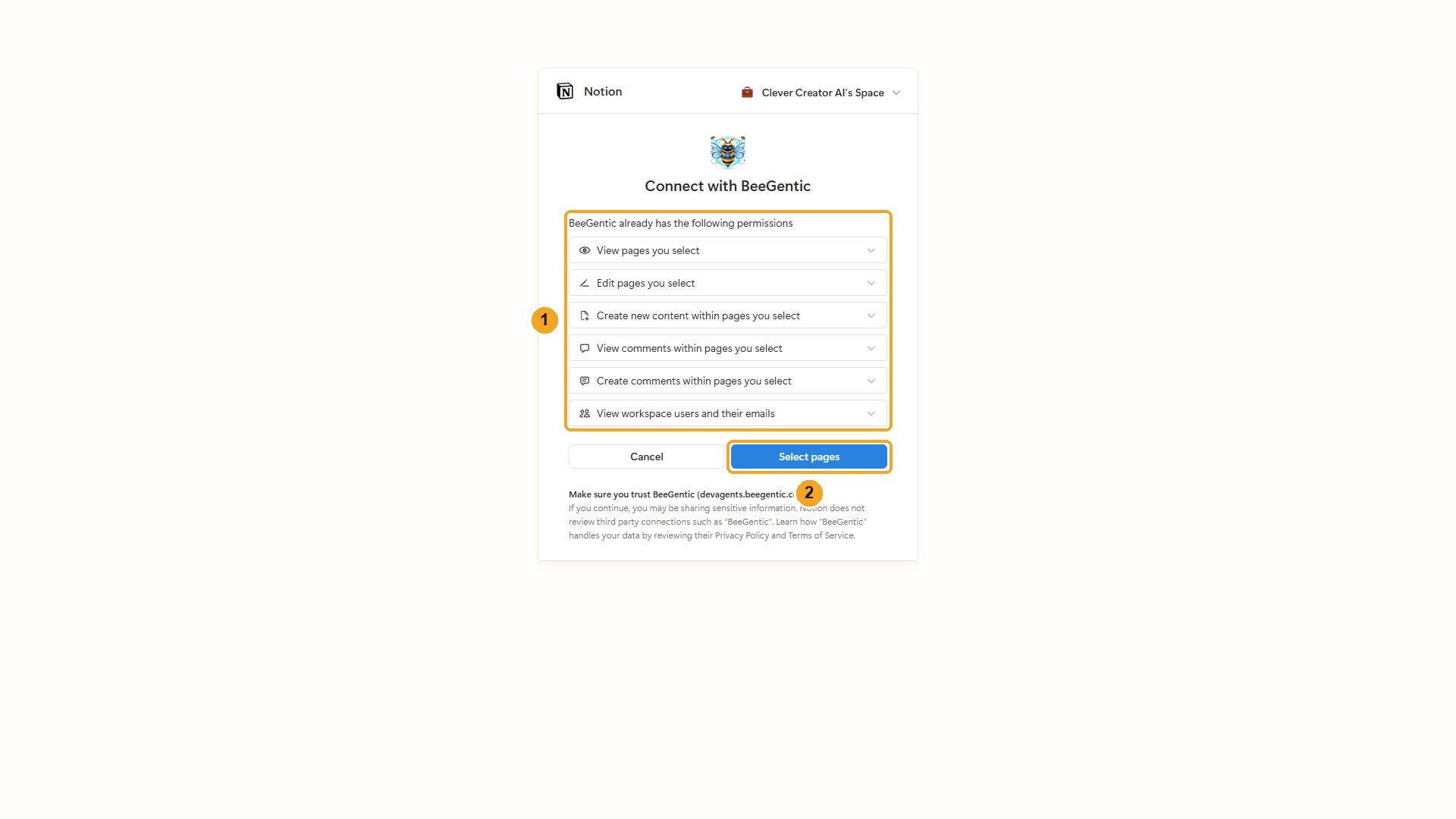
| # | What it means |
|---|---|
| 1 | What BeeGentic may do: view and edit pages, create content inside them, view and add comments, and see workspace users and their emails. All of it applies only to the pages you select next. The workspace is at the top right; switch it there if you have several. |
| 2 | Click Select pages. |
Watch this step
Pick the pages BeeGentic may use
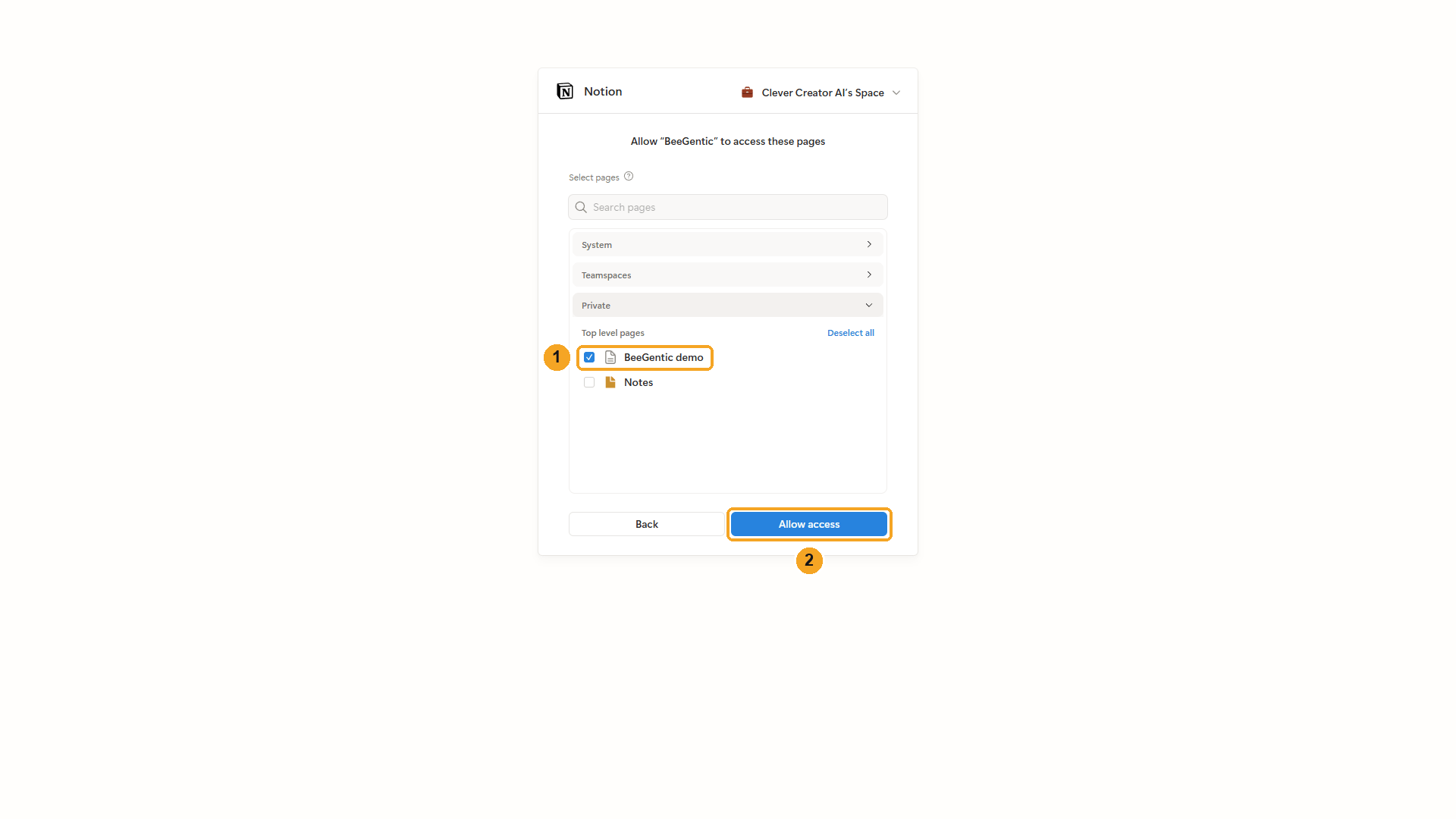
| # | What to do |
|---|---|
| 1 | Open Private (or Teamspaces) and tick BeeGentic demo. Pages inside it are included. You can also search by name. |
| 2 | Click Allow access. You're sent back to BeeGentic, connected. |
Watch this step
Part 2: Build the workflow
Create the workflow and add the Agent
+ New workflow → name it Save meeting notes to Notion. Then Toolbar → Agent. In Messages:
Turn these rough notes into short meeting notes: <start.input>. Plain text under 1,000 characters: a one-line summary, then a line "Decisions:" and a line "Action items:", each followed by "- " bullets on their own lines (with owner and due date). No markdown headings or bold.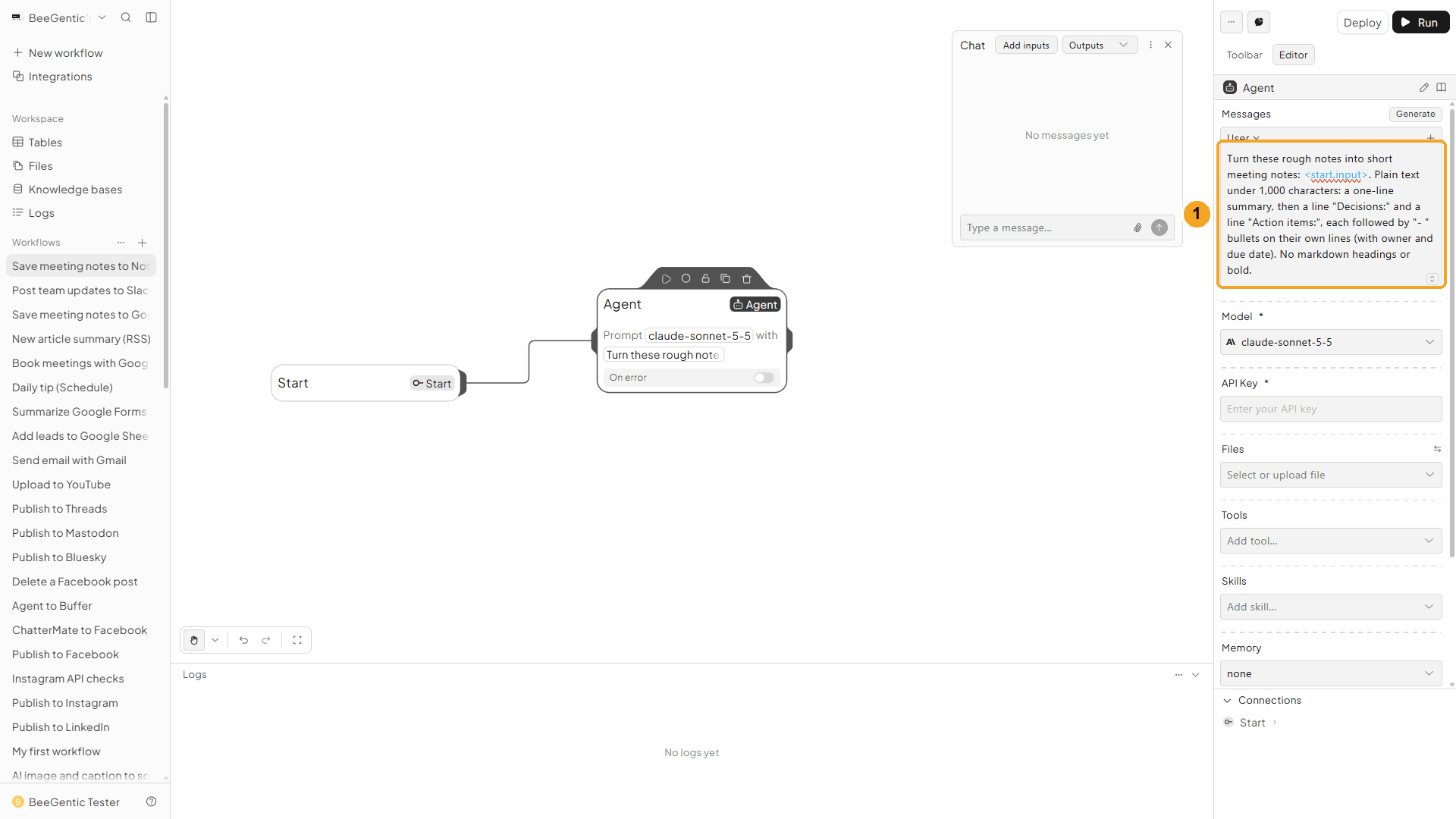
| # | What you see |
|---|---|
| 1 | The message. <start.input> is replaced by what you type in Chat. We ask for plain text because Create Page puts the content in as text, so # or ** would show up as-is. |
Watch this step
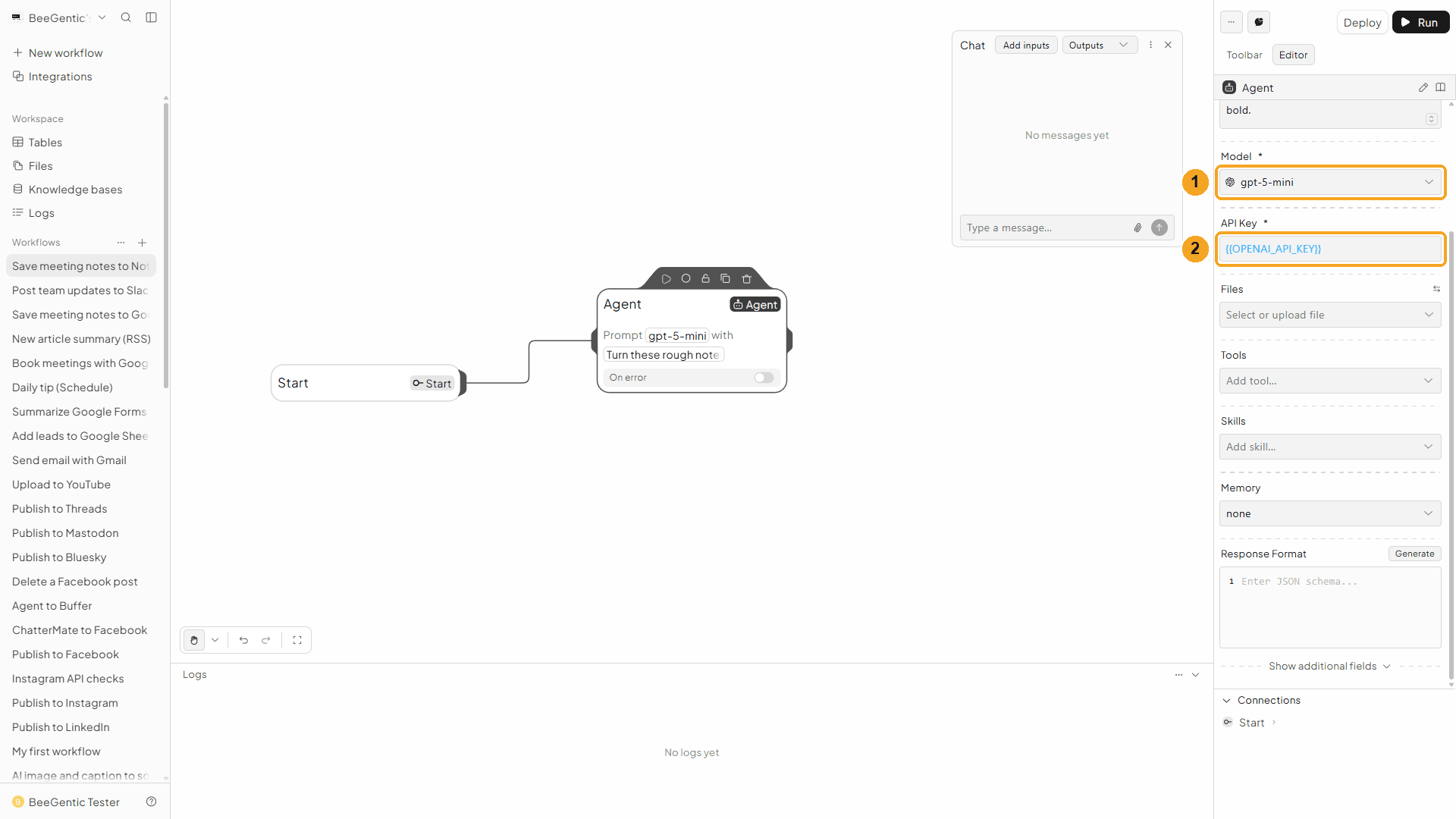
Add the Notion block
Toolbar → Notion (in the tools list, not the one under Triggers). It connects to the Agent automatically.
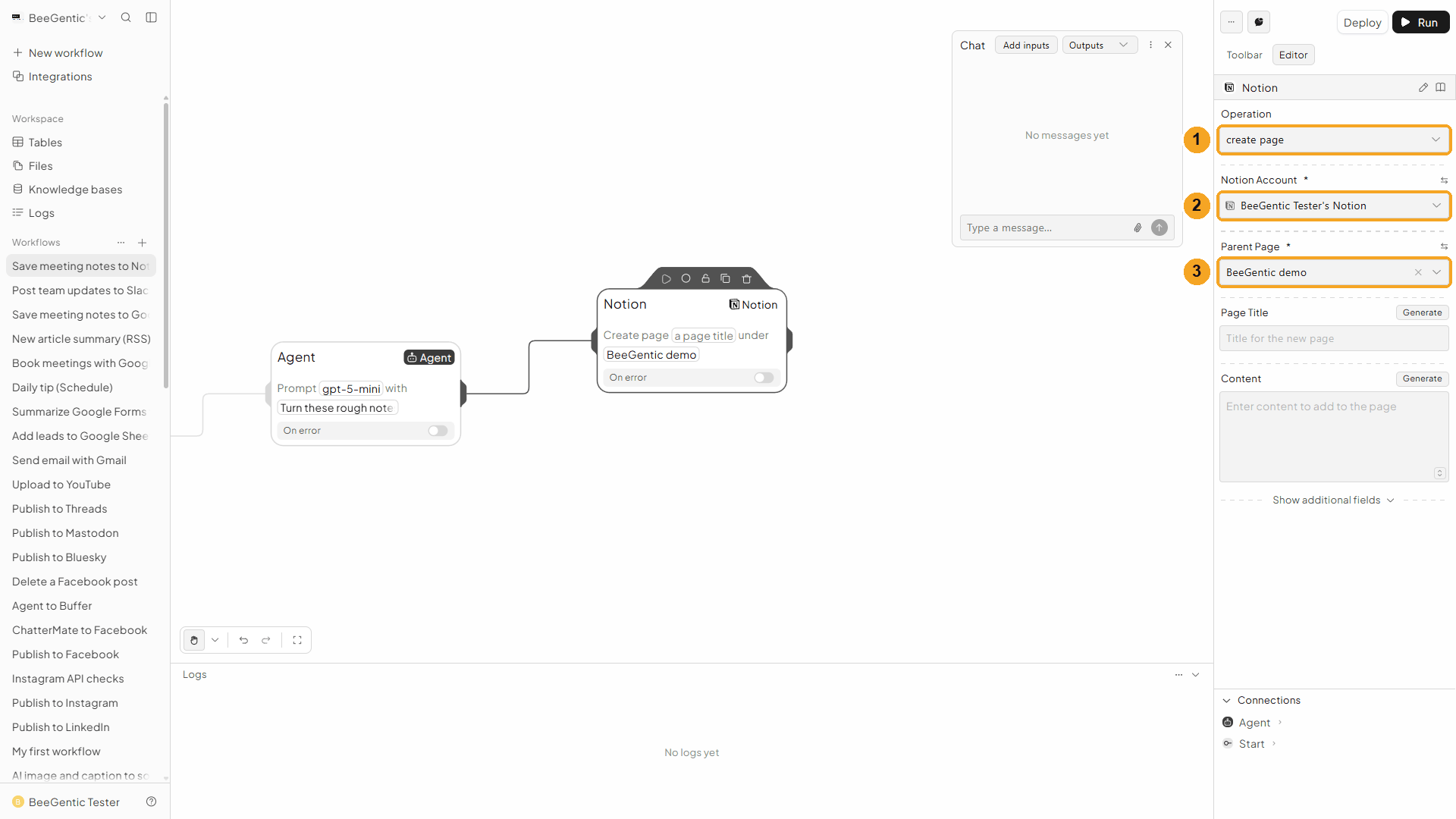
| # | Field | Value |
|---|---|---|
| 1 | Operation | Create Page (the default is Read Page: change it) |
| 2 | Notion Account | The connection from Part 1 |
| 3 | Parent Page | BeeGentic demo. The list shows the pages you shared in Part 1. |
Watch this step
Title and content
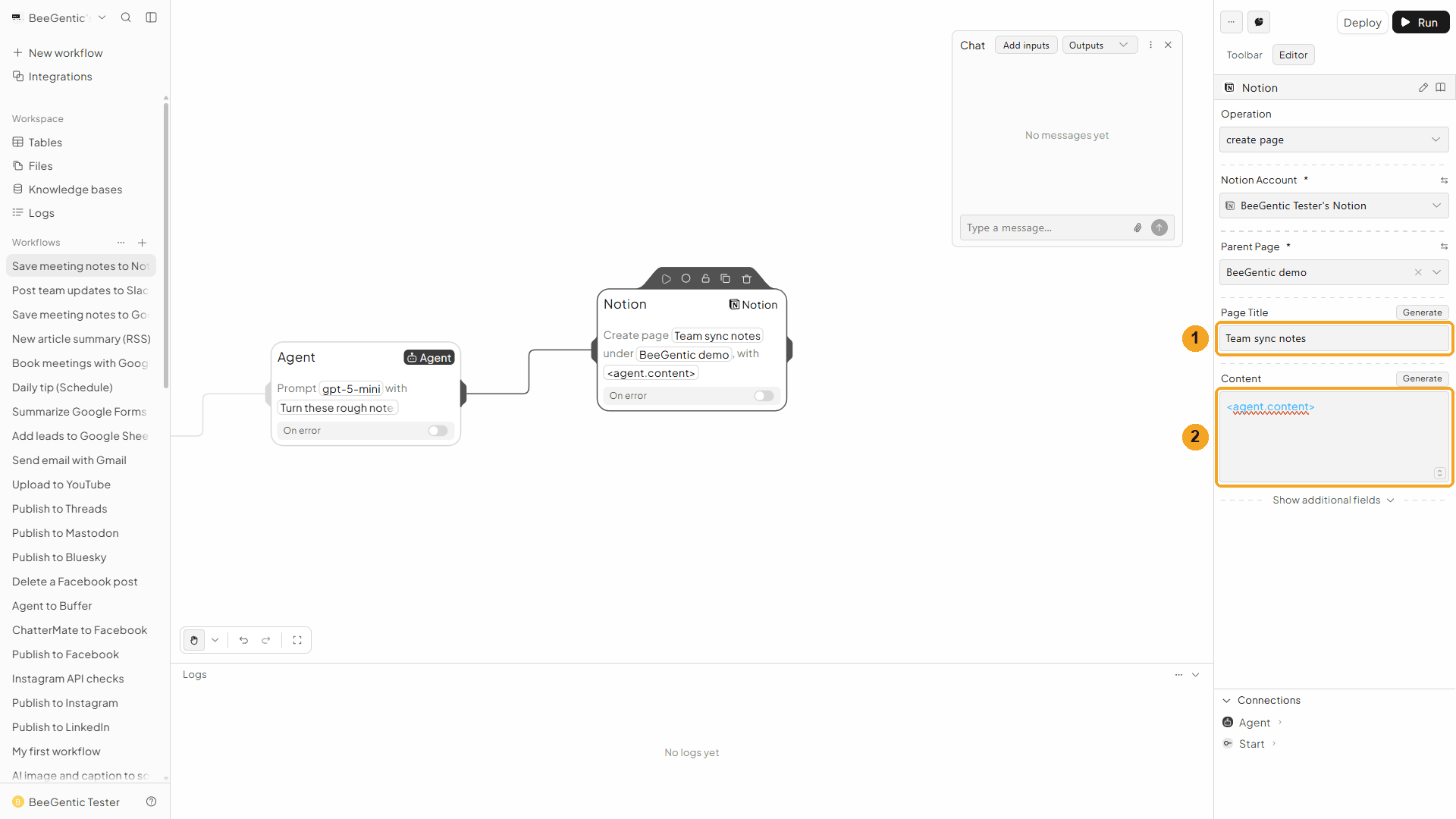
| # | Field | Value |
|---|---|---|
| 1 | Page Title | Team sync notes. You can use a reference here too, e.g. <start.input>. |
| 2 | Content | <agent.content>: the notes the Agent wrote |
Press Shift + L to tidy. Your finished workflow:
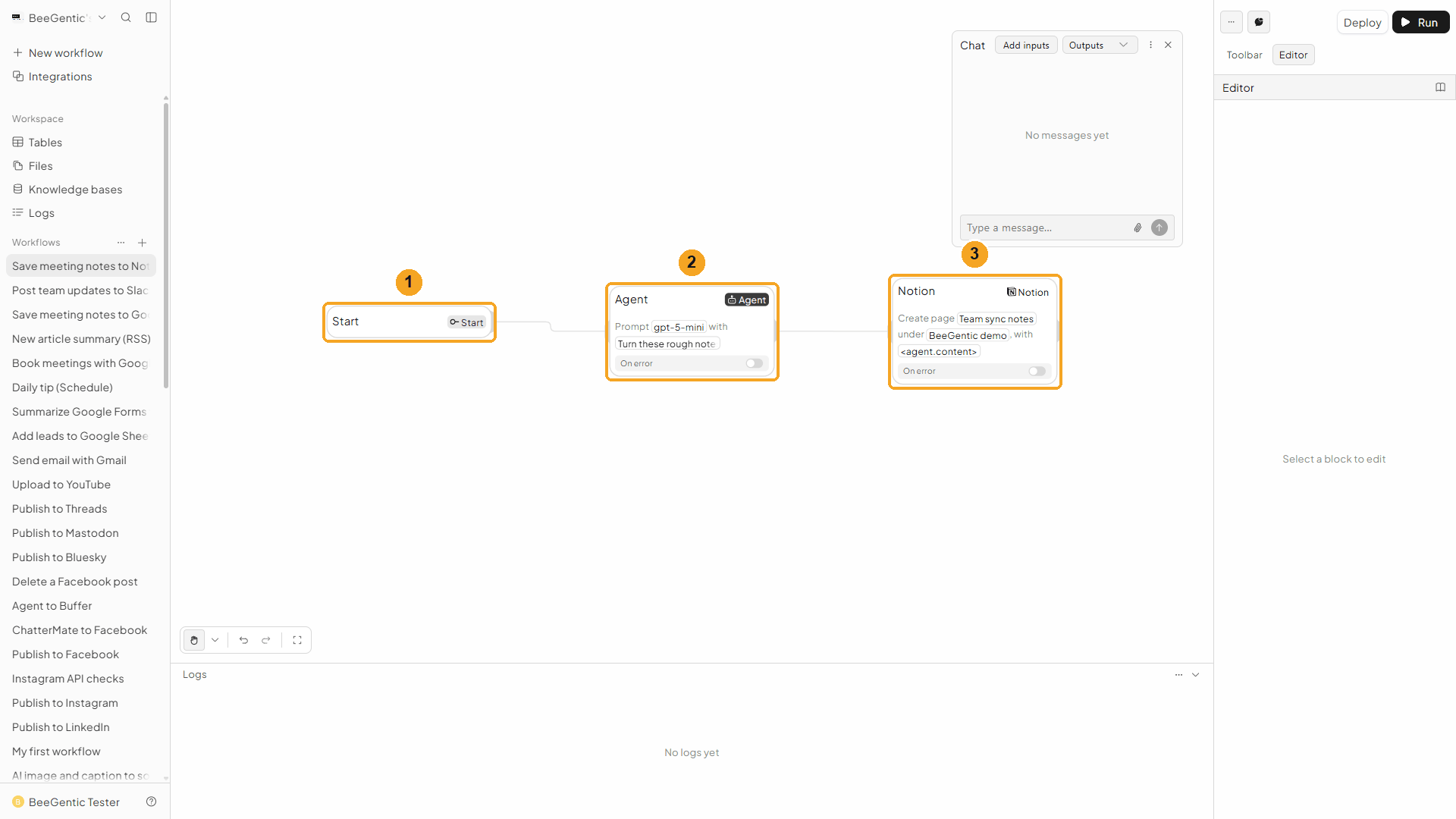
| # | Block | What it does |
|---|---|---|
| 1 | Start | Your chat message becomes <start.input> |
| 2 | Agent | Writes the meeting notes |
| 3 | Notion | Creates the page inside BeeGentic demo |
Watch this step
Part 3: Run it and check the result
Send your notes from Chat
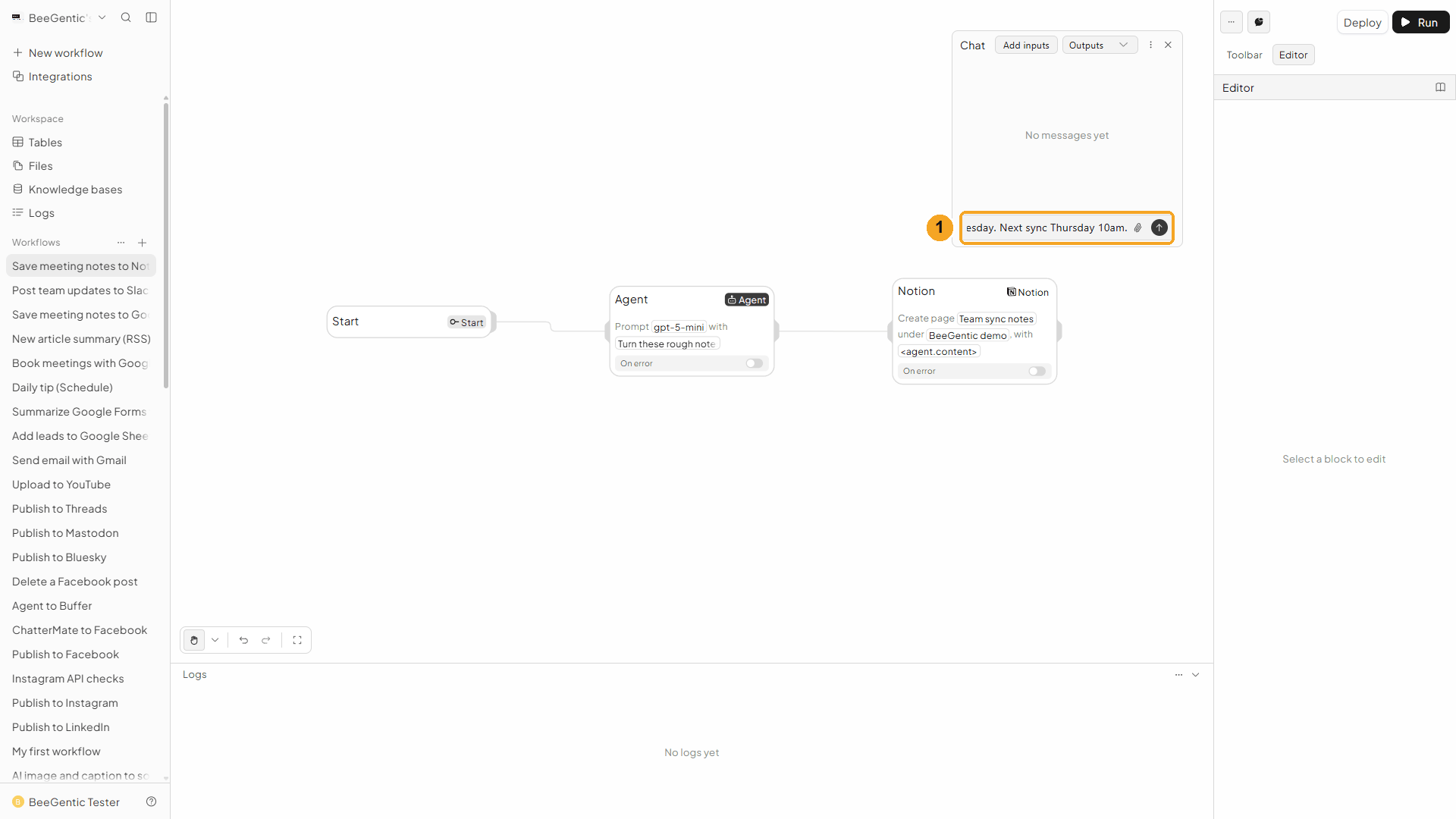
| # | What to do |
|---|---|
| 1 | Open Chat (speech-bubble button), type or paste your notes and press Enter. |
Example message we sent:
Team sync Oct 2: docs site launched today. Slack and Notion guides are next, Maria owns them, due Friday. Sam fixes the login bug by Wednesday. Next sync Thursday 10am.Read the output
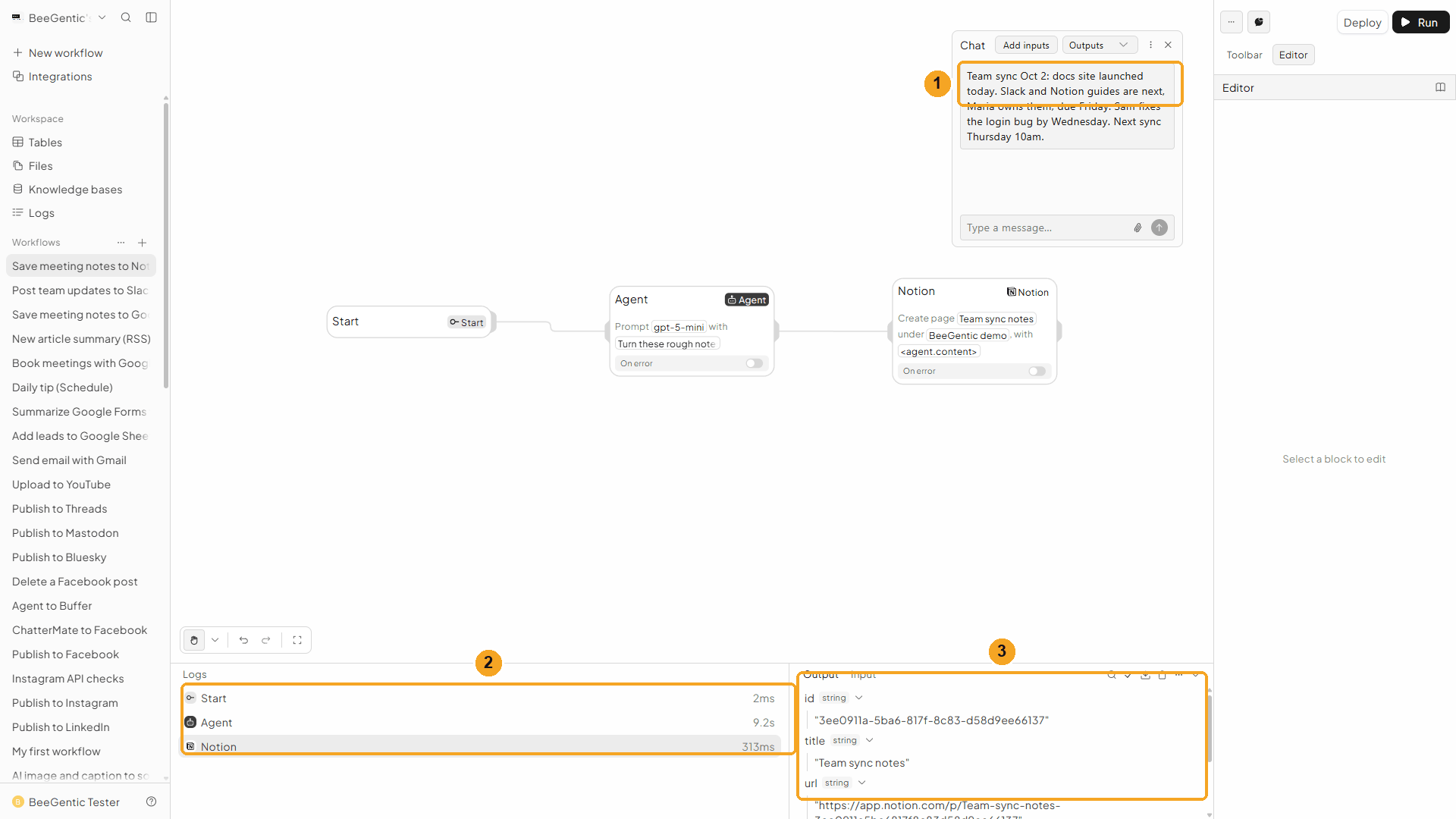
| # | What you see |
|---|---|
| 1 | Your message. |
| 2 | Each block's run time: the Agent about 9 s, Notion about a third of a second. |
| 3 | The output: id (the new page's ID, here 3ee0911a-5ba6-817f-8c83-d58d9ee66137), title (Team sync notes), url (a link that opens the page), created_time and last_edited_time. |
Watch the run
See it in Notion
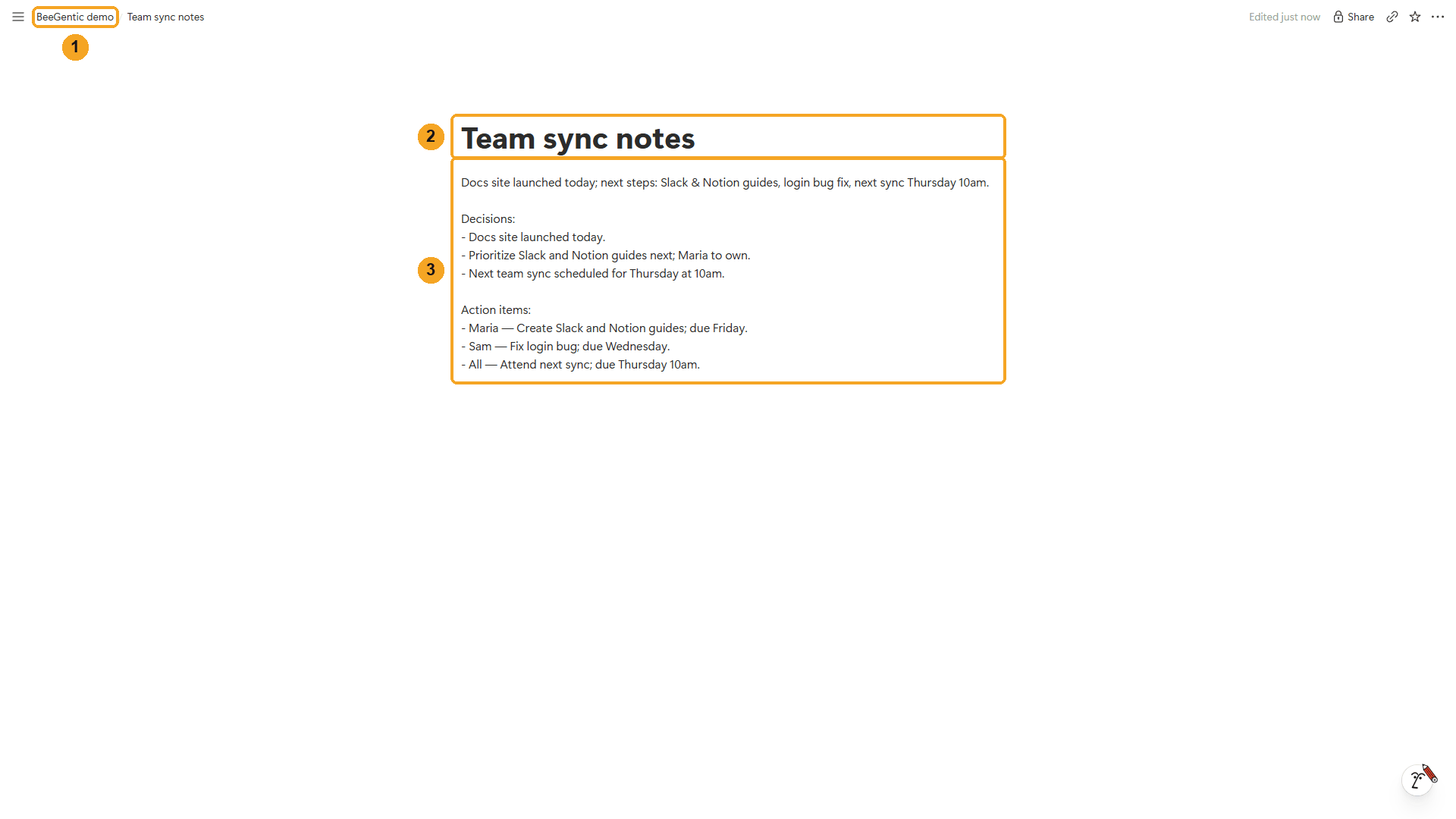
| # | What you see |
|---|---|
| 1 | The breadcrumb: the new page is inside BeeGentic demo. |
| 2 | The Page Title you set. |
| 3 | The notes the Agent wrote, with their line breaks kept. |
The real page BeeGentic created (title Team sync notes):
Decisions:
- Docs site launched today.
- Prioritize Slack and Notion guides next; Maria to own.
- Next team sync scheduled for Thursday at 10am.
Action items:
- Maria — Create Slack and Notion guides; due Friday.
- Sam — Fix login bug; due Wednesday.
- All — Attend next sync; due Thursday 10am.
We moved this test page to the trash afterwards with Delete Block (below), using the id from the output. The BeeGentic demo page stays.
Watch this step
⚡ Make it automatic
| You want | Do this |
|---|---|
| A fresh notes page every Monday | Replace Chat with a Schedule trigger. |
| Save every form answer as a page | Google Forms → Agent → Notion Create Page. |
| Log new leads in a Notion database | Google Sheets New Row trigger → Notion Add Database Row. |
| Tell the team the notes are ready | Add a Slack block after Notion with <notion.url> in the message. |
| Keep a copy in Google Drive too | Add a Google Drive block next to Notion. |
| A daily research digest in Notion | See the Daily YouTube trends digest recipe. |
Notion triggers
Start a workflow when something changes in Notion. In the Toolbar it's Notion under Triggers.
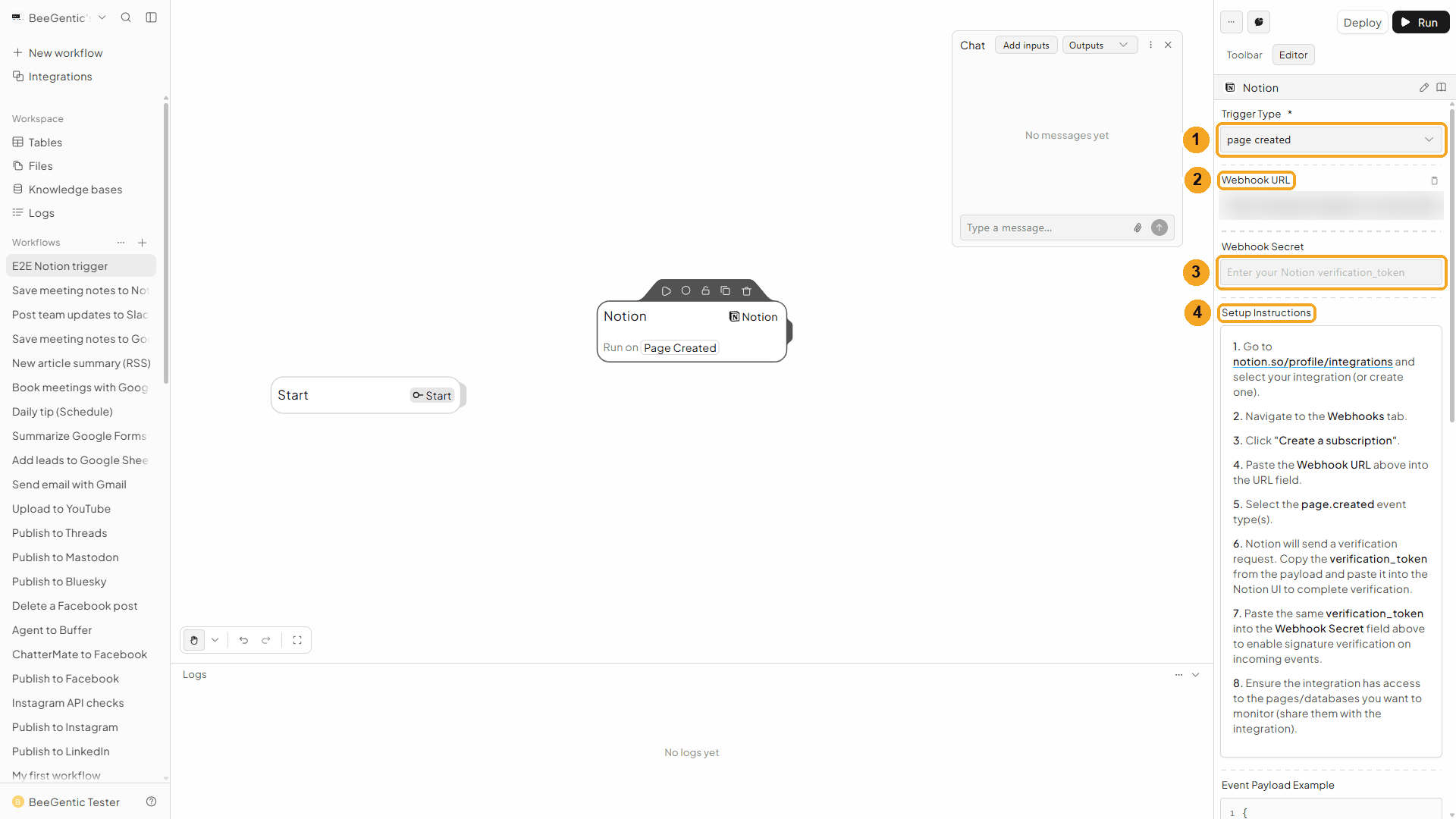
| # | Field | What it does |
|---|---|---|
| 1 | Trigger Type | Page Created, Page Properties Updated, Page Content Updated, Page Deleted, Database Created, Database Schema Updated, Database Deleted, Comment Created, or Generic Webhook (All Events) |
| 2 | Webhook URL | The address Notion sends events to. Copy it with the icon on the right. (We blurred ours.) |
| 3 | Webhook Secret | The verification_token Notion sends when you add the webhook. BeeGentic uses it to check each event really comes from Notion. |
| 4 | Setup Instructions | The steps in Notion, also below. |
Notion triggers use a webhook on a Notion integration you own (the BeeGentic connection from Part 1 can't receive events):
- Go to notion.so/profile/integrations and create an integration (or open yours).
- Open its Webhooks tab → Create a subscription, paste the Webhook URL, and pick the event, e.g.
page.created. - Notion sends a verification request: copy the
verification_tokeninto Notion to verify, and into Webhook Secret in BeeGentic. - Share the pages or databases you want to watch with that integration (••• → Connections).
- Deploy the workflow.
The trigger output has the event type (e.g. page.created), the entity that changed (its id and type), data (e.g. updated_properties and parent), authors, workspace_name and timestamp. To get the page's text, add a Notion Read Page block with the entity's ID.
🧰 Other operations
| Operation | What it does |
|---|---|
| Read Page | Returns a page's text, title and link |
| Append Content | Adds text to the end of an existing page, e.g. a running log |
| Append Block Children | Adds rich blocks (headings, bullet lists, to-dos) as JSON |
| Update Page Properties | Changes a page's properties (a JSON object), e.g. a database row's status |
| Search Workspace | Finds pages and databases by title (only the shared ones) |
| Read Database / Query Database | Reads a database, or filters and sorts its rows |
| Add Database Row | Adds a row with property values |
| Create Database | Creates a database inside a page |
| Retrieve Block / Retrieve Block Children | Reads single blocks, or the blocks inside a page |
| Update Block | Edits a block, or archives or restores it |
| Delete Block | Moves a page or block to the trash (restorable in Notion for 30 days) |
| Create Comment / List Comments | Adds or reads comments on a page |
| List Users / Retrieve User | Looks up people in the workspace |
🛠️ Troubleshooting
| Problem | Fix |
|---|---|
Could not find page with ID: … | Notion's own message: BeeGentic can't see that page. Share it (see Need another page? in Part 1) and run again. |
| The page isn't in the Parent Page list | Same cause: only shared pages are listed. Share the page, then reopen the list. |
An error starting body failed validation that mentions text.content.length and 2000 | Notion takes at most 2,000 characters per text block. Ask the Agent for shorter notes (our message says under 1,000 characters), or add longer text with Append Content. |
** or other symbols show up in the page | Create Page turns # lines into headings, - lines into bullets and 1. lines into numbered items, and blank lines start a new paragraph. Bold and links stay as plain text: ask the Agent not to use them, or use Append Block Children. |
children must be a JSON array of Notion block objects | Append Block Children needs a JSON array, e.g. [{"type":"heading_2","heading_2":{"rich_text":[{"text":{"content":"Decisions"}}]}}]. |
Access token is required | The Notion connection is missing. Pick your account in Notion Account, or connect Notion again in Integrations. |
| The trigger doesn't start | Deploy the workflow, check the Notion webhook subscription is verified and has the right event, and share the page with your integration. |
Post messages to Slack
Send Slack messages to a channel or a person from a workflow, and read, update, react to and delete messages, manage channels and canvases. Step by step with a narrated video and a real result.
Publish blog posts to TutorMigo
Write a post with AI and publish it to the TutorMigo blog, or save drafts for review, schedule, update and list posts with the TutorMigo Content block. Step by step with a narrated video and a real result.