


Send email with Gmail
Send, draft, reply to, search and label Gmail messages from a workflow, or start a workflow when an email arrives. Step by step with a narrated video and a real result.
What you'll build: you type a topic in Chat, an AI writes a friendly email about it, and BeeGentic sends it from your own Gmail. Three blocks: Start → Agent → Gmail. About 5 minutes.
Connect with: 🔐 Sign in with your account · You need: A Gmail or Google Workspace account, and an AI key for the Agent
Not supported: Scheduled send inside Gmail (use a Schedule trigger instead) · Creating new labels or Gmail filters · Gmail settings, signatures and vacation replies · Other people's mailboxes
✅ action you can add to a workflow · ⚡ event that can start a workflow
Narrated walkthrough (about 2 min), with captions (CC button). Each step below also has a short silent clip. The orange numbers in each screenshot match the # column under it. Click a screenshot to enlarge it.
Before you start
| You need | Why |
|---|---|
| A Gmail or Google Workspace account | BeeGentic sends as you, from your own mailbox |
An AI key saved as a secret, e.g. OPENAI_API_KEY | The Agent writes the email. See References and secrets. |
| A test address you own | Send the first emails to yourself. We used clevercreatorai+demo@gmail.com: a +demo plus address of our own inbox. |
Part 1: Connect Gmail (once)
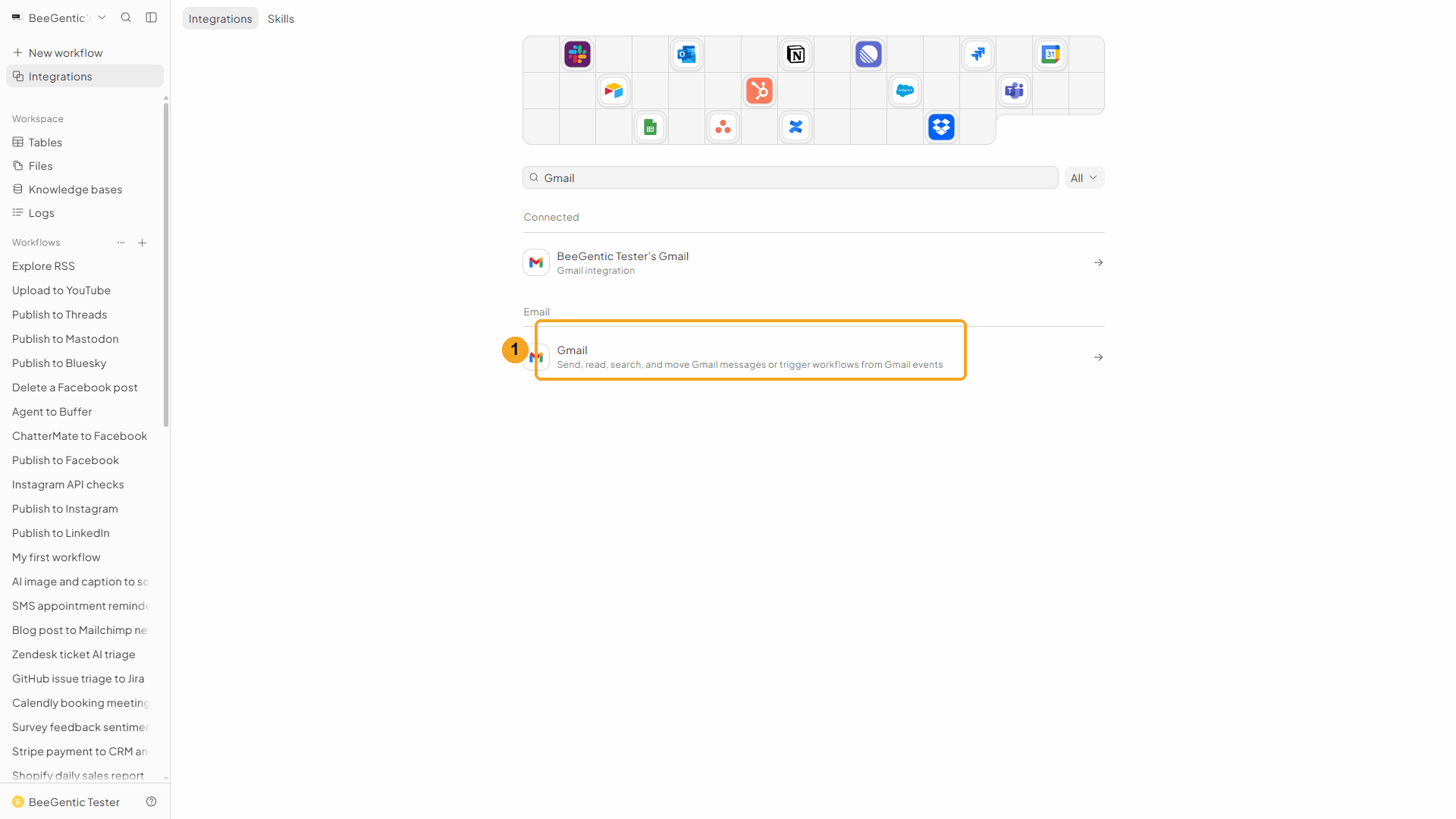
Find Gmail in Integrations
Integrations → search Gmail.
| # | What to do |
|---|---|
| 1 | Click Gmail. If you've connected before, your connection is listed under Connected above it. |
Watch this step
Add to BeeGentic, then Connect
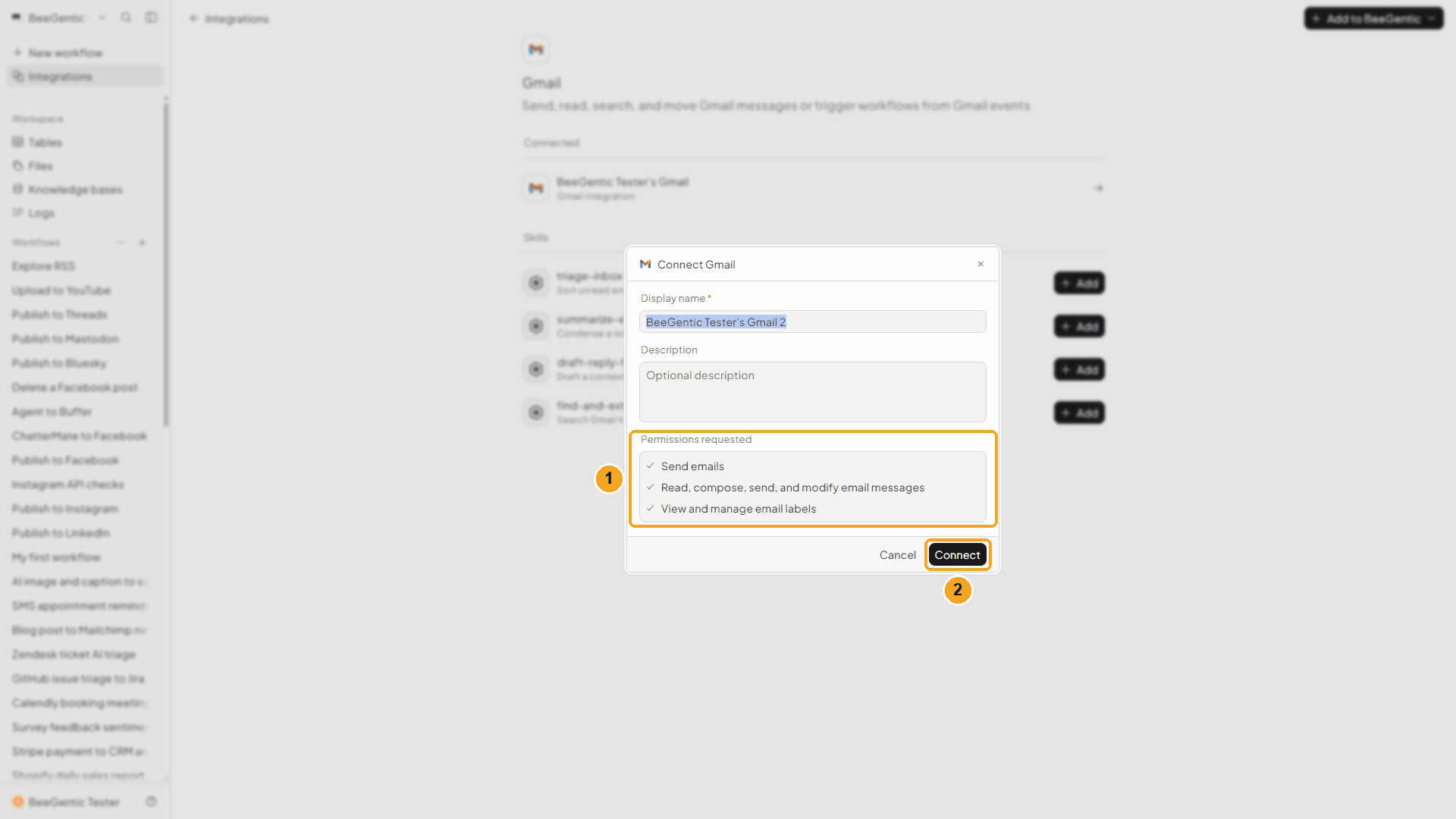
Click Add to BeeGentic. A dialog opens.
| # | What it means |
|---|---|
| 1 | What BeeGentic may do: send emails, read, compose, send and modify messages, and view and manage labels. You can rename the connection in Display name, e.g. Work Gmail. |
| 2 | Click Connect. Google opens. |
Watch this step
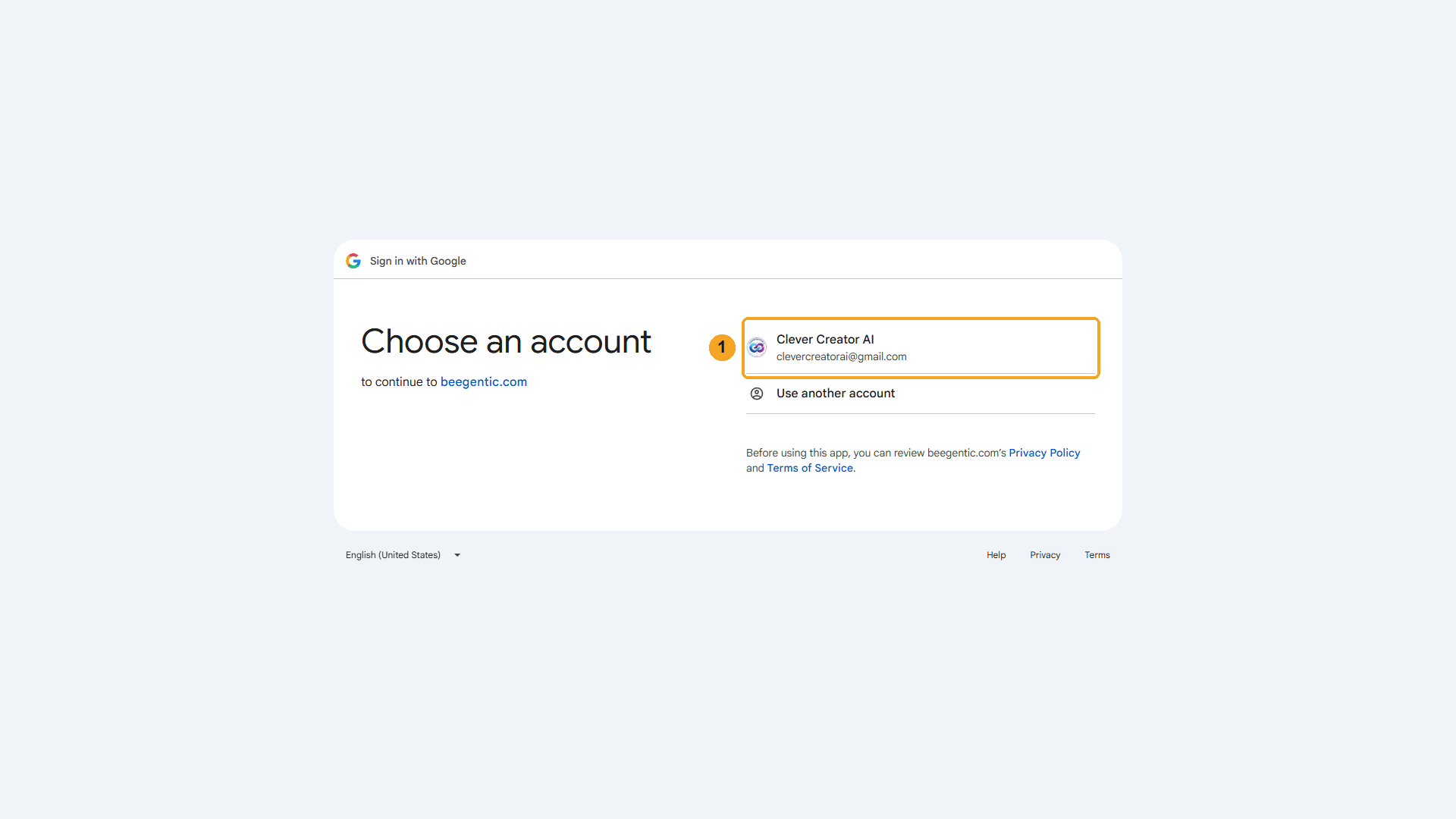
Pick your Google account
| # | What to do |
|---|---|
| 1 | Click the account you want to send from, then allow the Gmail permissions. You're sent back to BeeGentic, connected. |
Watch this step
Part 2: Build the workflow
Create the workflow and add the Agent
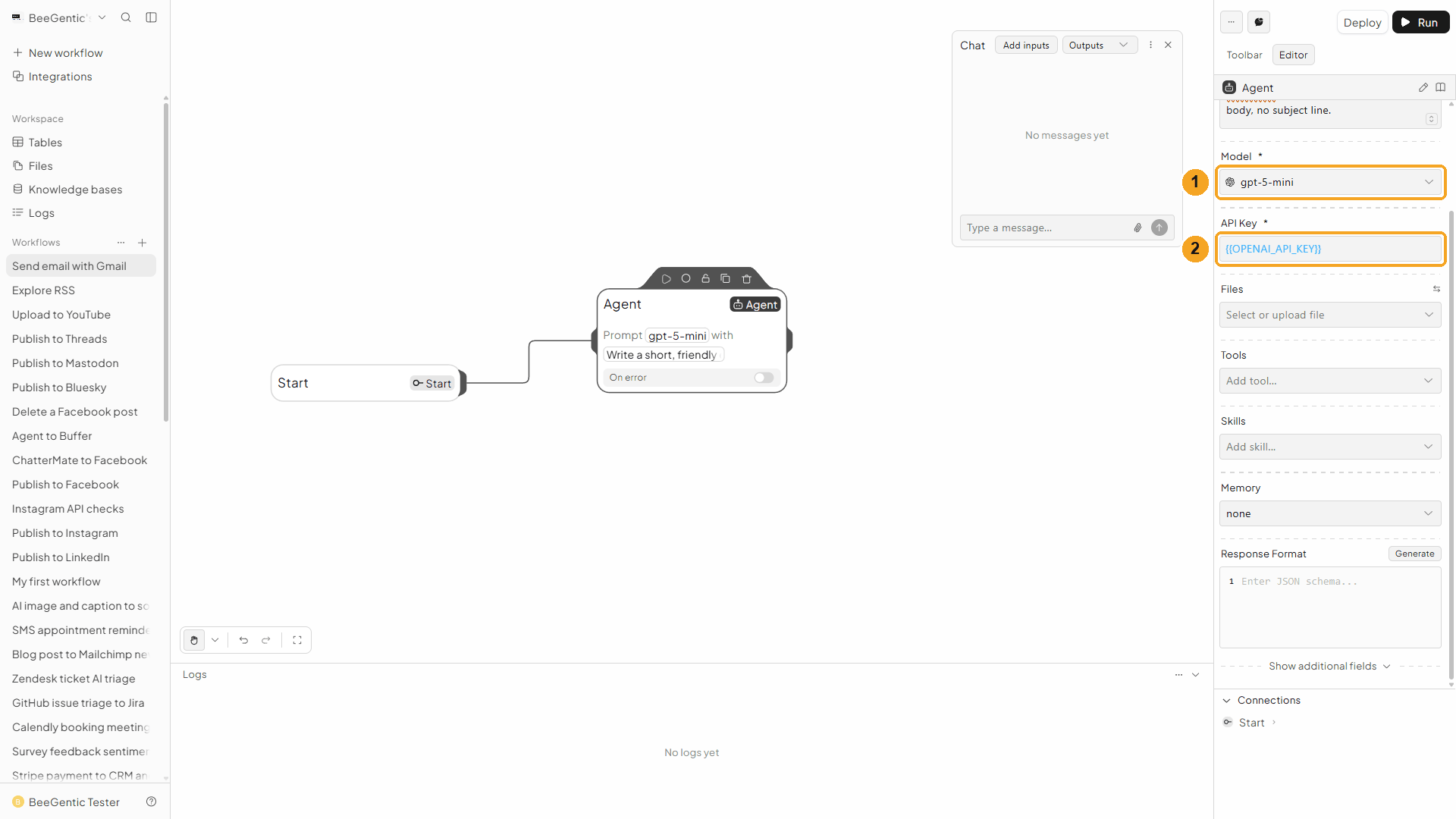
+ New workflow → name it Send email with Gmail. Then Toolbar → Agent. In Messages:
Write a short, friendly email to the team about: <start.input>. Start with "Hi team," on its own line, then 3 or 4 warm, clear sentences, then a blank line and "The BeeGentic team". Return only the email body, no subject line.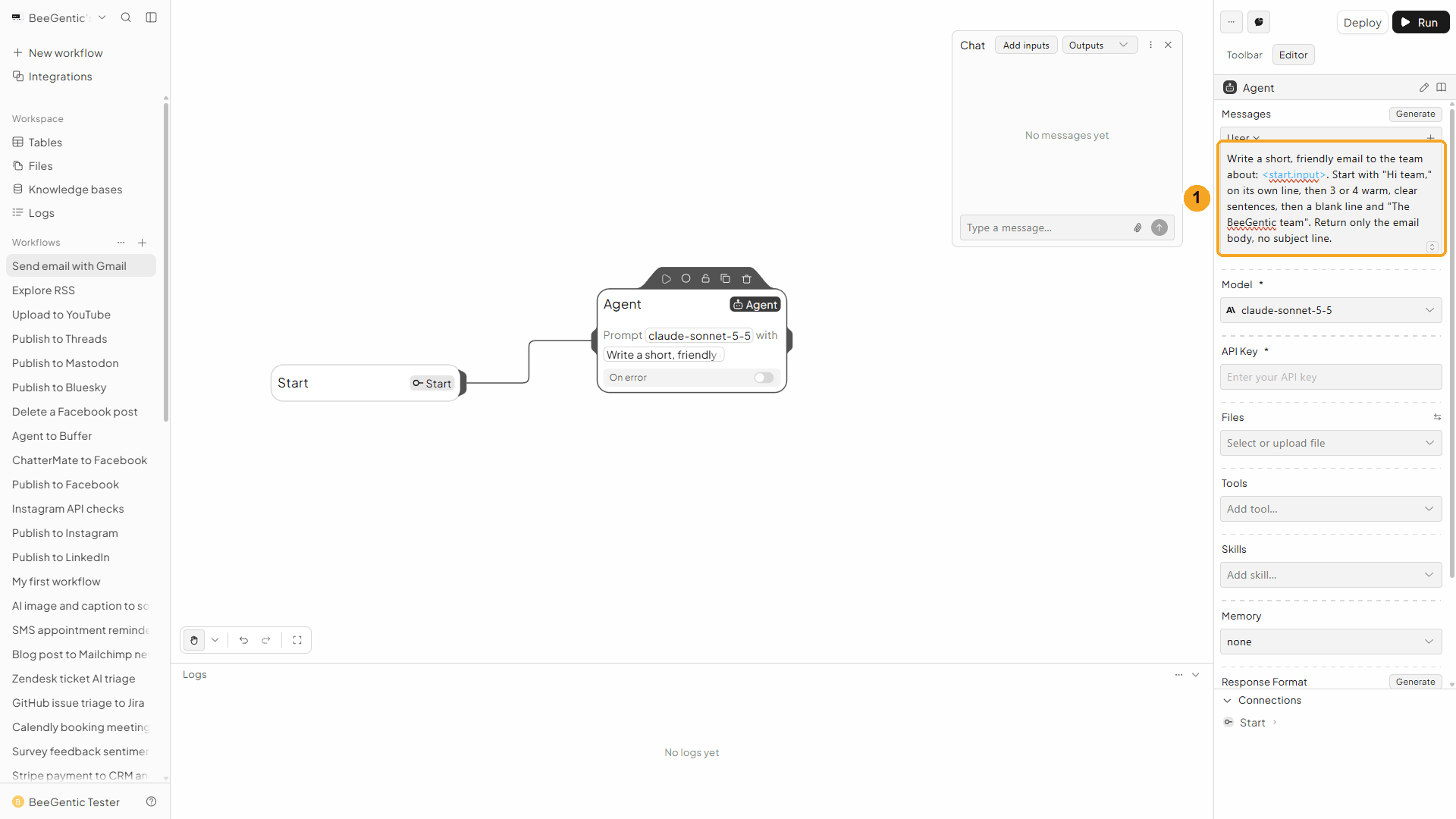
| # | What you see |
|---|---|
| 1 | The message. <start.input> is replaced by what you type in Chat. |
Watch this step
Add the Gmail block
Toolbar → Gmail (in the tools list, not the one under Triggers). It connects to the Agent automatically.
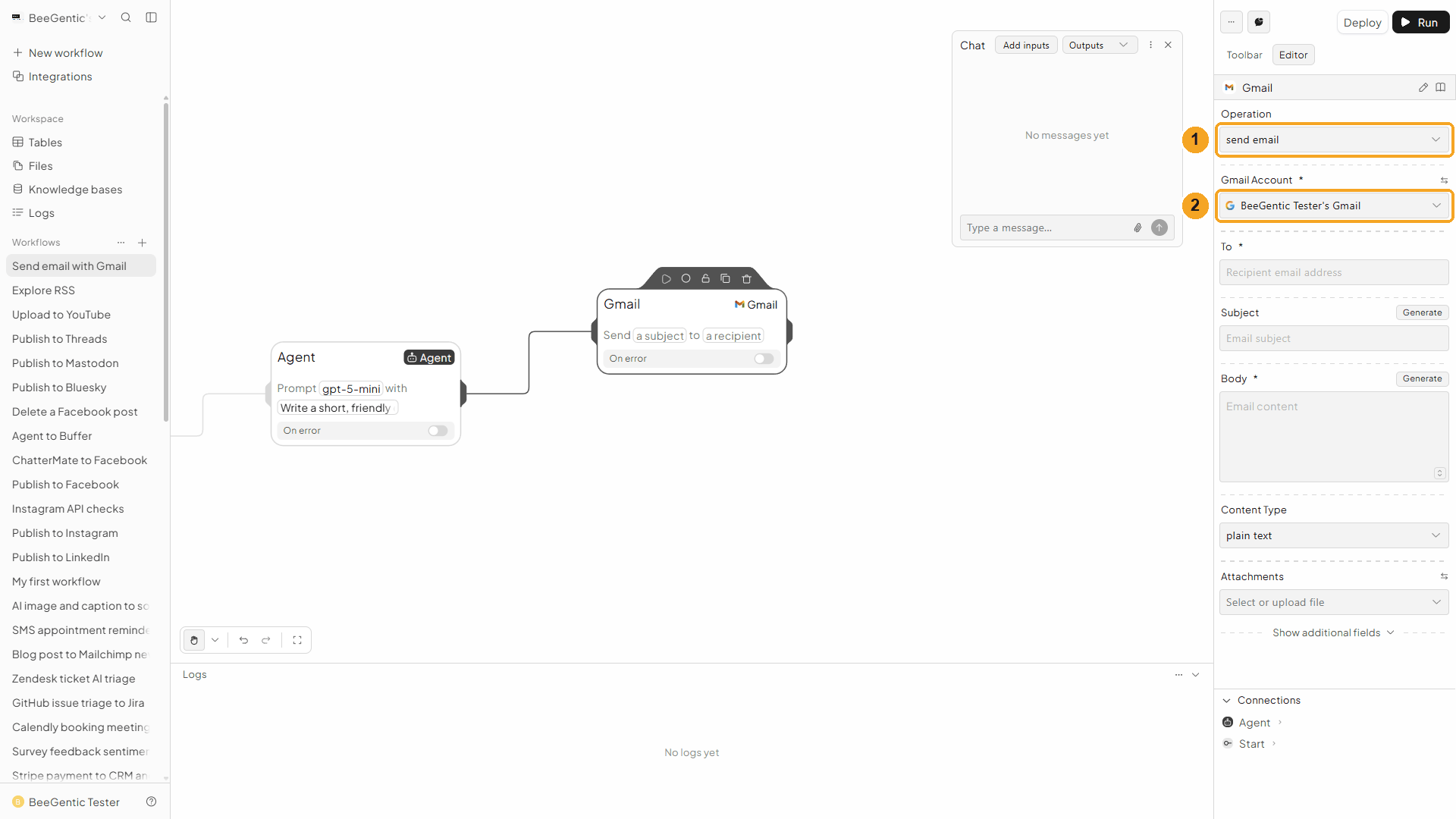
| # | Field | Value |
|---|---|---|
| 1 | Operation | Send Email (the default) |
| 2 | Gmail Account | The connection from Part 1 |
Watch this step
To, Subject and Body
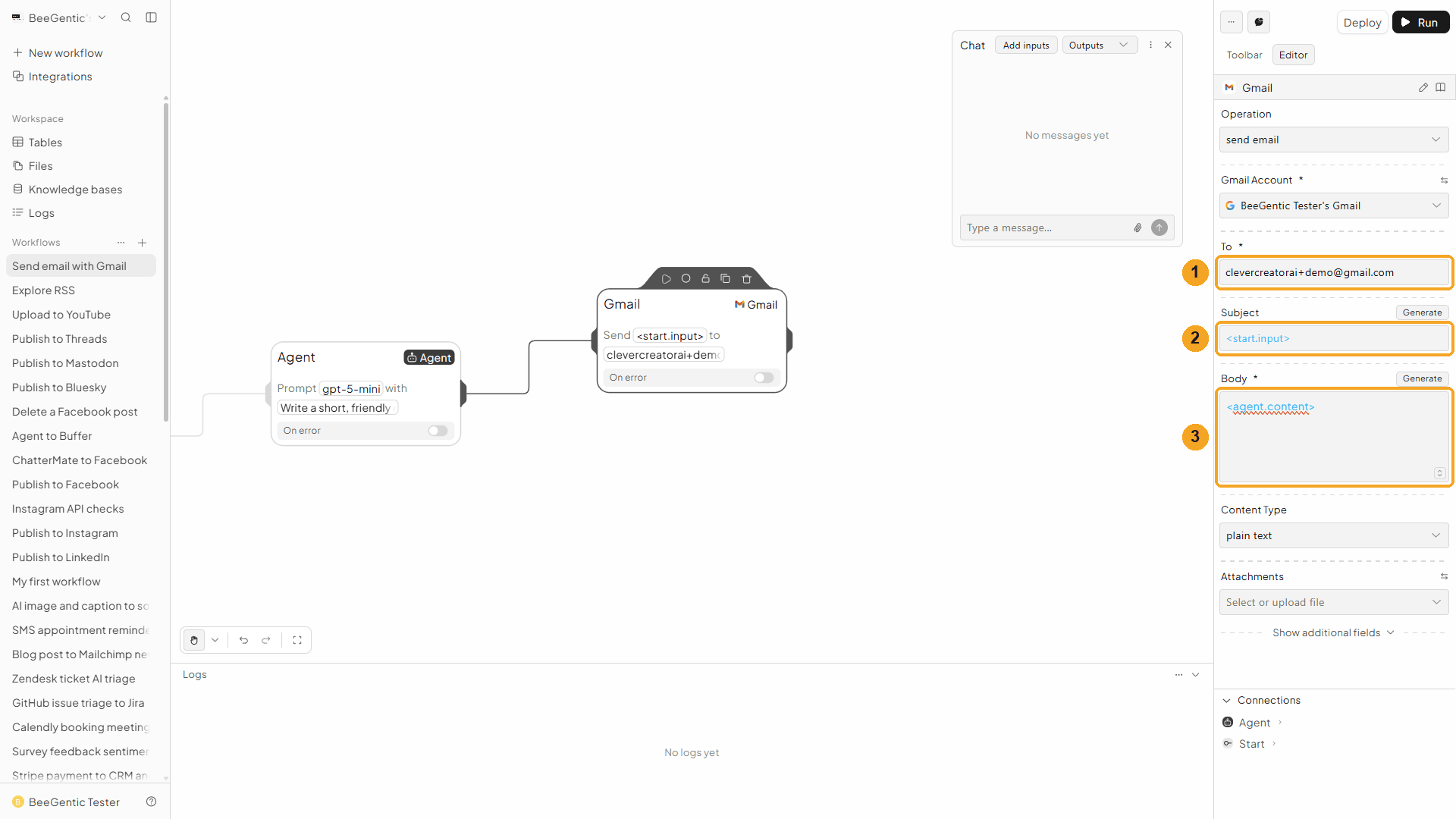
| # | Field | Value |
|---|---|---|
| 1 | To | The recipient, e.g. clevercreatorai+demo@gmail.com. Several people: separate with commas. |
| 2 | Subject | <start.input>: the topic you type becomes the subject |
| 3 | Body | <agent.content>: the email the Agent wrote |
Also on the block: Content Type (Plain Text or HTML) and Attachments (upload files, or under advanced fields reference files from an earlier block; 25 MB total). Under Show additional fields: CC, BCC, and the reply fields Thread ID and Reply to Message ID.
Press Shift + L to tidy. Your finished workflow:
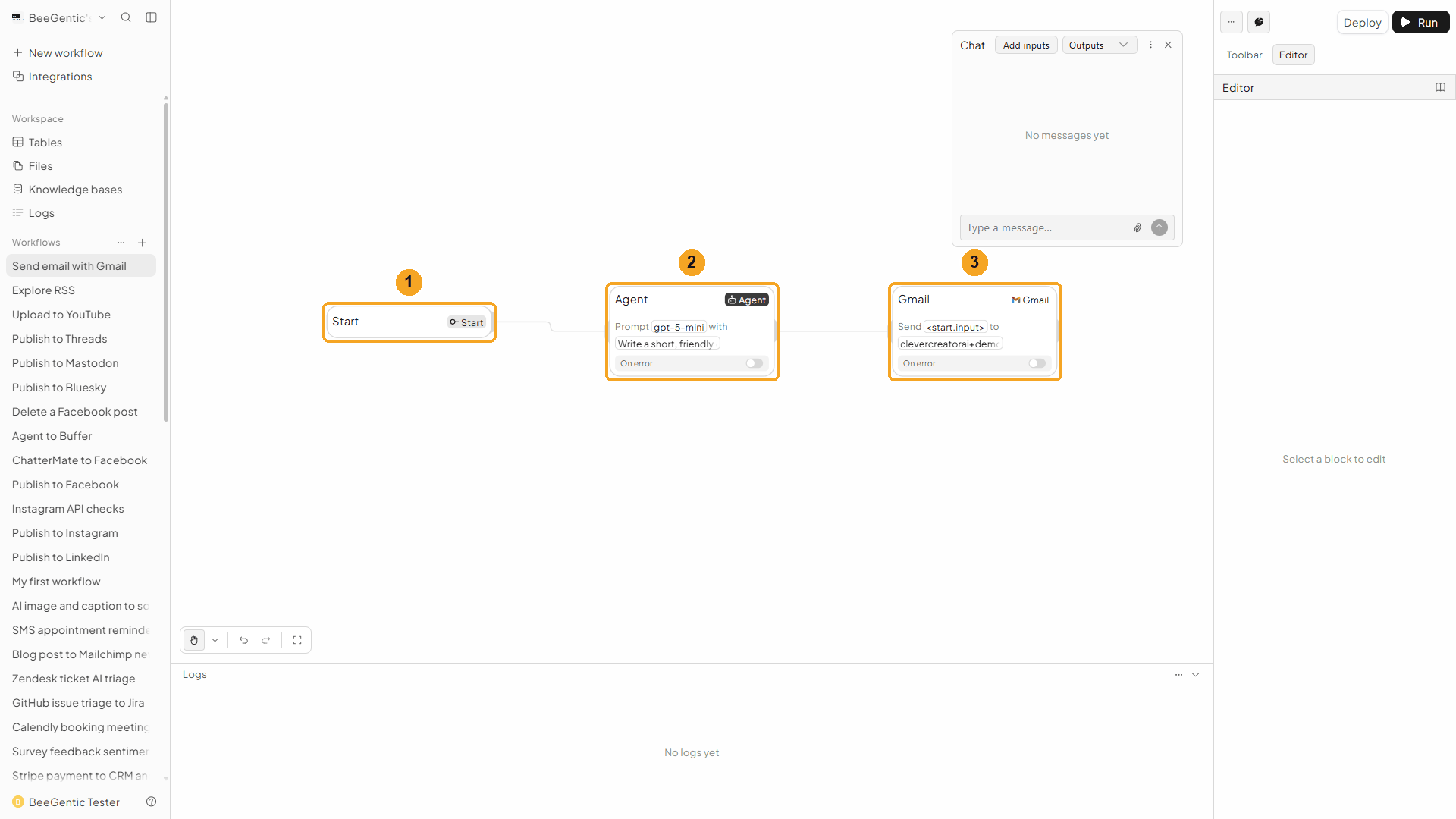
| # | Block | What it does |
|---|---|---|
| 1 | Start | Your chat message becomes <start.input> |
| 2 | Agent | Writes the email body |
| 3 | Gmail | Sends it from your Gmail |
Watch this step
Part 3: Run it and check the result
Send the topic from Chat
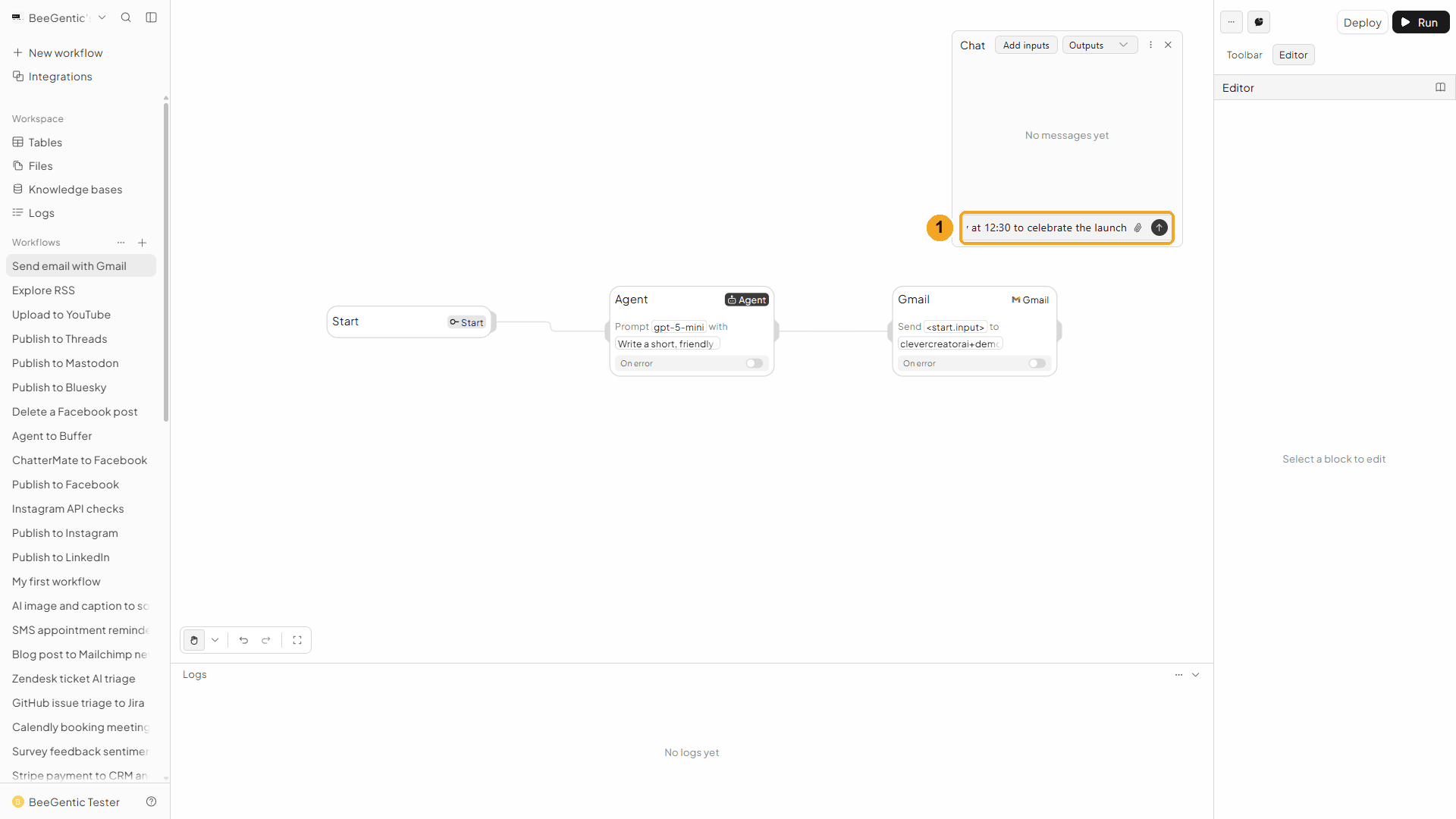
| # | What to do |
|---|---|
| 1 | Open Chat (speech-bubble button), type the topic and press Enter. |
Example message we sent:
Team lunch this Friday at 12:30 to celebrate the launchRead the output
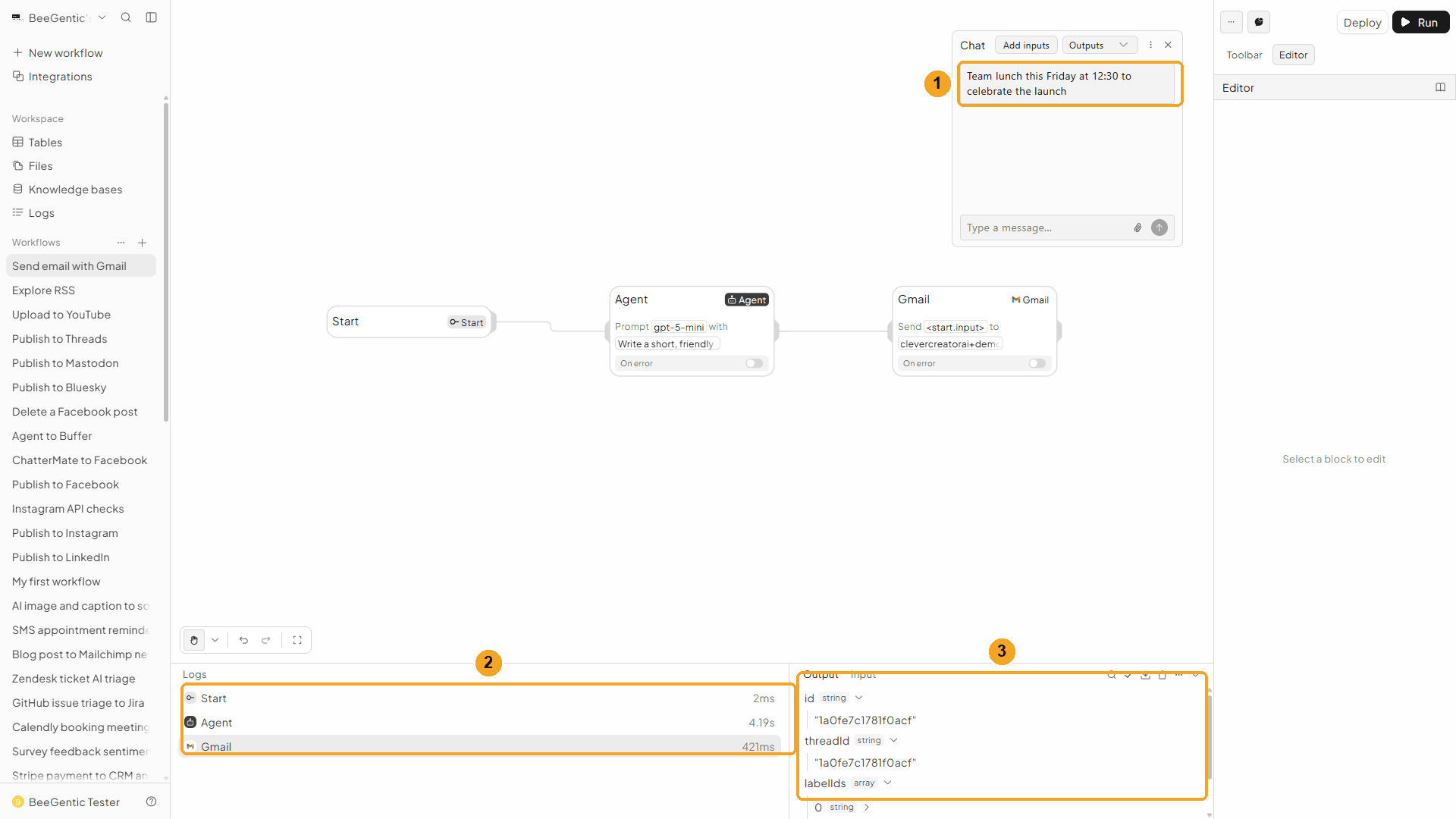
| # | What you see |
|---|---|
| 1 | Your message. |
| 2 | Each block's run time: the Agent about 4 s, Gmail under half a second. |
| 3 | The output: id (the Gmail message ID, here 1a0fe7c1781f0acf), threadId, and labelIds (UNREAD, SENT, INBOX, because we sent it to ourselves). |
Watch the run
See it in Gmail
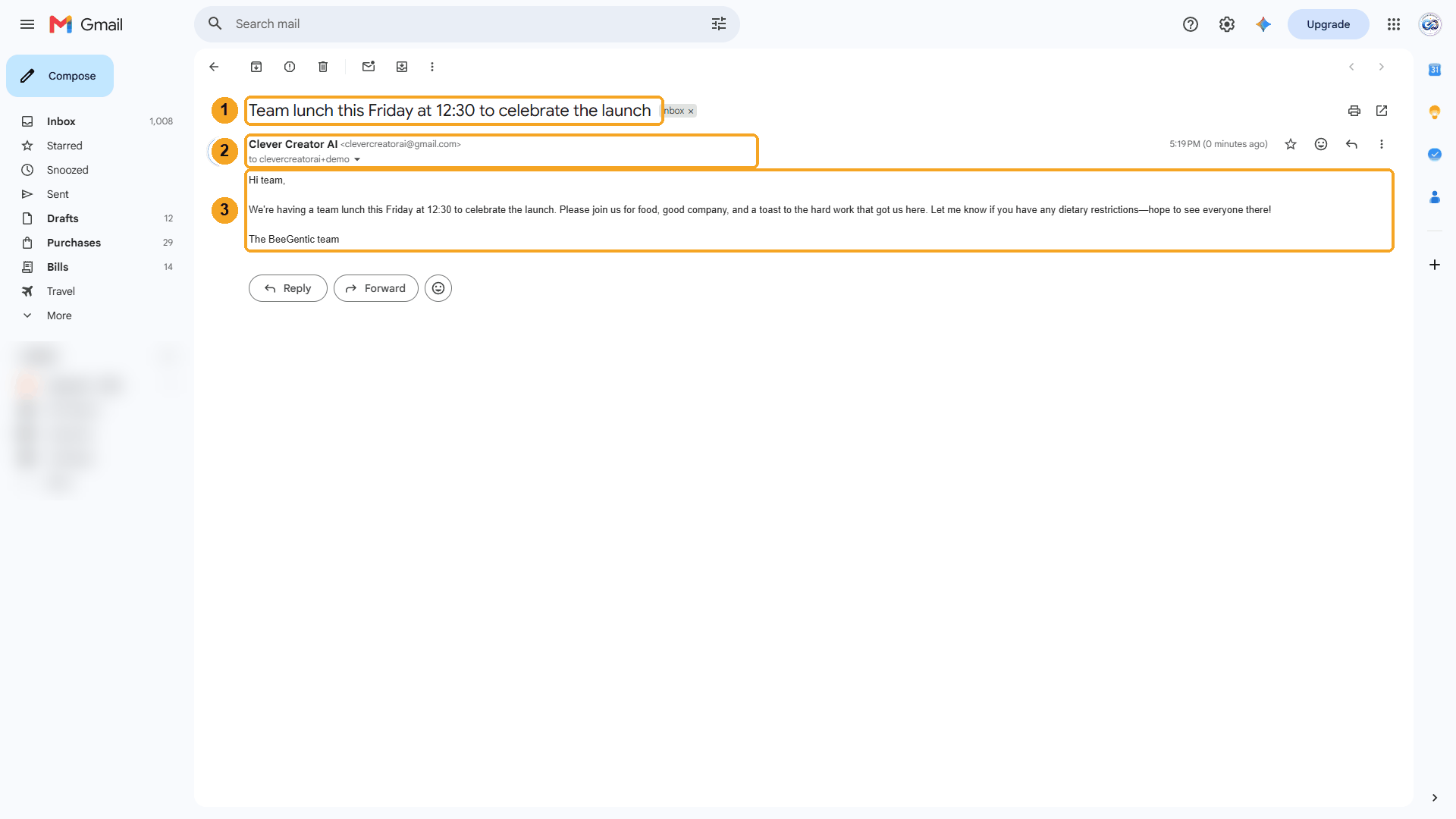
| # | What you see |
|---|---|
| 1 | The subject: your chat message. |
| 2 | Sent from your own address, to the +demo address. |
| 3 | The body the Agent wrote, with its line breaks kept. |
The real email BeeGentic sent:
We're having a team lunch this Friday at 12:30 to celebrate the launch. Please join us for food, good company, and a toast to the hard work that got us here. Let me know if you have any dietary restrictions—hope to see everyone there!
The BeeGentic team
We moved this test email to the trash afterwards with Delete Email (below).
Watch this step
⚡ Make it automatic
| You want | Do this |
|---|---|
| Send an email every morning | Replace Chat with a Schedule trigger and write the topic in the Agent's message. |
| React to every new email | Use the Gmail Email Trigger (below), then an Agent and a Draft Email or Send Email block. |
| Email a list of people | Read rows with Google Sheets and send one email per row. |
| Email a summary of form answers | Google Forms → Agent → Gmail. |
| Check before it goes out | Use Draft Email instead of Send Email, then send the draft yourself in Gmail. |
| Share news everywhere | After the Agent, add Publish to social blocks next to Gmail. |
Gmail Email Trigger
Starts the workflow when a new email arrives. In the Toolbar it's Gmail under Triggers.
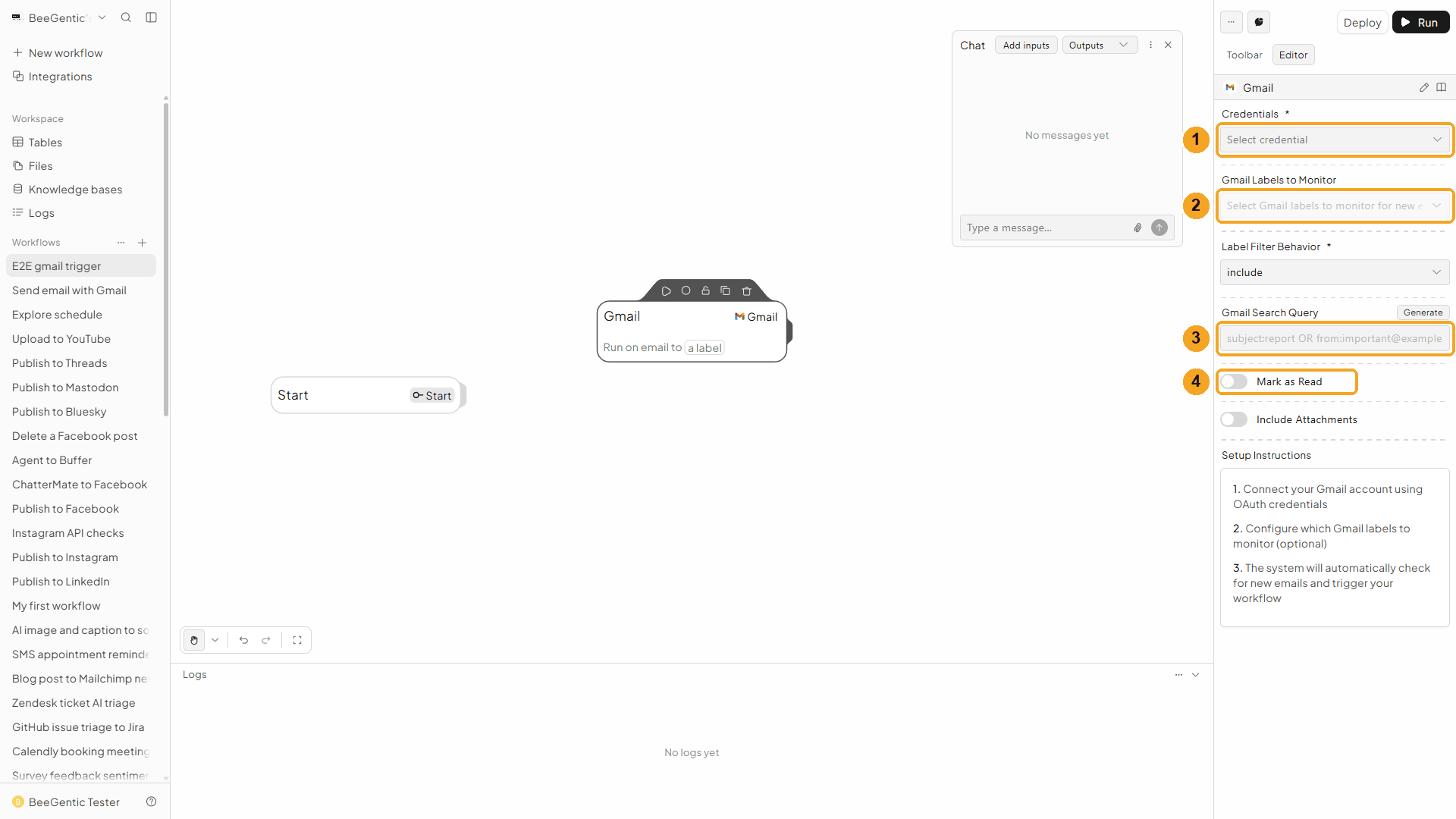
| # | Field | What it does |
|---|---|---|
| 1 | Credentials | Your Gmail connection |
| 2 | Gmail Labels to Monitor | Only emails with these labels, e.g. INBOX. Leave empty to watch all mail. Label Filter Behavior picks include or exclude. |
| 3 | Gmail Search Query | Optional Gmail search, e.g. subject:invoice or from:boss@example.com |
| 4 | Mark as Read | Marks each email read after the workflow picks it up. Include Attachments adds the files to the trigger output. |
BeeGentic checks your mailbox on a timer (it polls Gmail), so a run can start a few minutes after the email arrives. The trigger output has an email object with id, threadId, subject, from, to, cc, date, bodyText, bodyHtml, labels, hasAttachments and attachments, plus a timestamp. Deploy the workflow to turn it on. For a full example, see the Gmail AI reply recipe.
Other operations
| Operation | What it does |
|---|---|
| Read Email | Reads recent messages from a label (default INBOX). Options: Unread Only, Include Attachments, Max Results, or a single Message ID. |
| Search Email | Finds messages with Gmail search, e.g. from:anna@example.com has:attachment newer_than:7d |
| Draft Email | Saves the email in Drafts instead of sending it. Returns draftId. |
| Edit Draft | Changes a draft by its Draft ID |
| Reply in a thread | Use Send Email (or Draft Email) and, under Show additional fields, set Thread ID and Reply to Message ID to the threadId and id from the trigger or a search. |
| Move Email | Adds one label and removes another, e.g. from INBOX to a project label |
| Add Label / Remove Label | Tags or untags a message with an existing label |
| Mark as Read / Mark as Unread | Changes the read state |
| Archive Email / Unarchive Email | Removes from or returns to the inbox |
| Delete Email | Moves a message to the trash (Gmail empties the trash after 30 days) |
Troubleshooting
| Problem | Fix |
|---|---|
Gmail API error: … (for example Gmail API error: Forbidden or Not Found) | Gmail refused the request. Reconnect Gmail in Integrations and approve every permission, and check the message ID belongs to the connected mailbox. |
Total attachment size (…MB) exceeds Gmail's limit of 25MB | Send fewer or smaller files, or share a Drive link instead. |
At least one label ID is required | Add Label, Remove Label and Move Email need a label. Pick one in Label. |
| The email looks like one long paragraph | Ask the Agent for line breaks (as in our message), or set Content Type to HTML and ask for HTML. |
| The trigger doesn't start | Deploy the workflow, wait a few minutes, and check the label filter and search query match the email. |
| "Google hasn't verified this app" | Click Advanced → Go to beegentic.com (unsafe) (see Part 1). |
Start a workflow from an RSS feed
Run a workflow every time a blog, news site or podcast publishes something new. Use the article's title, link, author and text in your blocks. Step by step with a narrated video and real automatic runs.
Add rows to Google Sheets
Read, append, update and clear Google Sheets data from a workflow, or start a workflow when a new row is added. Step by step with a narrated video and a real result.