


Add rows to Google Sheets
Read, append, update and clear Google Sheets data from a workflow, or start a workflow when a new row is added. Step by step with a narrated video and a real result.
What you'll build: you paste a message from a new lead into Chat, an AI pulls out their name, email and interest, and BeeGentic adds them as a new row in a Google Sheet. Three blocks: Start → Agent → Google Sheets. About 5 minutes.
Connect with: 🔐 Sign in with your account · You need: A Google account with a spreadsheet, and an AI key for the Agent
Not supported: Formatting cells (colors, fonts, borders) · Charts and pivot tables · Sharing a spreadsheet with other people · Excel files (.xlsx) that aren't converted to Google Sheets
✅ action you can add to a workflow · ⚡ event that can start a workflow
Narrated walkthrough (about 2 min), with captions (CC button). Each step below also has a short silent clip. The orange numbers in each screenshot match the # column under it. Click a screenshot to enlarge it.
Before you start
| You need | Why |
|---|---|
| A Google account (Gmail or Google Workspace) | BeeGentic reads and writes your spreadsheets as you |
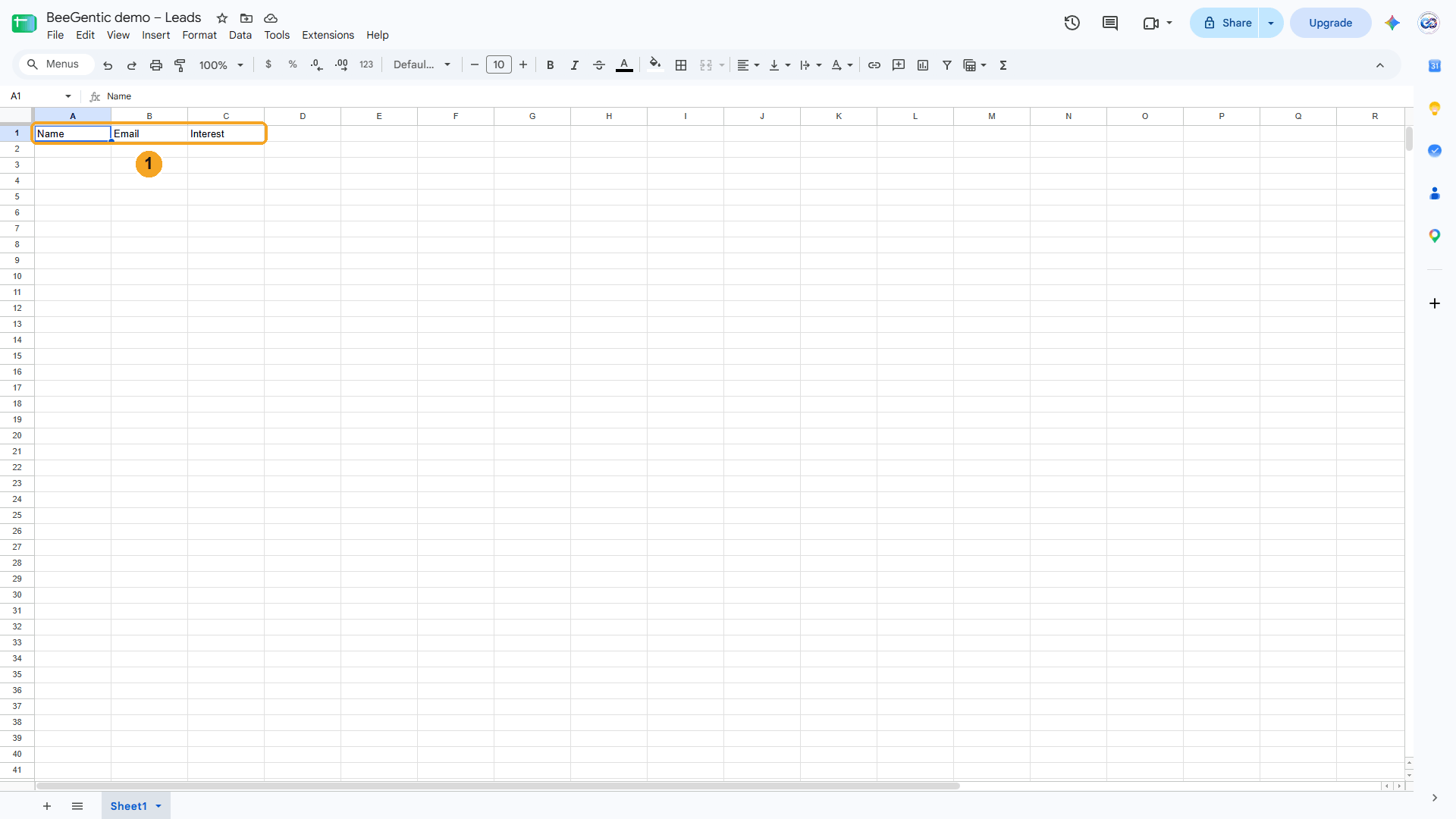
| A spreadsheet with headers in row 1 | BeeGentic adds rows under them. We made BeeGentic demo – Leads with Name, Email, Interest. |
An AI key saved as a secret, e.g. OPENAI_API_KEY | The Agent reads the message. See References and secrets. |
Part 1: Connect Google Sheets (once)
Prepare your sheet
In Google Sheets, create a spreadsheet and type the headers in row 1.
| # | What you see |
|---|---|
| 1 | The headers: Name, Email, Interest. The Agent will return the values in this order. |
Watch this step
Find Google Sheets in Integrations
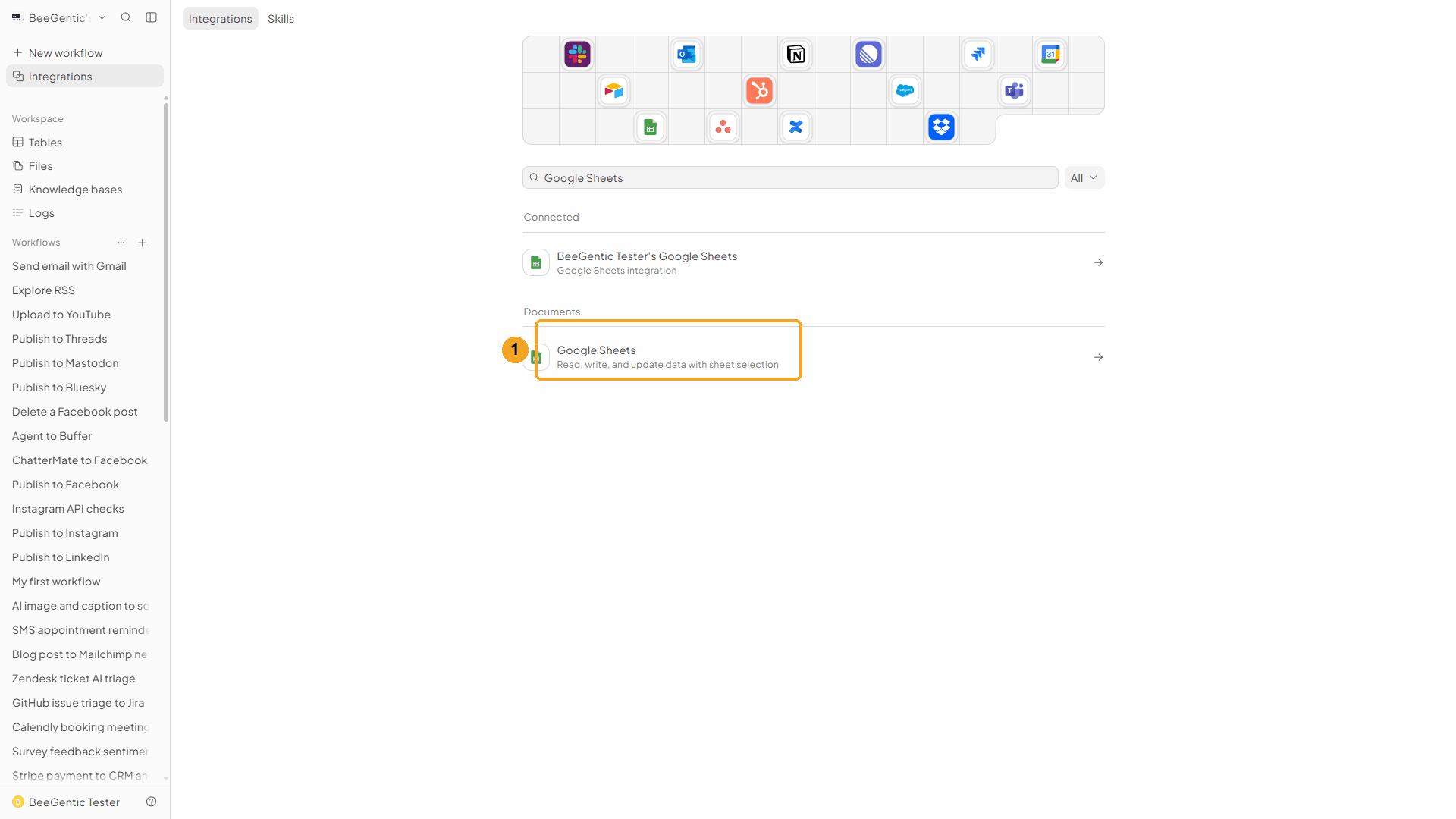
In BeeGentic: Integrations → search Google Sheets.
| # | What to do |
|---|---|
| 1 | Click Google Sheets, then Add to BeeGentic. |
Confirm and connect
| # | What it means |
|---|---|
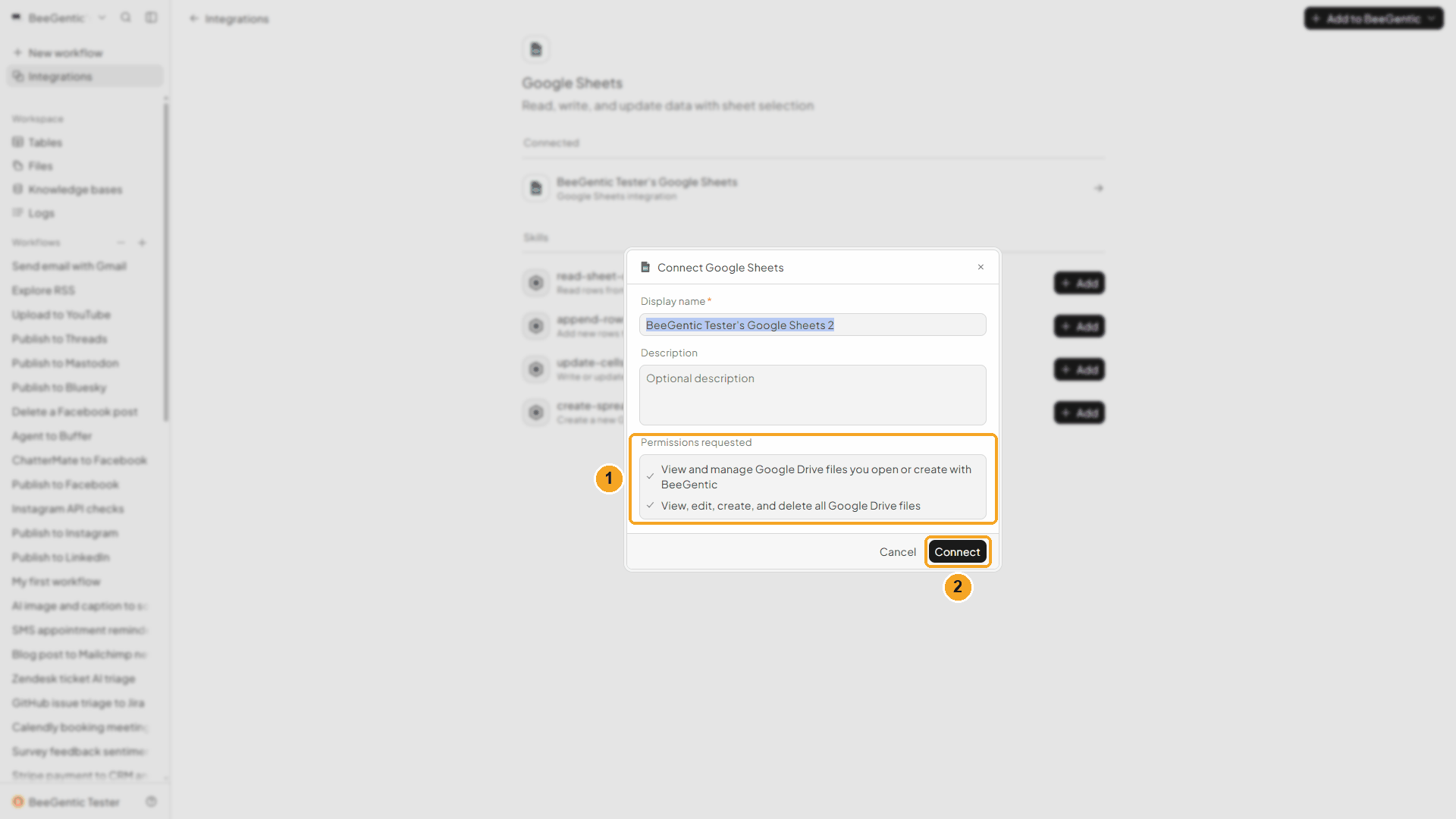
| 1 | What BeeGentic may do: view and manage Drive files you open or create with BeeGentic, and view, edit, create and delete your Google Drive files. Sheets are Drive files; this is what lets you pick any spreadsheet from a list. |
| 2 | Click Connect. Google opens. |
Watch this step
Pick your Google account
| # | What to do |
|---|---|
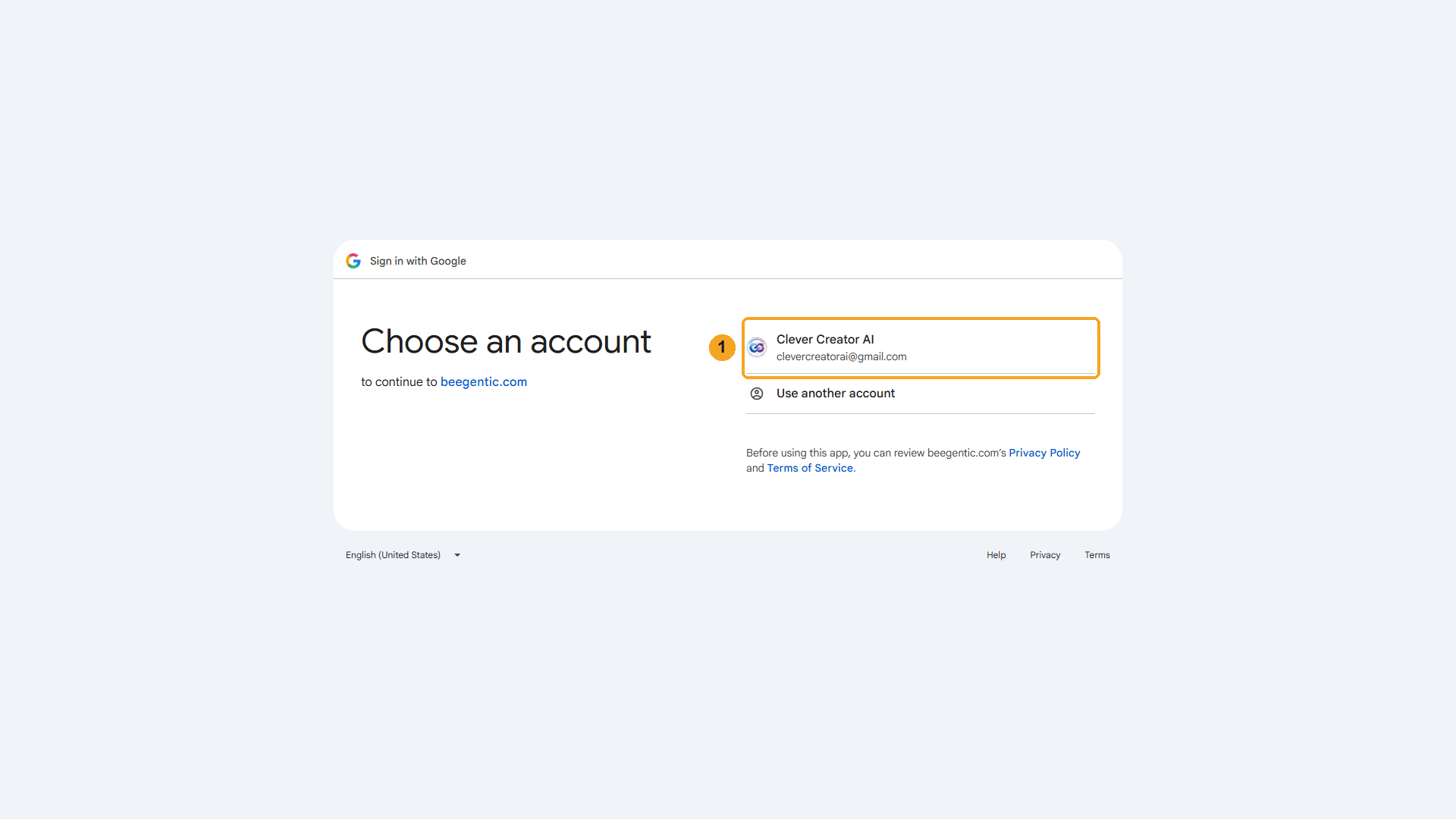
| 1 | Click the account that owns the spreadsheet, then allow access. You're sent back to BeeGentic, connected. |
Watch this step
Part 2: Build the workflow
Create the workflow and add the Agent
+ New workflow → name it Add leads to Google Sheets. Then Toolbar → Agent. In Messages:
Read this message from a new lead: <start.input>. Return only a JSON array with one row: [["full name", "email address", "what they are interested in, in 3 to 6 words"]]. No code fences, no other text.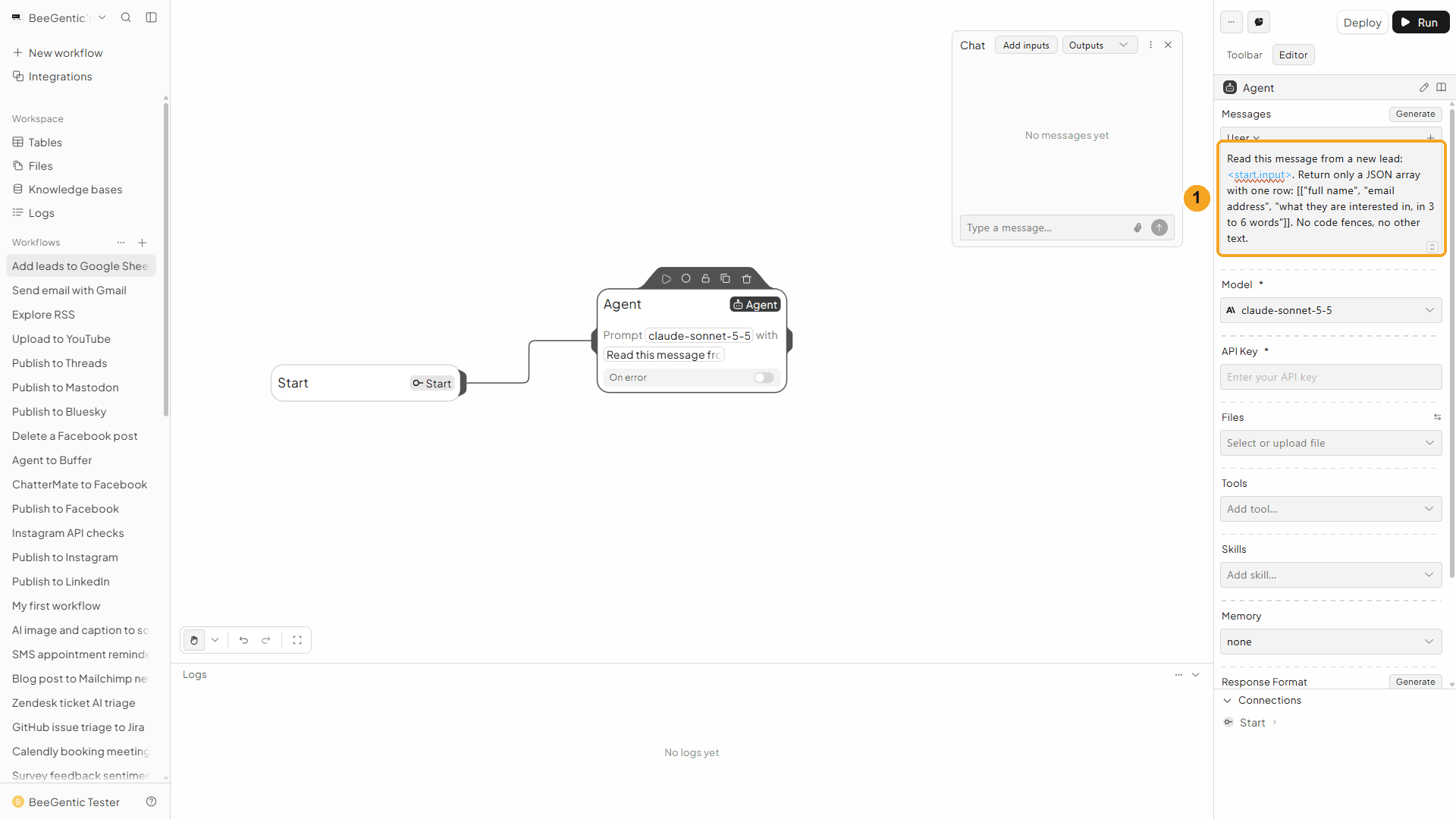
| # | What you see |
|---|---|
| 1 | The message. It asks for exactly one row, as a JSON array of arrays, in the same order as your headers. |
Watch this step
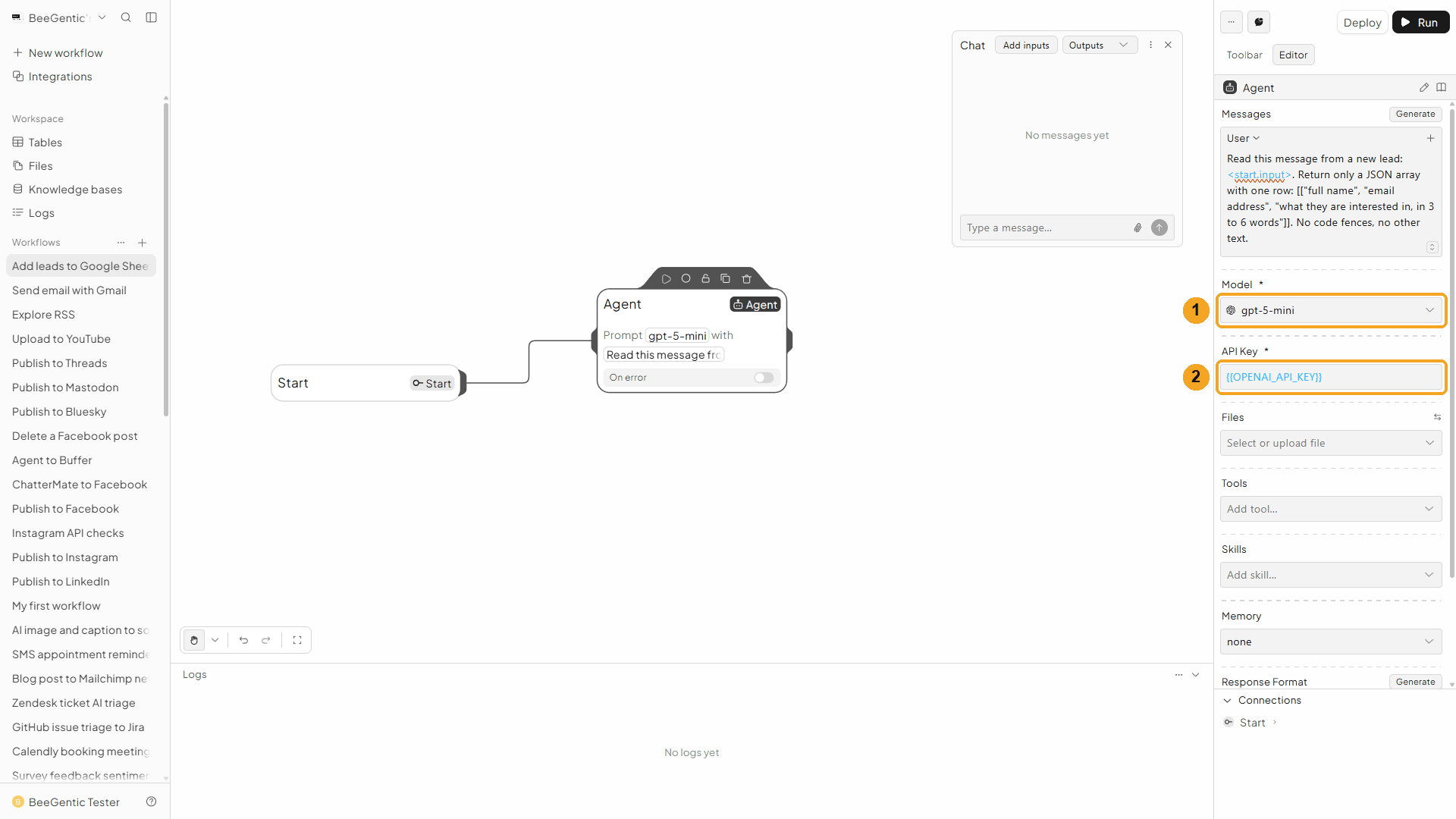
Add the Google Sheets block
Toolbar → Google Sheets (in the tools list, not the one under Triggers).
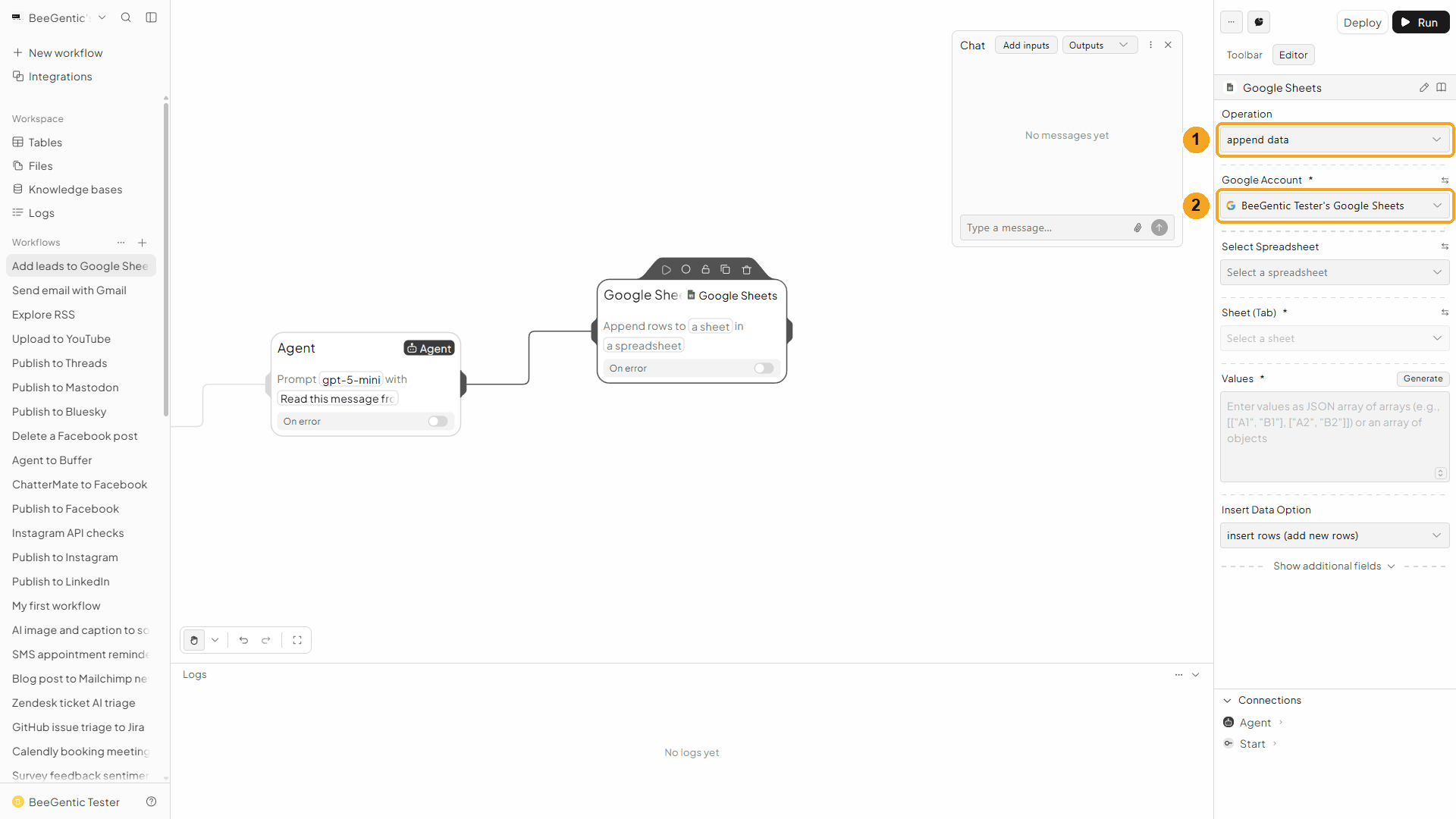
| # | Field | Value |
|---|---|---|
| 1 | Operation | Append Data |
| 2 | Google Account | The connection from Part 1 |
Watch this step
Pick the spreadsheet and tab
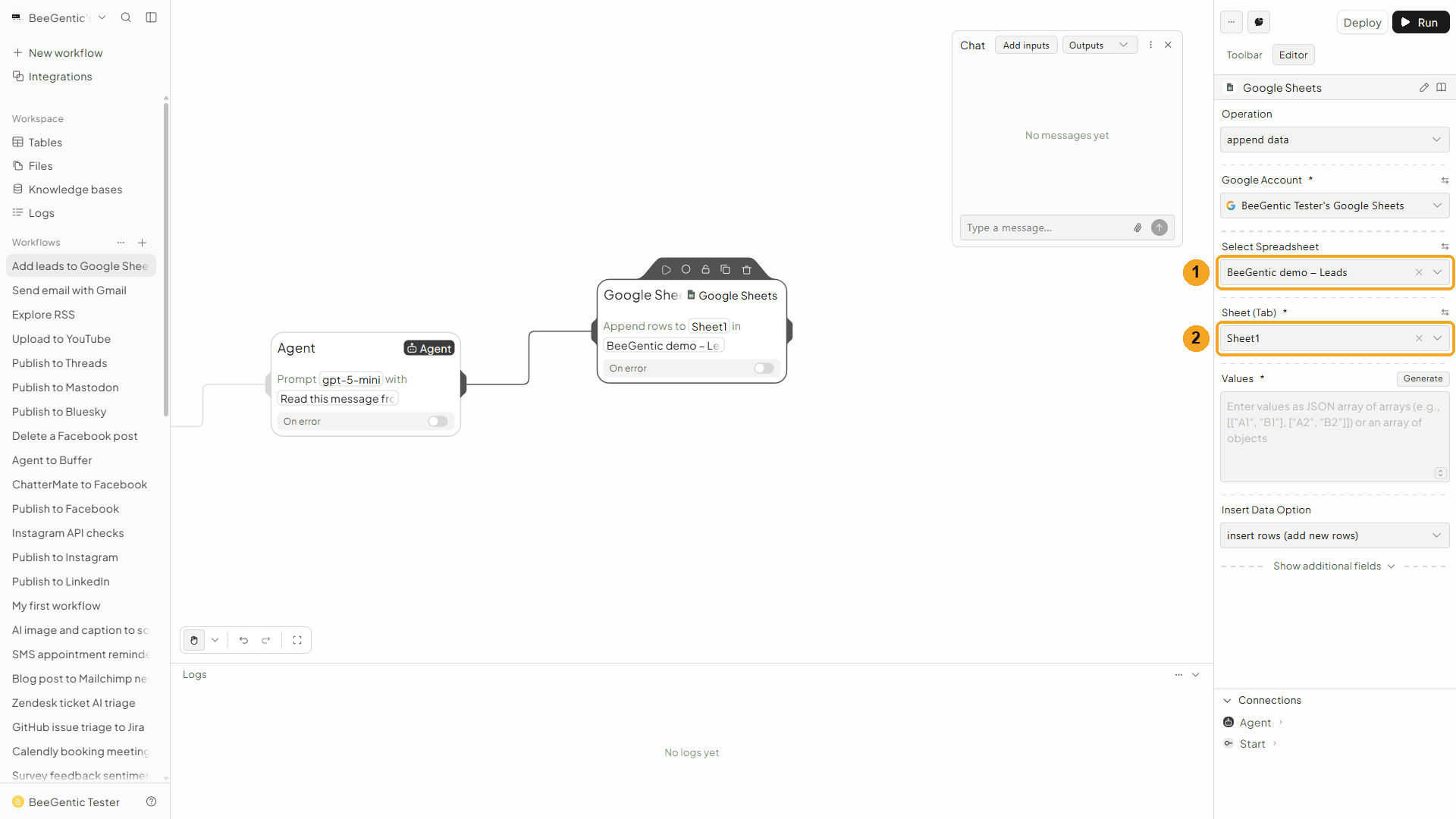
| # | Field | Value |
|---|---|---|
| 1 | Select Spreadsheet | Click it and type part of the name, e.g. BeeGentic demo, then pick it. (The list of your other files is blurred in the video.) |
| 2 | Sheet (Tab) | Sheet1, the tab with your headers |
The ⇆ icon next to each field switches to typing an ID instead: the Spreadsheet ID is the long part of the sheet's URL between /d/ and /edit.
Watch this step
Values
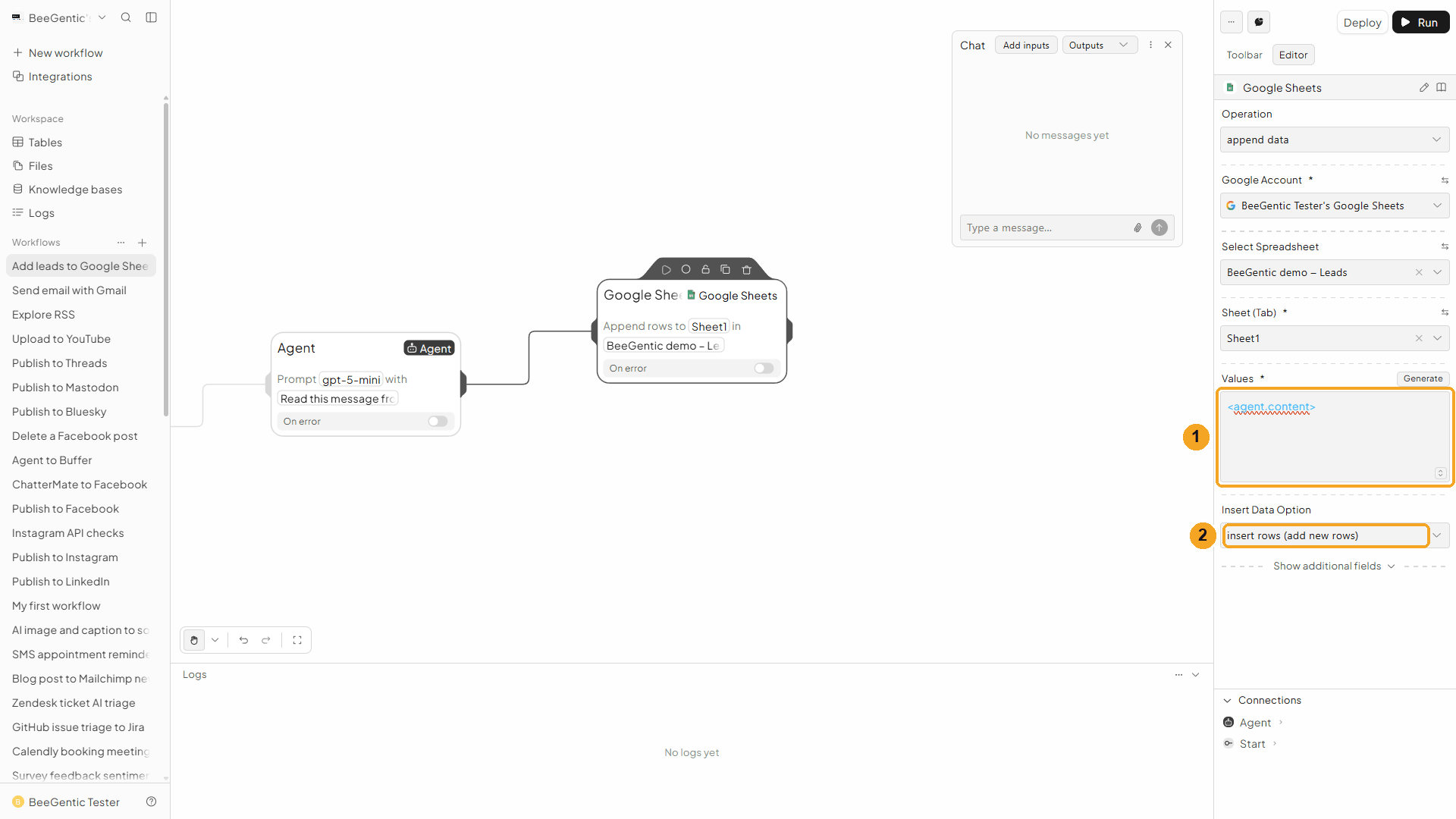
| # | Field | Value |
|---|---|---|
| 1 | Values | <agent.content>: the row the Agent returned |
| 2 | Insert Data Option | Insert Rows (Add new rows) adds the row below your data. Overwrite writes into existing empty cells instead. |
Append reads values the way Google Sheets does when you type them: =SUM(A1:A3) becomes a formula and 10/02 a date. (Write Data and Update Data also have a Value Input Option, where Raw keeps text exactly as sent.)
Press Shift + L to tidy. Your finished workflow:
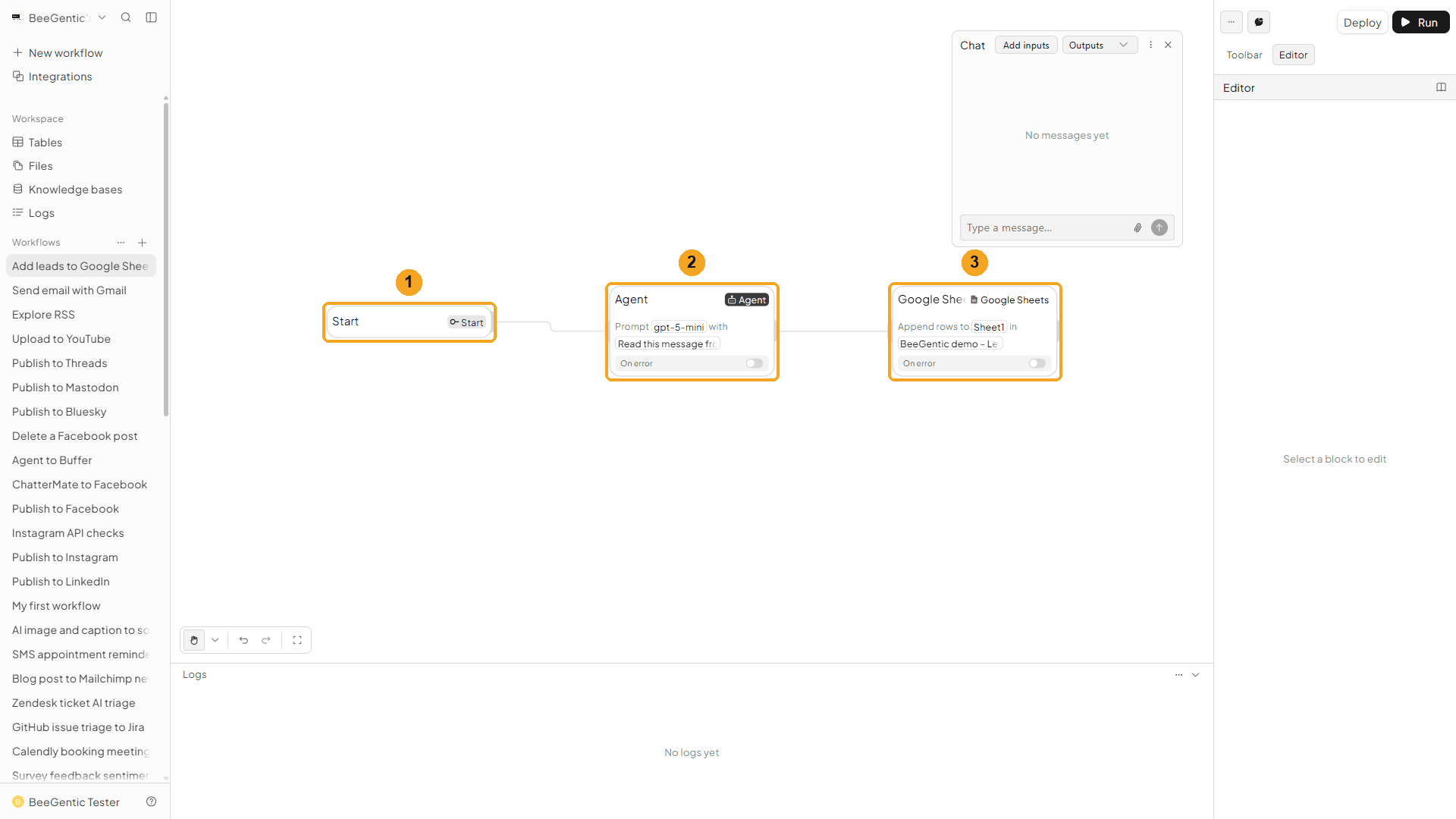
| # | Block | What it does |
|---|---|---|
| 1 | Start | Your chat message becomes <start.input> |
| 2 | Agent | Pulls out name, email and interest |
| 3 | Google Sheets | Appends the row |
Watch this step
Part 3: Run it and check the result
Paste the lead's message in Chat
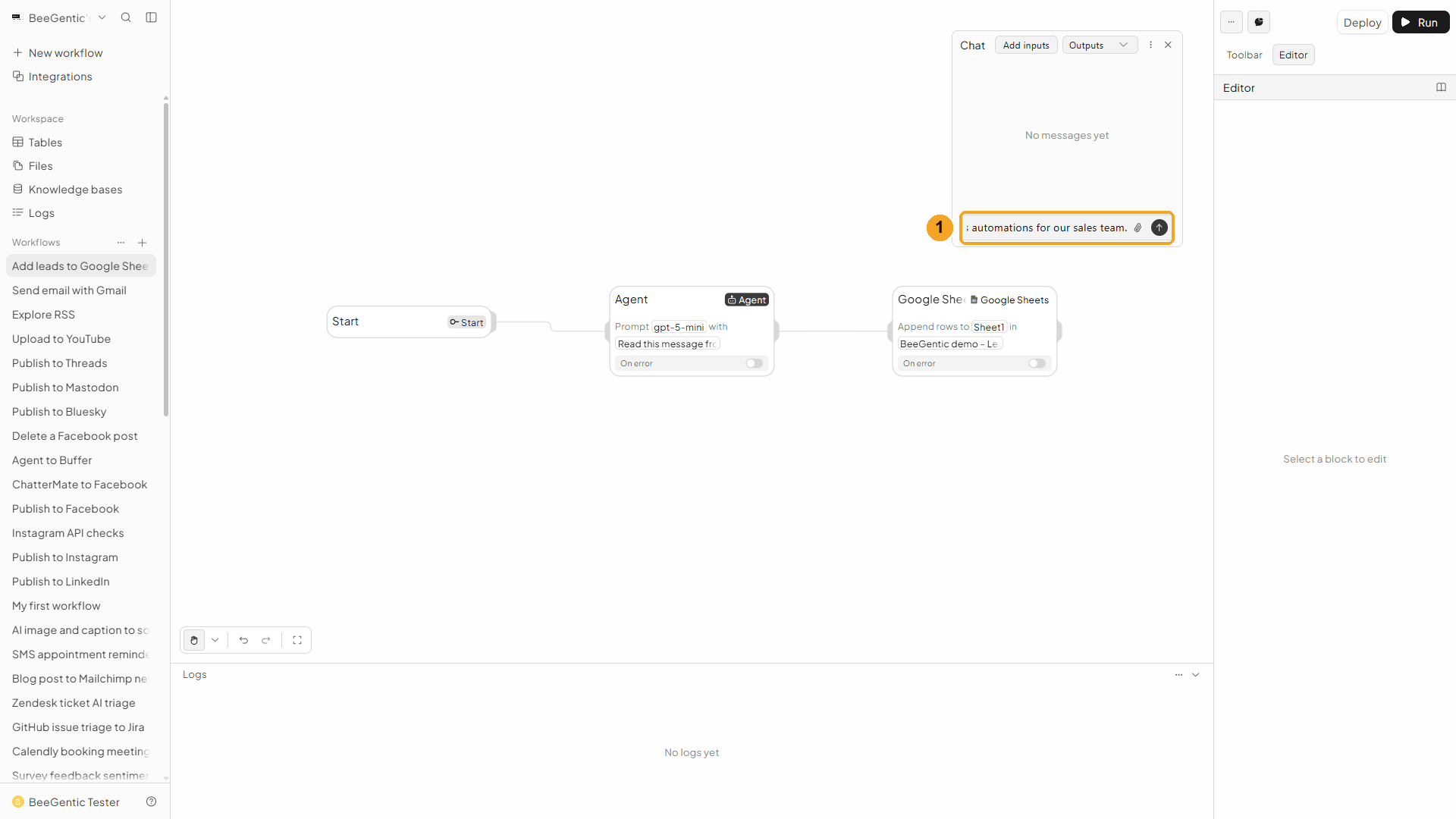
| # | What to do |
|---|---|
| 1 | Open Chat, paste the message and press Enter. |
Example message we sent (a made-up lead):
Hi, I'm Maria Lopez (maria.lopez@example.com). I'd love a demo of your Google Sheets automations for our sales team.Read the output
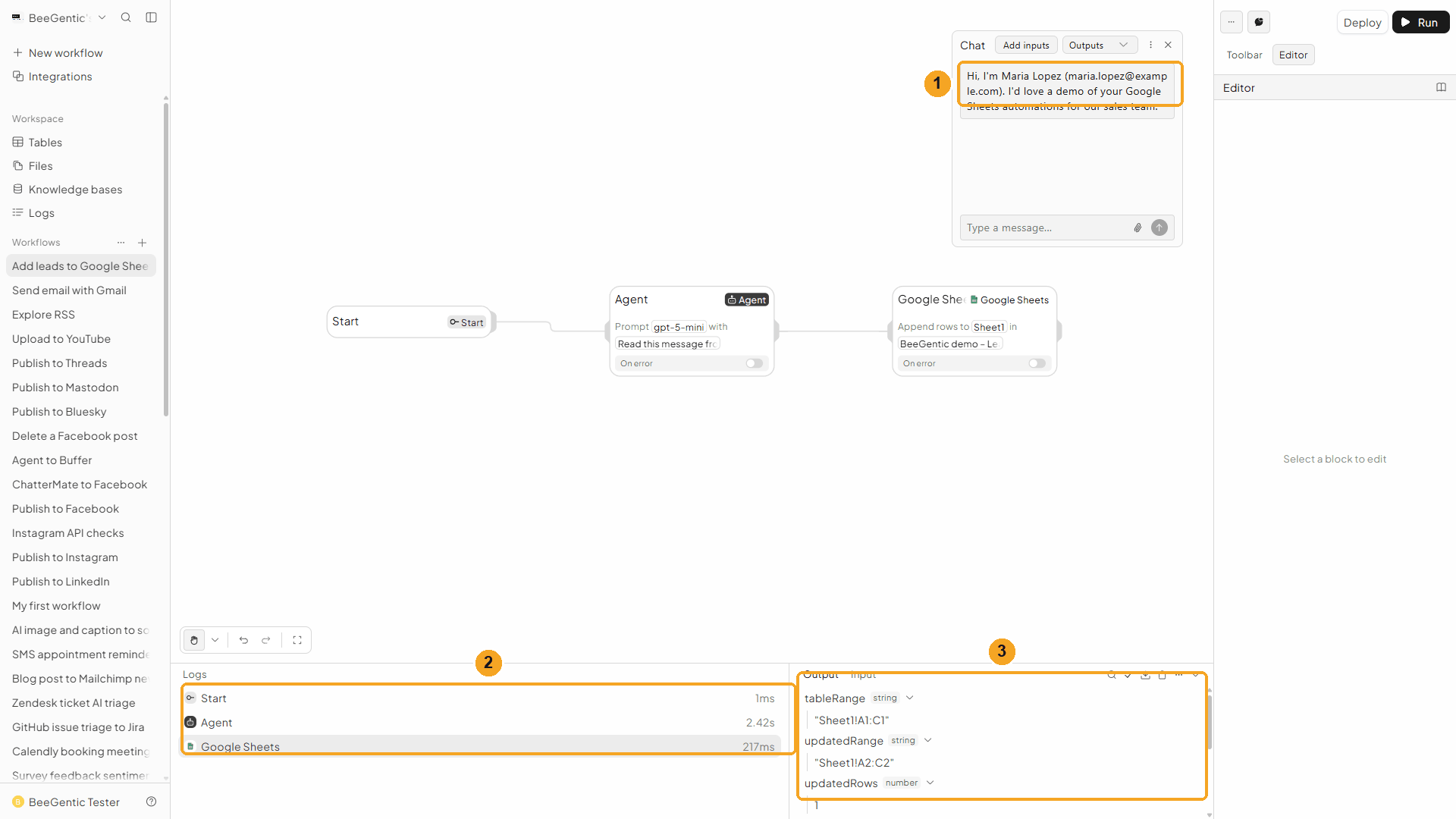
| # | What you see |
|---|---|
| 1 | Your message. |
| 2 | Each block's run time: the Agent about 2 s, Google Sheets about 0.2 s. |
| 3 | The output: tableRange Sheet1!A1:C1 (your existing data), updatedRange Sheet1!A2:C2 (the new row), updatedRows 1, updatedColumns 3, updatedCells 3, and metadata with the spreadsheetId and spreadsheetUrl. |
Watch the run
See the row in the sheet
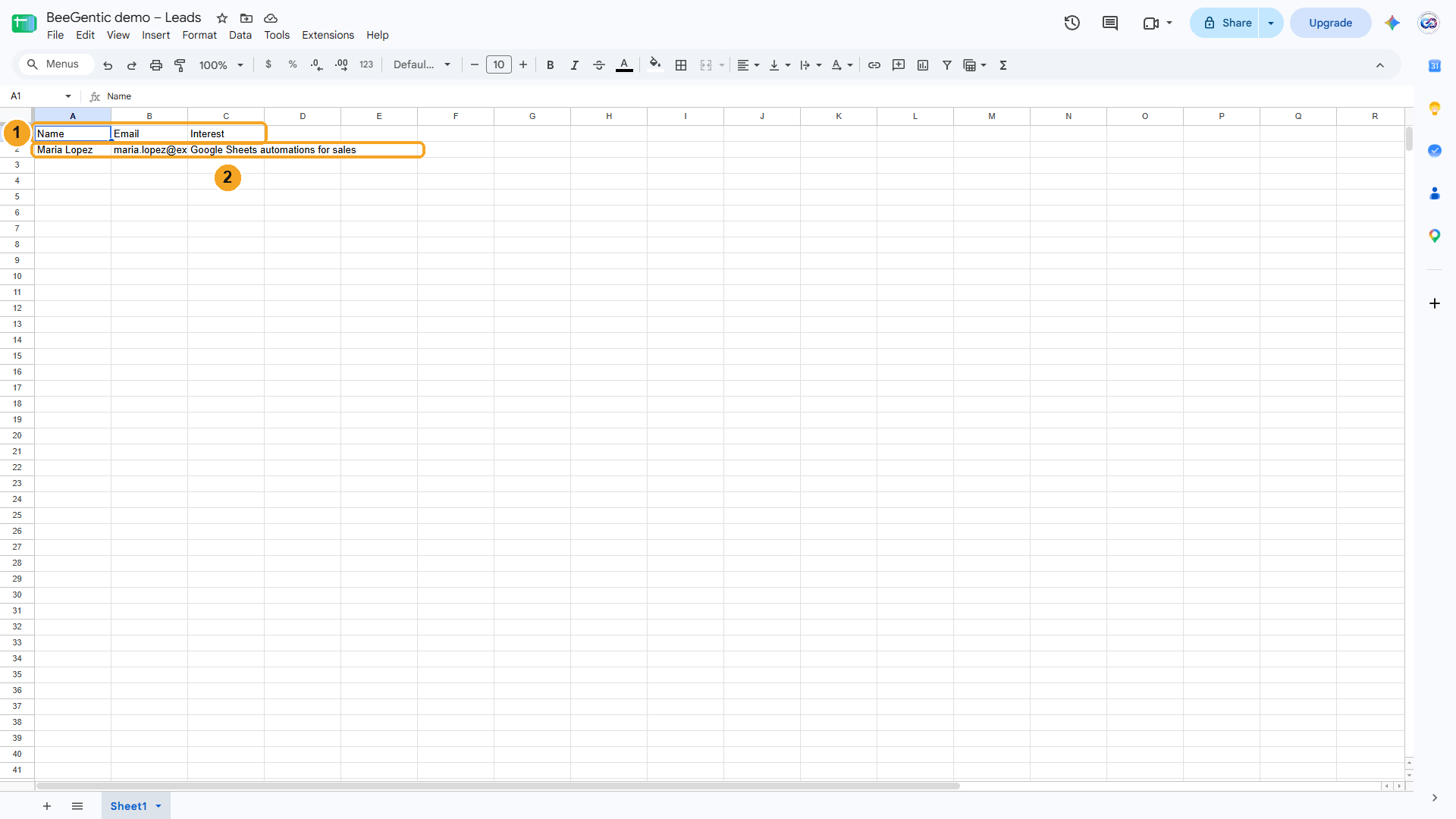
| # | What you see |
|---|---|
| 1 | Your headers. |
| 2 | The new row, written by the workflow. |
The real row BeeGentic added:
We kept this one row in our demo sheet. Remove test rows with Delete Rows (below) or in Google Sheets.
Watch this step
⚡ Make it automatic
| You want | Do this |
|---|---|
| Log every new website lead | Start with a Webhook Trigger from your site's form instead of Chat (see the web form lead capture recipe). |
| Log every Google Form answer | Google Forms → Agent → Google Sheets. |
| Welcome each new lead by email | Add a Gmail Send Email after Google Sheets, with To = the email the Agent found. |
| A daily report from your sheet | Schedule → Google Sheets Read Data → Agent → Gmail. |
| Post each new row to social | Google Sheets New Row trigger → Agent → Publish to social. |
Google Sheets New Row trigger
Starts the workflow when a row is added to a sheet. In the Toolbar it's Google Sheets under Triggers.
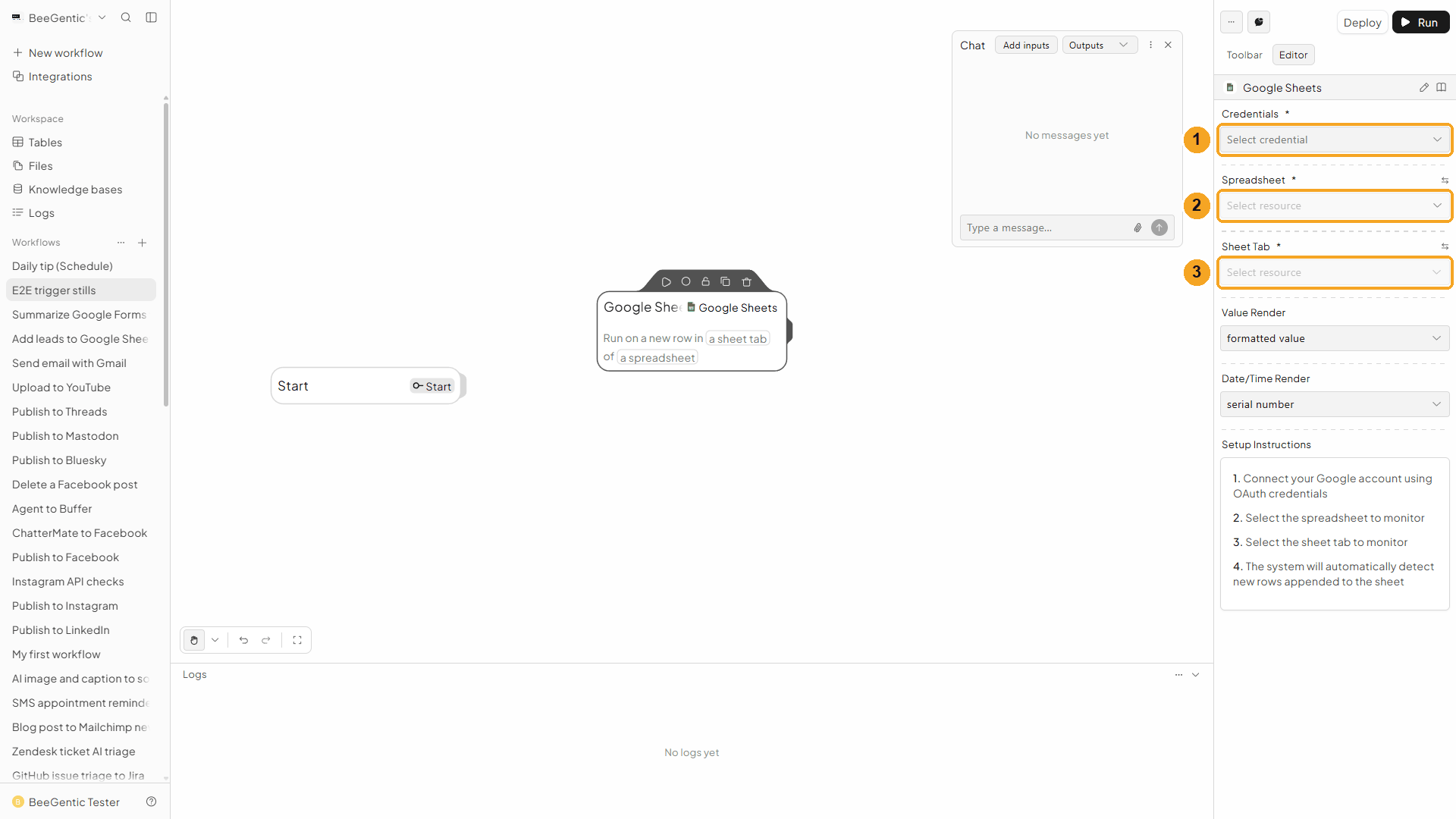
| # | Field | What it does |
|---|---|---|
| 1 | Credentials | Your Google Sheets connection |
| 2 | Spreadsheet | The spreadsheet to watch |
| 3 | Sheet Tab | The tab to watch |
Value Render and Date/Time Render choose how cell values arrive (as shown, unformatted, or as formulas; dates as serial numbers or text). BeeGentic checks the sheet on a timer, so a new row can take a few minutes to start the workflow. The trigger gives you row (values mapped to your row 1 headers), rawRow, headers, rowNumber, spreadsheetId, sheetName and timestamp. Deploy the workflow to turn it on.
Other operations
| Operation | What it does |
|---|---|
| Read Data | Reads a range (e.g. A1:C50). Under advanced fields: Filter Column, Filter Value and Match Type (contains, exact match, greater than…) to return only matching rows. |
| Write Data | Writes values starting at a cell (default A1), replacing what's there |
| Update Data | Changes the values in a given range |
| Clear Data | Empties a range but keeps the formatting |
| Get Spreadsheet Info | Title, URL and the tabs with their numeric Sheet IDs |
| Create Spreadsheet | Makes a new spreadsheet with a title and tab names |
| Batch Read / Batch Update / Batch Clear | The same, for several ranges in one call |
| Copy Sheet | Copies a tab into another spreadsheet |
| Delete Rows | Deletes rows by 0-based index (start inclusive, end exclusive) in a tab, by its Sheet ID |
| Delete Sheet / Delete Spreadsheet | Removes a tab, or the whole file |
Troubleshooting
| Problem | Fix |
|---|---|
Sheet name is required | Pick a Sheet (Tab), or type its name, e.g. Sheet1. |
| The whole JSON lands in one cell | The Agent added text or code fences around the array. Keep "Return only a JSON array… No code fences" in its message, and check <agent.content> in the Agent's output. |
| Values land in the wrong columns | With an array of arrays, the order must match your headers. Use an array of objects with your header names as keys (see the drawer above). |
| The spreadsheet isn't in the list | Type part of its name to search. Excel files must be opened in Google Sheets and saved as a Google Sheet first. |
| Dates or numbers change format | Append reads values like typed input. To keep text exactly, start it with an apostrophe ('10/02), or use Write Data / Update Data with Value Input Option = Raw. |
| The trigger doesn't start | Deploy the workflow, add the row at the bottom of the tab, and wait a few minutes. |
Send email with Gmail
Send, draft, reply to, search and label Gmail messages from a workflow, or start a workflow when an email arrives. Step by step with a narrated video and a real result.
Create events with Google Calendar
Create, list, update and delete Google Calendar events from a workflow, or start a workflow when an event changes. Step by step with a narrated video and a real result.