


Post messages to Slack
Send Slack messages to a channel or a person from a workflow, and read, update, react to and delete messages, manage channels and canvases. Step by step with a narrated video and a real result.
What you'll build: you type a topic in Chat, an AI writes a short team update about it, and BeeGentic posts it to a Slack channel. Three blocks: Start → Agent → Slack. About 5 minutes.
Connect with: 🔐 Sign in with your account · You need: A Slack workspace where you can add apps, and an AI key for the Agent
Not supported: Posting as yourself (messages come from the BeeGentic app) · Starting a workflow from Slack with the BeeGentic app (the Slack trigger needs your own custom bot today) · Slack Lists and Agent Session actions with the BeeGentic app (custom bot only) · Reading direct-message history with the BeeGentic app · Slack admin settings, user groups you don't manage, Enterprise Grid org admin
✅ action you can add to a workflow · ⚡ event that can start a workflow
Narrated walkthrough (about 2 min), with captions (CC button). Each step below also has a short silent clip. The orange numbers in each screenshot match the # column under it. Click a screenshot to enlarge it.
Before you start
| You need | Why |
|---|---|
| A Slack workspace where you can add apps | BeeGentic installs its own Slack app, called BeeGentic, and posts as that bot. On some paid workspaces an admin has to approve new apps first. |
| A channel for the messages | We used #all-beegentic-demo, the default channel of our demo workspace. Any public channel works. For a private channel, invite the bot first with /invite @BeeGentic. |
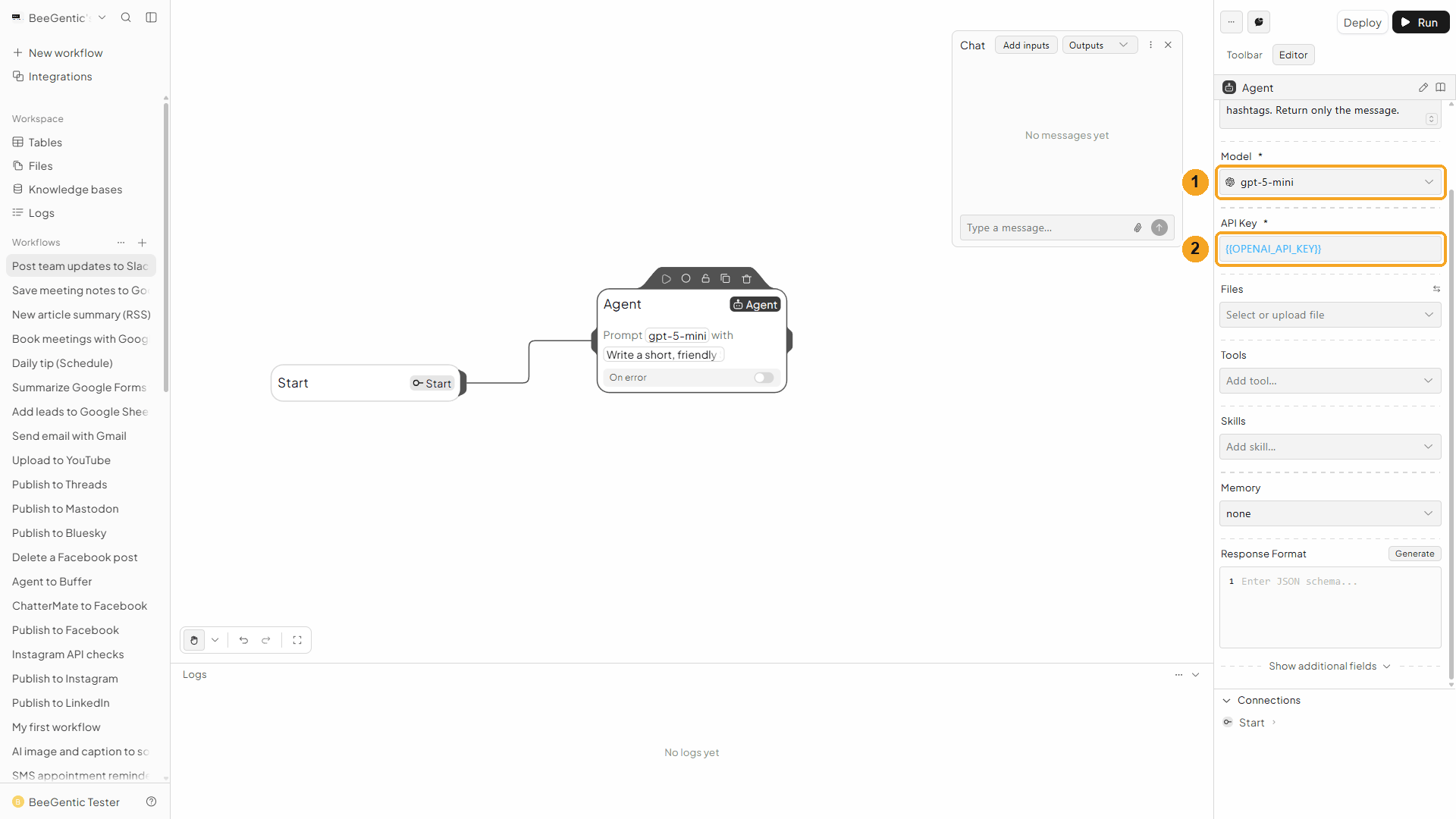
An AI key saved as a secret, e.g. OPENAI_API_KEY | The Agent writes the update. See References and secrets. |
Part 1: Connect Slack (once)
Look at your channel
Open the Slack channel you'll post to, so you can spot the new message later.
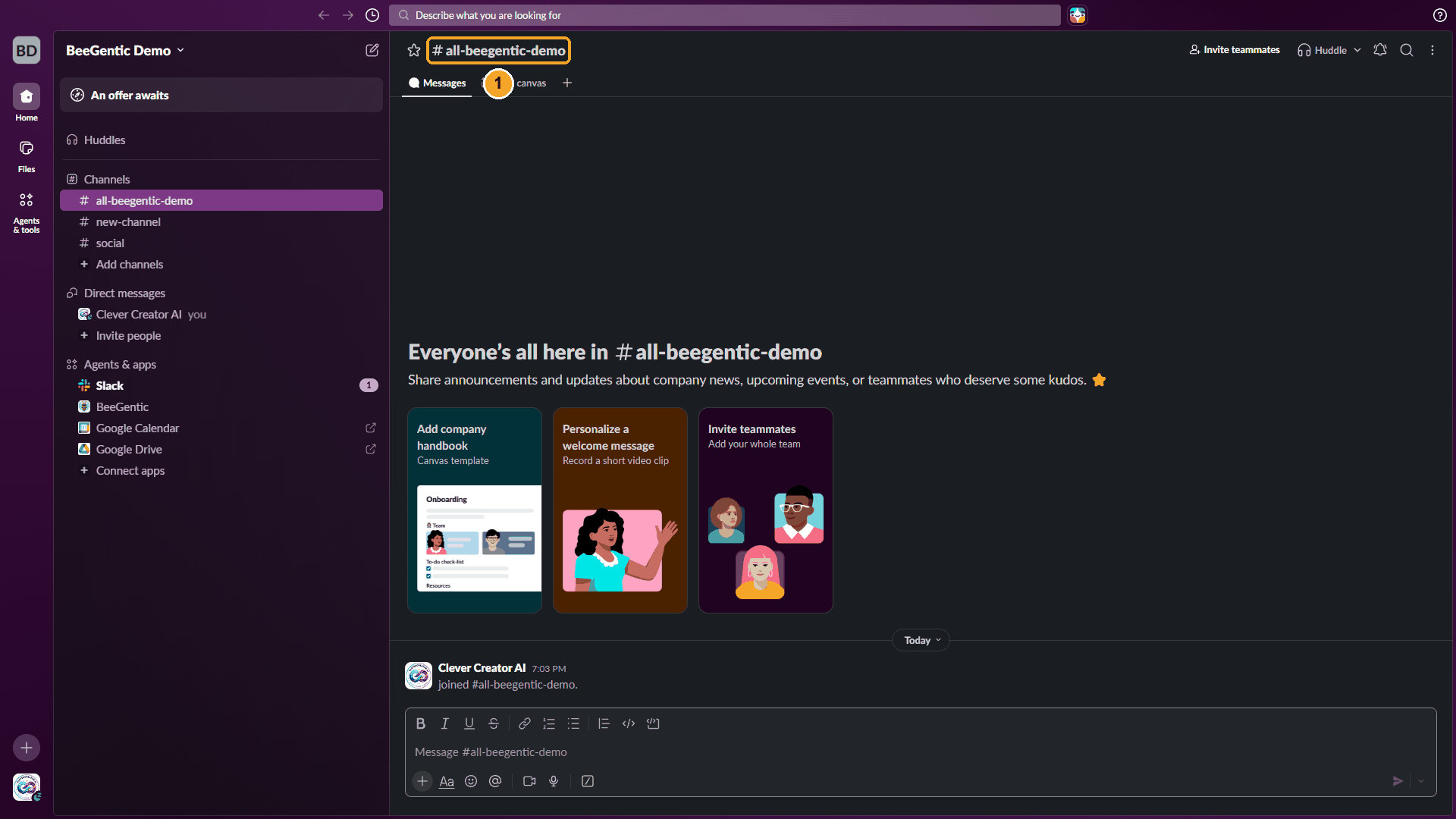
| # | What you see |
|---|---|
| 1 | #all-beegentic-demo: nothing from BeeGentic yet. |
Watch this step
Find Slack in Integrations
In BeeGentic: Integrations → search Slack.
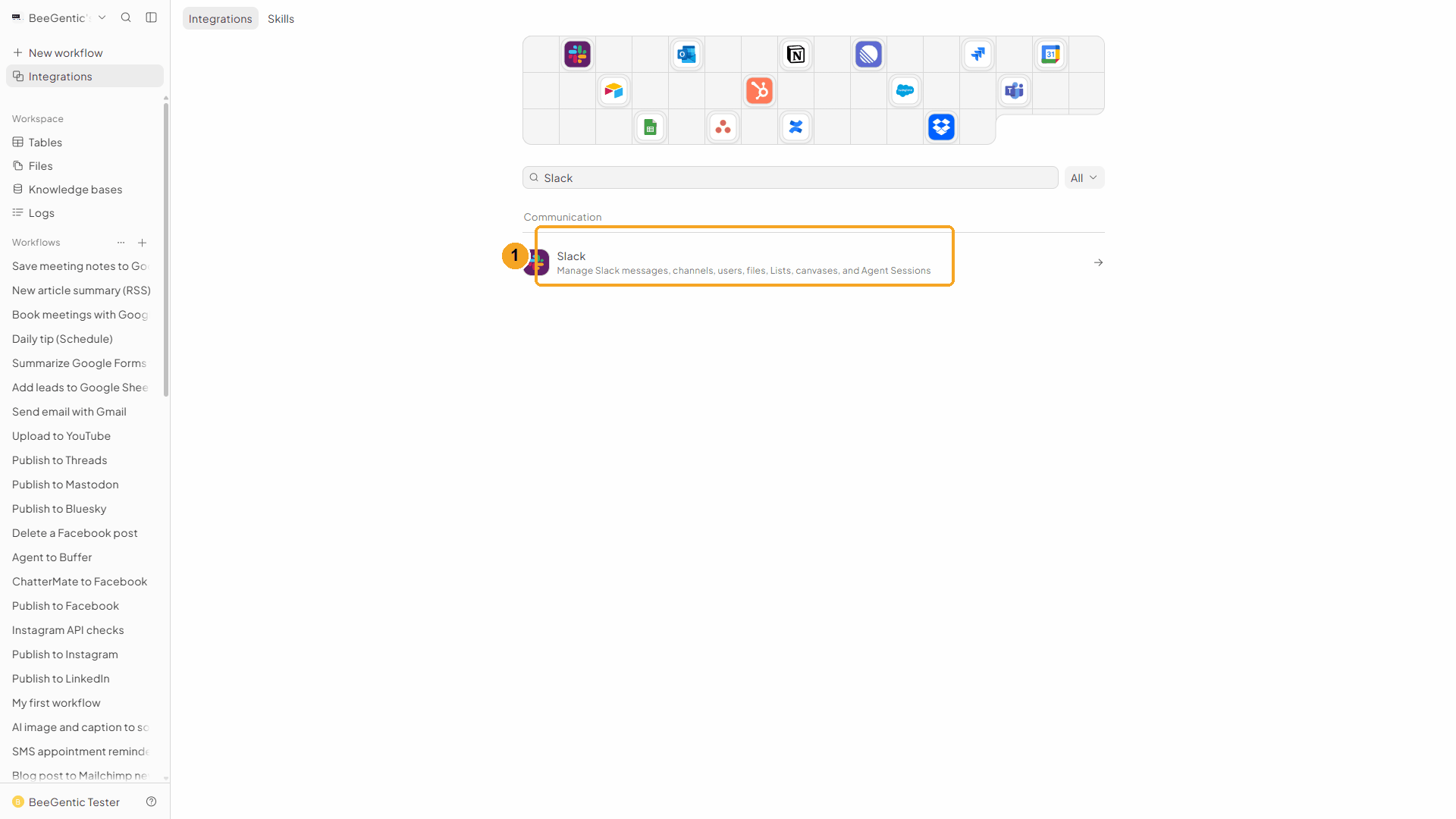
| # | What to do |
|---|---|
| 1 | Click Slack. If you've connected before, your connection is listed under Connected. |
Watch this step
Add to BeeGentic, then Connect
Click Add to BeeGentic → Connect with OAuth. A dialog opens.
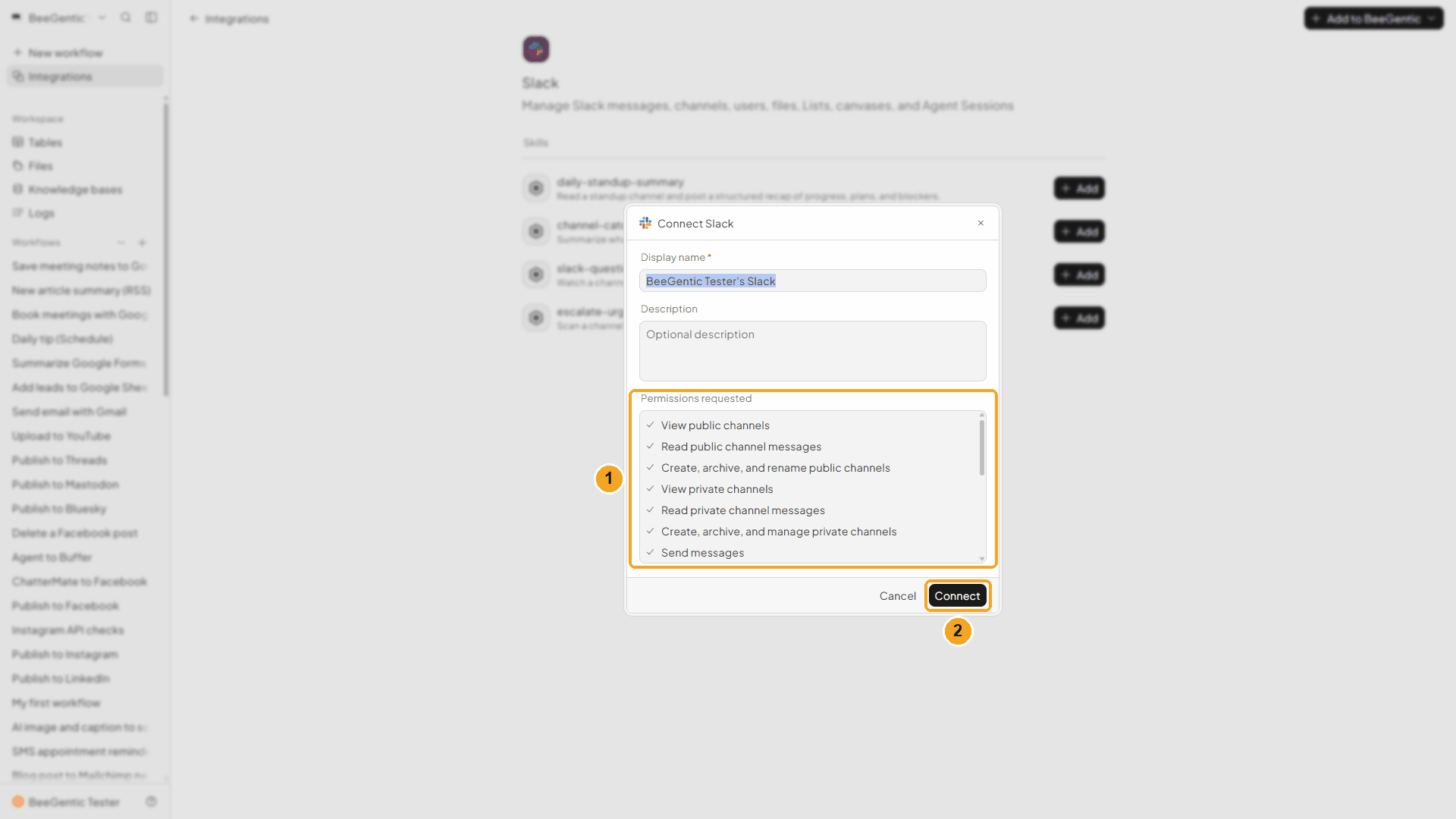
| # | What it means |
|---|---|
| 1 | What BeeGentic may do in Slack: view and read channels, send messages (also to public channels the bot hasn't joined), start direct messages, view users, upload and read files, work with canvases, and add or view reactions. You can rename the connection in Display name, e.g. Team Slack. |
| 2 | Click Connect. Slack opens. |
Watch this step
Allow BeeGentic in your workspace
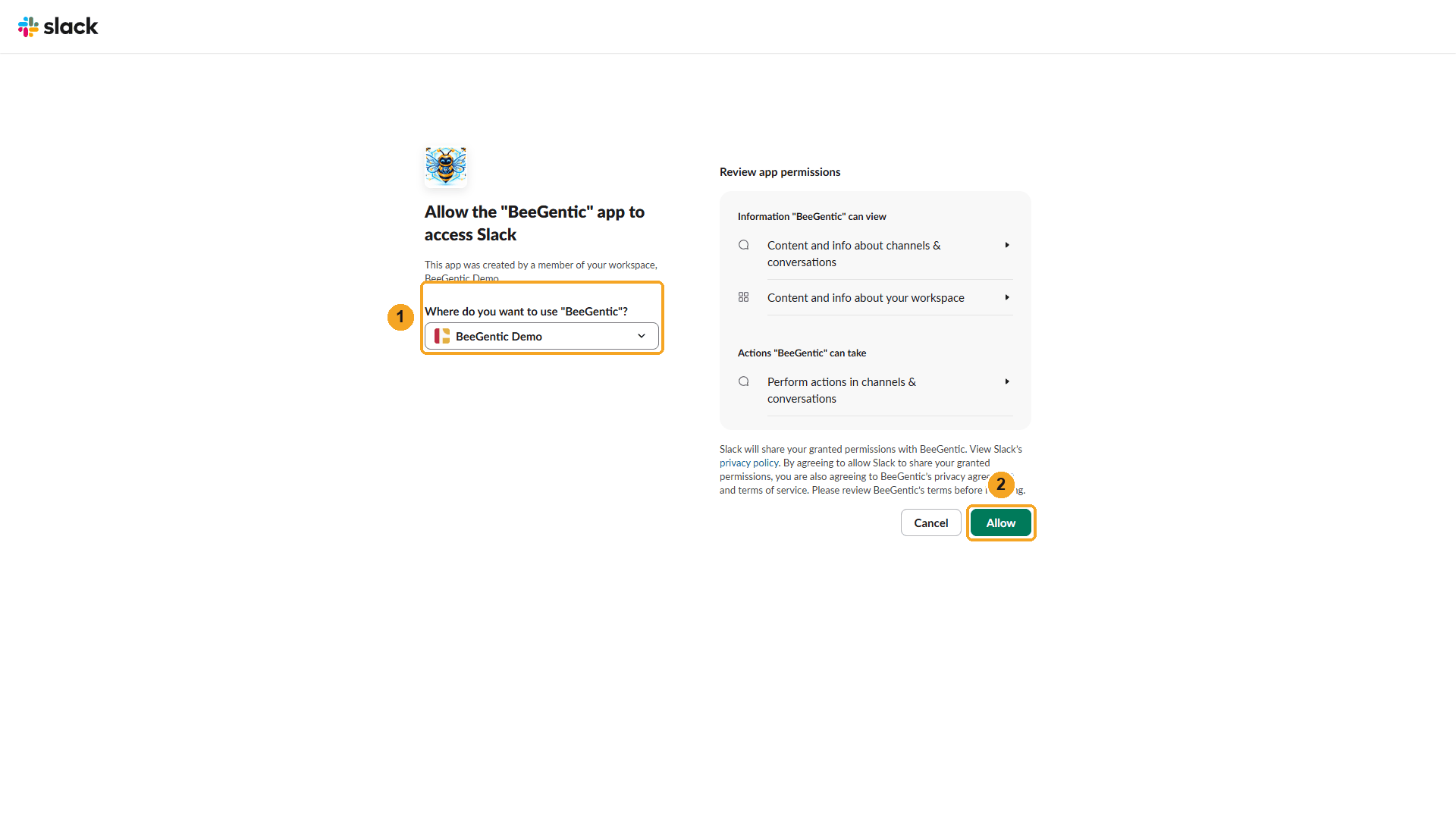
| # | What to do |
|---|---|
| 1 | Check the workspace in Where do you want to use "BeeGentic"? If you're in several workspaces, pick the right one here. |
| 2 | Click Allow. You're sent back to BeeGentic, connected. |
Watch this step
Part 2: Build the workflow
Create the workflow and add the Agent
+ New workflow → name it Post team updates to Slack. Then Toolbar → Agent. In Messages:
Write a short, friendly Slack update for the team about: <start.input>. Two or three sentences, at most one emoji, no hashtags. Return only the message.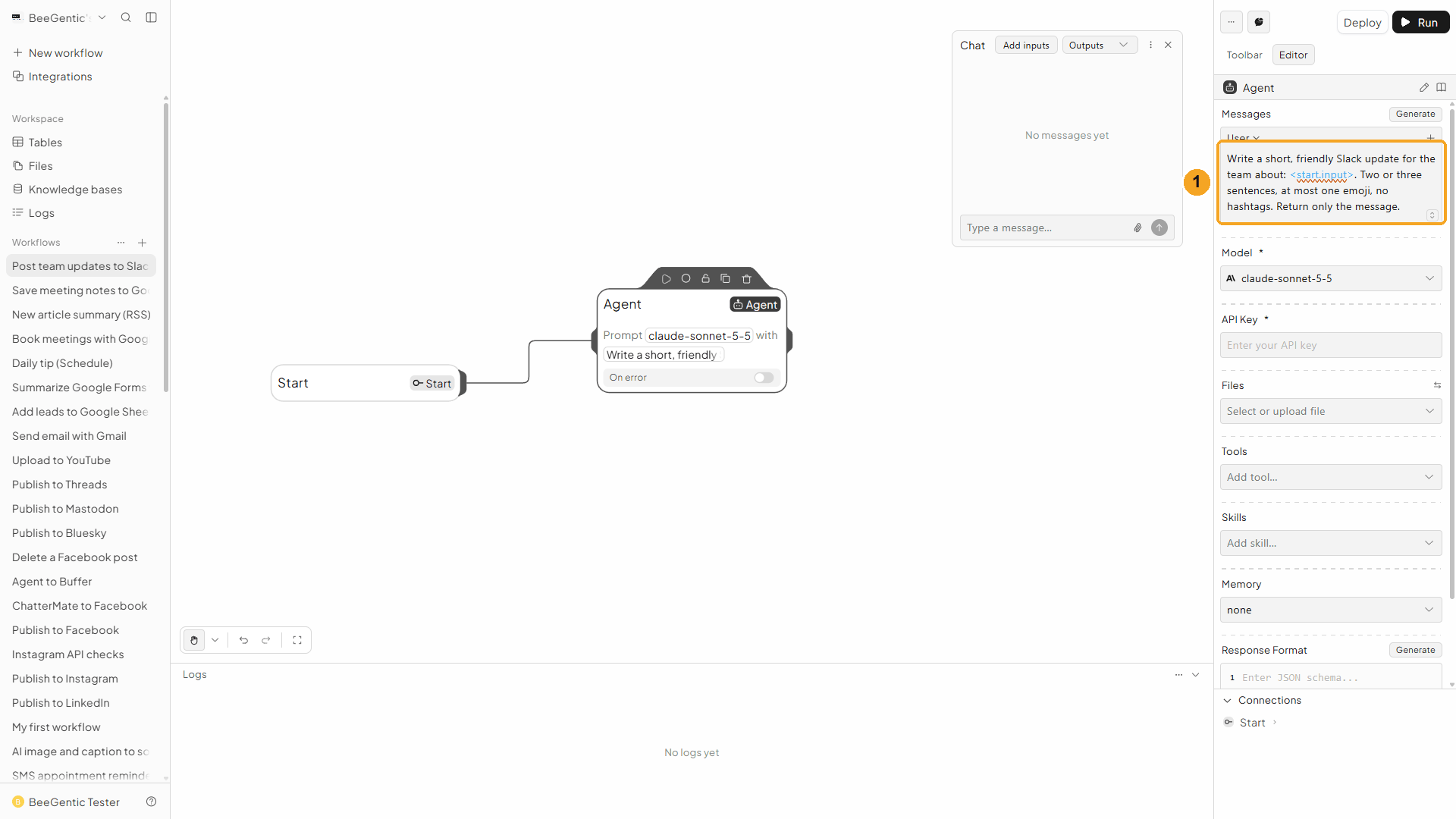
| # | What you see |
|---|---|
| 1 | The message. <start.input> is replaced by what you type in Chat. |
Watch this step
Add the Slack block
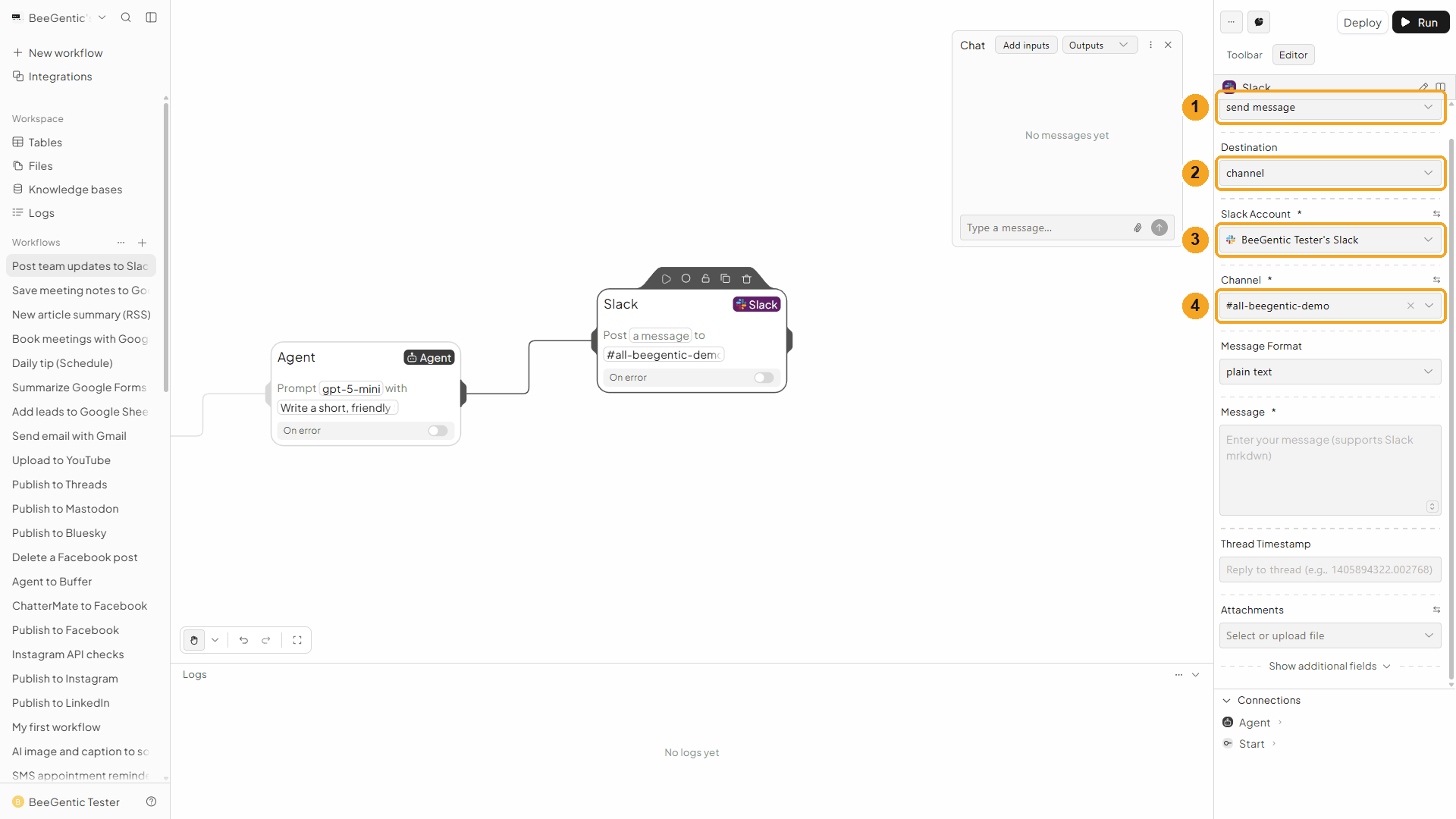
Toolbar → Slack (in the tools list, not the one under Triggers). It connects to the Agent automatically.
| # | Field | Value |
|---|---|---|
| 1 | Operation | Send Message (the default) |
| 2 | Destination | Channel. Pick Direct Message to message one person instead. |
| 3 | Slack Account | The connection from Part 1 |
| 4 | Channel | The channel, here #all-beegentic-demo. The list shows the channels the bot can see. |
Watch this step
Write the message
| # | Field | Value |
|---|---|---|
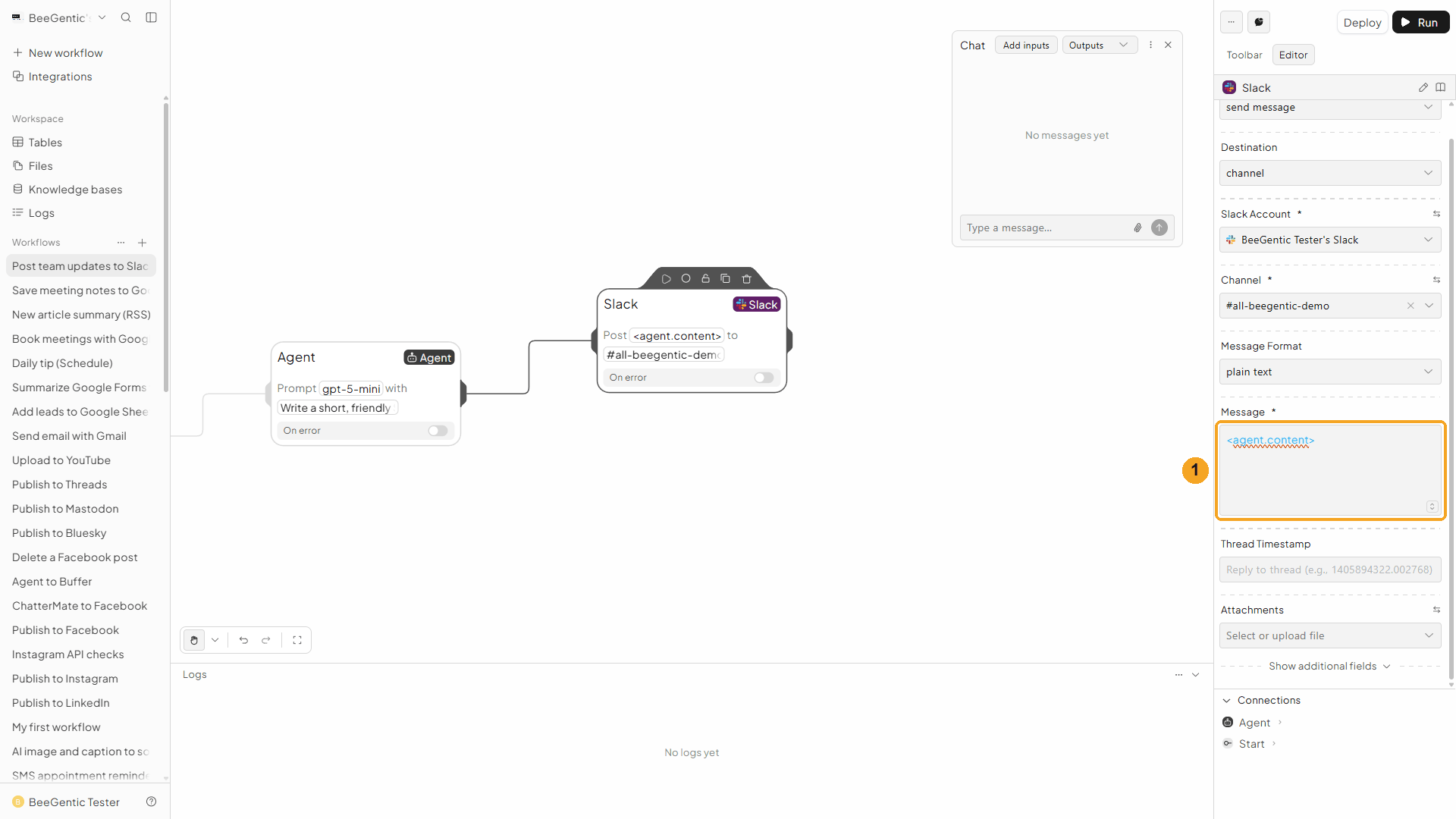
| 1 | Message | <agent.content>: the update the Agent wrote |
Also on the block: Message Format (Plain text, which supports Slack's own mrkdwn, or Block Kit for buttons and layouts), Thread Timestamp (reply inside a thread) and Attachments (files to upload with the message).
Press Shift + L to tidy. Your finished workflow:
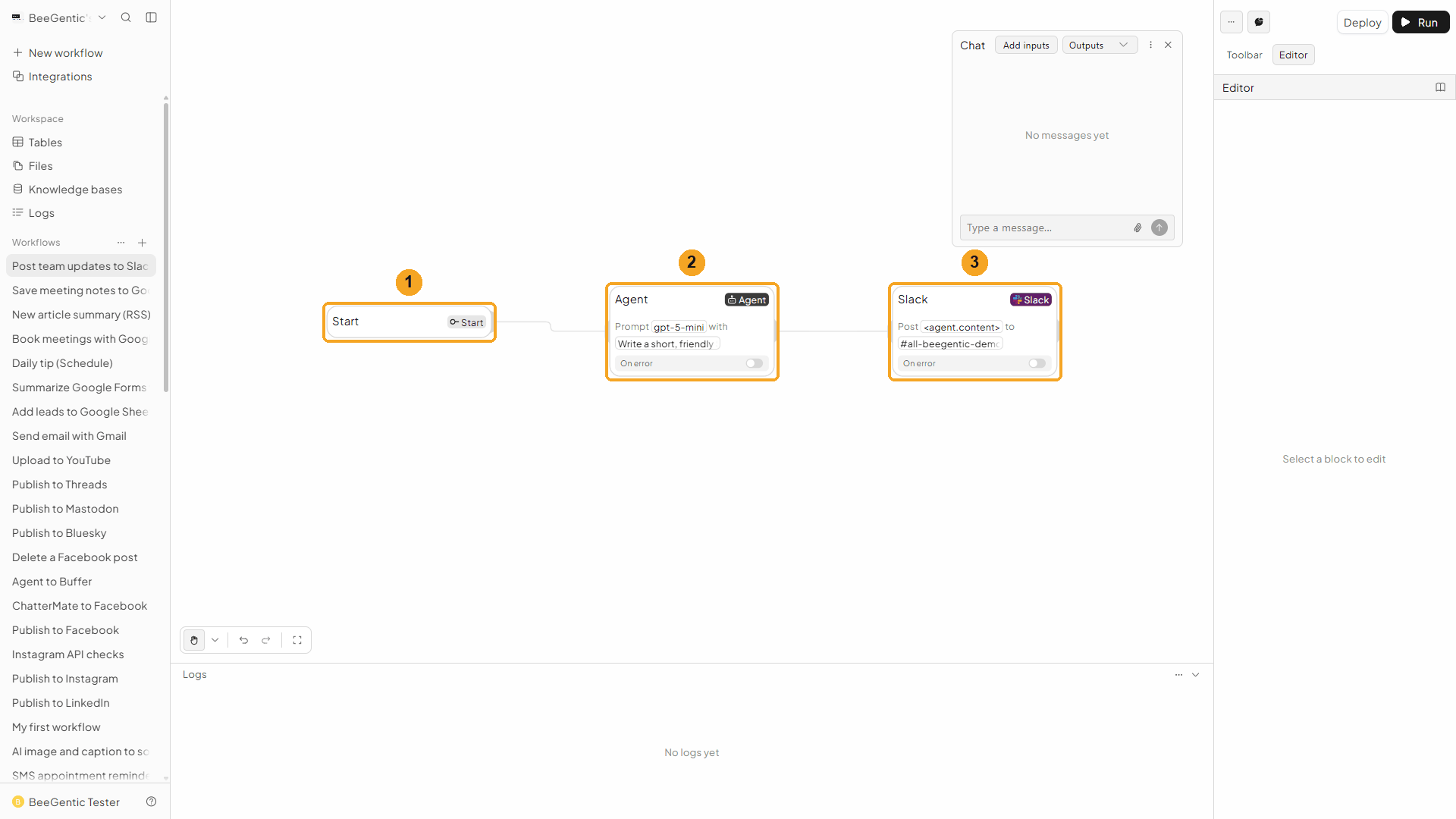
| # | Block | What it does |
|---|---|---|
| 1 | Start | Your chat message becomes <start.input> |
| 2 | Agent | Writes the update |
| 3 | Slack | Posts it to the channel |
Watch this step
Part 3: Run it and check the result
Send the topic from Chat
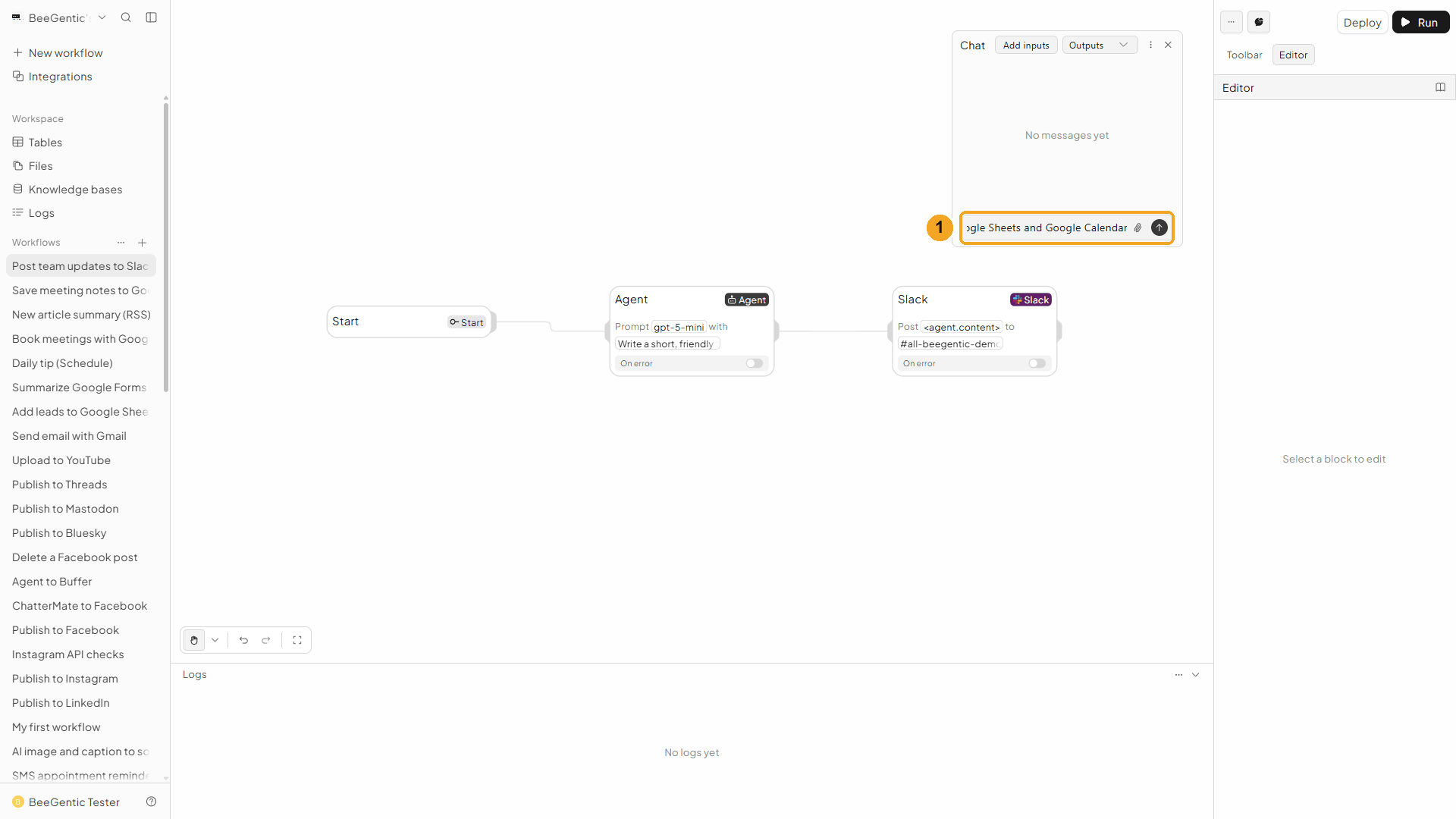
| # | What to do |
|---|---|
| 1 | Open Chat (speech-bubble button), type the topic and press Enter. |
Example message we sent:
Our new docs site is live, with step-by-step guides for Gmail, Google Sheets and Google CalendarRead the output
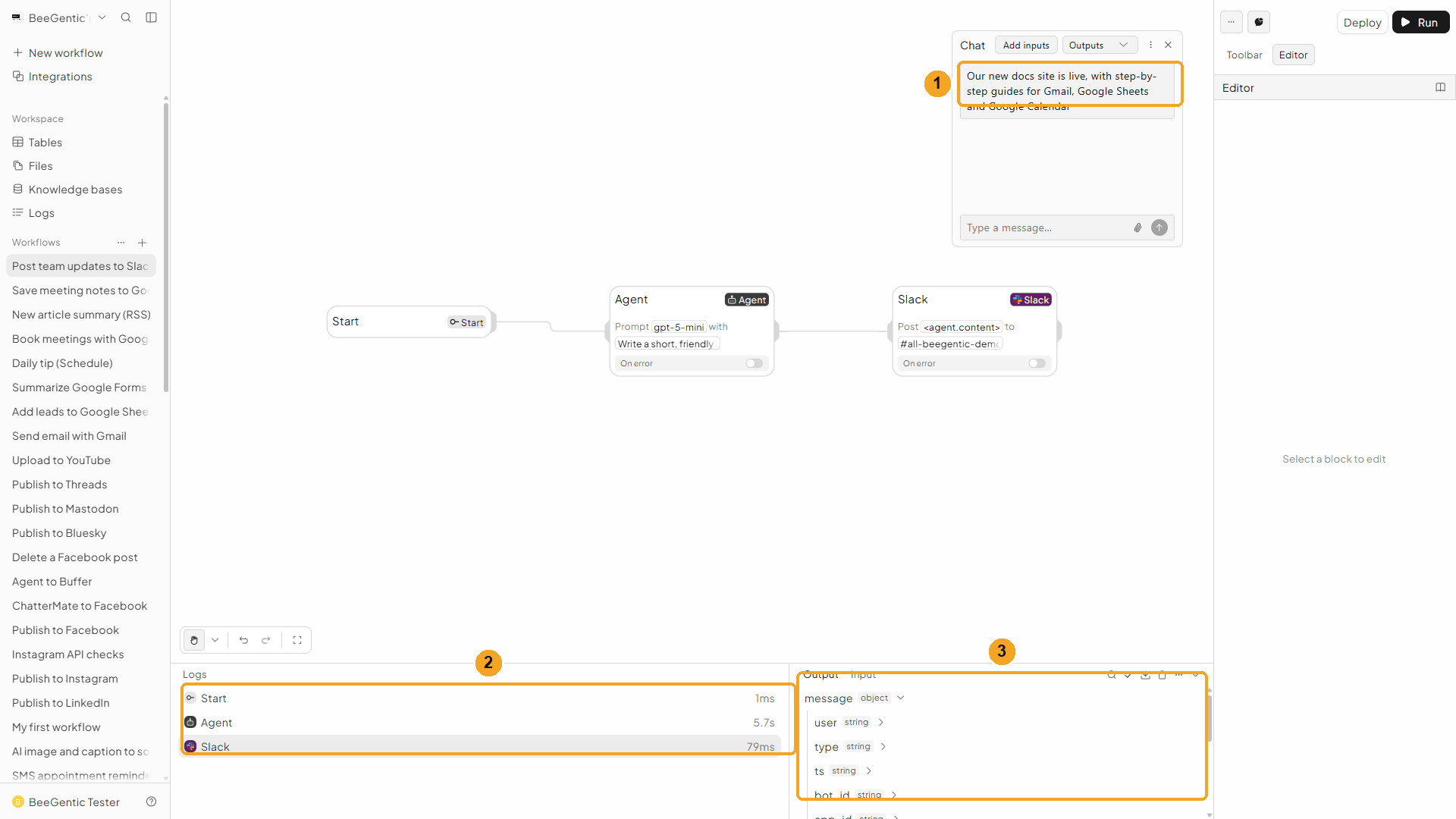
| # | What you see |
|---|---|
| 1 | Your message. |
| 2 | Each block's run time: the Agent about 6 s, Slack under a tenth of a second. |
| 3 | The output: message (everything Slack stored: the text, the bot, the app), ts (the message's timestamp, here 1790987744.002969) and channel (the channel ID, here C0C78MCLGN4). |
Watch the run
See it in Slack
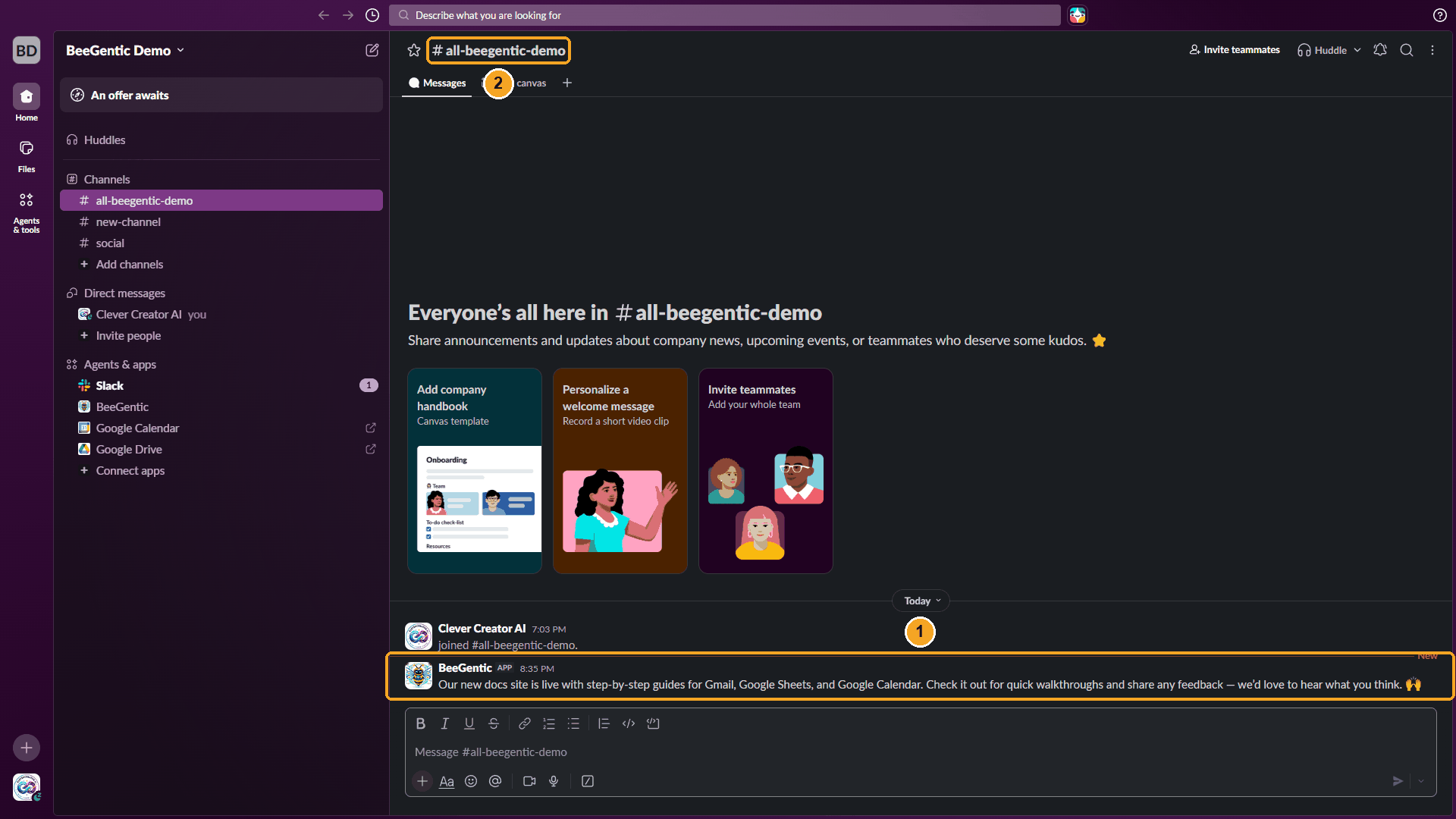
| # | What you see |
|---|---|
| 1 | The message, posted by BeeGentic with the APP badge. Slack turned the Agent's :raised_hands: into 🙌. |
| 2 | The channel you picked. |
The real message BeeGentic posted:
We deleted this test message afterwards with Delete Message (below), using the ts from the output.
Watch this step
⚡ Make it automatic
| You want | Do this |
|---|---|
| Post a team update every morning | Replace Chat with a Schedule trigger and write the topic in the Agent's message. |
| Tell the team about new blog posts | RSS Feed trigger → Agent → Slack. |
| Ping the channel when someone fills in a form | Google Forms → Agent → Slack. |
| Share each new lead | Google Sheets New Row trigger → Slack. |
| Answer questions in Slack threads | Use the Slack trigger (below). Full example: Slack bot that answers in the thread. |
| Send the same news by email too | Add a Gmail block next to Slack. |
Slack trigger
Starts the workflow when something happens in Slack: a message, an @mention of the bot, a reaction, a new channel member, and more. In the Toolbar it's Slack under Triggers.
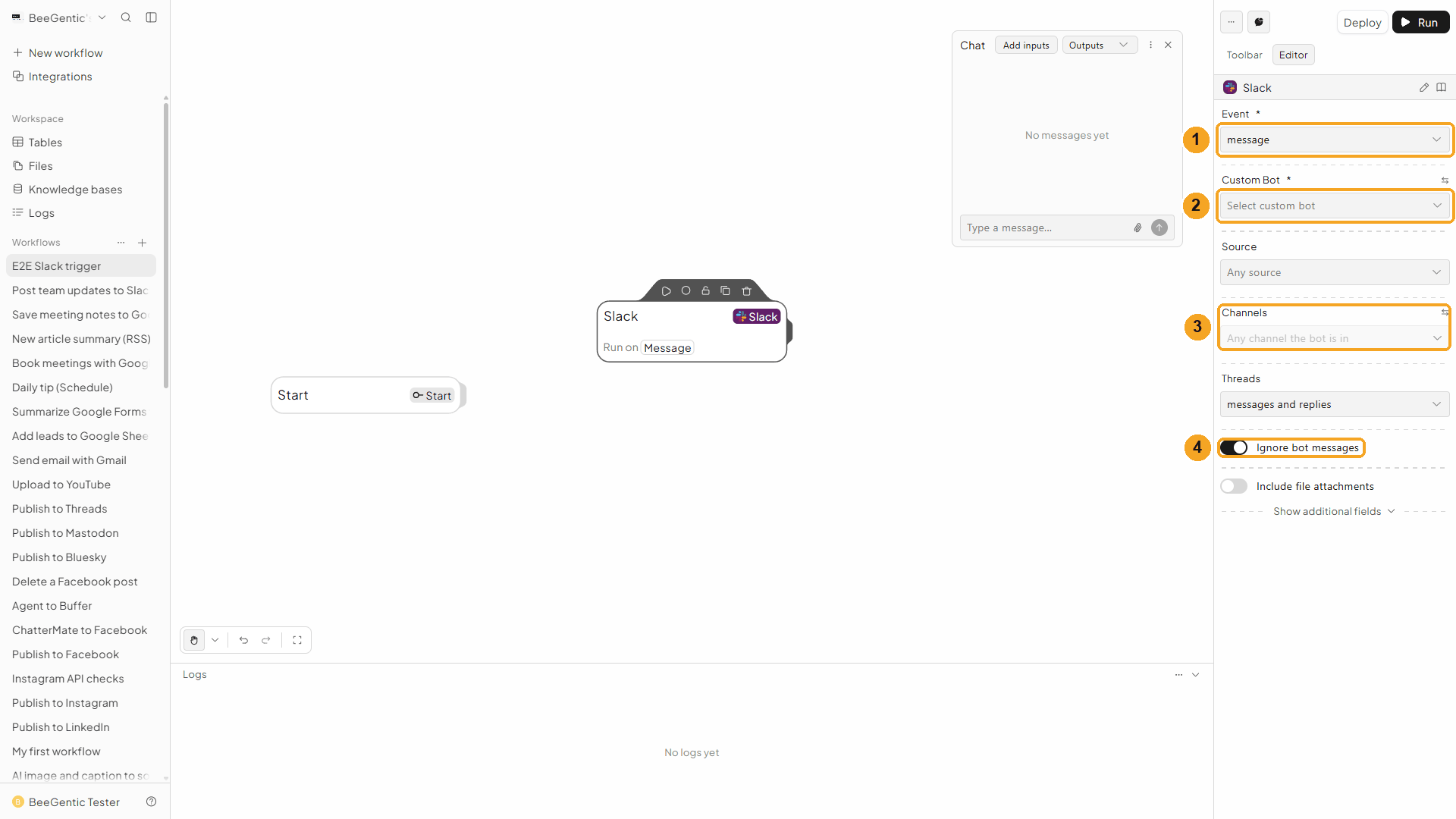
| # | Field | What it does |
|---|---|---|
| 1 | Event | The one Slack event to listen for: Message, App mentioned, Reaction added or removed, Message edited or deleted, File shared, Member joined or left channel, Channel created, archived or renamed, Pin added or removed, Member joined workspace, App home opened, Button / select clicked, Modal submitted or Slash command. Add another trigger block for another event. |
| 2 | Custom Bot | Your own Slack app. Choose Set up a custom bot the first time. |
| 3 | Channels | Only these channels. Leave empty for any channel the bot is in. Source and Threads narrow it further. |
| 4 | Ignore bot messages | Skips messages from bots, including your own replies, so the workflow can't trigger itself. |
Deploy the workflow to turn the trigger on. The trigger output has the event under event, e.g. <slack.event.text>, <slack.event.channel> and <slack.event.timestamp>. Put the timestamp in Thread Timestamp to reply in the thread.
🧰 Other operations
The Operation list has over 90 Slack actions (all listed in the box at the top). The ones people use most:
| Operation | What it does |
|---|---|
| Send Ephemeral Message | A message only one person in the channel can see |
| Schedule Message | Posts later, at the date and time you set. List Scheduled Messages and Delete Scheduled Message manage the queue. |
| Update Message / Delete Message | Changes or removes a message the bot sent, by its Message Timestamp (ts) |
| Read Messages / Get Channel History | Reads recent messages from a channel |
| Get Thread / Get Thread Replies | Reads a whole thread |
| Add Reaction / Remove Reaction | Adds or removes an emoji, e.g. white_check_mark |
| Create Canvas / Edit Canvas | Writes a Slack canvas, e.g. a weekly report |
| Create Conversation / Invite to Conversation | Creates a channel and adds people |
| List Channels / List Users / Find User by Email | Looks up channel and user IDs |
| Download File | Gets a file shared in Slack, for the next block |
🛠️ Troubleshooting
| Problem | Fix |
|---|---|
channel_not_found | The bot can't see the channel. Pick it from the Channel list instead of typing it, and for a private channel invite the bot first: /invite @BeeGentic. |
not_in_channel | Invite the bot to the channel with /invite @BeeGentic, then run again. |
Bot is not in the channel. Please invite the BeeGentic bot to your Slack channel by typing: /invite @BeeGentic | Read Messages needs the bot in the channel. Do what the message says. |
Missing required permissions. Reconnect your Slack account to grant channel history access (channels:history, groups:history). Reading direct message history is not supported with the BeeGentic bot. | Reconnect Slack in Integrations. Direct-message history needs a custom bot. |
Either channel or userId is required | Pick a Channel, or for Direct Message pick the person. |
| Slack shows Request to Install instead of Allow | Your workspace only allows approved apps. Send the request; once an admin approves, connect again. |
| The channel isn't in the Channel list | The list shows public channels and private ones the bot is in. Invite the bot, then reopen the list. |
| The trigger doesn't start | Deploy the workflow, check the Event and Channels, and make sure your custom bot is in the channel. |
Summarize Google Forms responses
Read Google Forms responses in a workflow and let an AI summarize them, or start a workflow on every submission. Step by step with a narrated video and a real result.
Create pages in Notion
Create Notion pages, add content, read pages, query databases, add database rows and comments from a workflow, or start a workflow when a page changes. Step by step with a narrated video and a real result.