


Create events with Google Calendar
Create, list, update and delete Google Calendar events from a workflow, or start a workflow when an event changes. Step by step with a narrated video and a real result.
What you'll build: you type a booking request in Chat, for example "Book a 30-minute demo with Maria next Tuesday at 3pm". An AI turns it into an event title, description, start and end, and BeeGentic adds the event to your Google Calendar. Three blocks: Start → Agent → Google Calendar. About 5 minutes.
Connect with: 🔐 Sign in with your account · You need: A Google account with Google Calendar, and an AI key for the Agent
Not supported: Google Tasks and reminders lists · Booking pages and appointment schedules · Changing an event's reminder or notification settings · Calendars you haven't been given access to
✅ action you can add to a workflow · ⚡ event that can start a workflow
Narrated walkthrough (about 2½ min), with captions (CC button). Each step below also has a short silent clip. The orange numbers in each screenshot match the # column under it. Click a screenshot to enlarge it.
Before you start
| You need | Why |
|---|---|
| A Google account (Gmail or Google Workspace) with Google Calendar | BeeGentic adds events to your calendar as you |
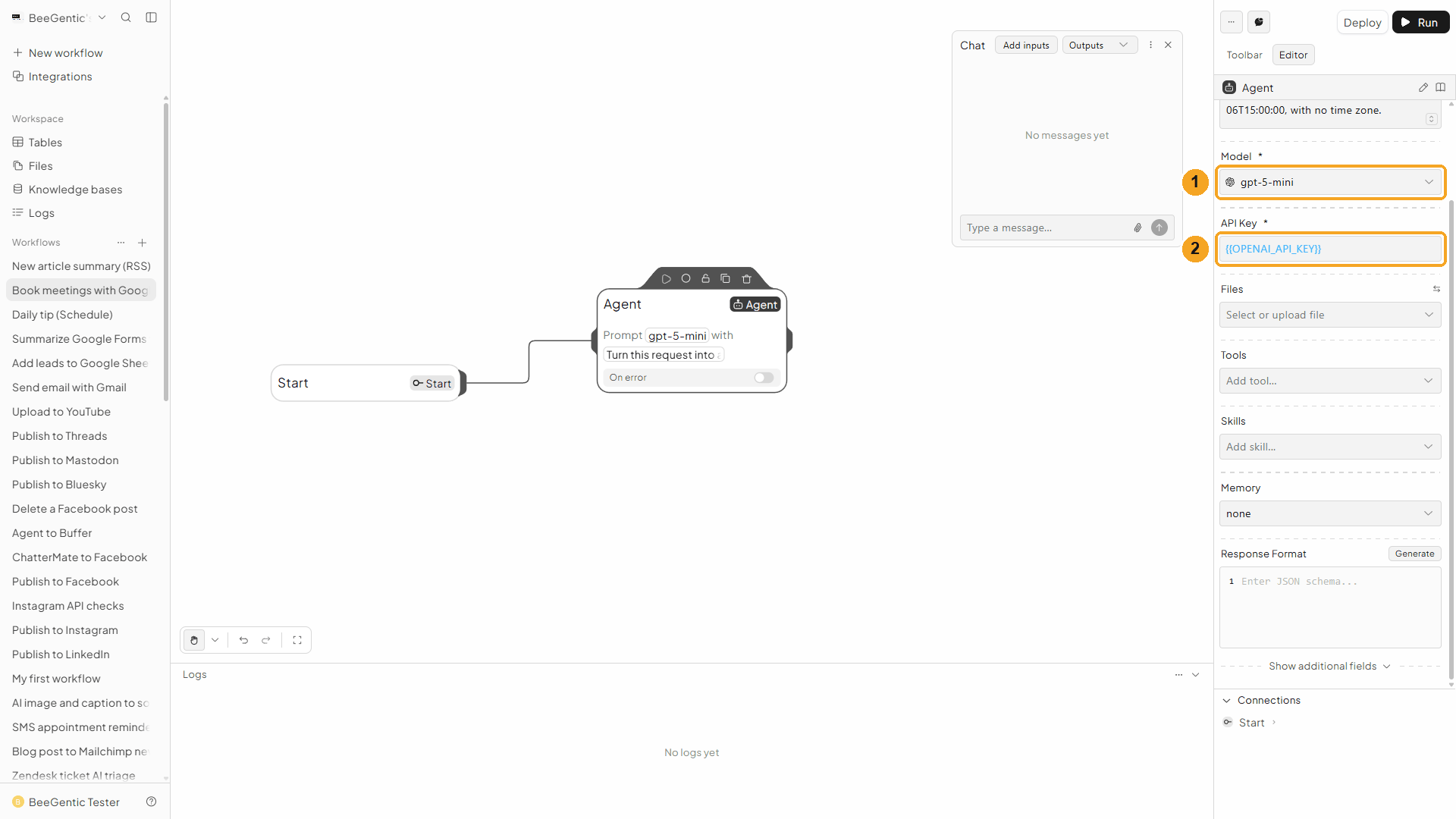
An AI key saved as a secret, e.g. OPENAI_API_KEY | The Agent reads the request. See References and secrets. |
Your time zone name, e.g. America/New_York or Europe/London | So "3pm" lands at 3 p.m. for you. We used UTC, the time zone of our demo calendar. |
Part 1: Connect Google Calendar (once)
Look at your calendar
Open Google Calendar on the week you'll book into, so you can spot the new event later.
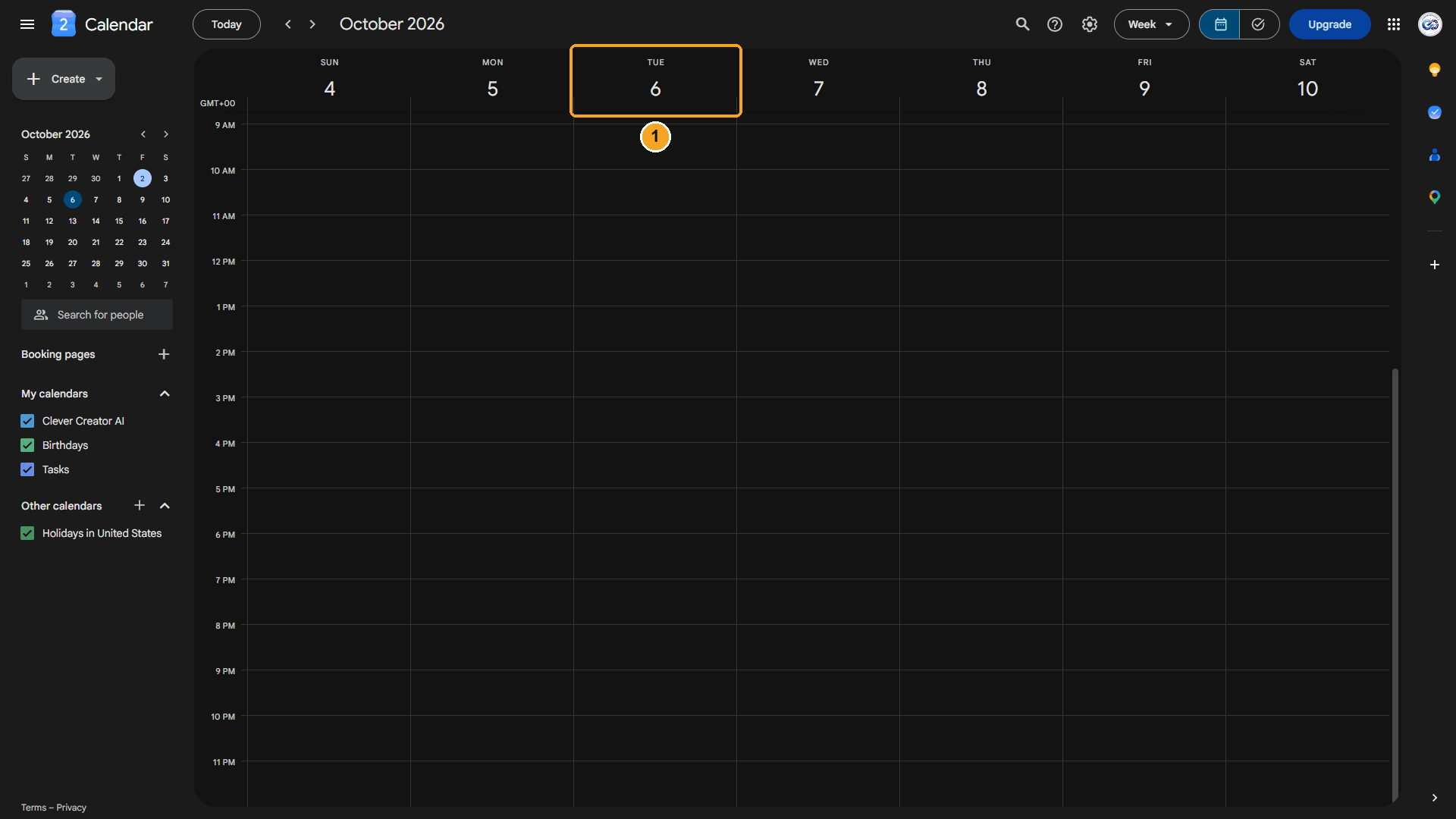
| # | What you see |
|---|---|
| 1 | Tuesday, October 6: still empty. The workflow will book the demo here. |
Watch this step
Find Google Calendar in Integrations
In BeeGentic: Integrations → search Google Calendar.
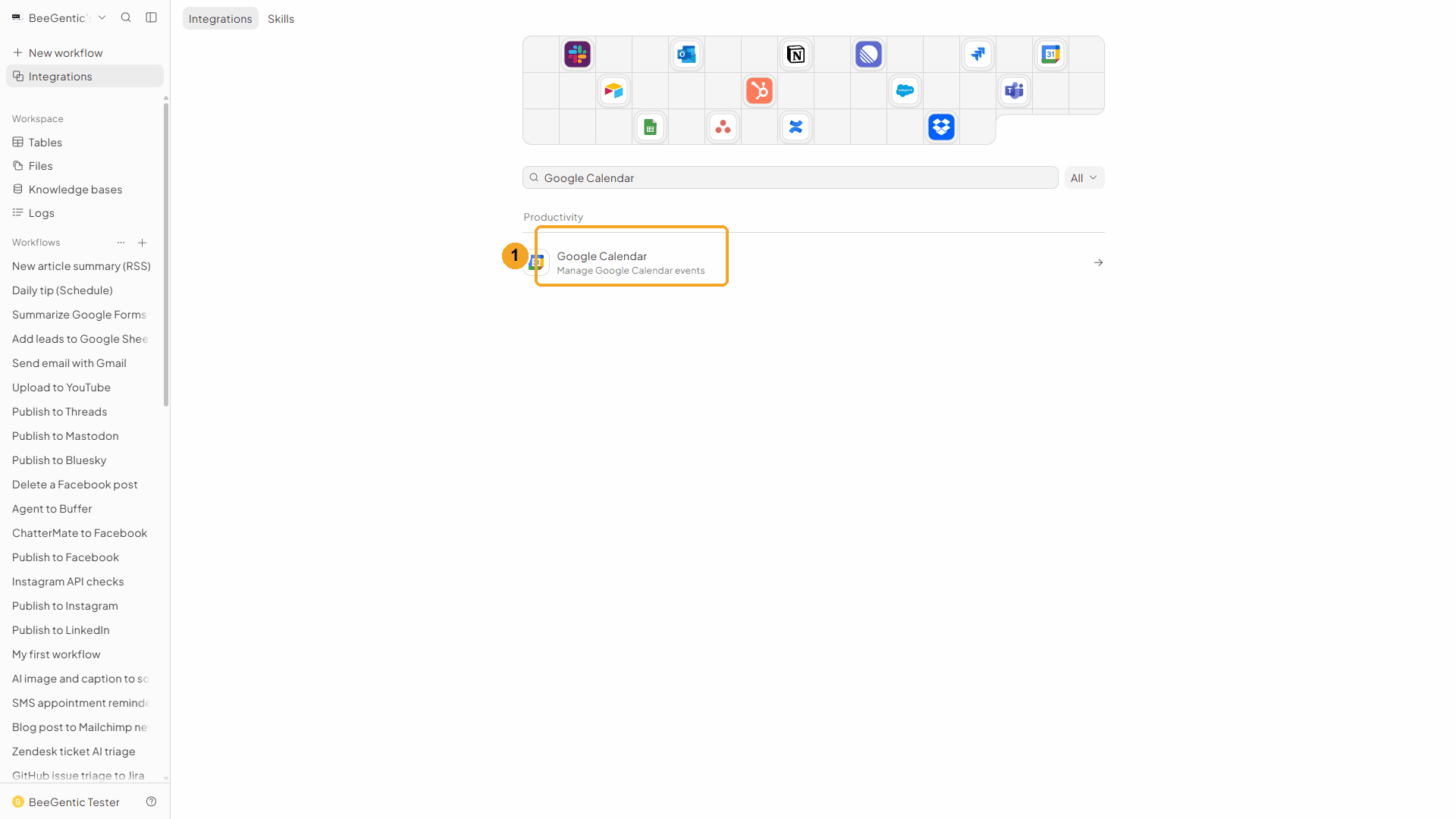
| # | What to do |
|---|---|
| 1 | Click Google Calendar, then Add to BeeGentic. |
Watch this step
Confirm and connect
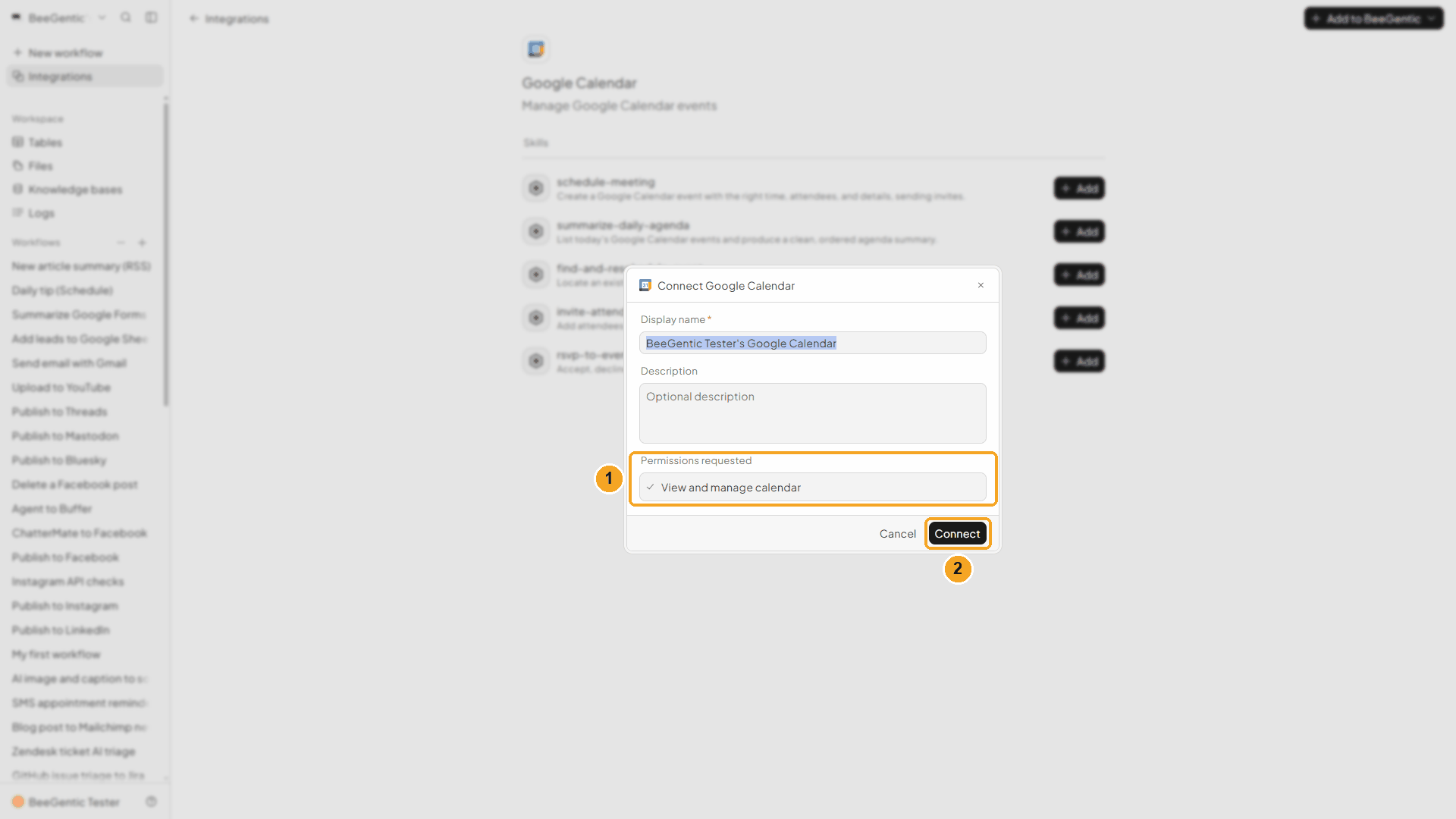
| # | What it means |
|---|---|
| 1 | What BeeGentic may do: View and manage calendar. You can rename the connection in Display name, e.g. Work calendar. |
| 2 | Click Connect. Google opens. |
Watch this step
Pick your Google account
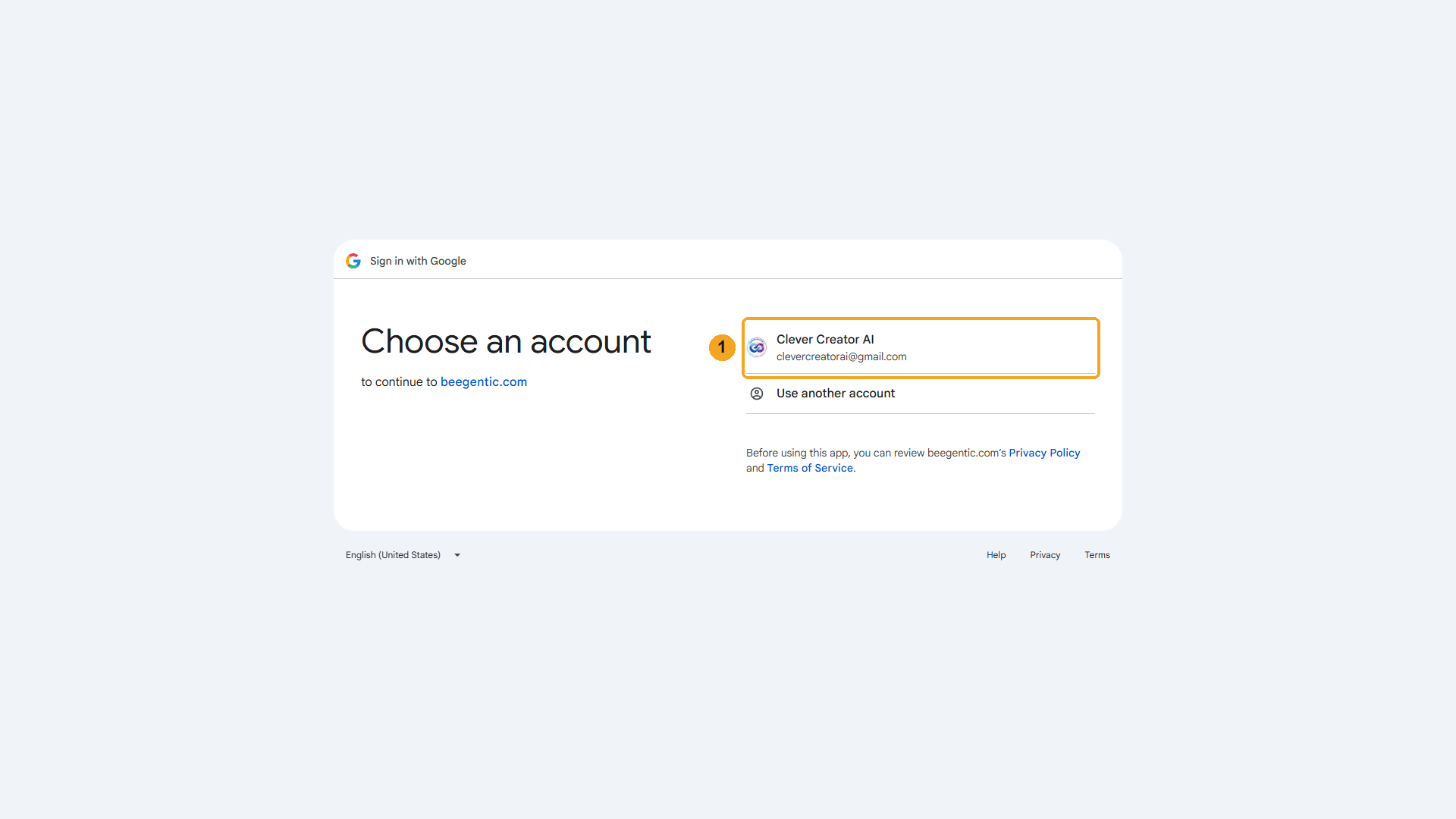
| # | What to do |
|---|---|
| 1 | Click the account that owns the calendar, then allow access. You're sent back to BeeGentic, connected. (If you've connected BeeGentic to this Google account before, Google just asks you to Continue.) |
Watch this step
Part 2: Build the workflow
Create the workflow and add the Agent
+ New workflow → name it Book meetings with Google Calendar. Then Toolbar → Agent. In Messages:
Turn this request into a calendar event: <start.input>. Return a short title, a one-sentence description, and the start and end as local times like 2026-10-06T15:00:00, with no time zone.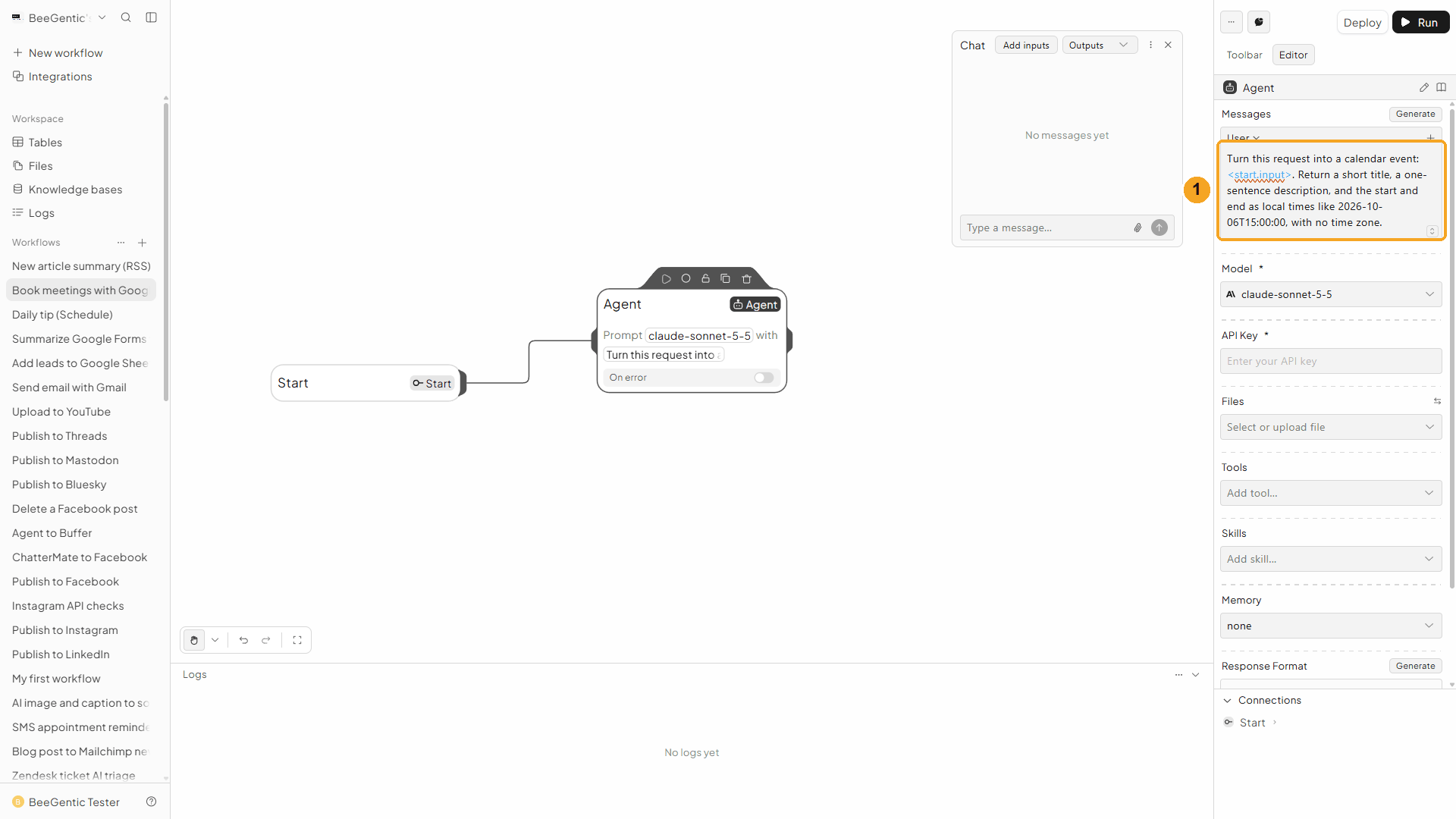
| # | What you see |
|---|---|
| 1 | The message. <start.input> is replaced by what you type in Chat. The times come back without a time zone; the Calendar block adds yours (step 6). |
Watch this step
Give the Agent a Response Format
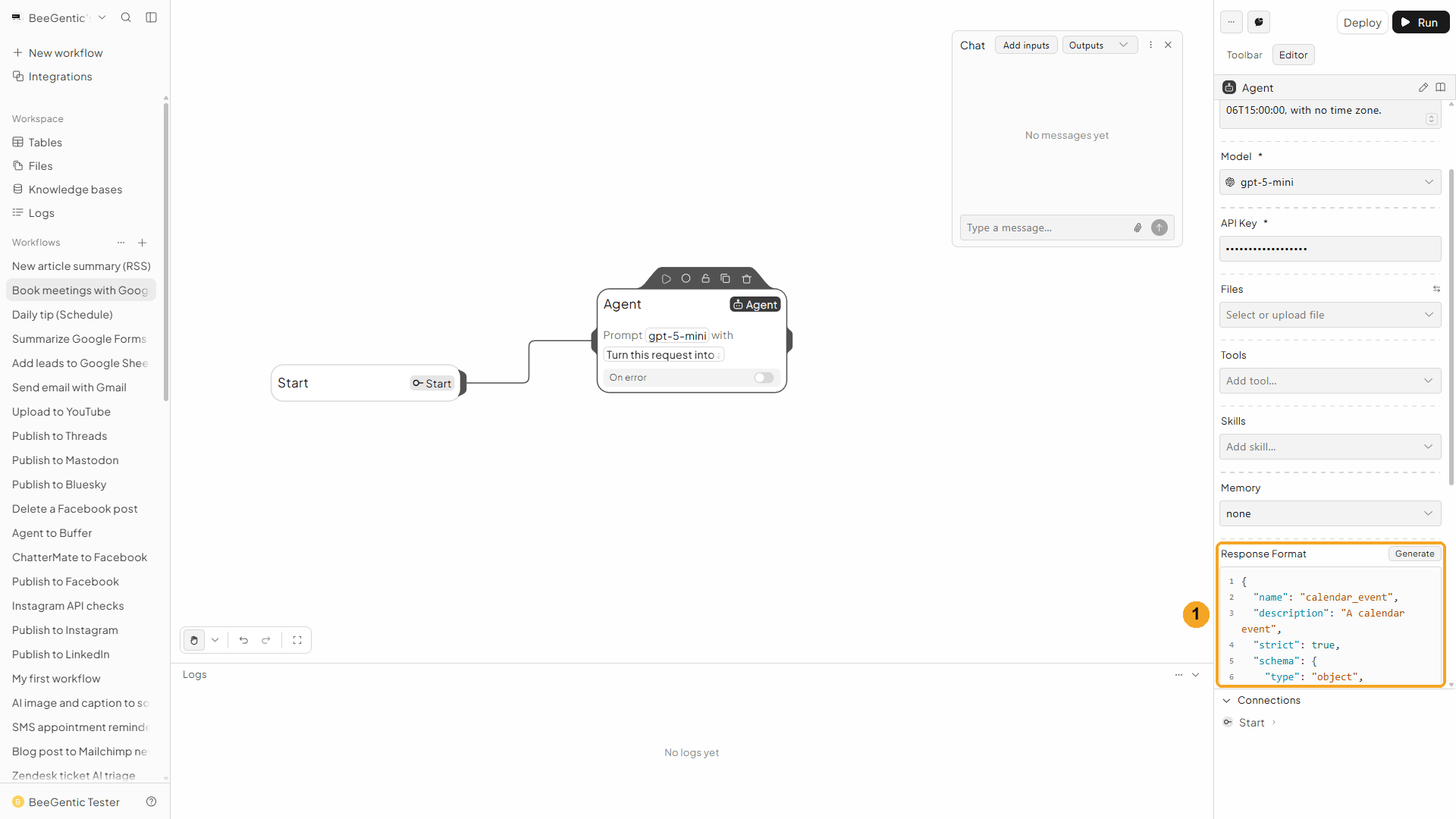
Scroll down to Response Format and paste this JSON schema:
{
  "name": "calendar_event",
  "description": "A calendar event",
  "strict": true,
  "schema": {
    "type": "object",
    "properties": {
      "title": { "type": "string", "description": "Short event title" },
      "description": { "type": "string", "description": "One or two sentences about the event" },
      "start": { "type": "string", "description": "Start, like 2026-10-06T15:00:00" },
      "end": { "type": "string", "description": "End, like 2026-10-06T15:30:00" }
    },
    "additionalProperties": false,
    "required": ["title", "description", "start", "end"]
  }
}
| # | What it does |
|---|---|
| 1 | The Agent now returns four separate fields instead of one block of text: <agent.title>, <agent.description>, <agent.start> and <agent.end>. |
Watch this step
Add the Google Calendar block
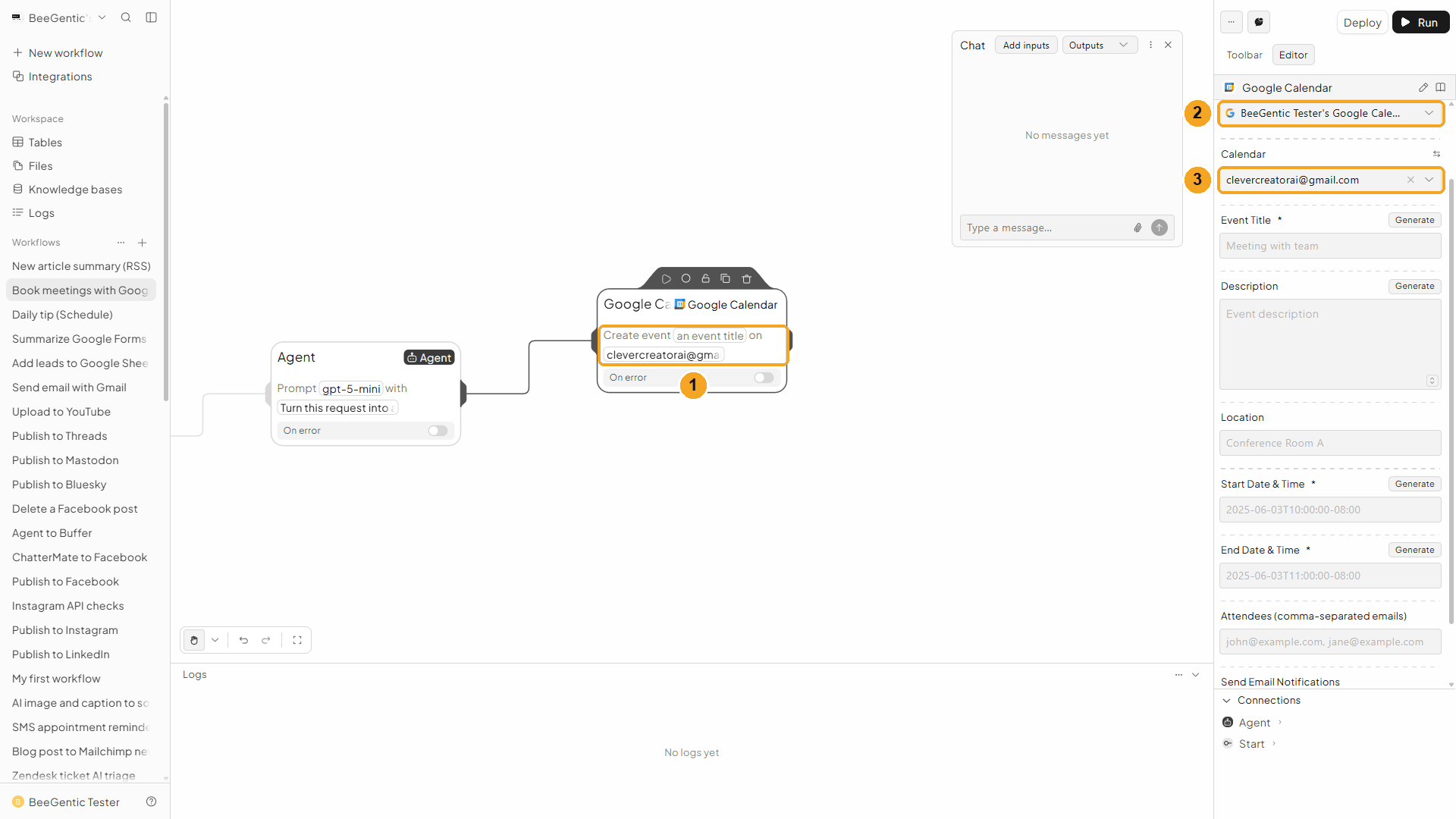
Toolbar → Google Calendar (in the tools list, not the one under Triggers). It connects to the Agent automatically.
| # | Field | Value |
|---|---|---|
| 1 | Operation | Create Event (the default; the block on the canvas reads Create event) |
| 2 | Google Calendar Account | The connection from Part 1 |
| 3 | Calendar | Your main calendar: it's named after your email address. Leave it empty and BeeGentic uses your primary calendar. |
Watch this step
Map the event fields
Type < in each field and pick the Agent's output, or type the reference:
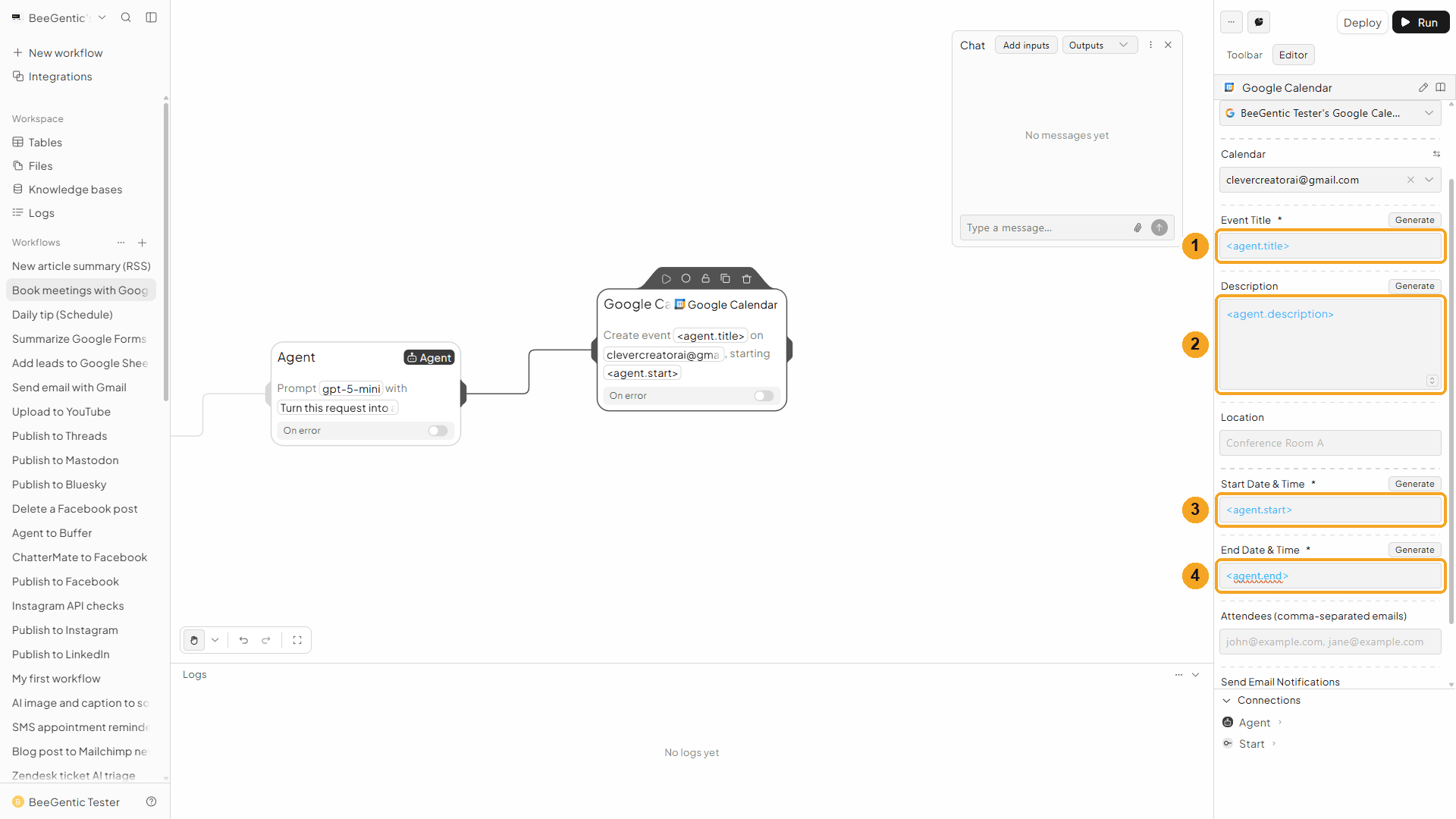
| # | Field | Value |
|---|---|---|
| 1 | Event Title | <agent.title> |
| 2 | Description | <agent.description> |
| 3 | Start Date & Time | <agent.start> |
| 4 | End Date & Time | <agent.end> |
Also on the block: Location, Attendees (comma-separated emails) and Send Email Notifications (All attendees, External attendees only or None). We left Attendees empty, so nobody gets an invite. Add guests here when you want Google to email them.
Watch this step
Set your time zone
Time Zone is filled in with your computer's time zone when you add the block. Check it, or change it to the calendar's zone. (In the video it's still under Show additional fields; it's now shown by default.)
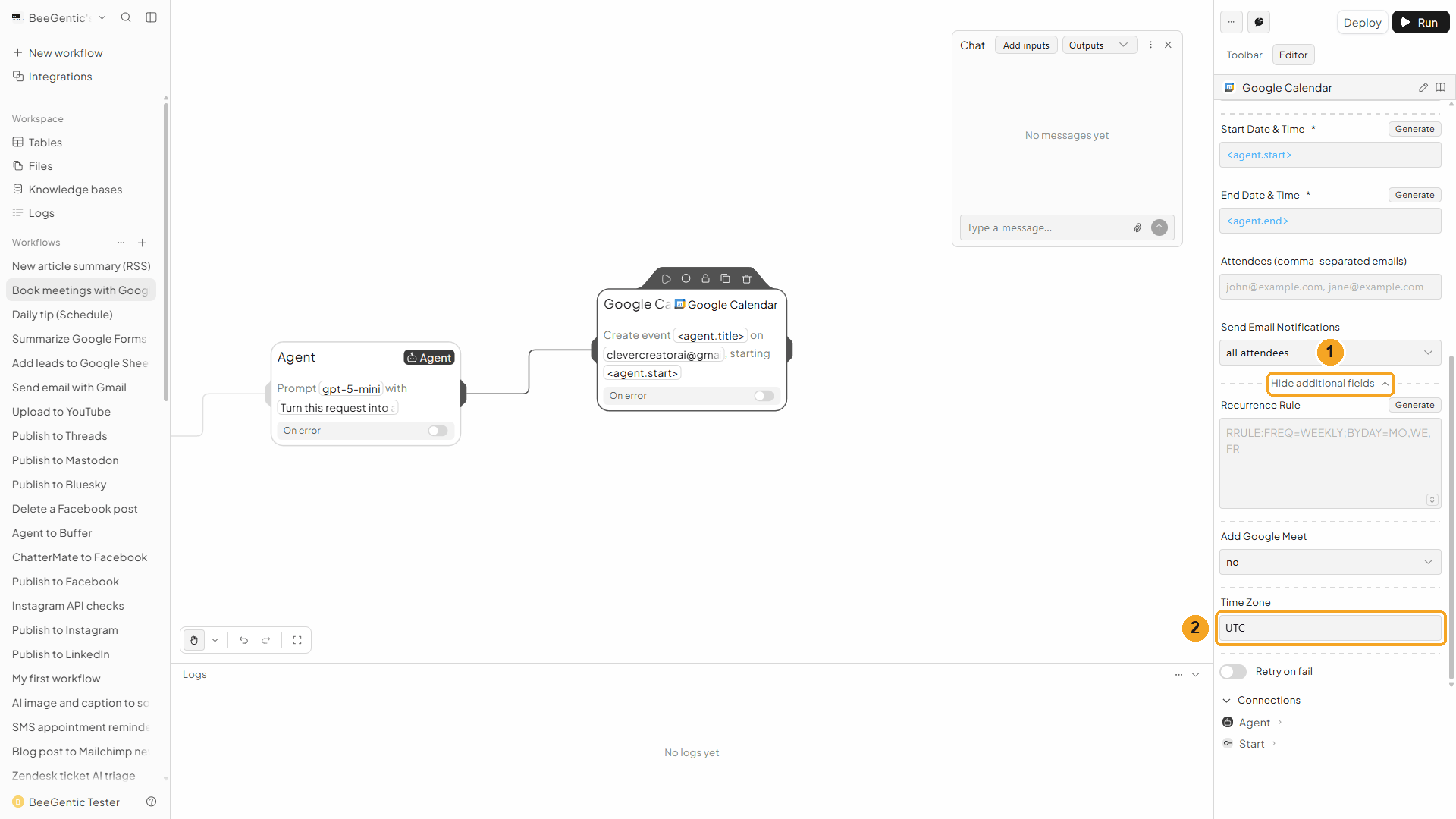
| # | Field | Value |
|---|---|---|
| 1 | Show additional fields | Opens Recurrence Rule, Add Google Meet and Time Zone (it now reads Hide additional fields) |
| 2 | Time Zone | Your IANA time zone. We used UTC. |
Press Shift + L to tidy. Your finished workflow:
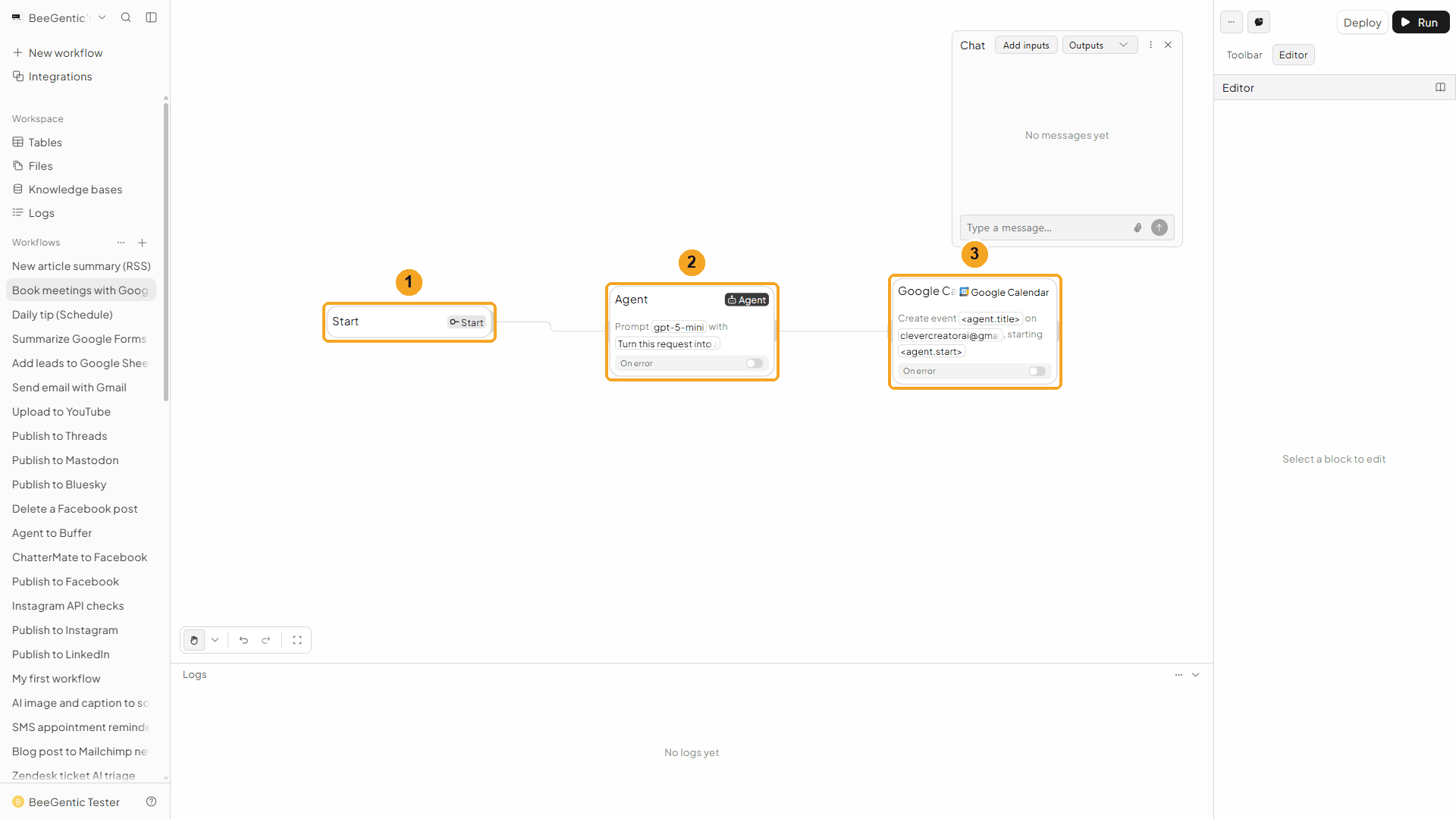
| # | Block | What it does |
|---|---|---|
| 1 | Start | Your chat message becomes <start.input> |
| 2 | Agent | Turns it into title, description, start and end |
| 3 | Google Calendar | Creates the event |
Watch this step
Part 3: Run it and check the result
Type the request in Chat
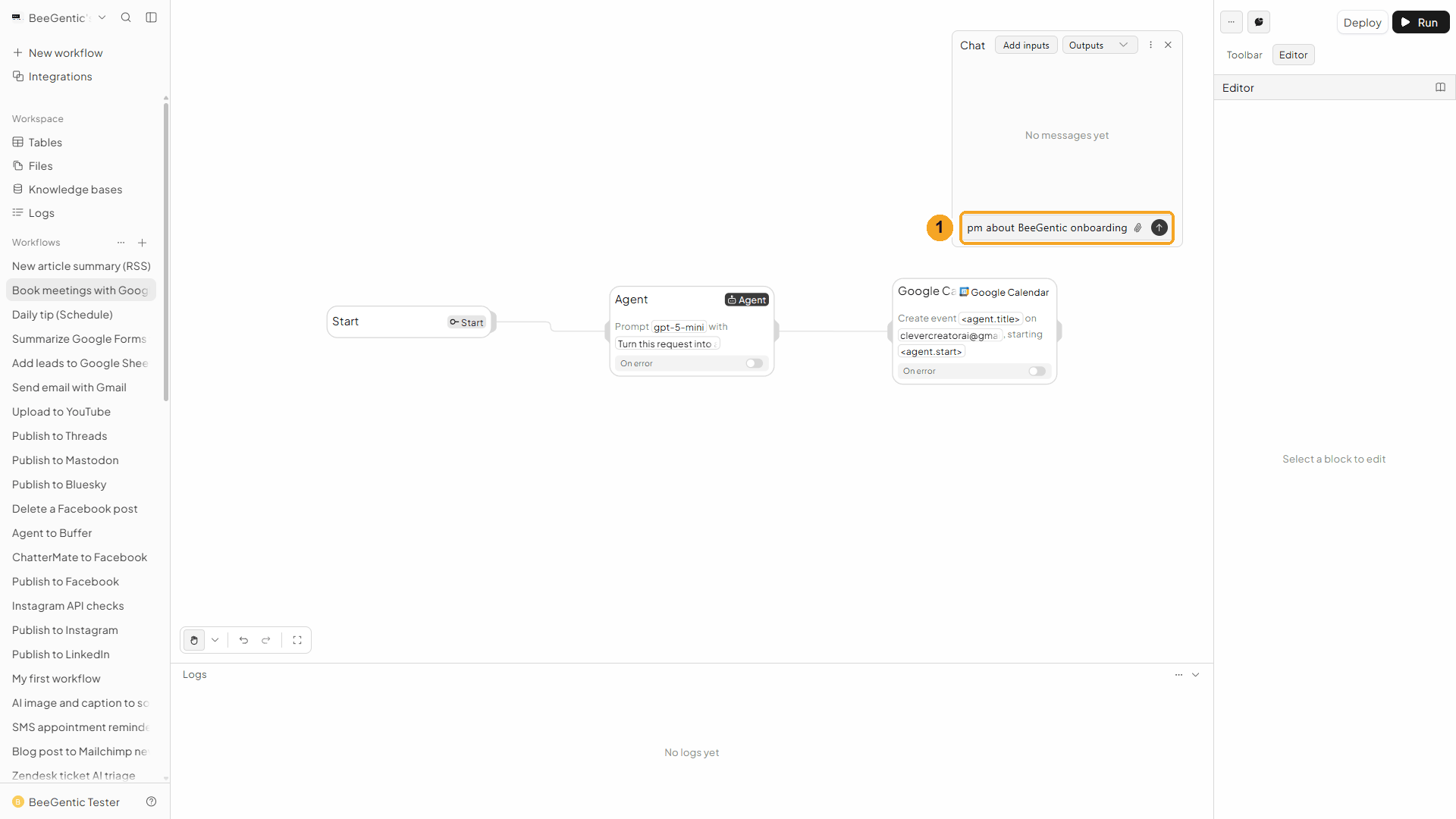
| # | What to do |
|---|---|
| 1 | Open Chat (speech-bubble button), type the request and press Enter. Include the date, so the AI doesn't have to guess which day "next Tuesday" is. |
Example message we sent:
Book a 30-minute demo with Maria next Tuesday, October 6, at 3pm about BeeGentic onboardingRead the output
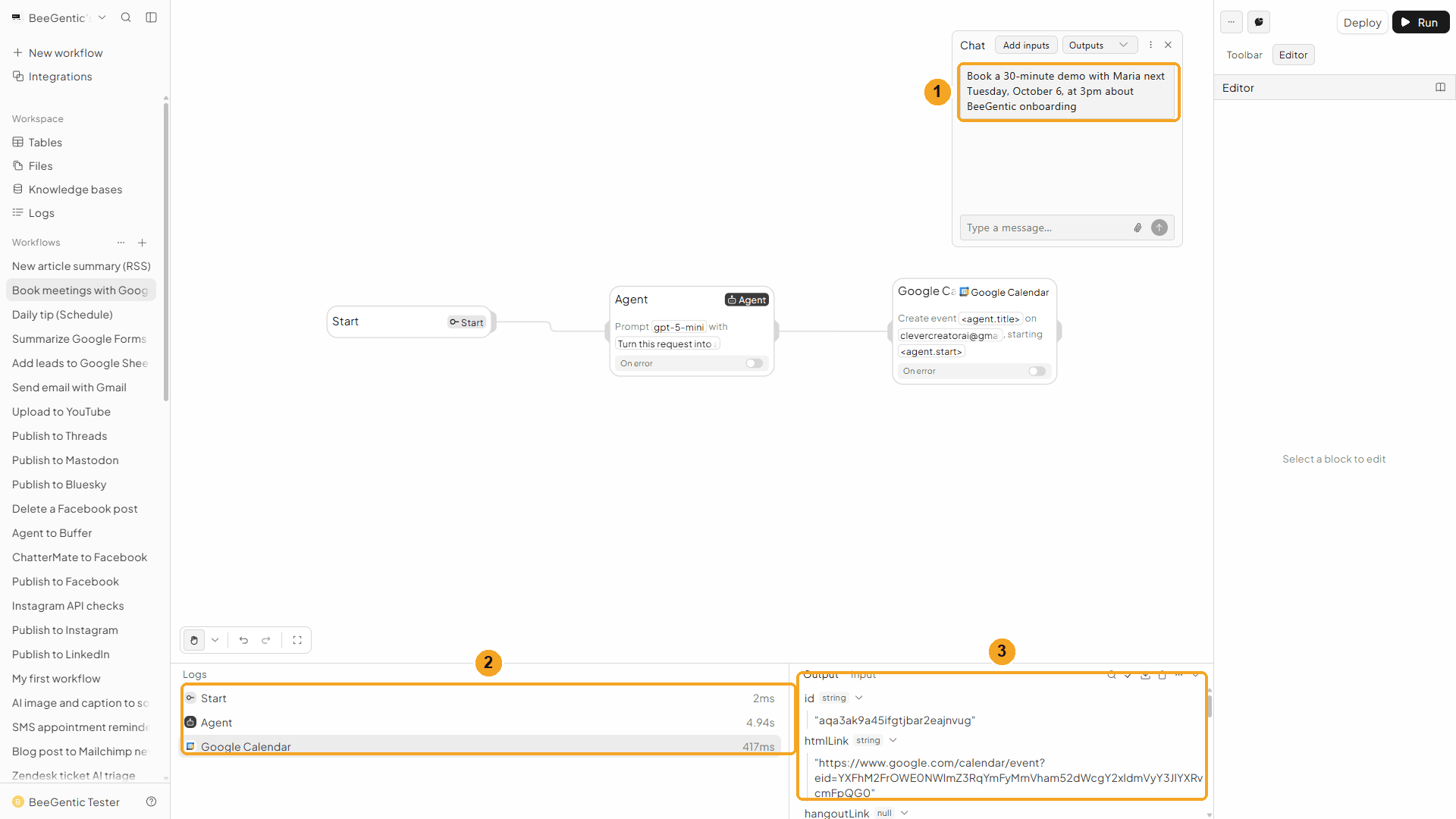
| # | What you see |
|---|---|
| 1 | Your message. |
| 2 | Each block's run time: the Agent about 5 s, Google Calendar under half a second. |
| 3 | The output: id (the event ID, here aqa3ak9a45ifgtjbar2eajnvug), htmlLink (opens the event in Google Calendar), status confirmed, and below them summary, description, start, end, creator and organizer. |
Watch the run
See it in Google Calendar
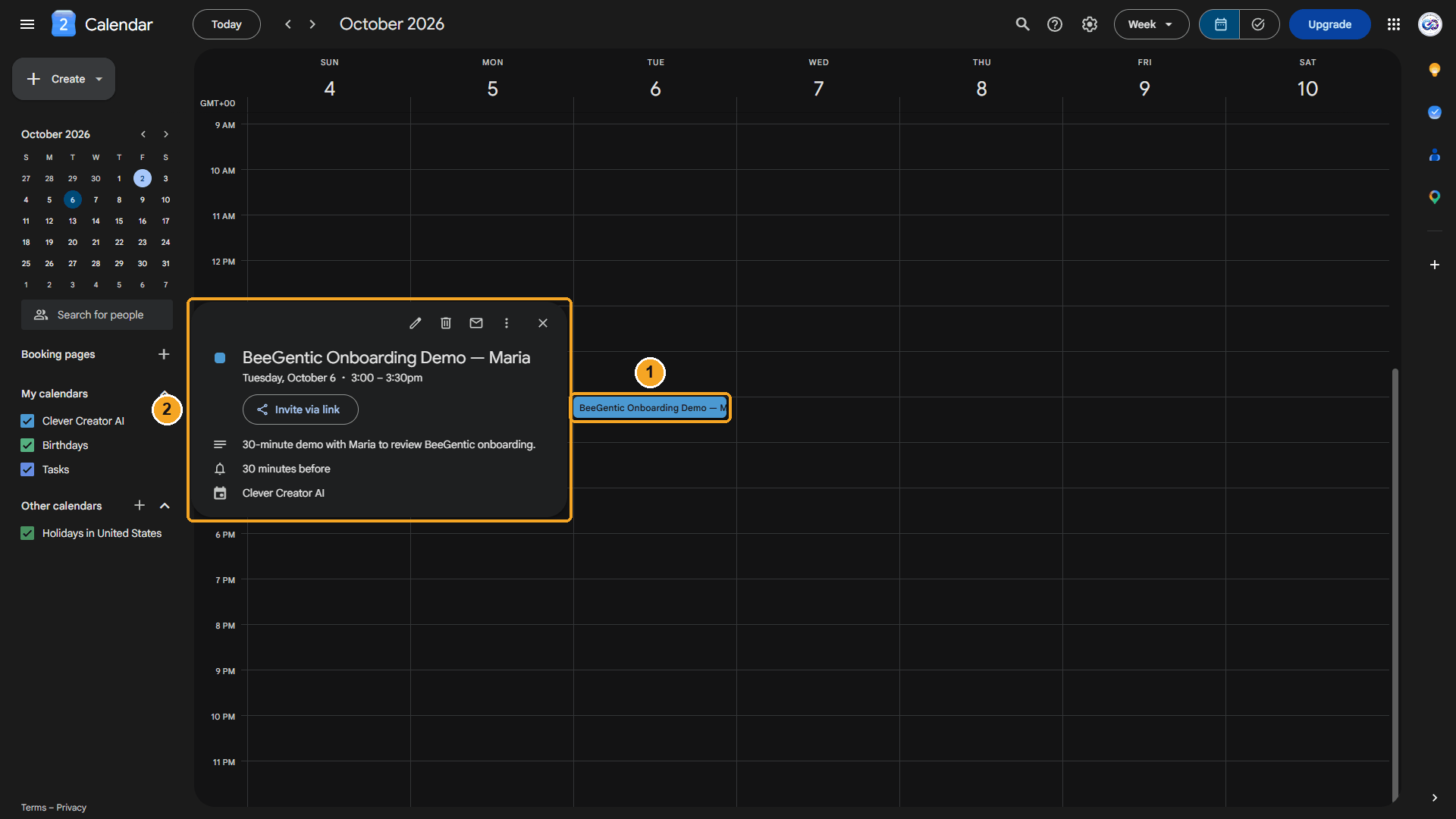
| # | What you see |
|---|---|
| 1 | The event on Tuesday at 3:00 PM, 30 minutes long. |
| 2 | Its details: the title and description the Agent wrote. |
The real event BeeGentic created:
Tuesday, October 6 · 3:00 – 3:30pm (UTC)
30-minute demo with Maria to review BeeGentic onboarding.
We deleted this test event afterwards with Delete Event (below).
Watch this step
⚡ Make it automatic
| You want | Do this |
|---|---|
| Send a confirmation after booking | Add a Gmail Send Email after Google Calendar, with the event link <googlecalendar.htmlLink> in the body. |
| A daily agenda email | Schedule trigger → Google Calendar List Events for today → Agent summary → Gmail. |
| Book from a web form | Start with a Webhook Trigger from your site's form instead of Chat (see the web form lead capture recipe). |
| Book from a Google Form | Google Forms → Agent → Google Calendar. |
| Log every booking | Add a Google Sheets Append Data after Google Calendar. |
| React to new or changed events | Use the Google Calendar Event Trigger (below). |
Google Calendar Event Trigger
Starts the workflow when an event is created, updated or cancelled. In the Toolbar it's Google Calendar under Triggers.
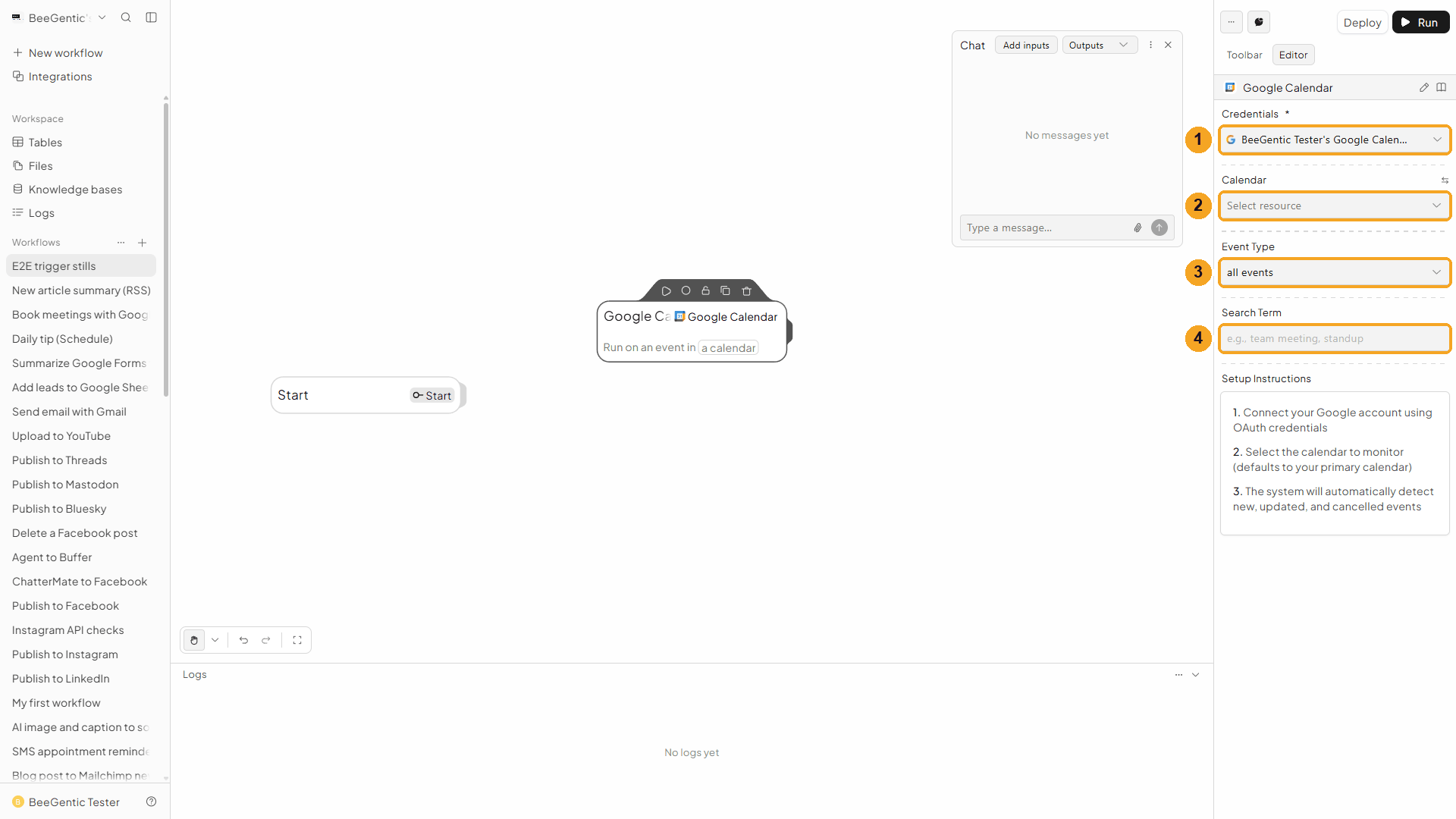
| # | Field | What it does |
|---|---|---|
| 1 | Credentials | Your Google Calendar connection |
| 2 | Calendar | The calendar to watch. Leave it empty for your primary calendar. |
| 3 | Event Type | All events, or only Created, Updated or Cancelled |
| 4 | Search Term | Optional: only events whose title, description, location or attendees contain this text, e.g. standup |
BeeGentic checks your calendar on a timer (it polls Google Calendar), so a run can start a few minutes after the change. The trigger output has an event object with id, status, eventType (created, updated or cancelled), summary, eventDescription, location, htmlLink, start, end, created, updated, attendees, creator and organizer, plus calendarId and timestamp. Deploy the workflow to turn it on. For a full example, see the SMS appointment reminders recipe.
🧰 Other operations
| Operation | What it does |
|---|---|
| List Events | Events between Start Time Filter and End Time Filter, optionally matching a Search Query, sorted by start time or last update. Recurring meetings come back one occurrence at a time. |
| Get Event | One event by its Event ID |
| Update Event | Changes an event's title, description, location, times or attendees. Empty fields stay as they are. |
| Delete Event | Deletes an event by its Event ID |
| Move Event | Moves an event to another calendar |
| Quick Add (Natural Language) | Lets Google read a sentence like Lunch with Sam tomorrow at 1pm and create the event, without an Agent |
| Invite Attendees | Adds guests to an event, or replaces the guest list |
| Respond to Invitation (RSVP) | Accepts, declines or marks Maybe on an invitation, with an optional note |
| Check Free/Busy | Shows when one or more calendars are busy in a time range |
| Get Recurring Instances | The individual dates of a repeating event |
| List Calendars / Create Calendar / Update Calendar / Delete Calendar | Manage the calendars themselves |
| Share Calendar / Update Sharing / List Sharing / Remove Sharing | Give people or groups access to a calendar (free/busy only, read, or edit) |
🛠️ Troubleshooting
| Problem | Fix |
|---|---|
| The event is several hours off | Time Zone doesn't match where you are (or was cleared, so Pacific time was used). Set it to your zone, e.g. Europe/London (step 6). |
| The event is on the wrong day | The AI may not know today's date. Put the date in your message, e.g. "Tuesday, October 6". |
Recurring events require a time zone. Provide the timeZone parameter (an IANA name, e.g. America/New_York). | You set a Recurrence Rule. Repeating events need Time Zone filled in. |
| Guests got an email you didn't expect | Send Email Notifications defaults to All attendees. Choose None (no emails sent). |
The event title says <agent.title> | The Agent has no Response Format, so it has no title field. Paste the schema from step 3. |
| The calendar isn't in the list | Only calendars your Google account can edit show up. Or switch the field (⇆ icon) to Calendar ID and type it, e.g. primary. |
| "Google hasn't verified this app" | Click Advanced → Go to beegentic.com (unsafe) (see Part 1). |
| The trigger doesn't start | Deploy the workflow, check Event Type and Search Term, and wait a few minutes. |
Add rows to Google Sheets
Read, append, update and clear Google Sheets data from a workflow, or start a workflow when a new row is added. Step by step with a narrated video and a real result.
Save files to Google Drive
Create, upload, share, move and search Google Drive files from a workflow, or start a workflow when a file changes. Step by step with a narrated video and a real result.