


Publish blog posts to TutorMigo
Write a post with AI and publish it to the TutorMigo blog, or save drafts for review, schedule, update and list posts with the TutorMigo Content block. Step by step with a narrated video and a real result.
What you'll build: you type a topic into Chat, an AI writes a short study-tips post, and BeeGentic saves it in TutorMigo Content Studio and publishes it on the TutorMigo blog. Four blocks: Start → Agent → TutorMigo Content (Create Draft) → TutorMigo Content (Publish). About 5 minutes.
Connect with: 🔑 API key or token · You need: A TutorMigo Content API key (ct_live_…) made by a TutorMigo admin, and an AI key for the Agent
Not supported: Deleting posts · Unpublishing or archiving a post · Uploading your own images (use Generate Draft for a hero image) · Comments and engagement settings · Managing categories
✅ action you can add to a workflow · ⚡ event that can start a workflow
Your key acts as the person who made it. TutorMigo checks that person's Content Studio permissions on every request, so ask an admin to make the key. The key only works for blog, news, guide and story posts. It can't sign in to TutorMigo or reach anything else.
Narrated walkthrough (about 2 min), with captions (CC button). Each step below also has a short silent clip. The orange numbers in each screenshot match the # column under it. Click a screenshot to enlarge it. The API key is blurred everywhere.
Before you start
| You need | Why |
|---|---|
A TutorMigo Content API key that starts with ct_live_, with the scopes content:read, content:write and content:publish | BeeGentic uses it to create and publish posts. TutorMigo has no page for keys yet, so a TutorMigo admin makes it for you (see the drawer below). |
An AI key saved as a secret, e.g. OPENAI_API_KEY | The Agent writes the post. See References and secrets. |
Part 1: Save the key and build the workflow
See where the post will go
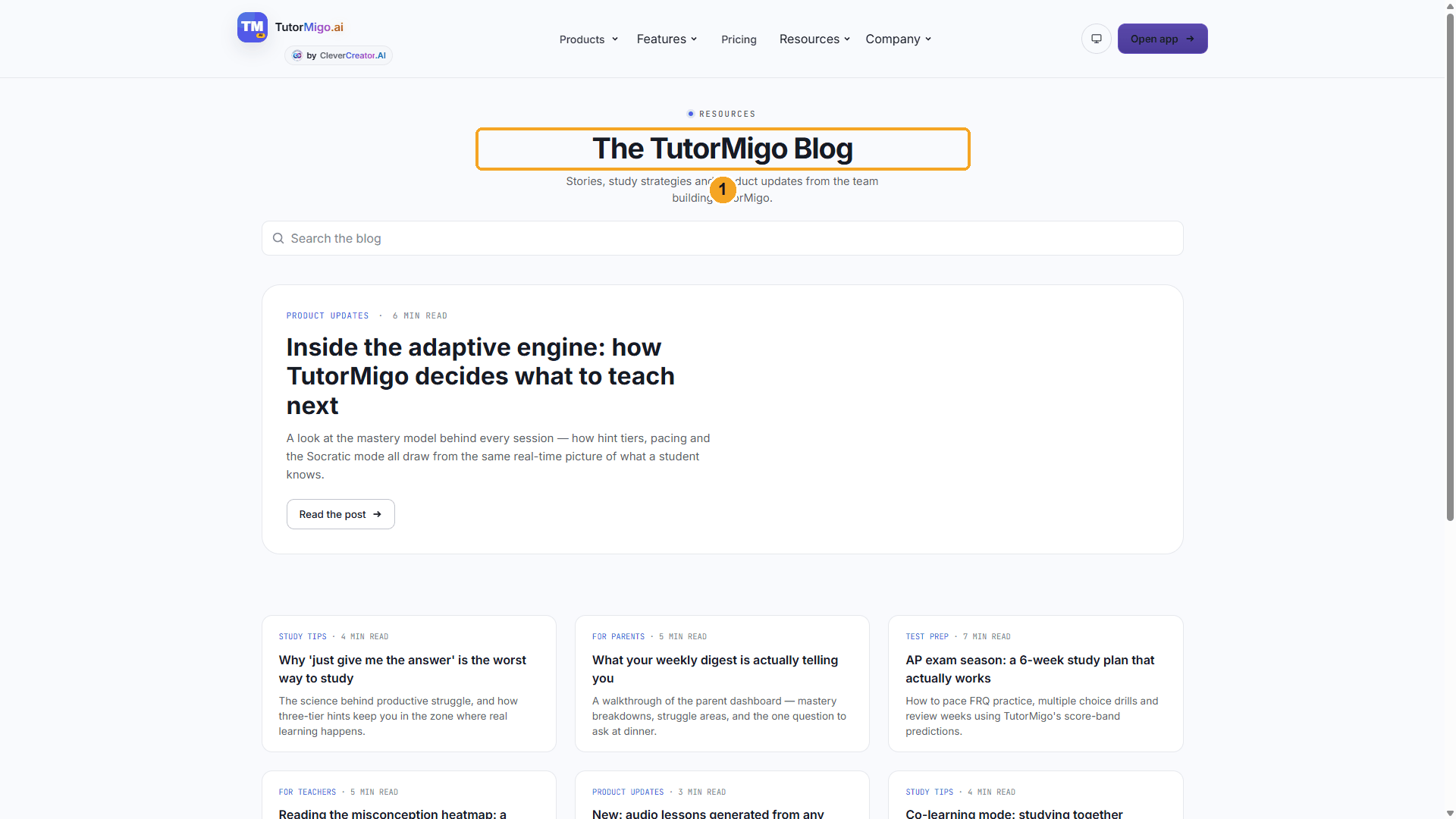
This is the TutorMigo blog. The workflow will add a new post here.
| # | What you see |
|---|---|
| 1 | The blog's home page. Published blog posts show up here and at /blog/<slug>. |
Watch this step
Save the key as a secret
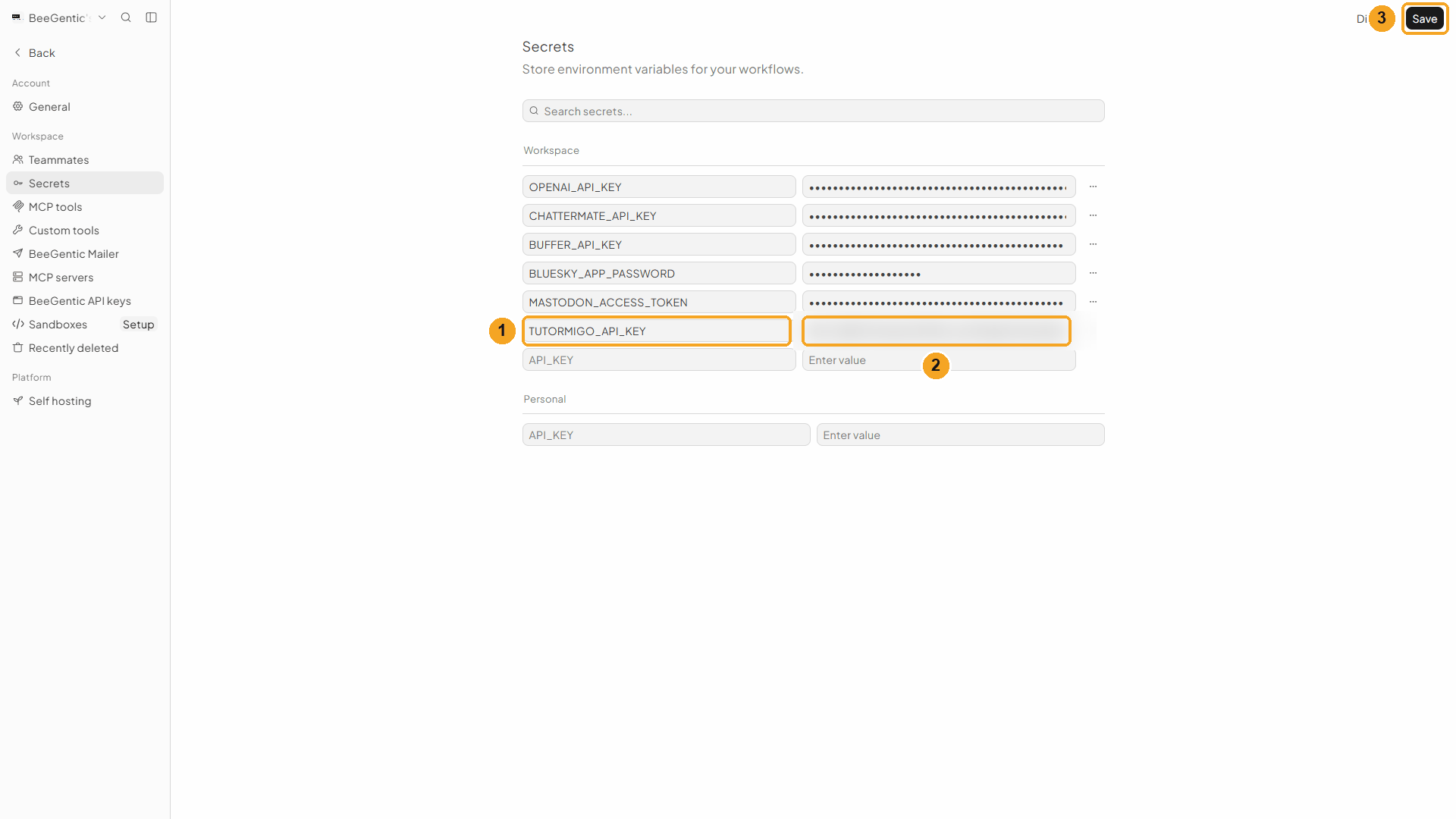
In BeeGentic: Settings → Secrets. Add a workspace secret and click Save.
| # | Field | Value |
|---|---|---|
| 1 | Name | TUTORMIGO_API_KEY |
| 2 | Value | Your ct_live_… key (blurred here) |
| 3 | Save | Saves the secret for everyone in the workspace |
Watch this step
Create the workflow and add the Agent
+ New workflow → name it Publish study tips to TutorMigo. Then Toolbar → Agent. In Messages:
Write a short blog post for students about: <start.input>. Use Markdown: a one-paragraph intro, then 3 sections with ## headings and a few bullet points each, about 300 words. Friendly and practical. Do not repeat the title in the body.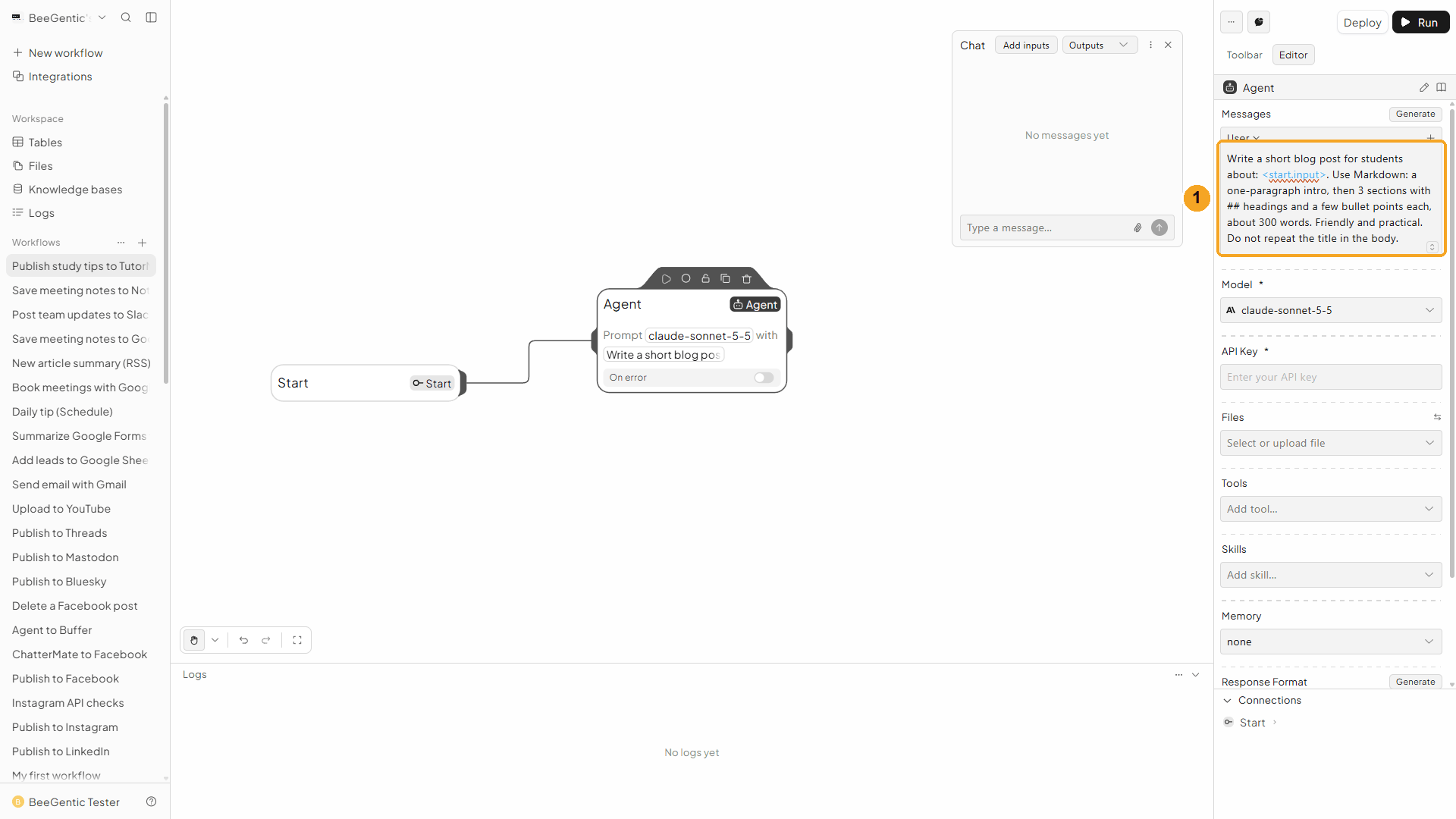
| # | What you see |
|---|---|
| 1 | The message. <start.input> is the topic you type in Chat. Markdown keeps the headings and bullets. |
Watch this step
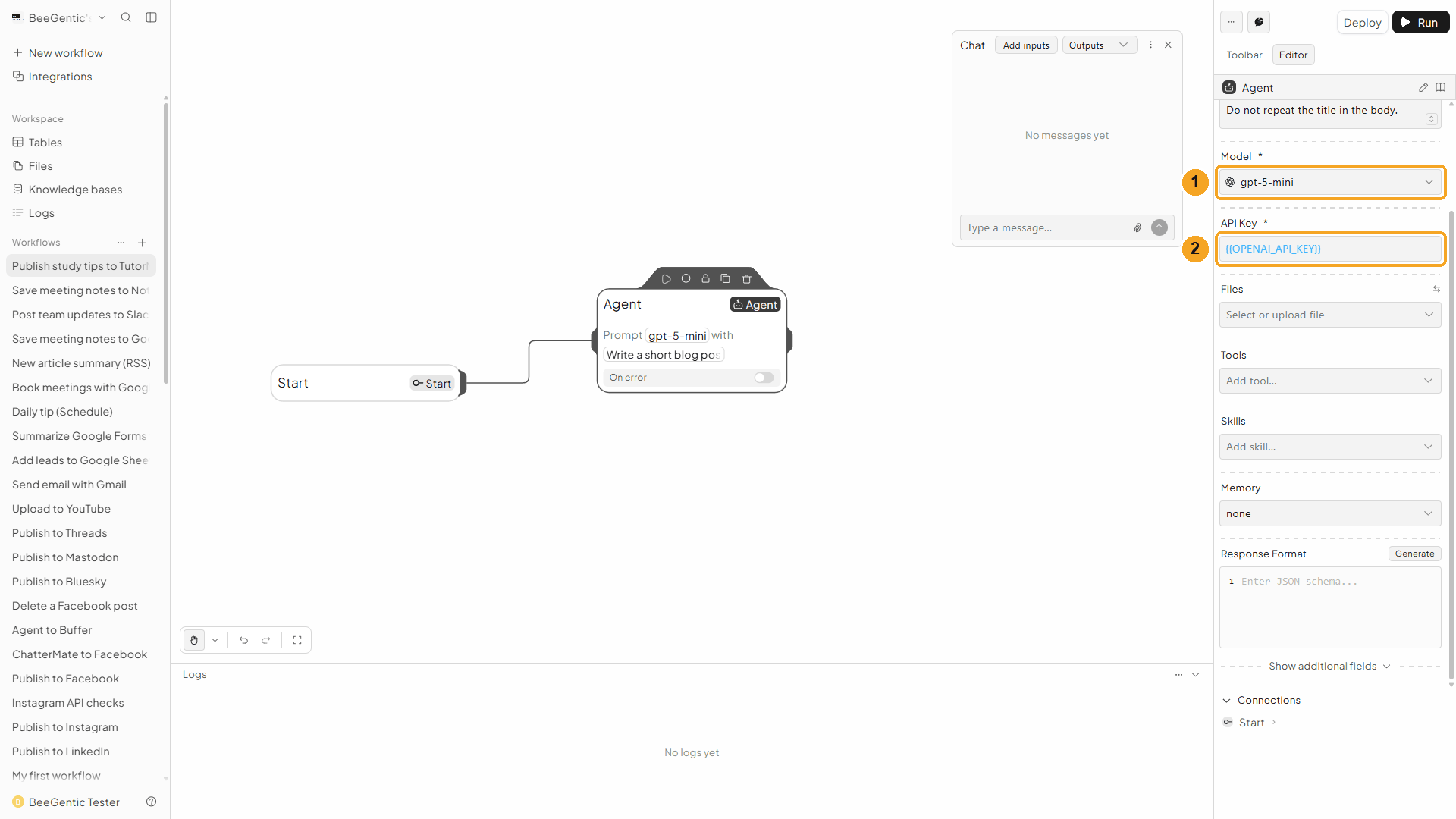
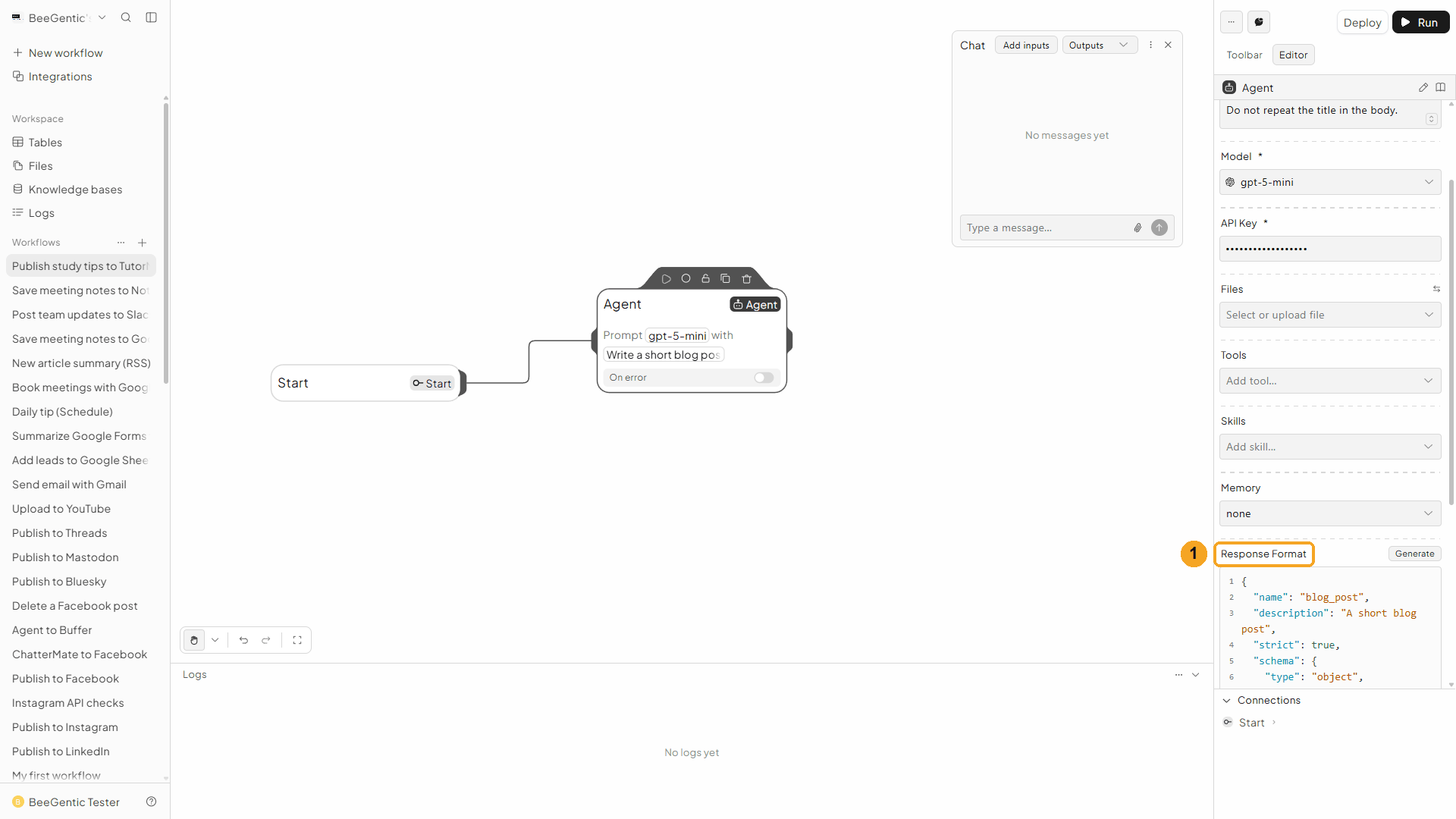
Give the Agent a Response Format
Scroll down to Response Format and paste this JSON schema:
{
  "name": "blog_post",
  "description": "A short blog post",
  "strict": true,
  "schema": {
    "type": "object",
    "properties": {
      "title": { "type": "string", "description": "Post title, under 70 characters" },
      "excerpt": { "type": "string", "description": "One-sentence summary" },
      "body": { "type": "string", "description": "The post in Markdown, without the title" }
    },
    "additionalProperties": false,
    "required": ["title", "excerpt", "body"]
  }
}
| # | What it does |
|---|---|
| 1 | The Agent now returns three separate fields: <agent.title>, <agent.excerpt> and <agent.body>. |
Watch this step
Add the TutorMigo Content block
Toolbar → TutorMigo Content. It connects to the Agent automatically.
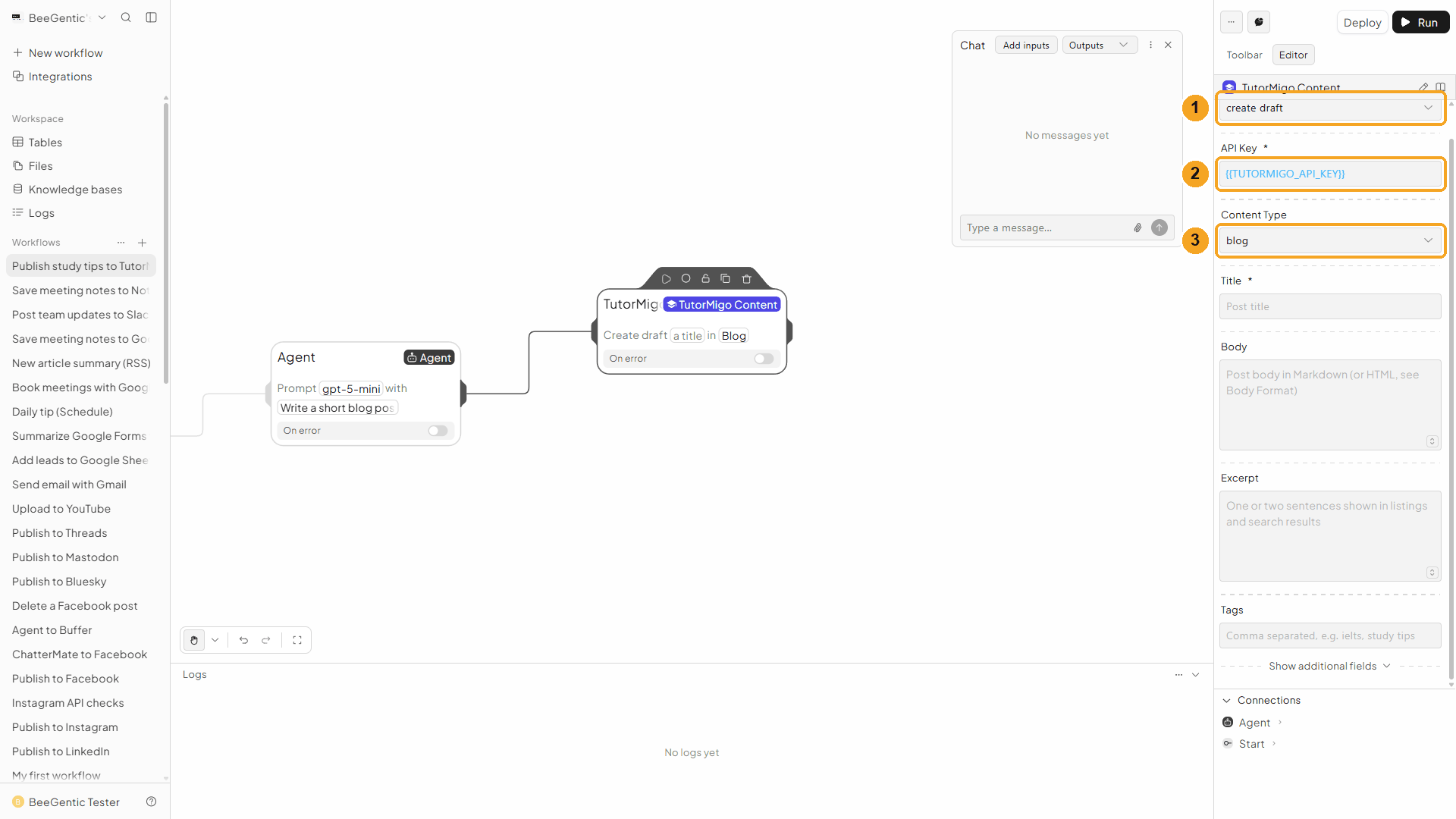
| # | Field | Value |
|---|---|---|
| 1 | Operation | Create Draft (already selected) |
| 2 | API Key | {{TUTORMIGO_API_KEY}}, the secret from step 2 |
| 3 | Content Type | Blog. Also News, Guide or Story. |
Watch this step
Fill in the post
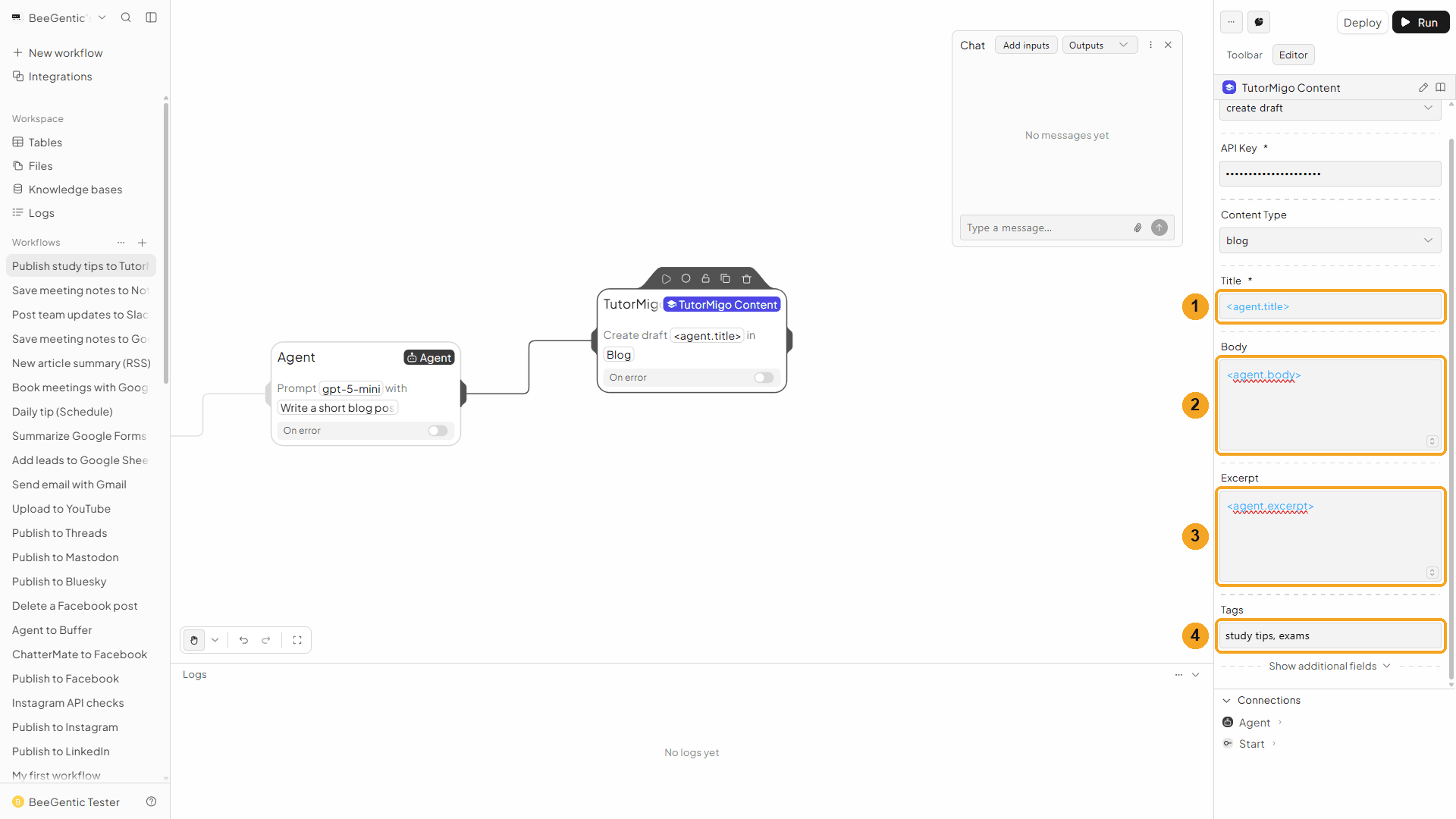
| # | Field | Value |
|---|---|---|
| 1 | Title | <agent.title> |
| 2 | Body | <agent.body>. Markdown by default. BeeGentic turns it into a formatted TutorMigo text block. |
| 3 | Excerpt | <agent.excerpt>, shown under the title, in lists and in search results |
| 4 | Tags | study tips, exams (comma separated) |
Under Show additional fields: Slug (the end of the post's address, made from the title when empty), Category (an existing TutorMigo category), Body Format (Markdown or HTML), Blocks (JSON) and Hero Image ID (to use the output of Generate Draft (AI)).
Watch this step
Add a second block to publish
Toolbar → TutorMigo Content again. It's named TutorMigo Content 2.
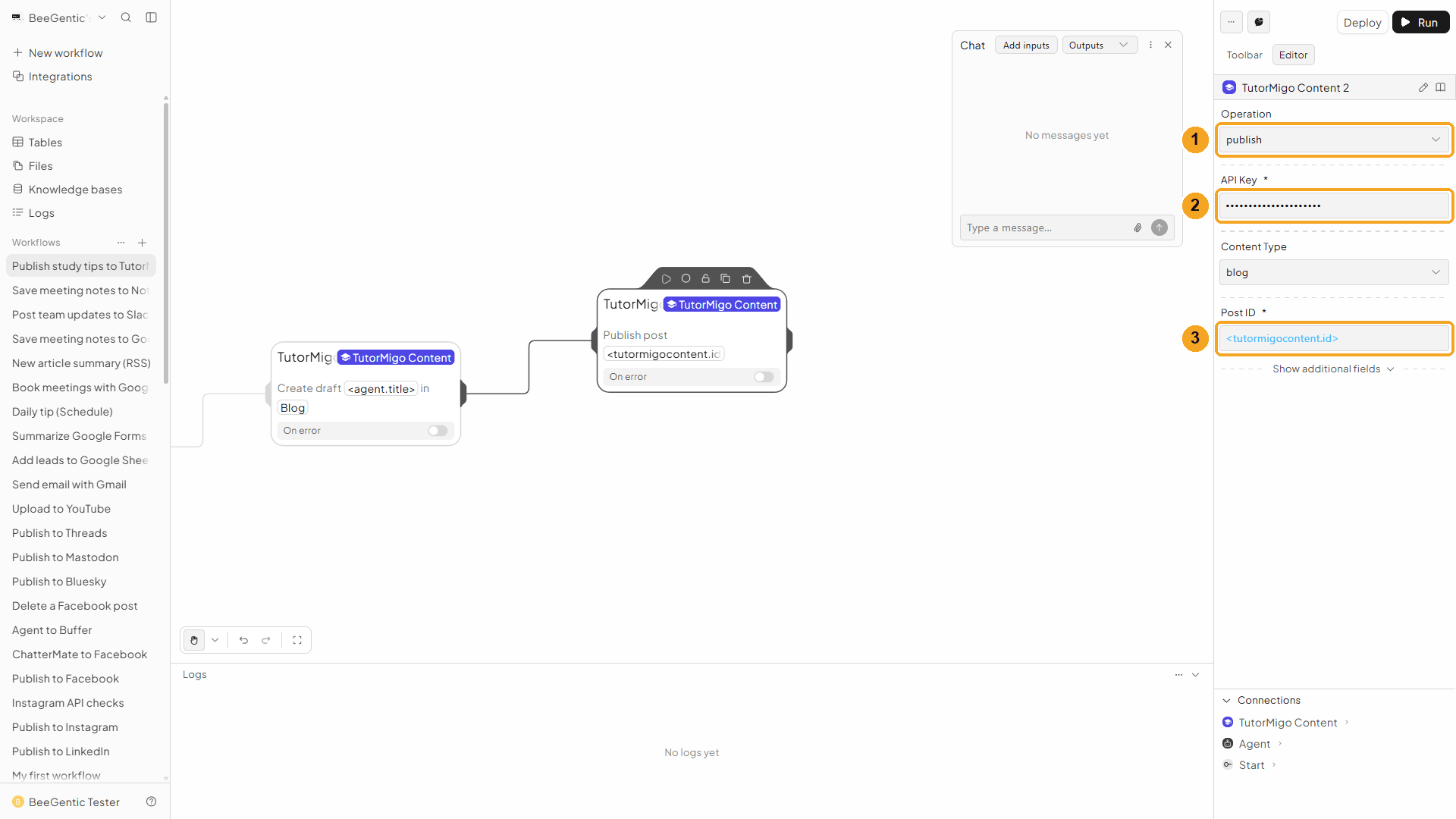
| # | Field | Value |
|---|---|---|
| 1 | Operation | Publish |
| 2 | API Key | {{TUTORMIGO_API_KEY}} |
| 3 | Post ID | <tutormigocontent.id>, the new draft's id from the first block |
Leave Content Type on Blog: it must match the first block. Press Shift + L to tidy. Your finished workflow:
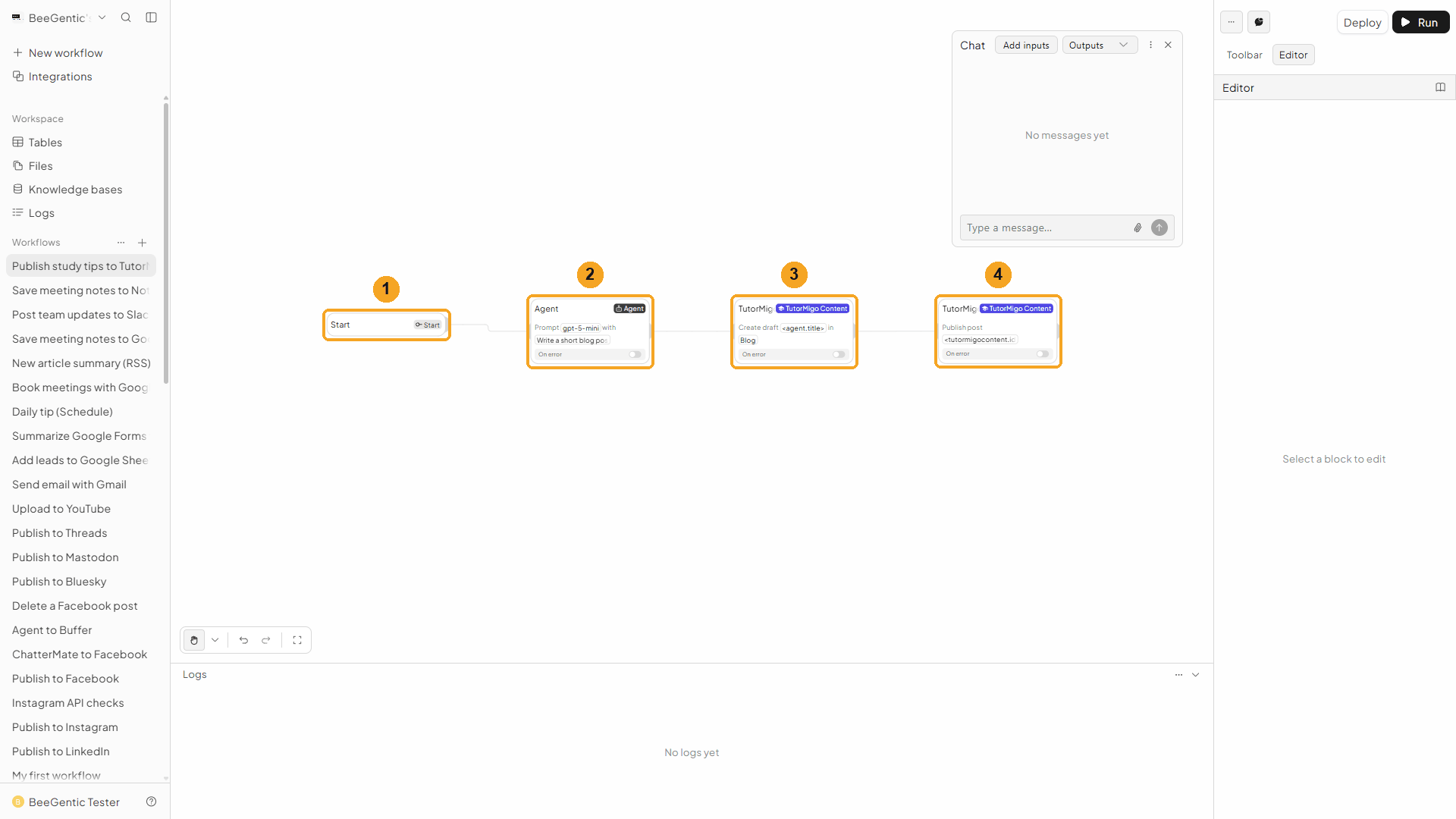
| # | Block | What it does |
|---|---|---|
| 1 | Start | Your chat message becomes <start.input> |
| 2 | Agent | Writes the title, excerpt and body |
| 3 | TutorMigo Content | Saves the post as a draft |
| 4 | TutorMigo Content 2 | Publishes it |
Watch this step
Part 2: Run it and check the result
Type the topic in Chat
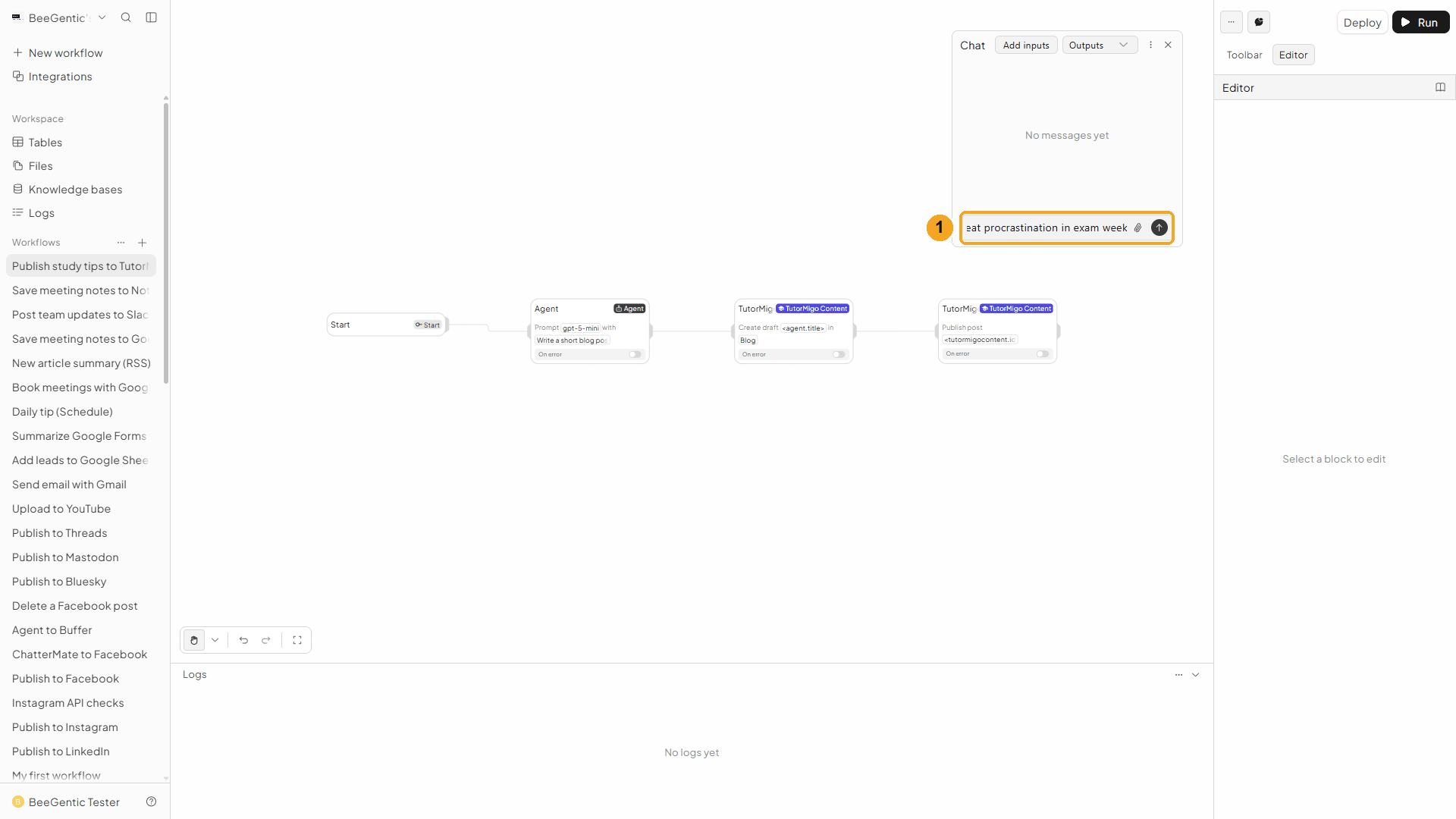
| # | What to do |
|---|---|
| 1 | Open Chat, type the topic and press Enter. |
Example message we sent:
Five study tips to beat procrastination in exam weekWatch this step
Read the output
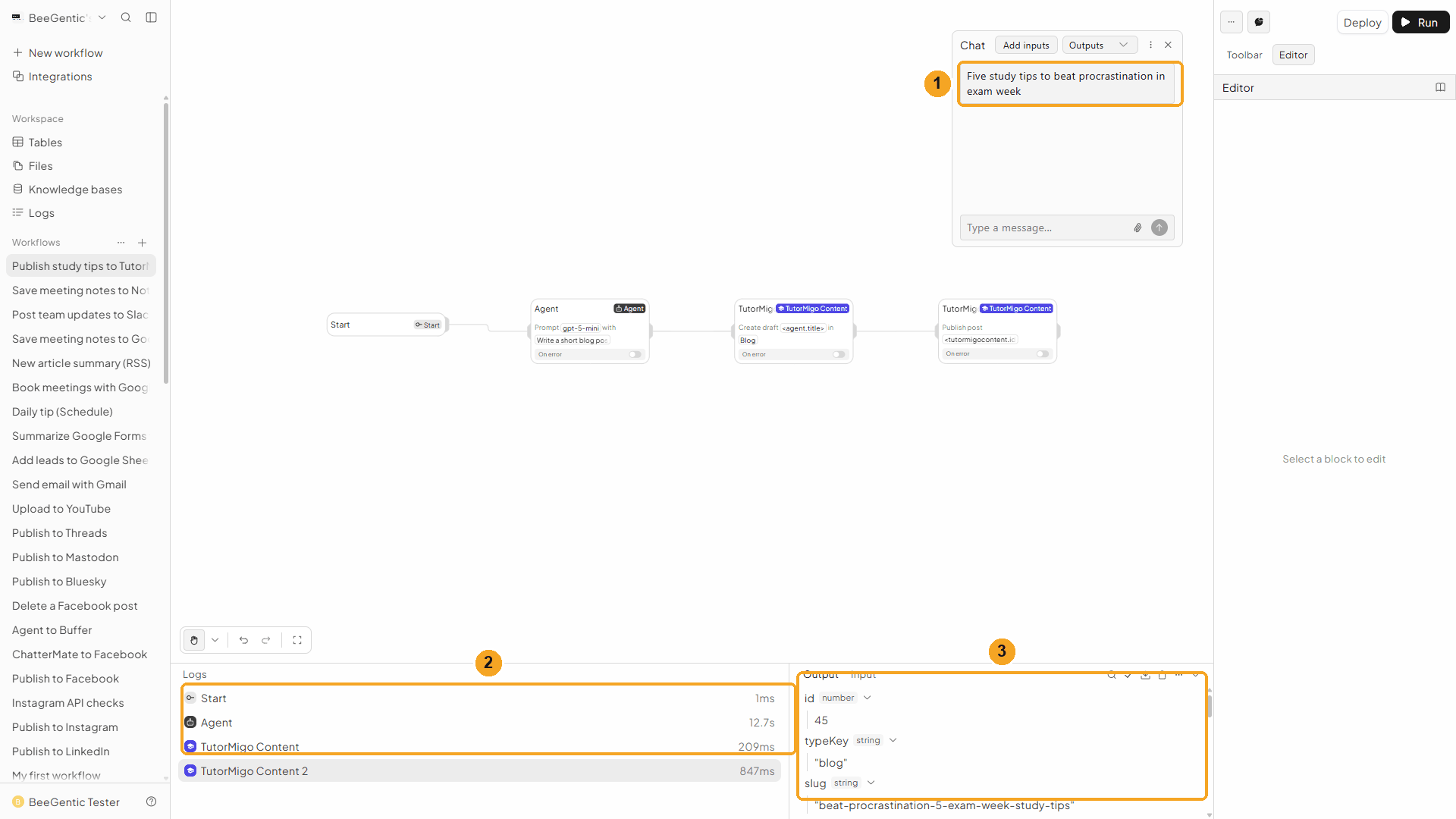
| # | What you see |
|---|---|
| 1 | Your message. |
| 2 | Each block's run time: the Agent about 13 s, Create Draft about 0.2 s, Publish under 1 s. |
| 3 | The output of Publish: the post id, typeKey, slug, title, excerpt, tags, workflowState (published), version, path, the public url, publishedAt, the SEO score and any publishWarnings. |
The real output (shortened):
{
  "id": 45,
  "typeKey": "blog",
  "slug": "beat-procrastination-5-exam-week-study-tips",
  "title": "Beat procrastination: 5 exam-week study tips",
  "excerpt": "Practical, friendly strategies to stop delaying and study smarter during exam week.",
  "tags": ["study tips", "exams"],
  "workflowState": "published",
  "version": 2,
  "path": "/blog/beat-procrastination-5-exam-week-study-tips",
  "url": "https://tutor-dev.tutormigo.ai/blog/beat-procrastination-5-exam-week-study-tips",
  "publishedAt": "2026-10-03T01:20:43.607929+00:00",
  "seoScore": 83,
  "publishWarnings": [
    { "code": "missing_hero_image", "severity": "info", "message": "No hero image — shared links will use the site default card." }
  ]
}
publishWarnings are tips, not errors: the post is live either way. We tested on TutorMigo's dev site, so the url starts with tutor-dev; yours starts with https://tutormigo.ai.
Watch the run
Open the live post
Open the url from the output.
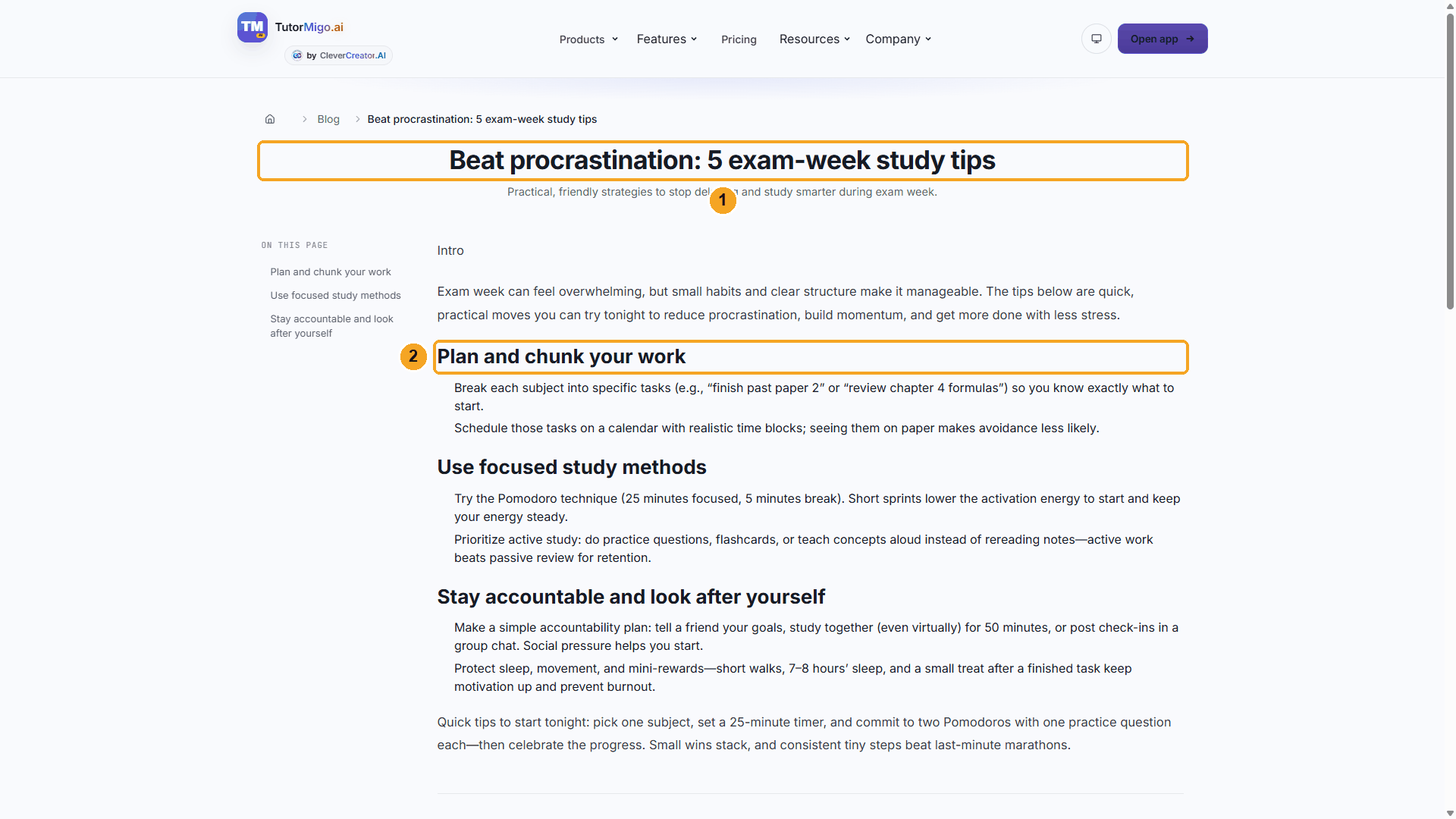
| # | What you see |
|---|---|
| 1 | The AI's title, with the excerpt under it. |
| 2 | The body: an intro, then three sections with headings and tips. TutorMigo builds On this page from the headings. |
The real post BeeGentic published:
Beat procrastination: 5 exam-week study tips
Practical, friendly strategies to stop delaying and study smarter during exam week.
Exam week can feel overwhelming, but small habits and clear structure make it manageable. The tips below are quick, practical moves you can try tonight to reduce procrastination, build momentum, and get more done with less stress.
Sections: Plan and chunk your work · Use focused study methods · Stay accountable and look after yourself
Quick tips to start tonight: pick one subject, set a 25-minute timer, and commit to two Pomodoros with one practice question each—then celebrate the progress. Small wins stack, and consistent tiny steps beat last-minute marathons.
This was a test post: we deleted it right after recording, and its page now shows "Page not found".
Watch this step
⚡ Make it automatic
| You want | Do this |
|---|---|
| Turn every new article from a feed into a TutorMigo draft, approved in Slack | RSS Feed trigger → Agent (rewrite for students) → TutorMigo Create Draft → Slack message with the draft's title → Human approval → TutorMigo Publish with Post ID <tutormigocontent.id>. Nothing goes live until someone approves (the same pattern as the X announcement with approval recipe). |
| A new study tip every week | Schedule trigger (e.g. every Monday at 8:00) → Agent → Create Draft → Publish, as in this guide. Give the Agent a list of topics, or read the next topic from a sheet with Google Sheets Read Data. |
| Drafts only, an editor publishes | Use a key without content:publish, and end the workflow with Submit for Review. Editors approve and publish in TutorMigo Content Studio. |
| Publish at a set time | Replace Publish with Schedule and set Publish At, e.g. 2026-10-05T09:00:00Z. |
| Share the new post | After Publish, post <tutormigocontent2.url> to your networks with Publish to social, or email it with Gmail. |
🧰 Other operations
| Operation | What it does |
|---|---|
| Submit for Review | Moves a draft to In review for an editor. Needs Post ID. |
| Schedule | Publishes the post at Publish At (an ISO date in the future). Leave Publish At empty to clear the schedule. Needs content:publish. |
| Update Post | Changes only the fields you fill in (title, body, excerpt, tags, slug, category, hero image). For a live post, turn on Push Edit to Live Page (needs content:publish); Change Note is saved with the new version. |
| Get Post | Reads one post: its fields, blocks, state, version and public URL. |
| List Posts | Lists posts of one content type, filtered by Workflow State (All, Draft, In Review, Approved, Published, Archived), with Limit (up to 200) and Offset. Returns posts, count, total and countsByState. |
| Generate Draft (AI) | TutorMigo's own AI writes a post from a Brief (plus Target Keyword, Tone, Length and an optional hero image). It returns title, excerpt, tags, blocks, heroImageId and a quality score, but doesn't save anything: pass blocks and heroImageId to Create Draft (Blocks (JSON) and Hero Image ID). |
TutorMigo URL (under additional fields) sends the request to another TutorMigo site. Leave it empty for the normal one.
🛠️ Troubleshooting
| Error | Fix |
|---|---|
TutorMigo rejected the API key (invalid_api_key): Invalid or revoked API key. Check the ct_live_ key in the block. | The key is wrong, turned off or deleted. Check the TUTORMIGO_API_KEY secret (no spaces, starts with ct_live_), or ask your admin for a new key. |
TutorMigo rejected the API key (invalid_api_key): API key has expired. … | The key passed its expiry date. Ask your admin for a new one. |
TutorMigo API key lacks the content:publish scope (insufficient_scope). Add the scope to the key or mint a new key with it. | The key can't do this step (here: publish). Ask your admin to add the scope, or end the workflow with Submit for Review. The same message names content:read or content:write when those are missing. |
TutorMigo denied the request: Missing permission: admin.content.publish. … | The key's owner isn't allowed to do this in TutorMigo. Ask an admin to make the key from their own account. |
TutorMigo rate limit exceeded for this API key (rate_limited). Retry after 17s. | Too many requests in one minute (60 by default). Wait, or slow the workflow down. |
TutorMigo conflict (409): A post with this slug already exists. Use a different slug. | A post with the same address exists. Change the title, or set a Slug. |
TutorMigo conflict (409): Version conflict — reload and retry. The post changed while this step ran; run it again. | Someone edited the post at the same moment. Run the workflow again. |
TutorMigo is still processing an identical create request (idempotency_in_progress). Retry shortly. | A retry arrived while the first create was still running. Wait a few seconds and run it again. |
TutorMigo refused the create (idempotency_key_reused): … | The same step was retried with a different title or body. Run the whole workflow again instead of retrying one step. |
TutorMigo API error 400: Invalid workflow transition | The post can't move to that state from where it is. For example, an archived post must go back to draft before it can be published. Check workflowState with Get Post. |
Post ID must be a positive number (the `id` from Create Draft or List) | Post ID is empty or not a number. Use <tutormigocontent.id> (check the first block's name in the reference). |
TutorMigo API error 404: Not found | No post with that ID for this Content Type. Make the content type match the post. |
Title is required | The Agent's title was empty. Check the Response Format and <agent.title>. |
The post shows the Markdown symbols (##, **) | Body Format is set to HTML. Switch it back to Markdown. |
Create pages in Notion
Create Notion pages, add content, read pages, query databases, add database rows and comments from a workflow, or start a workflow when a page changes. Step by step with a narrated video and a real result.
Recipes
20 complete, step-by-step automations with videos and real example results.