


Publish to Bluesky
Post to Bluesky from a workflow with text, a link card, images, mentions and hashtags. Connect with an App Password; no developer app needed. Real result included.
What you'll build: you type a topic, an AI writes a short post, and BeeGentic publishes it to Bluesky with a link card. Three blocks: Start → Agent → Bluesky. About 5 minutes.
Posts to: Your Bluesky account (or self-hosted PDS) · Connect with: Handle + App Password · Block: Bluesky
| Text | Link | Image | Video | Multi | Schedule | Edit | Delete | Read | Comments | Insights |
|---|---|---|---|---|---|---|---|---|---|---|
| ✅ | ✅ | ✅ | — | ✅ | — | — | ✅ | ✅ | — | ⚠️ |
Not supported: Video posts · Editing posts (Bluesky has no edit) · Replies and threads
✅ supported · ⚠️ partly (hover for details) · — not supported
Narrated walkthrough (2 min), with captions (CC button). Each step below also has a short silent clip. The orange numbers in each screenshot match the # column under it. Click a screenshot to enlarge it.
Before you start
| You need | Why |
|---|---|
| A Bluesky account (bsky.app, or your own PDS) | BeeGentic posts as you |
An AI key saved as a secret, e.g. OPENAI_API_KEY | The Agent writes the post. See References and secrets. |
Bluesky needs no developer app and no review. You connect with an App Password, a separate password you can revoke at any time without changing your login.
Part 1: Create an App Password (once)
Open App Passwords in Bluesky
On bsky.app: Settings → Privacy and security → App passwords.
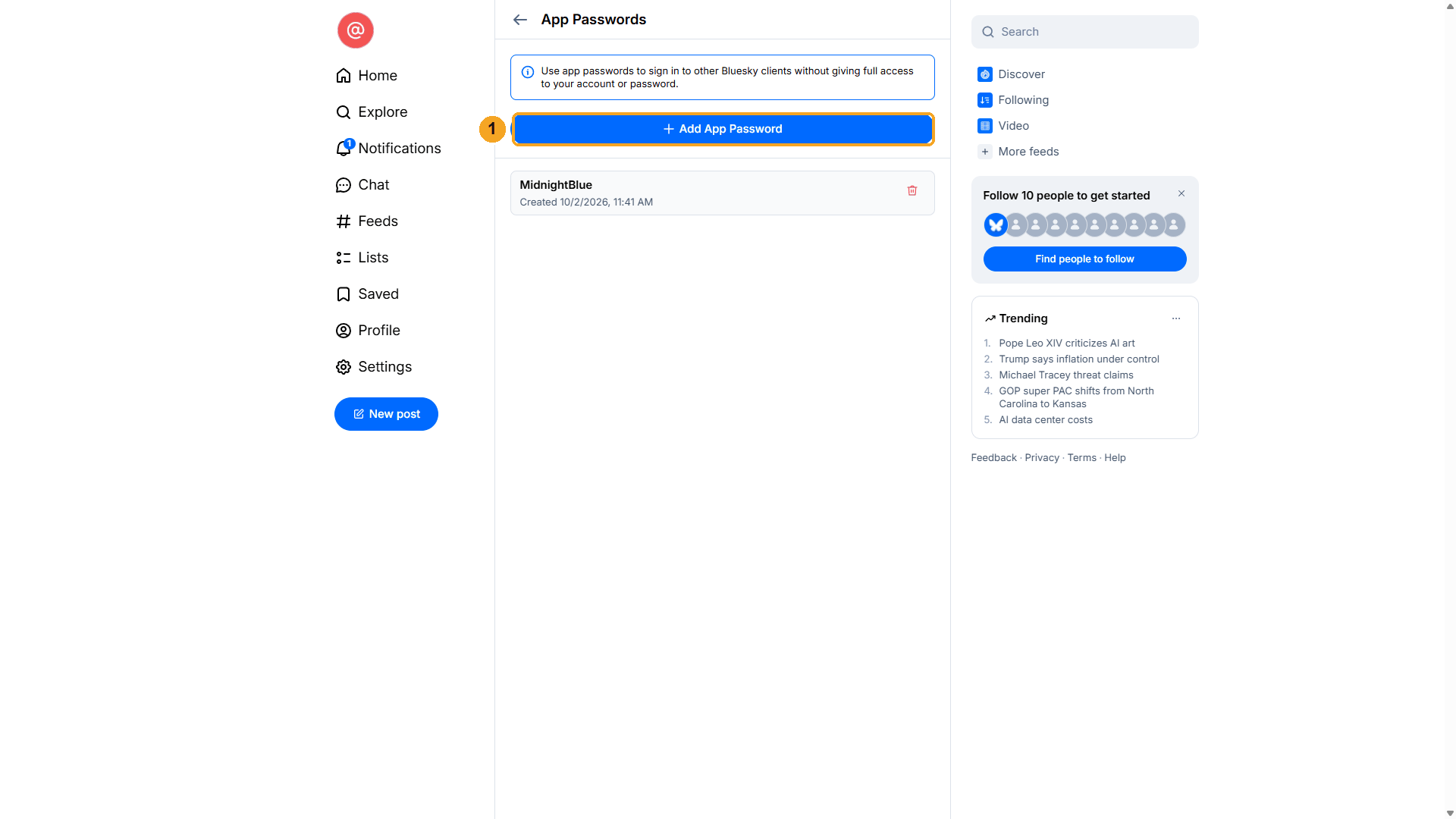
| # | What to do |
|---|---|
| 1 | Click Add App Password. |
Name it
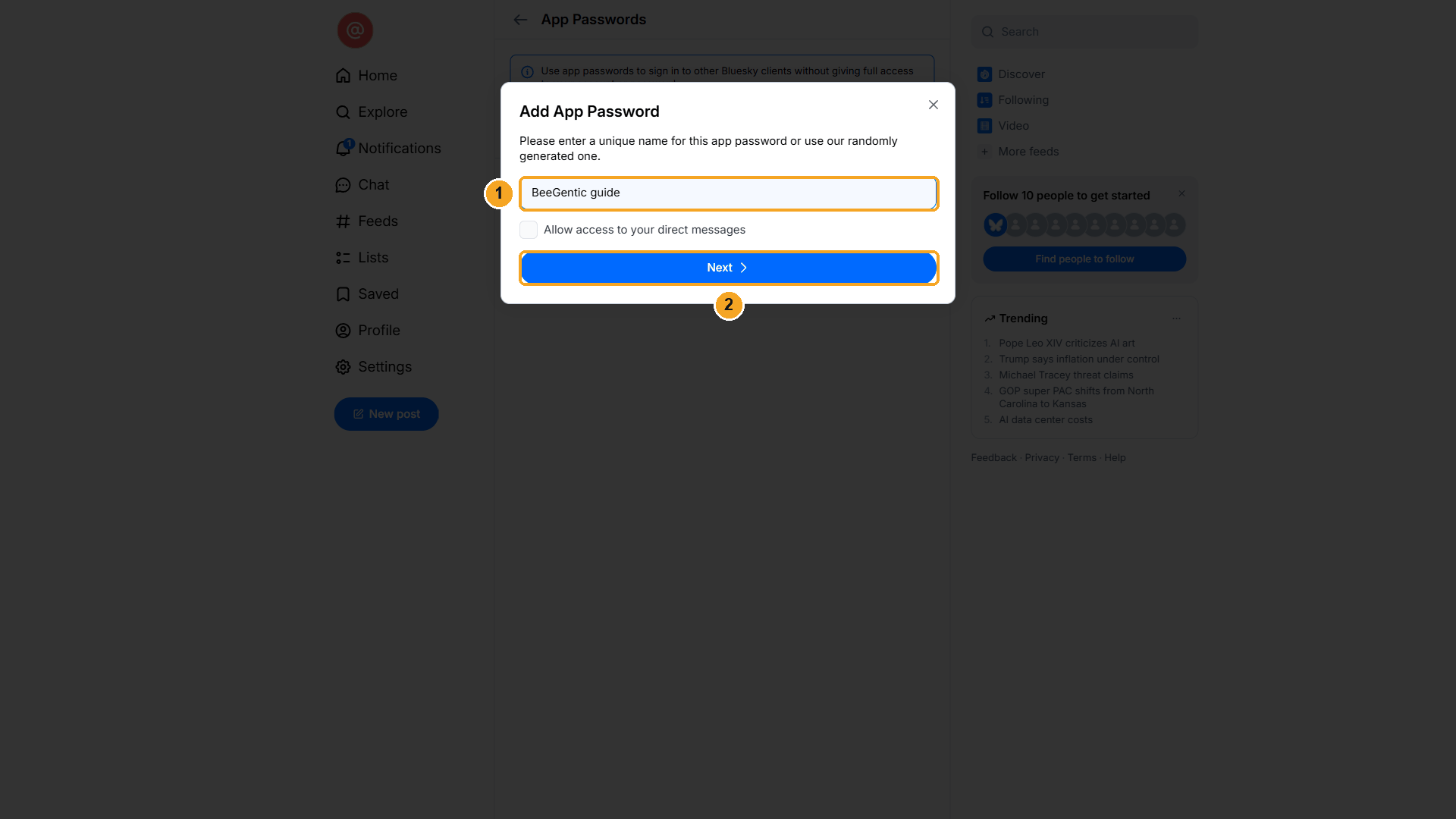
| # | What to do |
|---|---|
| 1 | Type a name, e.g. BeeGentic. Leave Allow access to your direct messages off; BeeGentic doesn't need it. |
| 2 | Click Next. |
Watch this step
Copy the password
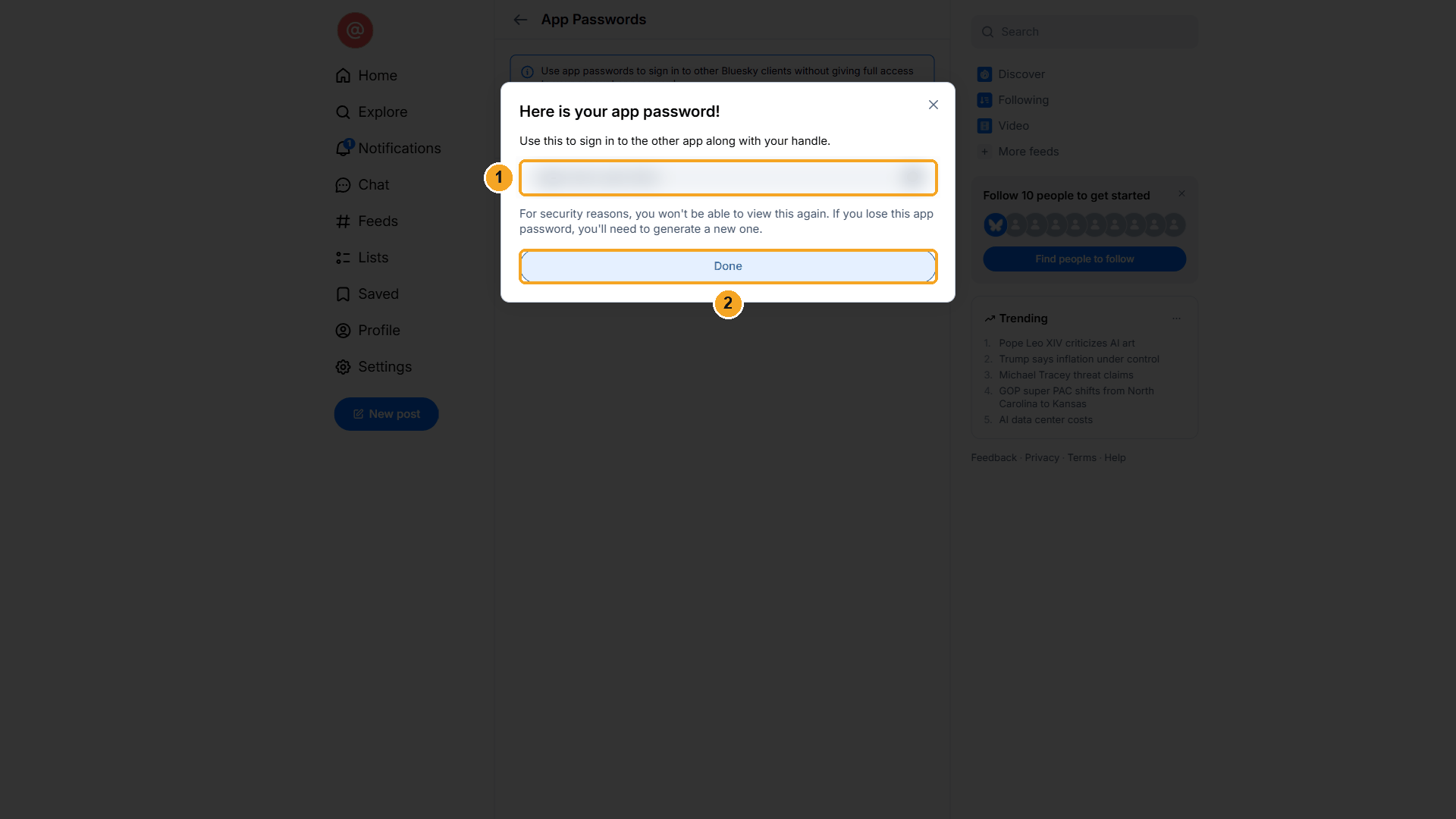
| # | What to do |
|---|---|
| 1 | Copy the password (format xxxx-xxxx-xxxx-xxxx). Bluesky shows it only once. It's blurred here. |
| 2 | Click Done. |
Save it as a secret in BeeGentic
Settings → Secrets.
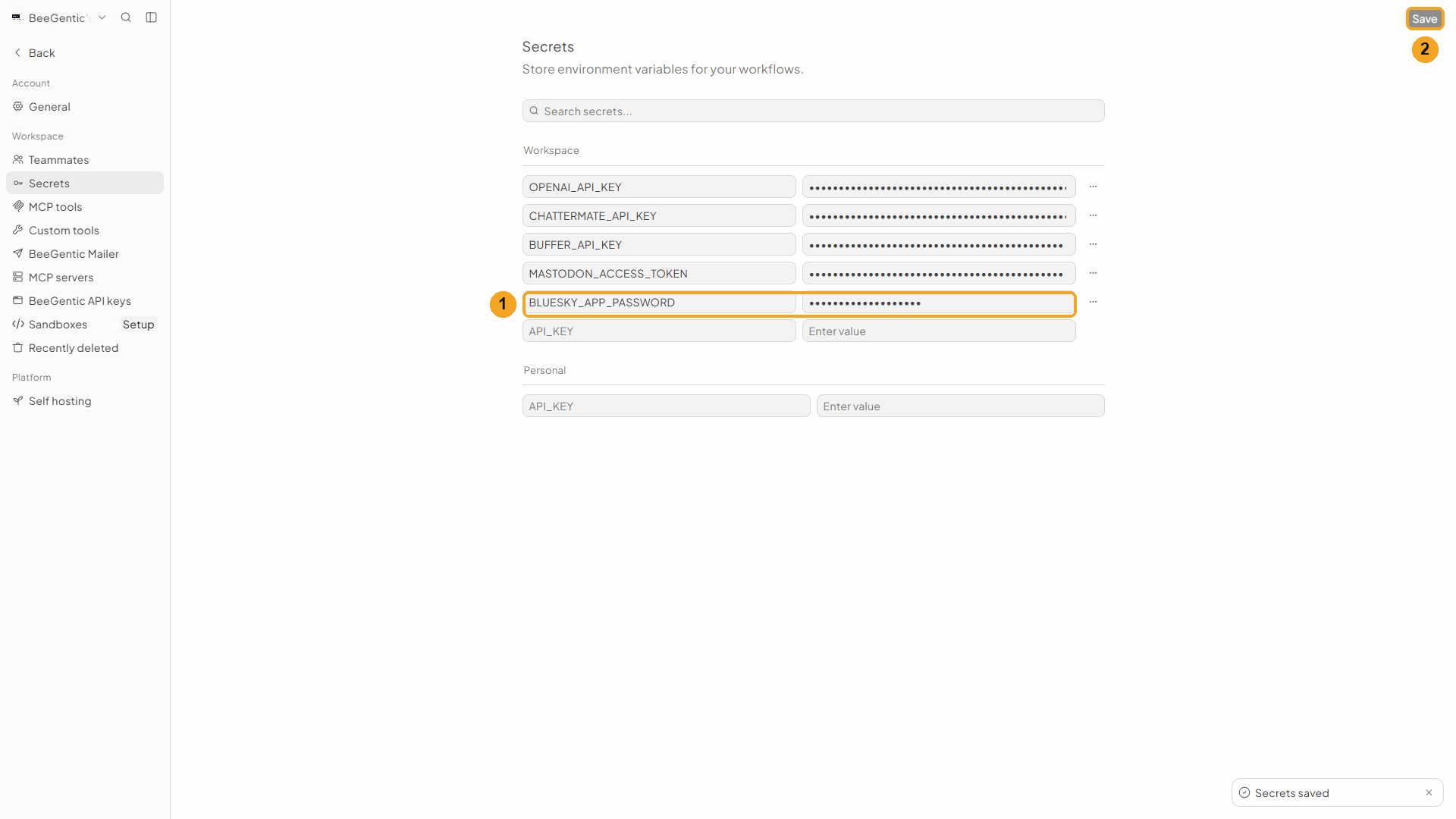
| # | What to do |
|---|---|
| 1 | Name BLUESKY_APP_PASSWORD, paste the App Password as the value. |
| 2 | Click Save. |
Watch this step
Part 2: Build the workflow
Create the workflow and add the Agent
+ New workflow → name it Publish to Bluesky. Then Toolbar → Agent. In Messages:
Write a Bluesky post (max 250 characters) announcing: <start.input>. Friendly, one emoji, end with #BeeGentic. Return only the post text.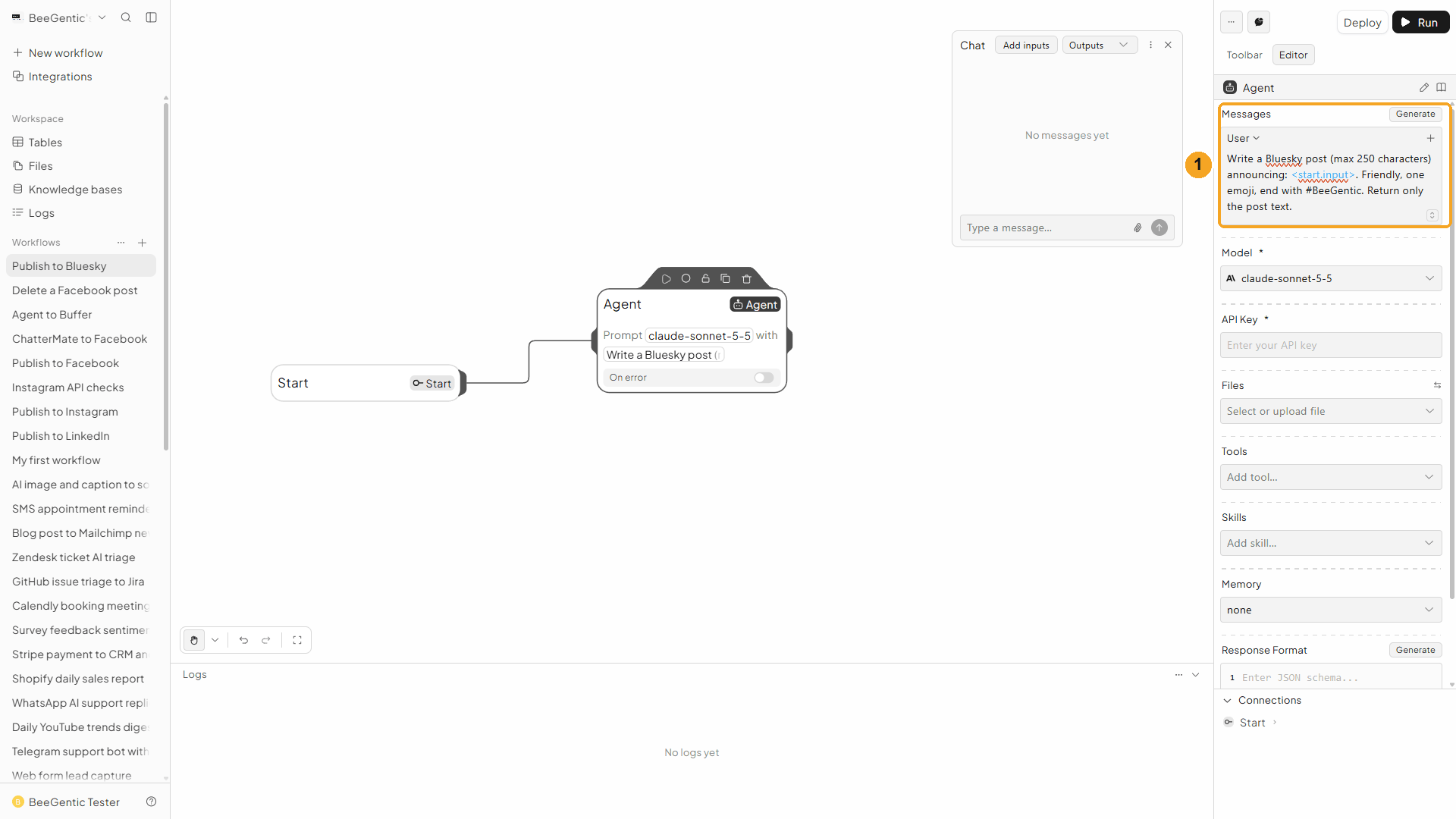
| # | What you see |
|---|---|
| 1 | The message, with <start.input> highlighted. It's replaced by what you type in Chat. |
Watch this step
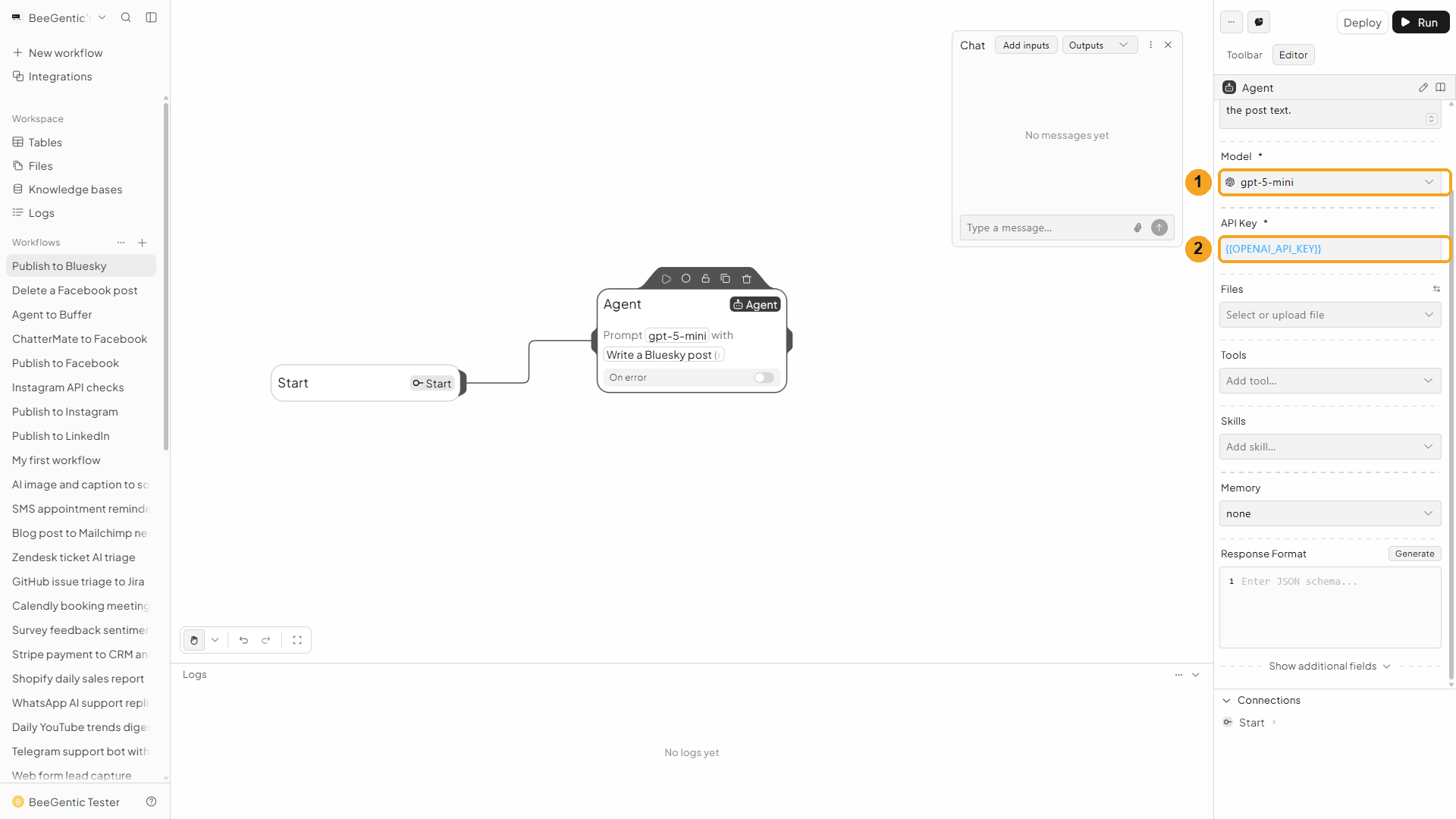
Add the Bluesky block
Toolbar → Bluesky. It connects to the Agent automatically.
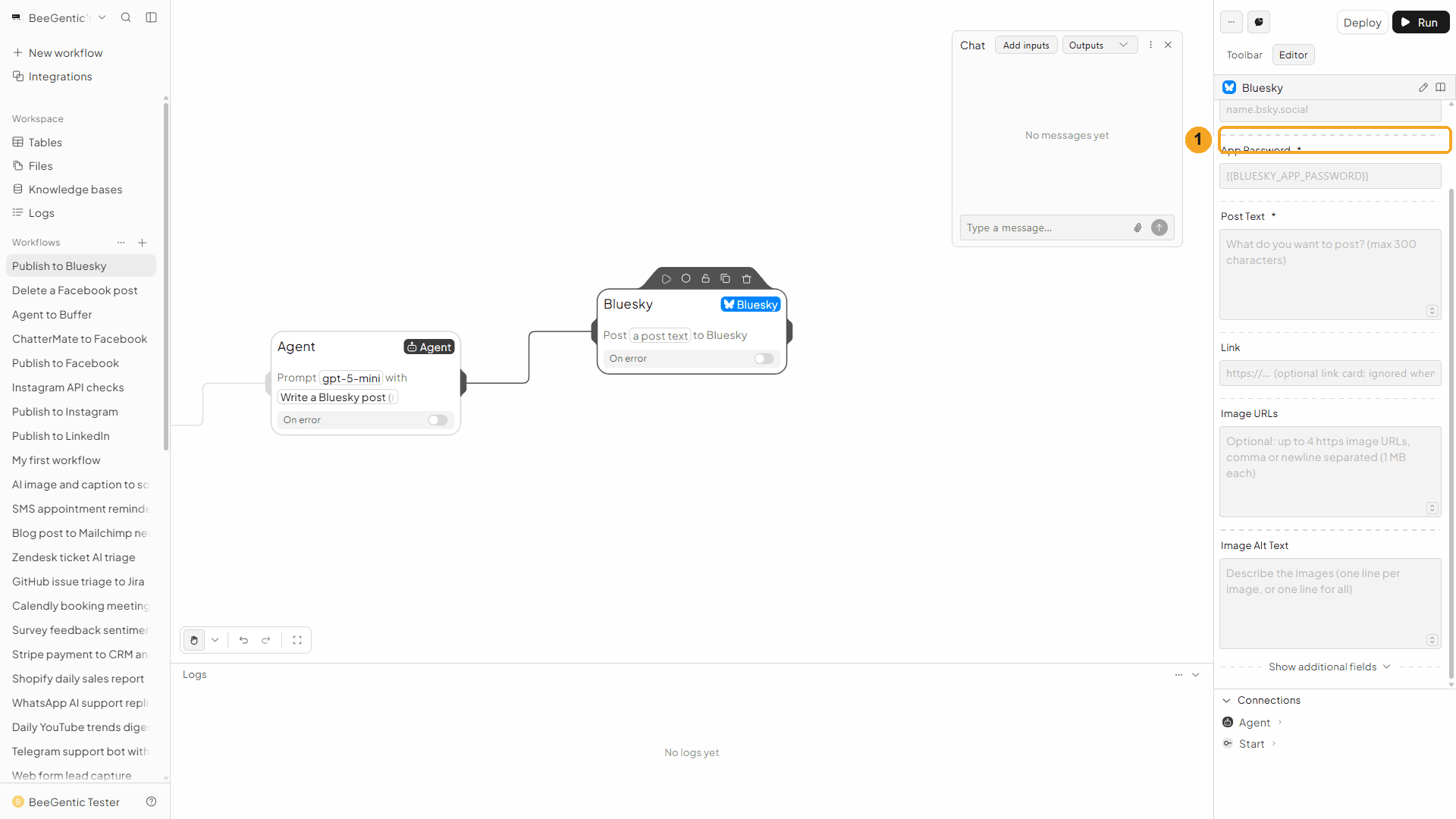
| # | Field | Value |
|---|---|---|
| 1 | Operation | Create Post (the default) |
Handle and App Password
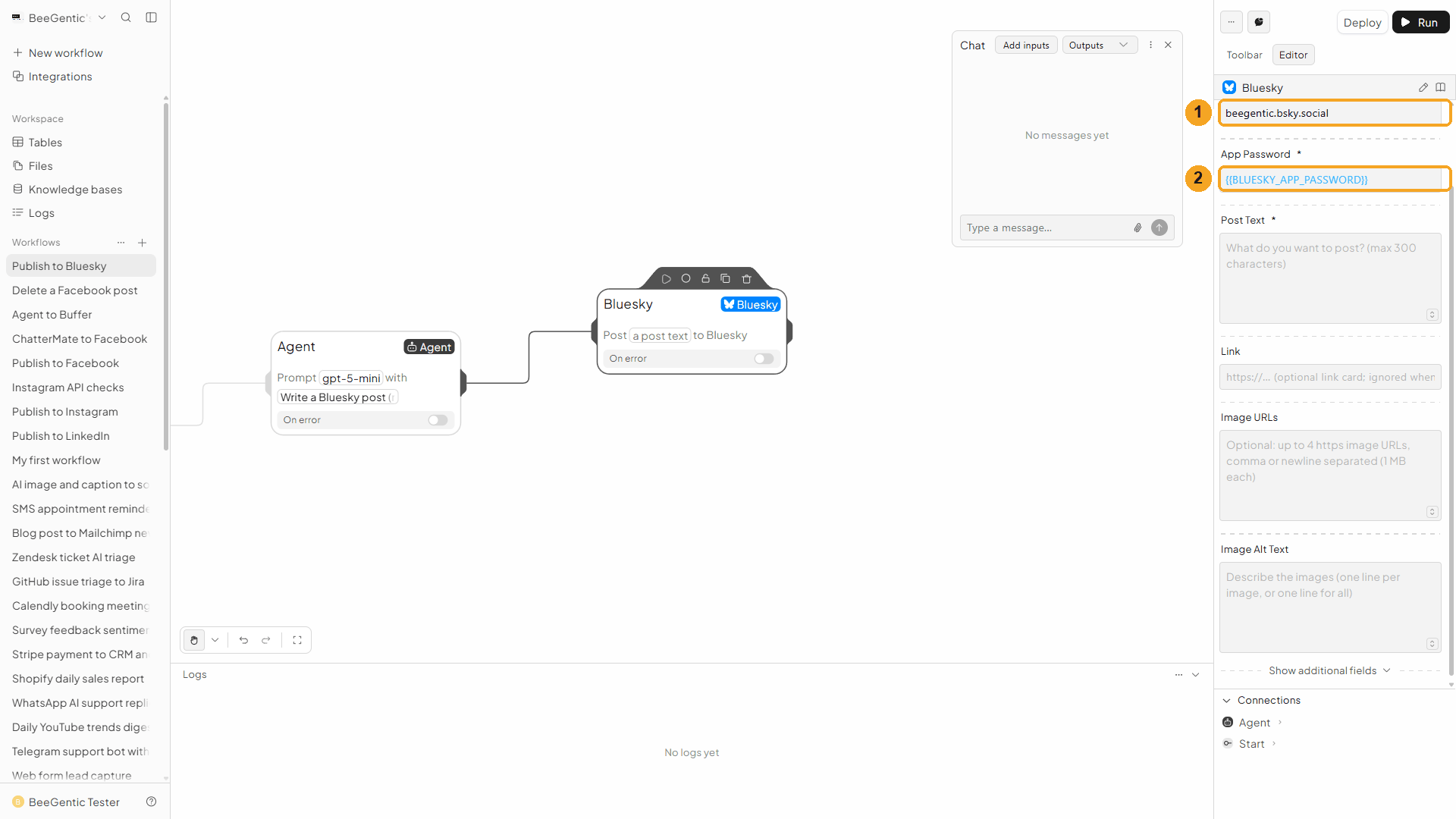
| # | Field | Value |
|---|---|---|
| 1 | Handle | Your handle without @, e.g. yourname.bsky.social |
| 2 | App Password | {{BLUESKY_APP_PASSWORD}}. BeeGentic fills in the real value when it runs. |
Watch this step
Post text and link
| Field | Value |
|---|---|
| Post Text | <agent.content>: the post the Agent wrote |
| Link (optional) | A URL, e.g. https://docs.beegentic.ai/publish/bluesky/. Bluesky shows it as a card with the page title and description. |
| Image URLs (optional) | Up to 4 public https:// images, 1 MB each. With images, the link card is left out (one embed per post). |
Press Shift + L to tidy the canvas. Your finished workflow:
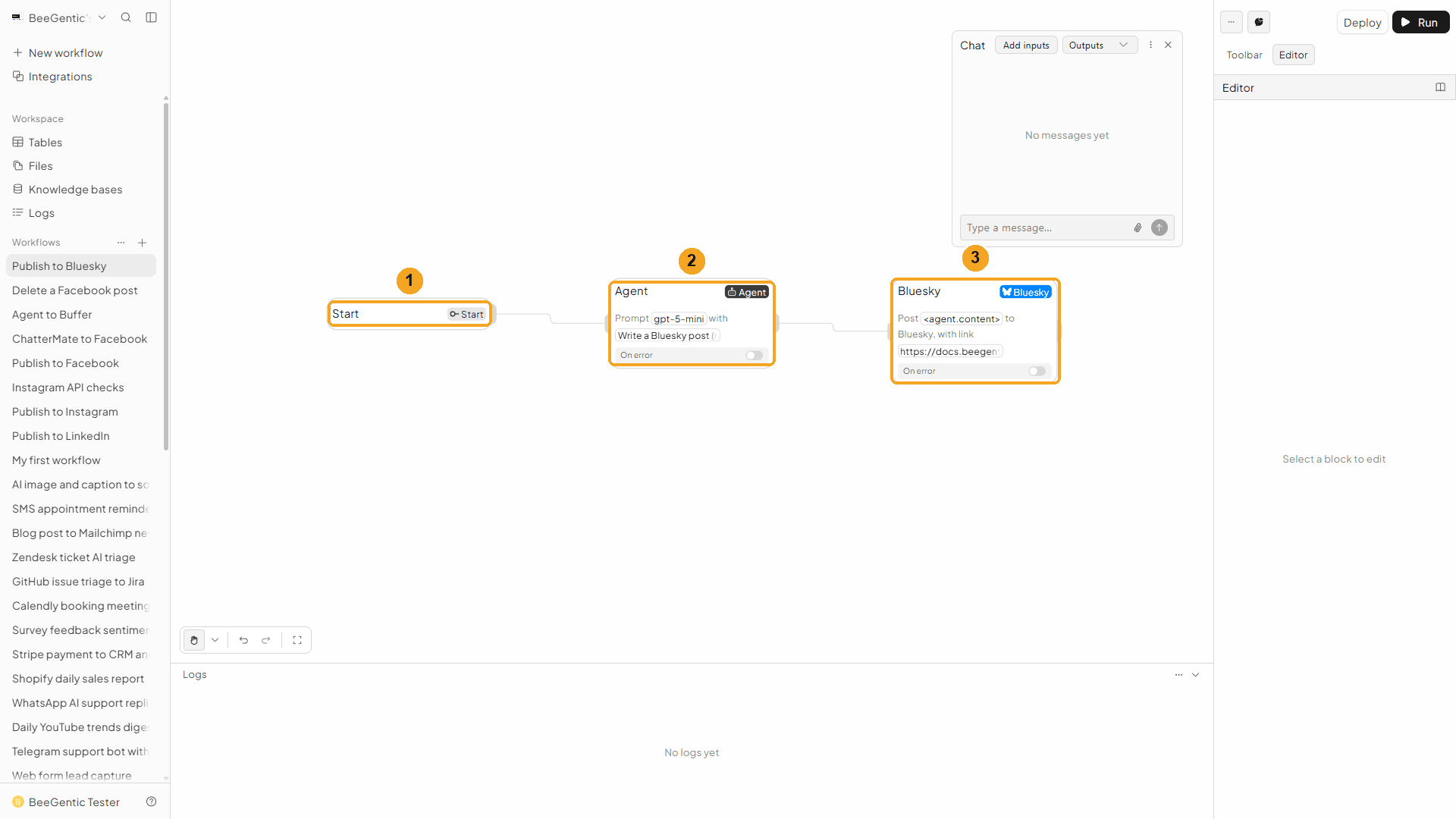
| # | Block | What it does |
|---|---|---|
| 1 | Start | Your chat message becomes <start.input> |
| 2 | Agent | Writes the post |
| 3 | Bluesky | Publishes <agent.content> with the link card |
Watch this step
Part 3: Run it and check the result
Send the topic from Chat
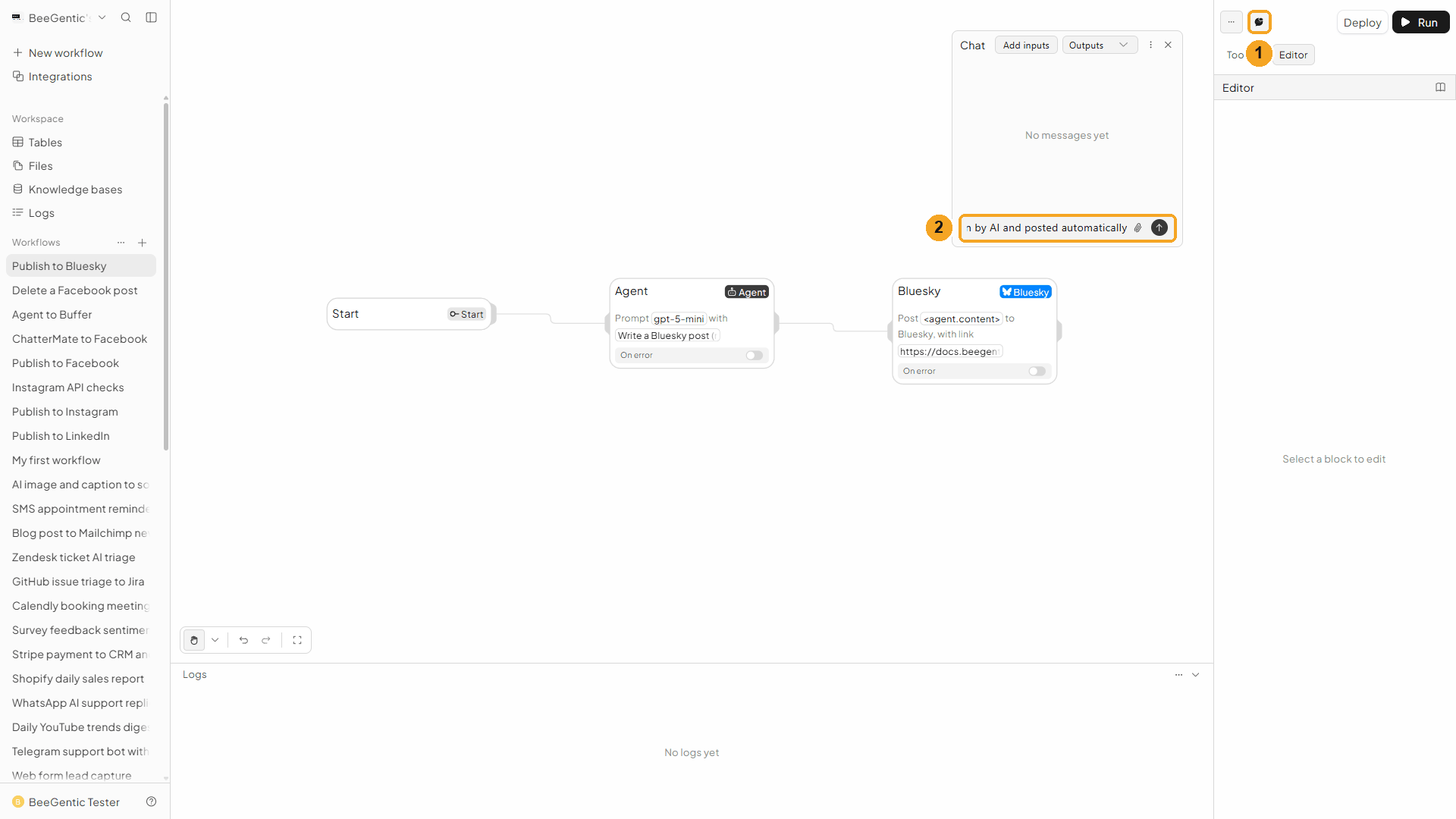
| # | What to do |
|---|---|
| 1 | Click the speech-bubble button to open Chat. |
| 2 | Type the topic and press Enter. |
Example message we sent:
BeeGentic now publishes to Bluesky, written by AI and posted automaticallyRead the output
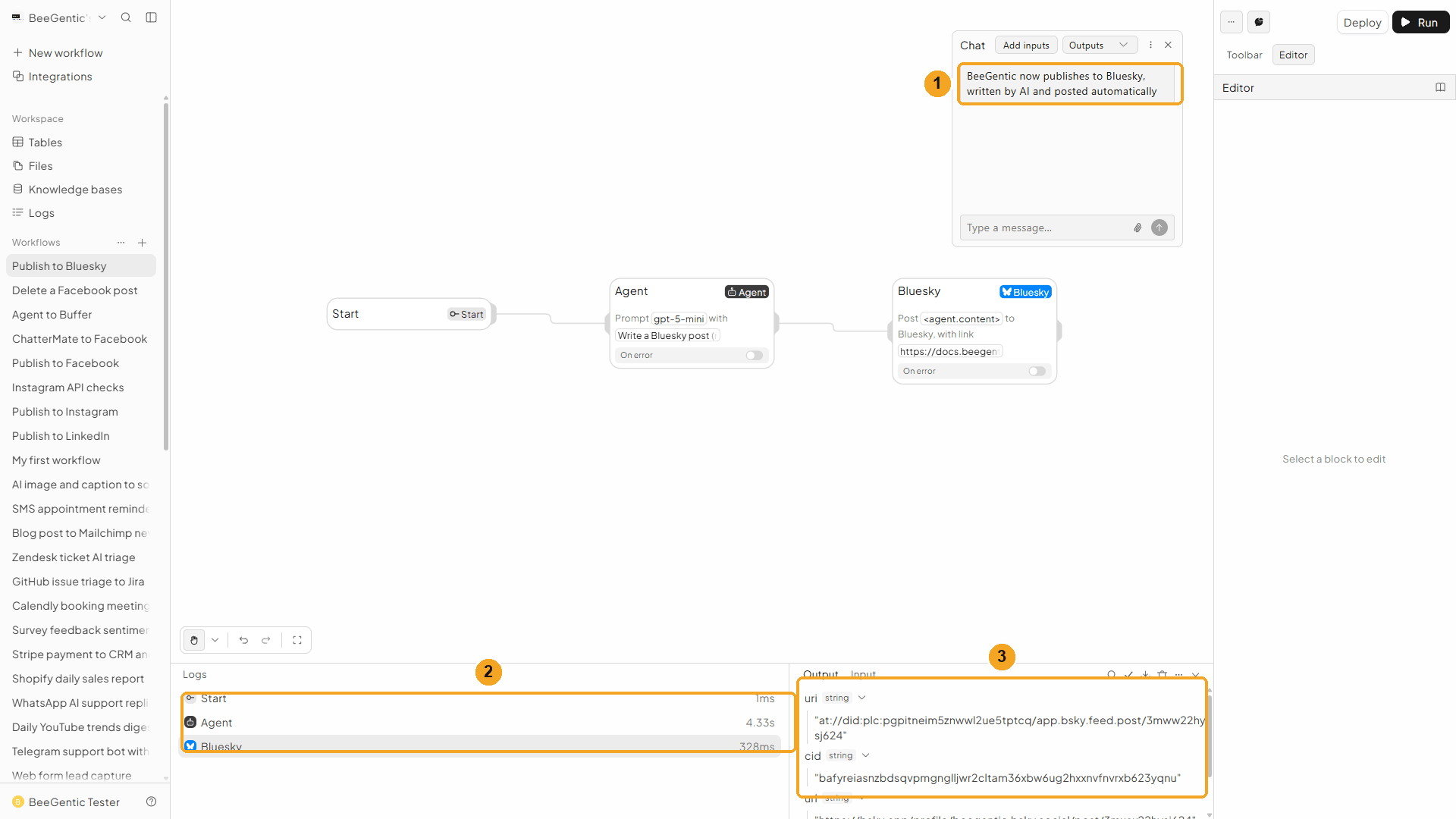
| # | What you see |
|---|---|
| 1 | Your message. |
| 2 | Each block's run time: the Agent took about 4 s, Bluesky under half a second. |
| 3 | The output: uri, cid, url (the post's bsky.app link) and handle. |
Watch the run
See it on Bluesky
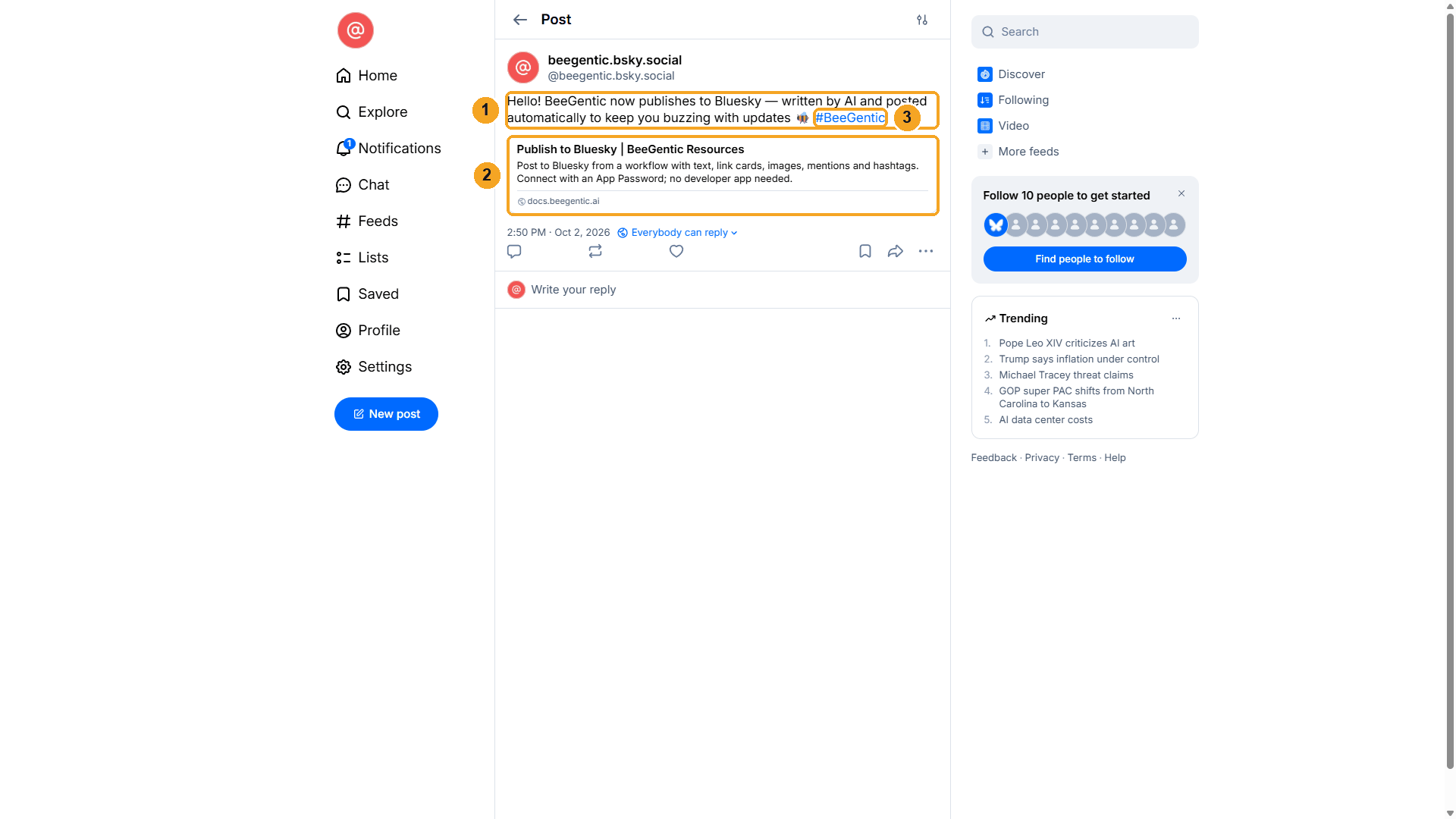
| # | What you see |
|---|---|
| 1 | The post, published as you. |
| 2 | The link card, with the page title and description. |
| 3 | The hashtag, clickable. BeeGentic detects hashtags, @mentions and links in the text automatically. |
The real post BeeGentic published:
We deleted this test post afterwards with Delete Post (below).
Watch this step
Part 4: Make it automatic
| You want | Do this |
|---|---|
| A post every morning | Replace Chat with a Schedule trigger and write the topic in the Agent's message, or read it from a Google Sheet. |
| A post for every new blog article | RSS trigger → use the article title in the Agent's message and its URL in Link. |
| Images | Add public image URLs in Image URLs, and describe them in Image Alt Text. |
| The same post on several networks | Add Threads, Mastodon or LinkedIn blocks after the same Agent. |
Other operations
| Operation | What it does |
|---|---|
| Delete Post | Deletes one of your posts. Paste its bsky.app URL or at:// URI. |
| Get Profile | Followers, following and post count for you or any account |
| Get Posts | Your recent posts with likes, reposts and replies |
Troubleshooting
| Problem | Fix |
|---|---|
Invalid identifier or password (from Bluesky) | Use the App Password, not your login password, and check the handle (no @). |
| "Bluesky posts are limited to 300 characters" | Bluesky counts each emoji or symbol as one character, up to 300. Ask the Agent for 250 or fewer. |
| Link card shows the wrong title | Bluesky uses the page's own title and description. Check the link opens the right page. |
| Image error | Images must be public https://, under 1 MB, JPEG/PNG/WebP/GIF. |
| Self-hosted server | Set PDS URL (advanced) to your server, e.g. https://pds.example.com. |
Publish to YouTube
Upload videos to your YouTube channel from a workflow, with an AI-written description, tags, privacy, scheduling and thumbnails. Real result included.
Publish to Mastodon
Post to any Mastodon server from a workflow, with media, visibility, content warnings and scheduling. Connect with an access token from your server. Real result included.