


Publish to YouTube
Upload videos to your YouTube channel from a workflow, with an AI-written description, tags, privacy, scheduling and thumbnails. Real result included.
What you'll build: you describe a video, an AI writes its YouTube description, and BeeGentic uploads the video to your channel. Three blocks: Start → Agent → YouTube Publishing. About 5 minutes.
Posts to: Your YouTube channel (or a brand-account channel) · Connect with: Sign in with Google · Block: YouTube Publishing
| Text | Link | Image | Video | Multi | Schedule | Edit | Delete | Read | Comments | Insights |
|---|---|---|---|---|---|---|---|---|---|---|
| n/a | n/a | ⚠️ | ✅ | — | ✅ | ✅ | ✅ | ✅ | ⚠️ | ⚠️ |
Not supported: Community posts · Live streams · Playlists management · Replying to comments
⏳ Uploads are private until Google’s YouTube API audit
✅ supported · ⚠️ partly (hover for details) · — not supported
Narrated walkthrough (2 min), with captions (CC button). Each step below also has a short silent clip. The orange numbers in each screenshot match the # column under it.
Uploads are private for now. YouTube locks uploads from apps that haven't finished Google's YouTube API audit to Private. BeeGentic's audit is in progress. Until it's approved, upload as Private and switch to Public in YouTube Studio. If YouTube changes your choice, the output shows privacyLocked: true.
Before you start
| You need | Why |
|---|---|
| A YouTube channel (personal or a brand account) | BeeGentic uploads to it |
A video: a public https:// URL or a file | The upload source |
An AI key saved as a secret, e.g. OPENAI_API_KEY | The Agent writes the description |
Part 1: Connect YouTube (once)
Find YouTube Publishing
Integrations → search YouTube Publishing.
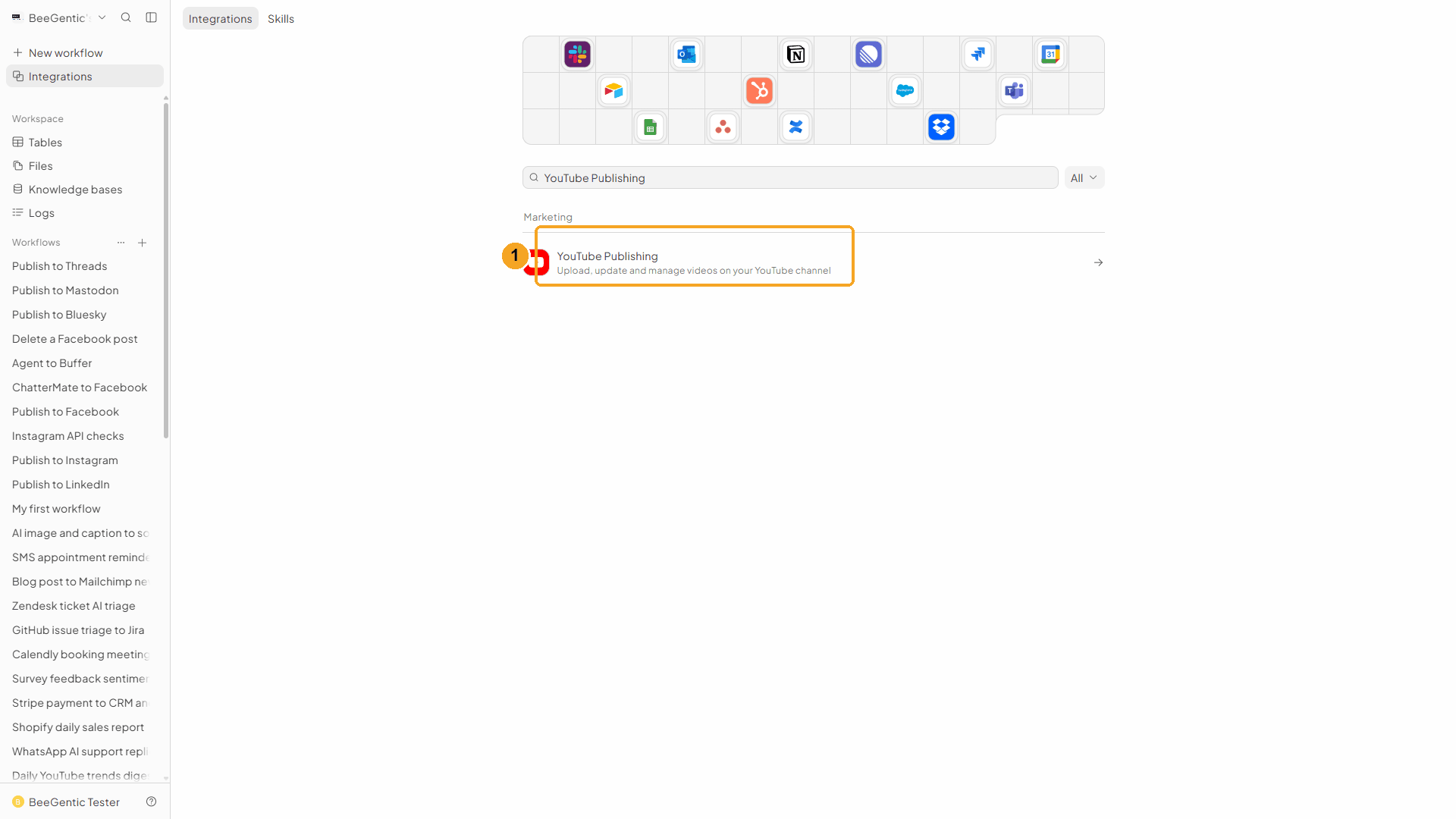
| # | What to do |
|---|---|
| 1 | Click YouTube Publishing, then Add to BeeGentic. |
Confirm in BeeGentic
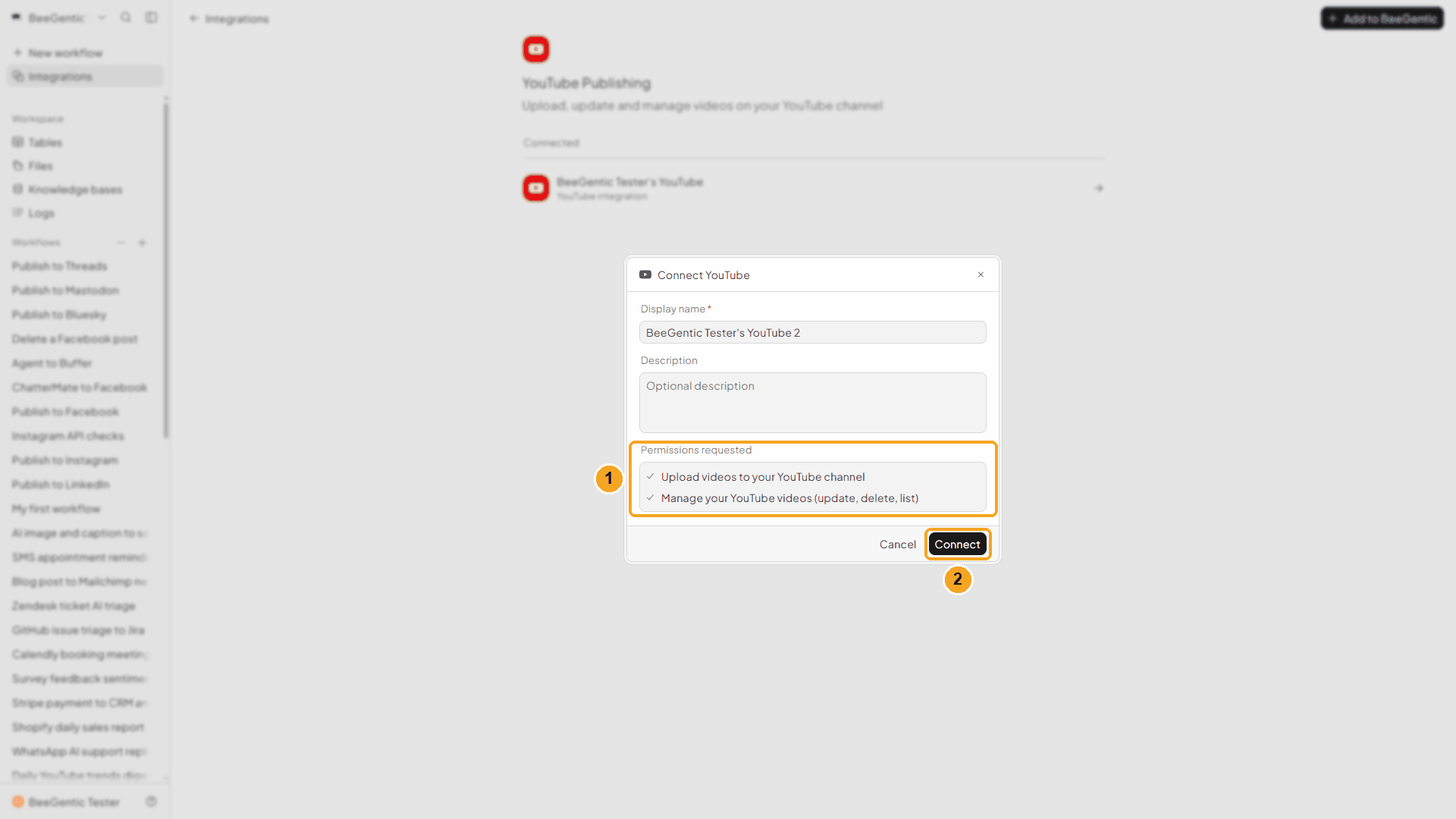
| # | What it means |
|---|---|
| 1 | What BeeGentic will be allowed to do: upload videos, and manage your videos (update, delete, list). |
| 2 | Click Connect. Google opens. |
Watch this step
Pick the account or brand channel
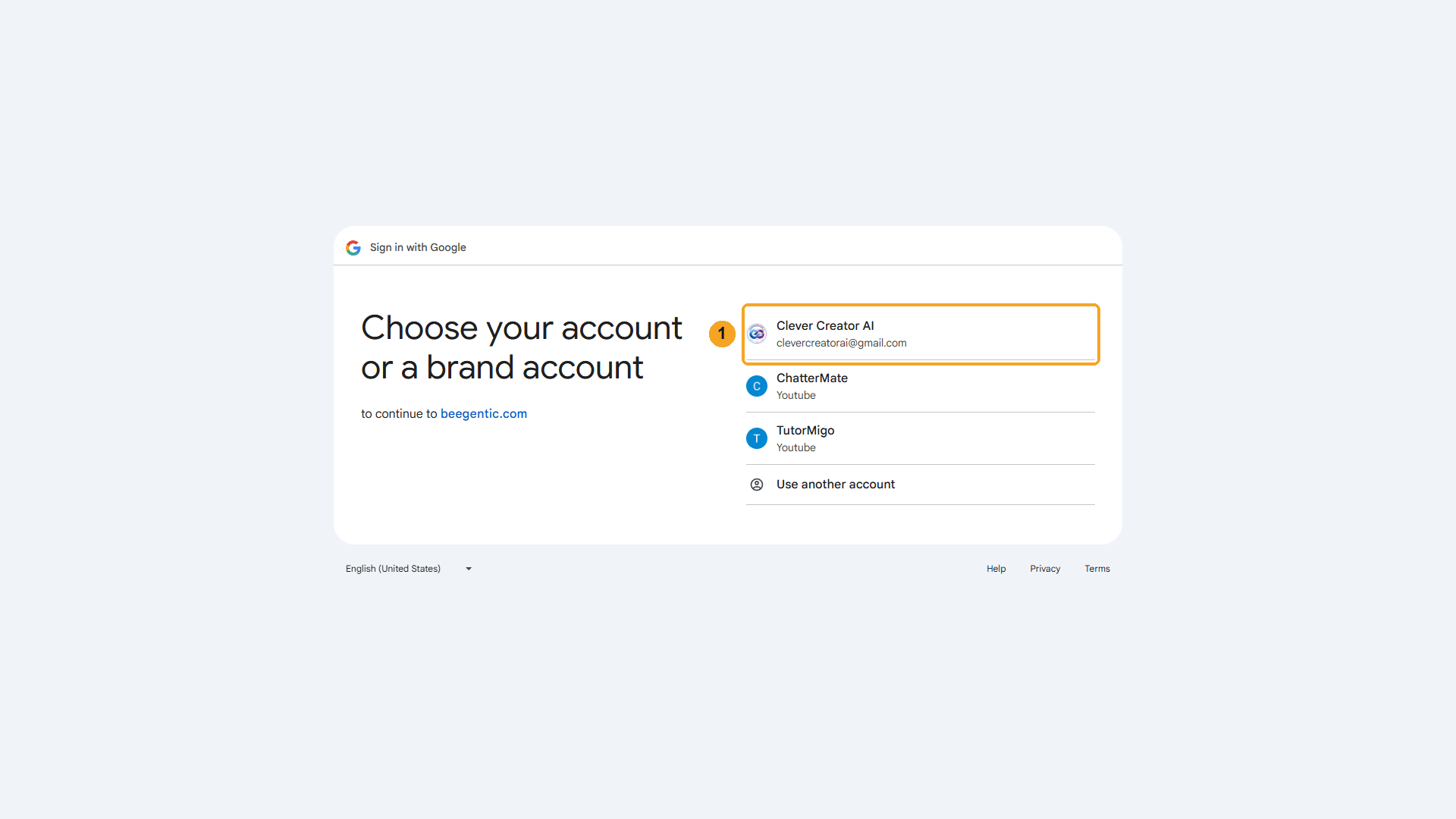
| # | What to do |
|---|---|
| 1 | Pick the account that owns the channel. Brand-account channels (here ChatterMate and TutorMigo) are listed separately. Then approve upload and manage your YouTube videos. |
Watch this step
Part 2: Build the workflow
Create the workflow and add the Agent
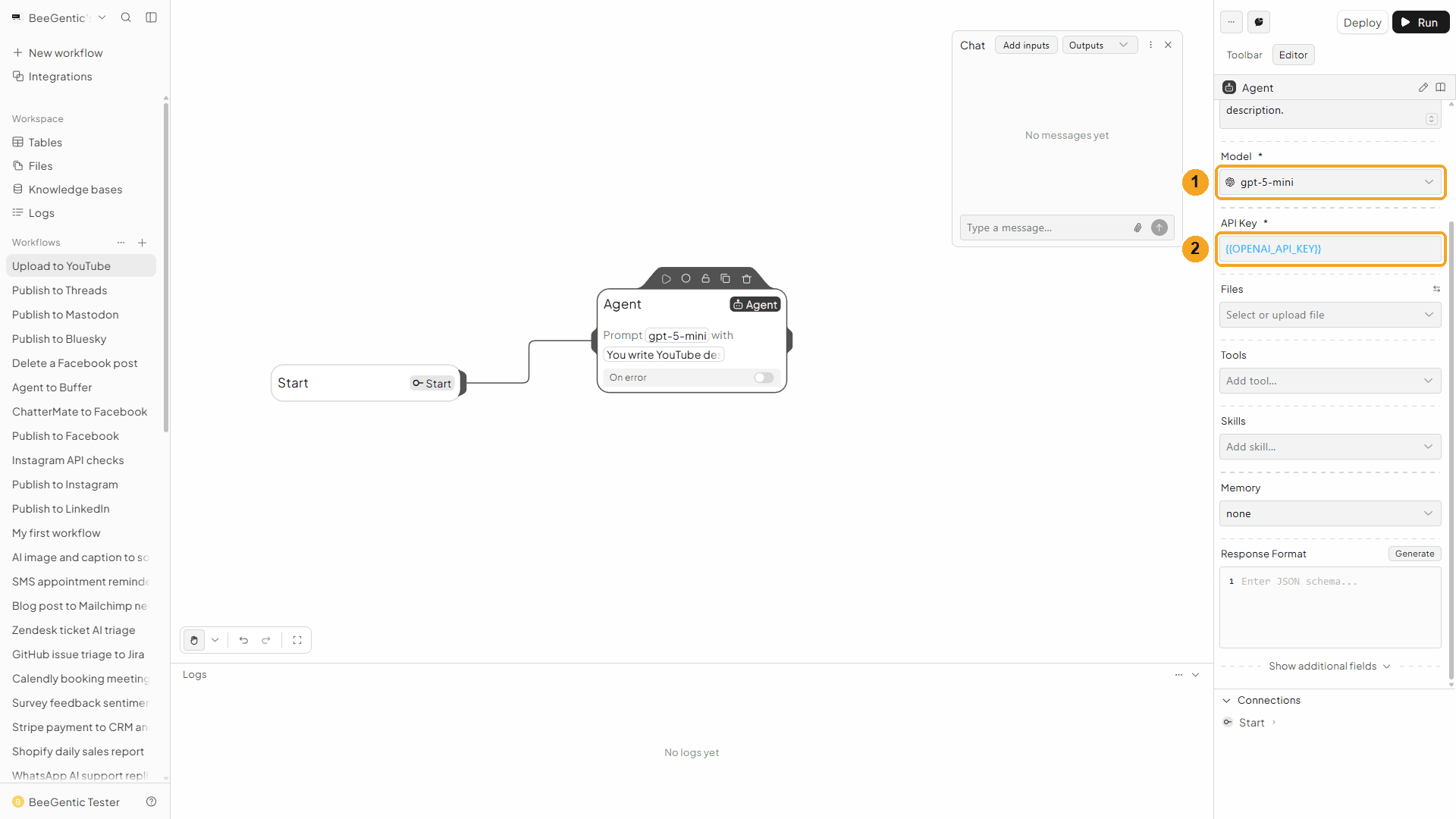
+ New workflow → name it Upload to YouTube. Then Toolbar → Agent. In Messages:
You write YouTube descriptions for BeeGentic, an AI workflow-automation platform. Write a 3-sentence description for a video about: <start.input>. Friendly and clear. End with: Learn more at docs.beegentic.ai. Return only the description.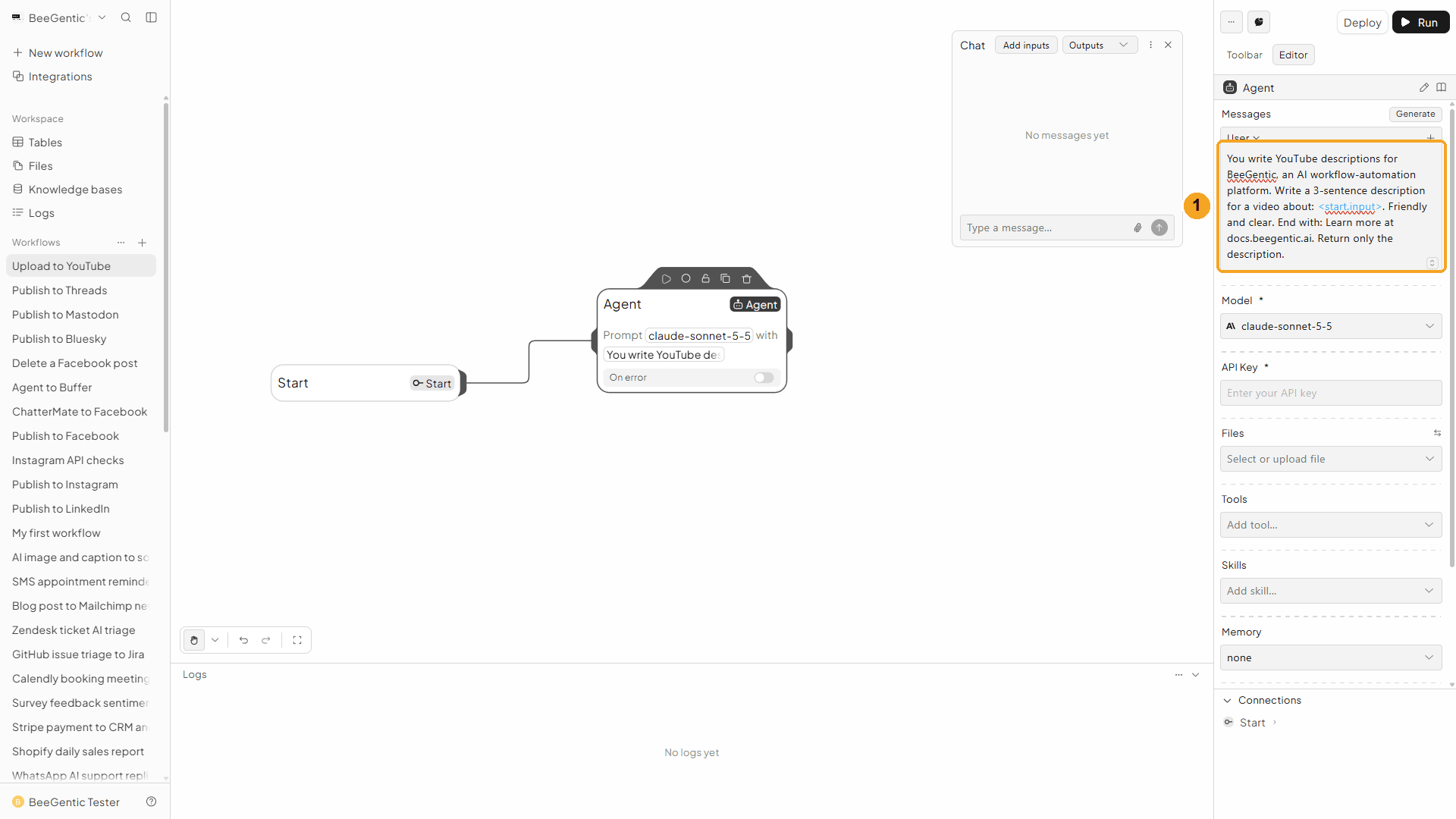
| # | What you see |
|---|---|
| 1 | The message, with <start.input>: what you type in Chat. |
Watch this step
Add the YouTube Publishing block
Toolbar → YouTube Publishing. The operation is Upload Video by default.
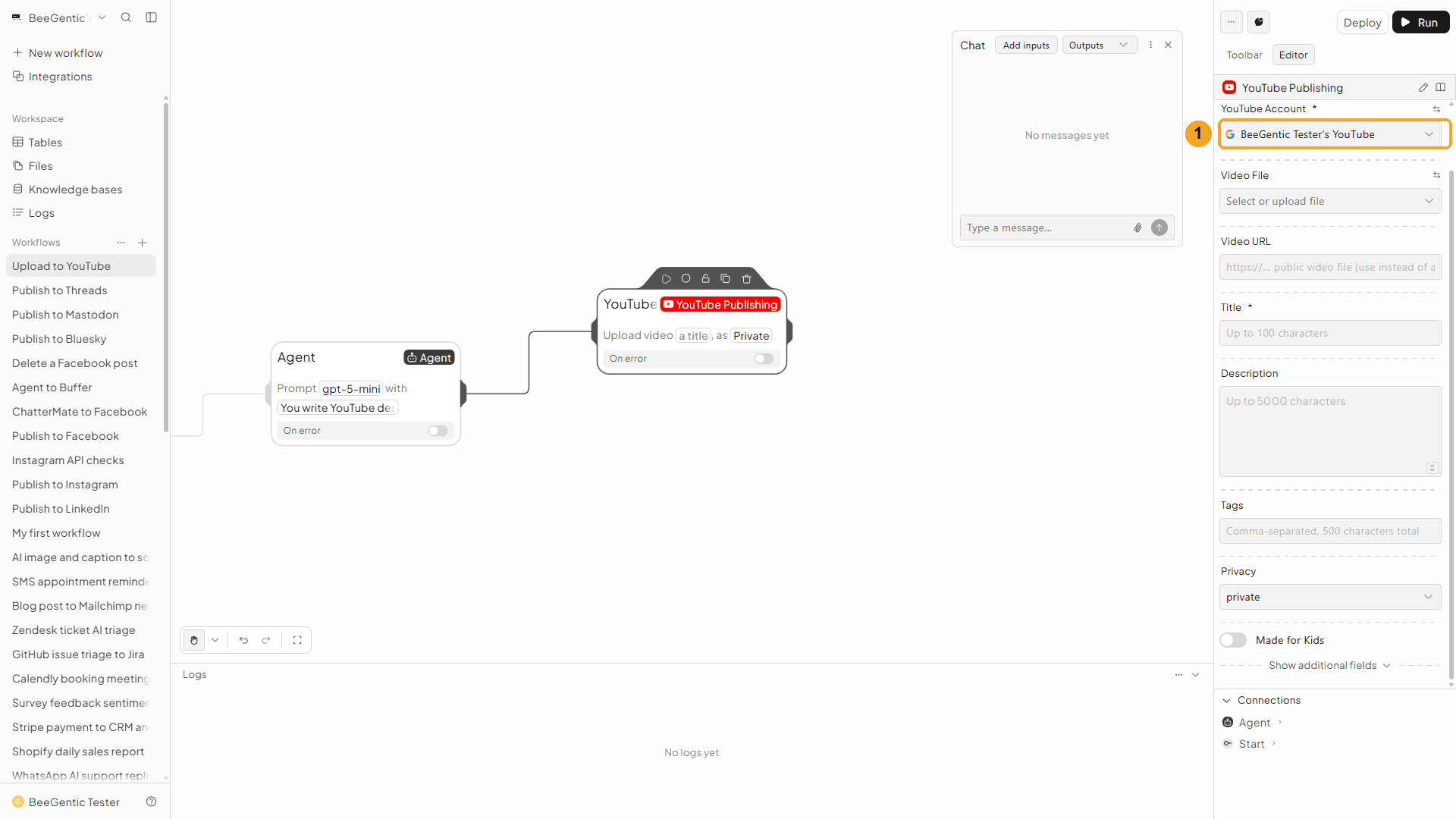
| # | Field | Value |
|---|---|---|
| 1 | YouTube Account | The connection from Part 1 |
Watch this step
Video and title
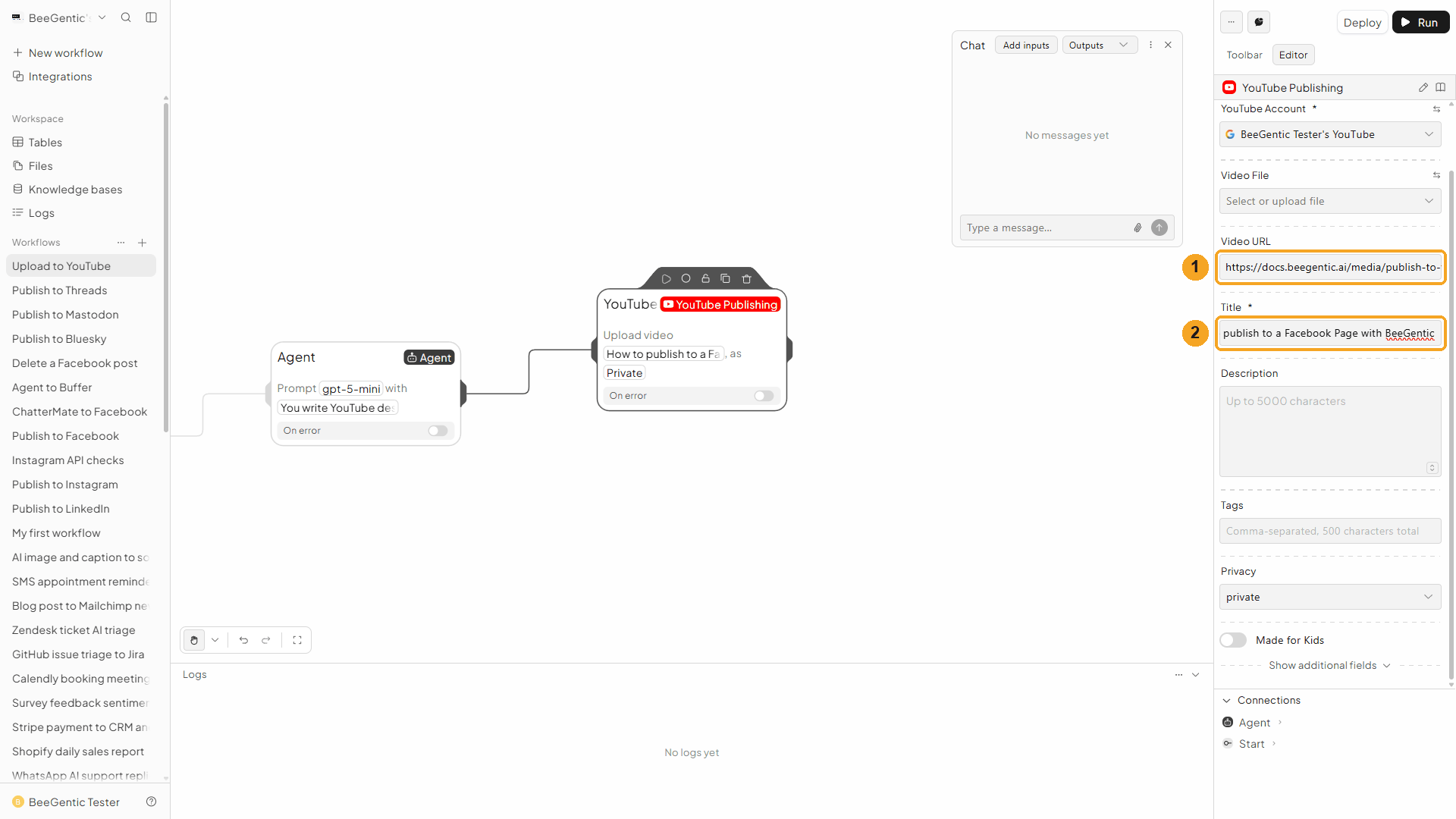
| # | Field | Value |
|---|---|---|
| 1 | Video URL | A public https:// video, e.g. https://docs.beegentic.ai/media/publish-to-facebook.mp4. Or use Video File to upload one or reference a file from an earlier block. |
| 2 | Title | Up to 100 characters, e.g. How to publish to a Facebook Page with BeeGentic |
Watch this step
Description and privacy
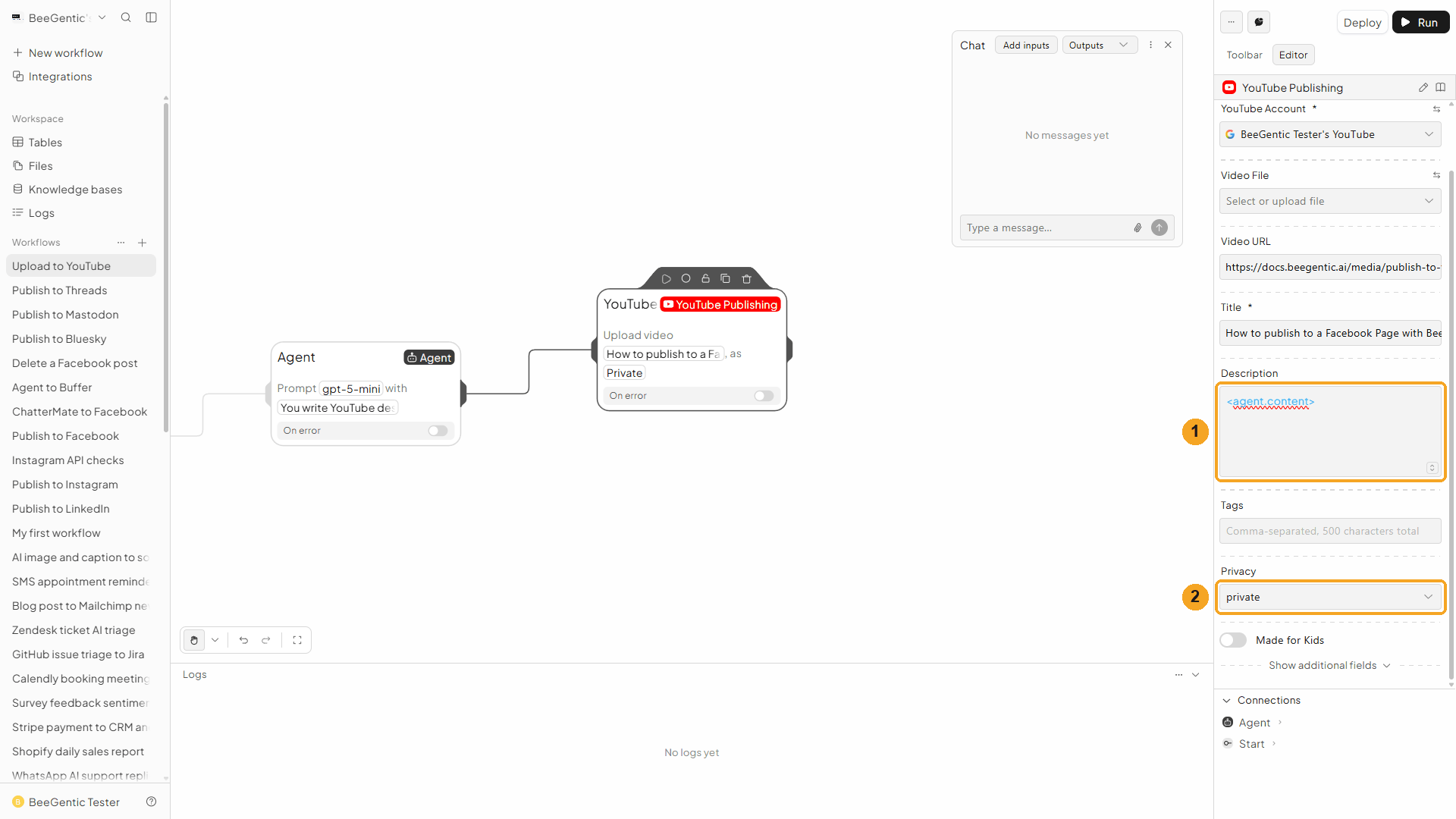
| # | Field | Value |
|---|---|---|
| 1 | Description | <agent.content> (up to 5,000 characters) |
| 2 | Privacy | Private (see the note at the top). Unlisted and Public are available once the audit is approved. |
Also: Tags (comma-separated), Made for Kids (required by YouTube; leave off unless the video is for children), and under advanced fields Publish At (schedule; needs Privacy = Private) and Category ID.
Press Shift + L to tidy. Your finished workflow:
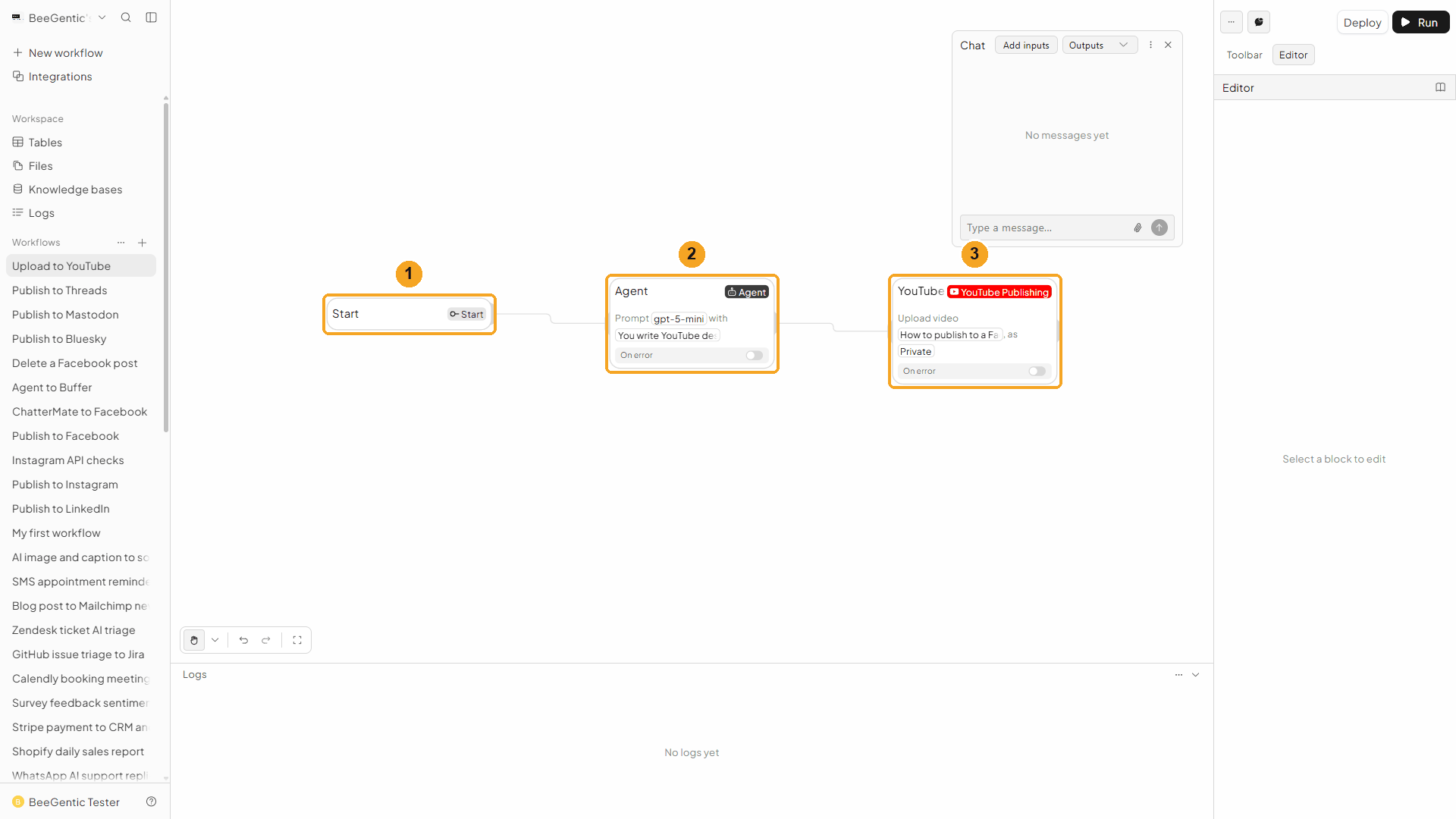
| # | Block | What it does |
|---|---|---|
| 1 | Start | Your chat message becomes <start.input> |
| 2 | Agent | Writes the description |
| 3 | YouTube Publishing | Uploads the video, private |
Watch this step
Part 3: Run it and check the result
Send the topic from Chat
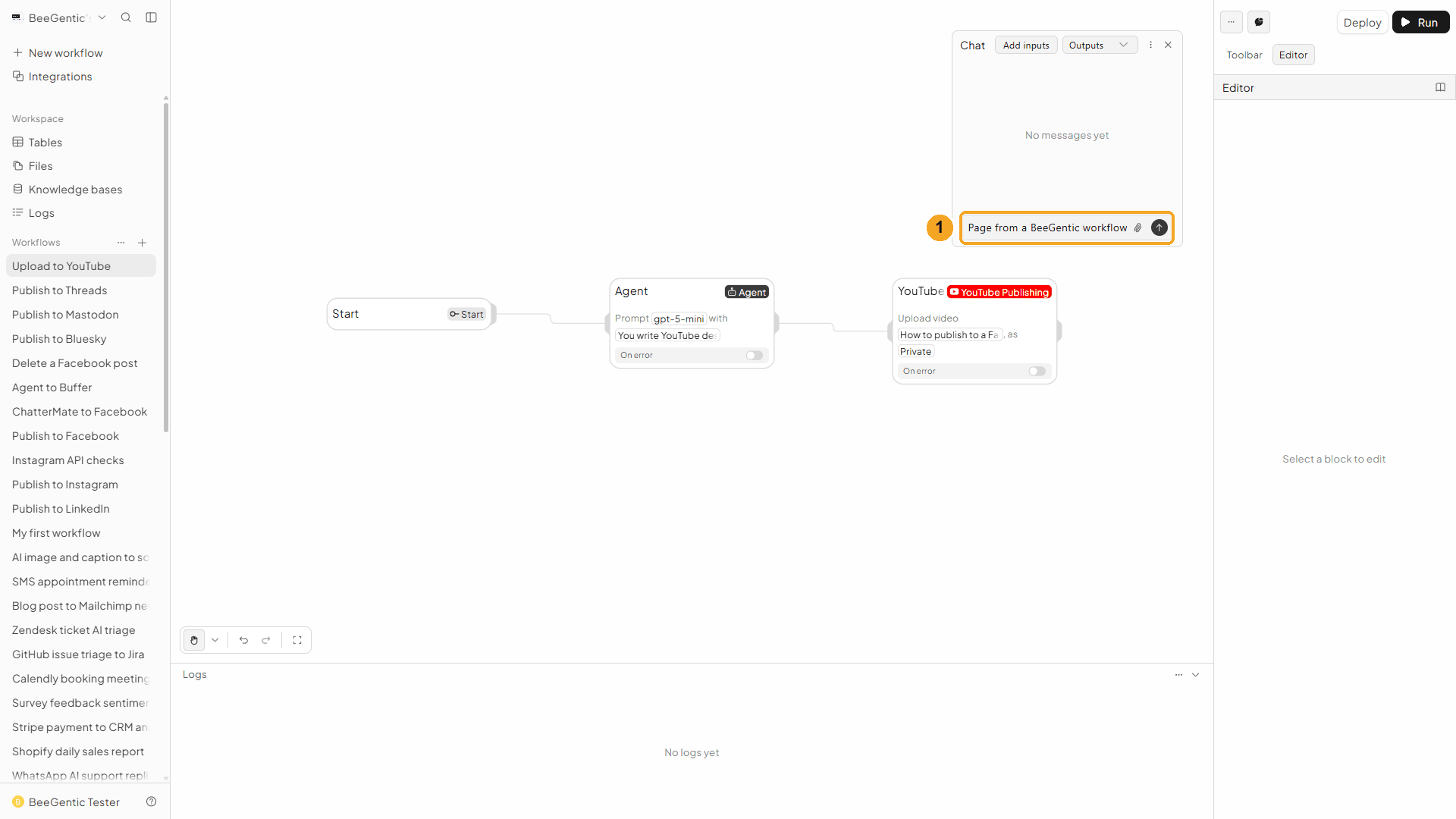
| # | What to do |
|---|---|
| 1 | Type what the video is about and press Enter. |
Example message we sent:
A short tutorial showing how to publish to a Facebook Page from a BeeGentic workflowRead the output
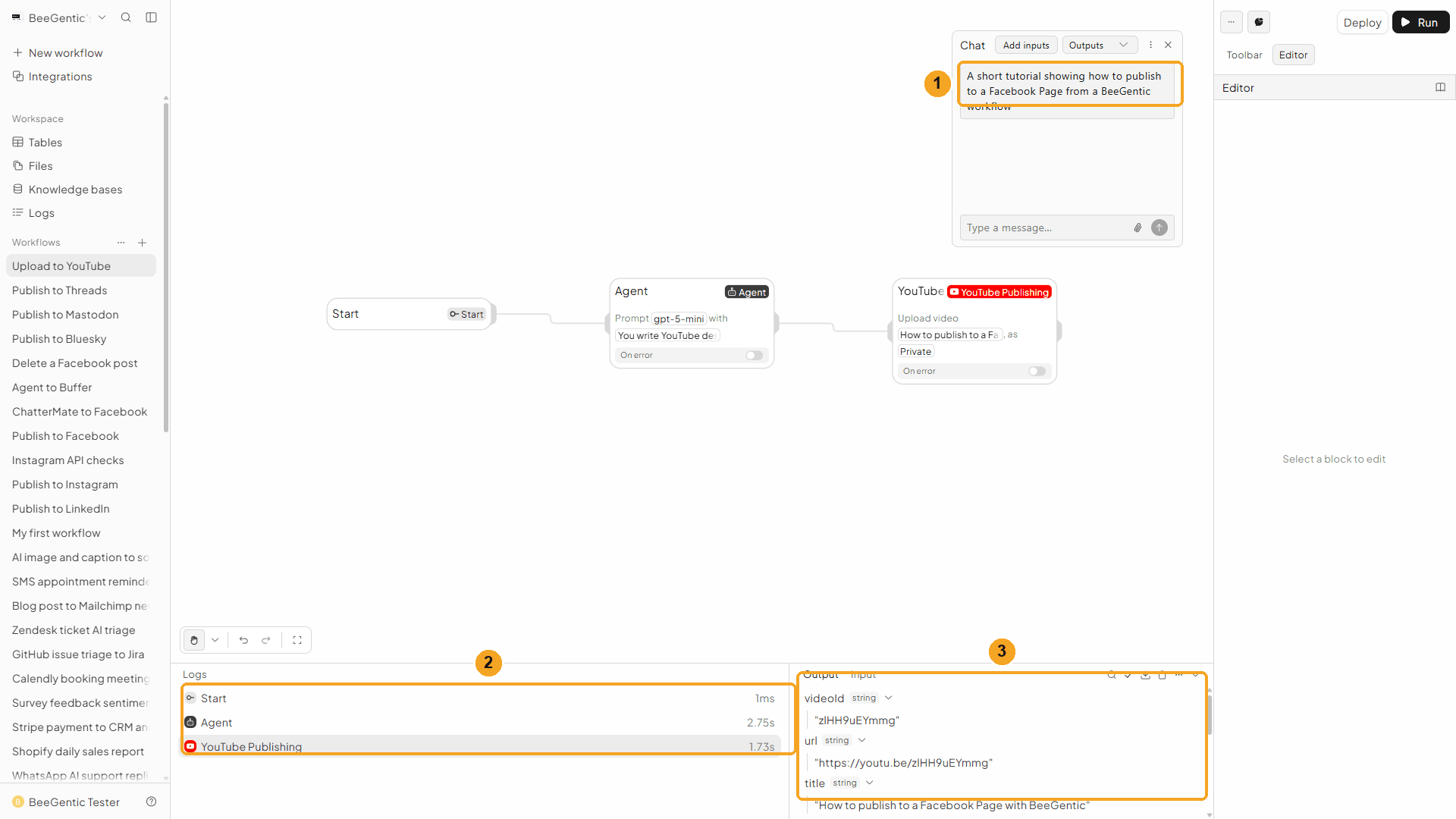
| # | What you see |
|---|---|
| 1 | Your message. |
| 2 | Each block's run time. Bigger videos take longer; BeeGentic streams them to YouTube in chunks. |
| 3 | The output: videoId, url (https://youtu.be/…), title, privacyStatus, privacyLocked, uploadStatus. |
Watch the run
See it on YouTube
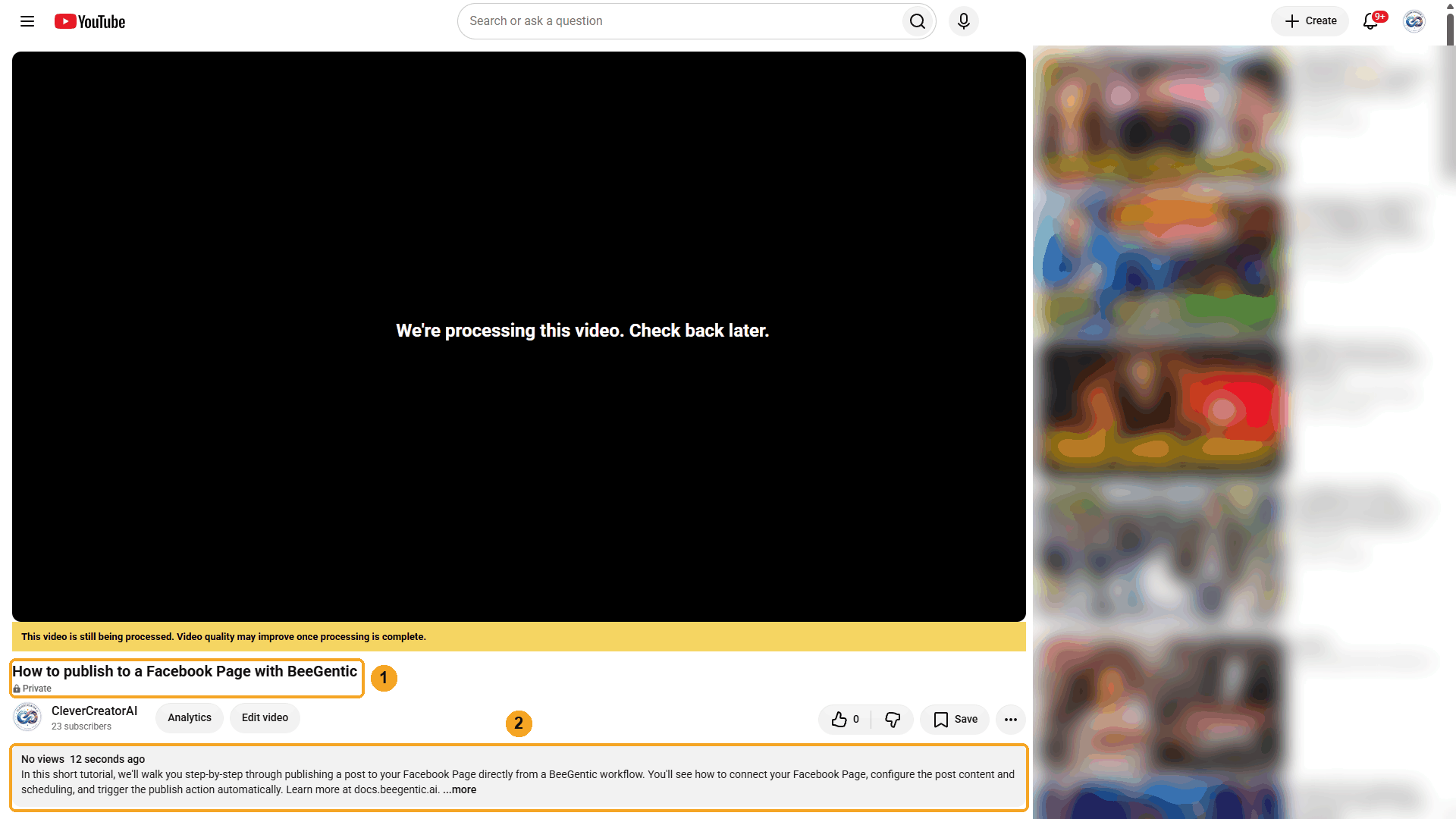
| # | What you see |
|---|---|
| 1 | The title, marked Private. YouTube processes the video for a few minutes after upload. |
| 2 | The description the Agent wrote. |
The real description the Agent wrote:
We deleted this test upload afterwards with Delete Video.
Watch this step
Part 4: Make it automatic
| You want | Do this |
|---|---|
| Upload every new video from a folder | Use a Google Drive (or Dropbox) trigger and pass the file into Video File. |
| Publish at a set time | Publish At (advanced) with Privacy = Private; YouTube makes it public then. |
| A custom thumbnail | Add a second YouTube Publishing block: Set Thumbnail with the videoId (JPEG/PNG, up to 2 MB; channel must be verified). |
| Tell your audience | After the upload, add Facebook, LinkedIn or Bluesky blocks that share <youtubepublishing.url>. |
Other operations
| Operation | What it does |
|---|---|
| Set Thumbnail | Sets a custom thumbnail |
| Update Video | Changes title, description, tags or privacy |
| Delete Video | Deletes a video by ID |
| Get My Channel | Channel ID, title, subscribers, video count |
| List My Videos | Your recent uploads with privacy status |
Limits
- YouTube allows about 100 uploads a day per BeeGentic project, shared by all users, until the quota is raised. Other operations use a separate daily quota.
- Videos over 15 minutes need a verified YouTube account (YouTube Studio → Settings → Channel → Feature eligibility).
Troubleshooting
| Problem | Fix |
|---|---|
privacyLocked: true | Expected until BeeGentic's YouTube audit is approved. Change the video to Public in YouTube Studio. |
Could not download the video URL (HTTP 404) | The URL must be a public, direct link to the video file. Open it in a private browser window to check. |
| "The connected Google account has no YouTube channel yet" | Create a channel at youtube.com, or pick the brand account that owns it when you connect. |
| "…has used its YouTube Data API quota for today" | The daily upload quota is used up. Try again after midnight Pacific time. |
| Thumbnail rejected | Verify your channel, and keep the image under 2 MB. |
Publish to Threads
Post text, links, images, videos and carousels to Threads from a workflow. Connect your Threads profile once. Real result included.
Publish to Bluesky
Post to Bluesky from a workflow with text, a link card, images, mentions and hashtags. Connect with an App Password; no developer app needed. Real result included.