


Facebook via Buffer
BeeGentic writes the post and hands it to Buffer, and Buffer publishes it to your Facebook Page on your schedule or right away. Real result included.
What you'll build: you type a topic, an AI writes the post, and BeeGentic sends it to Buffer. Buffer then publishes it to your Facebook Page. Three blocks: Start → Agent → Buffer. About 7 minutes, including the Buffer setup.
Posts to: Any channel connected in your Buffer account · Connect with: Buffer API key · Block: Buffer
| Text | Link | Image | Video | Multi | Schedule | Edit | Delete | Read | Comments | Insights |
|---|---|---|---|---|---|---|---|---|---|---|
| ✅ | ✅ | ✅ | ✅ | ⚠️ | ✅ | ✅ | ✅ | ✅ | — | — |
Not supported: Buffer analytics (Buffer limits these to personal use)
✅ supported · ⚠️ partly (hover for details) · — not supported
Narrated walkthrough (2 min 15 s), with captions (CC button). The orange numbers in each screenshot match the # column under it.
Don't use Buffer? You don't need it. BeeGentic can post to your Page directly: see Publish to a Facebook Page. Buffer is for teams that already plan their posts in Buffer.
When Buffer makes sense
| Direct (guide) | Through Buffer (this page) | |
|---|---|---|
| Extra account | None | A Buffer account (the free plan works) |
| When it posts | Right away, or at a time you set | Your Buffer queue times, next in line, right away, or a custom time |
| Calendar and team approvals | In BeeGentic (approval step) | In Buffer, alongside your other posts |
| Other networks from the same block | One block per network | Any channel in Buffer: X, Threads, Pinterest, TikTok, YouTube, Google Business Profile, Mastodon, Bluesky… |
| Post link back in BeeGentic | Yes (permalink) | Buffer post ID (the link appears in Buffer once it's sent) |
Part 1: Set up Buffer
Connect your Facebook Page in Buffer
Sign in at buffer.com, click + under Connect more channels, choose Facebook, log in to Facebook, and pick your Page.
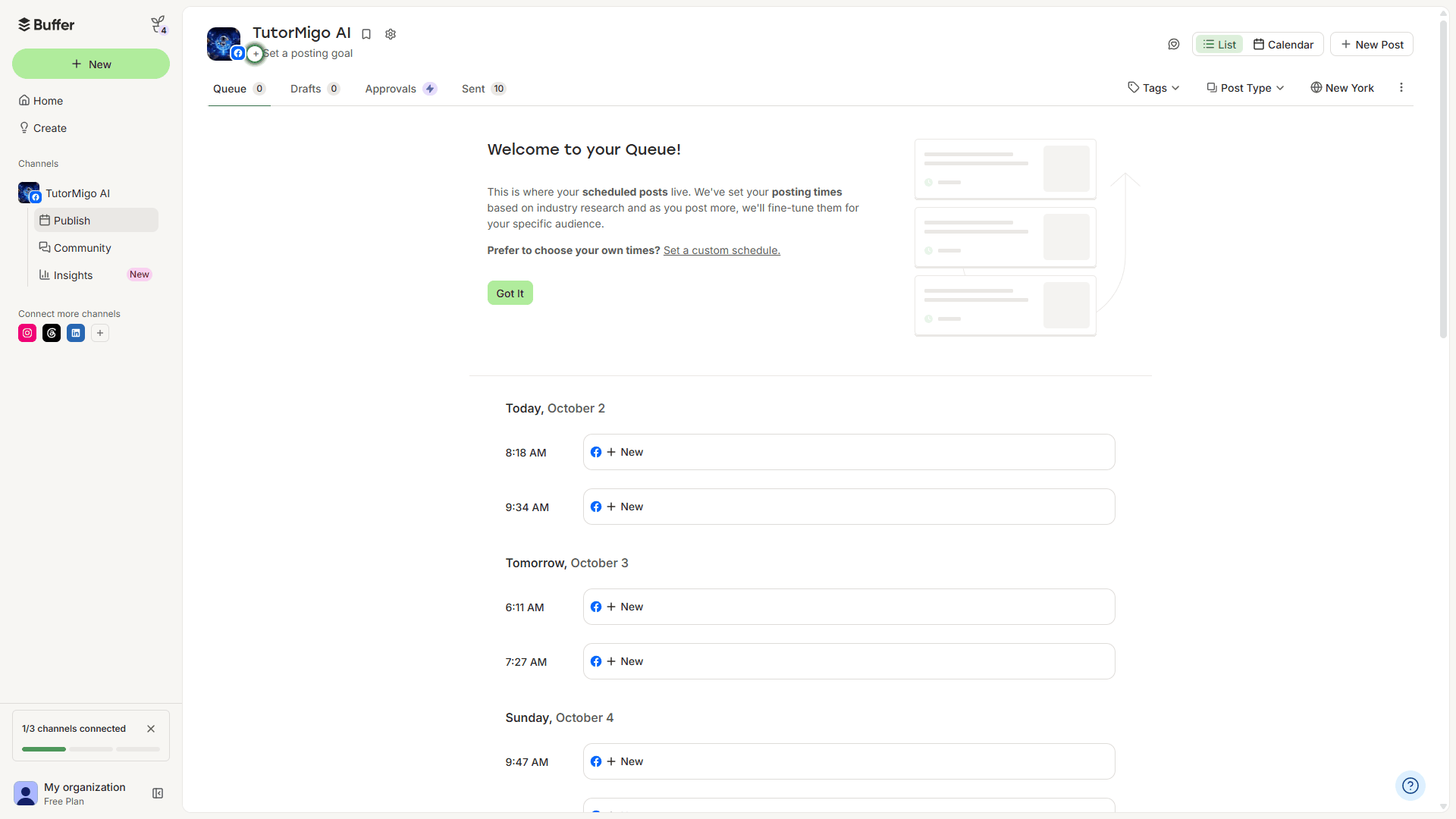
Your Page now appears under Channels on the left (here: TutorMigo AI).
Watch this step
Create a Buffer API key
In Buffer: avatar → Settings → API.
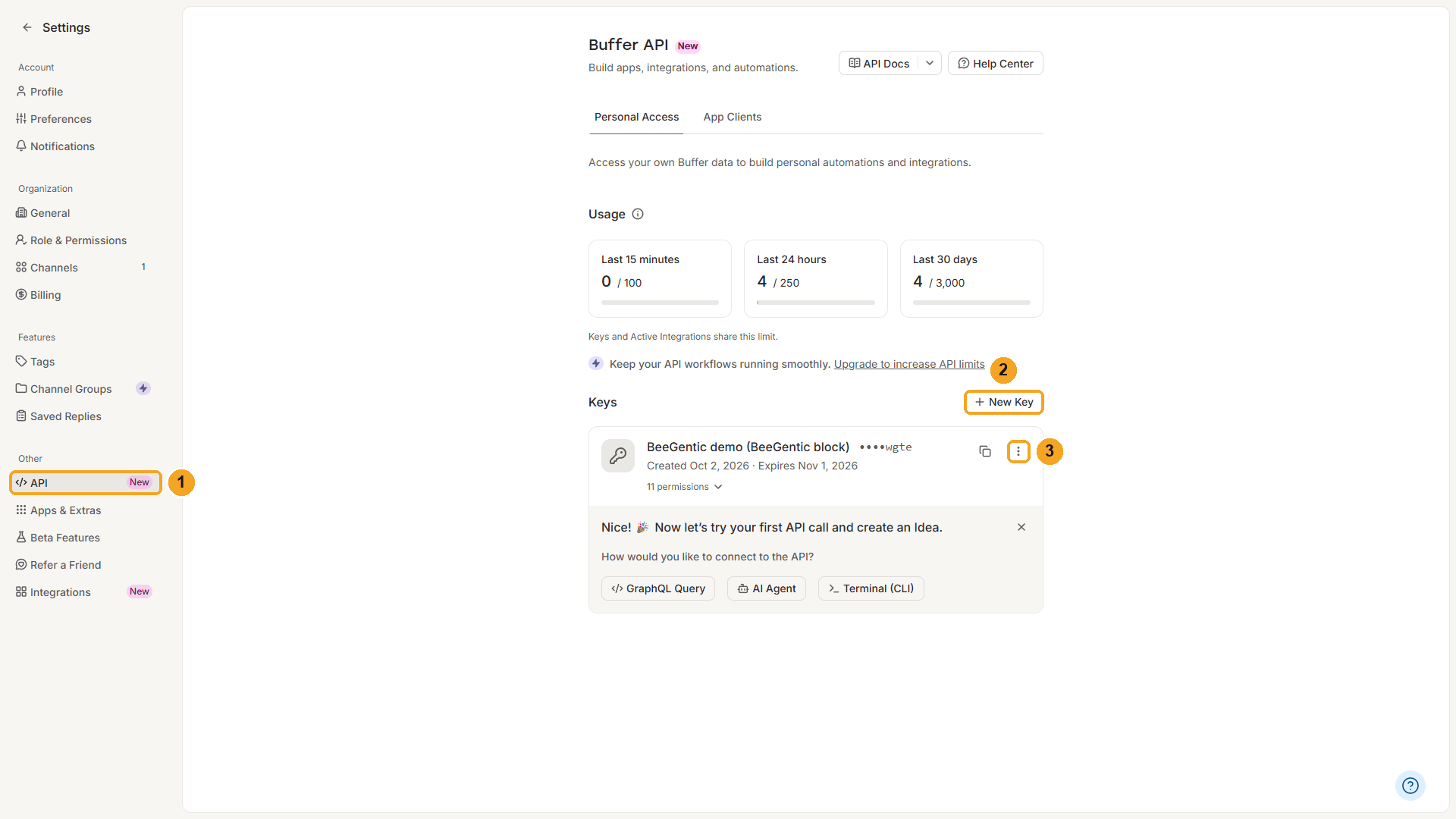
| # | What to do |
|---|---|
| 1 | Open API (under Other). |
| 2 | Click New Key, give it a name such as BeeGentic, and confirm. |
| 3 | Already have a key you can't see any more? ⋮ → Regenerate creates a new one. The old key stops working. |
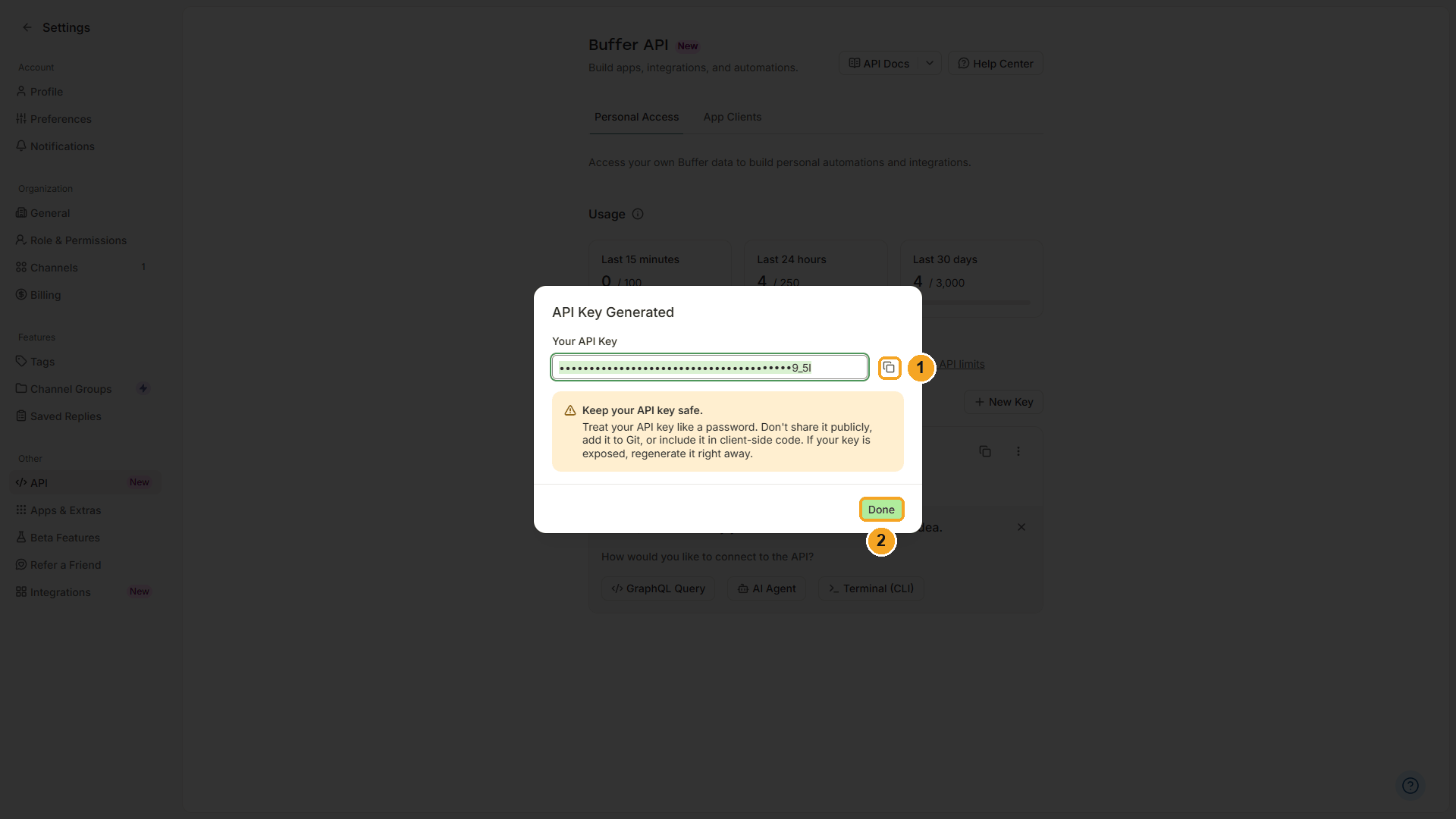
| # | What to do |
|---|---|
| 1 | Click the copy button. Buffer shows the key only once. |
| 2 | Click Done. |
Watch this step
Save the key as a secret in BeeGentic
Settings → Secrets in BeeGentic.
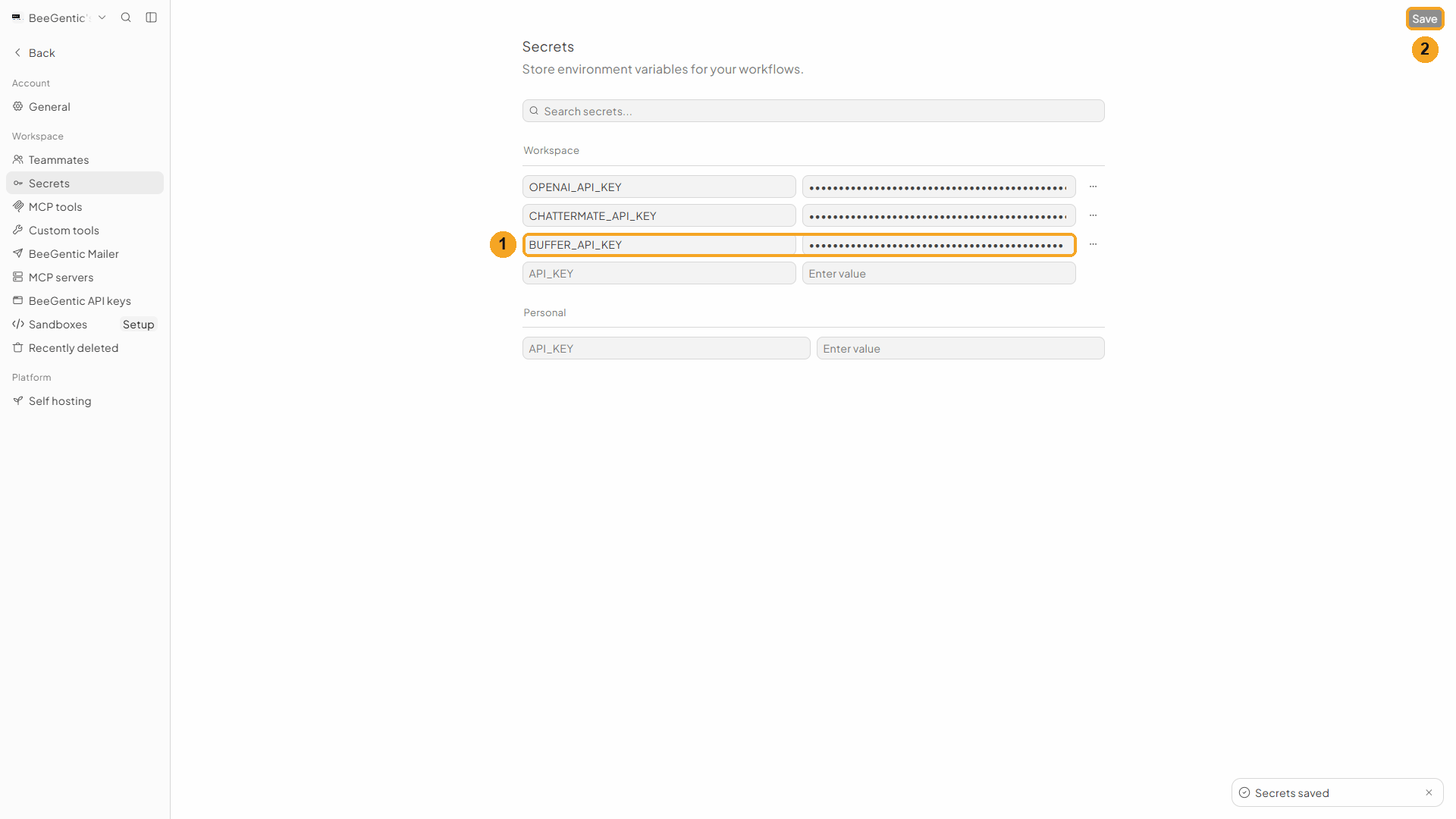
| # | What to do |
|---|---|
| 1 | Name it BUFFER_API_KEY and paste the key as the value. |
| 2 | Click Save. |
Part 2: Build the workflow
Create the workflow and the Agent
+ New workflow → name it Agent to Buffer. Add Toolbar → Agent, choose gpt-5-mini with {{OPENAI_API_KEY}}, and in Messages type:
Write a Facebook post (max 60 words) announcing: <start.input>. Friendly and clear, one emoji, end with 2 relevant hashtags. Return only the post text.It's the same Agent as in the direct guide. Prefer ChatterMate? Use the ChatterMate block instead and reference <chattermate.content> below.
Watch this step
Add the Buffer block
Toolbar → Buffer. It connects to the Agent automatically.
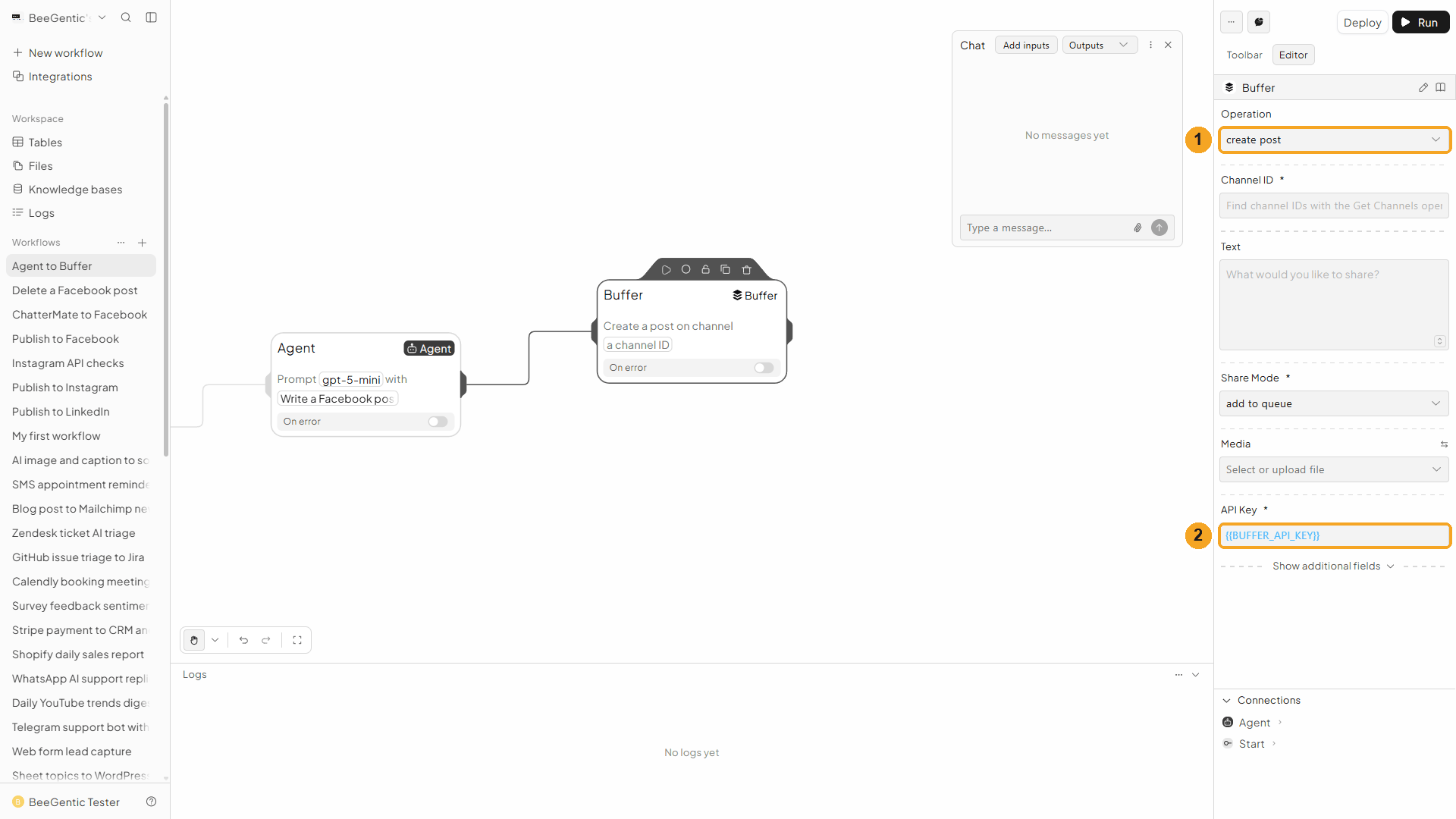
| # | Field | Value |
|---|---|---|
| 1 | Operation | Create Post (the default) |
| 2 | API Key | {{BUFFER_API_KEY}} |
Watch this step
Enter the channel ID
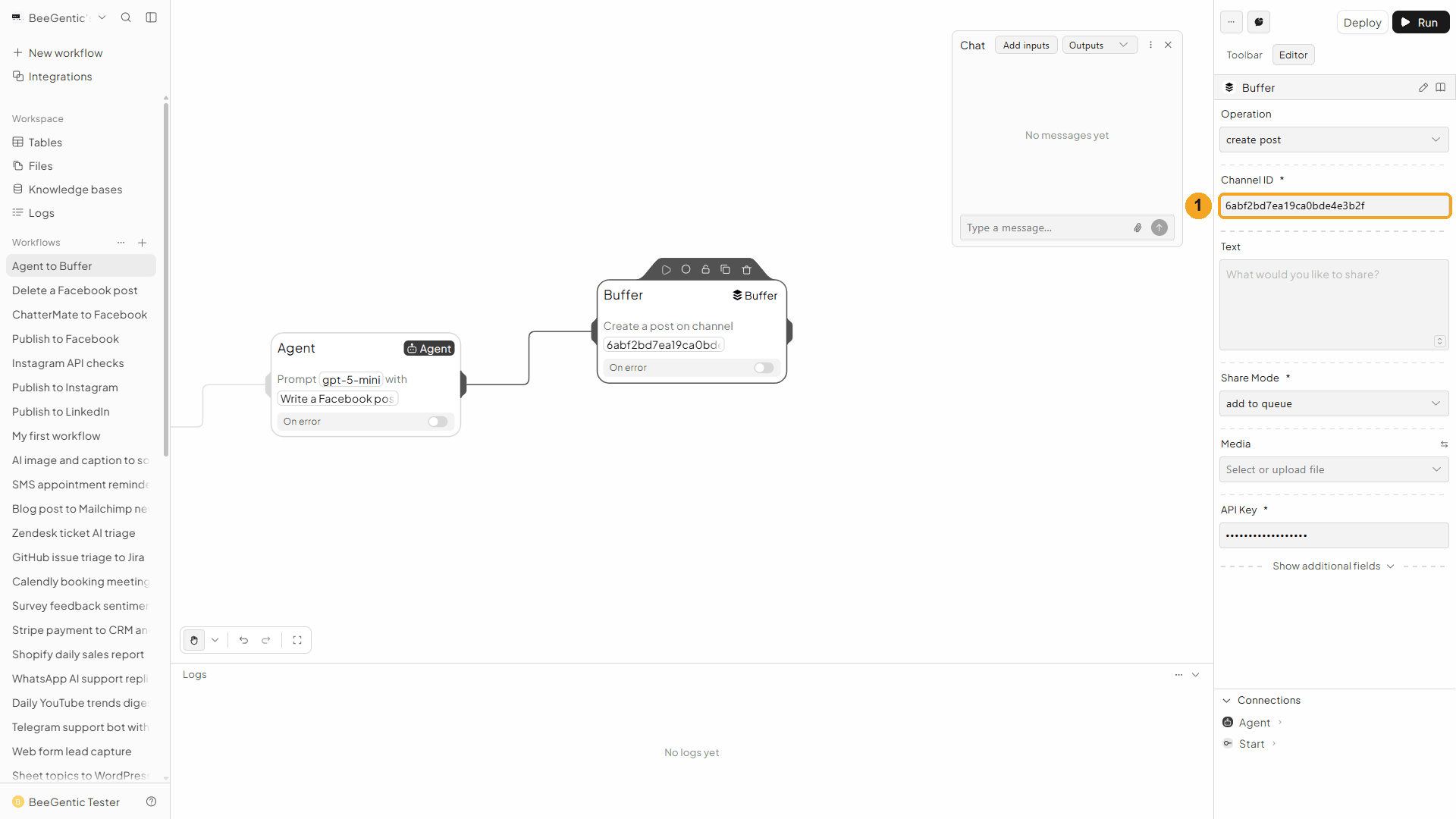
| # | Field | Value |
|---|---|---|
| 1 | Channel ID | Your Facebook Page's Buffer channel ID, e.g. 6abf2bd7ea19ca0bde4e3b2f |
Text and share mode
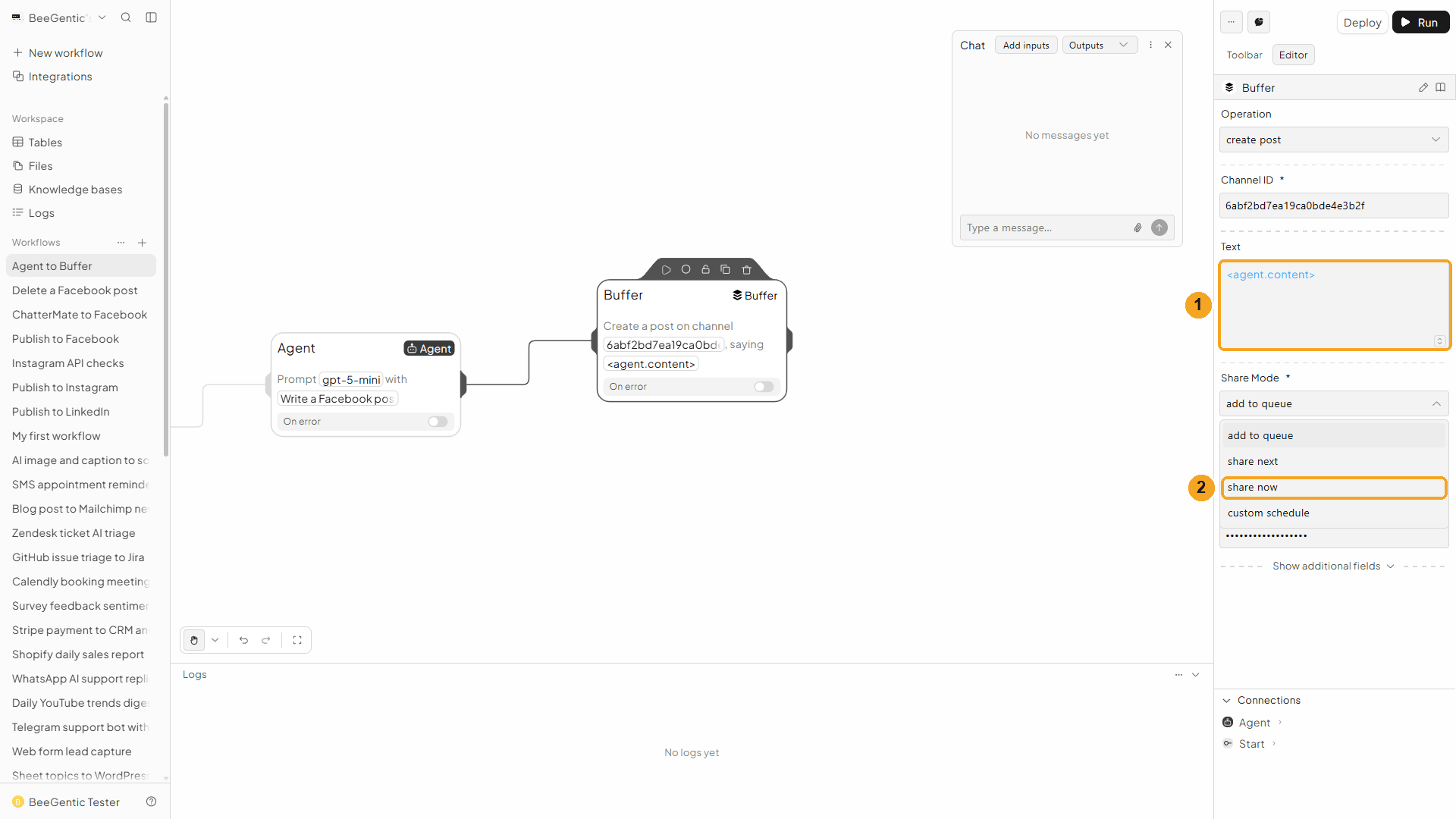
| # | Field | Value |
|---|---|---|
| 1 | Text | <agent.content>: the post the Agent wrote |
| 2 | Share Mode | Share now publishes immediately. See the table below for the other choices. |
| Share Mode | What Buffer does |
|---|---|
| Add to queue | Publishes at your next free Buffer posting time |
| Share next | Puts it at the front of the queue |
| Share now | Publishes right away (we used this in the video) |
| Custom schedule | Publishes at the Publish Time you set (an ISO date, e.g. 2026-10-05T09:00:00-04:00) |
Press Shift + L to tidy. Your finished workflow:
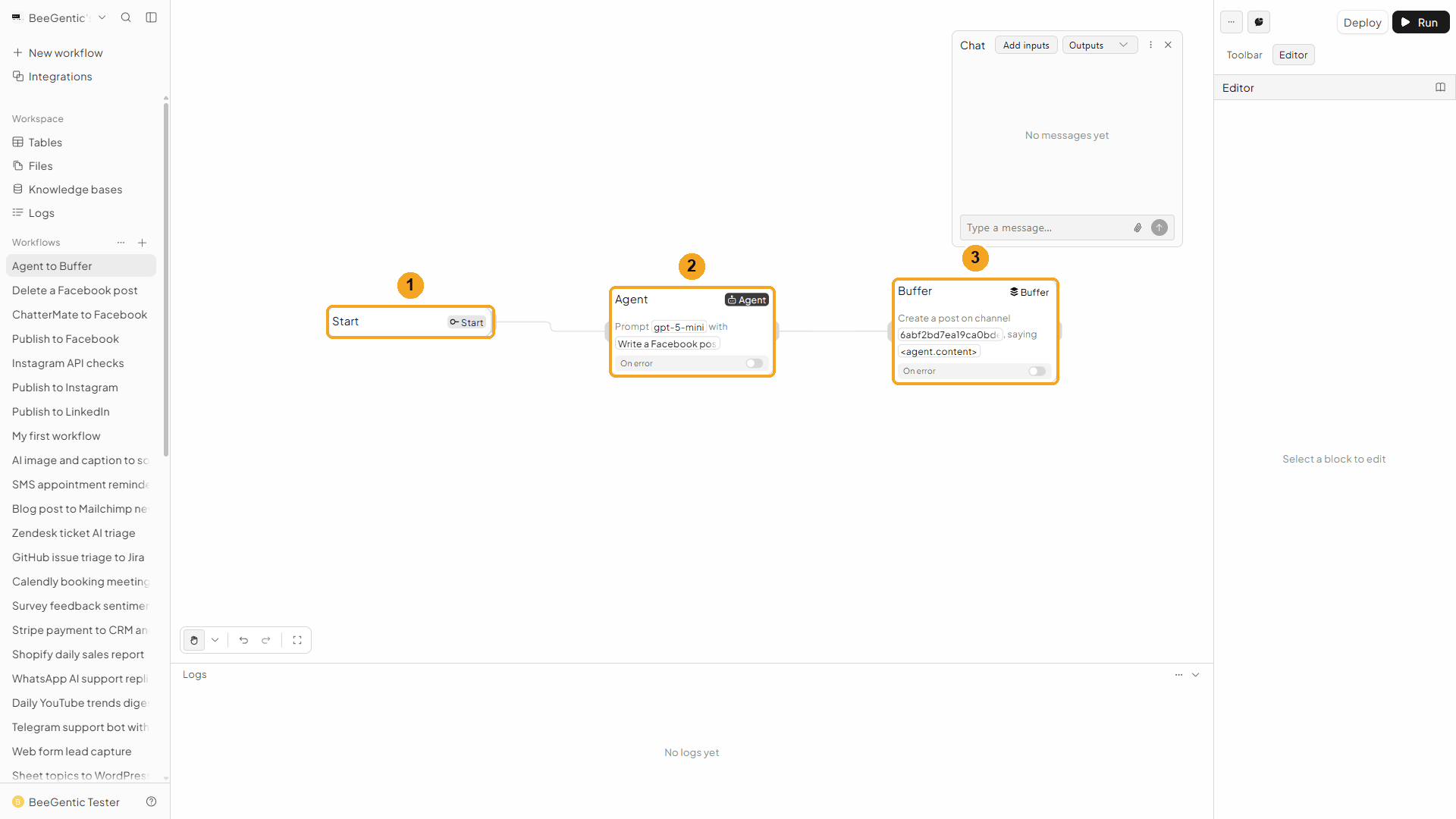
| # | Block | What it does |
|---|---|---|
| 1 | Start | Your chat message becomes <start.input> |
| 2 | Agent | Writes the post |
| 3 | Buffer | Sends <agent.content> to your Facebook channel in Buffer |
Watch this step
Part 3: Run it and check the result
Send the topic from Chat
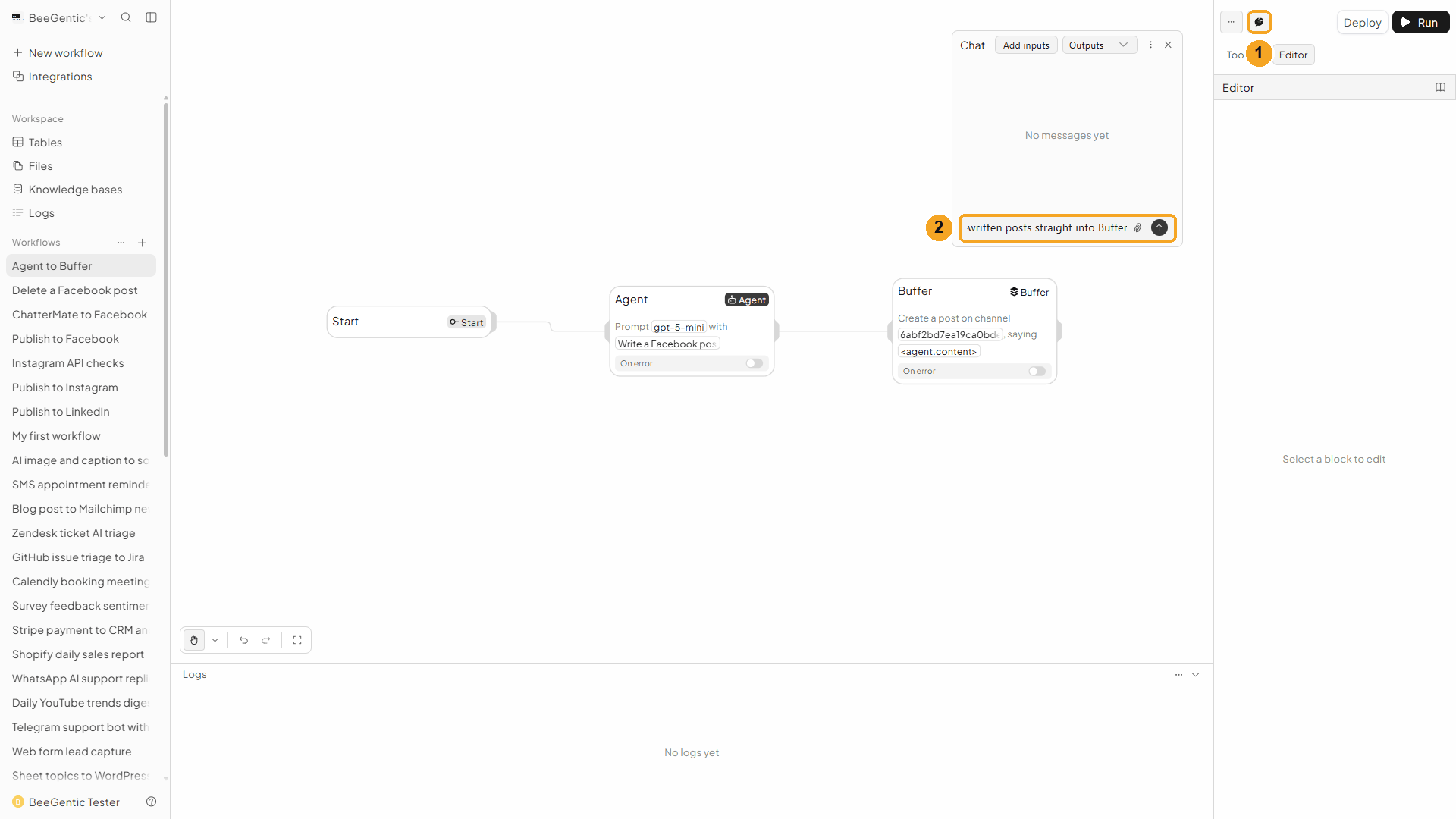
| # | What to do |
|---|---|
| 1 | Open Chat (speech-bubble button). |
| 2 | Type the topic and press Enter. |
Example message we sent:
BeeGentic can now send AI-written posts straight into BufferRead the output
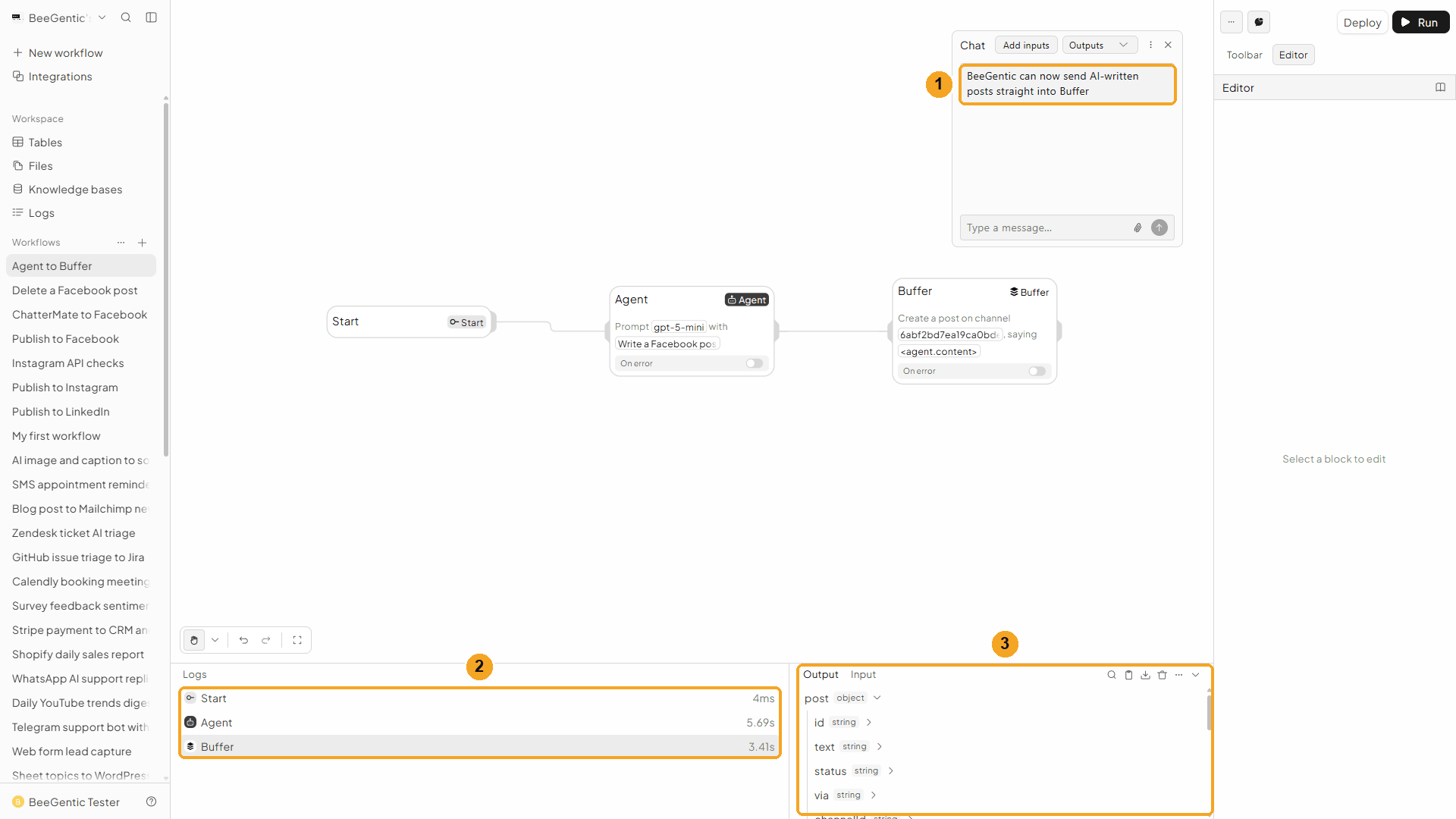
| # | What you see |
|---|---|
| 1 | Your message. |
| 2 | The steps in the log: the Agent took about 6 s, Buffer about 3 s. |
| 3 | The post Buffer created: id, text, status, channelService (facebook), dueAt, and more. |
Watch the run
See it in Buffer and on Facebook
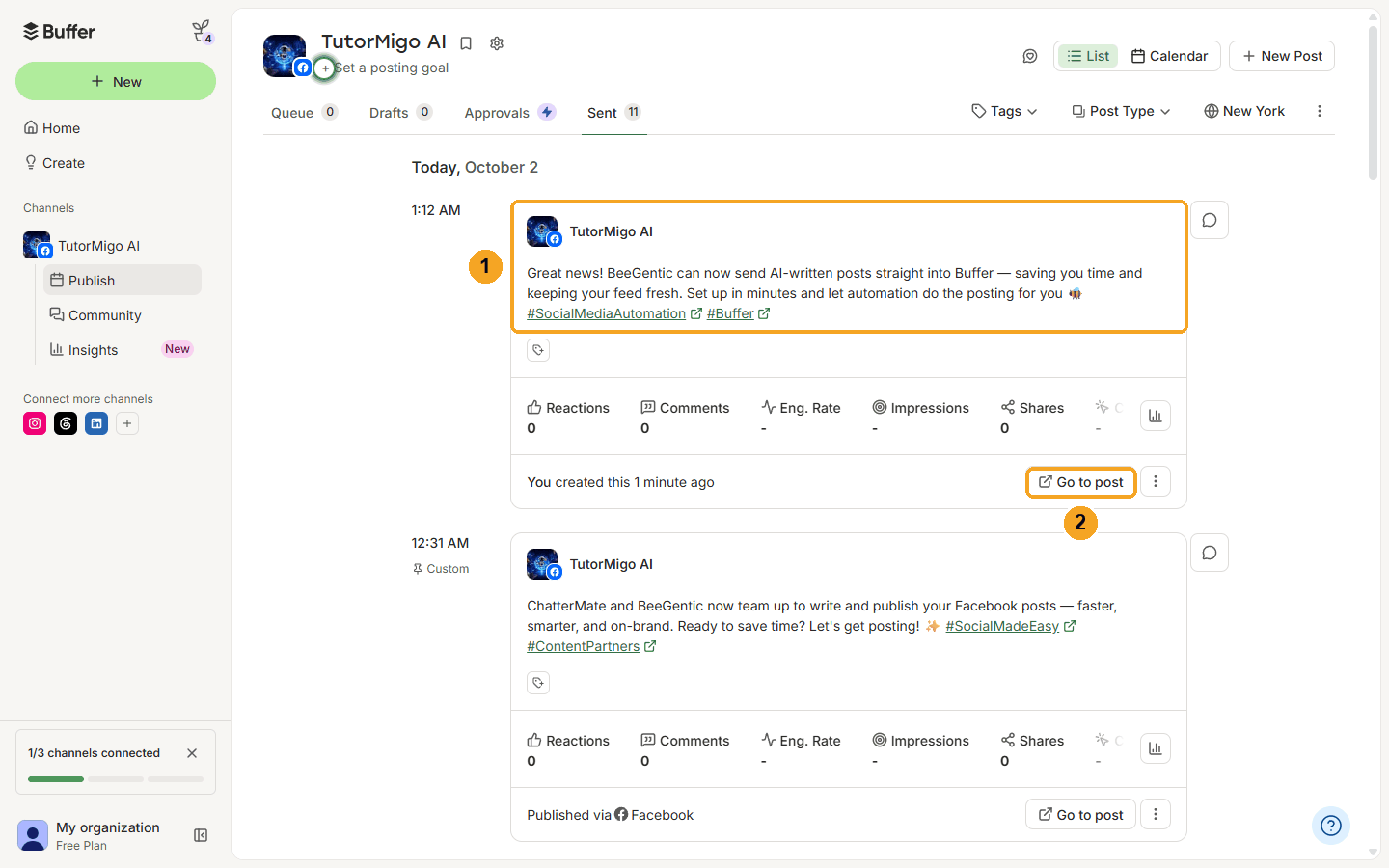
| # | What you see |
|---|---|
| 1 | The post under Sent in Buffer. |
| 2 | Go to post opens it on Facebook. |
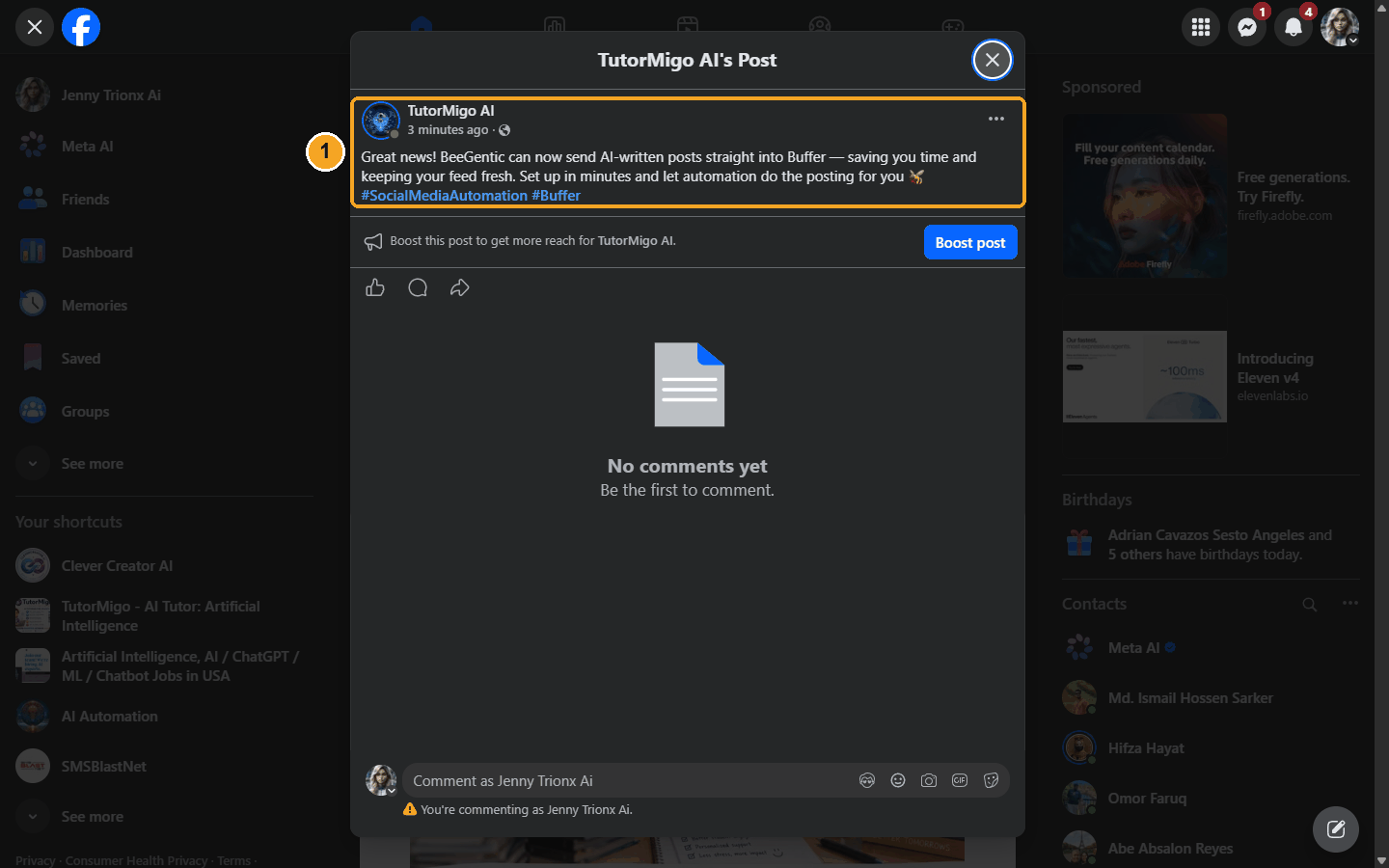
| # | What you see |
|---|---|
| 1 | The post, live on the Page. |
The real post (written by the Agent, published by Buffer):
We deleted this test post afterwards with the Facebook Page block's Delete Post.
Watch this step
Troubleshooting
| Problem | Fix |
|---|---|
Invalid post: Facebook posts require a type | Update to the latest BeeGentic (it now sends Feed post automatically), or set Post Type under Show additional fields. |
| Authentication or invalid-key error | The key was regenerated or mistyped. Create a new key and update the BUFFER_API_KEY secret. |
| Channel not found | Check the Channel ID with Get Channels. The key must belong to the Buffer organization that owns the channel. |
| Post is in Buffer but not on Facebook | It's waiting in the Queue (Add to queue). Use Share now, or check the channel's posting times in Buffer. If Buffer shows a reconnect warning, reconnect the Page in Buffer. |
429 / rate limit | You hit Buffer's API limit. Wait 15 minutes, or upgrade your Buffer plan. |
ChatterMate → Facebook Page
Let ChatterMate write the post and BeeGentic publish it to your Facebook Page. No OpenAI or Anthropic key needed. Real result included.
Instagram auto-share to Facebook
What Instagram's "Sharing across profiles" does, how to turn it on, and why it doesn't copy posts that BeeGentic publishes.