


Publish to LinkedIn
Build Start → Agent → LinkedIn, type a topic in Chat, and BeeGentic writes and publishes the post. Real result included.
What you'll build: you type a topic, the AI writes a short LinkedIn post, and BeeGentic shares it to your feed. Three blocks, about 5 minutes.
Posts to: Your personal LinkedIn feed · Connect with: Sign in with LinkedIn · Block: LinkedIn
| Text | Link | Image | Video | Multi | Schedule | Edit | Delete | Read | Comments | Insights |
|---|---|---|---|---|---|---|---|---|---|---|
| ✅ | ⚠️ | — | — | — | — | — | — | ⚠️ | — | — |
Not supported: Company Pages (needs LinkedIn approval; planned) · Images, video and documents (use Buffer) · Deleting or editing posts · Analytics
✅ supported · ⚠️ partly (hover for details) · — not supported
Narrated walkthrough (1 min 45 s). Turn your sound on. The orange numbers in each screenshot match the # column under it. Click a screenshot to enlarge it.
Connect LinkedIn (once)
Open Integrations in the left sidebar, search for LinkedIn, and click Add to BeeGentic (top right). Sign in to LinkedIn and click Allow.
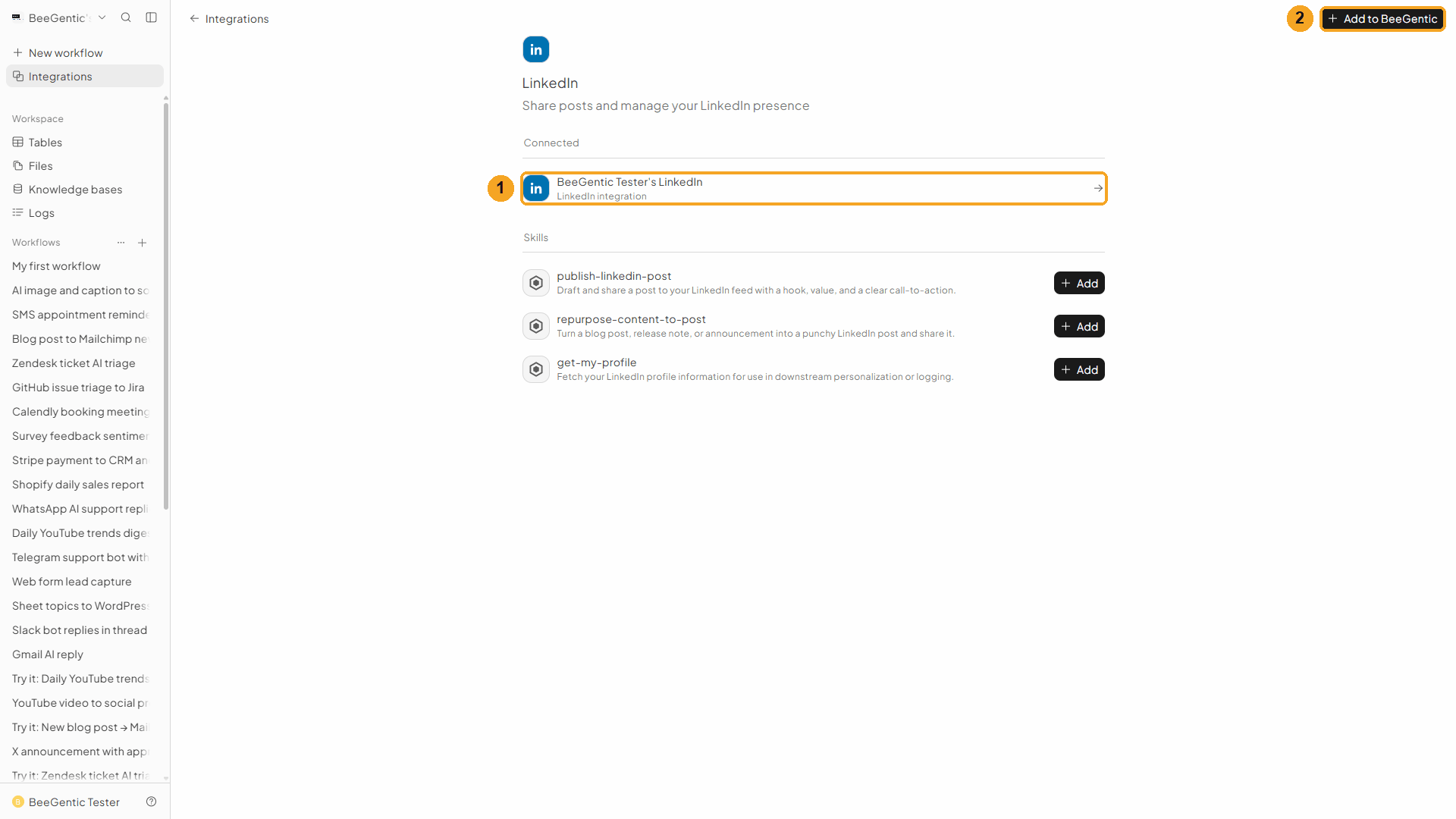
| # | What you see |
|---|---|
| 1 | Your account under Connected, e.g. BeeGentic Tester's LinkedIn. |
| 2 | Add to BeeGentic: use it again to connect a second LinkedIn account. |
Create the workflow
Click + New workflow and name it, for example Publish to LinkedIn. It starts with a Start block.
Add the Agent (the writer)
Toolbar → Agent. It appears already connected to Start. In Messages, type:
Write a LinkedIn post of at most 70 words announcing: <start.input>. Warm, clear, no jargon. End with 2 relevant hashtags. Return only the post text.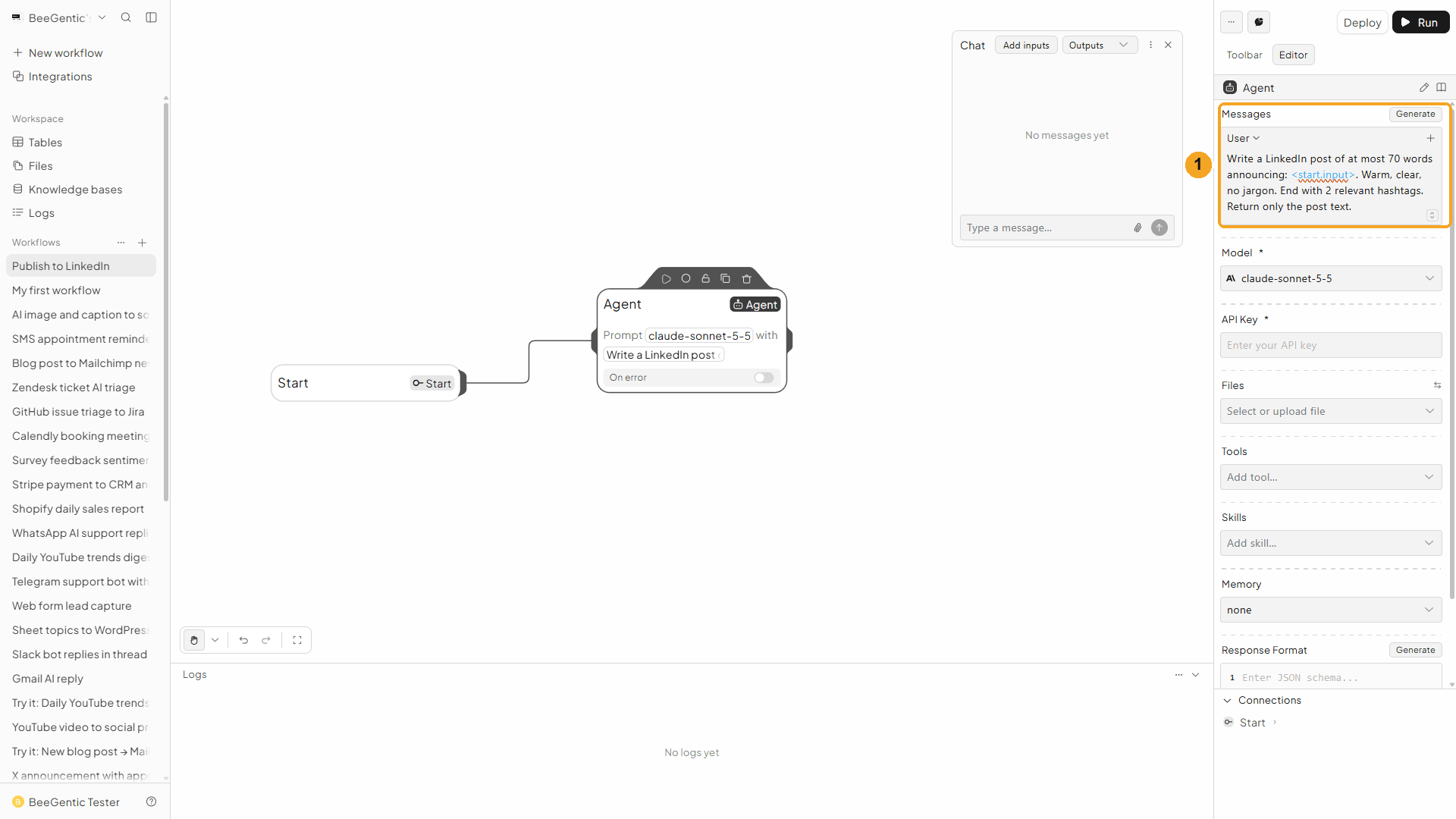
Type < to insert <start.input>; it turns blue when it's a real reference.
Choose the model and key
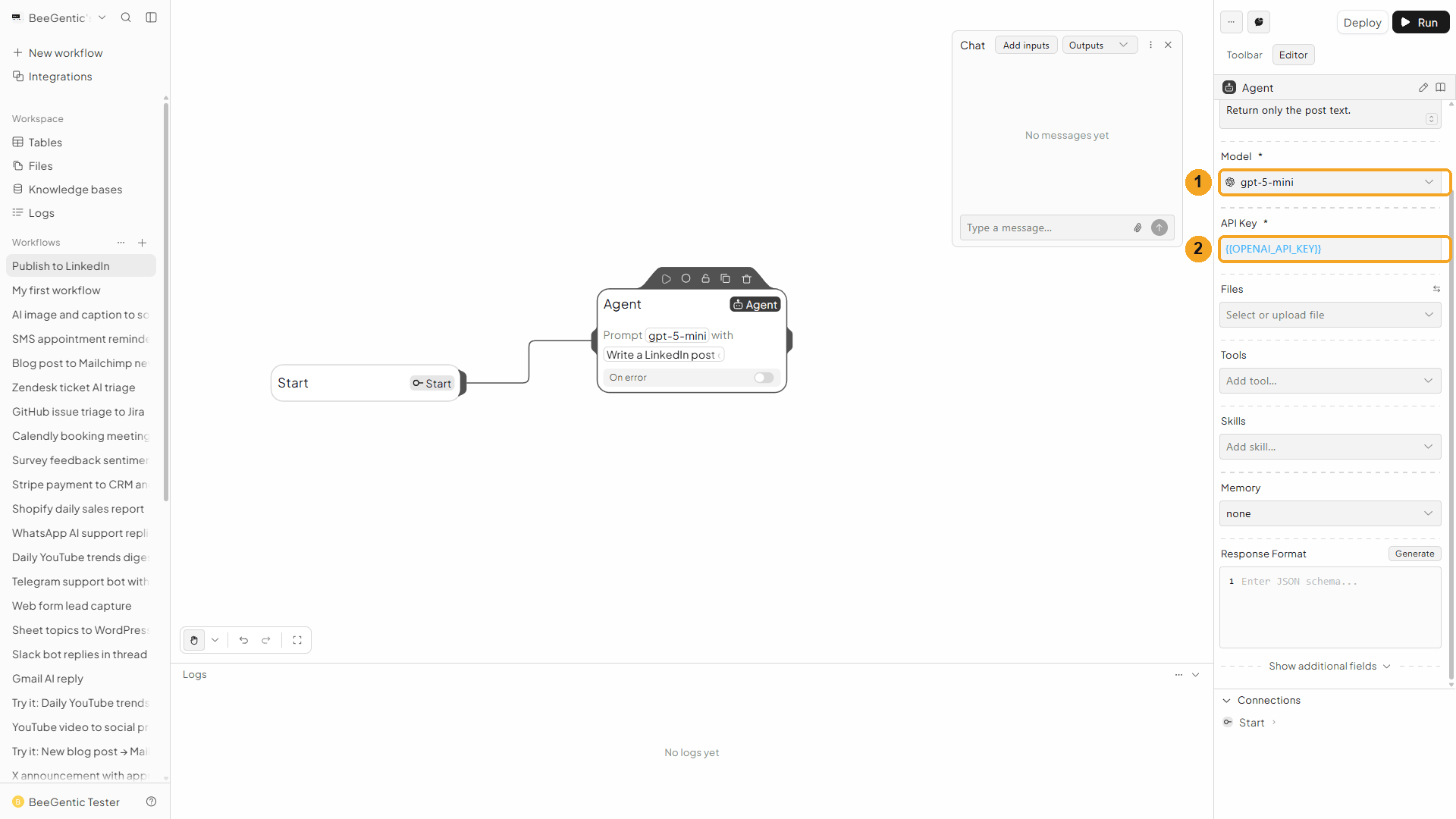
| # | Field | Value |
|---|---|---|
| 1 | Model | gpt-5-mini: fast, low cost, great for short posts |
| 2 | API Key | {{OPENAI_API_KEY}} (your saved secret) |
Add the LinkedIn block
Toolbar → LinkedIn. It connects to the Agent automatically. Leave Operation on share post.
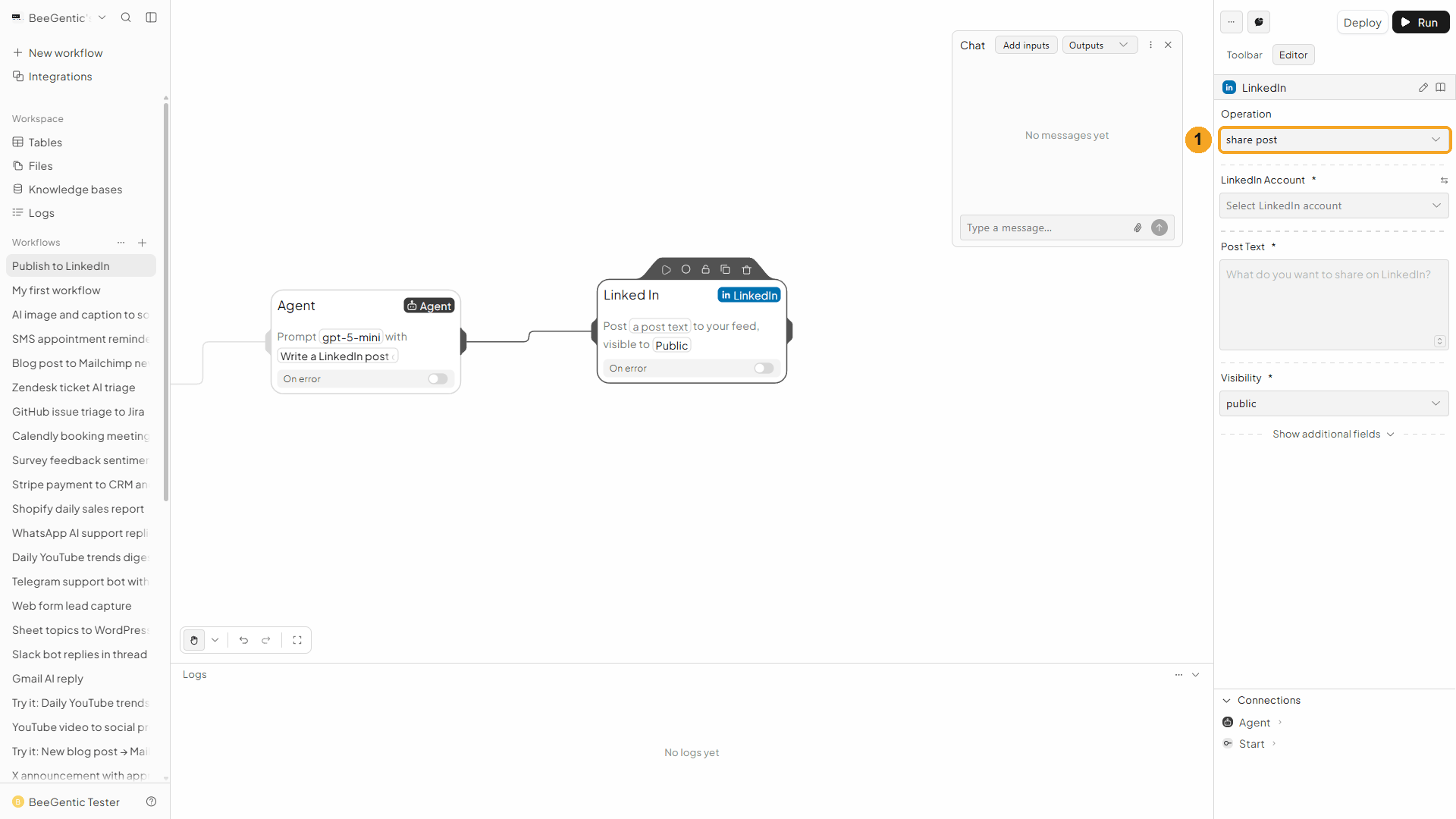
Then pick the account:
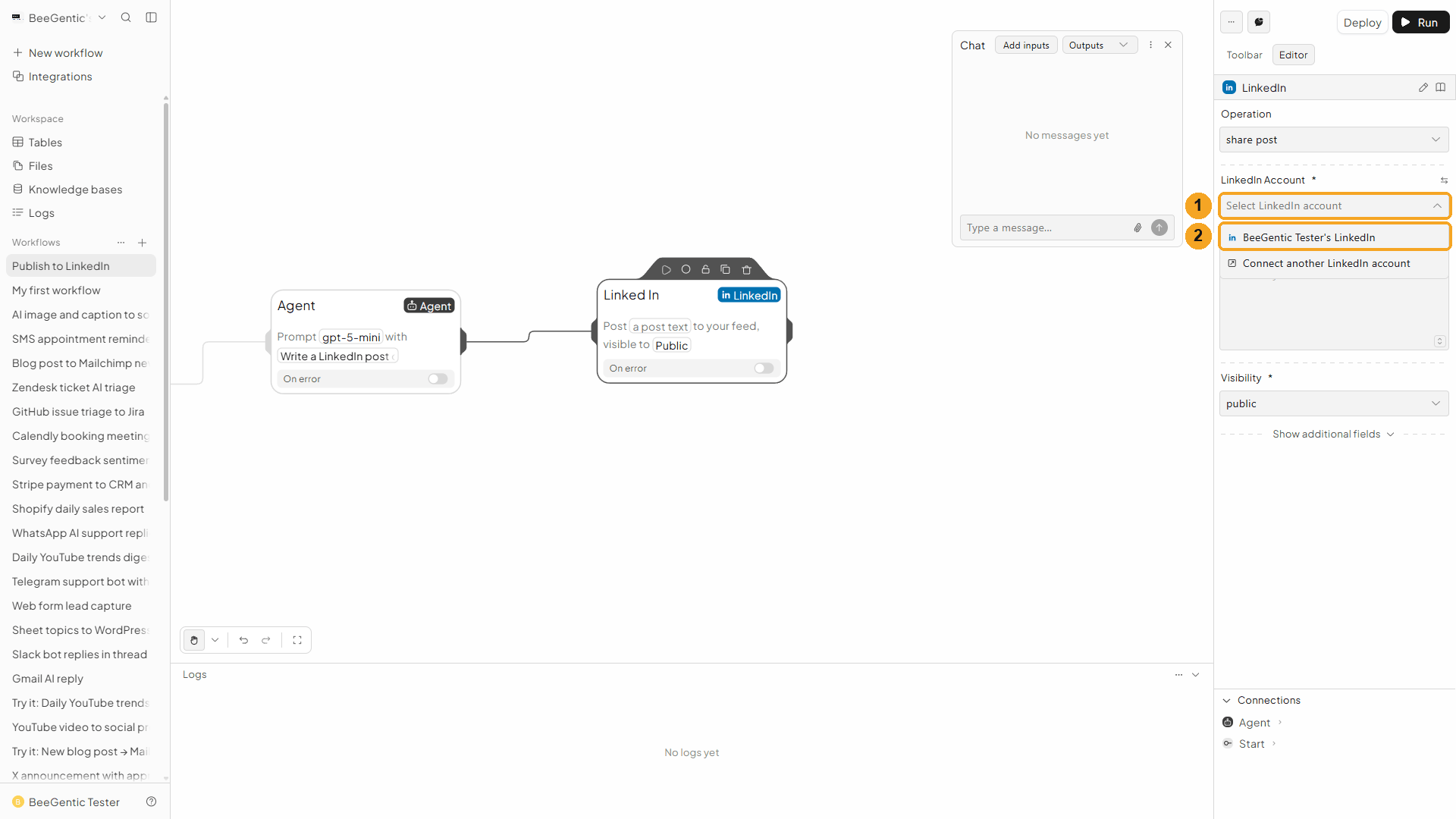
| # | What to do |
|---|---|
| 1 | Click LinkedIn Account. |
| 2 | Choose the account you connected in step 1. |
Post text and visibility
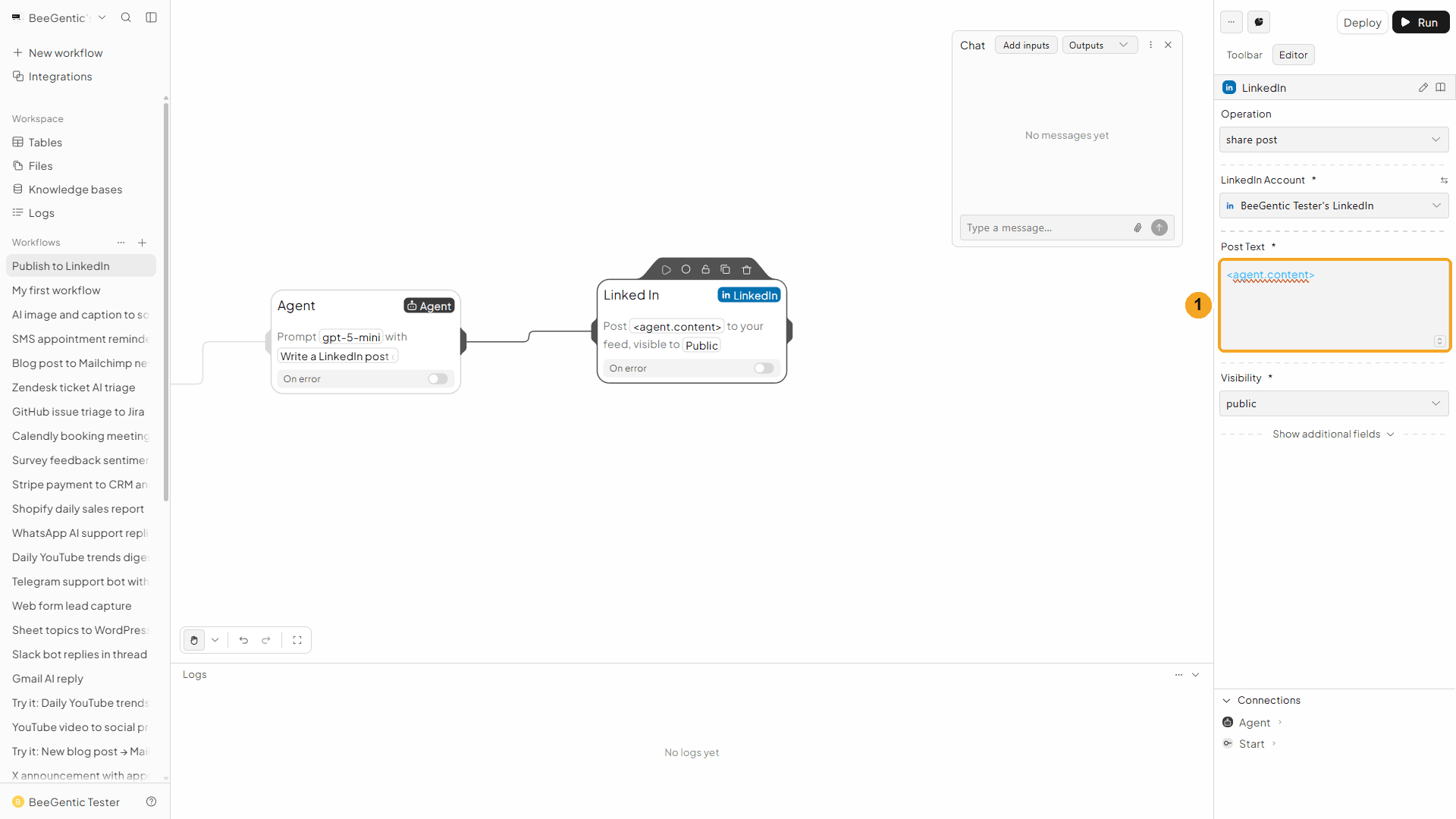
| # | Field | Value |
|---|---|---|
| 1 | Post Text | <agent.content>, the post the Agent wrote |
| - | Visibility | connections only while testing; public when you're ready |
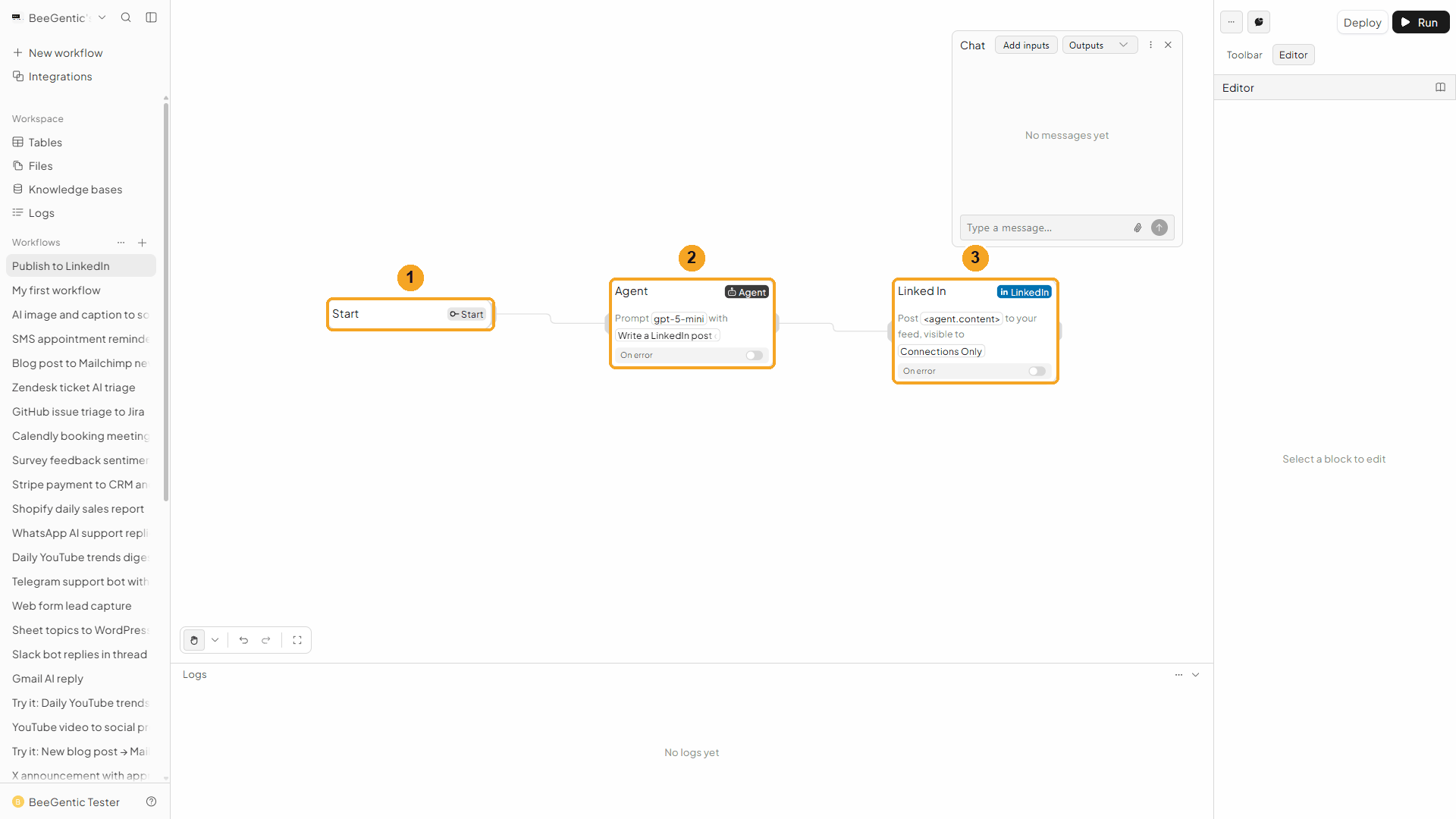
Press Shift + L to tidy the canvas. You should see Start → Agent → LinkedIn:
Run it from Chat
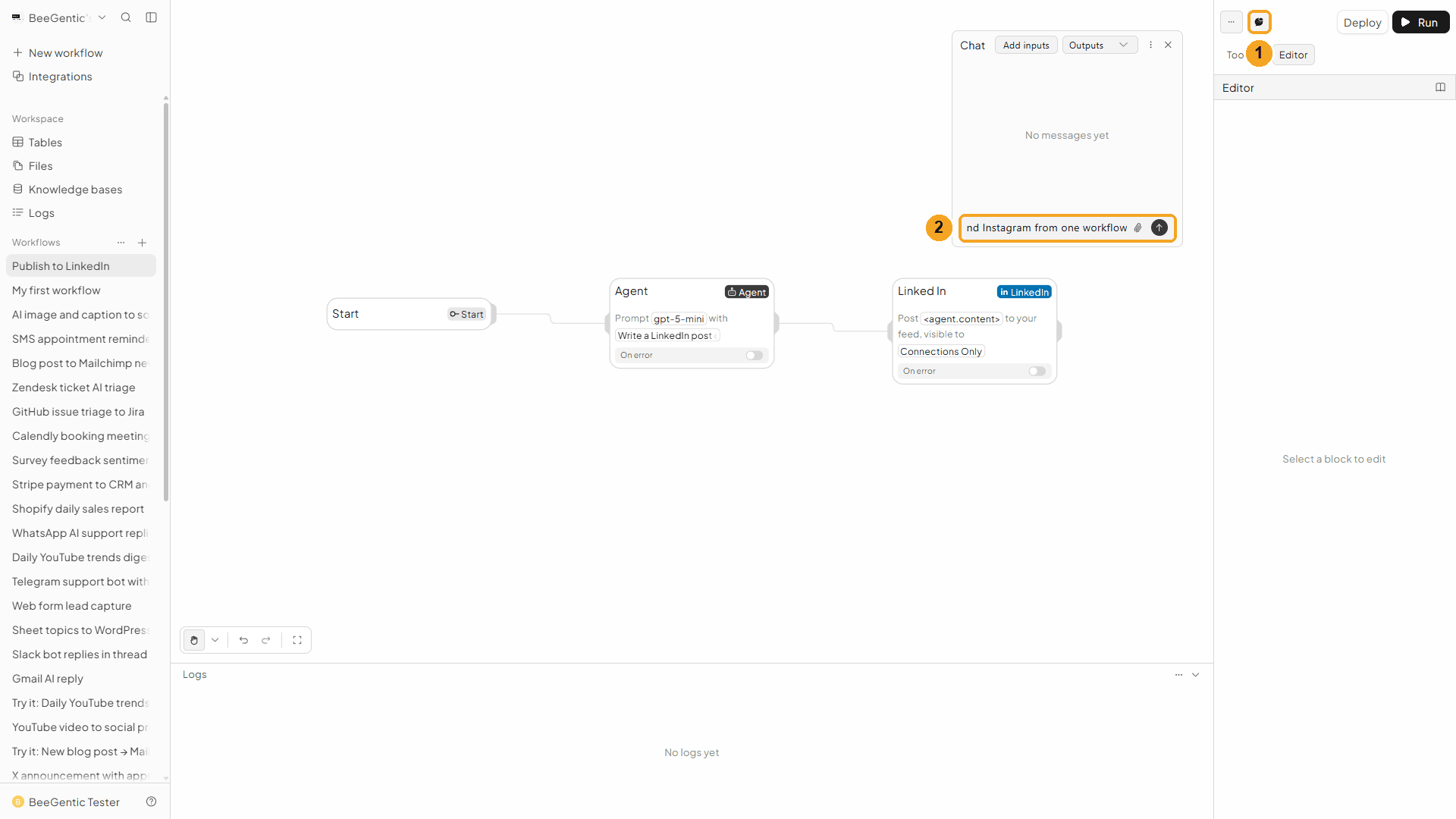
| # | What to do |
|---|---|
| 1 | Click the speech-bubble button (Test in chat). |
| 2 | Type what the post is about and press Enter. |
Example message we sent:
BeeGentic can now publish to LinkedIn and Instagram from one workflowCheck the result
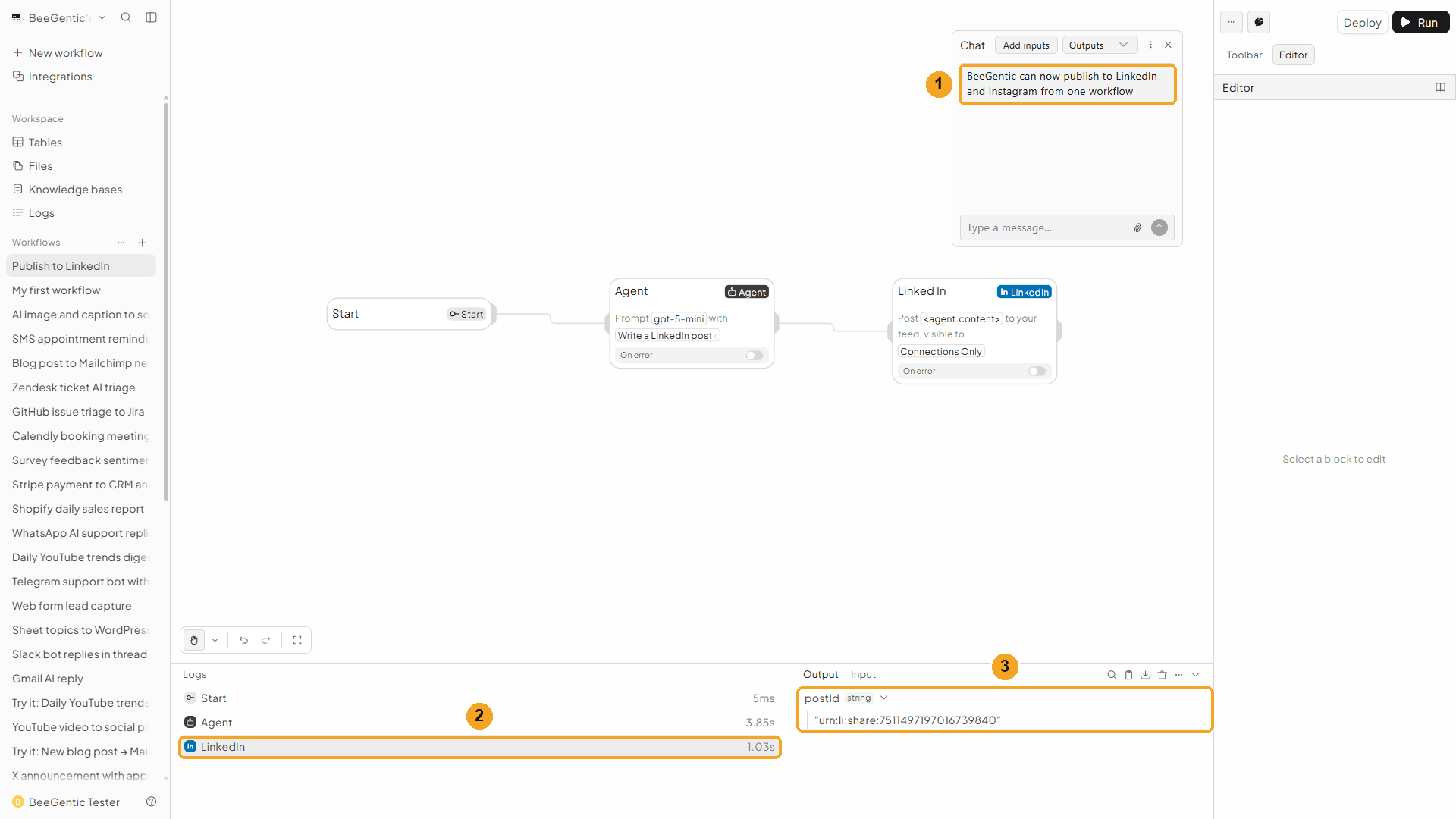
| # | What you see |
|---|---|
| 1 | Your message in the chat. |
| 2 | Each block in Logs; LinkedIn took about 1 second. |
| 3 | The LinkedIn block's Output: postId, the new post's ID. |
The real post BeeGentic published:
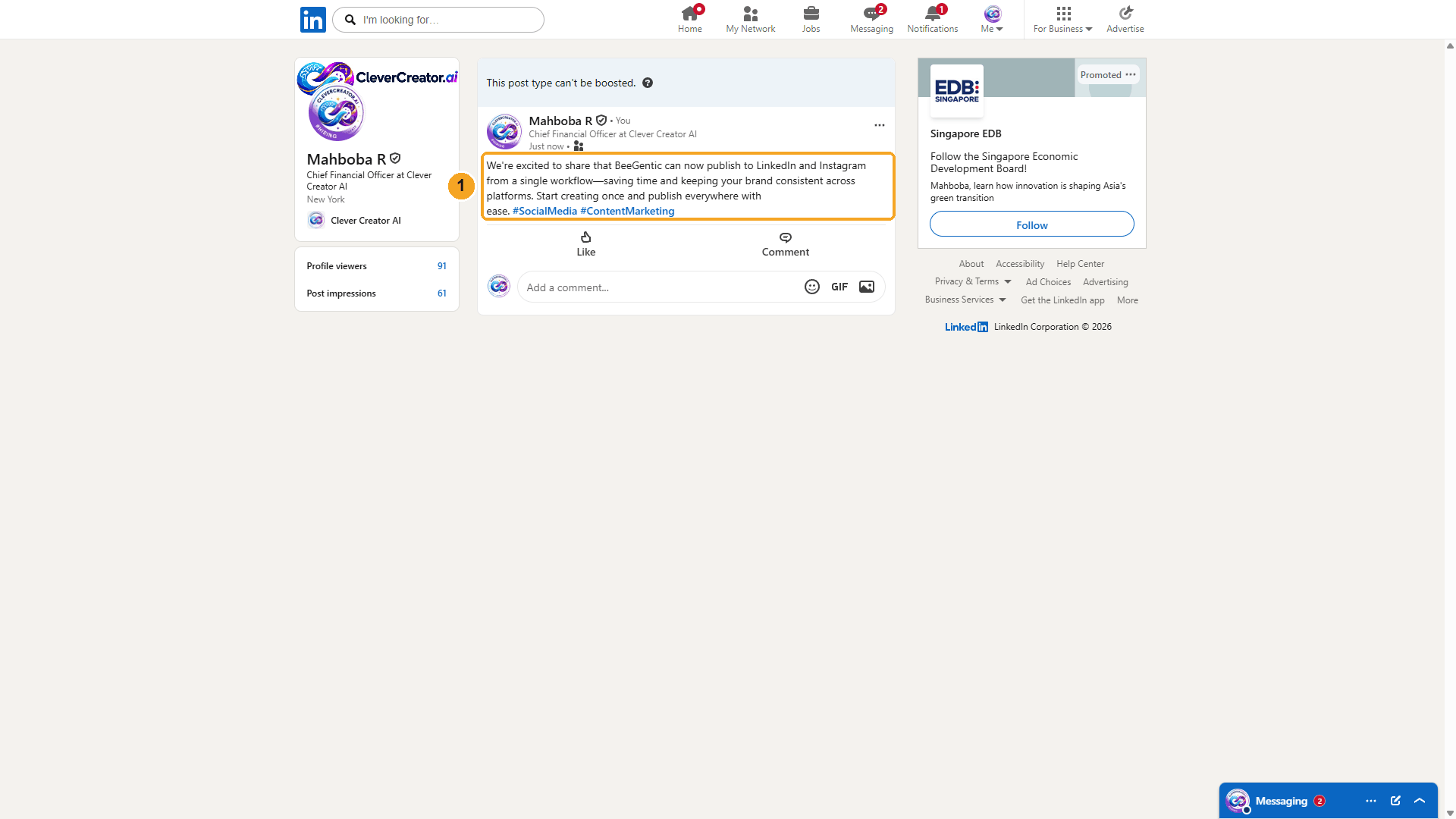
We're excited to share that BeeGentic can now publish to LinkedIn and Instagram from a single workflow—saving time and keeping your brand consistent across platforms. Start creating once and publish everywhere with ease. #SocialMedia #ContentMarketing
Total cost of the run: 1 credit. (We deleted this test post afterwards.)
Troubleshooting
| Problem | Fix |
|---|---|
| LinkedIn isn't in Integrations | Your admin hasn't set up the LinkedIn app yet. See Admin → Integrations. |
401 / token expired | LinkedIn tokens last about 2 months. Open Integrations → LinkedIn and reconnect. |
| Post appears without line breaks | Ask the Agent for "short paragraphs separated by a blank line". |
| I want to post as my company page | Not yet: the LinkedIn block posts to your own feed. Company-page posting is on the roadmap. |