


Publish to Instagram
Build Start → Agent → Instagram (Publish Image), and BeeGentic writes the caption and posts your photo. Real result included.
What you'll build: you upload a photo once, type a topic, and the AI writes the caption while BeeGentic publishes the post. Three blocks, about 5 minutes.
Posts to: Instagram professional accounts (Business or Creator) · Connect with: Sign in with Instagram · Block: Instagram
| Text | Link | Image | Video | Multi | Schedule | Edit | Delete | Read | Comments | Insights |
|---|---|---|---|---|---|---|---|---|---|---|
| ⚠️ | — | ✅ | ✅ | ✅ | — | — | — | ✅ | ✅ | ✅ |
Not supported: Personal (non-professional) accounts · Text-only posts · Deleting or editing posts · Scheduling inside Instagram (use a Schedule trigger)
⏳ Meta App Review pending: only app testers can connect
✅ supported · ⚠️ partly (hover for details) · — not supported
Narrated walkthrough (1 min 40 s). Turn your sound on. The orange numbers match the # column under each screenshot.
Connect Instagram (once)
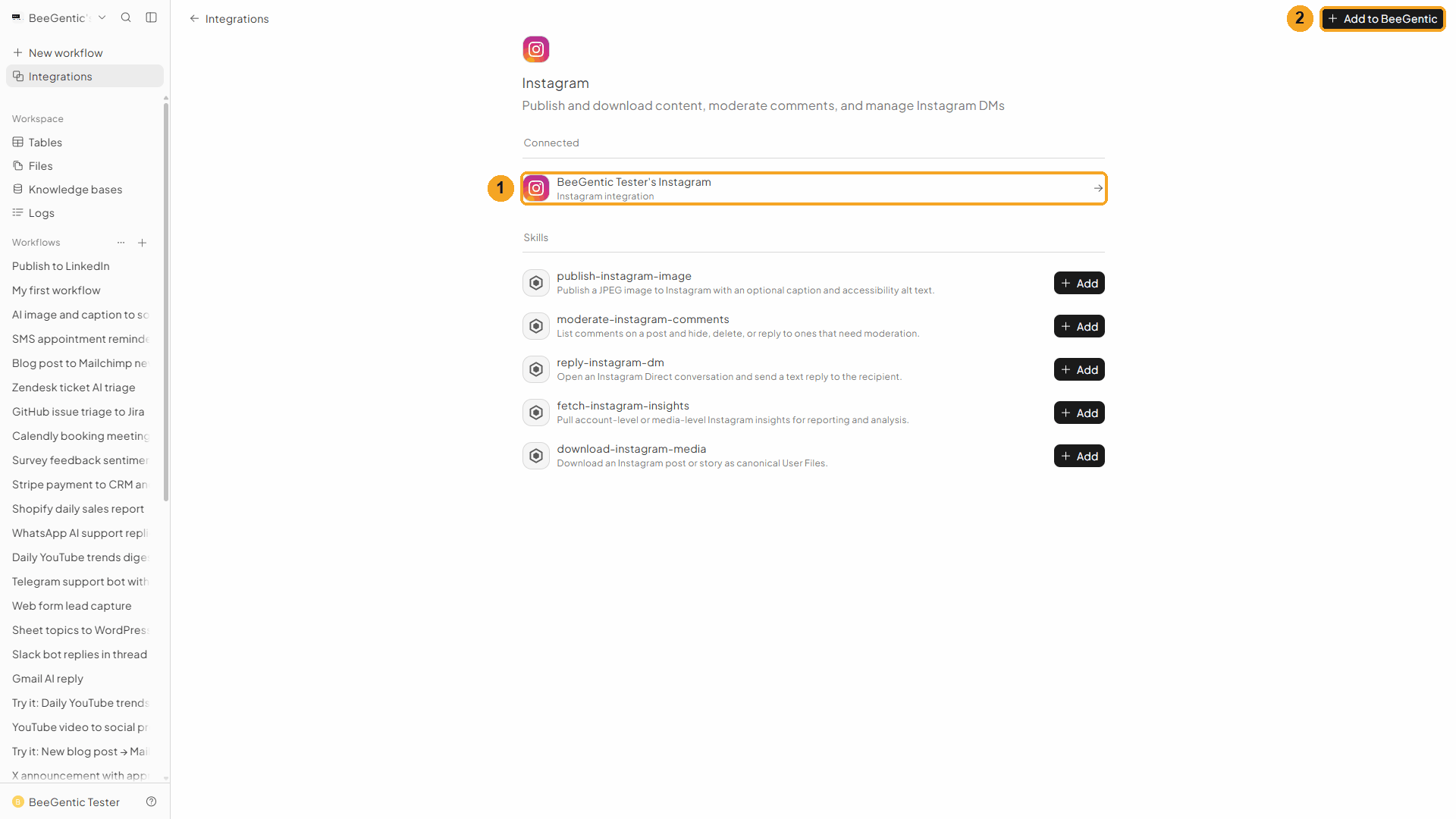
Integrations → Instagram → Add to BeeGentic. Instagram shows the permissions BeeGentic asks for (profile and media, publish, comments, messages, insights). Click Allow.
| # | What you see |
|---|---|
| 1 | Your account under Connected. |
| 2 | Add to BeeGentic: connect another account. |
Create the workflow and add the Agent
+ New workflow → name it Publish to Instagram → Toolbar → Agent. In Messages:
Write an Instagram caption (max 40 words) about: <start.input>. Friendly and upbeat, one emoji, then 4 relevant hashtags on a new line. Return only the caption.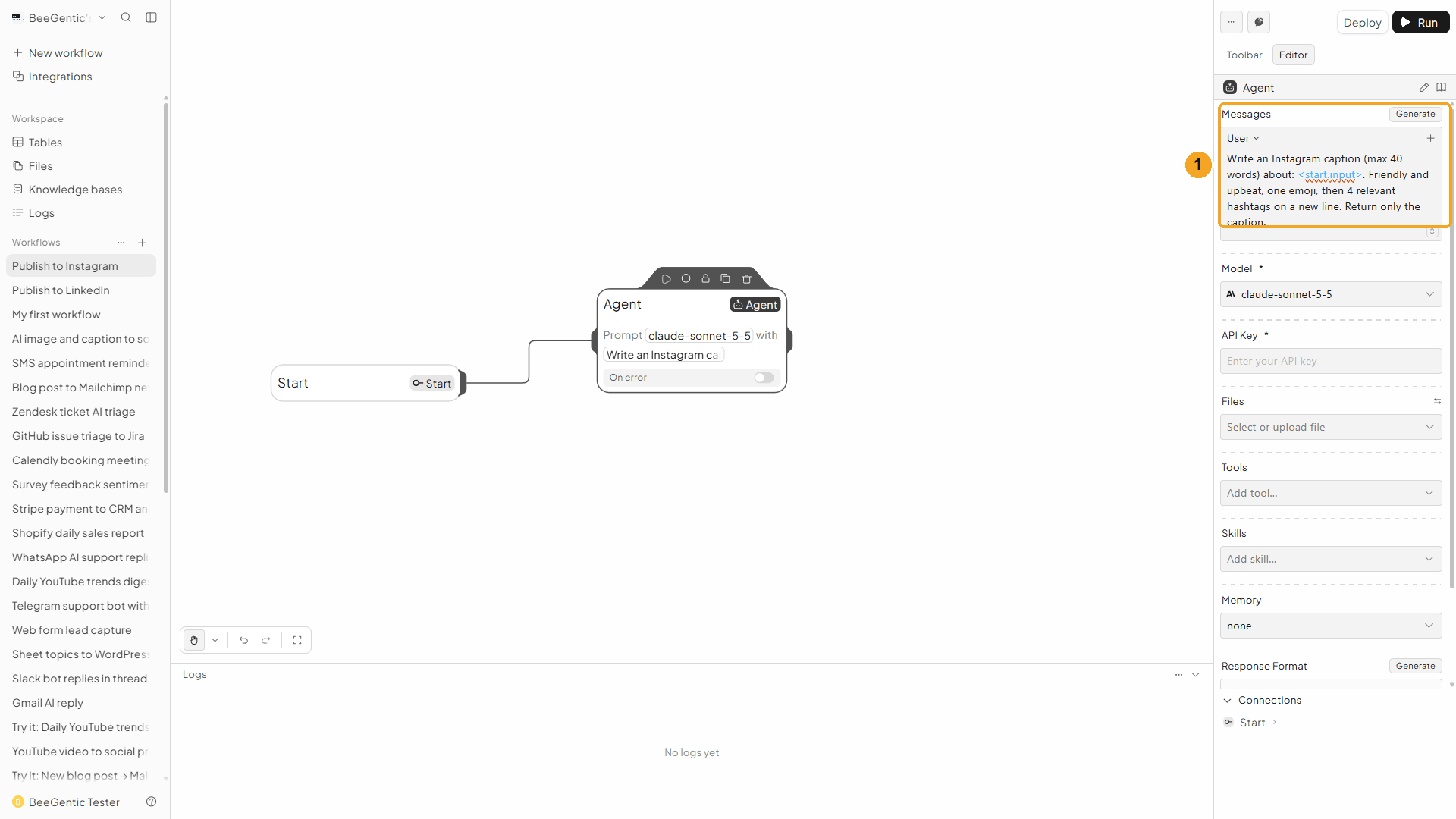
Set Model to gpt-5-mini and API Key to {{OPENAI_API_KEY}}.
Add the Instagram block
Toolbar → Instagram, then set Operation to publish image.
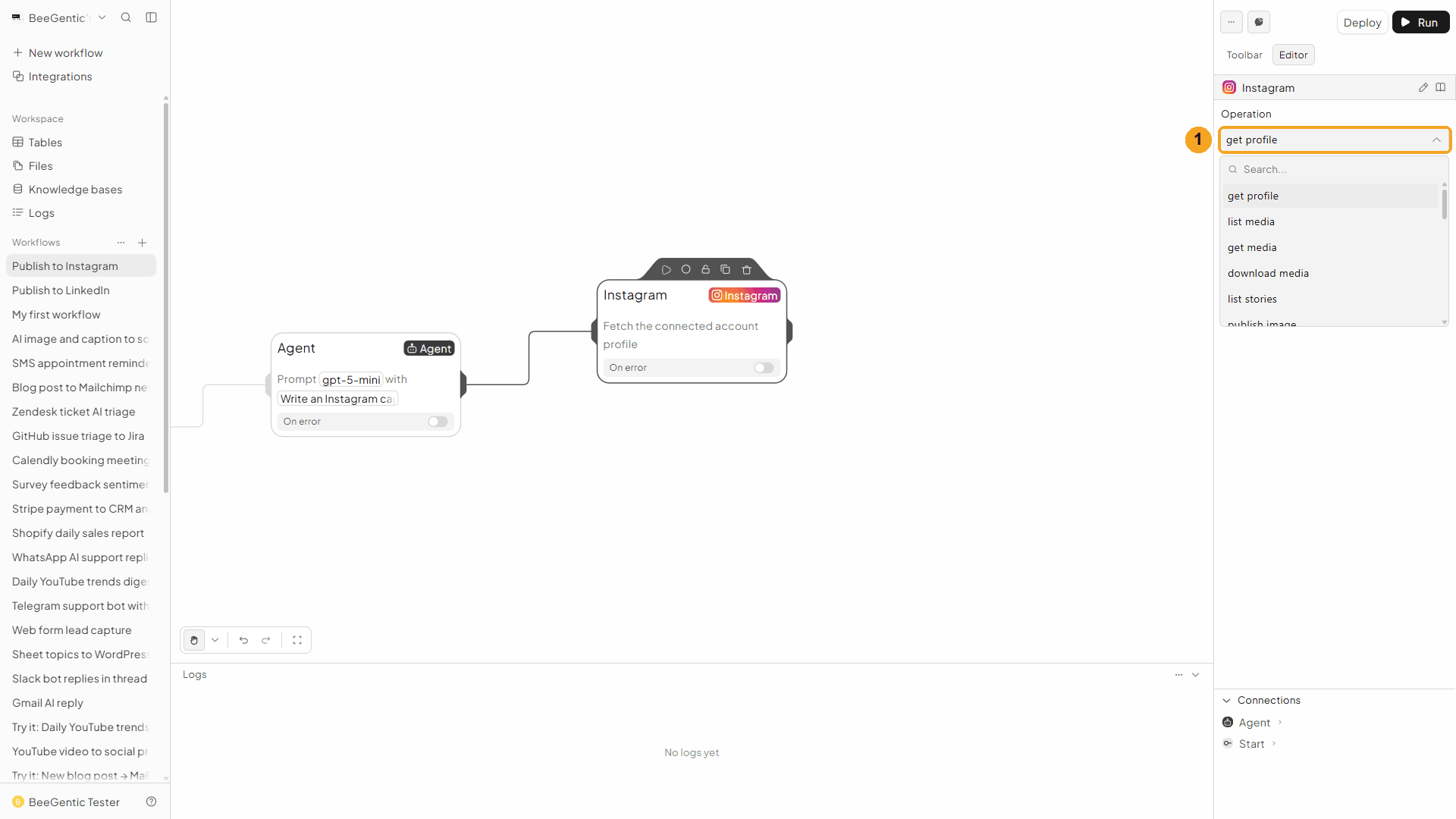
Other choices in the same menu: publish video, publish reel, publish story, publish carousel (2–10 images), plus comments, messages and insights.
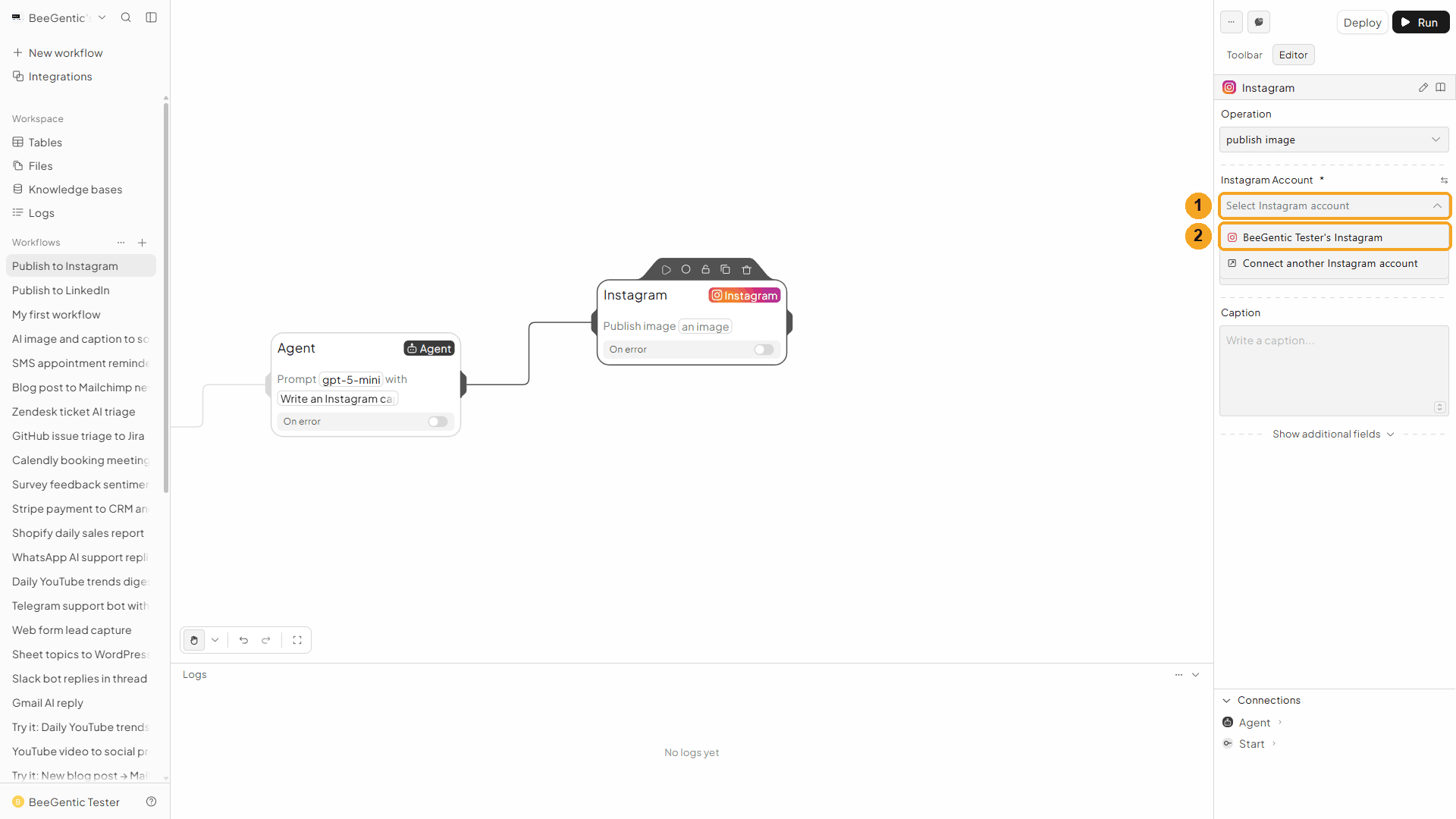
Pick the account and upload the image
| # | What to do |
|---|---|
| 1 | Click Instagram Account. |
| 2 | Choose your connected account. |
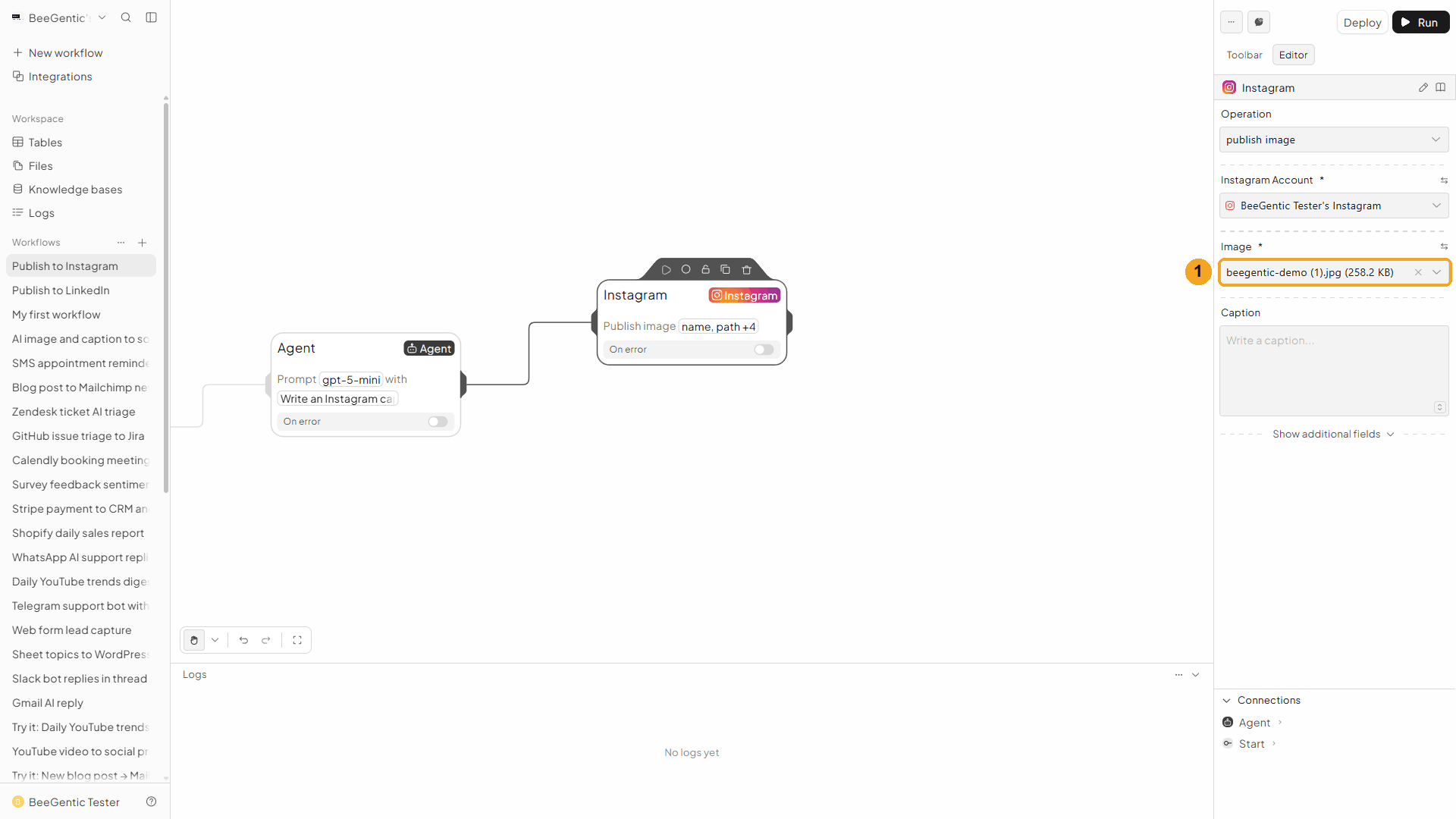
| # | What to do |
|---|---|
| 1 | Image → Upload New File, then pick your photo. |
Caption
In Caption, type <agent.content>. Then press Shift + L. Your canvas shows Start → Agent → Instagram:
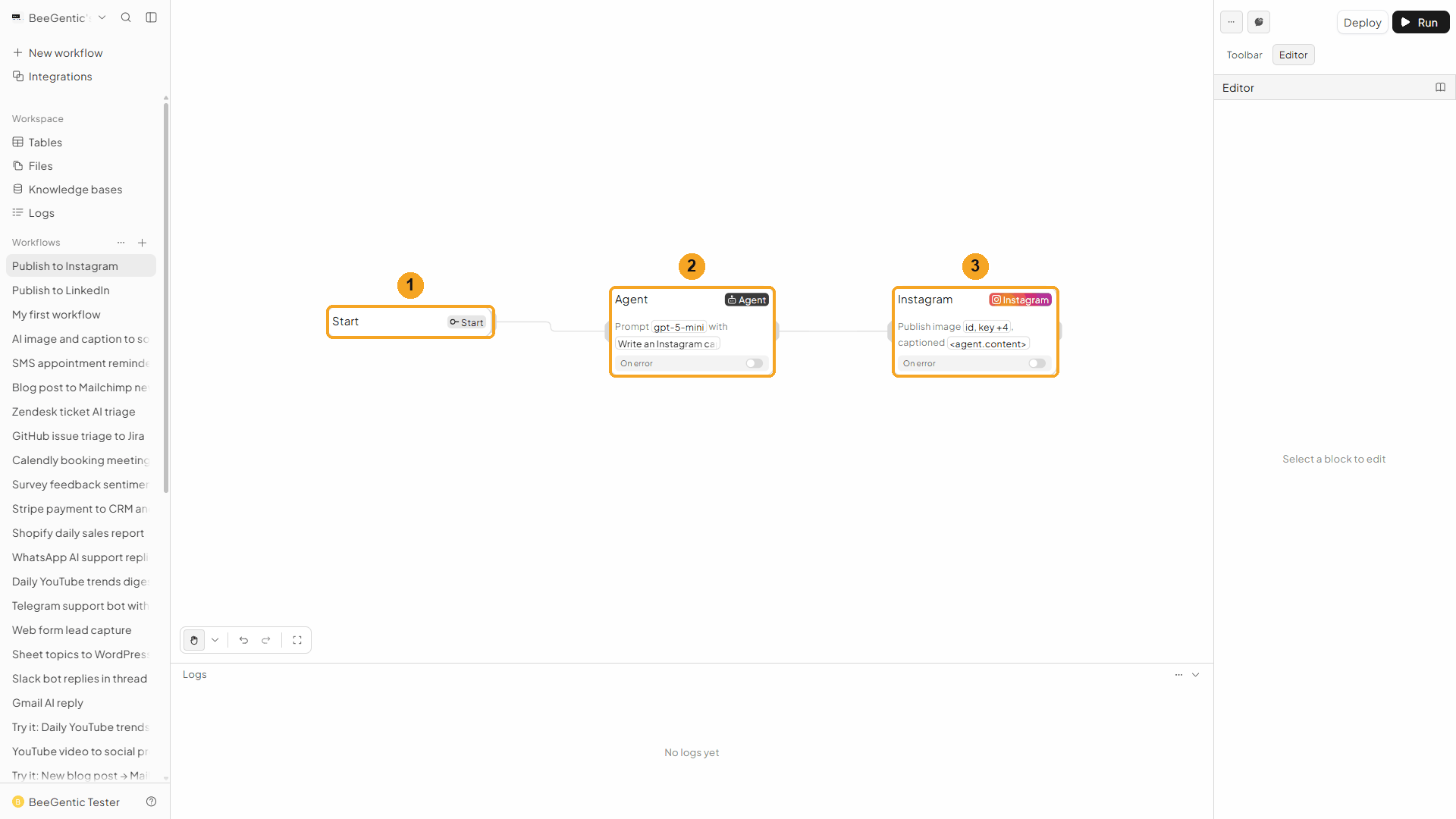
| # | Block |
|---|---|
| 1 | Start: receives your chat message |
| 2 | Agent: writes the caption |
| 3 | Instagram: Publish image … captioned <agent.content> |
Run it from Chat
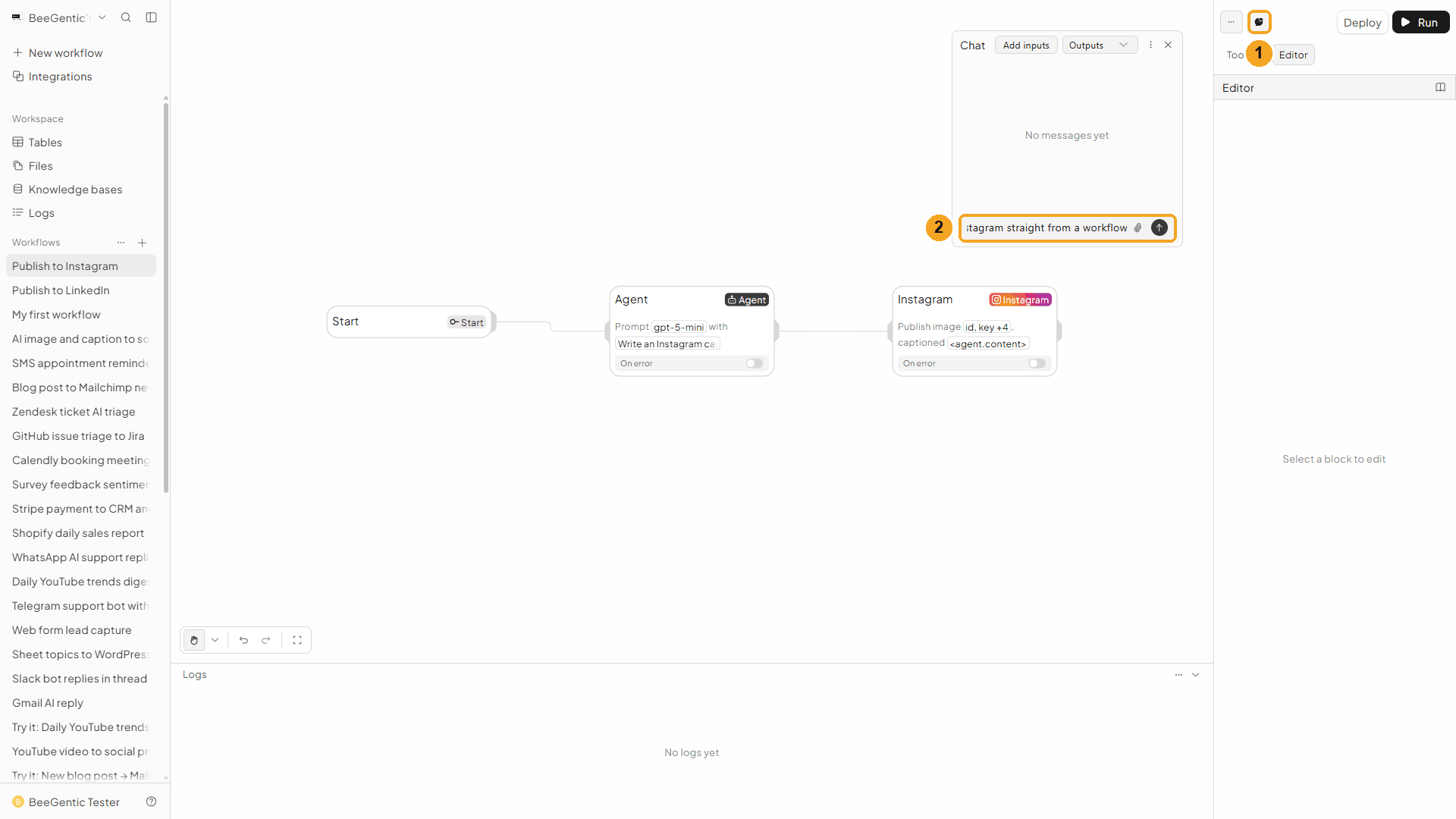
| # | What to do |
|---|---|
| 1 | Click the speech-bubble button (Test in chat). |
| 2 | Type the topic and press Enter. |
Example message we sent:
BeeGentic now posts to Instagram straight from a workflowInstagram processes the photo before it publishes, so this step can take up to a minute or so (our run took 1 min 12 s).
Check the result
Open Logs and click the run:
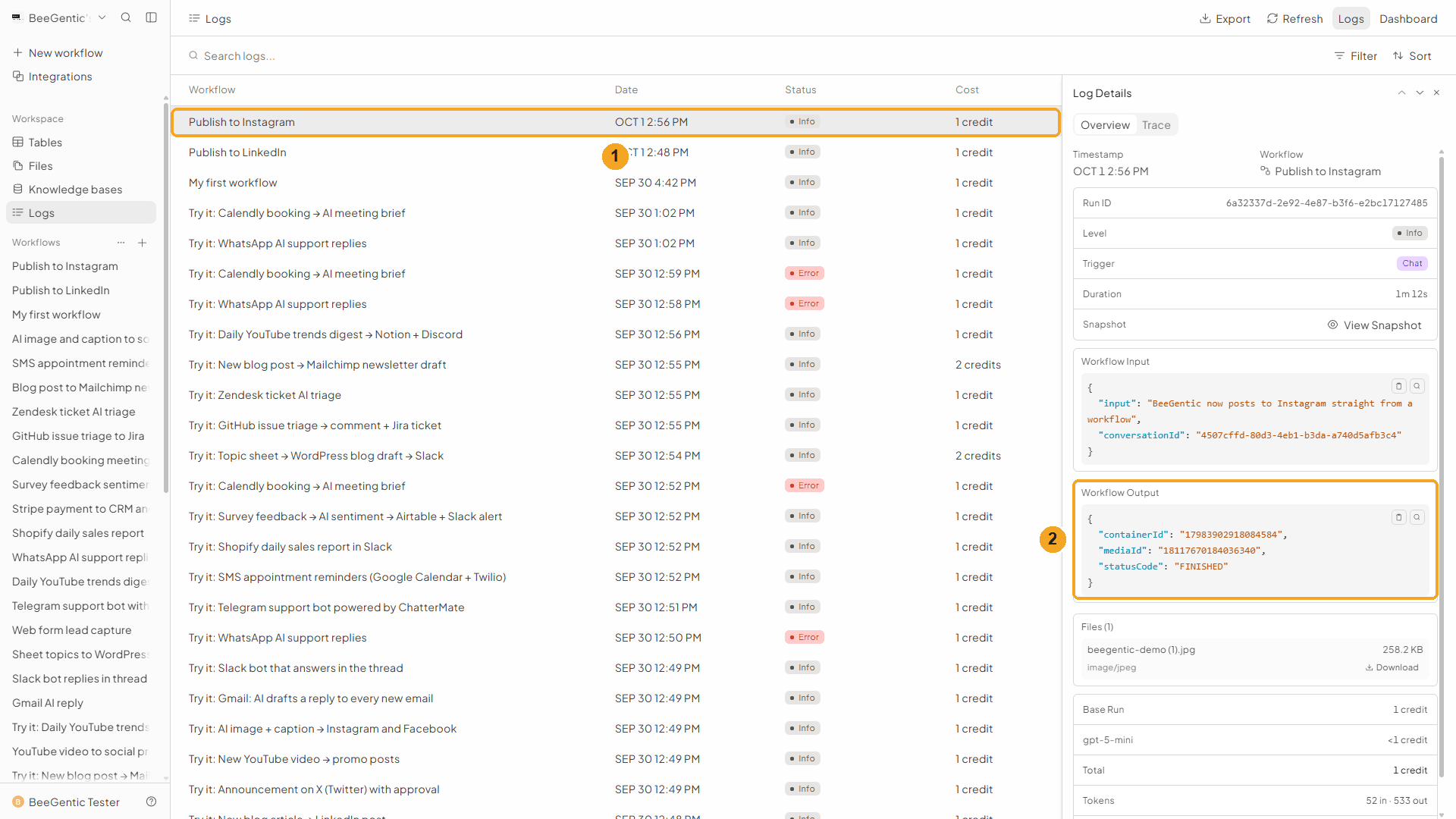
| # | What you see |
|---|---|
| 1 | The run: Publish to Instagram, 1 credit. |
| 2 | Workflow Output: mediaId (the new post) and statusCode: "FINISHED". |
The real post BeeGentic published:
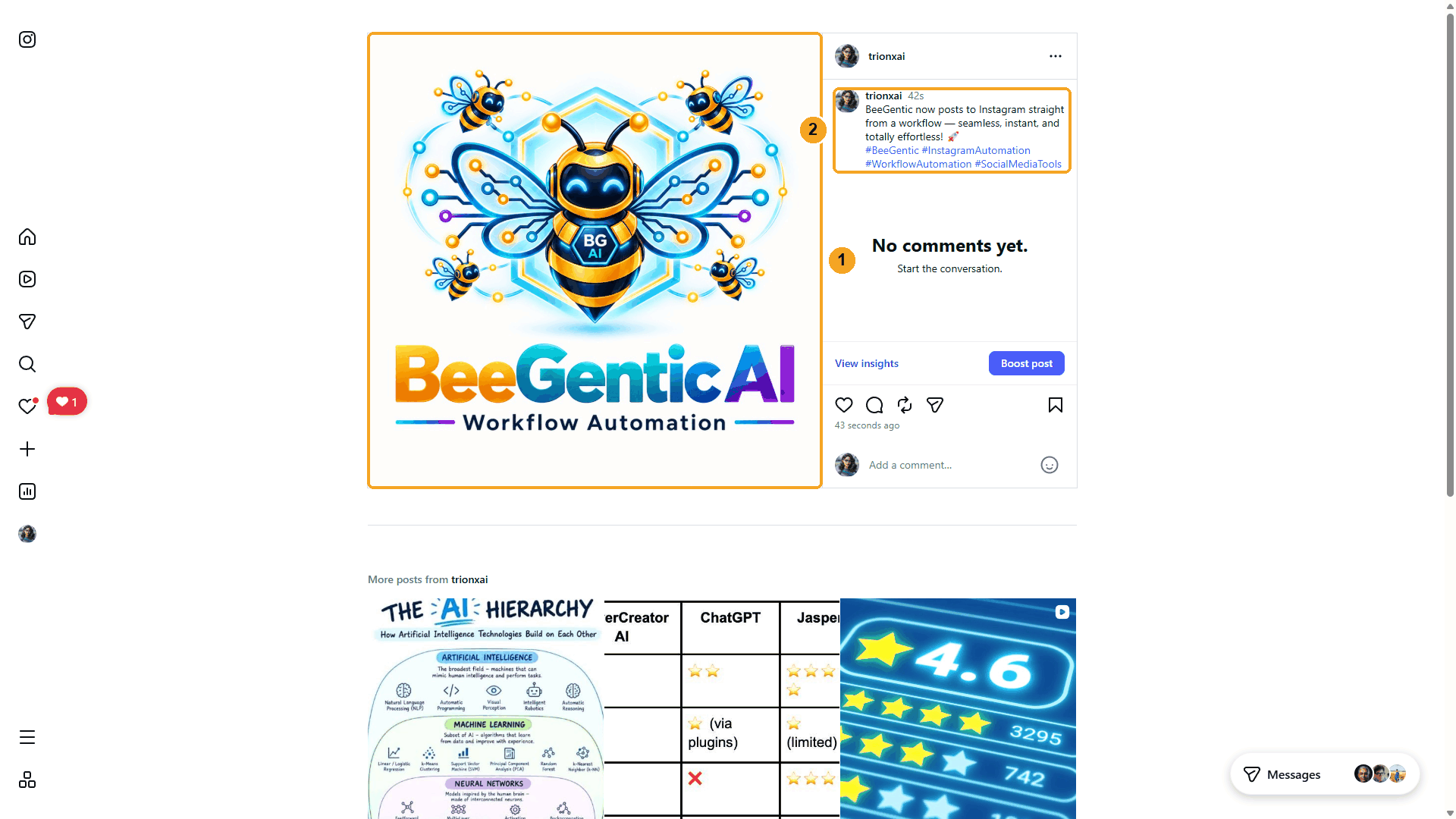
BeeGentic now posts to Instagram straight from a workflow — seamless, instant, and totally effortless! 🚀 #BeeGentic #InstagramAutomation #WorkflowAutomation #SocialMediaTools
(We deleted this test post afterwards.)
Troubleshooting
| Problem | Fix |
|---|---|
| Media type not supported / aspect ratio error | Use a JPEG at 1080 × 1080 (see Image rules above). |
| Status stays IN_PROGRESS | Instagram is still processing. Videos and reels can take several minutes; the block waits for you. |
| Application request limit reached | Instagram allows 50 posts per 24 hours per account. Use get publishing limit to check. |
| Instagram isn't in Integrations | Your admin hasn't set up the Instagram app yet. See Admin → Integrations. |