


Publish to a Facebook Page
Connect Facebook once, then BeeGentic writes and publishes posts to your Pages directly, with no Buffer. Real result included.
What you'll build: you type a topic, an AI writes the post, and BeeGentic publishes it straight to your Facebook Page. Three blocks: Start → Agent → Facebook Page. About 5 minutes.
Posts to: Facebook Pages you manage (incl. business-portfolio Pages) · Connect with: Sign in with Facebook · Block: Facebook Page
| Text | Link | Image | Video | Multi | Schedule | Edit | Delete | Read | Comments | Insights |
|---|---|---|---|---|---|---|---|---|---|---|
| ✅ | ✅ | ✅ | — | — | ✅ | — | ✅ | ✅ | — | — |
Not supported: Personal profiles · Facebook Groups · Reels and Stories · Editing posts · Comments and Page insights
⏳ Meta App Review pending: only app testers can connect
✅ supported · ⚠️ partly (hover for details) · — not supported
Narrated walkthrough (2 min 45 s), with captions (CC button). Each step below also has a short silent clip. The orange numbers in each screenshot match the # column under it. Click a screenshot to enlarge it.
Three ways to get posts onto Facebook
| Option | Who writes the post | What you need | Guide |
|---|---|---|---|
| Direct, with your own AI key (this page) | Agent block with your OpenAI, Anthropic, Google… key | An AI key saved as a secret | This page |
| Direct, with ChatterMate | ChatterMate picks the model; usage comes out of your ChatterMate credits | A ChatterMate API key | ChatterMate → Facebook |
| Through Buffer | Agent block; Buffer publishes on its schedule | A Buffer account with your Page connected | Facebook via Buffer |
Before you start
| You need | Why |
|---|---|
| A Facebook account that manages the Page (full control, or a task that includes Content) | BeeGentic posts with that Page's own permission |
An AI key saved as a secret, e.g. OPENAI_API_KEY | The Agent uses it to write. See References and secrets |
Part 1: Connect Facebook (once)
Open the Facebook Page integration
Integrations (left sidebar) → search Facebook → Facebook Page.
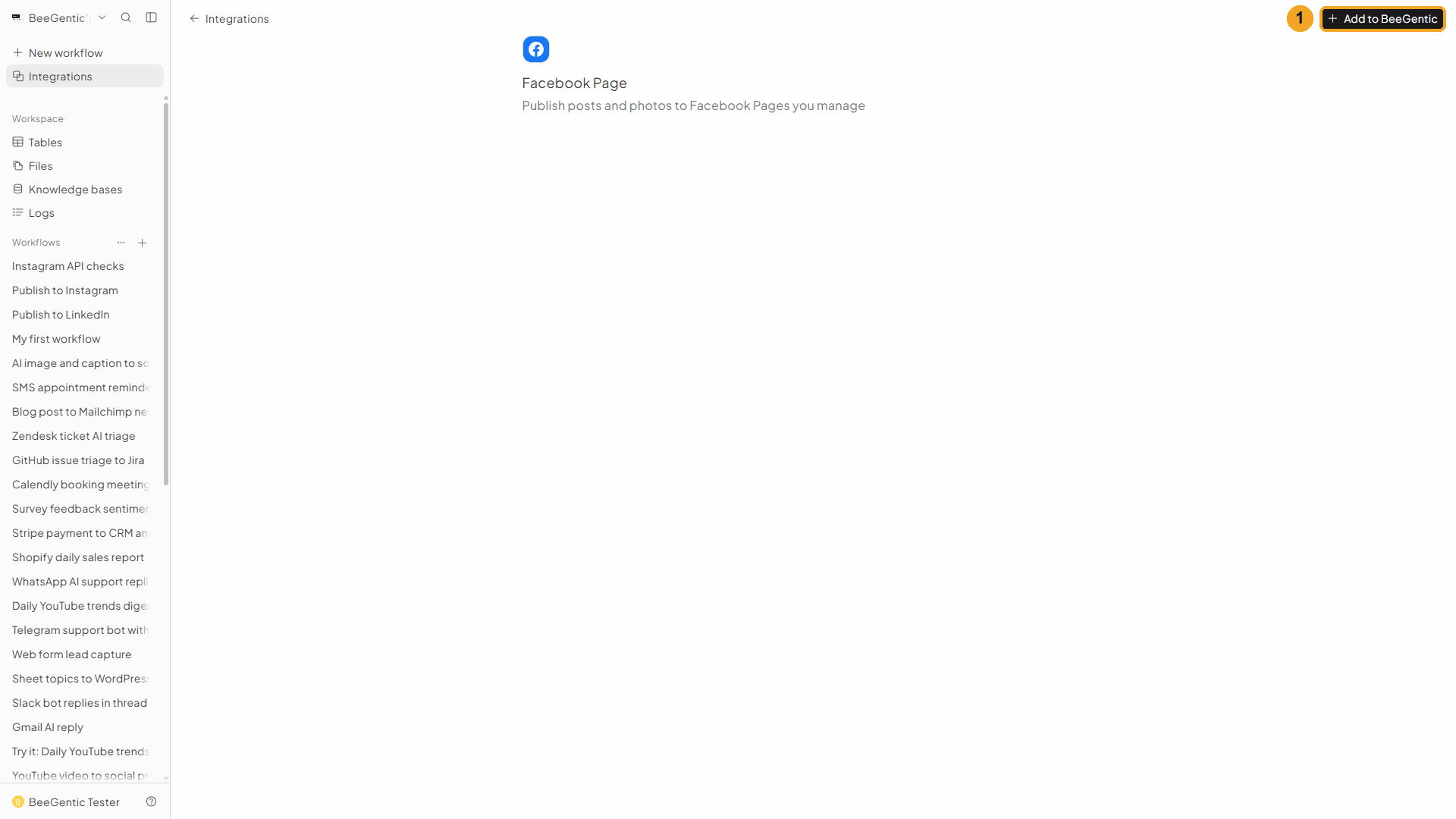
| # | What to do |
|---|---|
| 1 | Click Add to BeeGentic. |
Watch this step
Confirm in BeeGentic
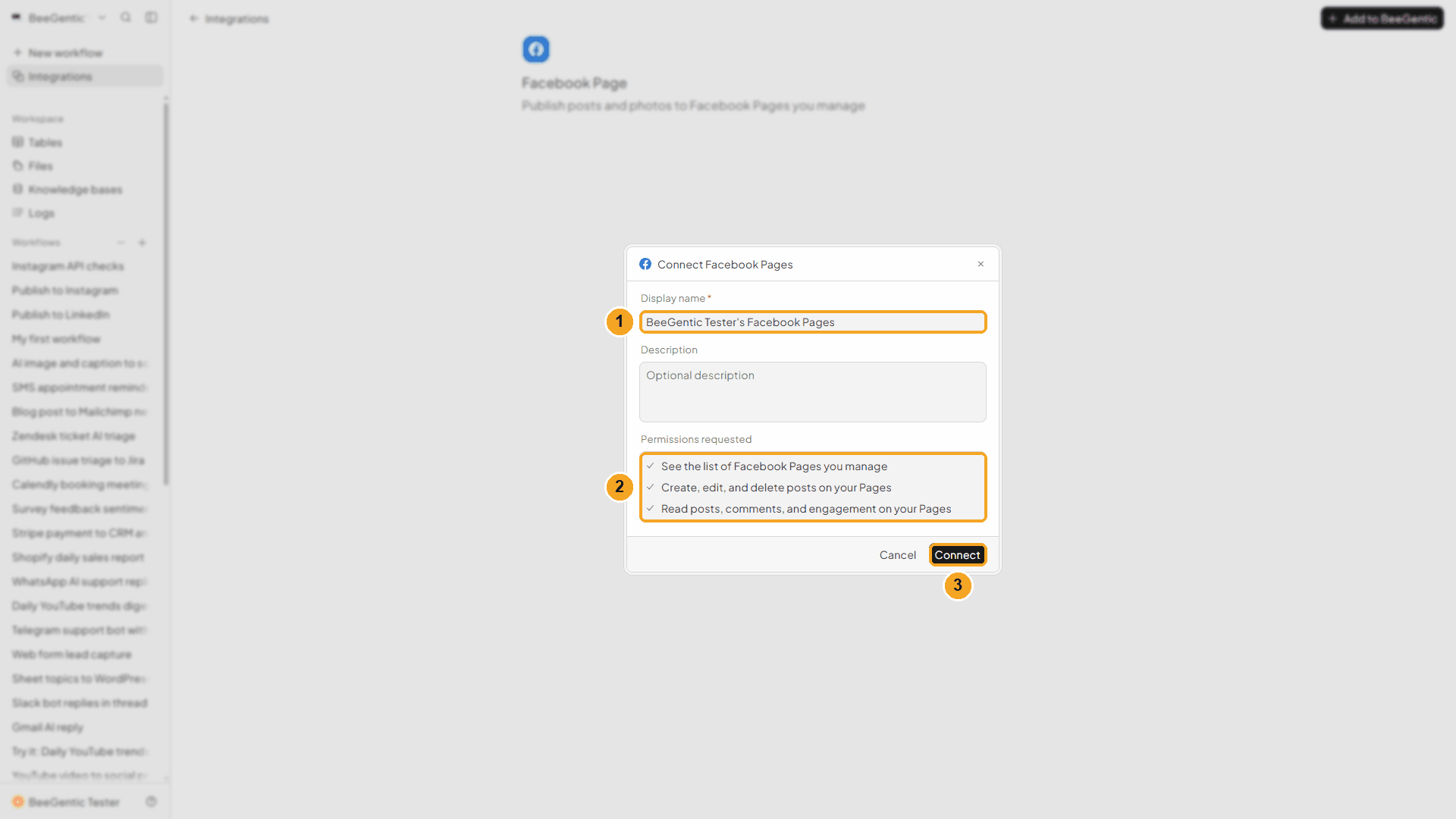
| # | What it means |
|---|---|
| 1 | A name for this connection. Keep it, or call it e.g. Marketing Facebook. |
| 2 | What BeeGentic will be allowed to do: list your Pages, create posts, read Page engagement. |
| 3 | Click Connect. Facebook opens. |
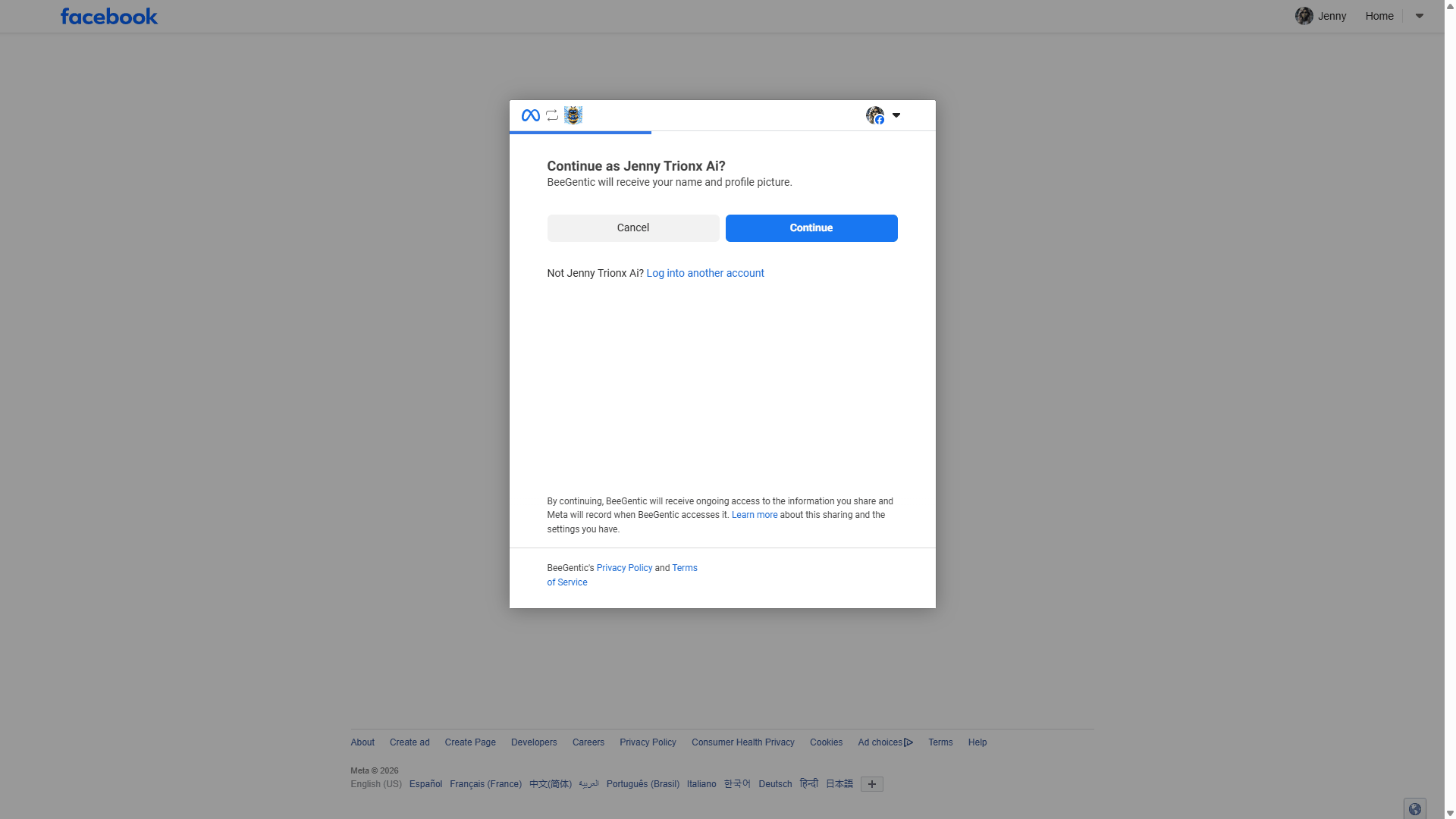
Choose the Pages
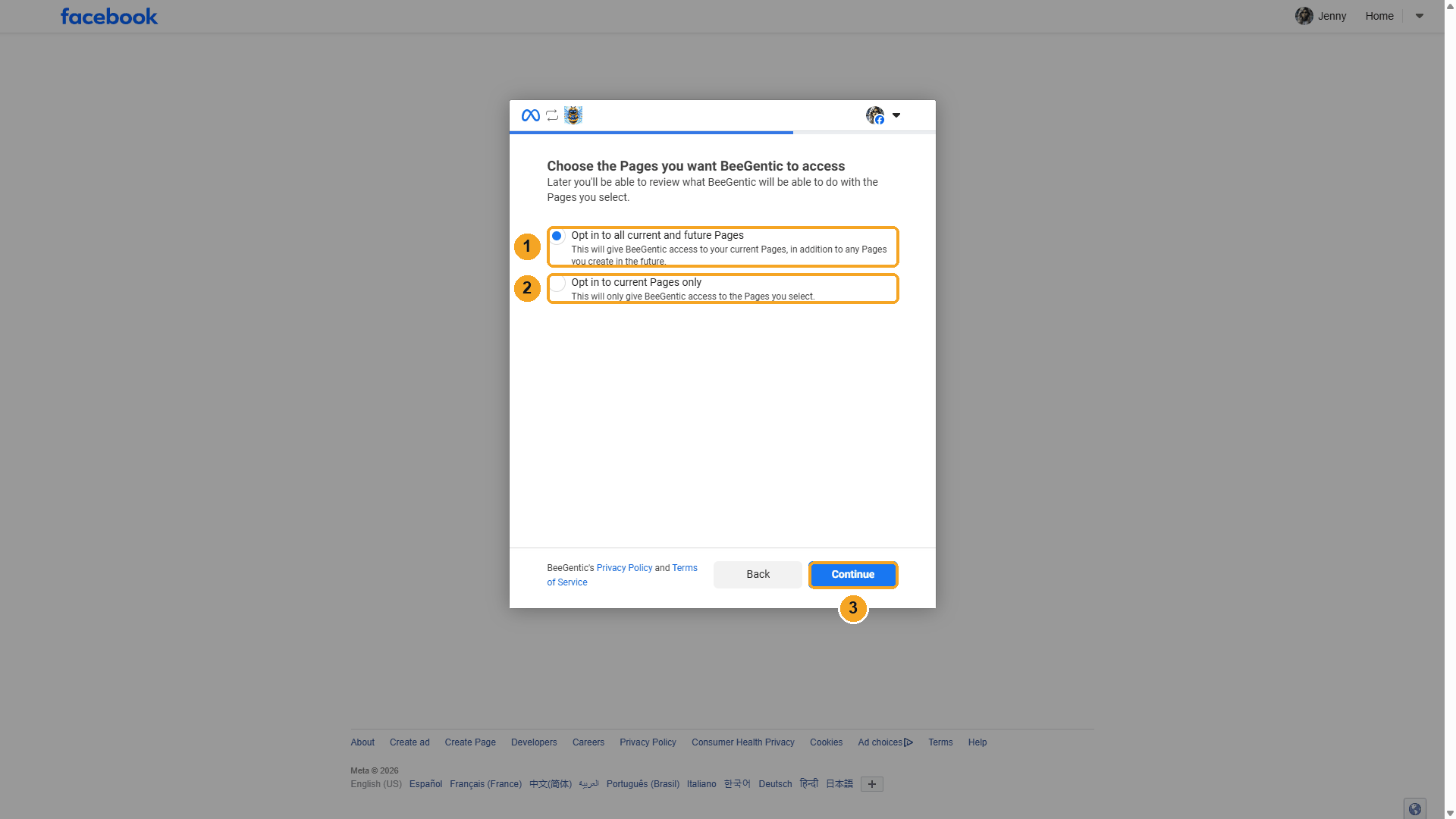
| # | What to do |
|---|---|
| 1 | Opt in to all current and future Pages is the easiest choice: new Pages work automatically. |
| 2 | Or choose Opt in to current Pages only and tick just the Pages you want. |
| 3 | Click Continue. |
Watch this step
Choose the businesses (if Facebook asks)
If you manage Pages through a business portfolio (Meta Business Suite), Facebook next shows Choose the Businesses you want BeeGentic to access. Opt in to the portfolio that owns your Pages, then click Continue. This lets BeeGentic find Pages that belong to the portfolio, not only Pages you manage personally.
Review and save
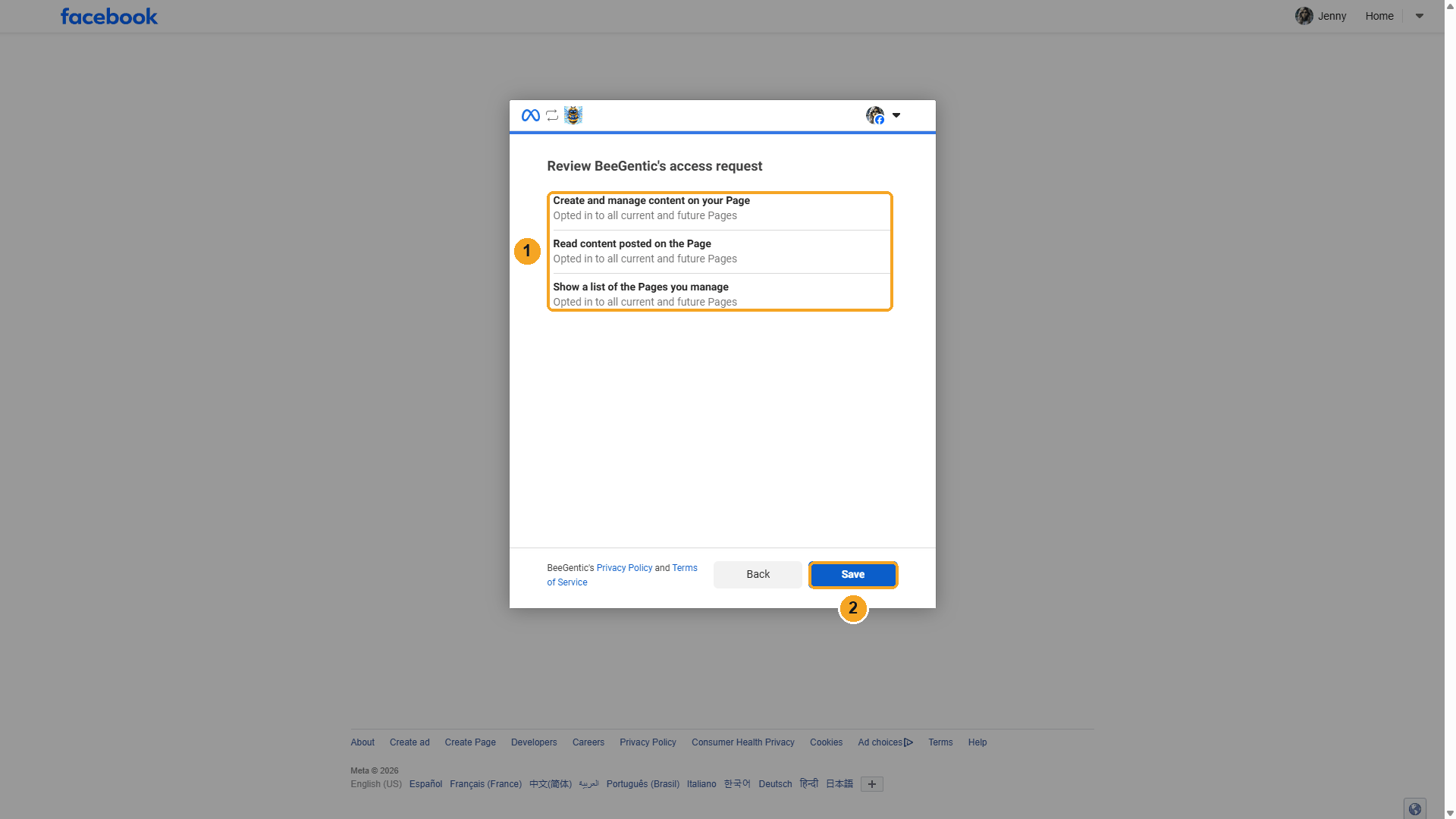
| # | What to do |
|---|---|
| 1 | Review the permissions: create posts, read Page content, list your Pages. |
| 2 | Click Save, then Got it. Facebook sends you back to BeeGentic. |
Watch this step
You're connected
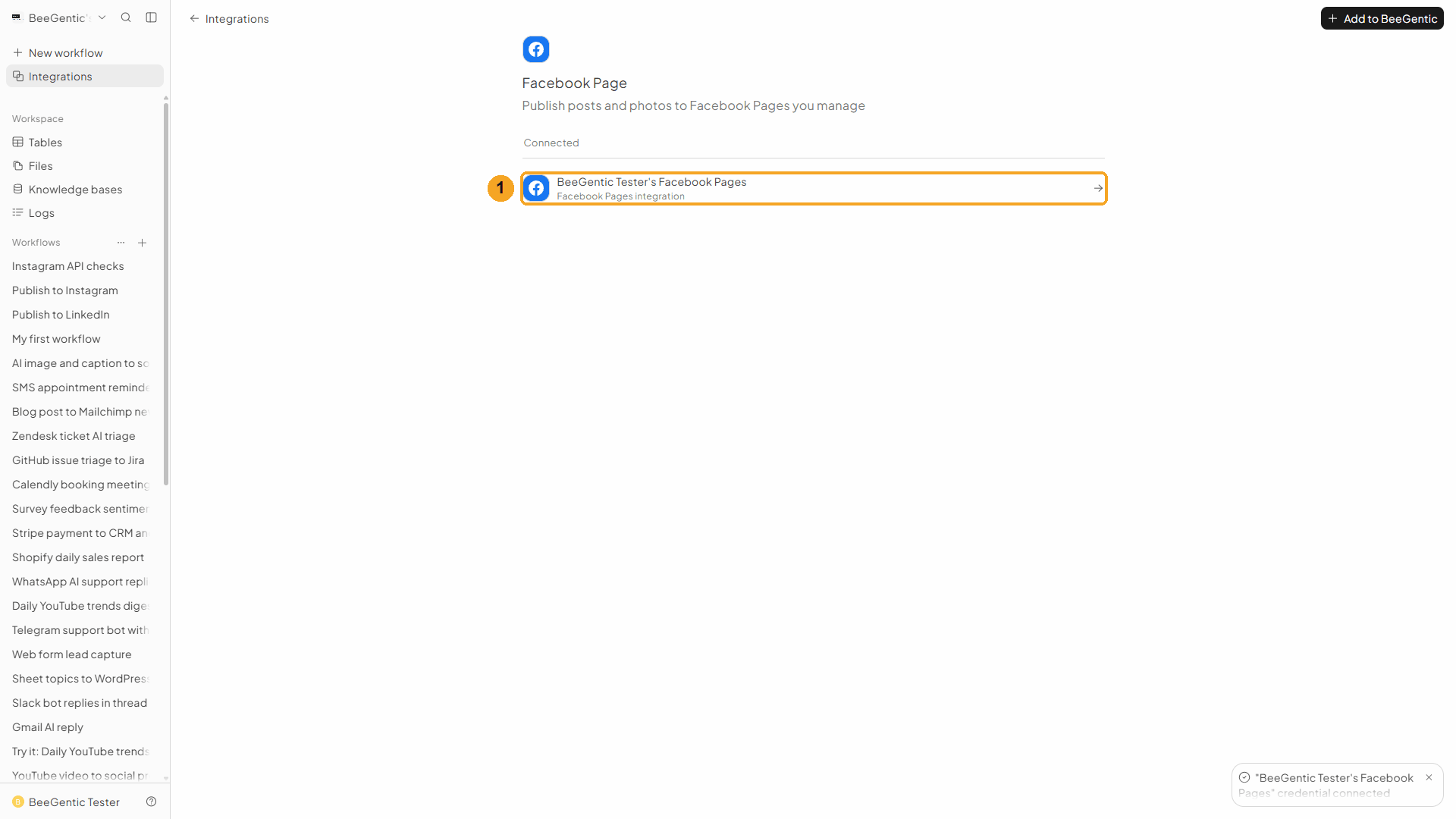
| # | What you see |
|---|---|
| 1 | Your connection under Connected. Every workflow in this workspace can use it. |
Part 2: Build the workflow
Create the workflow
Click + New workflow and name it Publish to Facebook. It starts with a Start block.
Watch this step
Add the Agent (the writer)
Toolbar → Agent. It appears already connected to Start. In Messages, type:
Write a Facebook post (max 60 words) announcing: <start.input>. Friendly and clear, one emoji, end with 2 relevant hashtags. Return only the post text.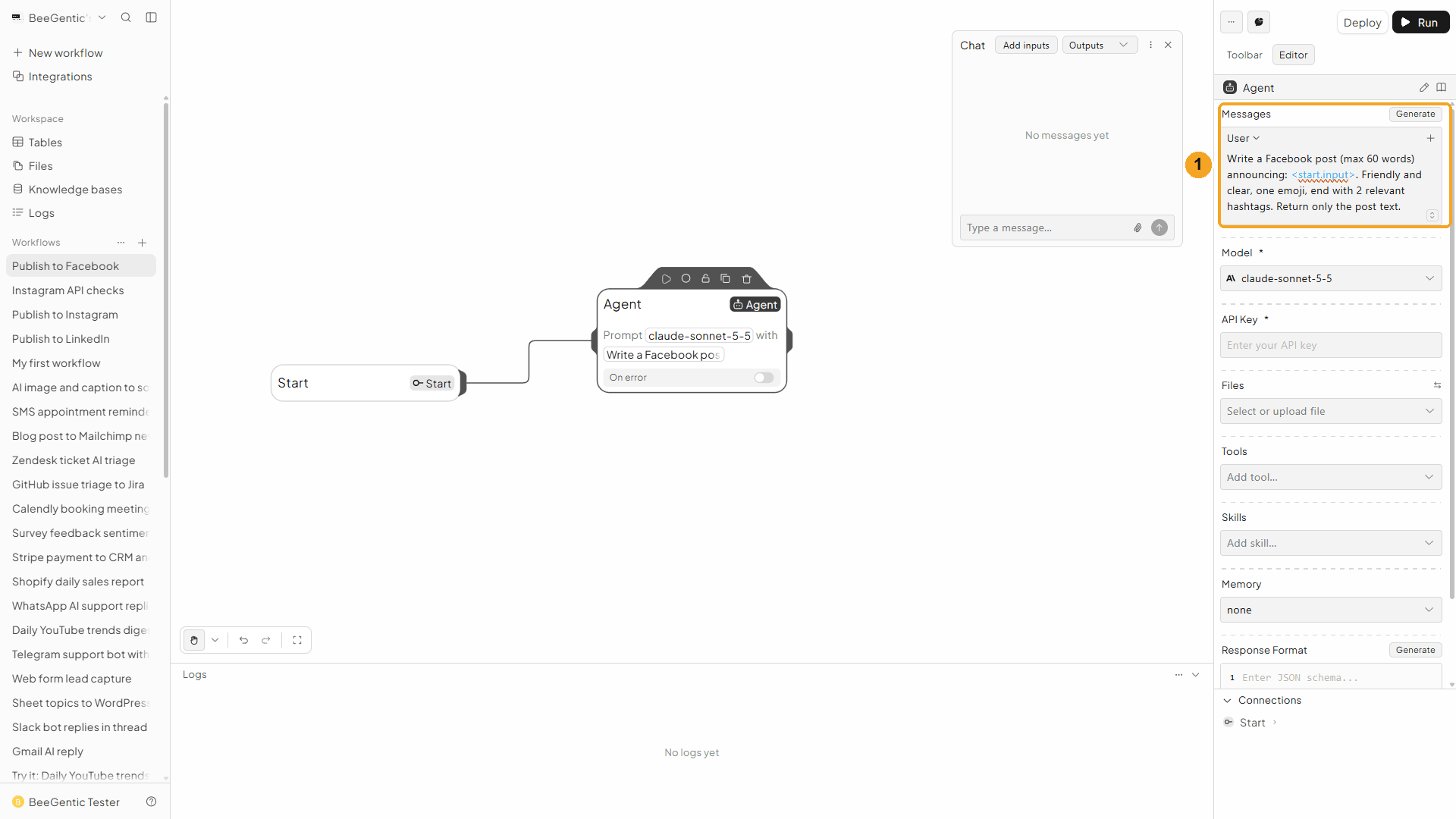
| # | What you see |
|---|---|
| 1 | The message, with <start.input> as a highlighted reference. It's replaced by whatever you type in Chat. |
Watch this step
Choose the model and key
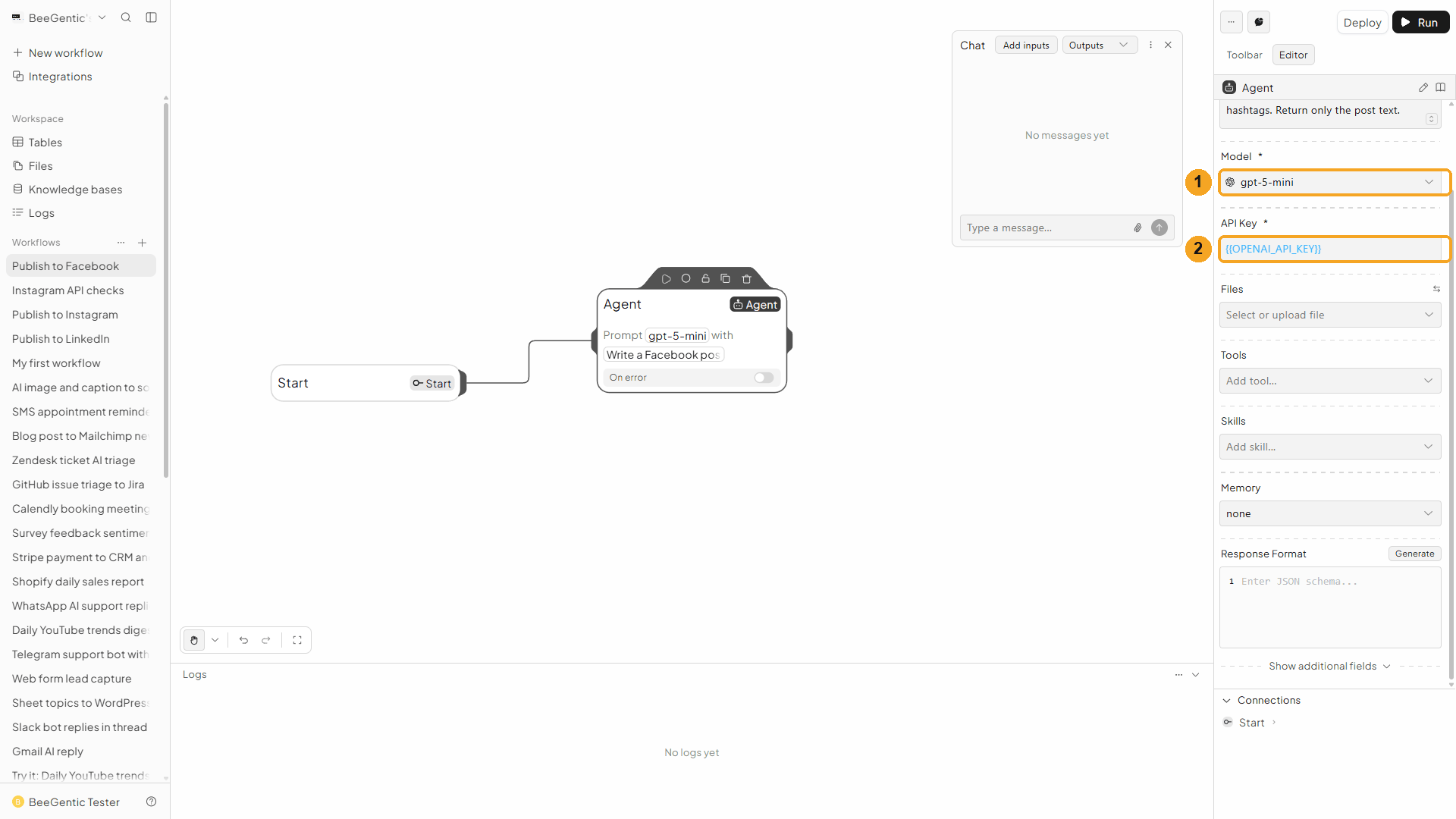
| # | Field | Value |
|---|---|---|
| 1 | Model | gpt-5-mini: fast and inexpensive |
| 2 | API Key | {{OPENAI_API_KEY}}: your secret, filled in at run time |
Watch this step
Add the Facebook Page block
Toolbar → Facebook Page. It connects to the Agent automatically.
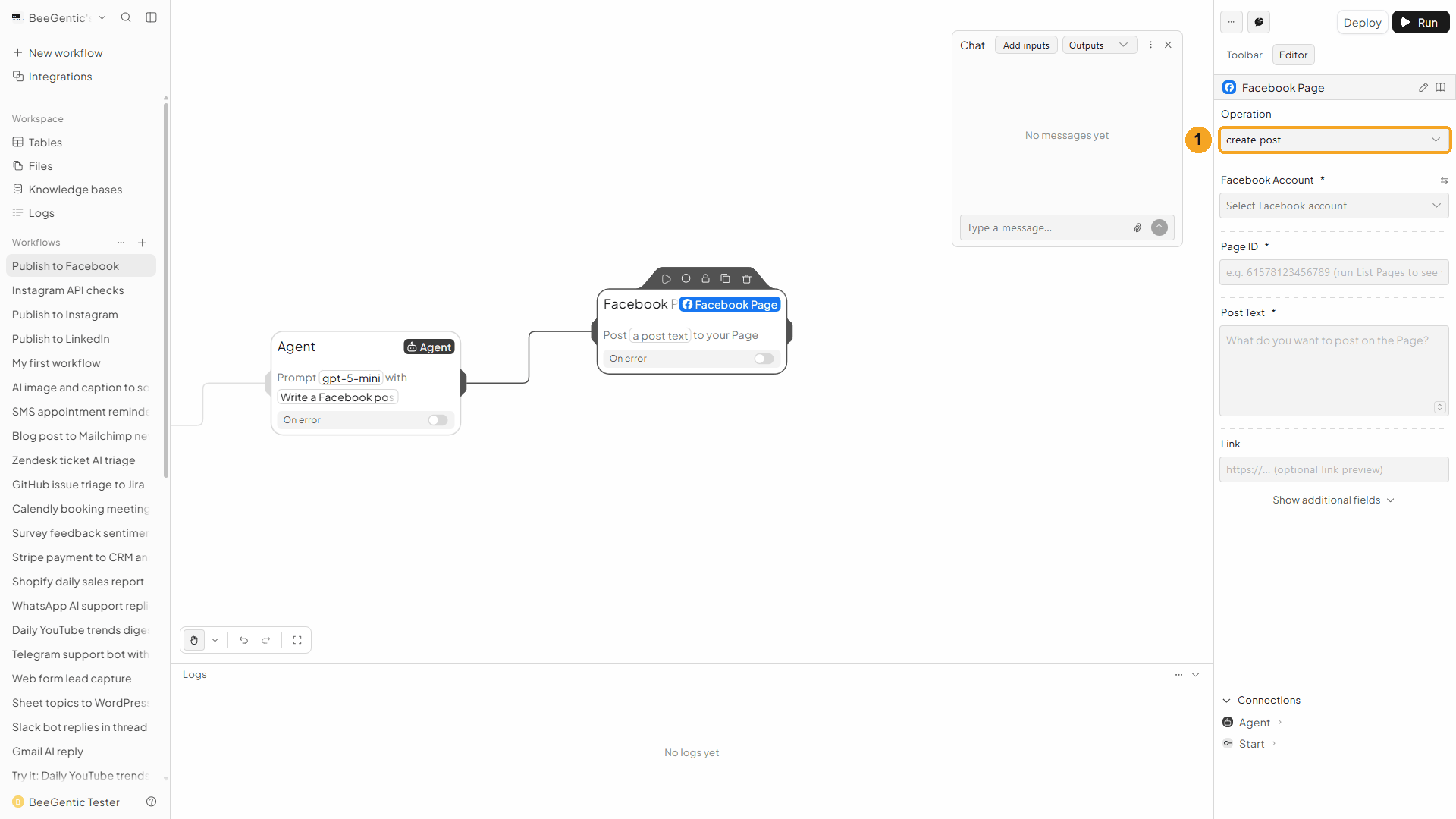
| # | Field | Value |
|---|---|---|
| 1 | Operation | Create Post (the default) |
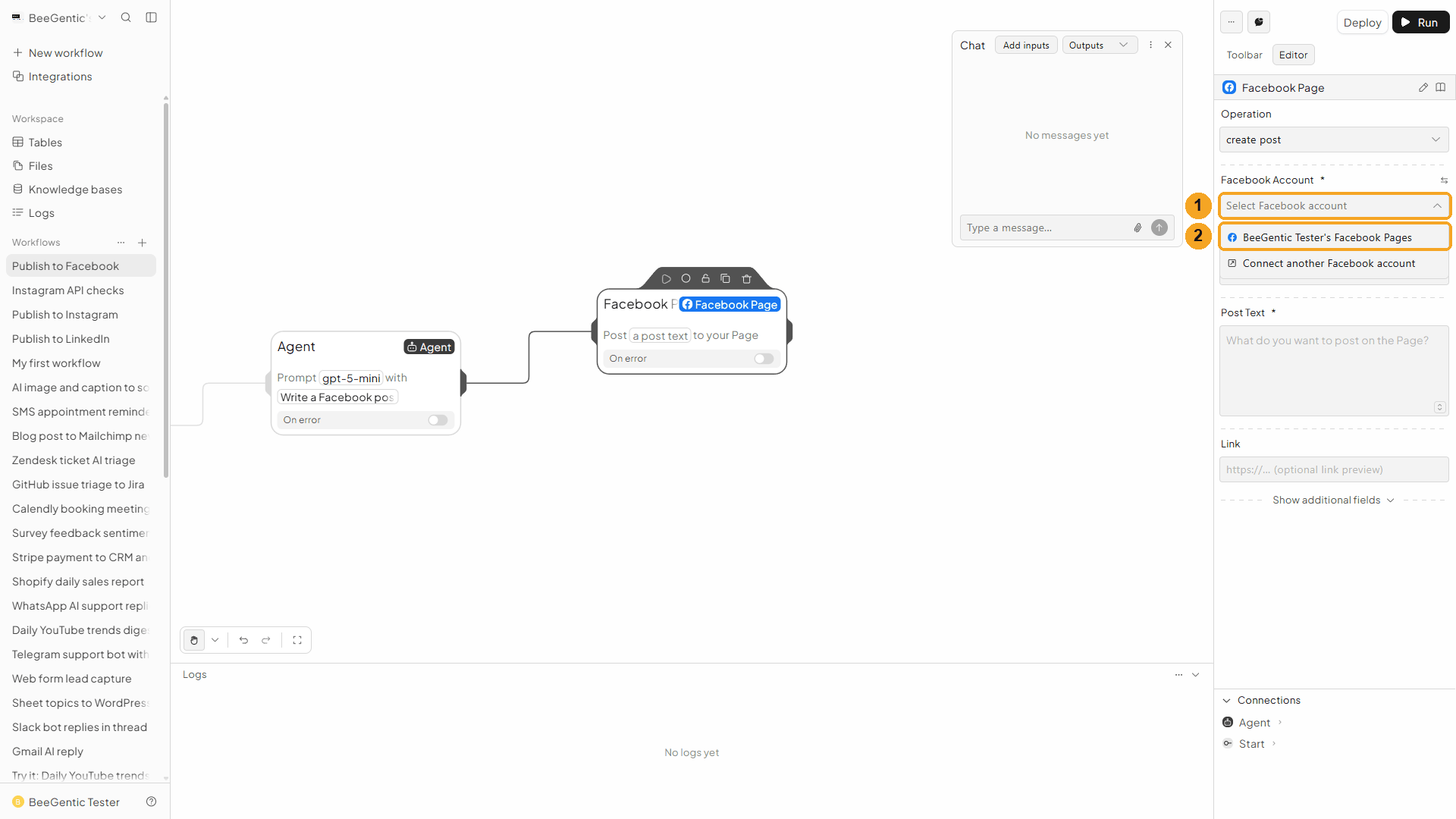
| # | What to do |
|---|---|
| 1 | Click Facebook Account. |
| 2 | Pick the connection you made in Part 1. |
Watch this step
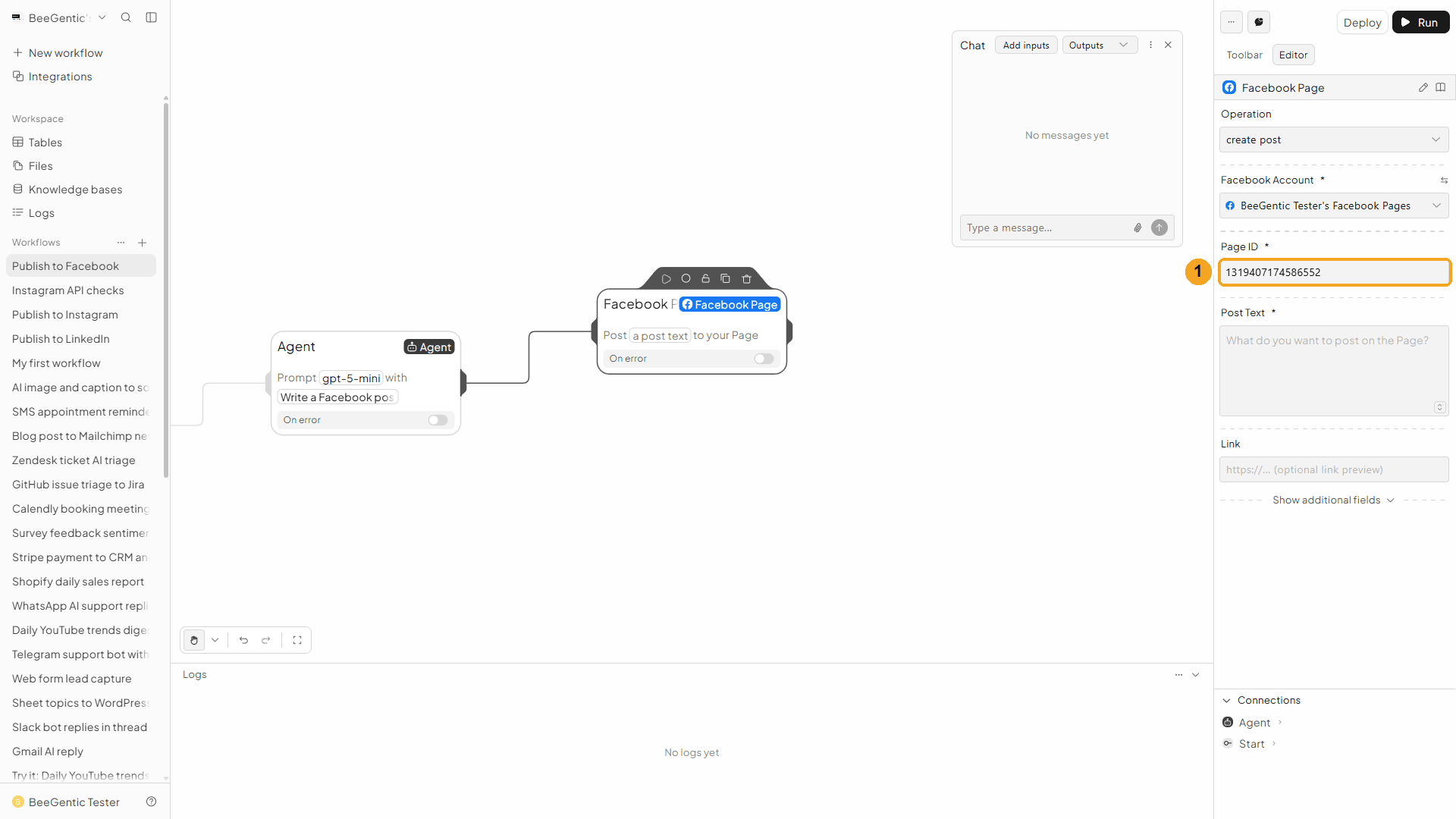
Post text and link
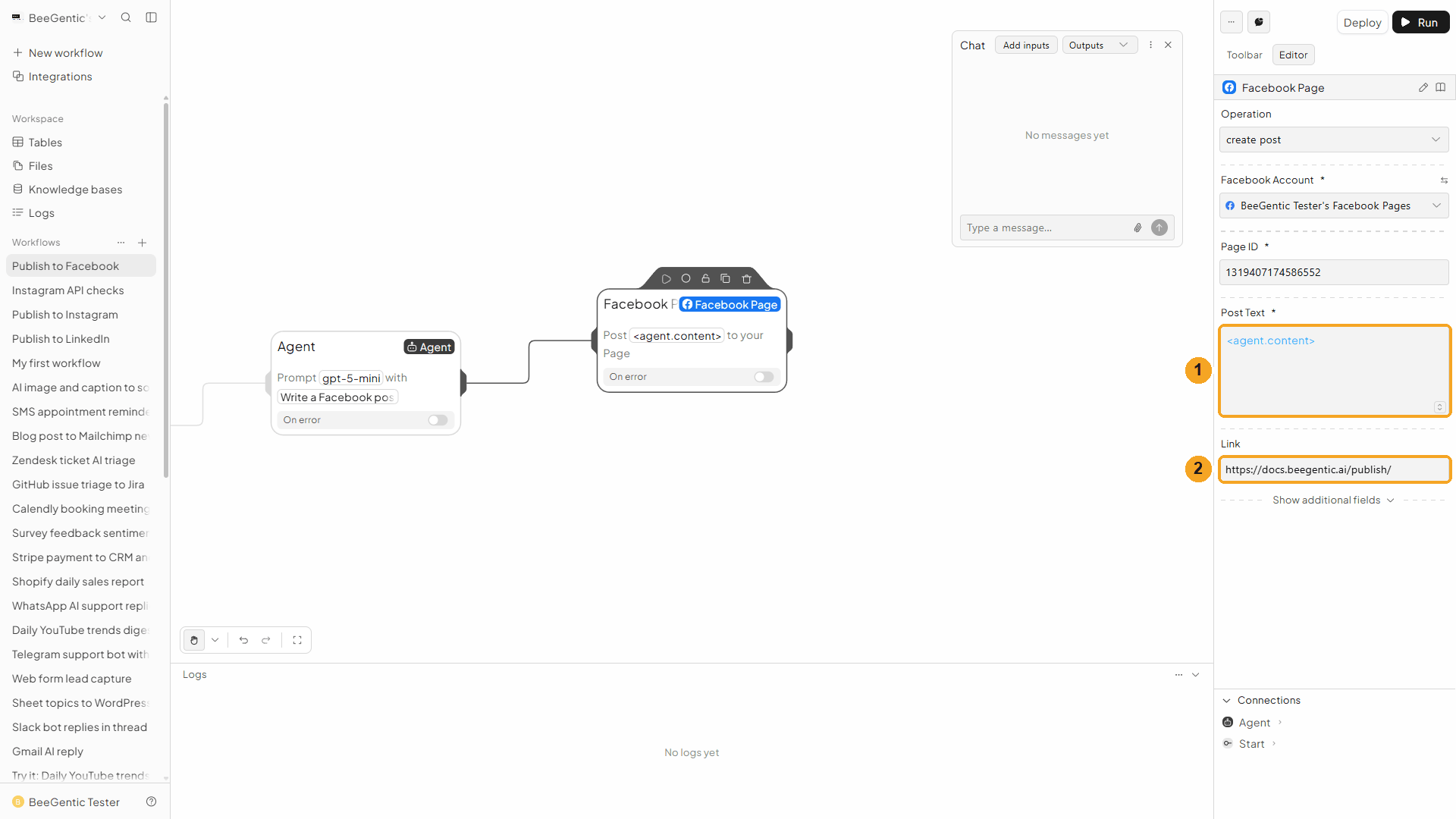
| # | Field | Value |
|---|---|---|
| 1 | Post Text | <agent.content>: the post the Agent wrote |
| 2 | Link (optional) | A URL, e.g. https://beegentic.ai. Facebook shows a preview card with its title and image. |
Press Shift + L to tidy the canvas. Your finished workflow:
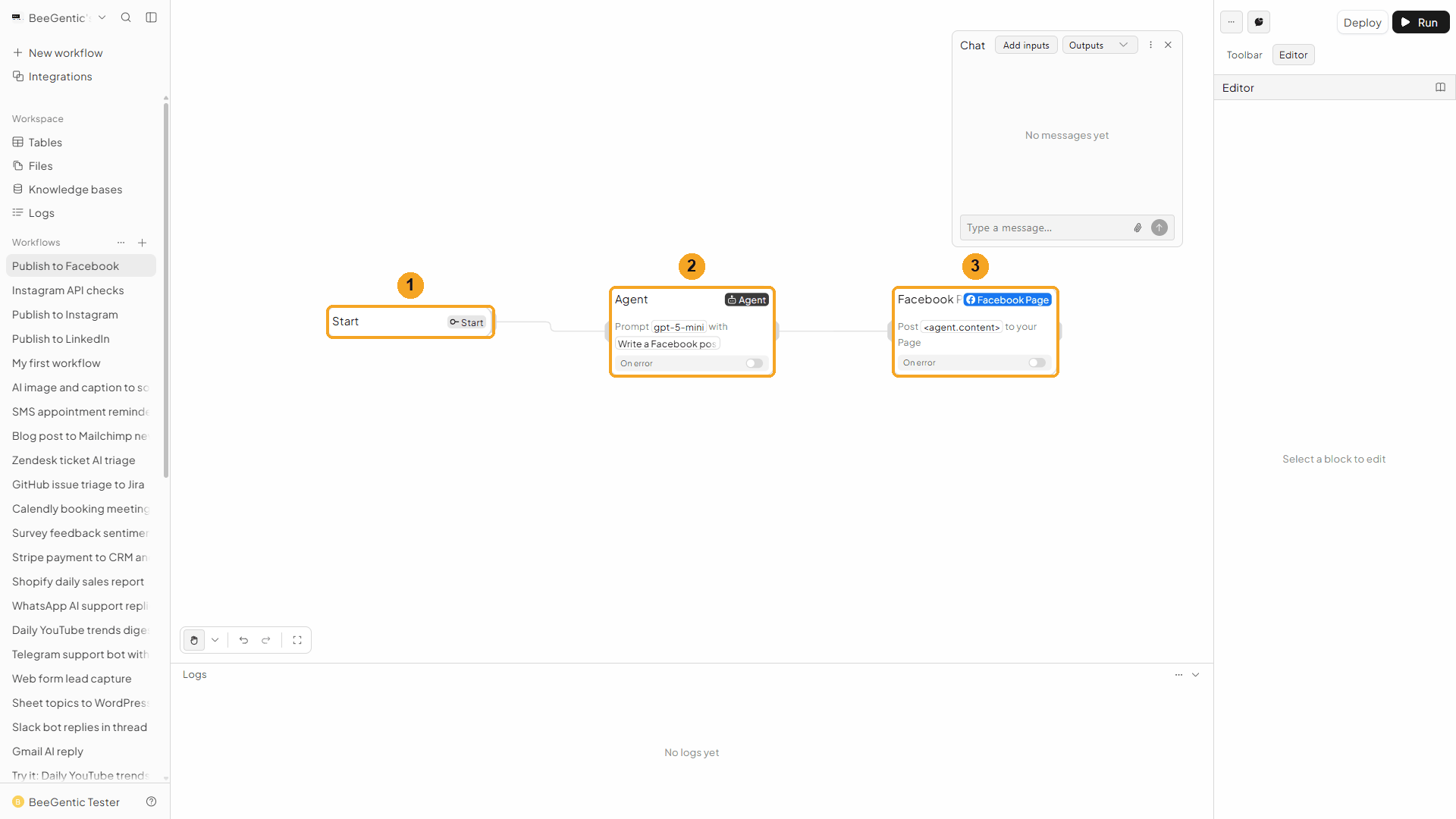
| # | Block | What it does |
|---|---|---|
| 1 | Start | Your chat message becomes <start.input> |
| 2 | Agent | Writes the post |
| 3 | Facebook Page | Publishes <agent.content> to your Page |
Watch this step
Part 3: Run it and check the result
Send the topic from Chat
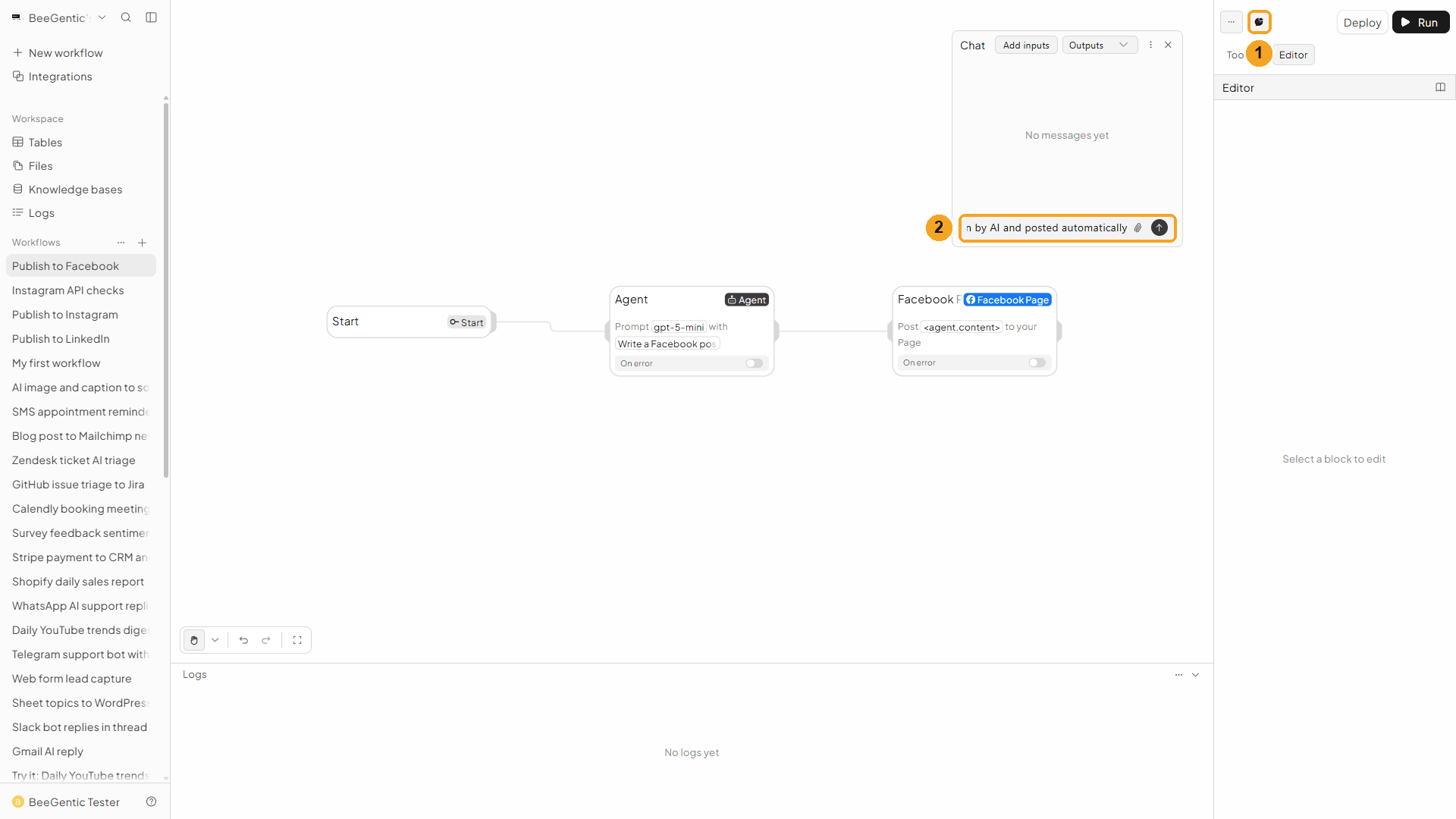
| # | What to do |
|---|---|
| 1 | Click the speech-bubble button to open Chat. |
| 2 | Type the topic and press Enter. |
Example message we sent:
BeeGentic now publishes straight to Facebook Pages, written by AI and posted automaticallyRead the output
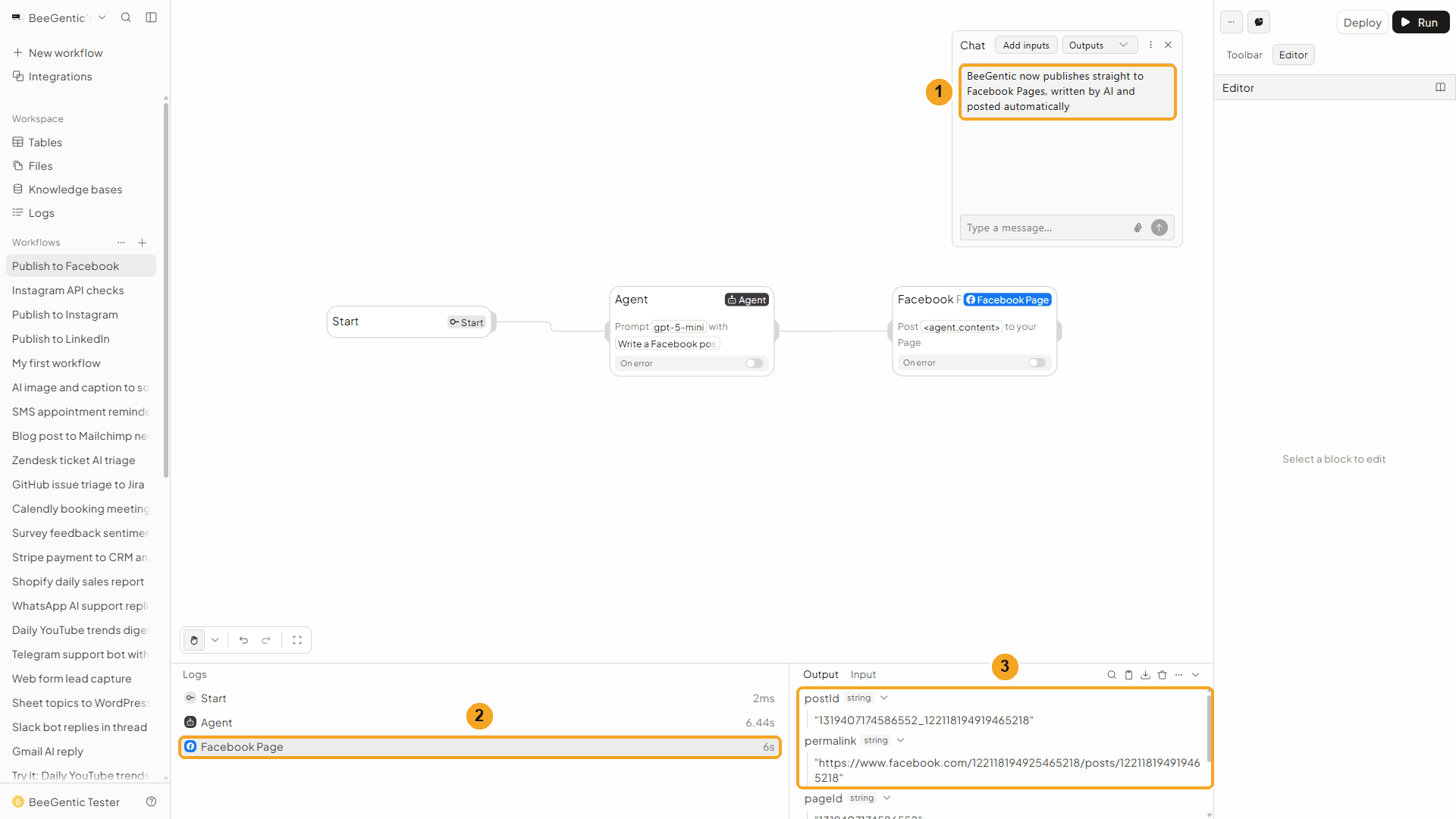
| # | What you see |
|---|---|
| 1 | Your message in Chat. |
| 2 | Each block's run time in the log. The Agent and Facebook took a few seconds each. |
| 3 | The output: postId and permalink, a direct link to the new post. |
Watch the run
See it on Facebook
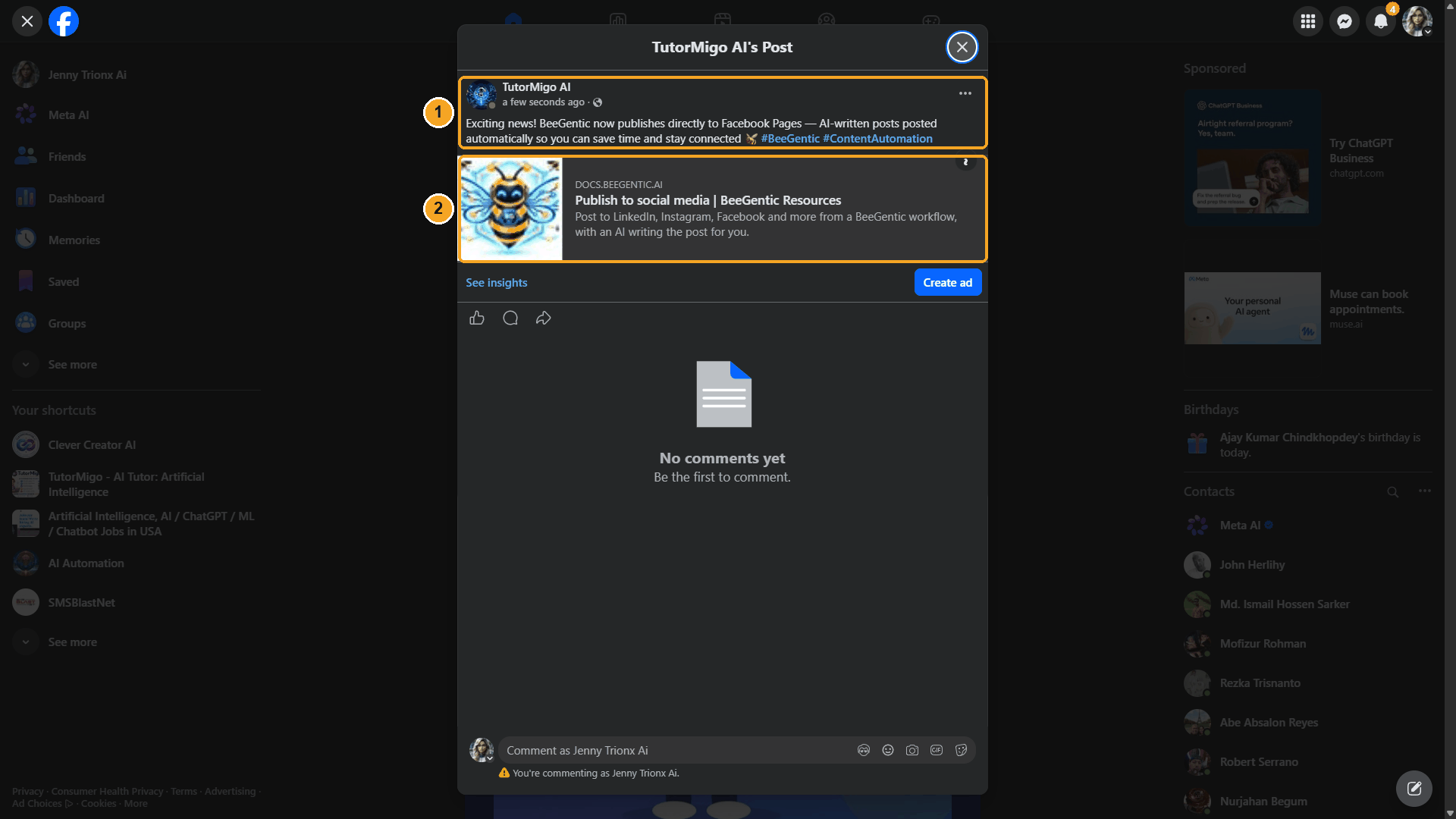
| # | What you see |
|---|---|
| 1 | The post, published as your Page. |
| 2 | The Agent's text, exactly as written. |
The real post BeeGentic published:
We deleted this test post afterwards with Delete Post (see below).
Watch this step
Part 4: Make it automatic
When it works from Chat, replace the chat with a trigger so posts go out on their own:
| You want | Do this |
|---|---|
| A post every Monday at 9:00 | Add a Schedule trigger. Write the topic into the Agent's message, or read the next topic from a Google Sheet. |
| A post for every new blog article | Add an RSS trigger with your blog's feed. Use the article title in the Agent's message and the article URL in Link. |
| A person checks each post first | Add a Slack or Gmail approval step between the Agent and the Facebook Page block. |
| Publish later, not now | Facebook Page block → Schedule For (advanced fields): an ISO date 10 minutes to 30 days ahead, e.g. 2026-10-05T09:00:00-04:00. Facebook holds the post until then. |
| A photo post | Operation → Create Photo Post, with a public https:// image URL and a Caption. |
| Read what's on the Page | Operation → Get Page Posts, with Number of Posts. |
Undo a post
Use the Facebook Page block with Operation → Delete Post:
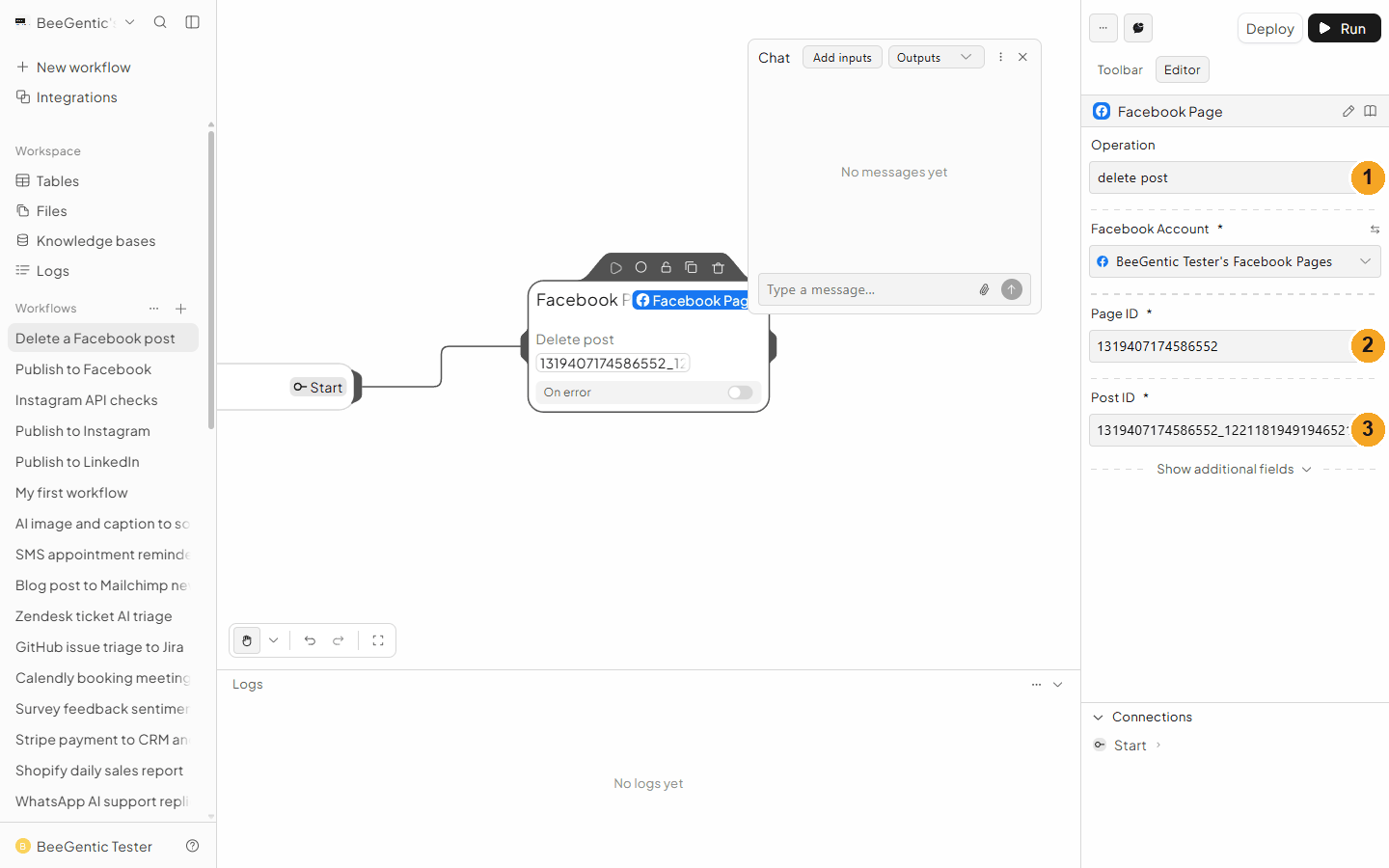
| # | Field | Value |
|---|---|---|
| 1 | Operation | Delete Post |
| 2 | Page ID | The same Page |
| 3 | Post ID | The postId from the output, e.g. 1319407174586552_122118194919465218 |
Troubleshooting
| Problem | Fix |
|---|---|
| My Page isn't in List Pages | The connected Facebook account must manage the Page, personally or through a business portfolio you opted in to when connecting. Reconnect, and opt in to the Page and its portfolio. If the Page belongs to someone else's portfolio, ask them to add you (Meta Business Suite → Settings → Pages → Assign people). |
A Page shows canPost: false with a business name | You can see the Page through that portfolio but have no posting task on it. A portfolio admin assigns you Content access on the Page, then it works without reconnecting. |
(#200) or "permission" error | Reconnect, and make sure the Page is ticked in the Facebook dialog. |
| "Session has expired" or invalid token | The ~60-day access ran out. Integrations → Facebook Page → connect again. |
canPost is false | Your Page role can't create posts. Ask an admin for Content access. |
| "scheduledPublishTime" error | Use an ISO date with a time zone, 10 minutes to 30 days from now. |
| Teammates can't connect | BeeGentic's Facebook app is in Meta review. Until it's approved, only people added as testers can connect. |
Publish to Instagram
Build Start → Agent → Instagram (Publish Image), and BeeGentic writes the caption and posts your photo. Real result included.
ChatterMate → Facebook Page
Let ChatterMate write the post and BeeGentic publish it to your Facebook Page. No OpenAI or Anthropic key needed. Real result included.