


Connect YouTube with your own Google app
Step by step. Create a free OAuth app in your own Google Cloud project, connect YouTube Publishing with it, and get your own YouTube upload quota with no BeeGentic limits.
What you'll do: create a free app in your own Google Cloud project, then paste two values from it (the Client ID and the Client secret) into BeeGentic once. After that, every upload uses your project's YouTube quota. It takes about 15 minutes the first time.
Posts to: Your YouTube channel (or a brand-account channel) · Connect with: Sign in with Google · Block: YouTube Publishing
| Text | Link | Image | Video | Multi | Schedule | Edit | Delete | Read | Comments | Insights |
|---|---|---|---|---|---|---|---|---|---|---|
| n/a | n/a | ⚠️ | ✅ | — | ✅ | ✅ | ✅ | ✅ | ⚠️ | ⚠️ |
Not supported: Community posts · Live streams · Playlists management · Replying to comments
⏳ Connect with your own Google app (your project's quota, no BeeGentic limits) or try BeeGentic's app: 3 uploads/day for 30 days. BeeGentic's app shows Google's unverified-app notice until verification.
✅ supported · ⚠️ partly (hover for details) · — not supported
The same Google app works for Gmail, Sheets, Drive, Docs, Calendar and Forms too. Narrated video and the latest Google Cloud screens: Google with your own app.
Why your own app? YouTube counts uploads per Google Cloud project, not per channel. With your own app you get your project's full quota: 100 uploads a day to start, and you can ask Google for more. BeeGentic adds no limit of its own.
Just trying it out? You can connect with BeeGentic's app instead: up to 3 videos a day for the first 30 days after you sign up for BeeGentic. After that, YouTube steps stop working until you reconnect with your own app, using this guide.
Before you start
| You need | Why |
|---|---|
| A Google account that can open Google Cloud Console | You create the app there. It's free; no billing account is needed for the YouTube Data API. |
| A YouTube channel on that Google account (or a Brand Account it manages) | BeeGentic uploads to it. Open youtube.com → your picture → Create a channel if you don't have one yet. |
| A BeeGentic workspace where you can add integrations | You connect YouTube there. |
Keep two browser tabs open: Google Cloud Console and BeeGentic.
Part 1: Create your Google app (once)
Create a Google Cloud project
- Open console.cloud.google.com and sign in with the Google account that owns your YouTube channel.
- Click the project picker at the top, next to the Google Cloud logo, then New project.
- Project name: for example
My YouTube publishing. Leave Location as it is. - Click Create. Wait a few seconds, then make sure the new project is selected in the project picker.
Turn on the YouTube Data API v3
- Open ☰ menu → APIs & Services → Library.
- Search for YouTube Data API v3 and open it.
- Click Enable.
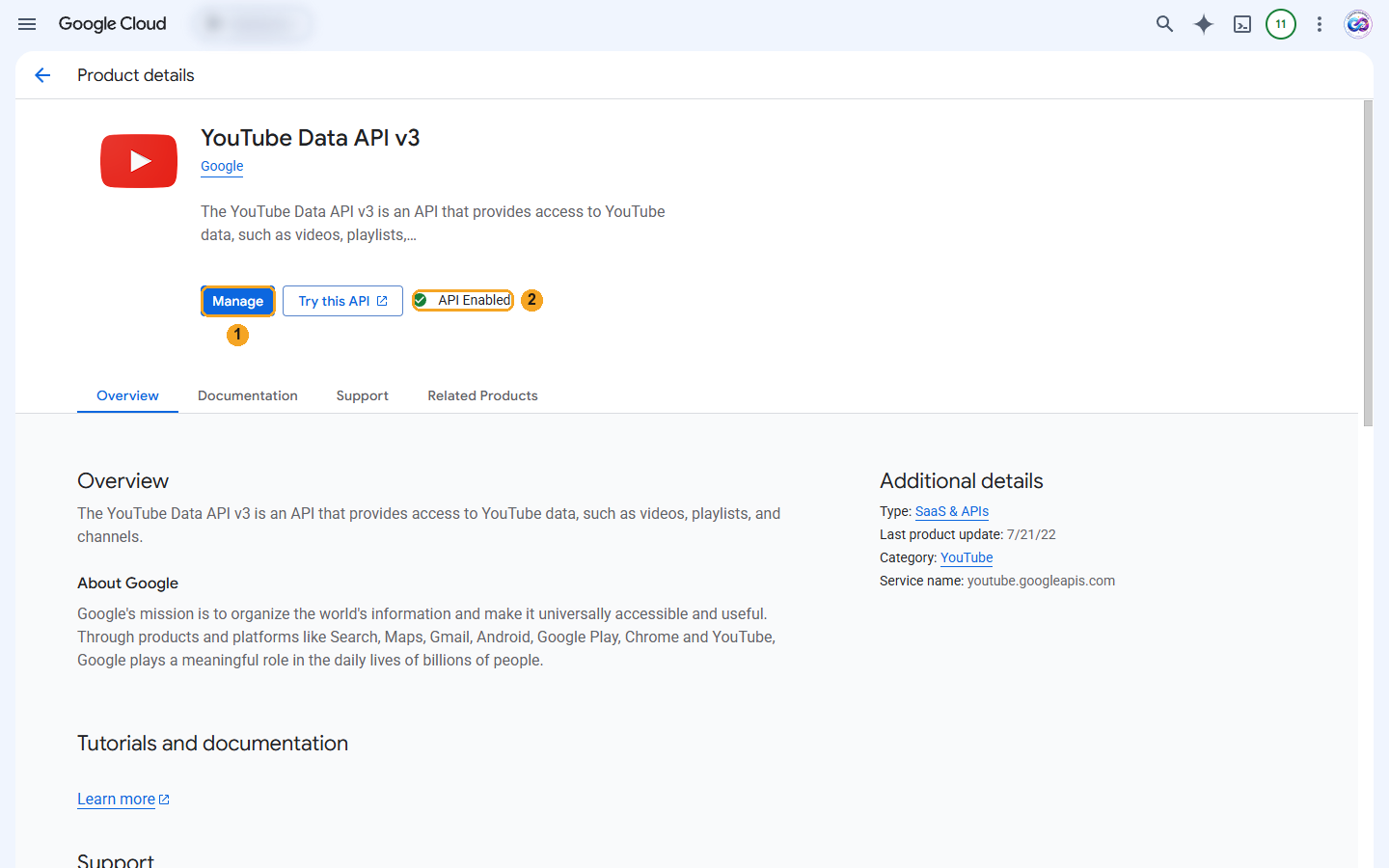
| # | What you see |
|---|---|
| 1 | Enable. Once it's on, the button changes to Manage. |
| 2 | API Enabled: you're done with this step. |
Set up the consent screen (Google Auth Platform)
This is the screen Google shows when you connect. Open ☰ menu → Google Auth Platform. If you see Get started, click it and fill in:
| Section | What to enter |
|---|---|
| App information | App name: any name, for example My YouTube publishing (Google shows it on the consent screen; don't use the word Google). User support email: your email. |
| Audience | External. |
| Contact information | Your email. |
| Finish | Tick the box to agree to the Google API Services: User Data Policy, then click Create. |
Then open Audience in the left menu:
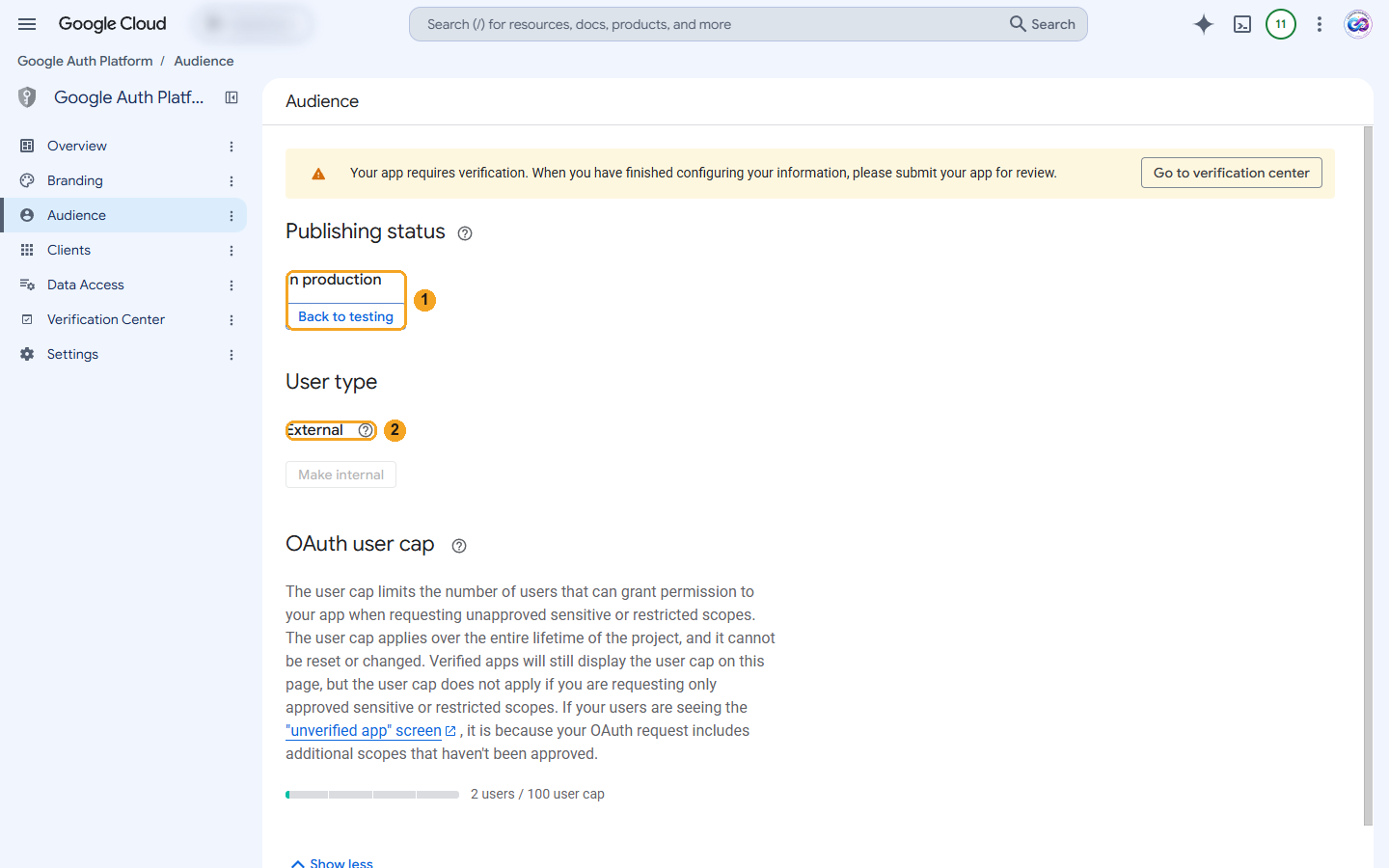
| # | What you see |
|---|---|
| 1 | Publishing status. New apps start in Testing (see the drawer below). Click Publish app to move to In production. |
| 2 | User type: External. |
While the app is in Testing, scroll down to Test users → Add users and add the Google account that owns your YouTube channel.
Add the YouTube permissions
- Open Data Access in the left menu.
- Click Add or remove scopes.
- In the filter, type
youtubeand tick:.../auth/youtube.upload(upload videos).../auth/youtube.force-ssl(list, update and delete your videos)
- Click Update, then Save.
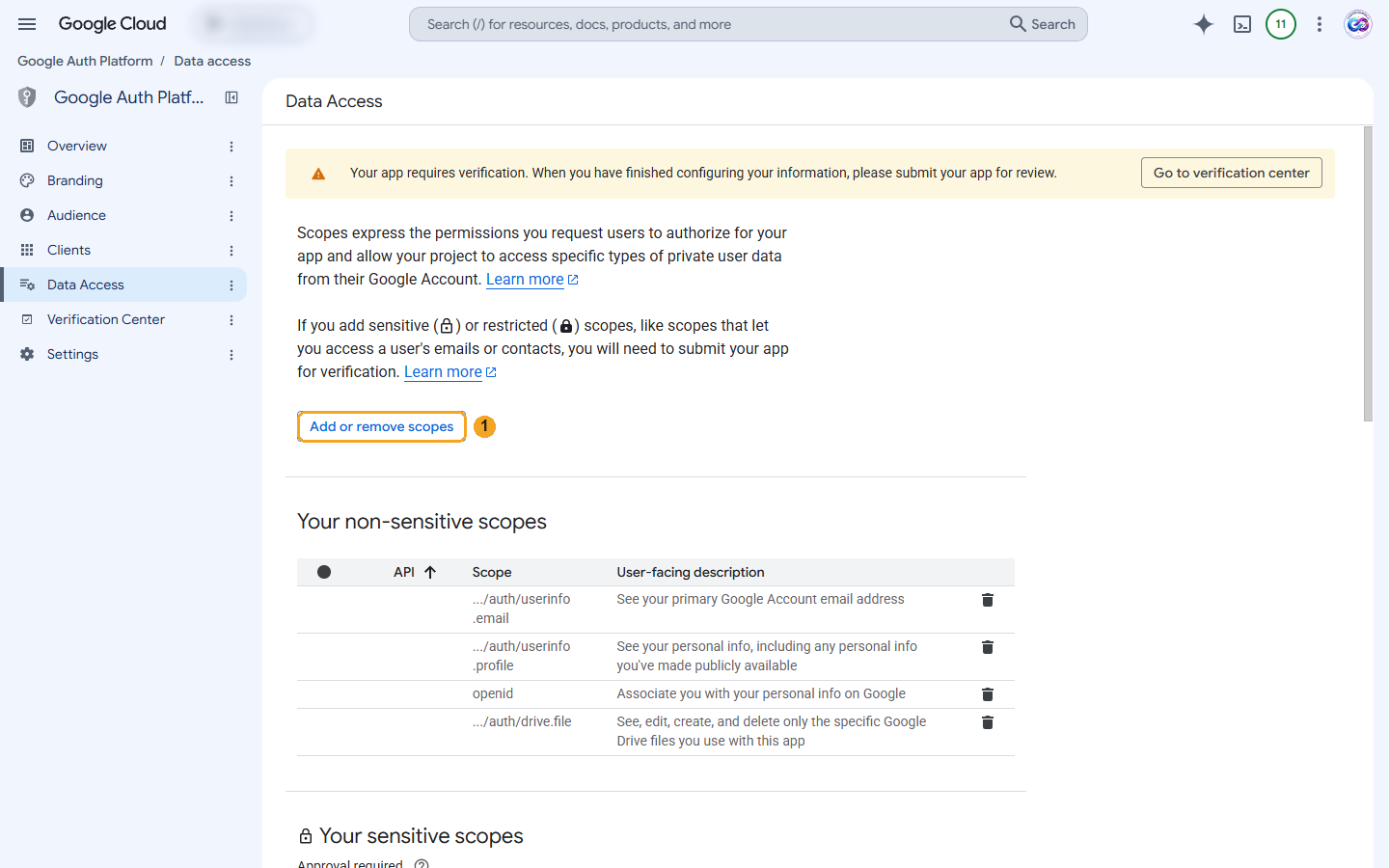
| # | What you see |
|---|---|
| 1 | Add or remove scopes: opens the list where you tick the two YouTube scopes. They then appear under Your sensitive scopes. |
Create the OAuth client
-
In BeeGentic, open Integrations → YouTube Publishing → Add to BeeGentic, keep Use my own Google app (recommended), and click the copy button next to Redirect URI (see Part 2, picture 2). On BeeGentic it is:
https://app.beegentic.ai/api/auth/oauth2/callback/own/googleThe same Google app works for all Google tools (Gmail, Sheets, Drive, Docs, Calendar, Forms): see Connect tools with your own app. Made your client with the older
.../callback/google-youtube-ownaddress? It keeps working; add/own/googletoo for new connections. -
Back in Google Cloud, open Clients in the left menu → Create client.
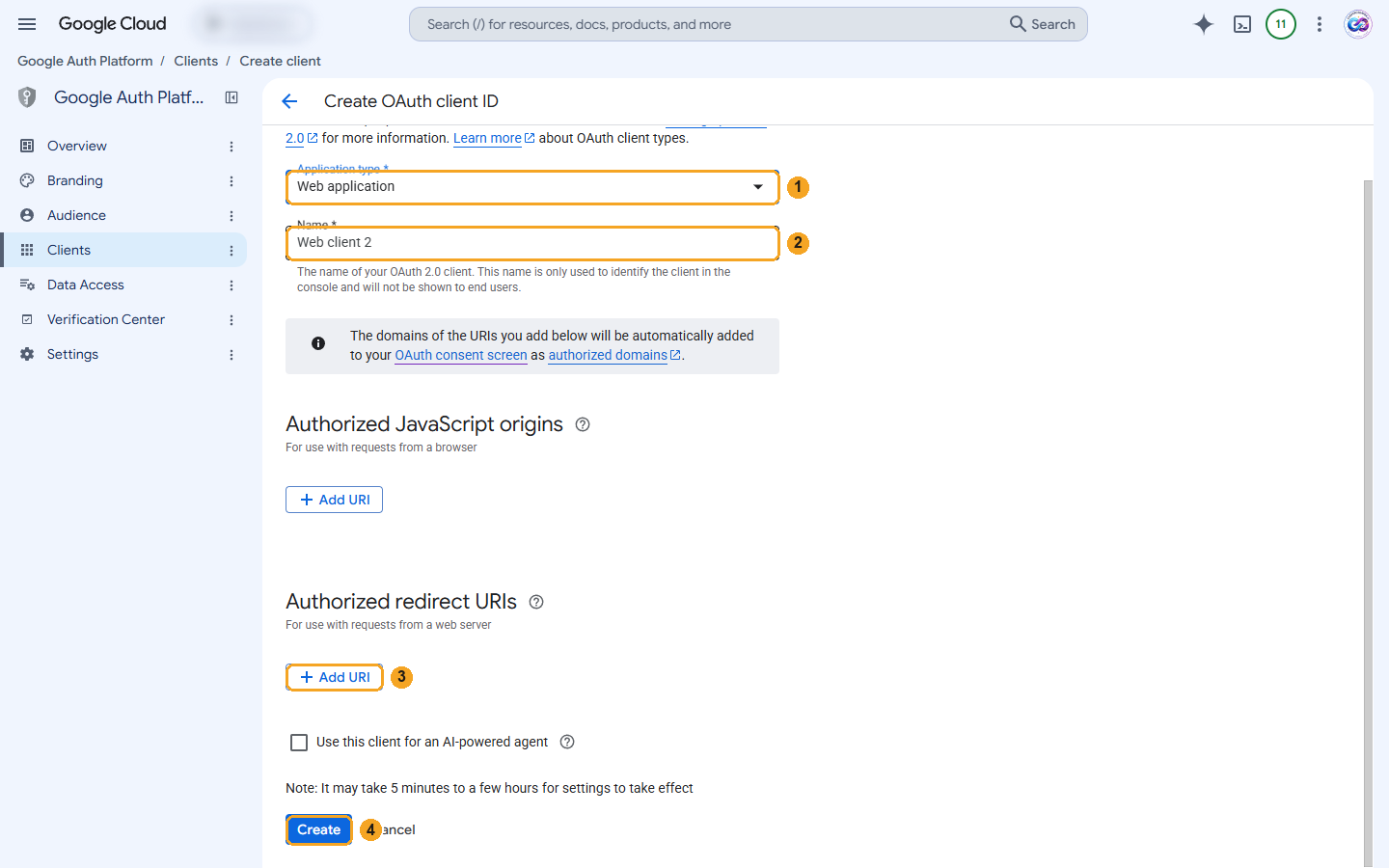
| # | What to do |
|---|---|
| 1 | Application type: choose Web application. |
| 2 | Name: for example BeeGentic. Only you see it. |
| 3 | Under Authorized redirect URIs, click Add URI and paste the redirect URI you copied. Leave Authorized JavaScript origins empty. |
| 4 | Click Create. |
- Google shows your Client ID (ends in
.apps.googleusercontent.com) and Client secret (starts withGOCSPX-). Copy both now. Google only shows the secret this once; click Download JSON if you want a copy.
Keep the secret private: anyone with it can pretend to be your app. If it leaks or you lose it, open the client in Clients, add a new secret, delete the old one, and reconnect in BeeGentic.
Part 2: Connect YouTube in BeeGentic (once)
Open the connect window
Integrations (left sidebar) → search YouTube Publishing → open it → Add to BeeGentic (top right).
The Google app menu has two choices:
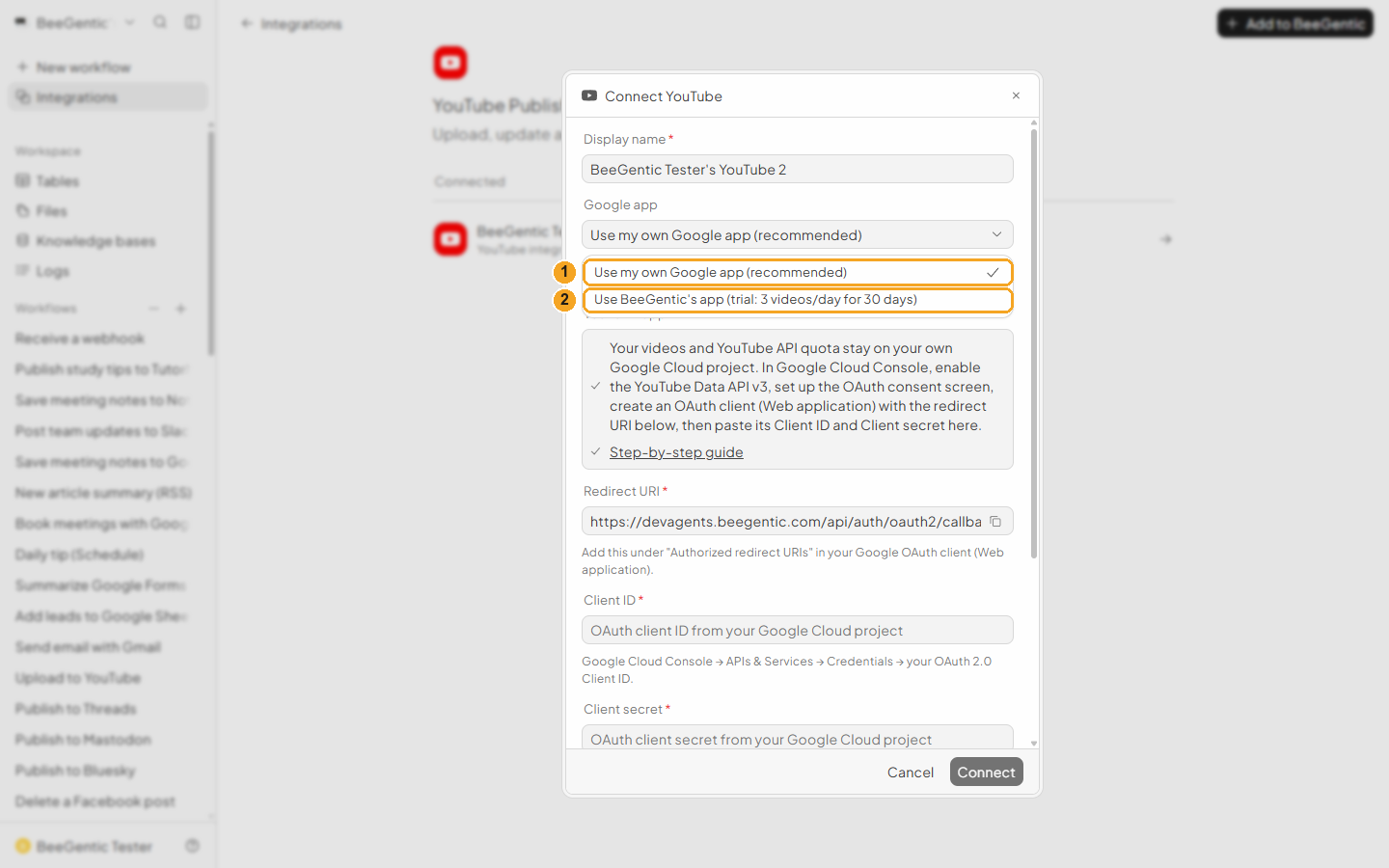
| # | Choice | Use it when |
|---|---|---|
| 1 | Use my own Google app (recommended) | You made the app in Part 1. No BeeGentic limits. |
| 2 | Use BeeGentic's app (trial: 3 videos/day for 30 days) | You only want to try YouTube Publishing first. |
Enter your app's details
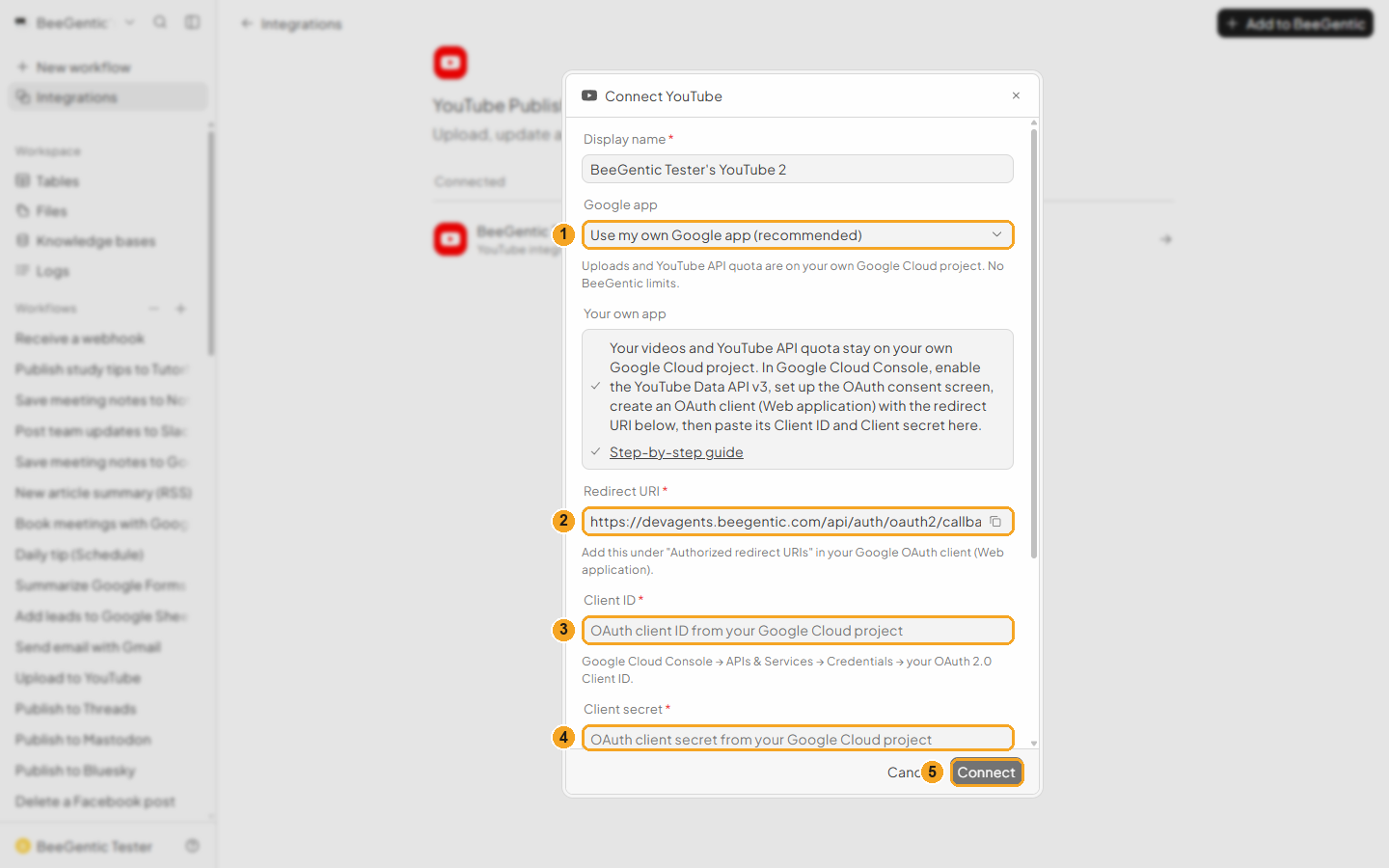
| # | Field | What to do |
|---|---|---|
| 1 | Google app | Use my own Google app (recommended). |
| 2 | Redirect URI | Already filled in: https://app.beegentic.ai/api/auth/oauth2/callback/own/google (the picture shows the older …/callback/google-youtube-own address, which still works for clients made with it). It must match the URI you added in Part 1, step 5, character for character. Click the copy button to copy it again. |
| 3 | Client ID | Paste the Client ID from Google. |
| 4 | Client secret | Paste the Client secret. BeeGentic stores it encrypted and only uses it for this connection. |
| 5 | Connect | Opens Google. |
Display name (top) is how this connection appears in BeeGentic, for example Company channel.
Approve on Google
Google opens in the same tab:
- Choose an account: pick the Google account that owns your channel.
- "Google hasn't verified this app": this is your own app, so it's expected. Click Advanced, then Go to your app name (unsafe). (On a Testing app you may see Continue instead.)
- Choose a channel: if your account manages several channels (Brand Accounts), pick the one BeeGentic should upload to.
- Permissions: allow both: upload YouTube videos and manage your YouTube videos. If Google shows checkboxes, tick them all, then Continue.
You're sent back to BeeGentic and the connection appears under Connected. Finish in the same tab you started in.
Check which app the connection uses
Click the connection in Integrations → YouTube Publishing.
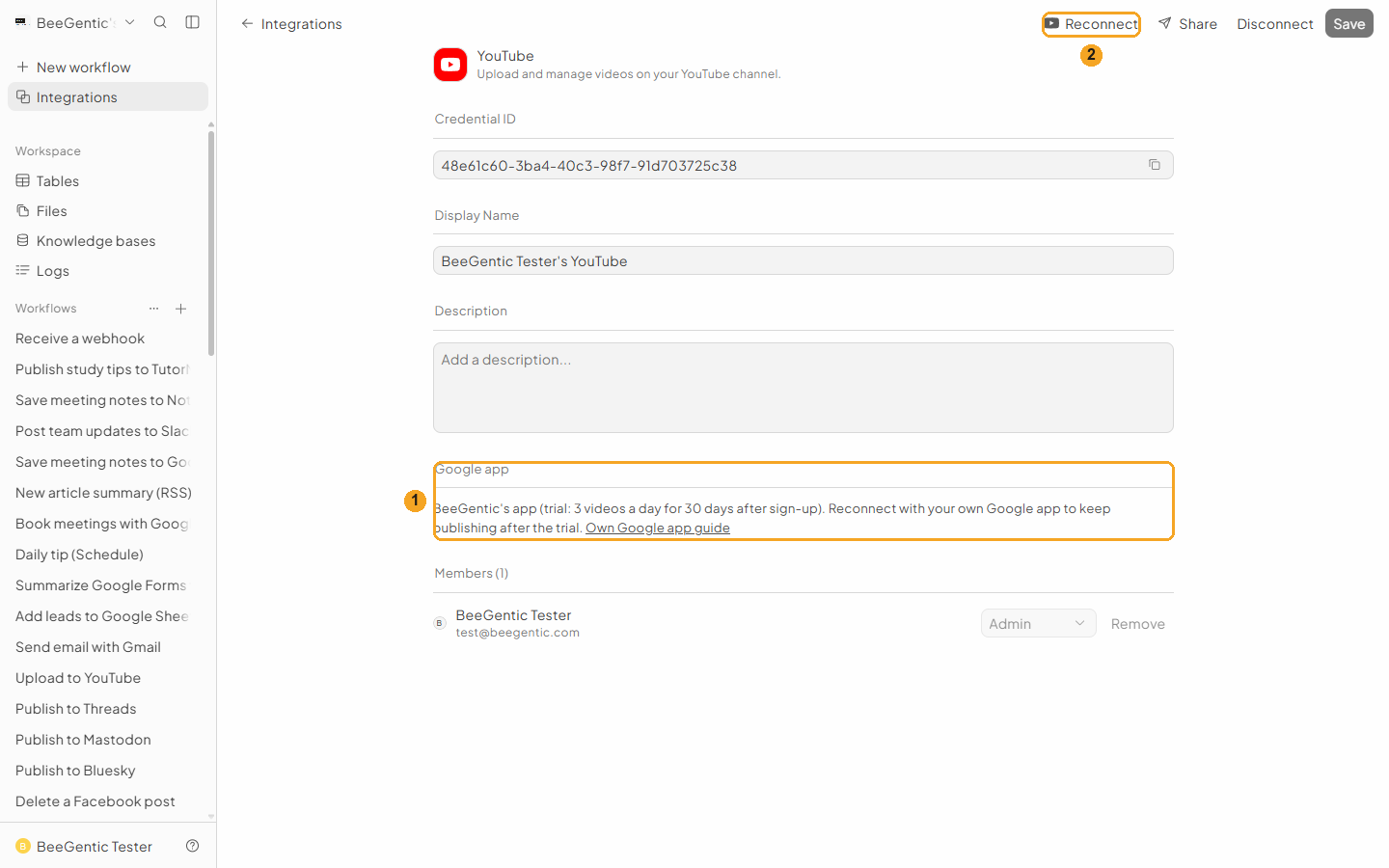
| # | What you see |
|---|---|
| 1 | Google app. It says Your own Google app for connections made with Part 1. BeeGentic's app (trial…) means the connection uses the trial. |
| 2 | Reconnect: use it to switch a trial connection to your own app (below), or after you change your Client secret. |
Now build your workflow as in Publish to YouTube. Example: Start → YouTube Publishing (Upload Video), with Privacy set to unlisted:
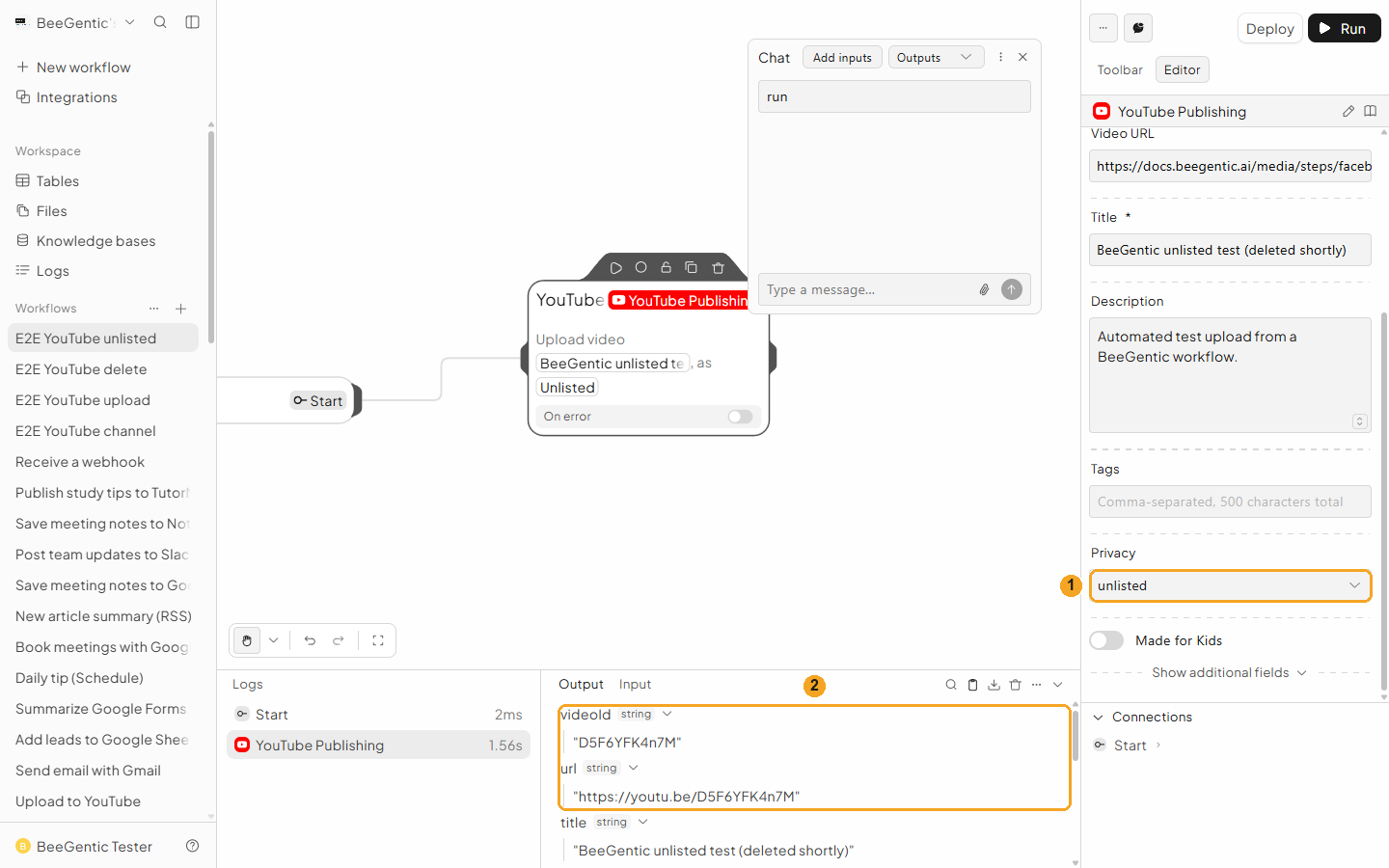
| # | What you see |
|---|---|
| 1 | Privacy: private (default), unlisted or public. |
| 2 | The output: videoId, url (the youtu.be link), title and privacyStatus, the privacy YouTube actually applied. |
Switch a trial connection to your own app
- Do Part 1 to create your app.
- Integrations → YouTube Publishing → your connection → Reconnect.
- Choose Use my own Google app (recommended), paste your Client ID and Client secret, and click Connect.
- Approve on Google (Part 2, step 3). Workflows that use this connection keep working.
Your quota
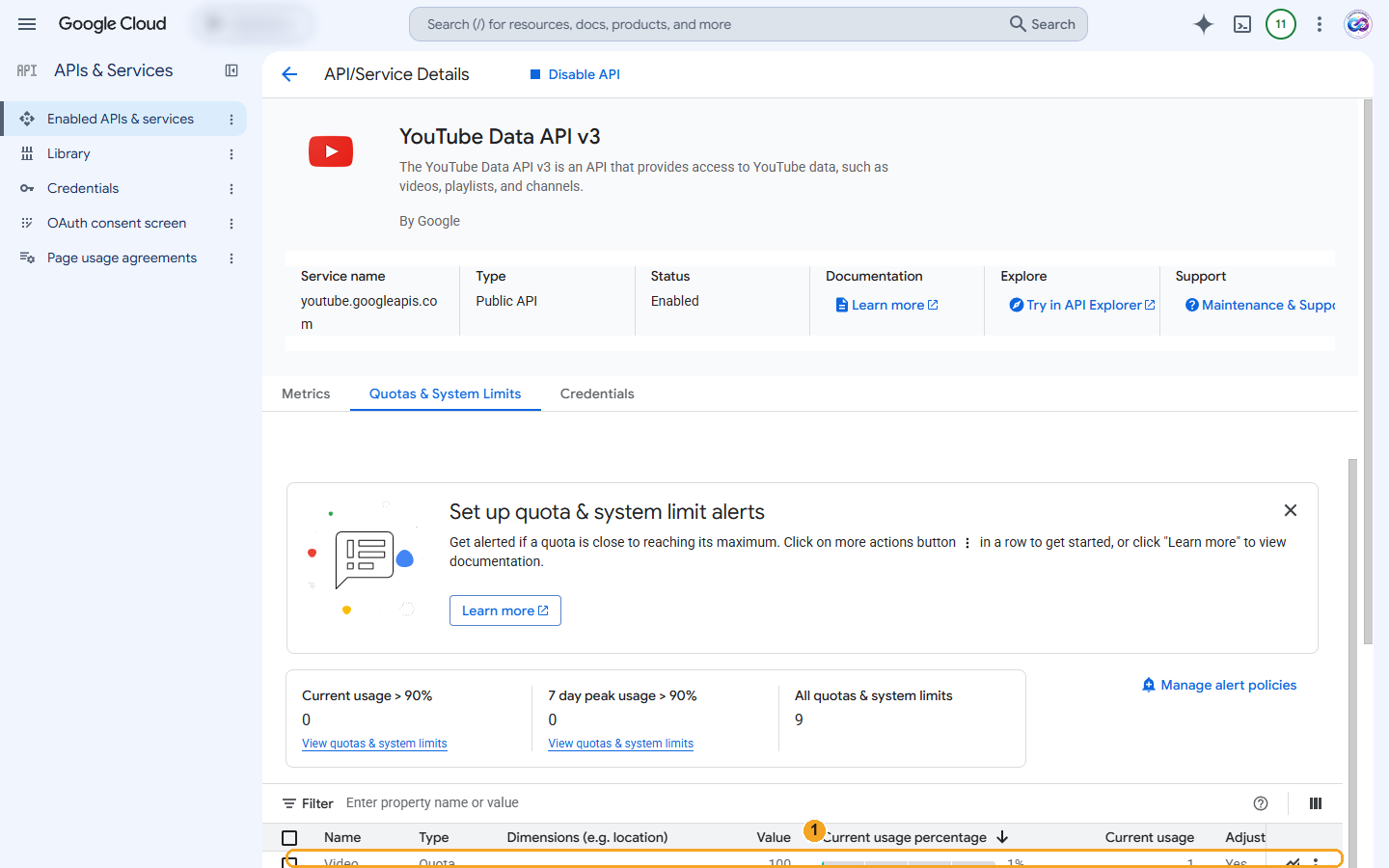
Your project gets YouTube's default quota. You can see it in APIs & Services → YouTube Data API v3 → Quotas & System Limits:
| # | What you see |
|---|---|
| 1 | Video quota: 100 uploads a day, and how much of it you've used today. |
| What | Default per day |
|---|---|
| Video uploads | 100 |
| Searches | 100 |
| Everything else (listing, updating and deleting videos, thumbnails) | 10,000 units (a video update costs 50 units, a list about 1) |
Quota resets at midnight Pacific time. Need more? In the same Quotas page, follow Google's link to the YouTube API quota extension form. Google reviews it; BeeGentic isn't involved.
Troubleshooting
| What you see | What to do |
|---|---|
| Google: Error 400: redirect_uri_mismatch | The redirect URI in your Google client doesn't match. In Google Cloud → Clients → your client, paste the URI from the BeeGentic connect window again (no extra spaces or trailing /). Save, wait a few minutes, connect again. |
| Google: Error 403: access_denied or "…has not completed the Google verification process" | Your app is in Testing and this Google account isn't a test user. Add it under Audience → Test users, or click Publish app. |
| Google: invalid_client | The Client ID or secret is wrong, or the client was deleted. Copy them again (create a new secret if needed) and reconnect. |
Back in BeeGentic with error=youtube_access_denied | You clicked Cancel on Google. Connect again and allow access. |
Back in BeeGentic with error=youtube_callback_error | Usually a wrong Client secret, or the YouTube Data API v3 isn't enabled (Part 1, step 2). Check both and connect again. |
| The connection stops working after about a week | Your app is still in Testing, where Google ends connections after 7 days. Click Publish app on the Audience page, then Reconnect. |
| "The Google Cloud project has used its YouTube Data API quota for today." | Your project's quota is used up. Wait until midnight Pacific time, or ask Google for more. |
| "This channel has reached its YouTube upload limit for now." | YouTube's own per-channel limit. Try again later. |
| "Your 30-day trial of YouTube through BeeGentic's Google app has ended." | Switch to your own app (above). |
| "You've used today's 3 trial YouTube uploads through BeeGentic's Google app." | Wait until midnight Pacific time, or switch to your own app. |
Publish to YouTube
Upload videos to your YouTube channel from a workflow, with an AI-written description, tags, privacy, scheduling and thumbnails. Real result included.
Publish to Bluesky
Post to Bluesky from a workflow with text, a link card, images, mentions and hashtags. Connect with an App Password; no developer app needed. Real result included.