


Google with your own app
Step by step. One Google app for Gmail, Sheets, Drive, Docs, Calendar, Forms and YouTube. Create it in Google Cloud and connect it in BeeGentic. About 15 minutes.
What you'll do: create one free app in your own Google Cloud project, then paste its Client ID and Client secret into BeeGentic once. That one app covers every Google tool in BeeGentic: Gmail, Google Sheets, Drive, Docs, Calendar, Forms and YouTube. About 15 minutes the first time.
Narrated walkthrough (about 2.5 min) with captions. The orange numbers in each screenshot match the # column under it.
For YouTube's upload quota and trial details, see YouTube with your own Google app.
Before you start
| You need | Why |
|---|---|
| A Google account that can open Google Cloud Console | You create the app there. It's free; Google's $300 trial offer isn't needed. |
| The accounts you'll connect (Gmail, Drive, YouTube channel…) | You approve them on Google's screen when connecting. |
Part 1: Create your Google app (once)
Pick a project and turn on the APIs
In Google Cloud Console, use the project picker (top bar) to choose a project, or click New project. Then open ☰ → APIs & Services → Library and Enable each API you'll use:
| BeeGentic tool | API to enable |
|---|---|
| Google Sheets | Google Sheets API |
| Gmail | Gmail API |
| Google Drive (also used to delete files) | Google Drive API |
| Google Docs | Google Docs API |
| Google Calendar | Google Calendar API |
| Google Forms | Google Forms API |
| YouTube Publishing | YouTube Data API v3 |
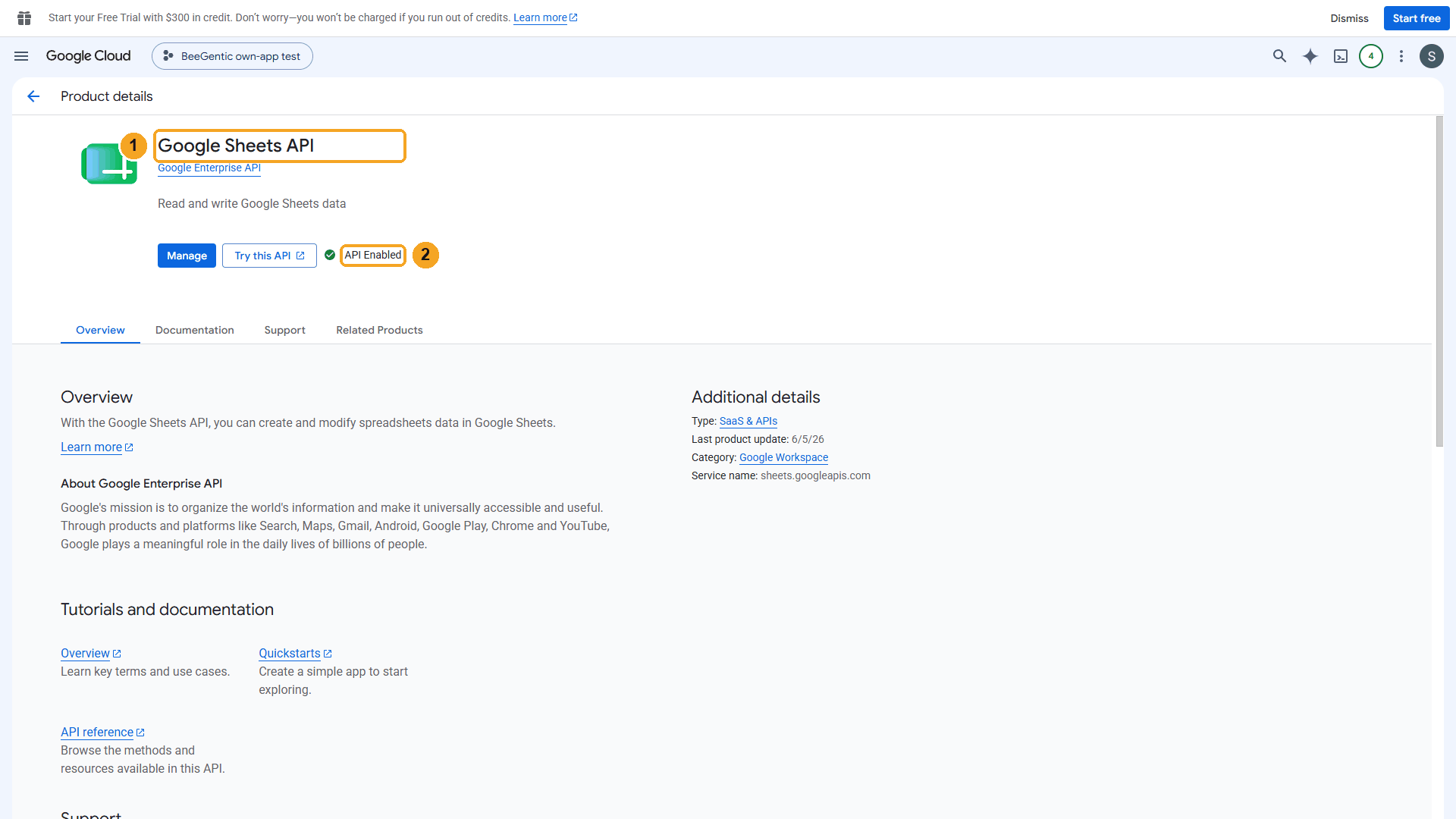
| # | What you see |
|---|---|
| 1 | The API's page in the Library. |
| 2 | API Enabled (the button turns into Manage). |
Branding (the consent screen)
Open ☰ → Google Auth Platform. The first time, click Get started and follow the four short steps (app name, support email, External audience, contact email, agree). Then check Branding:
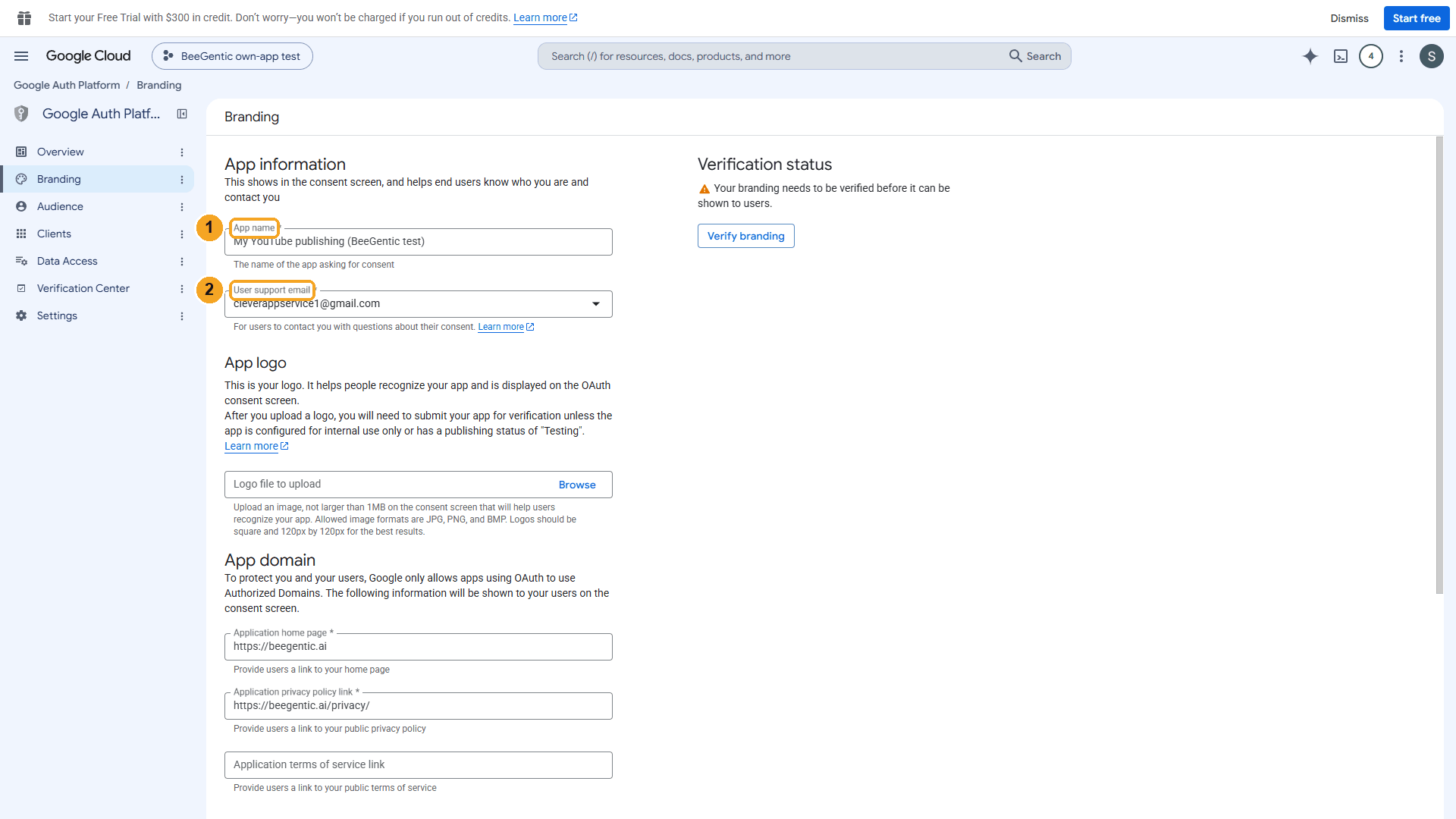
| # | Field | What to enter |
|---|---|---|
| 1 | App name | Any name (not containing Google). Shown on Google's consent screen. |
| 2 | User support email | Your email. |
Further down, add your Application home page and Application privacy policy link, and your domain under Authorized domains. Click Save. Google requires these before you can publish the app.
Audience: publish the app
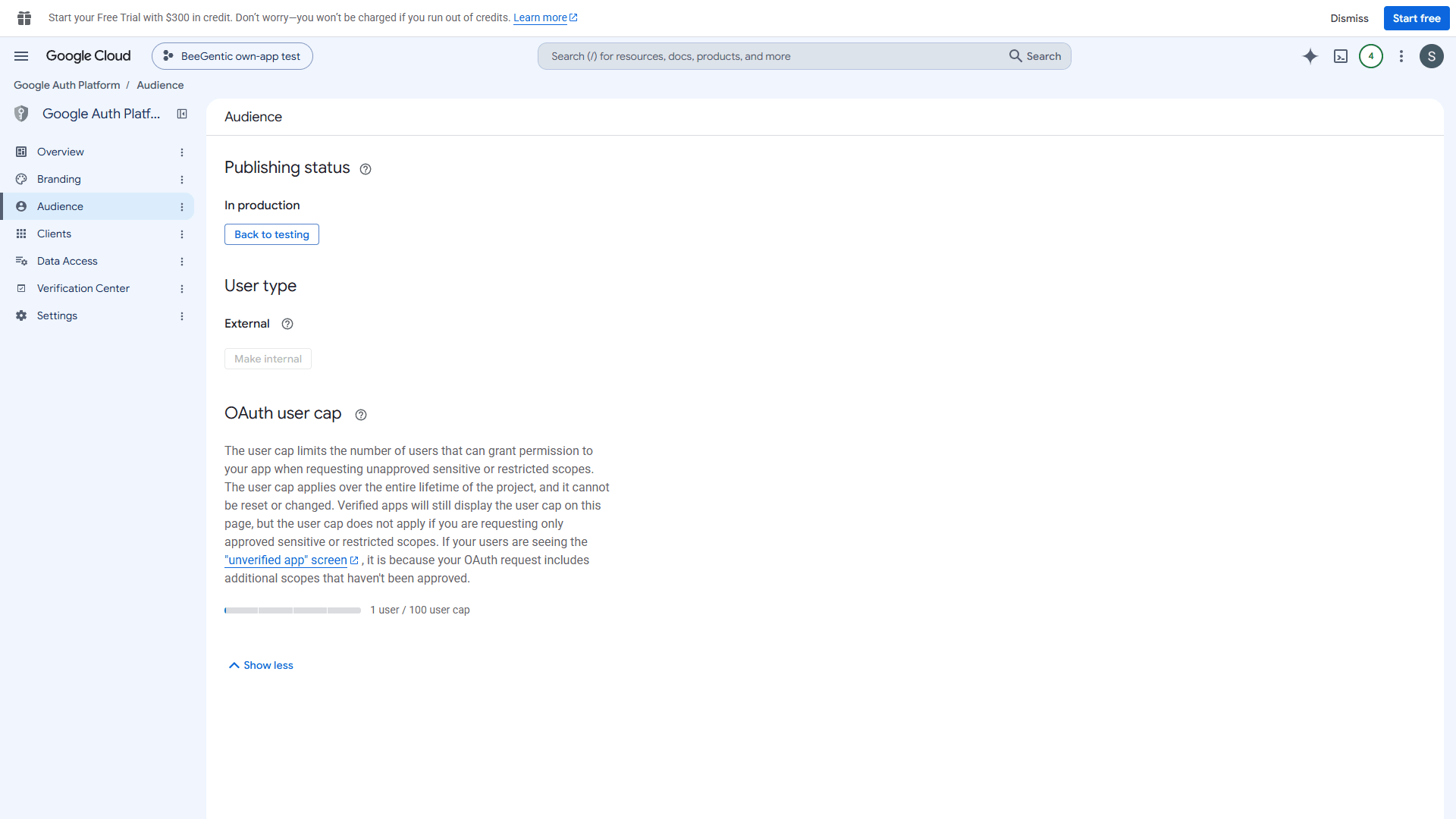
| # | What you see |
|---|---|
| 1 | Publishing status. Click Publish app → Confirm so it says In production. Apps left in Testing stop working after 7 days and only allow listed test users. |
| 2 | User type: External. |
Your app stays unverified unless you apply for Google verification. That's fine for your own accounts: Google shows a warning screen once when you connect (Part 2).
Create the OAuth client
Open Clients → Create client.
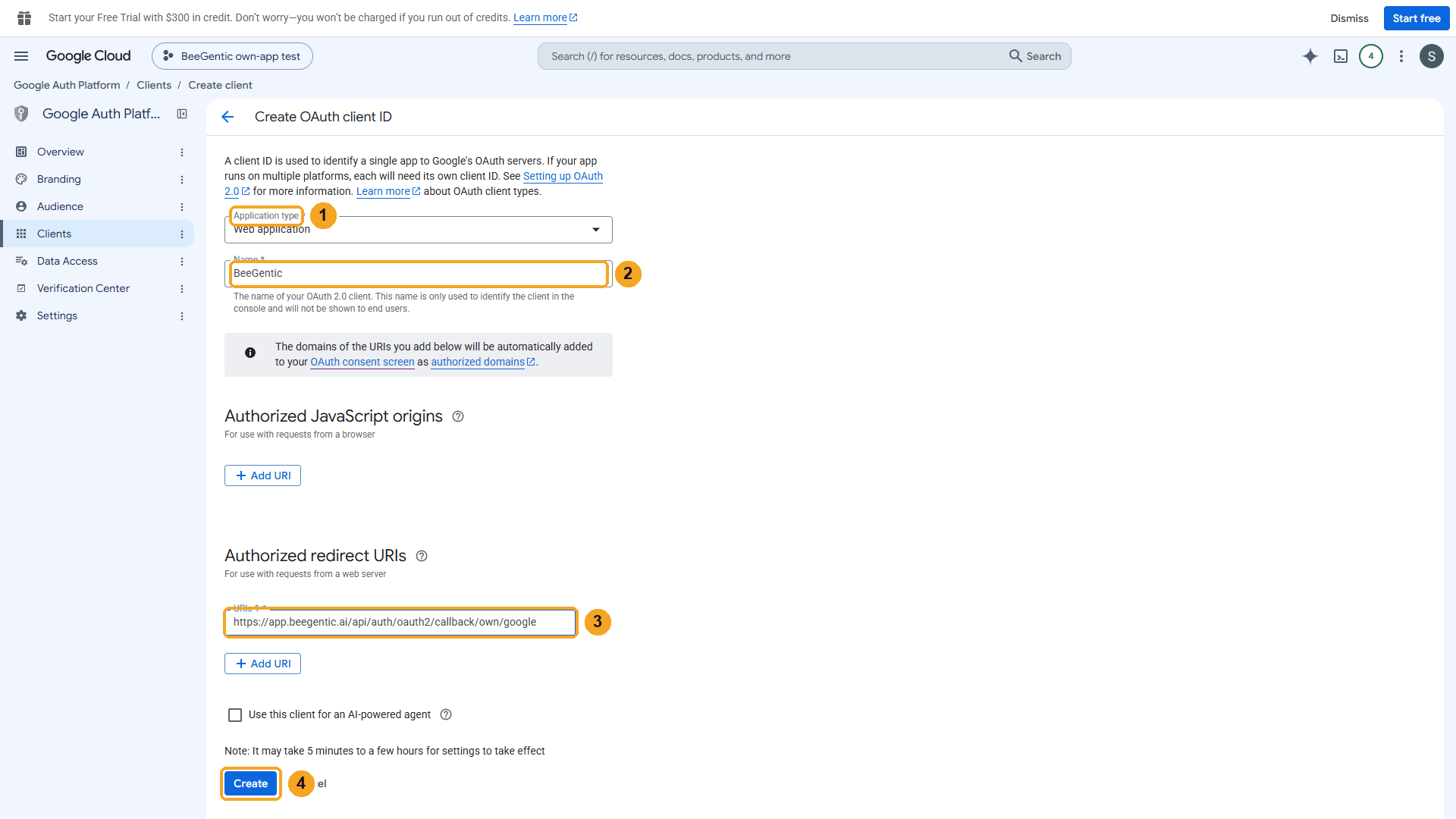
| # | What to do |
|---|---|
| 1 | Application type: Web application. |
| 2 | Name: for example BeeGentic. Only you see it. |
| 3 | Authorized redirect URIs → Add URI: https://app.beegentic.ai/api/auth/oauth2/callback/own/google |
| 4 | Click Create, then copy the Client ID and Client secret. Google only shows the secret now; click Download JSON to keep a copy. |
New clients can take a few minutes to work. If you get redirect_uri_mismatch right away, wait 5 minutes and try again.
Part 2: Connect in BeeGentic
Connect your first Google tool
Integrations → choose the tool (for example Google Sheets) → Add to BeeGentic.
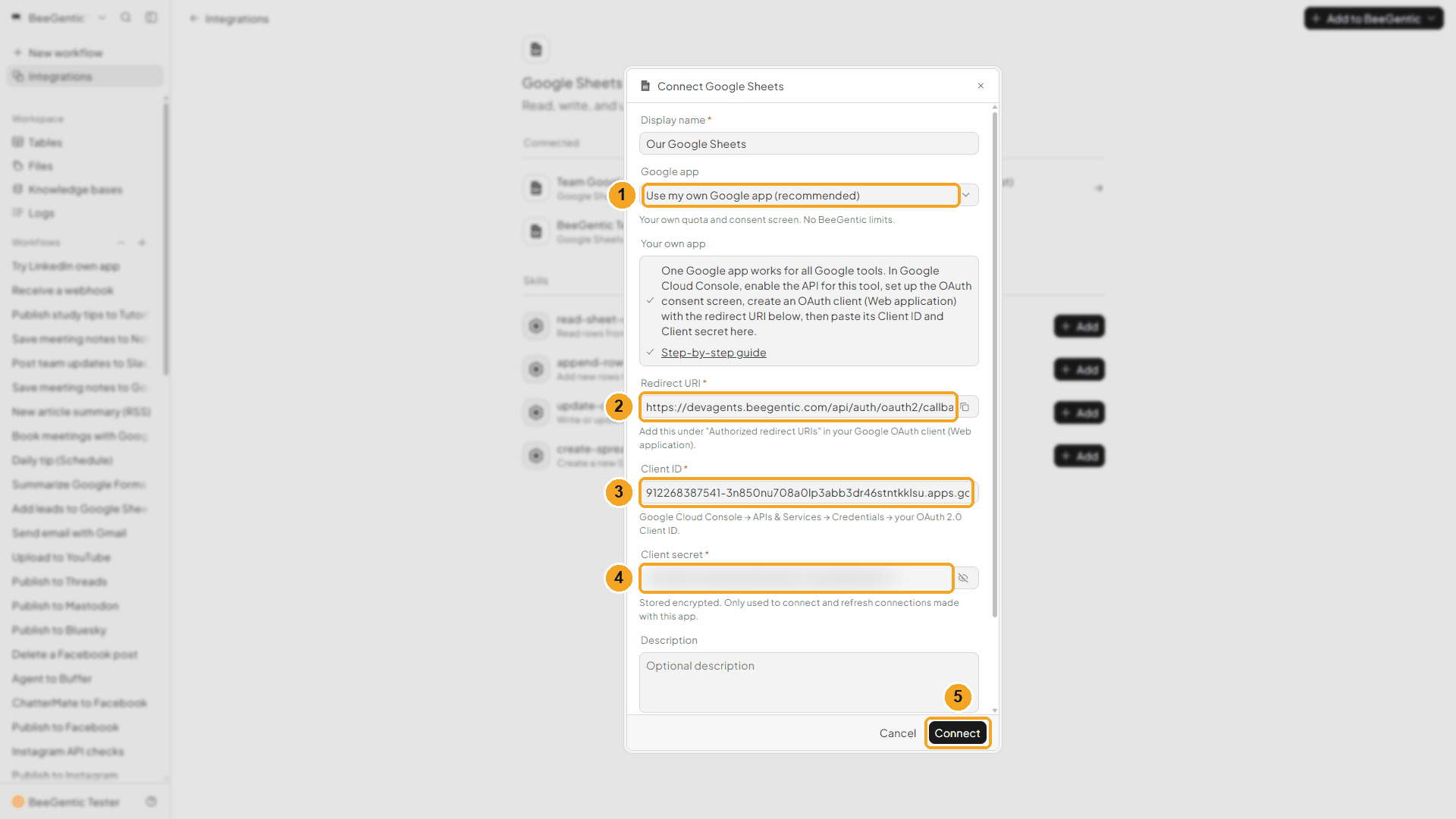
| # | Field | What to do |
|---|---|---|
| 1 | Google app | Keep Use my own Google app (recommended). |
| 2 | Redirect URI | Must match the URI in your client, character for character. |
| 3 | Client ID | Paste it. |
| 4 | Client secret | Paste it. BeeGentic stores it encrypted. |
| 5 | Connect | Opens Google. |
Approve on Google
- Choose an account.
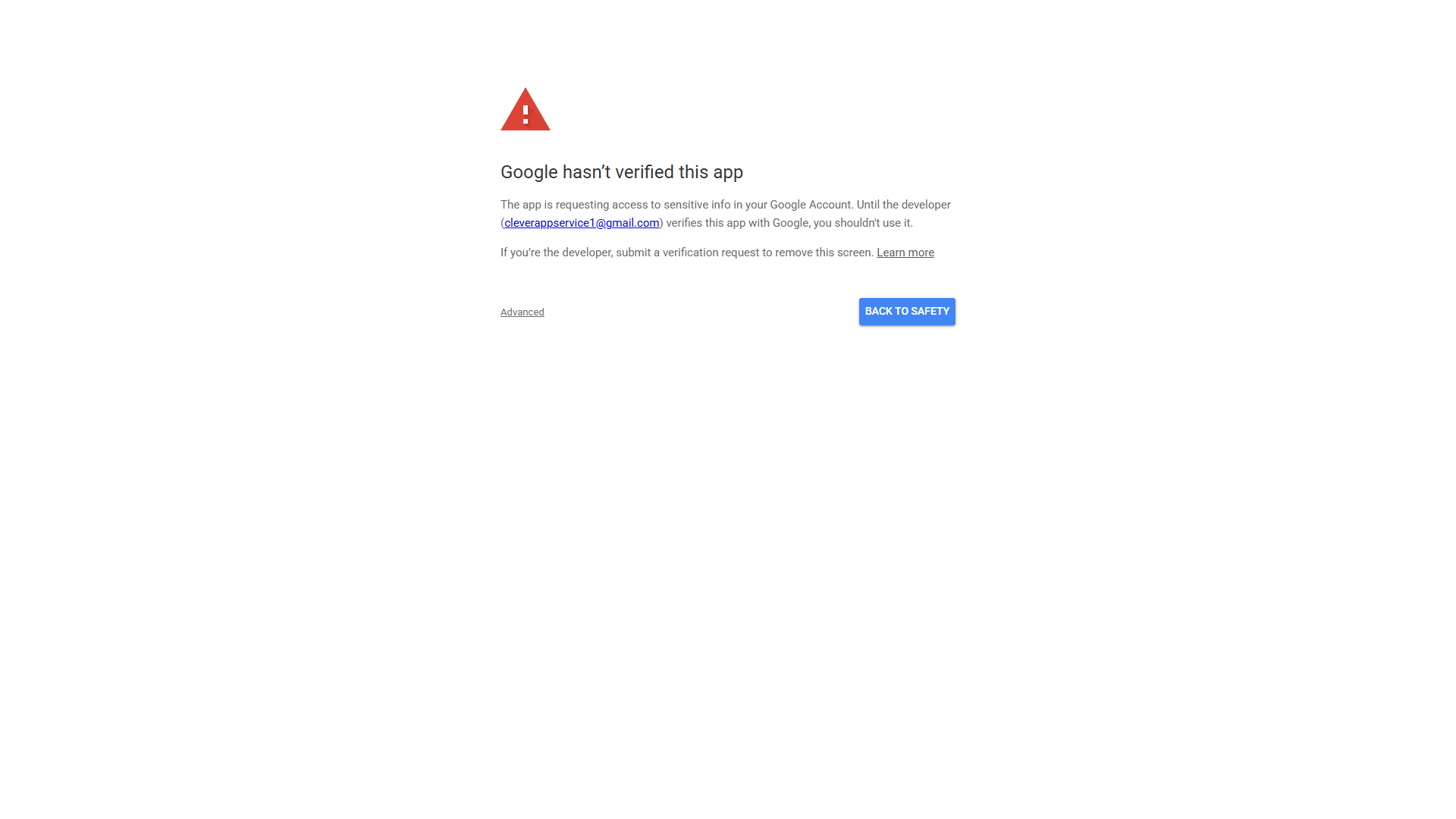
- "Google hasn't verified this app": it's your own app, so click Advanced → Go to your domain (unsafe) (or Continue).
- Allow the permissions shown (tick them all if Google shows checkboxes) → Continue.
Check the connection, then reuse it
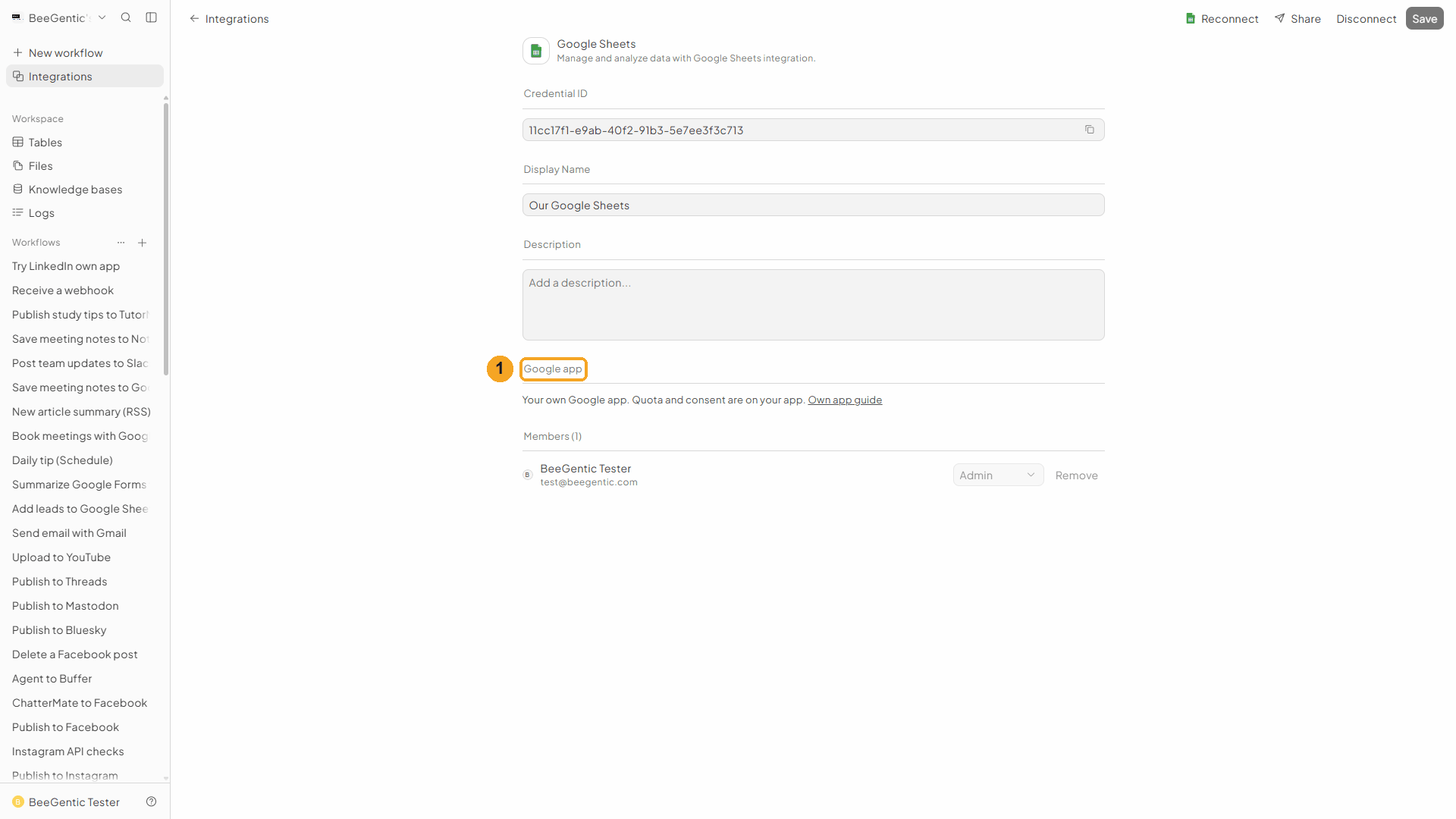
| # | What you see |
|---|---|
| 1 | Google app: Your own Google app. |
Connecting Gmail, Drive, YouTube or another Google tool next? In the connect window choose Same app as your first connection under Google app: no keys to paste. Make sure that tool's API is enabled (Part 1, step 1).
Try it
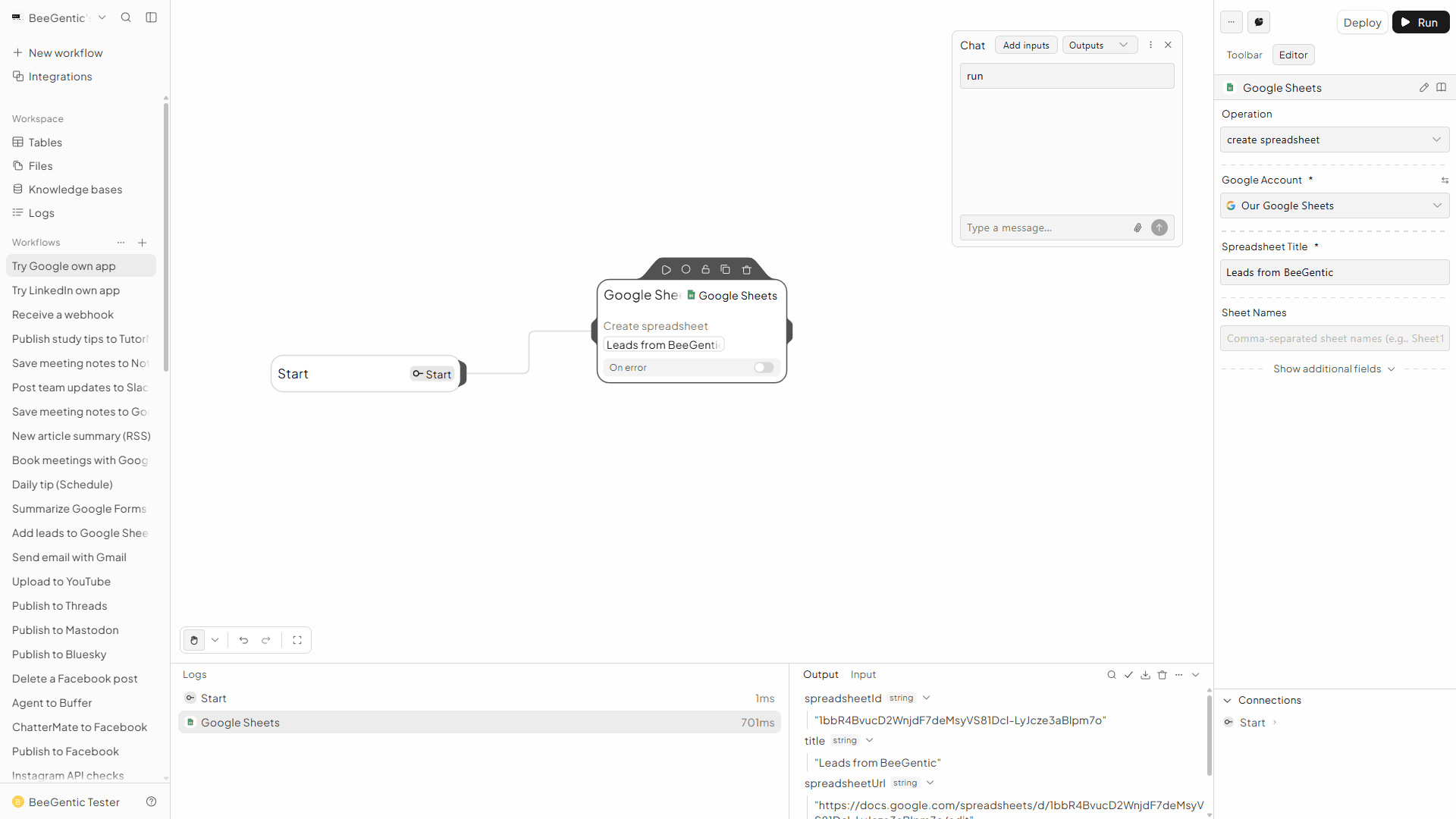
In a workflow, add Google Sheets → Create Spreadsheet → pick your connection → enter a Spreadsheet Title → run. The output has the new sheet's link.
Troubleshooting
| What you see | What to do |
|---|---|
| Google: Error 400: redirect_uri_mismatch | The client's redirect URI doesn't match. Add https://app.beegentic.ai/api/auth/oauth2/callback/own/google exactly, save, wait a few minutes. |
| Google: Error 403: access_denied / "…has not completed the Google verification process" | The app is still in Testing. Publish it (Audience → Publish app), or add your account as a test user. |
| Publish app is greyed out | Finish Branding: app name, support email, home page, privacy policy, authorized domain. |
| A Google step fails with "API has not been used in project…" or "…is disabled" | Enable that tool's API in your project (Part 1, step 1). |
Back in BeeGentic with error=google_callback_error | Usually a wrong Client secret. Copy it again (or add a new secret to the client) and reconnect. |
| "Your 30-day trial of … through BeeGentic's Google app has ended." | That connection uses BeeGentic's app. Reconnect it with your own app (this guide). |
Connect tools with your own app
Why BeeGentic asks you to connect Google, Slack, Notion, LinkedIn and Meta tools through your own developer app, the 30-day trial of BeeGentic's app, and where to create each app.
LinkedIn with your own app
Step by step. Create a free LinkedIn developer app, add Share on LinkedIn and OpenID Connect, and connect it in BeeGentic. About 10 minutes.