


Notion with your own connection
Step by step. Create an OAuth connection in Notion's Developer tools and connect it in BeeGentic. About 5 minutes.
What you'll do: create an OAuth connection in Notion's Developer tools, copy two values (the Client ID and Client secret) into BeeGentic, and pick the pages BeeGentic may use. Your Notion steps then run on your connection, with no BeeGentic limits. About 5 minutes.
Narrated walkthrough (about 1.5 min) with captions. The orange numbers in each screenshot match the # column under it.
Before you start
| You need | Why |
|---|---|
| A Notion account and a workspace | The connection is created in your workspace. |
| At least one page BeeGentic should work in | Notion only gives BeeGentic the pages you pick. Create a page first if your workspace is new. |
Part 1: Create your Notion connection (once)
Open Developer tools
In Notion, open Settings → Developer tools (or go to notion.so/profile/integrations). Notion may call this area Integrations or Connections.
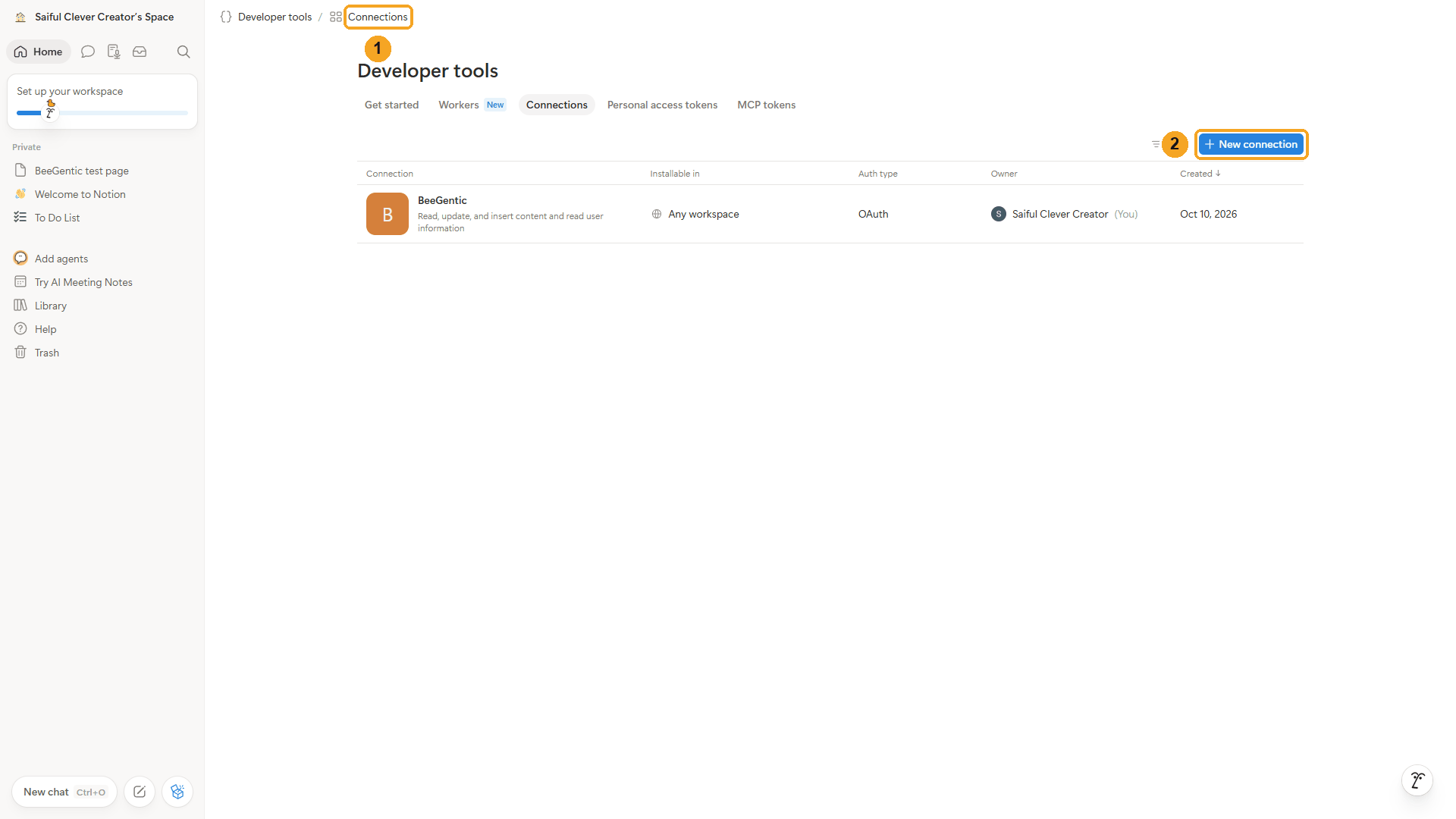
| # | What to do |
|---|---|
| 1 | Open the Connections tab. |
| 2 | Click New connection. |
Create an OAuth connection
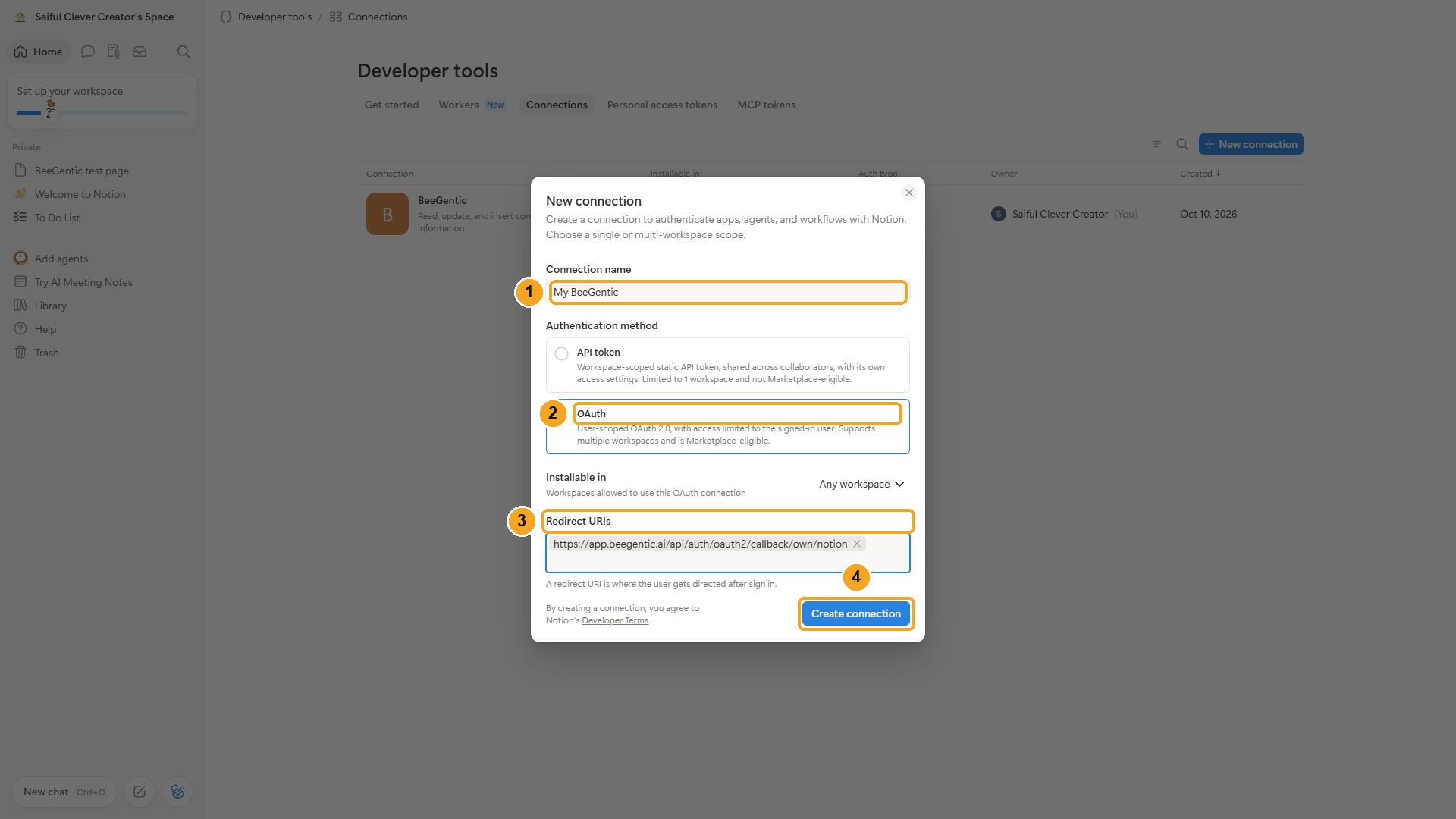
| # | Field | What to enter |
|---|---|---|
| 1 | Connection name | Any name, for example Acme BeeGentic. Notion shows it when you approve. |
| 2 | Authentication method | OAuth. (API token won't work with BeeGentic's Notion block.) |
| 3 | Redirect URIs | Paste https://app.beegentic.ai/api/auth/oauth2/callback/own/notion and press Enter so it turns into a chip. |
| 4 | Click Create connection. |
Copy your keys
Your connection opens on Configuration.
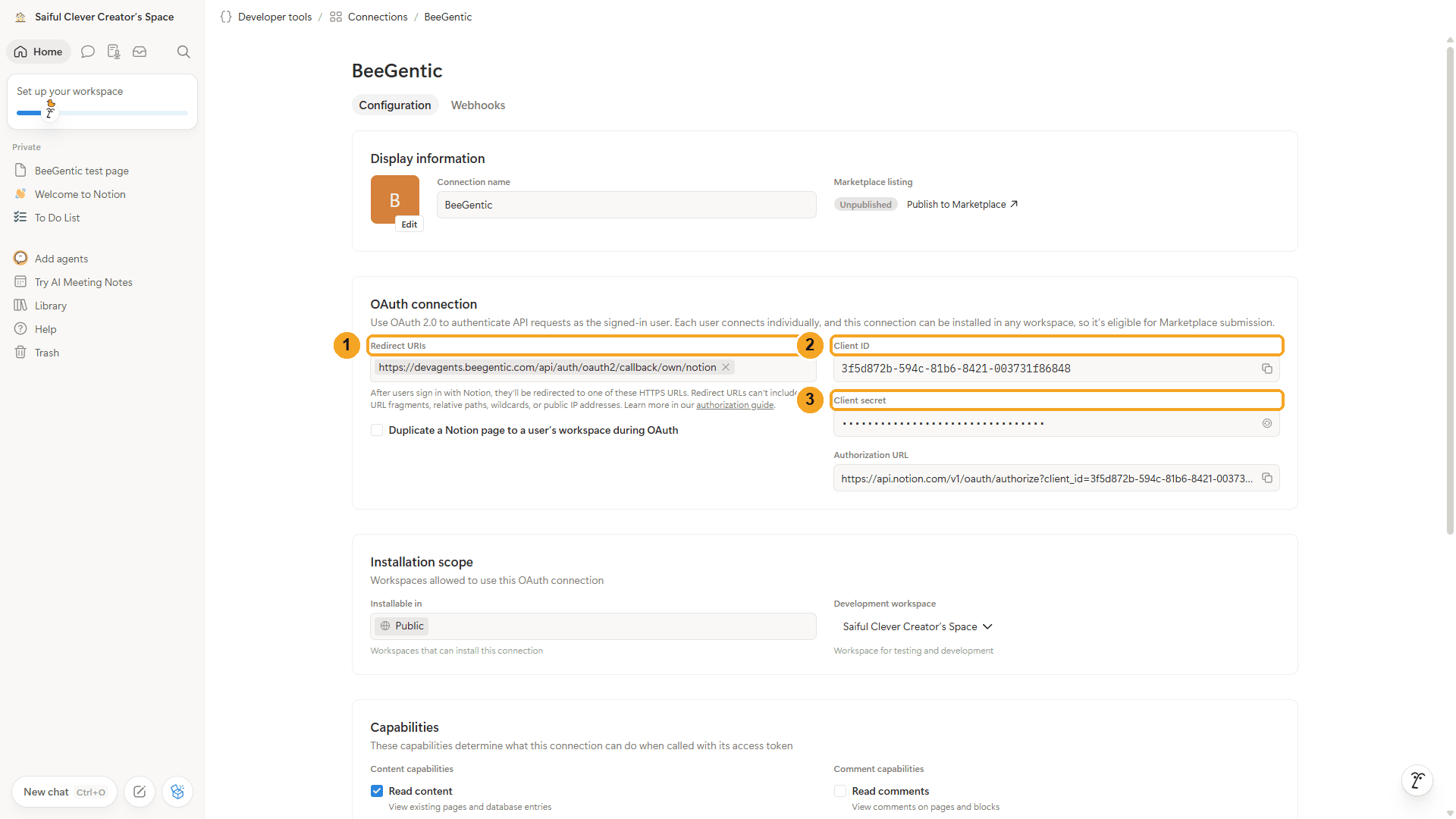
| # | What to do |
|---|---|
| 1 | Redirect URIs: check BeeGentic's URI is there. |
| 2 | Client ID: copy it. |
| 3 | Client secret: click the eye to show it, and copy it right away. Notion shows the secret only once. If you lose it, the eye offers Refresh, which makes a new secret and stops the old one, so reconnect in BeeGentic afterwards. |
Further down, Capabilities decides what BeeGentic may do: keep Read content, Update content and Insert content ticked. Tick Read comments / Insert comments if you use the comment operations, and Read user information if you use List Users.
Part 2: Connect Notion in BeeGentic (once)
Enter your connection's details
Integrations → search Notion → open it → Add to BeeGentic.
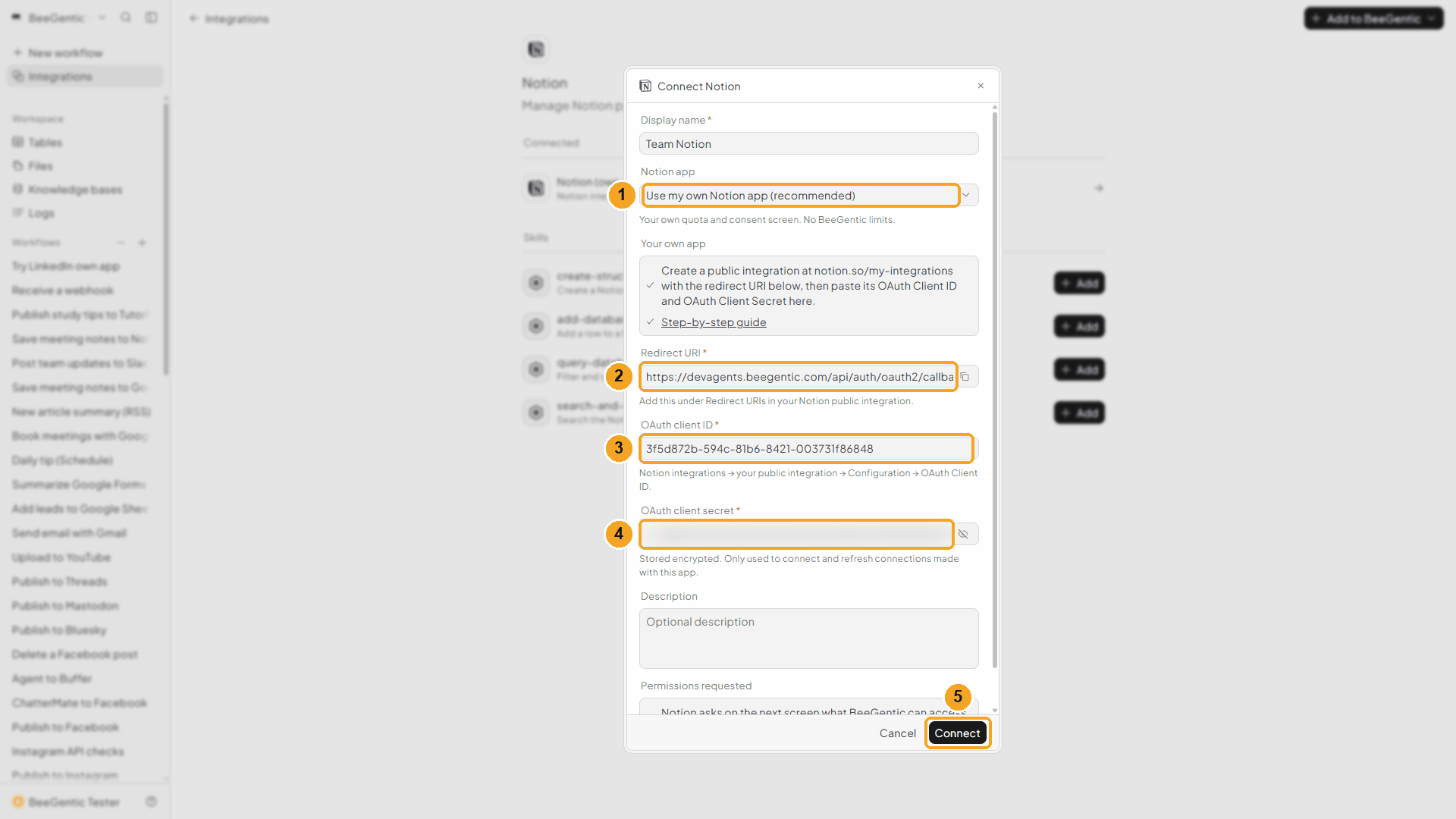
| # | Field | What to do |
|---|---|---|
| 1 | Notion app | Keep Use my own Notion app (recommended). |
| 2 | Redirect URI | Must match the one you added in Notion. |
| 3 | OAuth client ID | Paste the Client ID. |
| 4 | OAuth client secret | Paste the Client secret. BeeGentic stores it encrypted. |
| 5 | Connect | Opens Notion. |
Pick pages and allow access
Notion shows Connect with your connection. Click Select pages, tick the pages BeeGentic may use (sub-pages are included), and click Allow access.
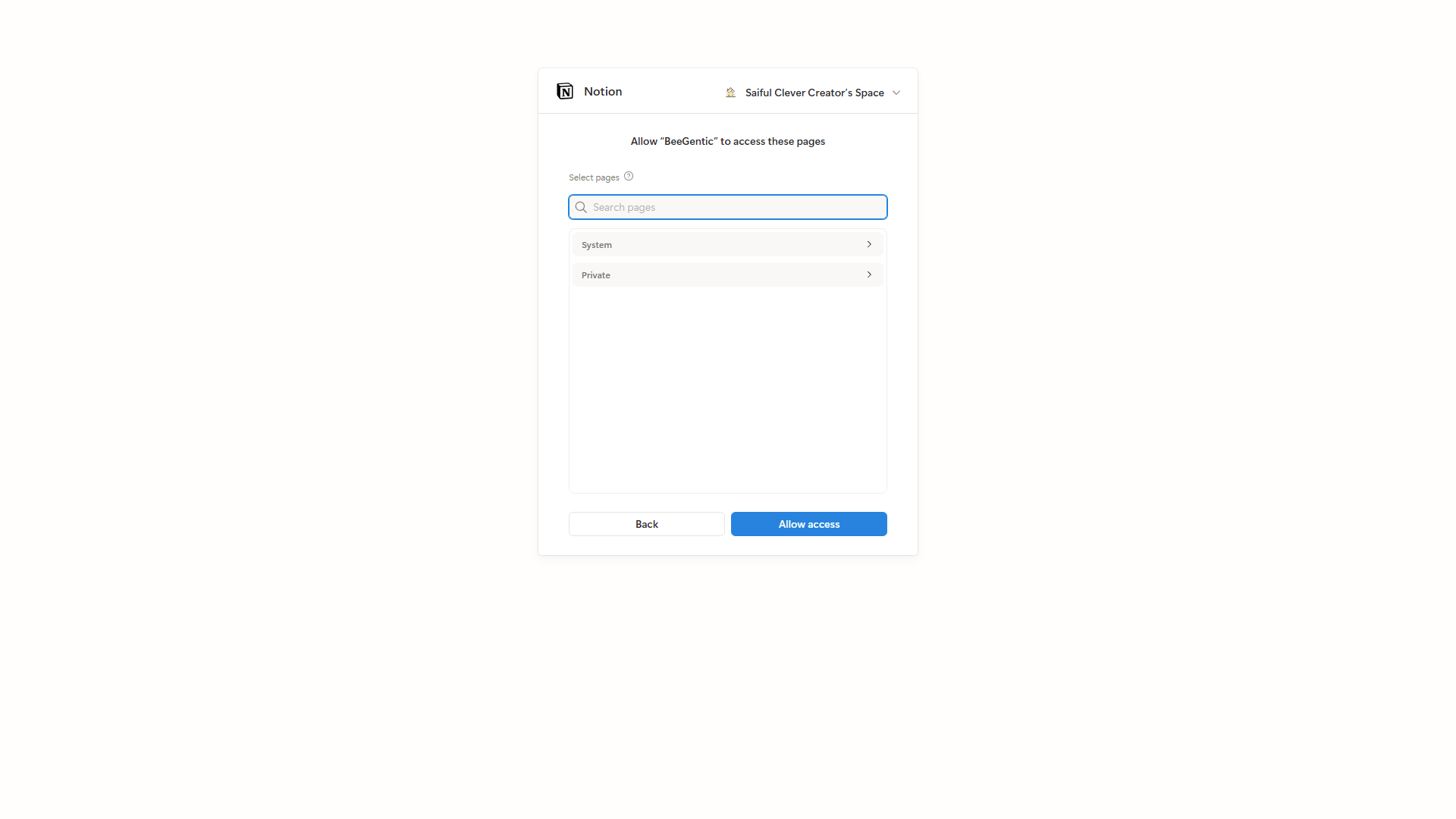
BeeGentic can only see the pages you pick. To add pages later, open the page in Notion → ••• → Connections → add your connection.
Check the connection
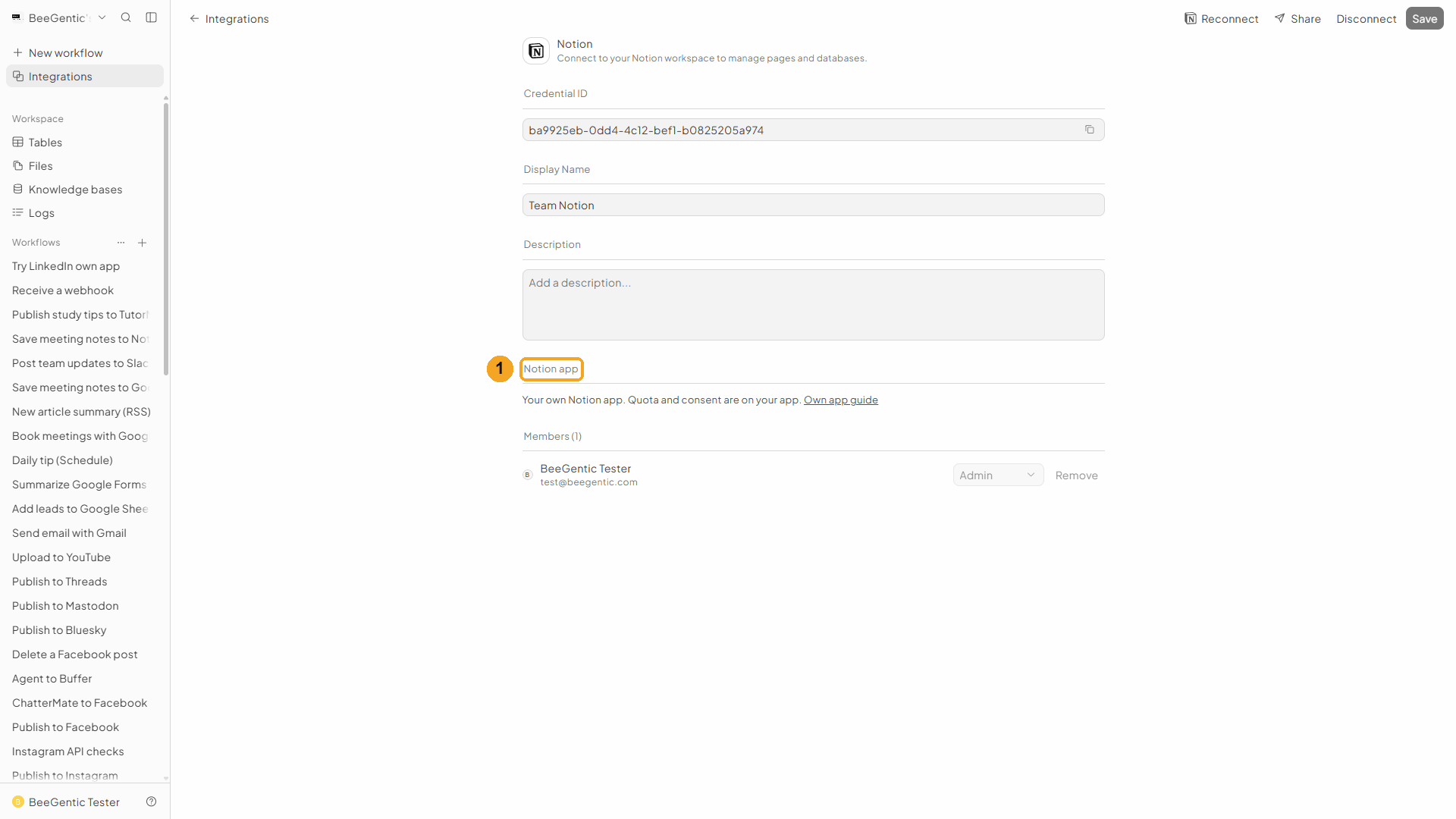
| # | What you see |
|---|---|
| 1 | Notion app: Your own app. BeeGentic's app (trial…) means the connection uses the 30-day trial. |
Create a test page
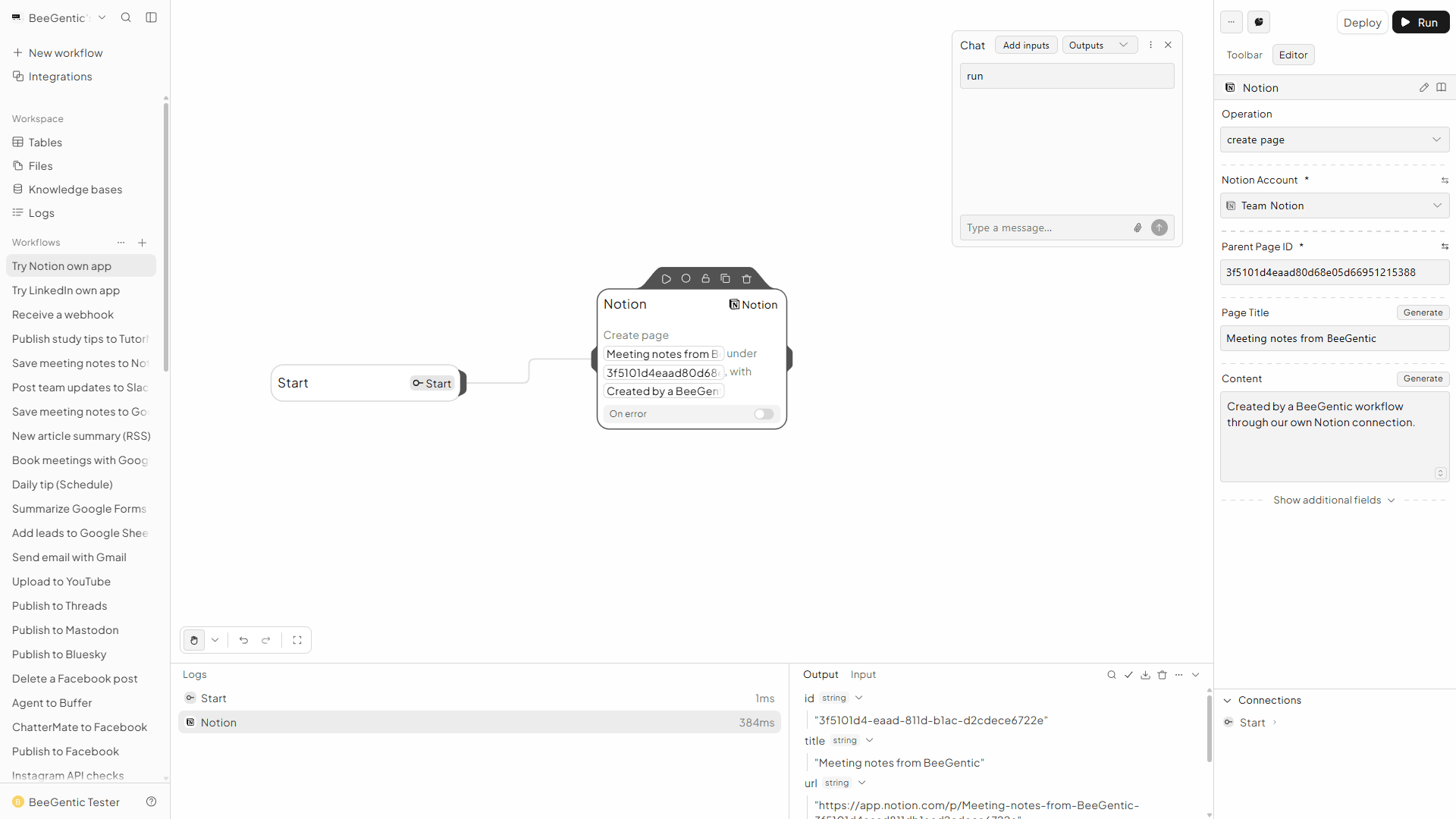
In a workflow, add the Notion block → Create Page → pick your connection → choose the Parent Page (one of the pages you allowed) → enter a Page Title and Content → run.
Troubleshooting
| What you see | What to do |
|---|---|
| Notion: "Invalid redirect_uri" | The Redirect URI in your connection is missing or different. Add https://app.beegentic.ai/api/auth/oauth2/callback/own/notion (press Enter to add it). |
| Allow access is greyed out | No page is selected. Pick at least one page. |
| "Could not find page with ID…" or "…block with ID…" | That page isn't shared with your connection. Add it: page ••• → Connections. |
| A comment or user operation is refused | Tick the matching Capabilities in your connection's Configuration, then Reconnect. |
Back in BeeGentic with error=notion_callback_error | Usually a wrong or refreshed Client secret. Copy the current one (or Refresh it) and reconnect. |
| "Your 30-day trial of … through BeeGentic's Notion app has ended." | That connection uses BeeGentic's app. Reconnect it with your own connection (this guide). |