


LinkedIn with your own app
Step by step. Create a free LinkedIn developer app, add Share on LinkedIn and OpenID Connect, and connect it in BeeGentic. About 10 minutes.
What you'll do: create a free app at LinkedIn Developers, add two self-serve products, copy two values (the Client ID and the Primary Client Secret) into BeeGentic, and connect. Your LinkedIn posts then run on your app, with no BeeGentic limits. About 10 minutes.
Posts to: Your personal LinkedIn feed · Connect with: Sign in with LinkedIn · Block: LinkedIn
| Text | Link | Image | Video | Multi | Schedule | Edit | Delete | Read | Comments | Insights |
|---|---|---|---|---|---|---|---|---|---|---|
| ✅ | ✅ | ⚠️ | ✅ | ⚠️ | — | ⚠️ | ✅ | ⚠️ | — | — |
Not supported: Company Page posting or reading with this personal connection (use the LinkedIn Company Pages block, after LinkedIn approval) · Personal post discovery and feed history without restricted r_member_social access · Replacing media or editing poll questions/options · Mixed image/video posts, sponsored carousels, celebrations, newsletters and long-form LinkedIn articles · Comment and reaction management · Native scheduling and revision-bound human approval (workflow implementation pending) · Analytics
⏳ Live on BeeGentic. Text, article cards, video with captions, and delete verified with a real account (2026-10-23); images, documents, polls, reshares and edit are deployed and awaiting live acceptance.
✅ supported · ⚠️ partly (hover for details) · — not supported
Narrated walkthrough (2 min 20 s) with captions. The orange numbers in each screenshot match the # column under it. Click a screenshot to enlarge it.
Before you start
| You need | Why |
|---|---|
| A LinkedIn account | You create the app with it, and BeeGentic posts as this account. |
| A LinkedIn Page you admin, or LinkedIn's default page for individual developers | LinkedIn asks which Page the app belongs to. You don't need to run a company: individual developers can pick LinkedIn's default page in the form. |
| A privacy policy web address | LinkedIn requires one. Any page on your site that describes how you handle data works. |
| A square logo, at least 100 × 100 px (PNG or JPG) | LinkedIn requires a logo. It shows on the Allow screen. |
Part 1: Create your LinkedIn app (once)
Open LinkedIn Developers
Sign in at linkedin.com/developers/apps and open My apps.
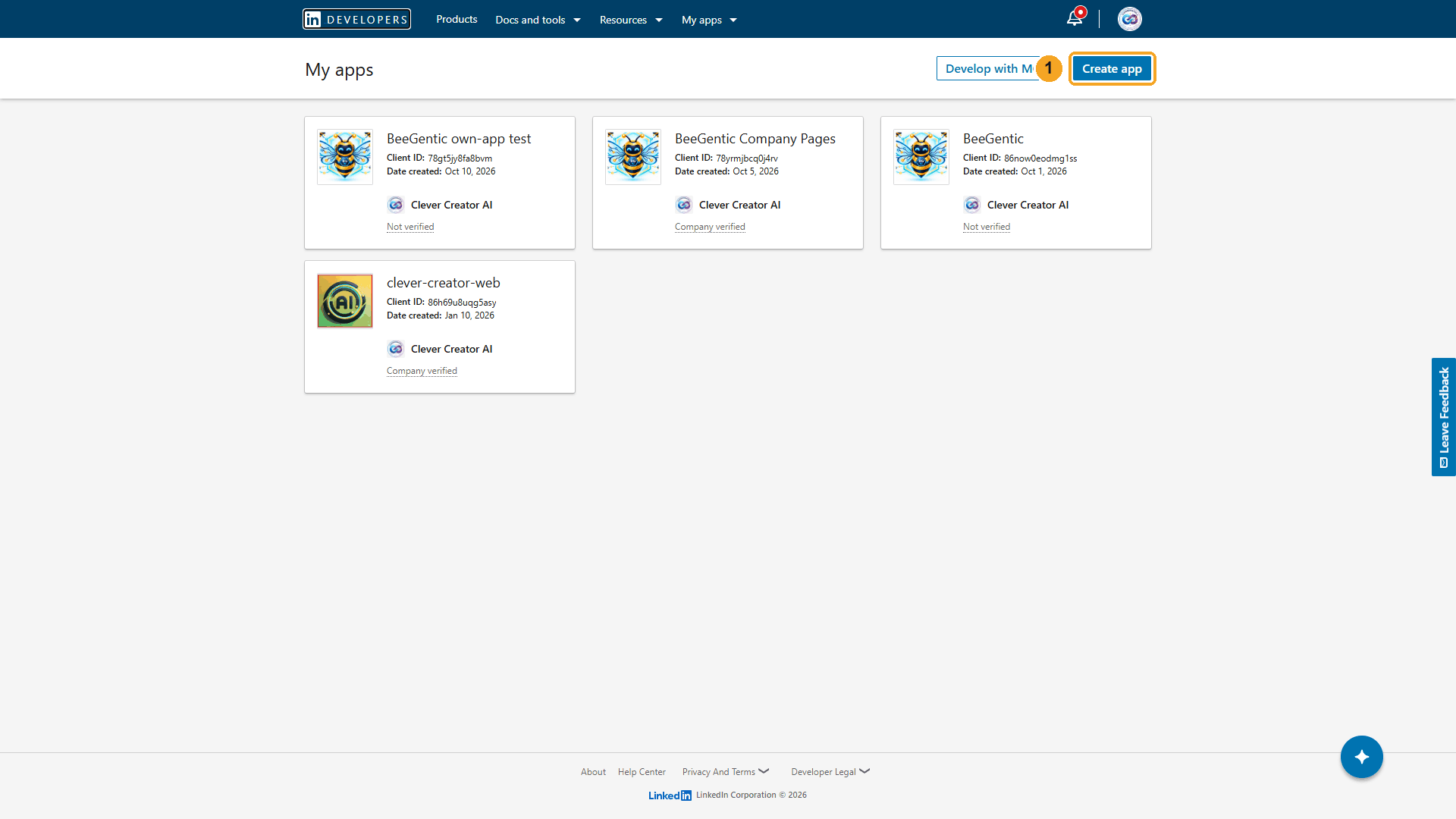
| # | What to do |
|---|---|
| 1 | Click Create app. |
Fill in the app details
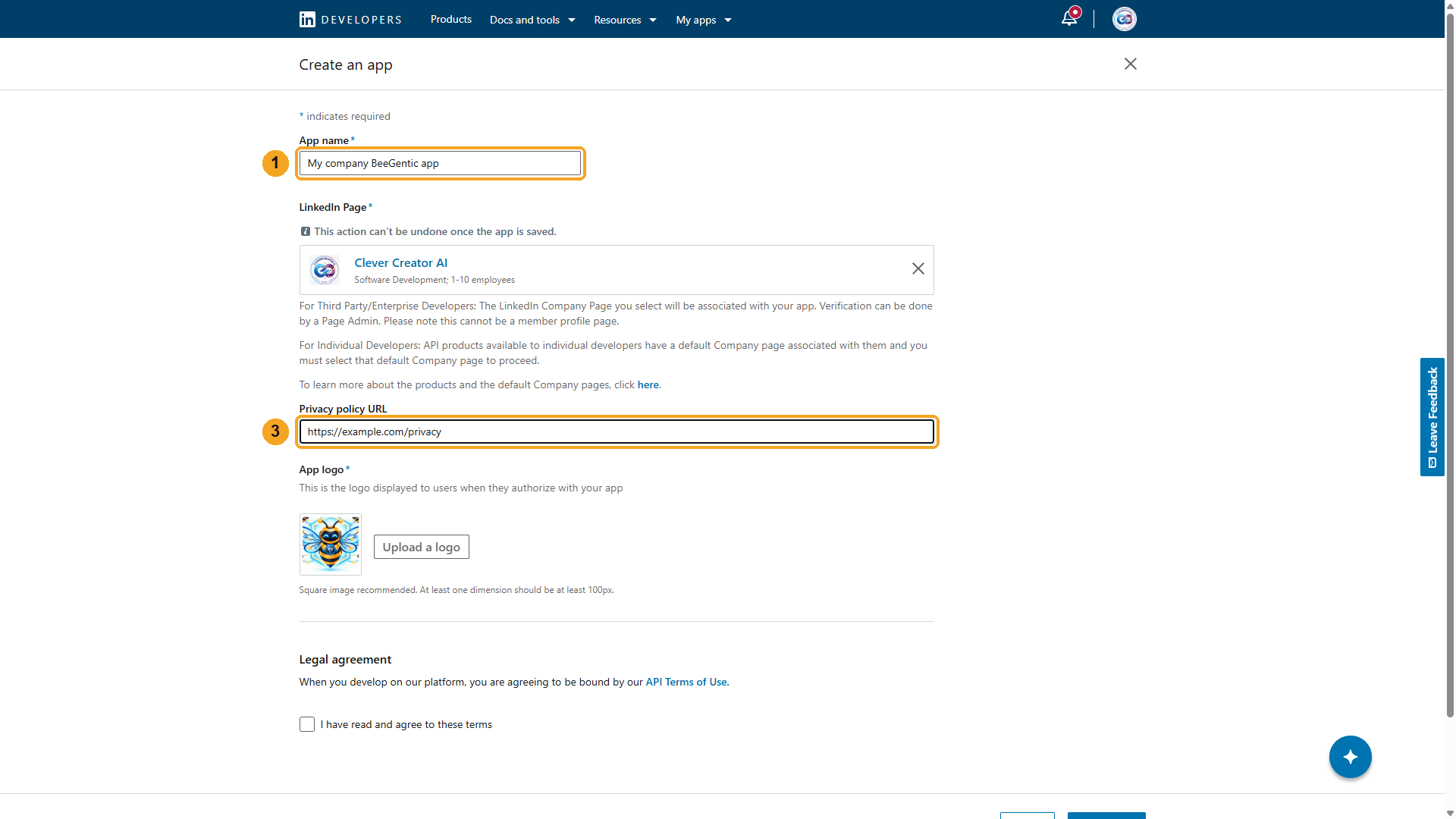
| # | Field | What to enter |
|---|---|---|
| 1 | App name | Any name, for example Acme BeeGentic. LinkedIn shows it on the Allow screen. Don't use the words LinkedIn or Microsoft. |
| 2 | LinkedIn Page | Start typing your company page name and pick it. Individual developers: pick LinkedIn's default page (see the note on the form). |
| 3 | Privacy policy URL | Your privacy policy page. |
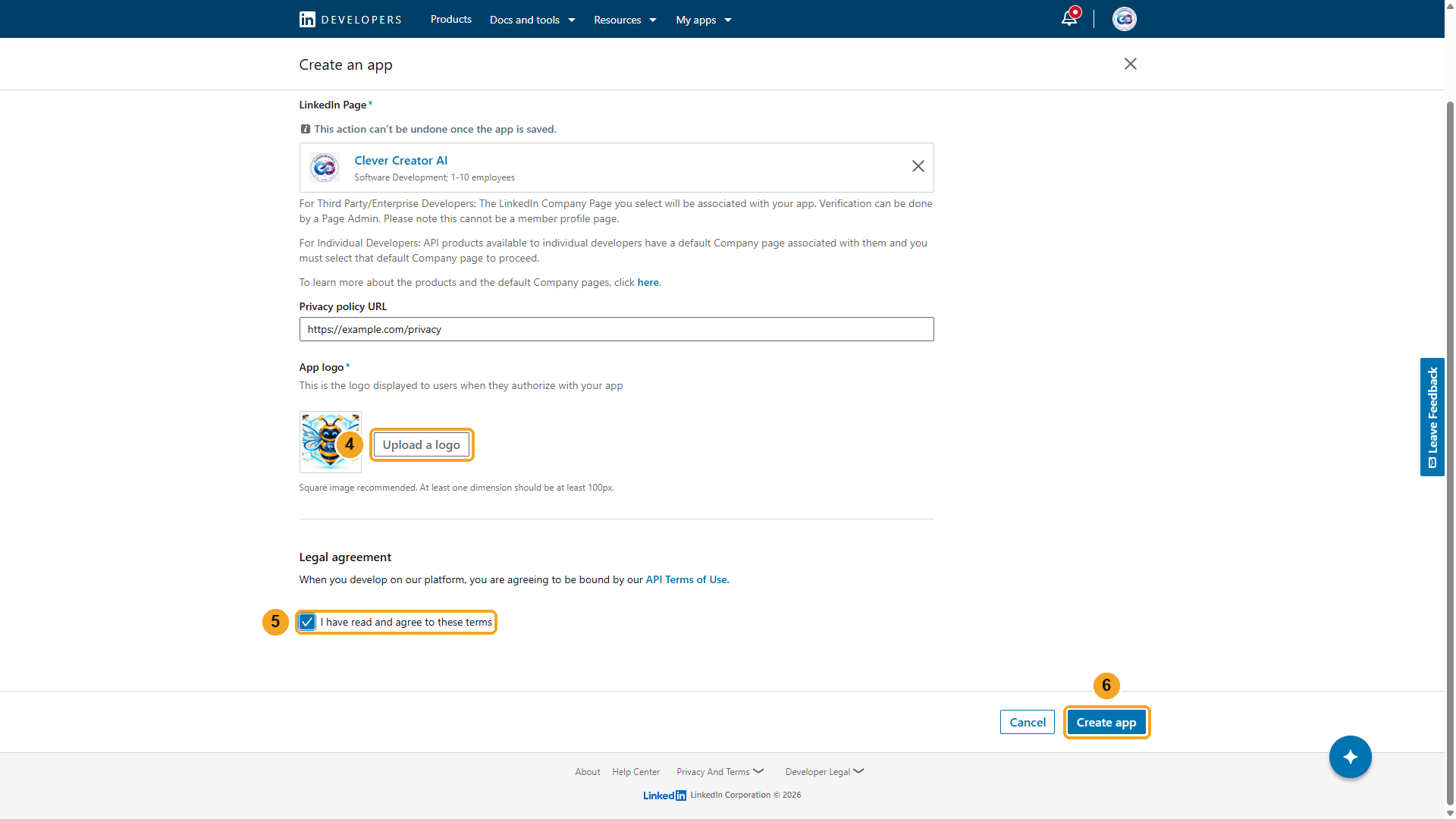
| # | What to do |
|---|---|
| 4 | Upload a logo: square, at least 100 px on one side. Smaller images show "One dimension must be at least 100 px". |
| 5 | Tick I have read and agree to these terms. |
| 6 | Click Create app. |
Add the two products
Open the Products tab. Find each product, click Request access, tick the terms, and click Request access again. Both are free and added straight away.
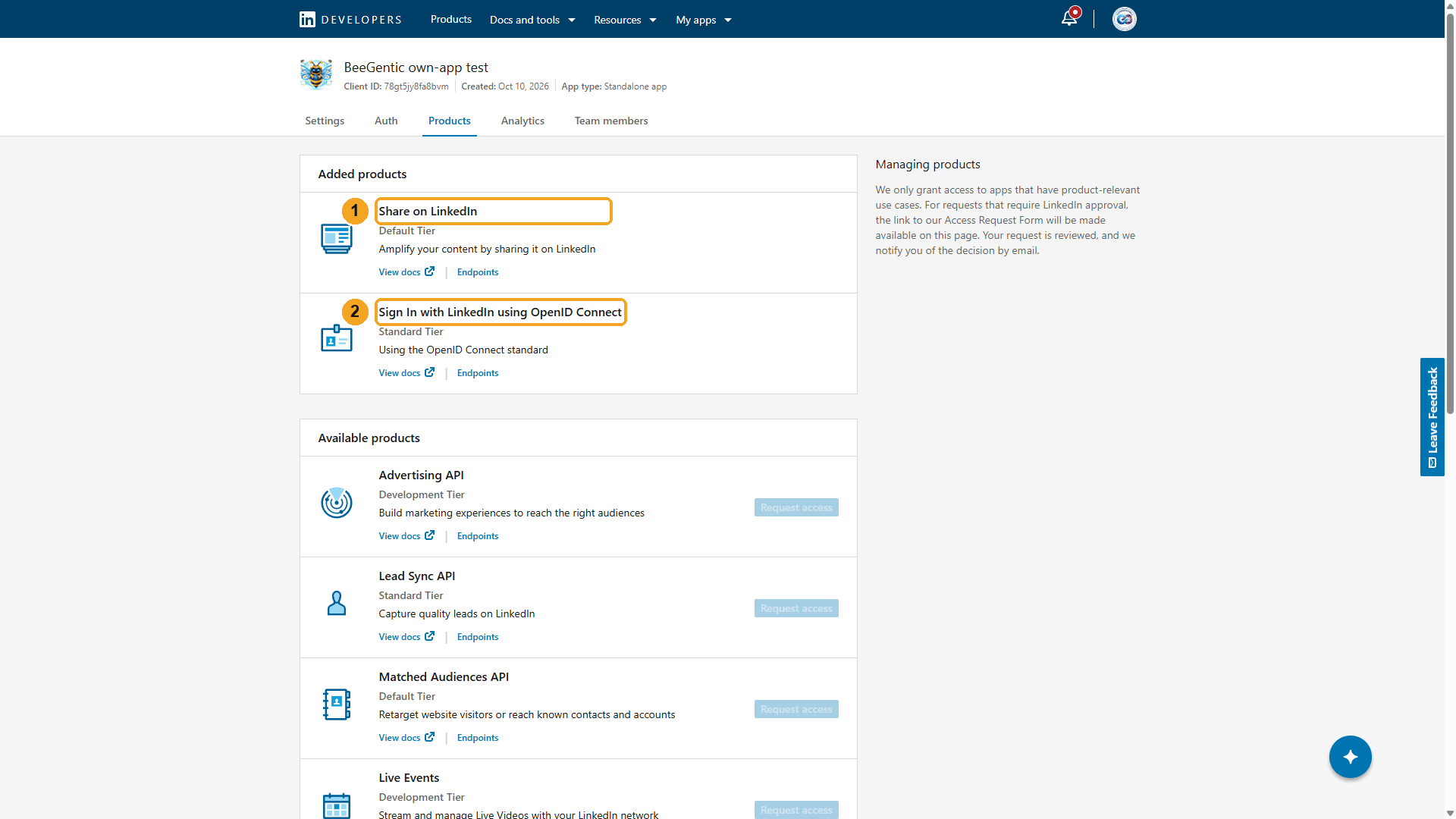
| # | Product | What it lets BeeGentic do |
|---|---|---|
| 1 | Share on LinkedIn | Post, edit and delete posts on your profile (w_member_social). |
| 2 | Sign In with LinkedIn using OpenID Connect | Know which LinkedIn account is connected (openid, profile, email). |
For Company Pages, also request the Community Management API. LinkedIn reviews it; see LinkedIn Company Pages.
Add the redirect URL and copy your keys
Open the Auth tab.
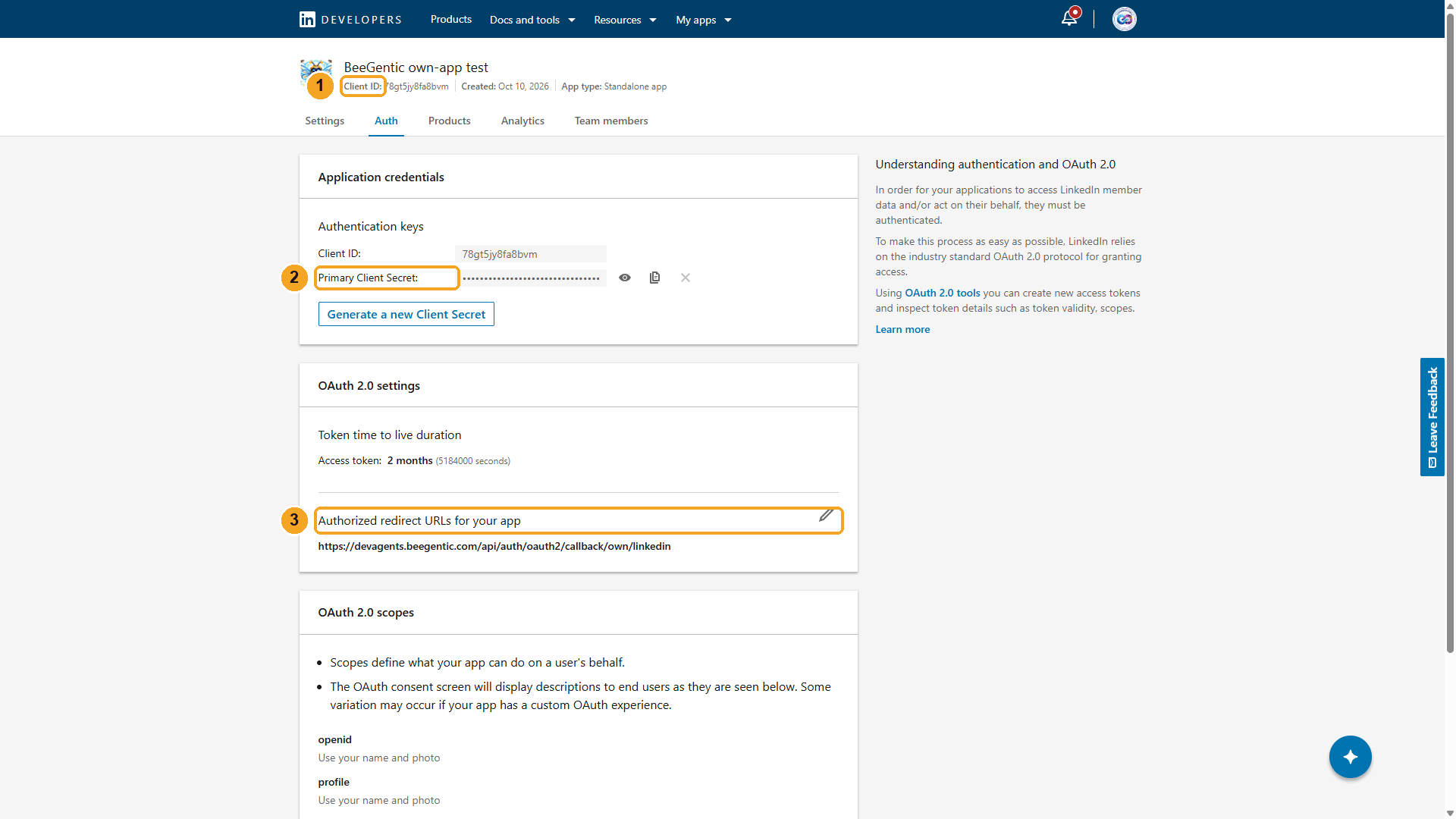
| # | What to do |
|---|---|
| 1 | Client ID: copy it. |
| 2 | Primary Client Secret: click the eye to show it, then copy it. Keep it private. If it leaks, click Generate a new Client Secret and reconnect in BeeGentic. |
| 3 | Authorized redirect URLs for your app: click the pencil → Add redirect URL, paste the URL below, and click Update. |
https://app.beegentic.ai/api/auth/oauth2/callback/own/linkedinBeeGentic's connect window shows this URL with a copy button (Part 2), so you can copy it from there too.
Part 2: Connect LinkedIn in BeeGentic (once)
Enter your app's details
Integrations (left sidebar) → search LinkedIn → open it → Add to BeeGentic.
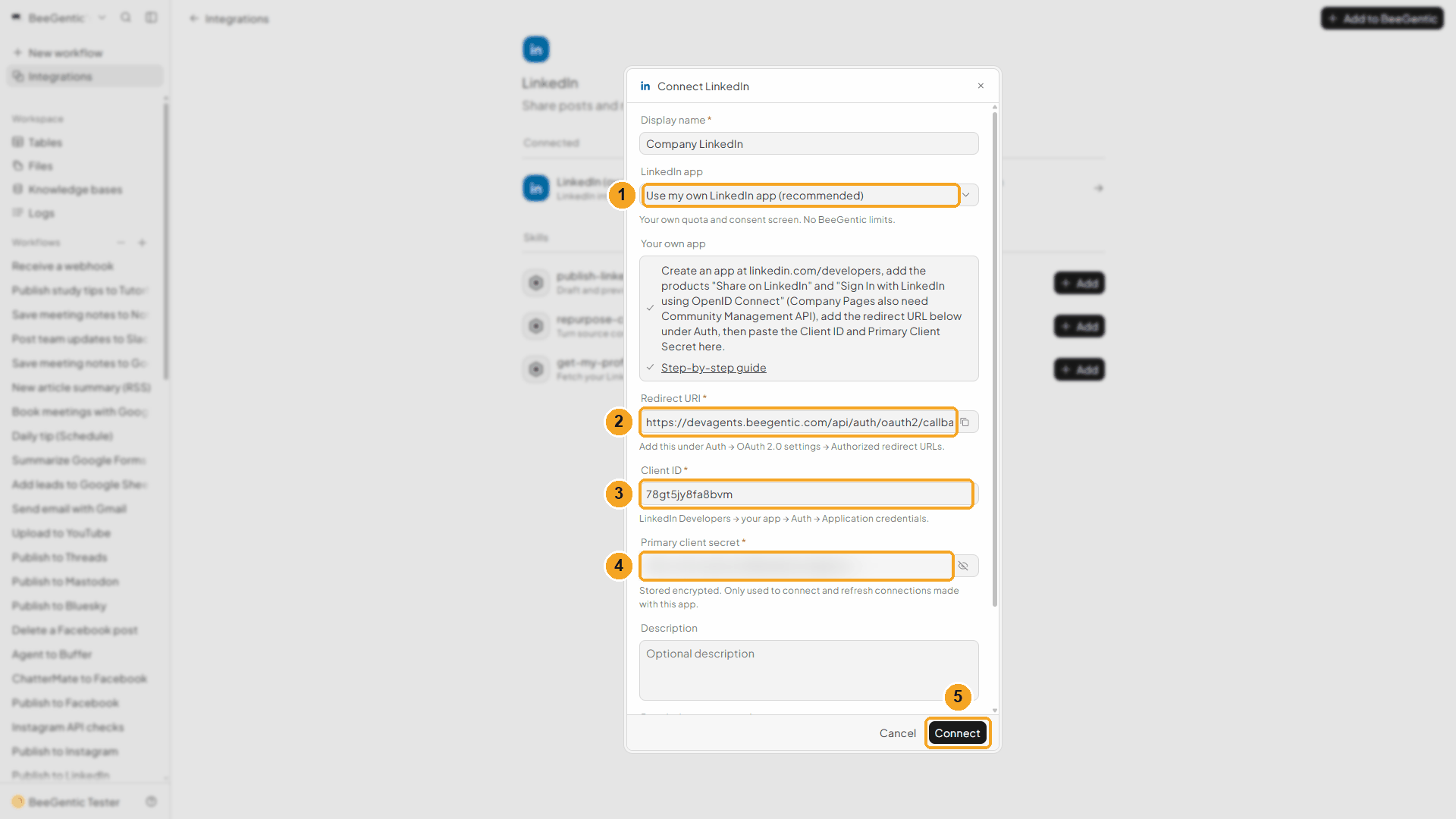
| # | Field | What to do |
|---|---|---|
| 1 | LinkedIn app | Keep Use my own LinkedIn app (recommended). |
| 2 | Redirect URI | Must match the URL you added in LinkedIn, character for character. Use the copy button. |
| 3 | Client ID | Paste it. |
| 4 | Primary client secret | Paste it. BeeGentic stores it encrypted and only uses it for this connection. |
| 5 | Connect | Opens LinkedIn. |
Display name (top) is how the connection appears in BeeGentic, for example Company LinkedIn.
Allow on LinkedIn
LinkedIn may ask you to sign in with your email and password first (even if you usually use Google sign-in; set a LinkedIn password once under Settings & Privacy → Sign in & security if you don't have one).
Then LinkedIn shows "your app name would like to: Use your name and photo, Create, modify, and delete posts…". Click Allow. You're back in BeeGentic, connected. Finish in the same tab you started in.
Check the connection
Open the connection in Integrations → LinkedIn.
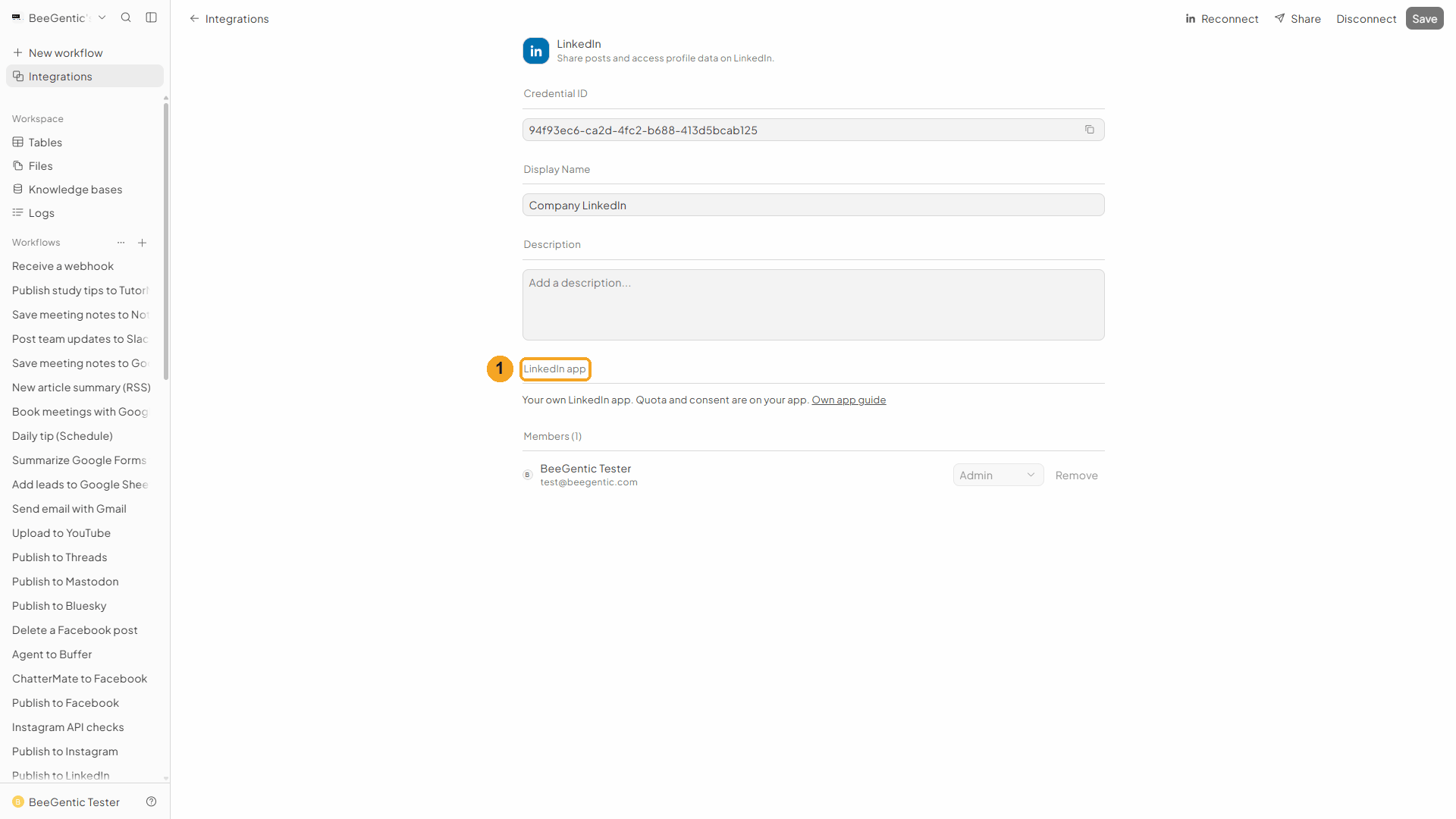
| # | What you see |
|---|---|
| 1 | LinkedIn app: Your own app. Connections that say BeeGentic's app (trial…) use the 30-day trial instead. |
Adding another LinkedIn account later? Choose Same app as Company LinkedIn in the connect window. You don't need to enter the keys again.
Try it without posting
In a workflow, add the LinkedIn block, pick your connection, choose Preview Post, type some text, and run. BeeGentic checks everything and shows exactly what would be posted, and from which profile, without publishing.
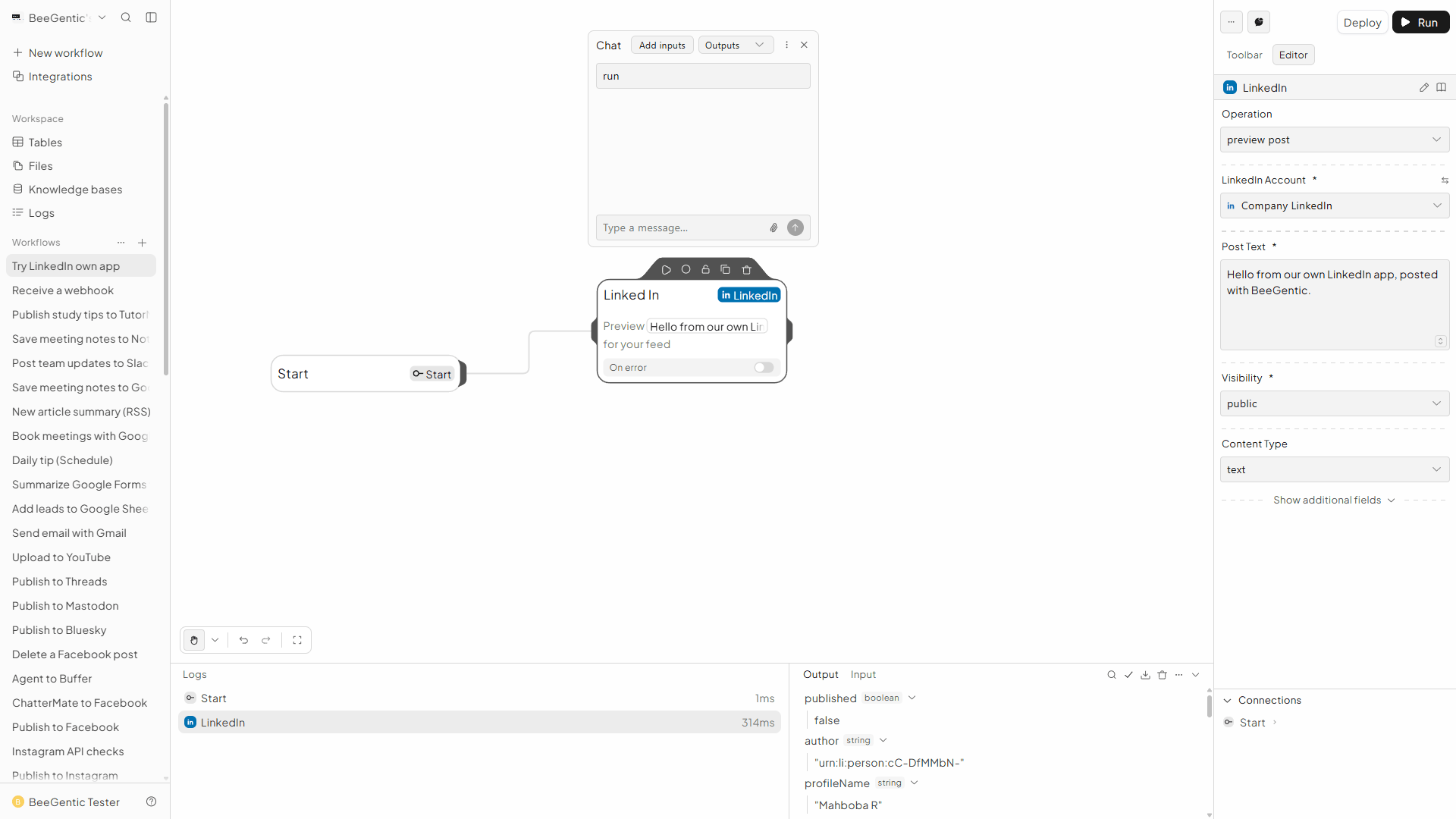
When it looks right, switch the operation to Share Post. The full workflow guide: Publish to LinkedIn.
Troubleshooting
| What you see | What to do |
|---|---|
| LinkedIn: "The redirect_uri does not match the registered value" | The redirect URL in your app's Auth tab doesn't match. Copy it again from BeeGentic's connect window (no trailing /), click Update, and connect again. |
| LinkedIn: "Unauthorized scope" or a scope error | The products aren't added. Add Share on LinkedIn and Sign In with LinkedIn using OpenID Connect (Part 1, step 3). |
| LinkedIn asks for a password you don't have | You signed up with Google. Set a LinkedIn password once: Me → Settings & Privacy → Sign in & security → Change password. |
Back in BeeGentic with error=linkedin_callback_error | Usually a wrong Primary Client Secret. Copy it again (or generate a new one) and reconnect. |
state_mismatch | You finished in a different tab. Close extra tabs and click Add to BeeGentic again. |
| "LinkedIn connection expired. Reconnect your account." | LinkedIn tokens last about 2 months. Click Reconnect on the connection. |
| "Your 30-day trial of … through BeeGentic's LinkedIn app has ended." | That connection uses BeeGentic's app. Reconnect it with your own app (this guide). |
Google with your own app
Step by step. One Google app for Gmail, Sheets, Drive, Docs, Calendar, Forms and YouTube. Create it in Google Cloud and connect it in BeeGentic. About 15 minutes.
Slack with your own app
Step by step. Create your own Slack app from a ready-made manifest, then connect it in BeeGentic. About 5 minutes.