


Slack with your own app
Step by step. Create your own Slack app from a ready-made manifest, then connect it in BeeGentic. About 5 minutes.
What you'll do: create a Slack app in your workspace by pasting a manifest (a short block of settings we give you below), then copy two values (the Client ID and Client Secret) into BeeGentic. Messages then come from your app, with no BeeGentic limits. About 5 minutes.
Narrated walkthrough (about 2 min) with captions. The orange numbers in each screenshot match the # column under it. Click a screenshot to enlarge it.
Before you start
| You need | Why |
|---|---|
| A Slack workspace where you can install apps | The app lives in your workspace. On paid plans, an admin may need to approve new apps. |
| About 5 minutes | Most settings come from the manifest. |
Part 1: Create your Slack app (once)
Start a new app
Open api.slack.com/apps (sign in to your workspace if asked) and click Create New App.
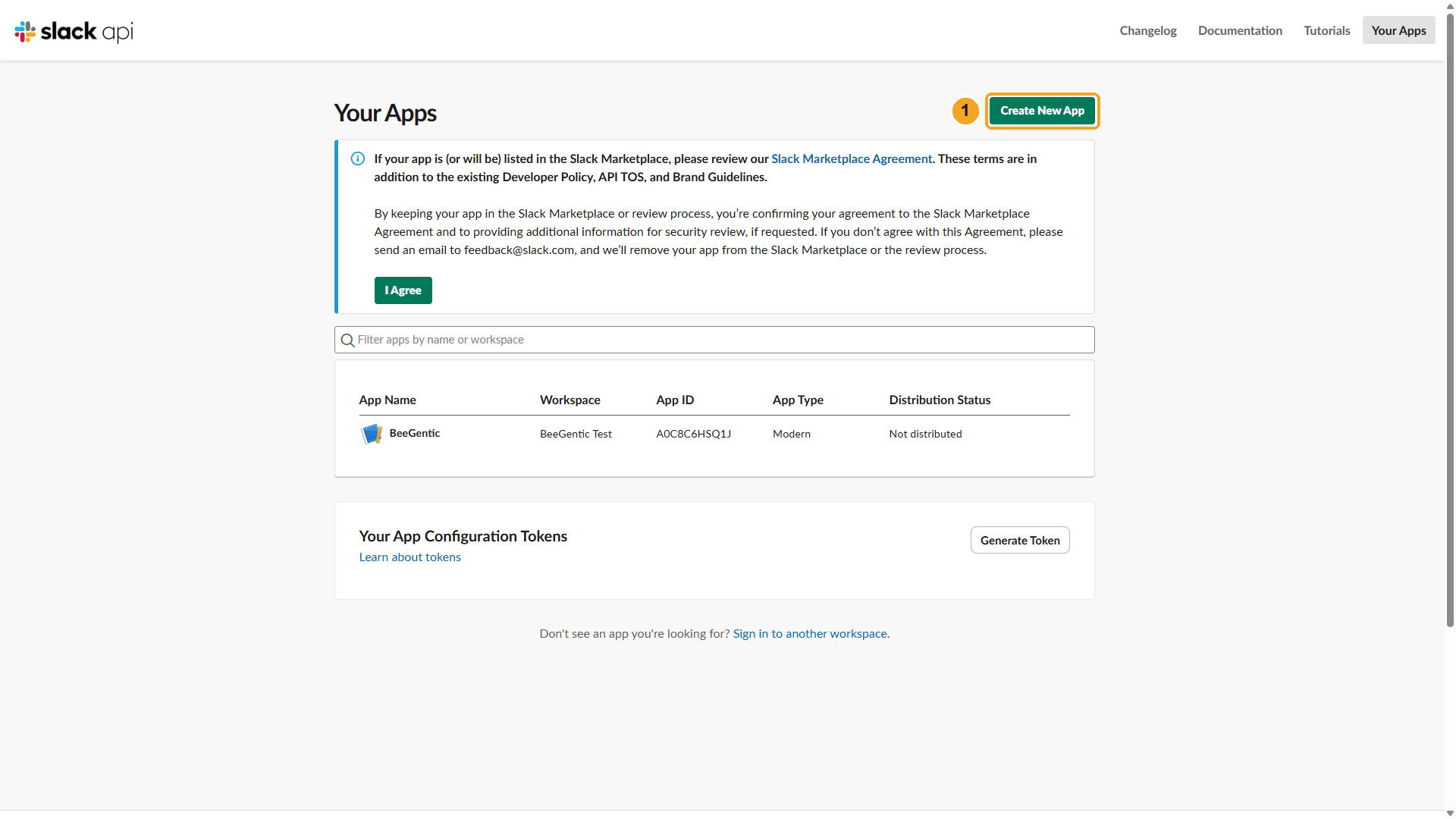
| # | What to do |
|---|---|
| 1 | Click Create New App. |
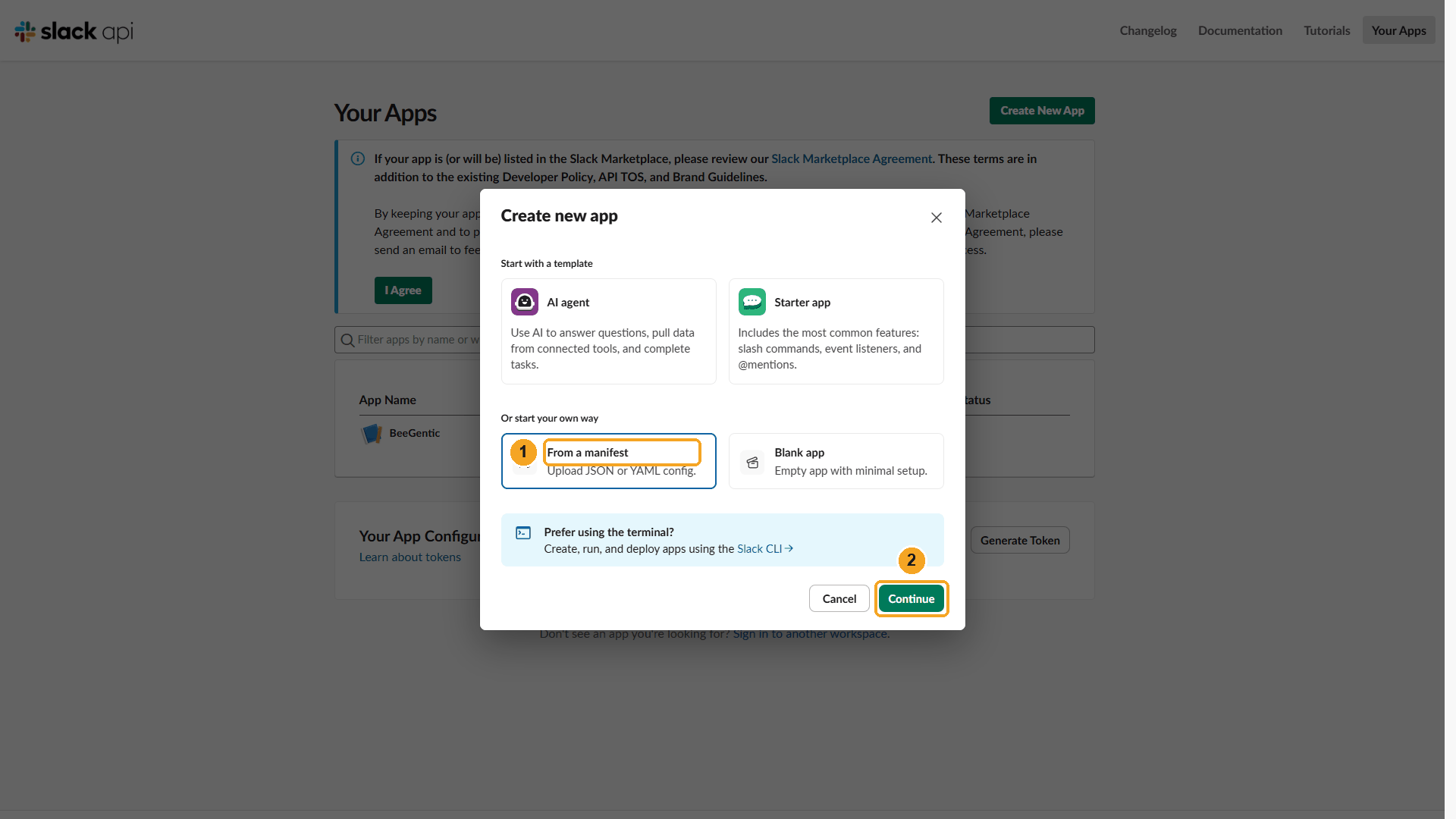
Paste the manifest and pick your workspace
Open the JSON tab, delete the example, and paste this manifest:
{
  "display_information": { "name": "BeeGentic" },
  "features": { "bot_user": { "display_name": "BeeGentic", "always_online": false } },
  "oauth_config": {
    "redirect_urls": ["https://app.beegentic.ai/api/auth/oauth2/callback/own/slack"],
    "scopes": {
      "bot": [
        "channels:read", "channels:history", "channels:manage",
        "groups:read", "groups:history", "groups:write",
        "chat:write", "chat:write.public",
        "im:write", "im:read", "users:read",
        "files:write", "files:read",
        "canvases:read", "canvases:write",
        "reactions:write", "reactions:read"
      ]
    }
  },
  "settings": { "org_deploy_enabled": false, "socket_mode_enabled": false, "token_rotation_enabled": false }
}
You can change "name" and "display_name" to anything you like, for example your company name. That's how the bot appears in Slack.
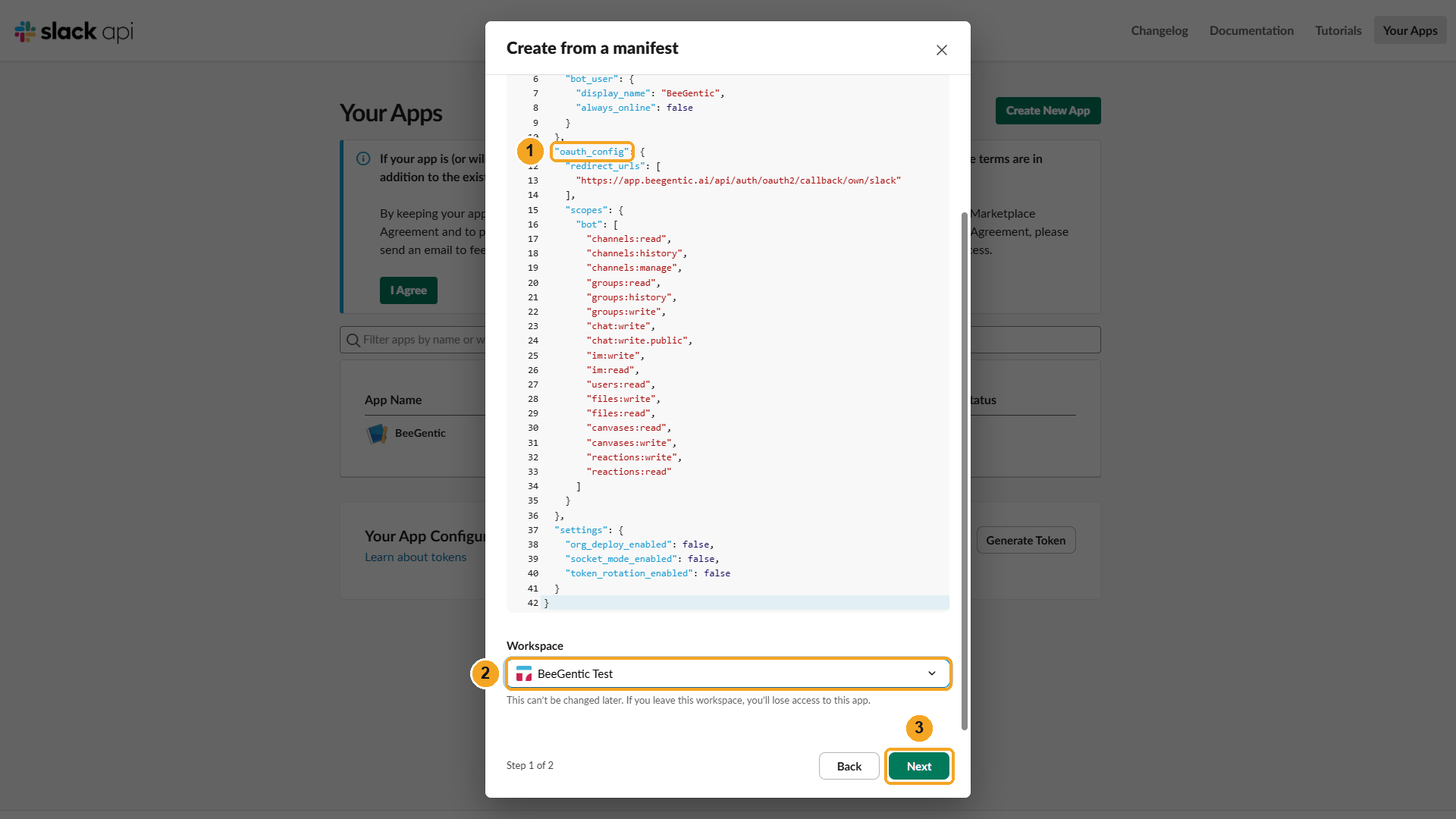
| # | What you see |
|---|---|
| 1 | oauth_config: BeeGentic's redirect URL and the permissions (scopes) BeeGentic needs. |
| 2 | Workspace: pick the workspace the app belongs to. It can't be changed later. |
| 3 | Click Next. |
Create and install
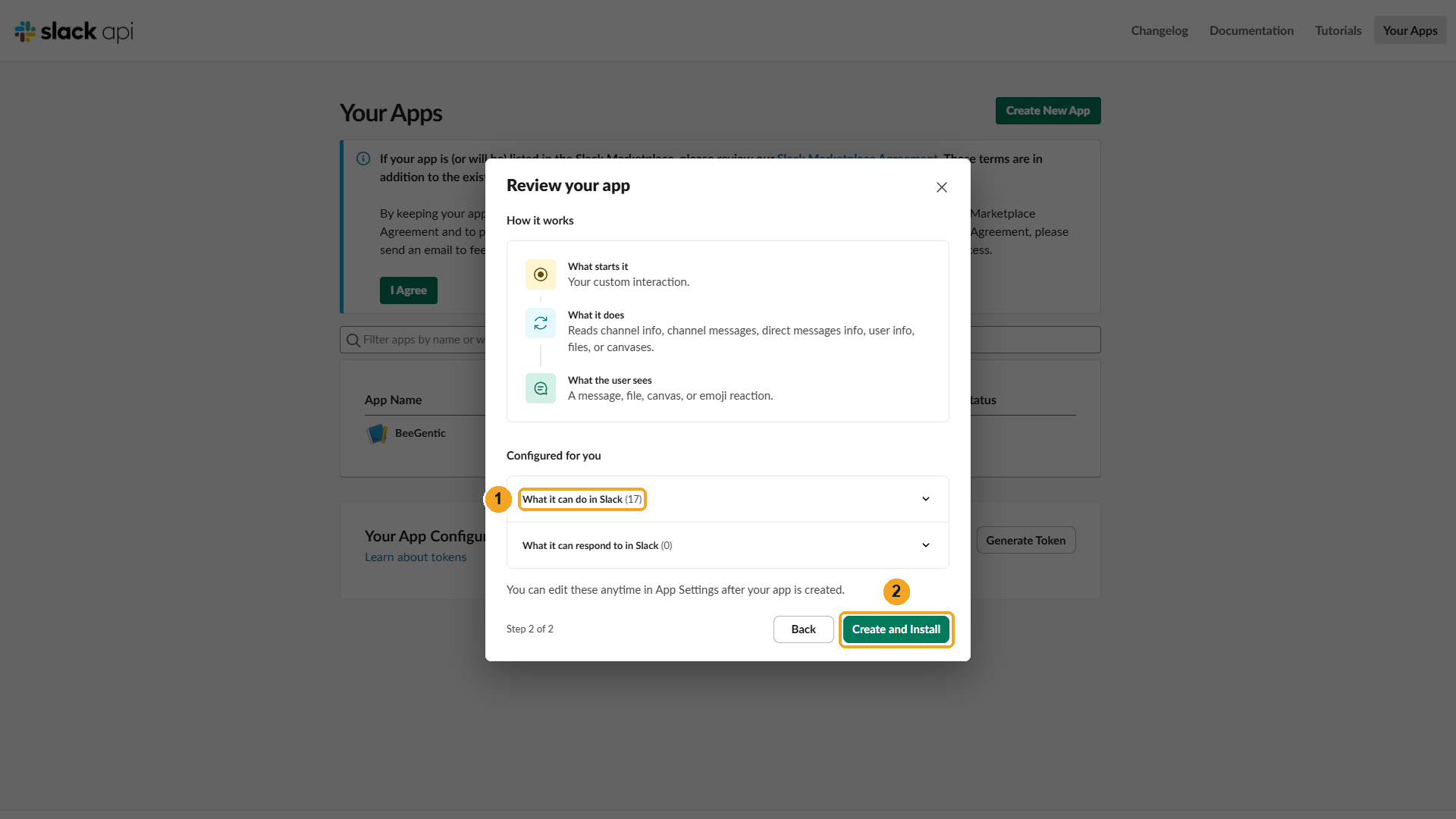
| # | What to do |
|---|---|
| 1 | Check What it can do in Slack (17): the 17 permissions from the manifest. |
| 2 | Click Create and Install, then Allow. |
Copy your keys
The app opens on Basic Information. Scroll to App Credentials.
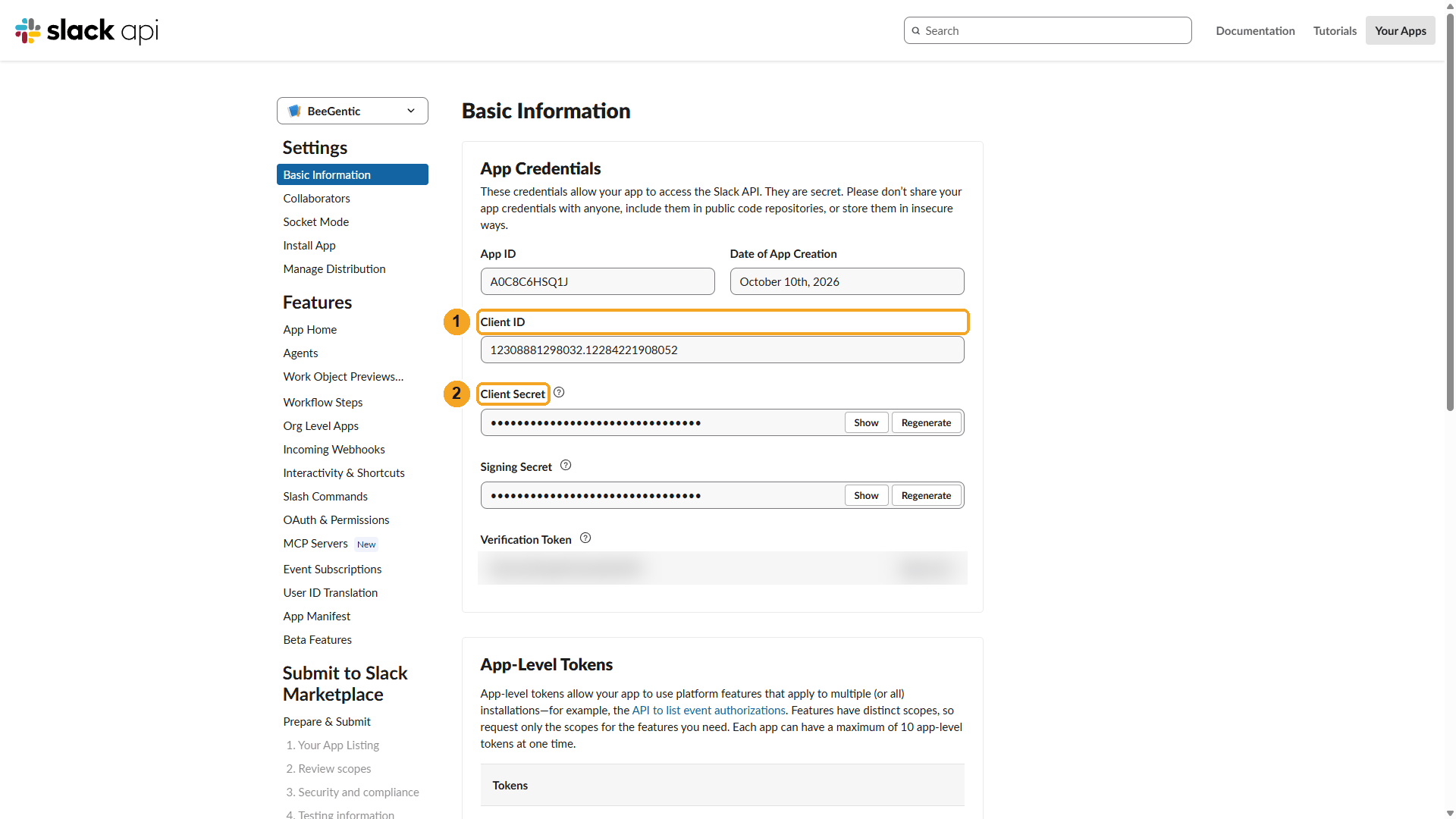
| # | What to do |
|---|---|
| 1 | Client ID: copy it. |
| 2 | Client Secret: click Show, then copy it. |
Keep the Client Secret, Signing Secret and Verification Token private (we've blurred the token in the picture). If the Client Secret leaks, click Regenerate and reconnect in BeeGentic.
Check the redirect URL (optional)
Open OAuth & Permissions.
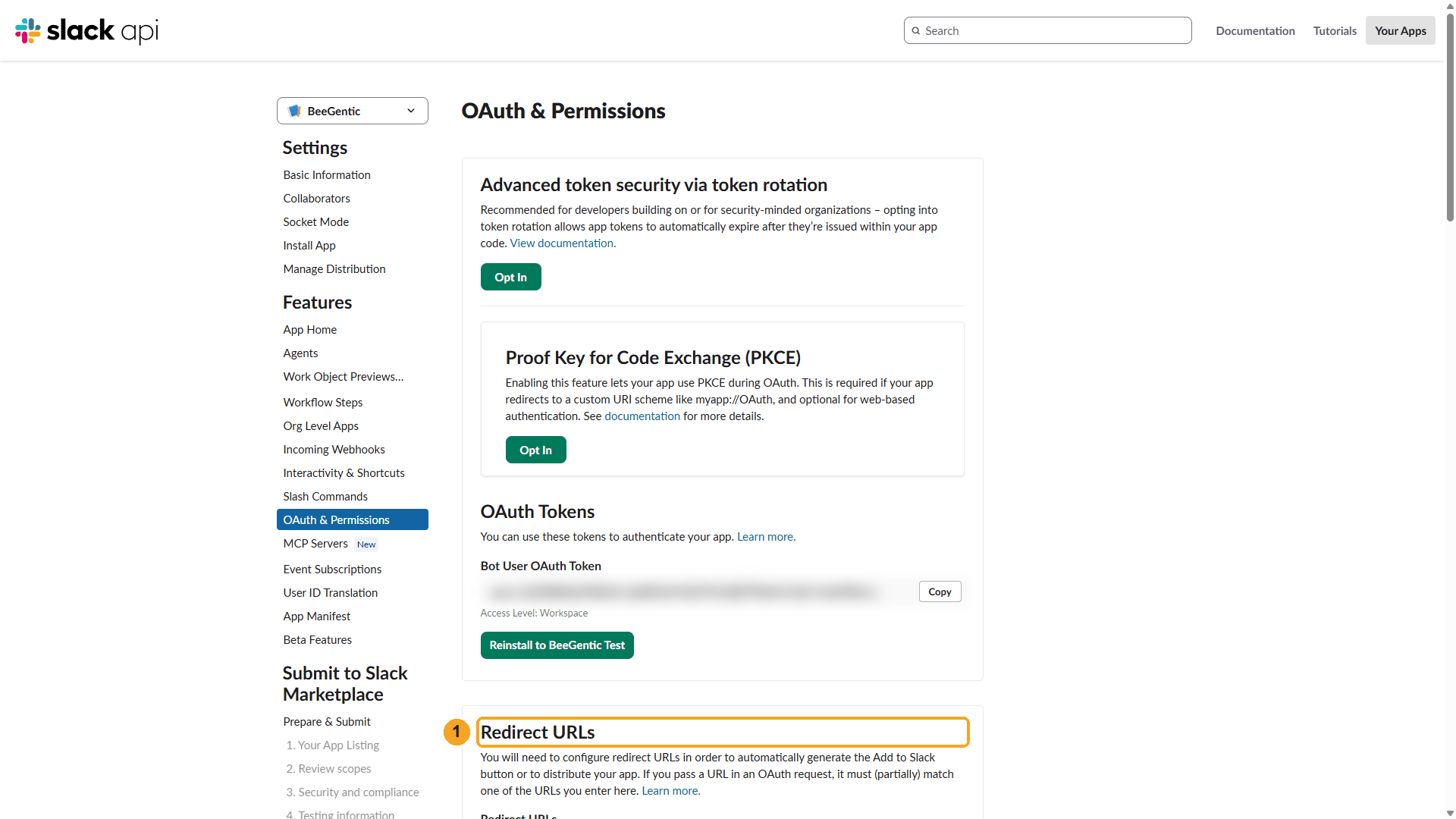
| # | What you see |
|---|---|
| 1 | Redirect URLs: https://app.beegentic.ai/api/auth/oauth2/callback/own/slack, added by the manifest. Further down, Bot Token Scopes lists the 17 scopes. |
The Bot User OAuth Token on this page (xoxb-…) is a live key for your workspace. BeeGentic doesn't need it. Never paste it anywhere.
Part 2: Connect Slack in BeeGentic (once)
Enter your app's details
Integrations → search Slack → open it → Add to BeeGentic.
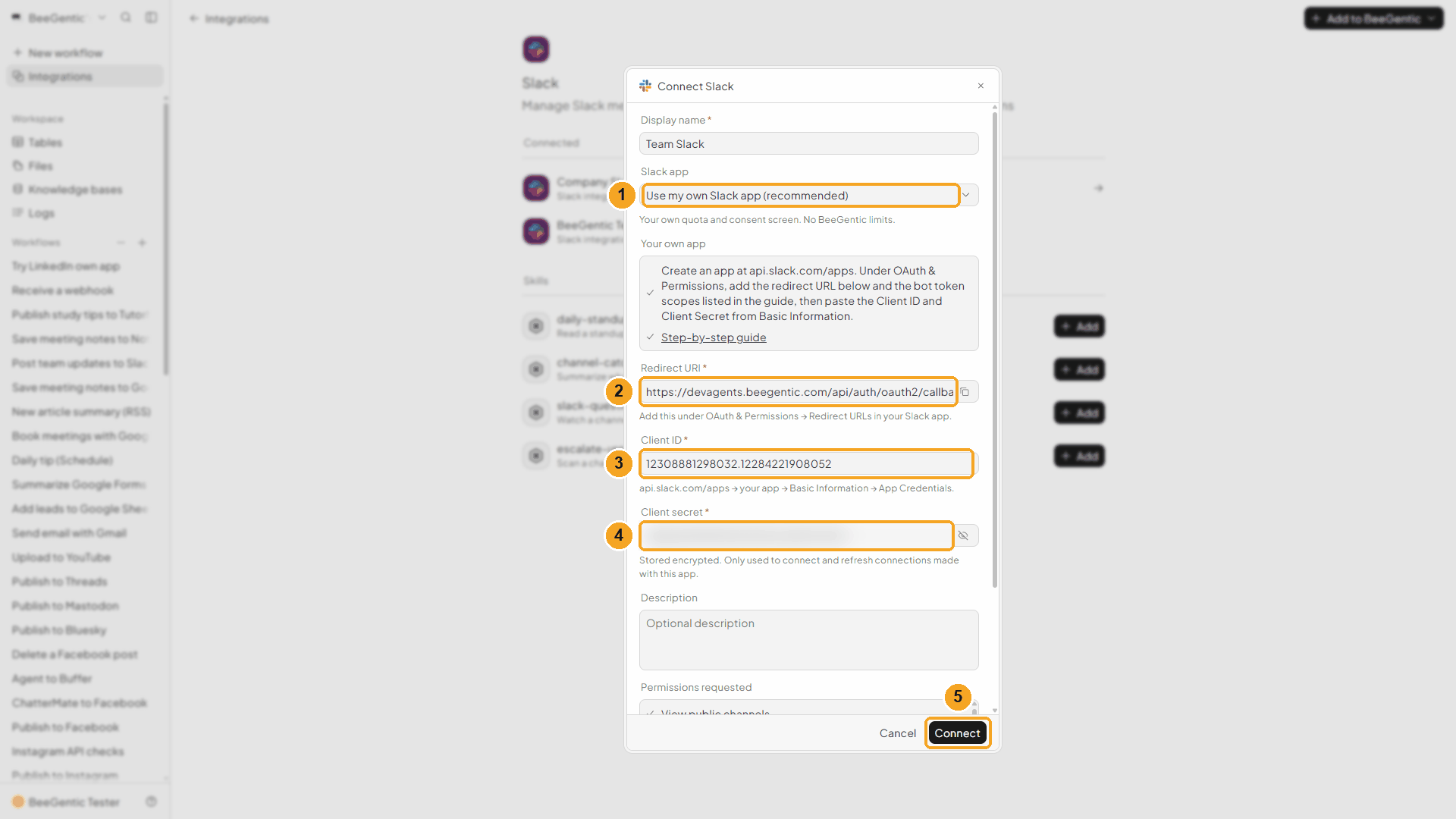
| # | Field | What to do |
|---|---|---|
| 1 | Slack app | Keep Use my own Slack app (recommended). |
| 2 | Redirect URI | Must match the one in your app. The manifest already added it. |
| 3 | Client ID | Paste it. |
| 4 | Client secret | Paste it. BeeGentic stores it encrypted. |
| 5 | Connect | Opens Slack. |
Allow on Slack
Slack shows Allow the "your app" app to access Slack. Pick your workspace under Where do you want to use…, and click Allow. You're back in BeeGentic, connected.
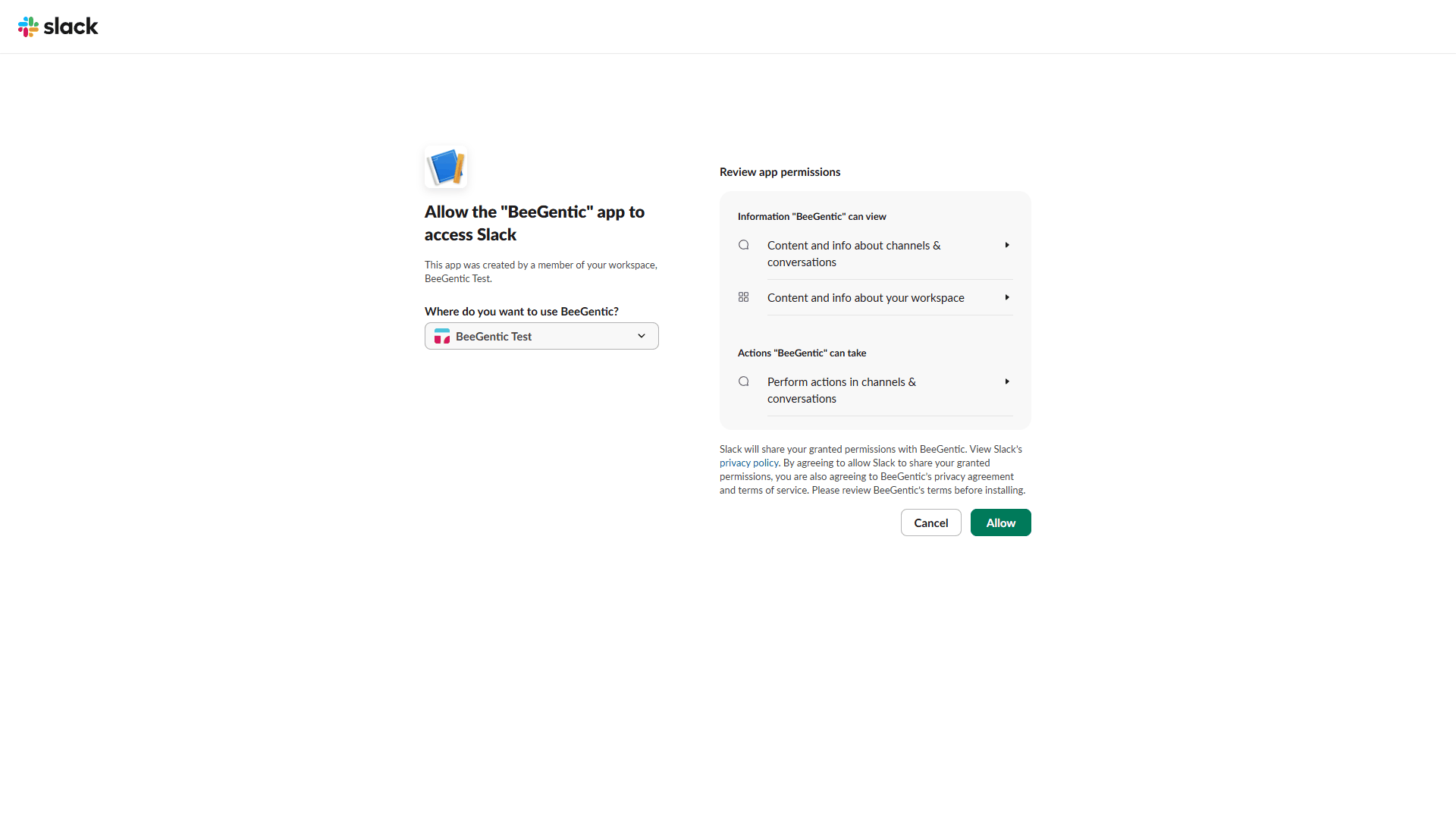
Check the connection
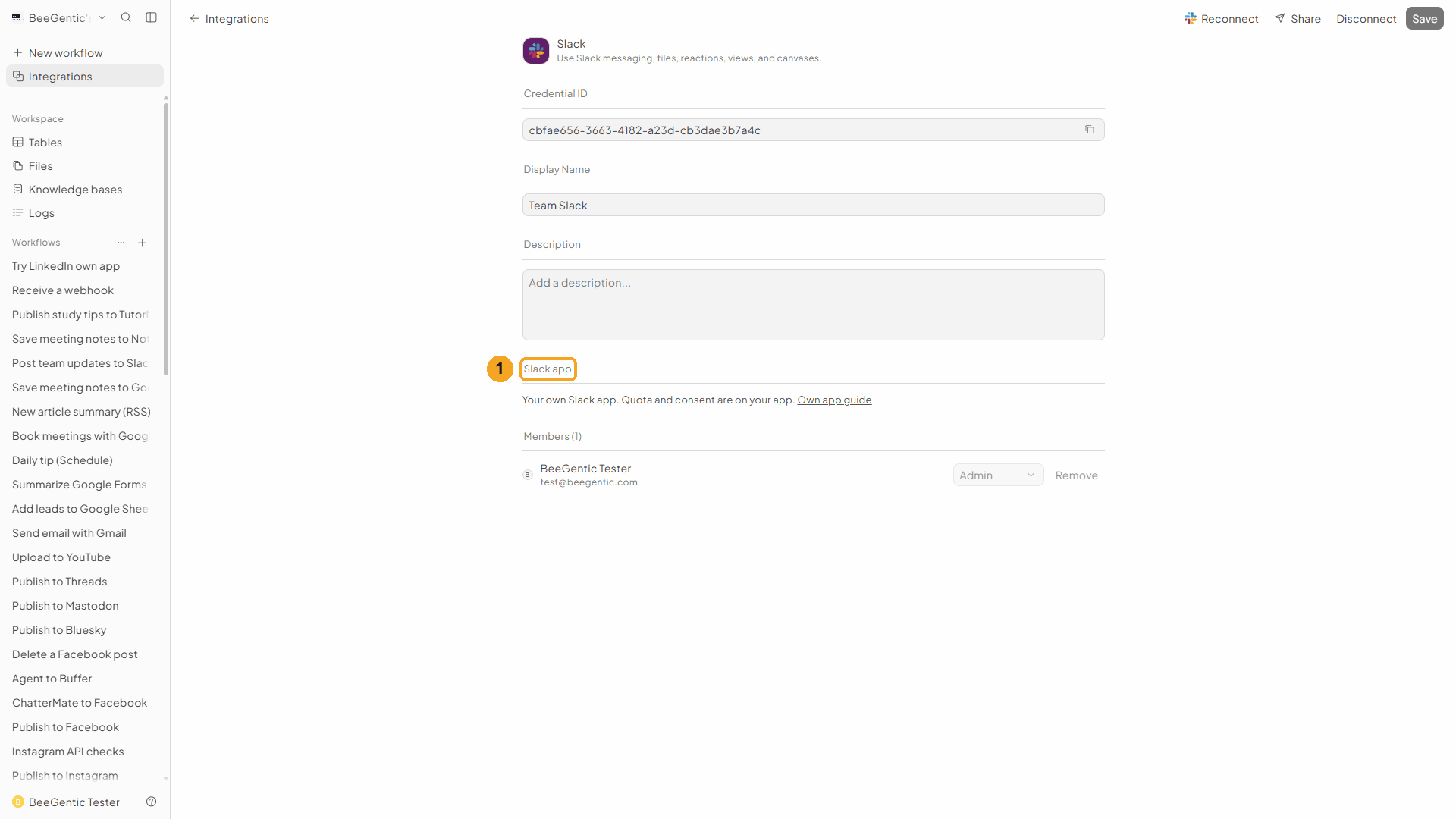
| # | What you see |
|---|---|
| 1 | Slack app: Your own app. BeeGentic's app (trial…) means the connection uses the 30-day trial. |
Send a test message
In a workflow, add the Slack block → Send Message → pick your connection → pick a Channel → type a Message → run. The message arrives from your app.
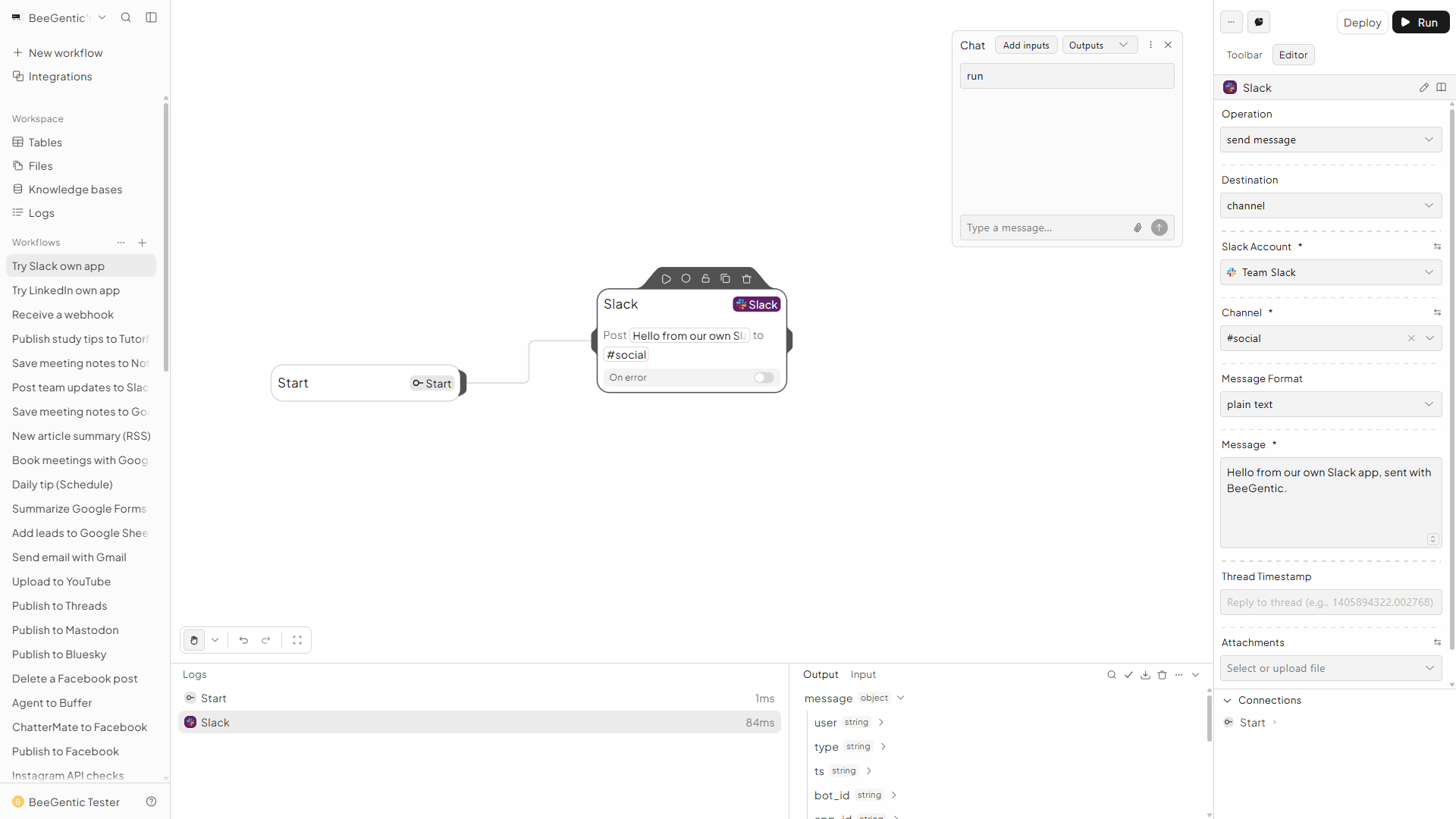
The bot can post to public channels without being invited (chat:write.public). For private channels, invite the bot first: in the channel, type /invite @BeeGentic (or your bot's name).
Troubleshooting
| What you see | What to do |
|---|---|
| Slack: "redirect_uri did not match any configured URIs" | The app's Redirect URL is missing or different. In OAuth & Permissions → Redirect URLs, add https://app.beegentic.ai/api/auth/oauth2/callback/own/slack and click Save URLs. |
| Slack: "invalid_scope" or a missing-permission error | The app lacks a scope BeeGentic asks for. Open App Manifest, paste the manifest above again, save, then Reconnect. |
| Slack: "…requires approval" | Your workspace only allows approved apps. Ask a Slack admin to approve it (Manage apps), then connect again. |
not_in_channel when posting to a private channel | Invite the bot to that channel (/invite @BeeGentic). |
Back in BeeGentic with error=slack_callback_error | Usually a wrong Client Secret. Copy it again (Basic Information → Show) and reconnect. |
| "Your 30-day trial of … through BeeGentic's Slack app has ended." | That connection uses BeeGentic's app. Reconnect it with your own app (this guide). |
The Slack trigger (run a workflow when a message arrives) needs Event Subscriptions on your app as well; that isn't covered by this manifest.
LinkedIn with your own app
Step by step. Create a free LinkedIn developer app, add Share on LinkedIn and OpenID Connect, and connect it in BeeGentic. About 10 minutes.
Notion with your own connection
Step by step. Create an OAuth connection in Notion's Developer tools and connect it in BeeGentic. About 5 minutes.