


Quick start: import a social workflow and publish
Download a ready-made workflow, import it into BeeGentic, link your Facebook Pages and LinkedIn, and publish your first post with approval. Narrated video, sample files and a real result.
What you'll build: a workflow that writes a blog post with AI, waits for your approval, publishes it, and shares it on your Facebook Pages and LinkedIn. You import it from a sample file, link your own accounts, and run it. About 10 minutes.
Blocks: Start → TutorMigo Content (write draft) → TutorMigo Content (save draft) → Agent (captions) → Human approval → Condition → TutorMigo Content (publish) → Facebook Page → Facebook Page 2 → LinkedIn → Function (summary).
Narrated walkthrough (about 2½ minutes), with captions (CC button). We recorded one real run from start to finish: the blog post and all three social posts went live. Each step below has a screenshot and a short silent clip. The orange numbers in a screenshot match the # column under it.
Download the sample workflows
| File | What it does | You link |
|---|---|---|
| blog-to-social.json | AI writes a TutorMigo blog post → you approve → it's published → shared on two Facebook Pages and LinkedIn | TutorMigo key, OpenAI key, Facebook, LinkedIn |
| video-promo-to-social.json | Posts one video natively to two Facebook Pages and LinkedIn, with a thumbnail and captions | Facebook, LinkedIn |
| sample-run-input.json | The exact Start inputs we used for the recorded run | Nothing |
The files contain no accounts, keys or Page IDs. You choose your own after importing.
What BeeGentic can post today (tested on 2026-10-23):
| Network | Text | Link card | Photo | Video | Thumbnail | Captions |
|---|---|---|---|---|---|---|
| Facebook Pages | ✅ | ✅ | ✅ | ✅ native (Facebook shows it as a Reel) | ✅ | ✅ .srt/.vtt |
| LinkedIn (your profile) | ✅ | ✅ article card | ✅ | ✅ native | ⚠️ LinkedIn uses the video's first frame as the cover (see the tip below) | ✅ |
| Instagram, X, TikTok, LinkedIn company Pages, Facebook Groups | See Publish to social for each network's status |
Before you start
| You need | Why |
|---|---|
| A BeeGentic workspace | Create a free account |
| A Facebook account that manages the Pages you want to post to | BeeGentic posts with each Page's own permission. One connection can post to every Page you allow. |
| A LinkedIn account | The post goes to that profile |
A TutorMigo Content API key (ct_live_…) | Only for the blog sample. See TutorMigo Content. |
| An OpenAI key | The Agent writes the captions. See References and secrets. |
Part 1: Import and set up
Import the sample
Download blog-to-social.json. In BeeGentic, open the ⋯ menu next to Workflows in the sidebar and choose Import workflow, then pick the file.
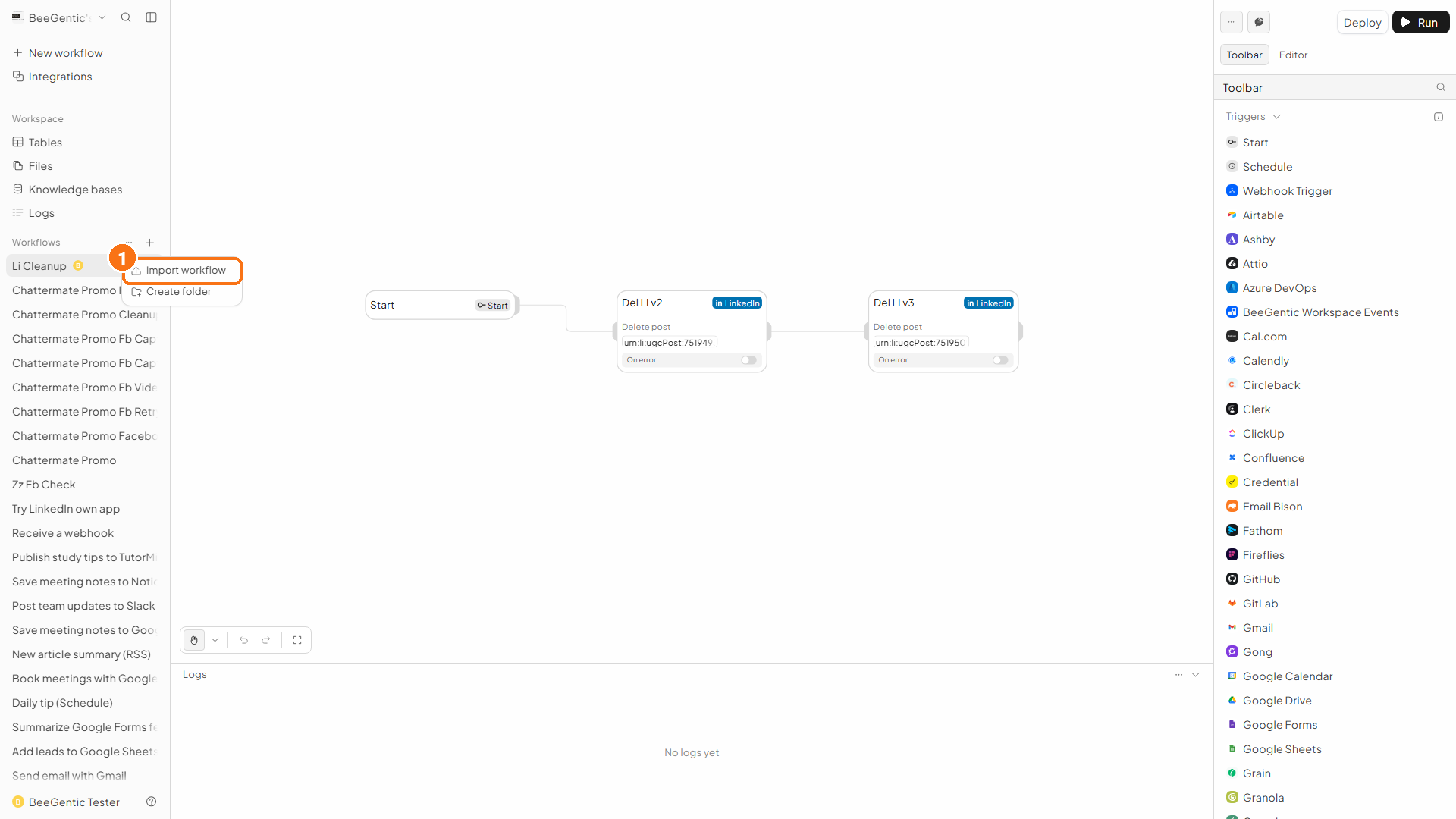
| # | What to click |
|---|---|
| 1 | Import workflow. The new workflow opens straight away and is named after the file. |
Watch this step
Look around the workflow
The top row writes the draft, saves it, writes the captions and waits for you. The bottom row publishes the blog and shares it, one network after another.
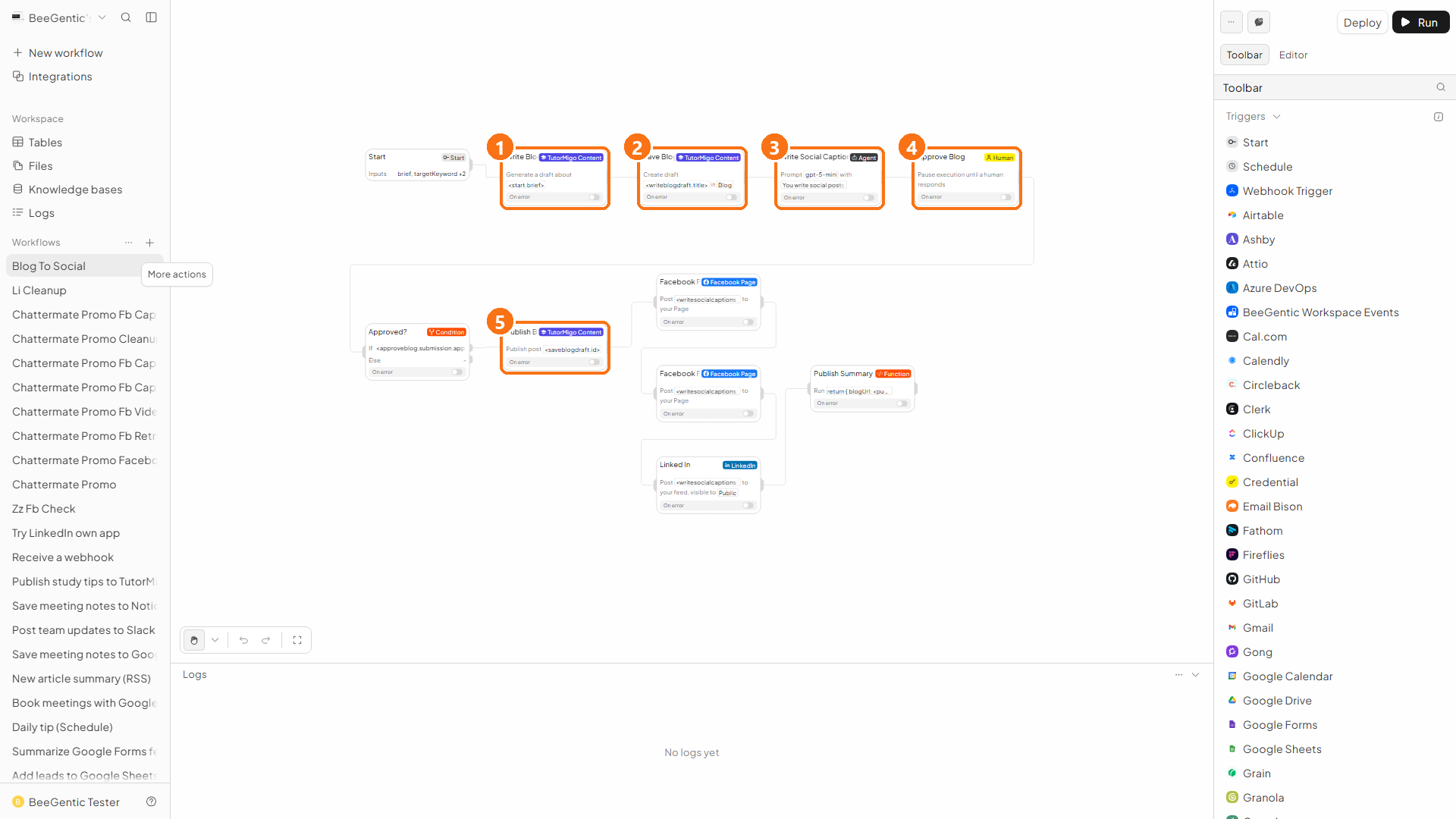
| # | Block | What it does |
|---|---|---|
| 1 | Write Blog Draft | TutorMigo's AI writes the article and a hero image from your brief |
| 2 | Save Blog Draft | Saves it in TutorMigo as a draft (nothing is public yet) |
| 3 | Write Social Captions | An Agent writes one Facebook post and one LinkedIn post |
| 4 | Approve Blog | Pauses until a person approves |
| 5 | Publish Blog | Puts the article live, then the social blocks share it |
Watch this step
Save your two keys as secrets
Settings → Secrets. Add TUTORMIGO_API_KEY and OPENAI_API_KEY. The workflow already refers to them as {{TUTORMIGO_API_KEY}} and {{OPENAI_API_KEY}}.
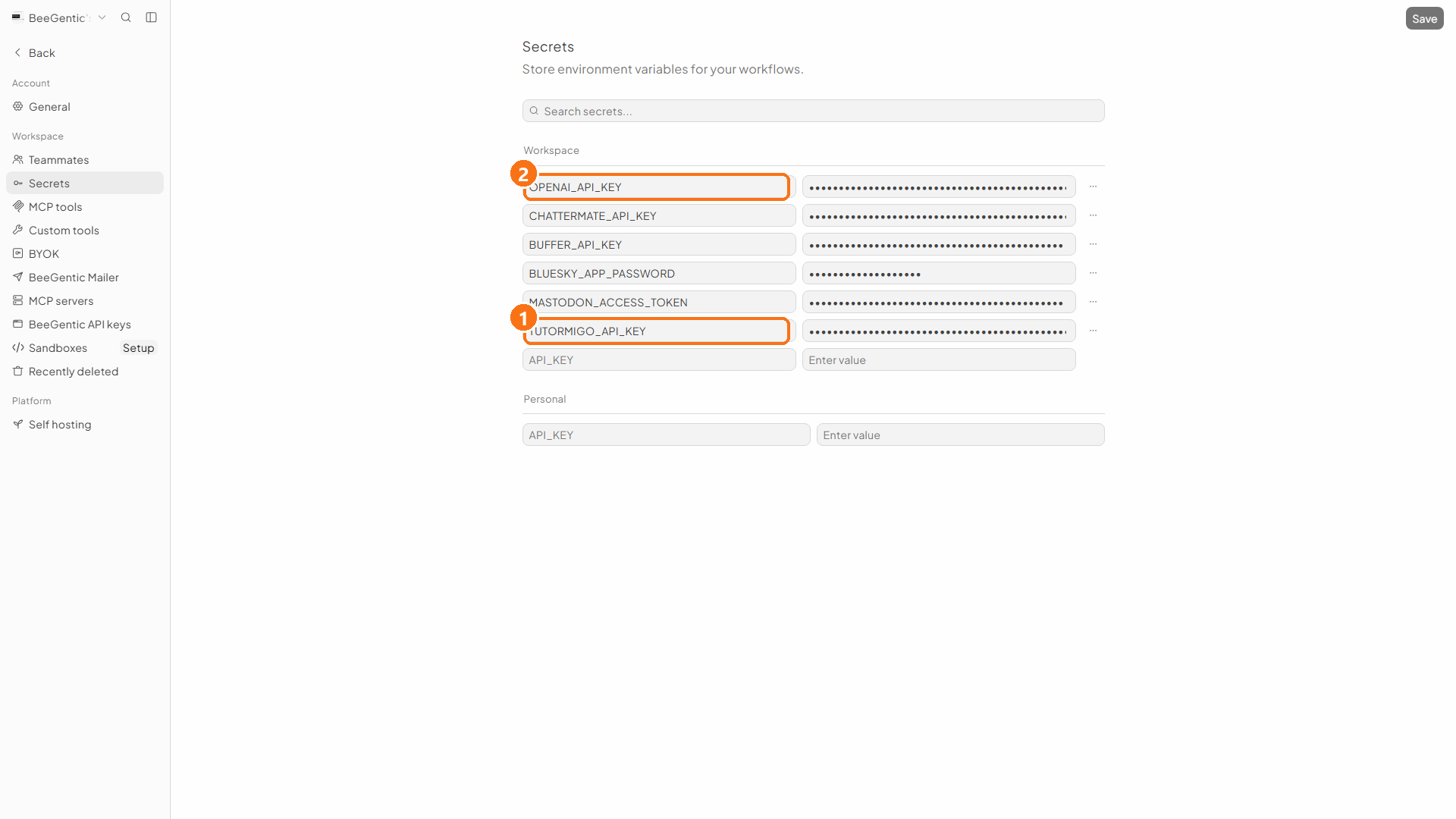
| # | Secret | Value |
|---|---|---|
| 1 | TUTORMIGO_API_KEY | Your ct_live_… key |
| 2 | OPENAI_API_KEY | Your OpenAI key |
Watch this step
Check the writing steps
Click Write Blog Draft: it uses the brief, keyword and tone you type when you run it. Write Social Captions turns the title and excerpt into the two posts. You don't need to change anything.
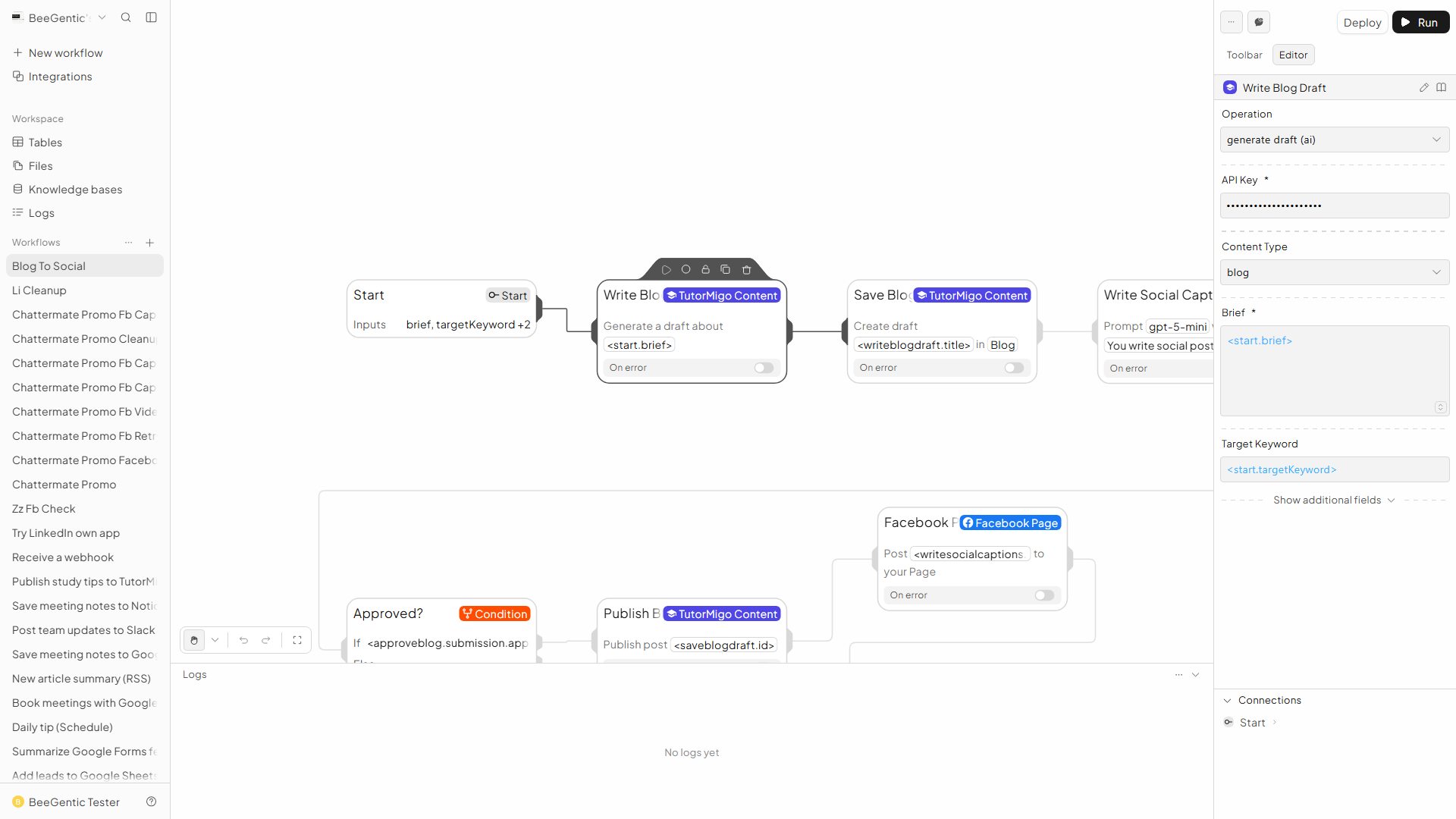
Watch this step
Link Facebook and choose the Page
Click Facebook Page. Pick your Facebook account (or Connect another Facebook account), then paste the Page ID.
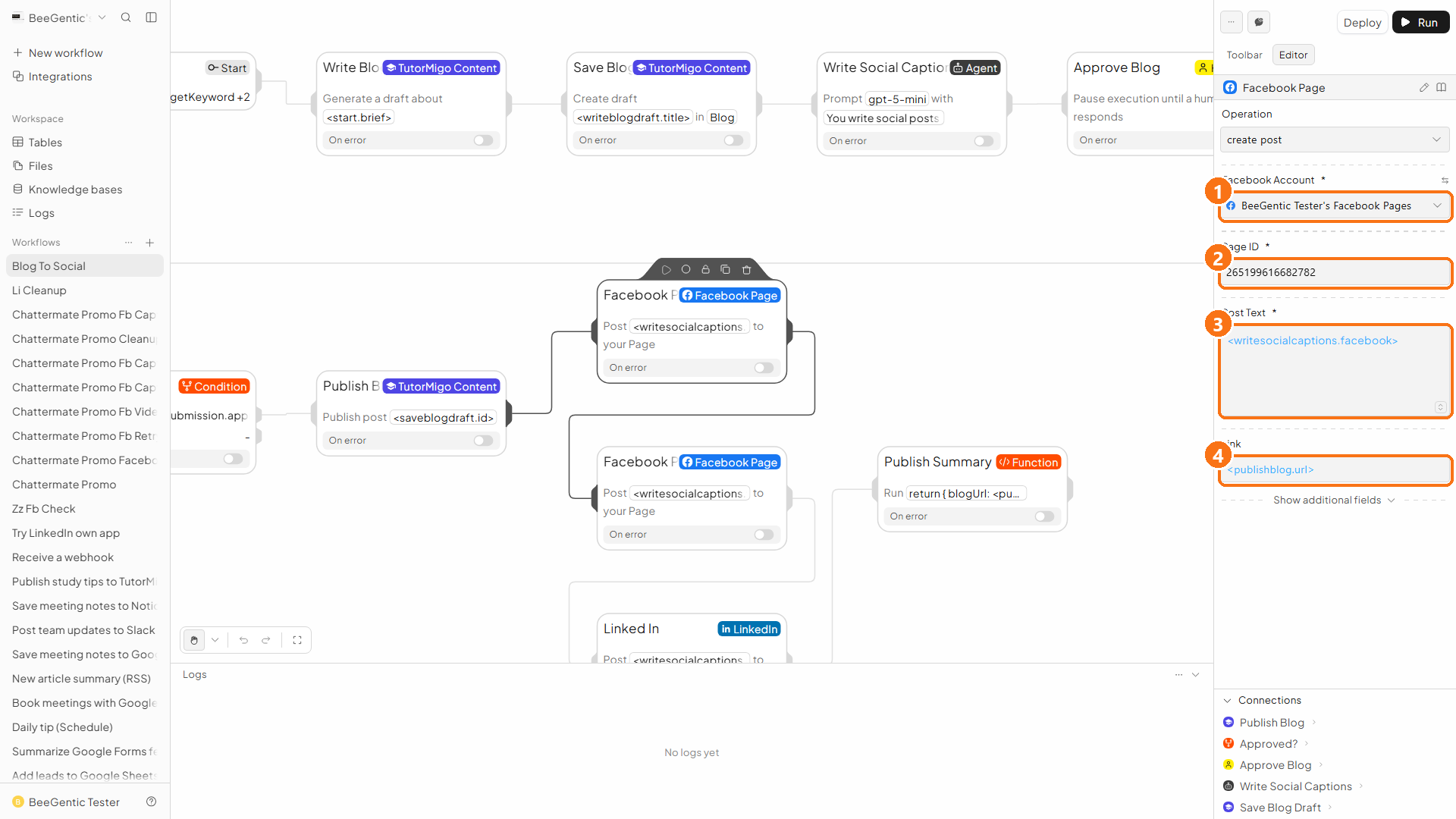
| # | Field | Value |
|---|---|---|
| 1 | Facebook Account | Your connection. When Facebook asks, allow every Page you want to post to. |
| 2 | Page ID | The Page to post to |
| 3 | Post Text | <writesocialcaptions.facebook> (already filled in) |
| 4 | Link | <publishblog.url>: Facebook builds the preview card from the article page |
Watch this step
Second Page (optional) and LinkedIn
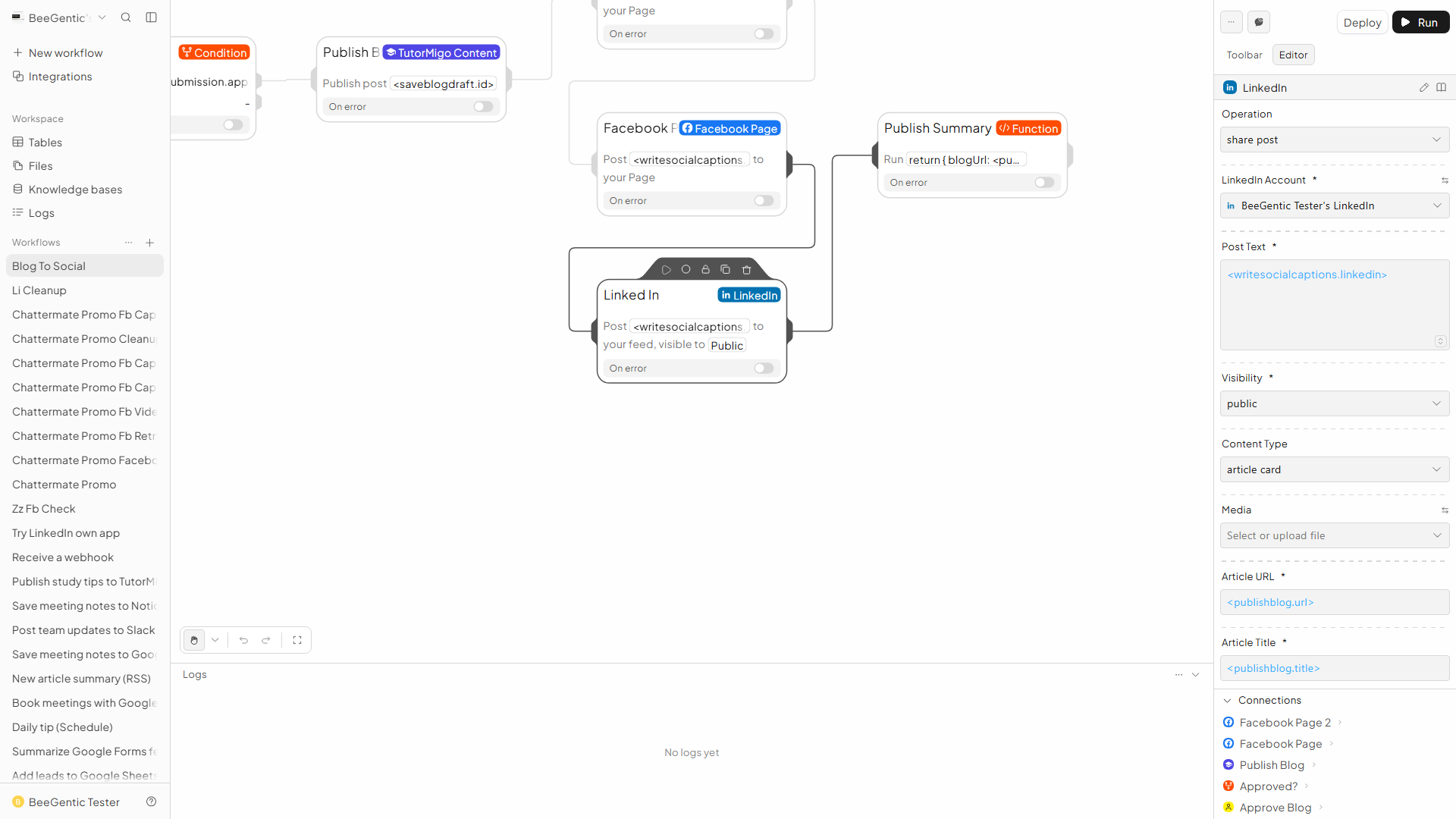
Facebook Page 2 posts the same text to another Page: pick the same account and a second Page ID, or delete the block (and its line in Publish Summary). In LinkedIn, pick your LinkedIn account: the post goes to that profile as an article card.
Watch this step
Part 2: Run, approve and check
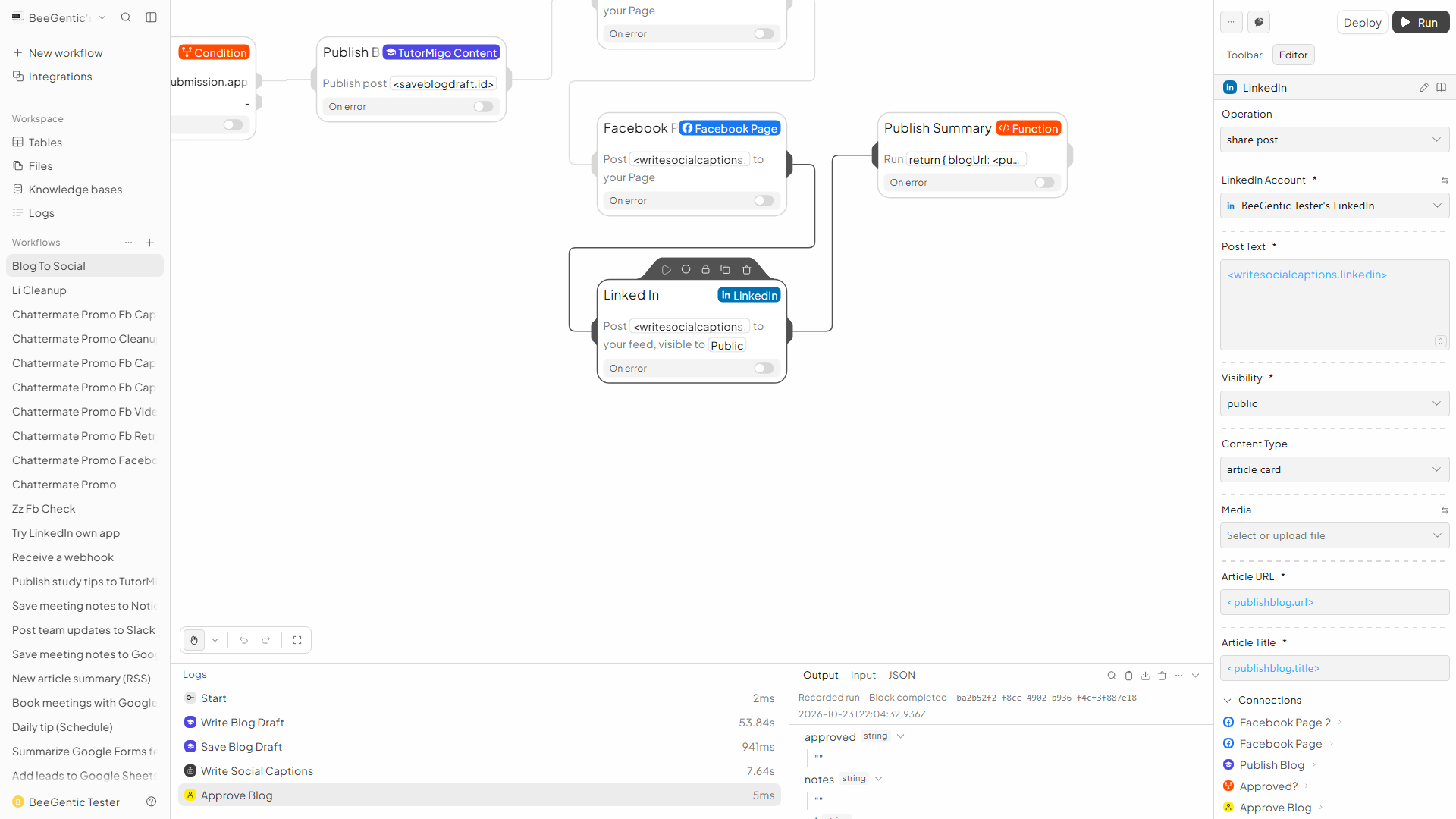
Click Run
Start comes with a sample topic: see sample-run-input.json. Writing the draft and its hero image takes about a minute. The run then stops at Approve Blog.
Watch this step
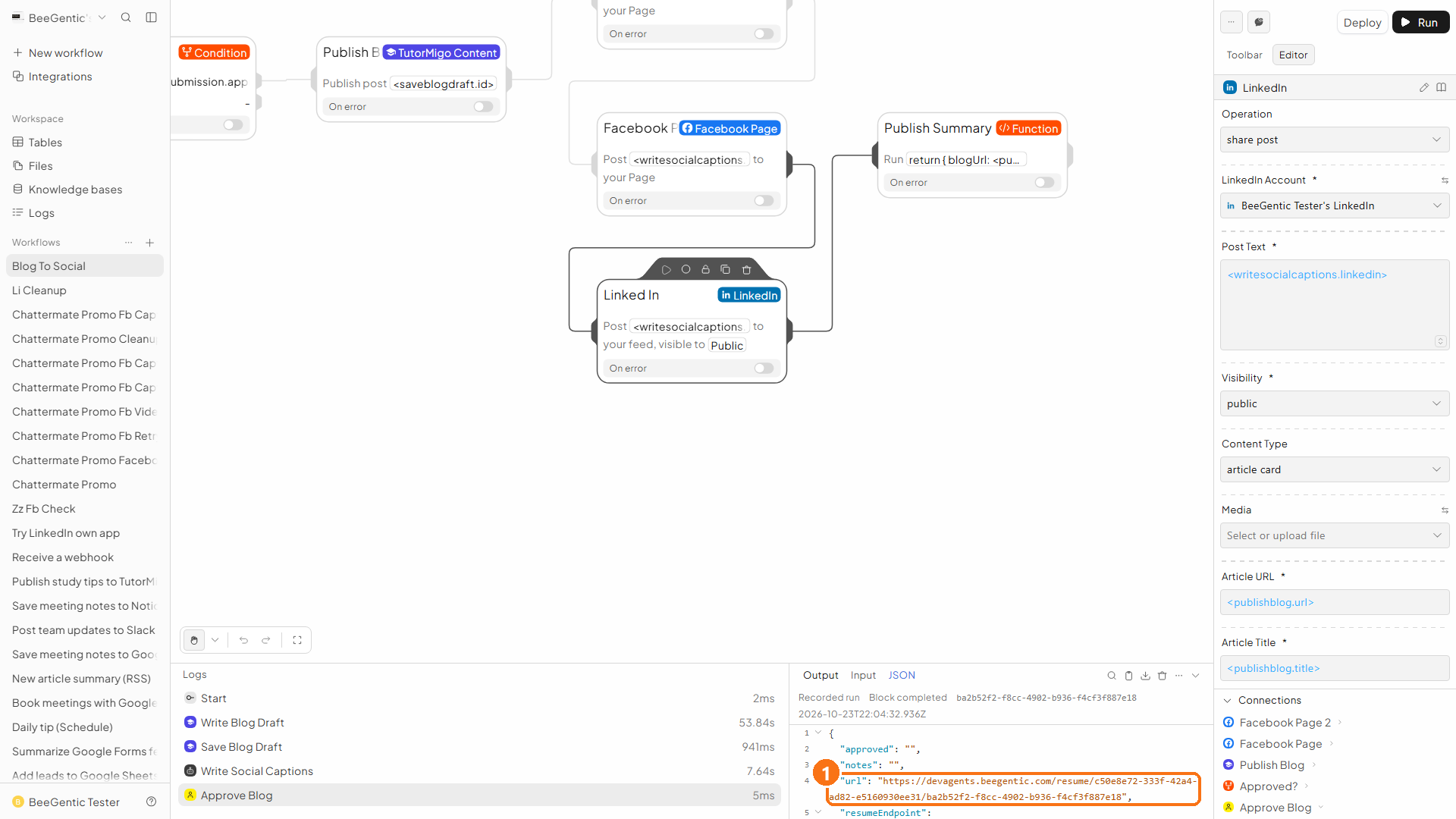
Open the review link
Click Approve Blog in the run log. Its output has a url: open it. Anyone in your workspace can use this link to approve.
Watch this step
Approve
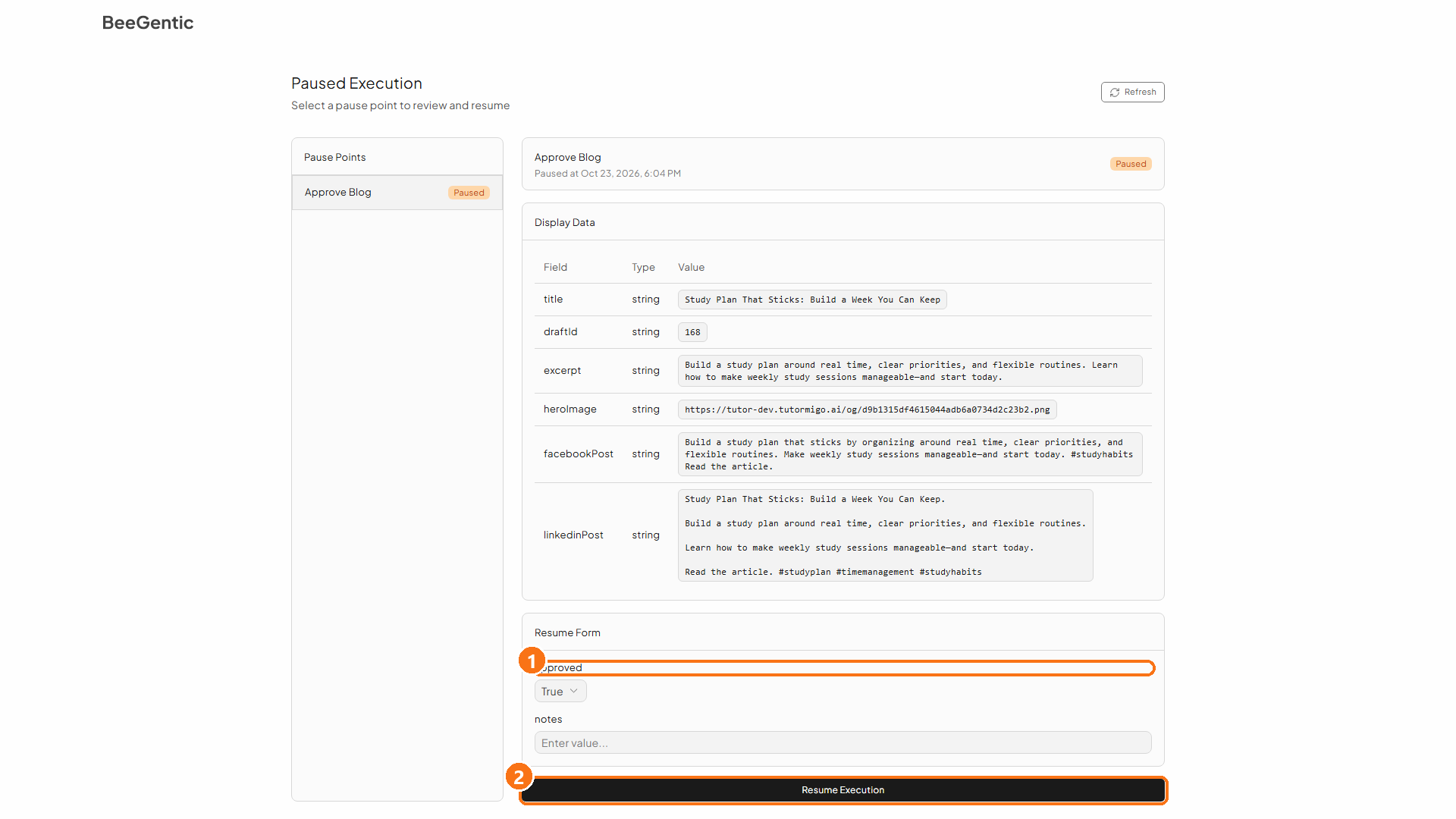
Read the title, the excerpt and both captions. Set approved to True and click Resume Execution. Choose False instead and nothing is published.
Watch this step
See every link
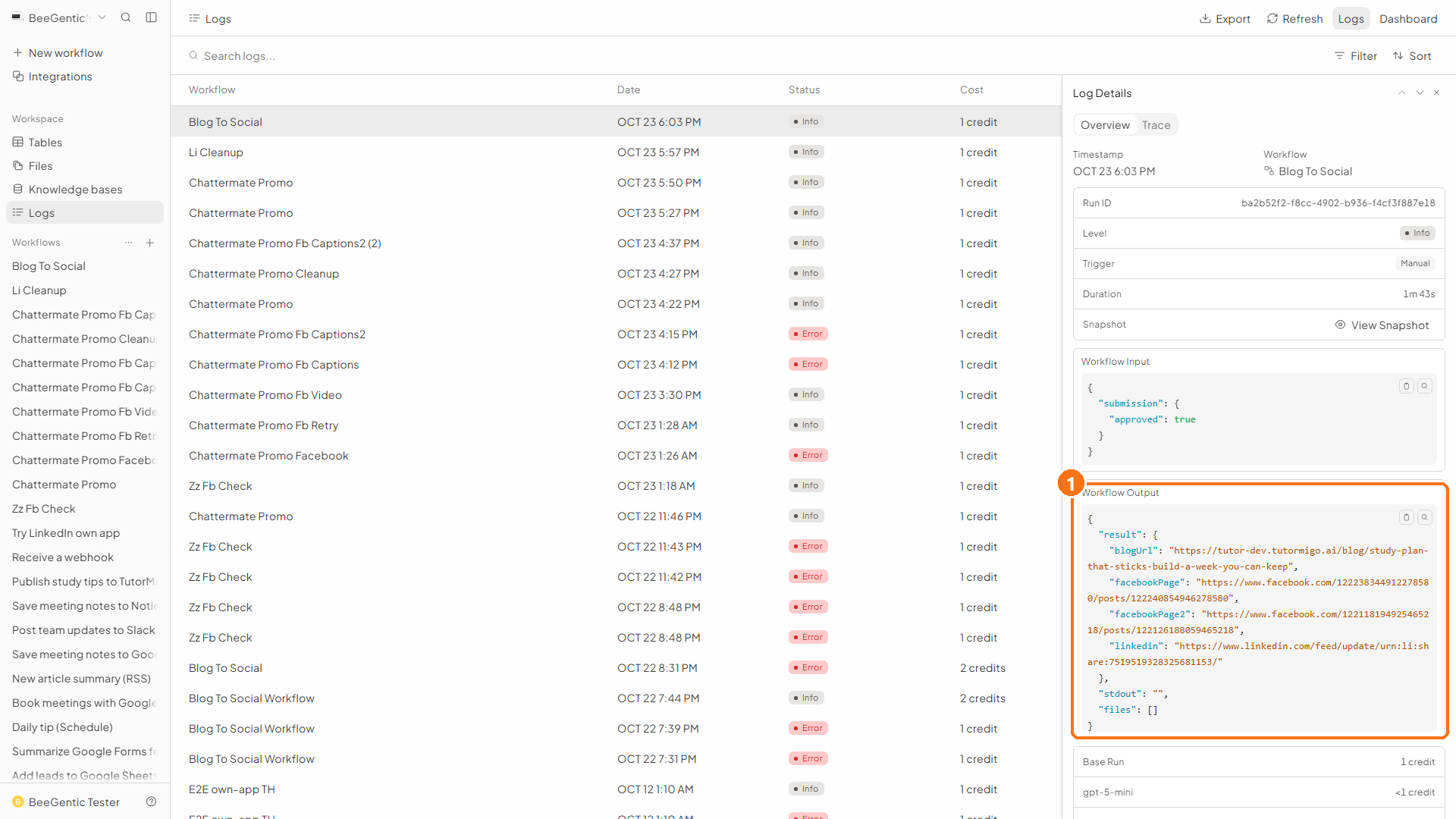
Open Logs and click the run. Workflow Output lists the blog URL and every social post.
Watch this step
The real result
This is the actual output of the recorded run (2026-10-23). We ran it on TutorMigo's test site, so the blog link starts with tutor-dev; yours starts with https://tutormigo.ai.
{
  "blogUrl": "https://tutor-dev.tutormigo.ai/blog/study-plan-that-sticks-build-a-week-you-can-keep",
  "facebookPage": "https://www.facebook.com/122238344912278580/posts/122240854946278580",
  "facebookPage2": "https://www.facebook.com/122118194925465218/posts/122126188059465218",
  "linkedin": "https://www.linkedin.com/feed/update/urn:li:share:7519519328325681153/"
}
The posts stay up on our own Pages and profile.
Second sample: post a video with a thumbnail and captions
video-promo-to-social.json posts one video to two Facebook Pages and LinkedIn. Its Start inputs already point at a public sample video, so you can test it before using your own:
| Start input | Sample value |
|---|---|
videoUrl | https://resources.chattermate.ai/videos/chattermate-commercial.mp4 |
thumbnailUrl | https://resources.chattermate.ai/videos/chattermate-commercial-poster.jpg |
captionsUrl | https://resources.chattermate.ai/videos/chattermate-commercial.vtt |
- Import it like the first sample.
- In Facebook Video and Facebook Video 2, pick your account and a Page ID. They use Create Video Post with your video, thumbnail and captions URLs.
- LinkedIn needs the files in your workspace: upload the video (
.mp4), cover image and captions (.srtor.vtt) in Files, then pick them in LinkedIn Video → Media, Video Thumbnail and Captions. - Click Run. Post Links lists all three posts.
We used this to post the ChatterMate promo on our Pages, for example the ChatterMate.Ai Reel and the LinkedIn video post.
Make the first frame your cover. On personal profiles, LinkedIn shows the video's first frame as the cover and in shared-link previews, even when you send a thumbnail. Start your video with your cover image for a second (we added our poster for 1.5 seconds at the start) and shift your captions by the same amount. Facebook uses the thumbnail you send.
⚡ Make it automatic
| You want | Do this |
|---|---|
| A post for every new article on your blog | Replace Start with an RSS Feed trigger and skip the AI draft steps |
| A weekly post | Add a Schedule trigger and keep Approve Blog, so a person still checks each post |
| Approve from Slack or email | Add a notification to Approve Blog that sends its review link |
| More Pages | Duplicate a Facebook block and change the Page ID. Keep them one after another, not side by side. |
🛠️ Troubleshooting
| What you see | Fix |
|---|---|
Facebook Page is missing required fields: Facebook Account | Pick an account in every Facebook block before you click Run. |
Error validating access token: The session has been invalidated… | Facebook signed the connection out (for example after a password change). Integrations → your Facebook connection → Reconnect, and allow your Pages again. |
Facebook API error 100: Invalid parameter on the second Page | Two Facebook blocks ran at the same moment with the same link. Connect them one after another (as in the samples). |
Captions: (#482) …locales that had been applied to video | The video already has captions in that language. BeeGentic treats this as done. |
| LinkedIn cover shows the wrong frame | LinkedIn uses the first frame. See Make the first frame your cover above. |
A .vtt or .srt file doesn't appear in Files | Captions files are supported. Refresh the page; if it's still missing, check the file is under 1 MB. |
TutorMigo API error 500 from Write Blog Draft | TutorMigo's AI timed out once. Click Run again. |
| The run never reaches the social blocks | Someone chose False at Approve Blog, or the run is still waiting for approval. Check Logs. |
Next
- Publish to a Facebook Page: every Facebook operation, including Create Video Post and Add Video Captions
- Publish to LinkedIn: images, video, documents, article cards and polls
- TutorMigo Content: publish, schedule and update blog posts