


Files: upload, download, rename, delete
Manage your workspace files and use them in workflows.
The Files page is your workspace's shared drive for brand assets, briefs, images, spreadsheets and PDFs. Everyone in the workspace can use them, and workflows can read and write them.
Watch: uploading two files, opening the file menu and previewing a file (no sound). Click any screenshot to enlarge it; the orange numbers match the # column of each table.
Open Files
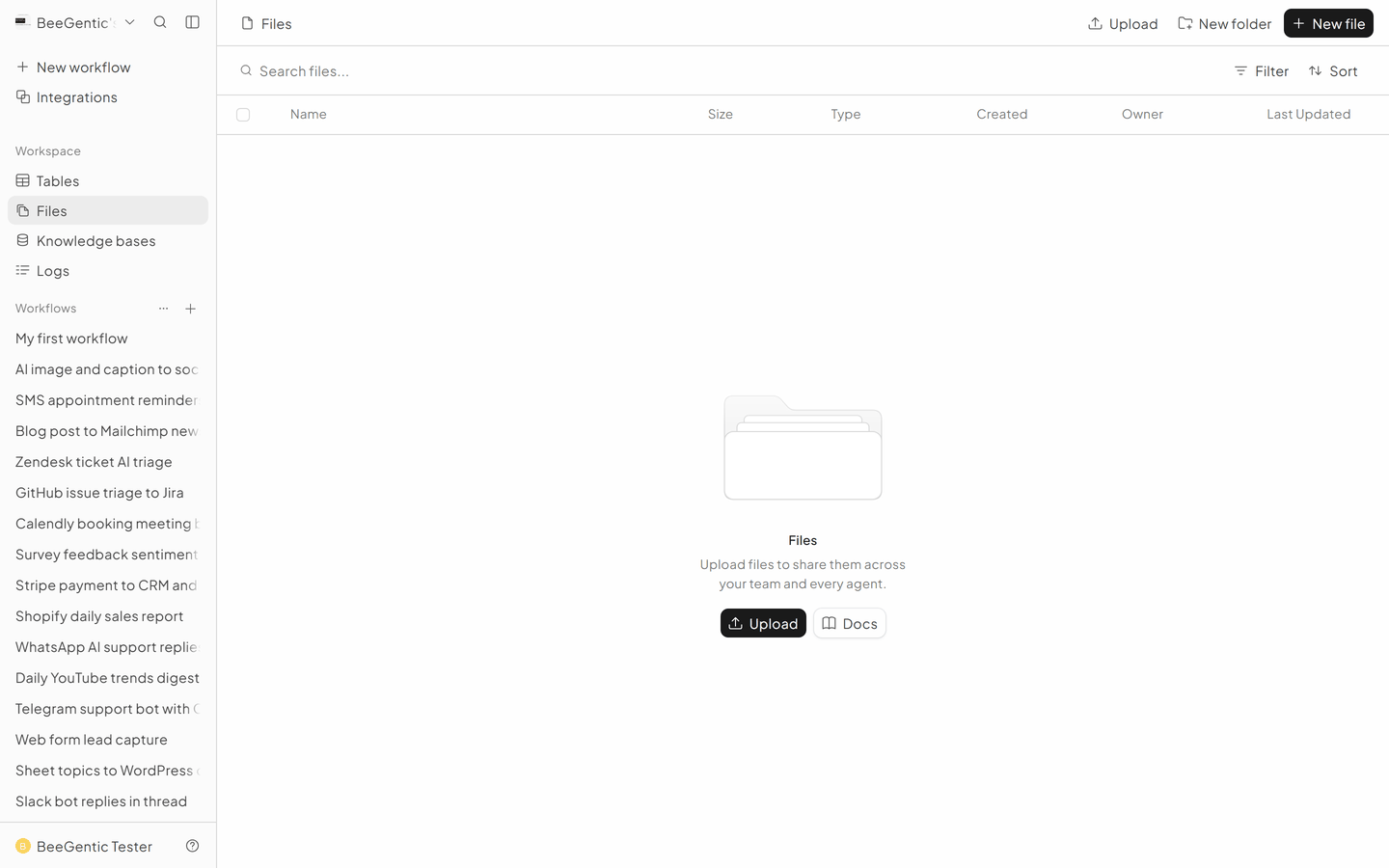
In the left sidebar, under Workspace, click Files. A new workspace shows an empty folder with an Upload button.
Upload and organise
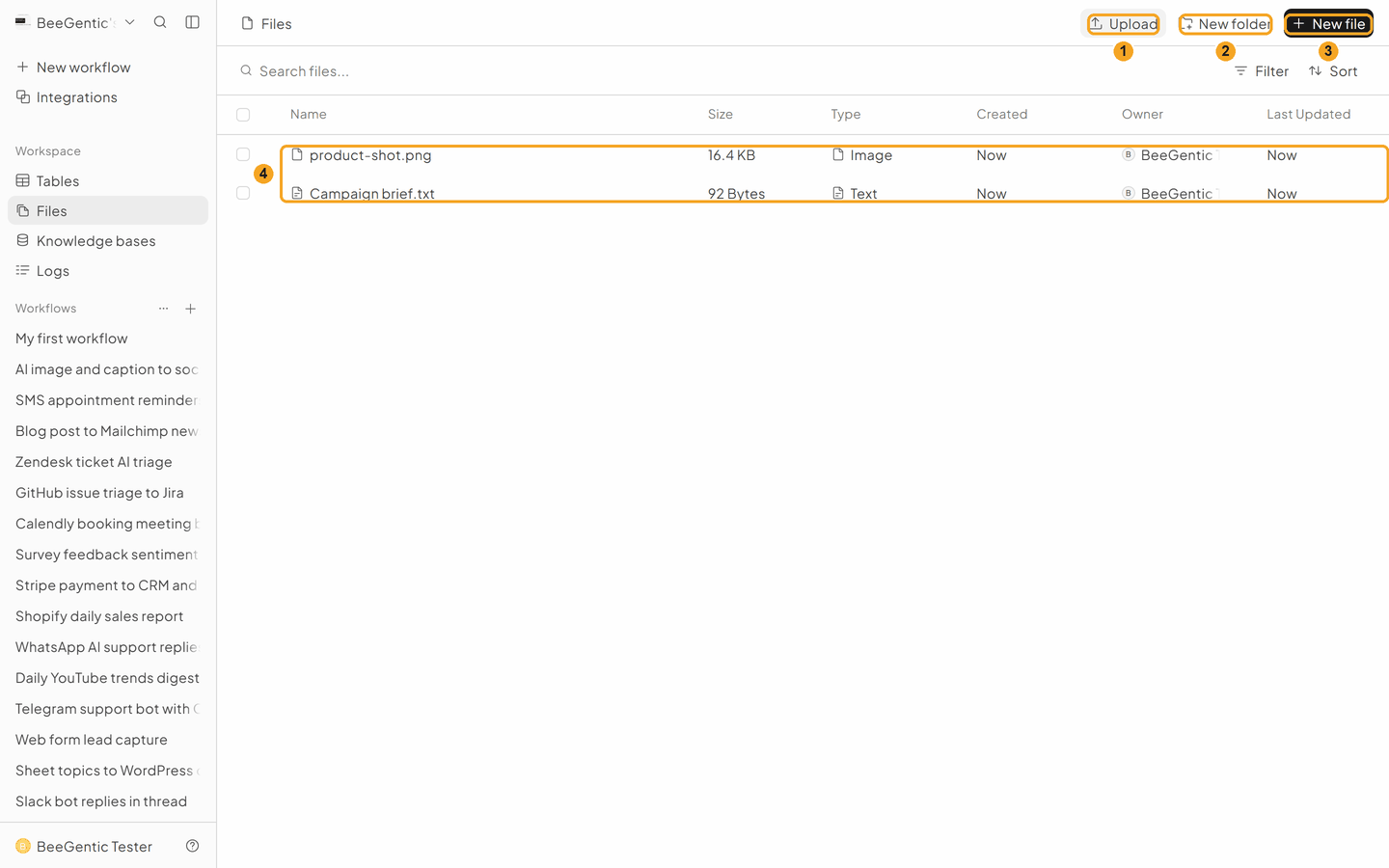
| # | Button | What it does |
|---|---|---|
| 1 | Upload | Pick a file from your computer; it's stored straight away. Repeat for more files |
| 2 | New folder | Group files, e.g. Brand, Campaigns/2026-10 |
| 3 | New file | Create a text file right in BeeGentic, e.g. notes or a prompt library |
| 4 | File list | Name, size, type, created, owner, last updated. Use Search, Filter and Sort above the list |
File actions
Right-click a file to open its menu.
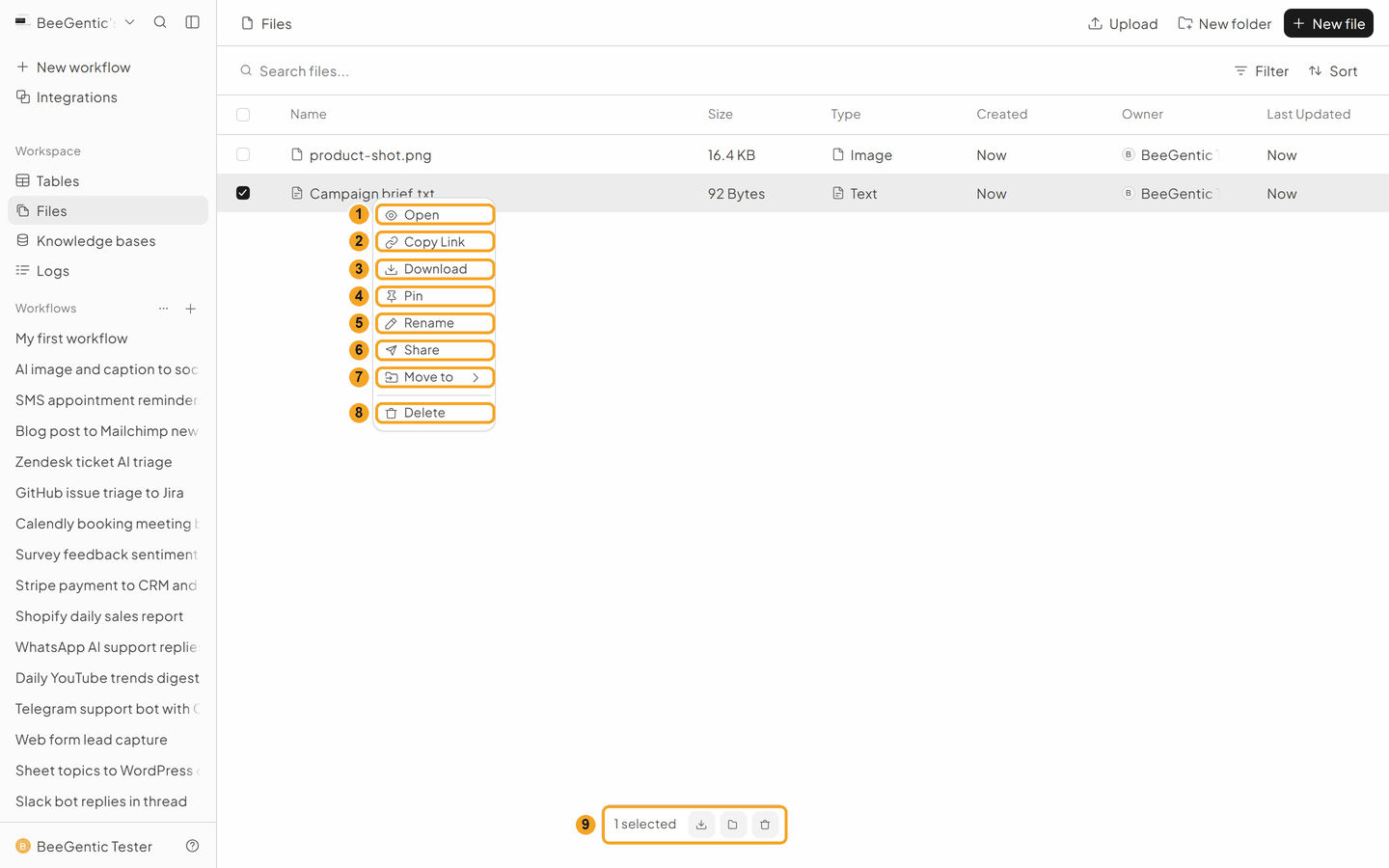
| # | Action | What it does |
|---|---|---|
| 1 | Open | Opens the file in the preview |
| 2 | Copy Link | Copies a link to this file inside BeeGentic, for teammates |
| 3 | Download | Saves the file to your computer |
| 4 | Pin | Keeps the file at the top of the list |
| 5 | Rename | Changes the file name |
| 6 | Share | Shares the file |
| 7 | Move to | Moves it into a folder |
| 8 | Delete | Removes the file. Check Settings → Recently deleted if you need it back |
| 9 | Selection bar | Tick several files to download, move or delete them all at once |
Preview
Click a file (or Open) to preview it. Text files open in an editor; images and PDFs show inline.
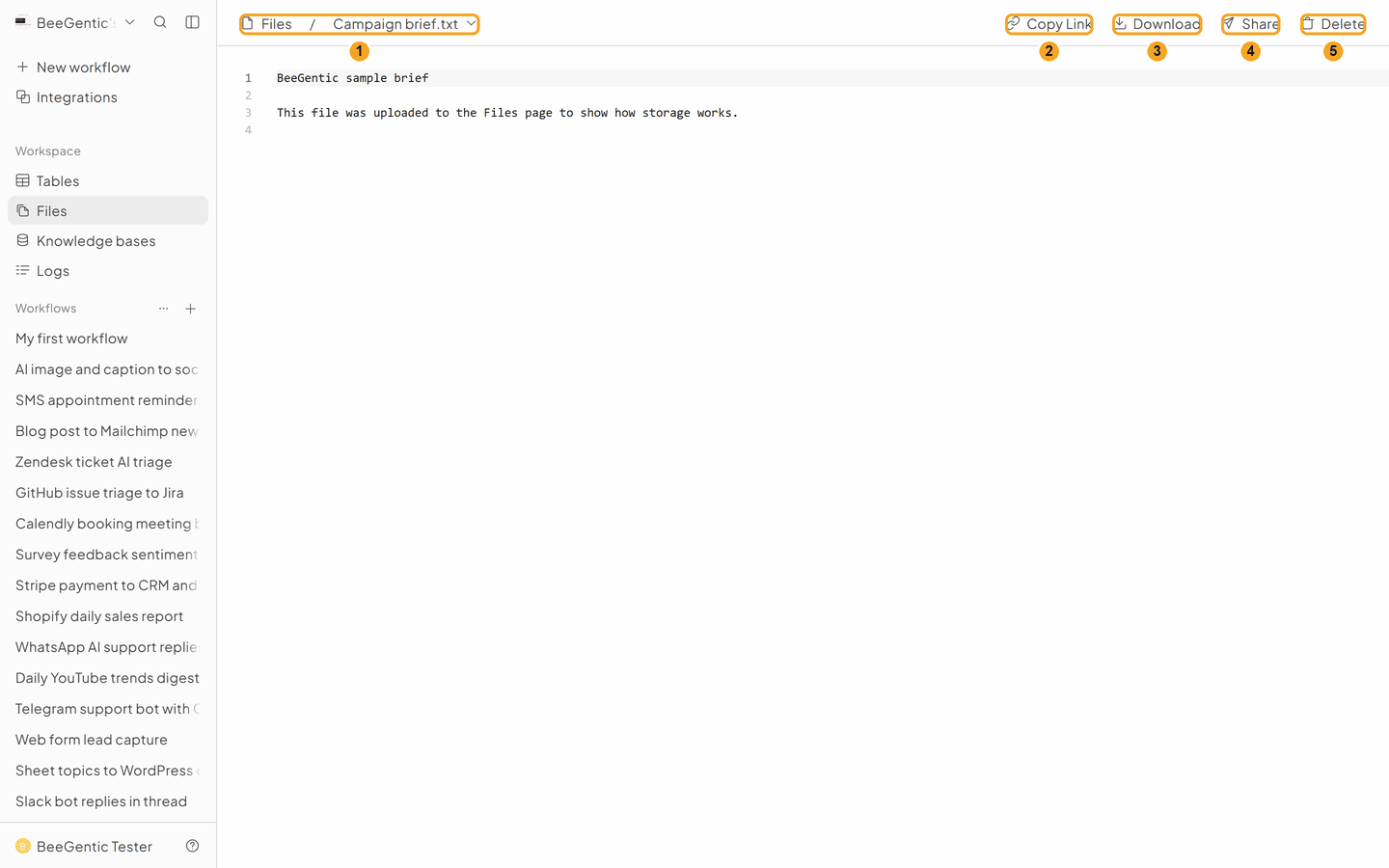
| # | What it is |
|---|---|
| 1 | Breadcrumb: click Files to go back. The ⌄ next to the name switches file |
| 2 | Copy Link |
| 3 | Download |
| 4 | Share |
| 5 | Delete |
Use files in a workflow
| To… | Do this |
|---|---|
| Give a file to an AI Agent | In the Agent's Files field, choose Select or upload file, or pass one from an earlier block, e.g. <start.files> |
| Send a file somewhere | App blocks with Attachments (Gmail, Slack, WhatsApp…) take files from earlier blocks. Type < to pick one |
| Attach a file when testing in Chat | Click the 📎 paperclip in the Chat box. The file arrives as <start.files> |
| Find files a workflow made | Open the run in Logs. Run files are kept per workflow and per run |
Tips
- Use clear names (e.g.
2026-10 campaign brief.pdf) so teammates and workflows find the right file. - For big videos, upload them to the platform you'll publish on (YouTube, Buffer) and keep only thumbnails and briefs here.
Choose your AI (OpenAI, Claude, Gemini, ChatterMate…)
The ways to power BeeGentic's AI steps — your own OpenAI, Anthropic (Claude), Google (Gemini), Azure OpenAI or other key, a ChatterMate API key, and what's coming (ChatterMate subscription, BeeGentic credits).
Run, deploy and logs
Test a workflow, switch it on, and see what happened.