

Tour of BeeGentic
Sign in, find your way around the editor, add and configure blocks.
1. Sign in
Open BeeGentic and choose Continue with CleverCreator. That's your CleverCreator account, the same one you use for ChatterMate and TutorMigo. You can also sign in with email and password if your workspace allows it.
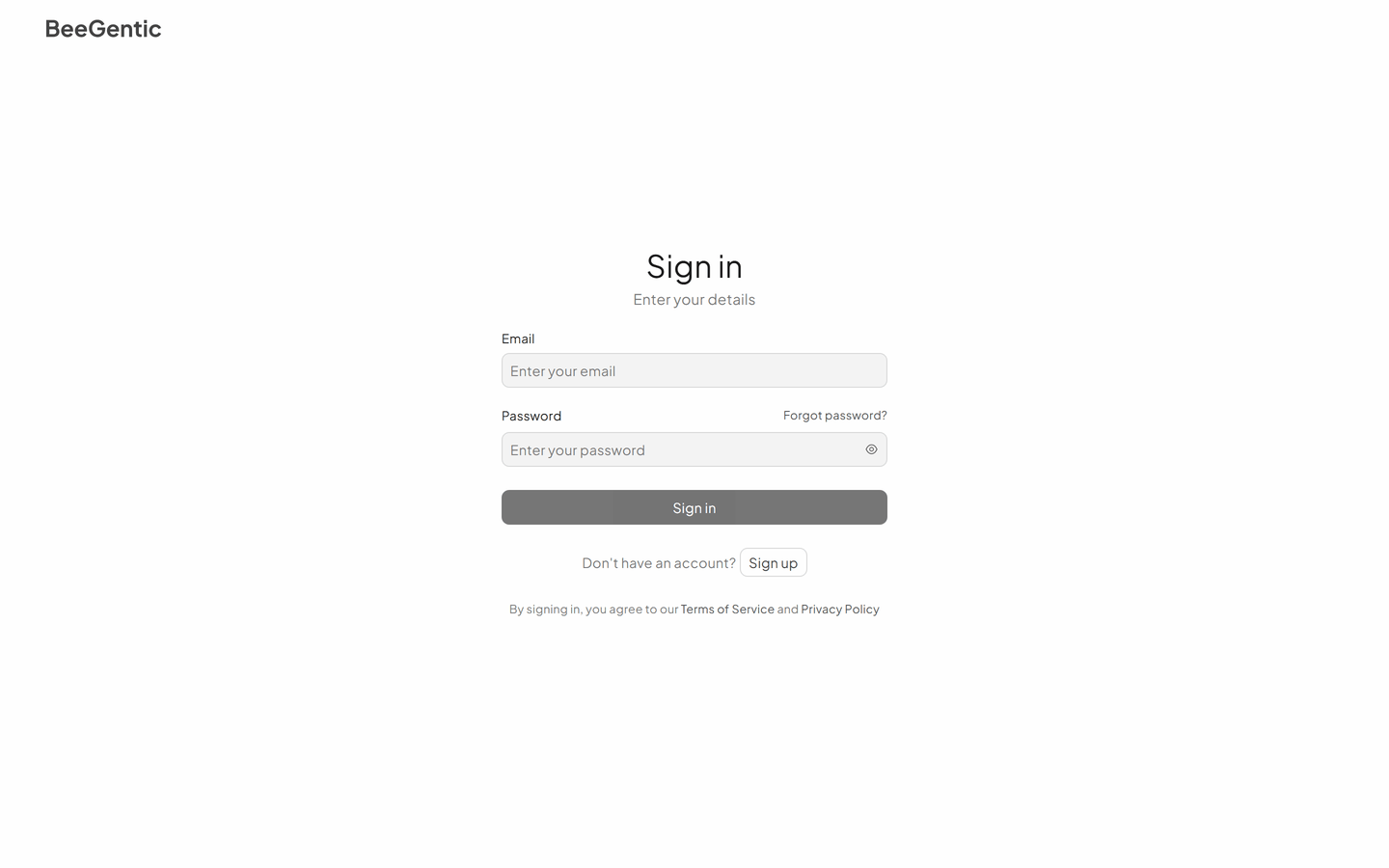
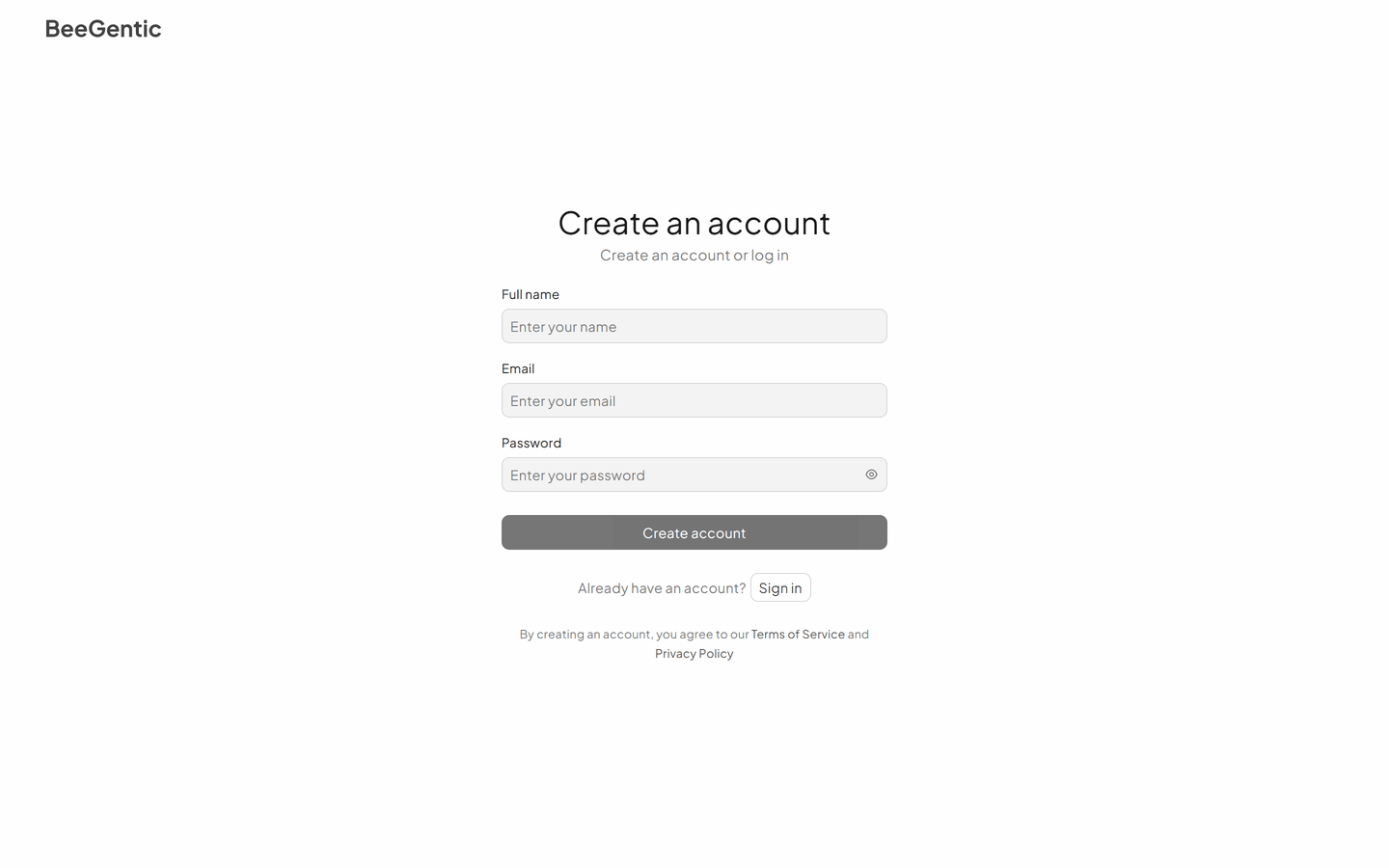
New here? Click Sign up, enter your name, email and a password, and choose Create account. Your first workspace and a starter workflow are created for you.
2. The editor at a glance
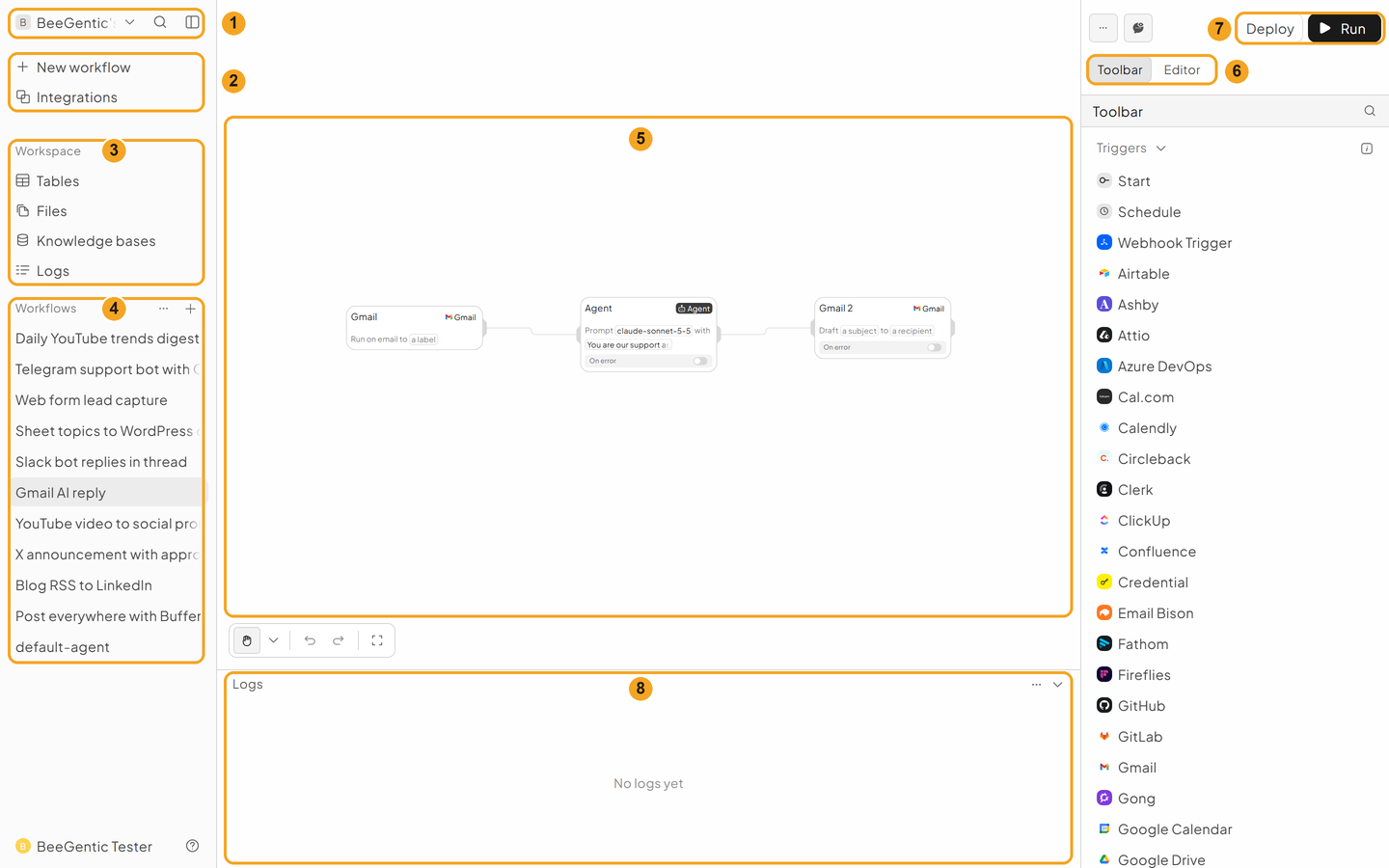
| # | Area | What it's for |
|---|---|---|
| 1 | Workspace menu | Switch workspaces, invite teammates, open settings |
| 2 | New workflow / Integrations | Create a workflow; browse every app you can connect |
| 3 | Workspace | Tables, Files and Knowledge bases (documents your AI can search), plus Logs of every run |
| 4 | Workflows | All workflows in this workspace |
| 5 | Canvas | Place and connect blocks. Drag to move around, scroll to zoom, Shift + L to tidy up |
| 6 | Toolbar / Editor | Toolbar lists every block. Editor shows the settings of the selected block |
| 7 | Run / Deploy | Run tests now. Deploy makes the workflow live |
| 8 | Logs panel | What each block produced in the last run |
3. Add blocks
Click Toolbar, then the 🔍 icon, and type a name, e.g. gmail.
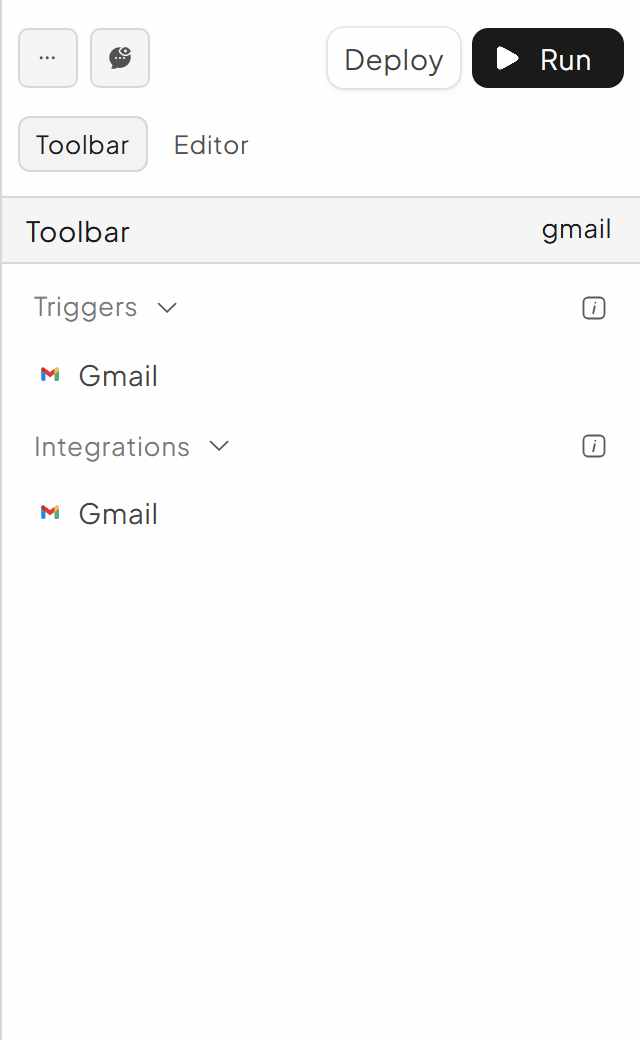
Pick the right section:
- Triggers start a workflow (e.g. Gmail: when an email arrives).
- Blocks are the built-in steps: Agent (AI), Condition, Router, Human (approval), API, Function, Wait.
- Integrations are app actions (e.g. Gmail: send, draft or read).
Click the block to add it. It lands on the canvas connected to the block you last selected. To connect two blocks yourself, drag from the handle on the right edge of one block to the left edge of the next.
4. Configure a block
Click a block on the canvas and its settings open in the Editor tab. Fields with * are required.
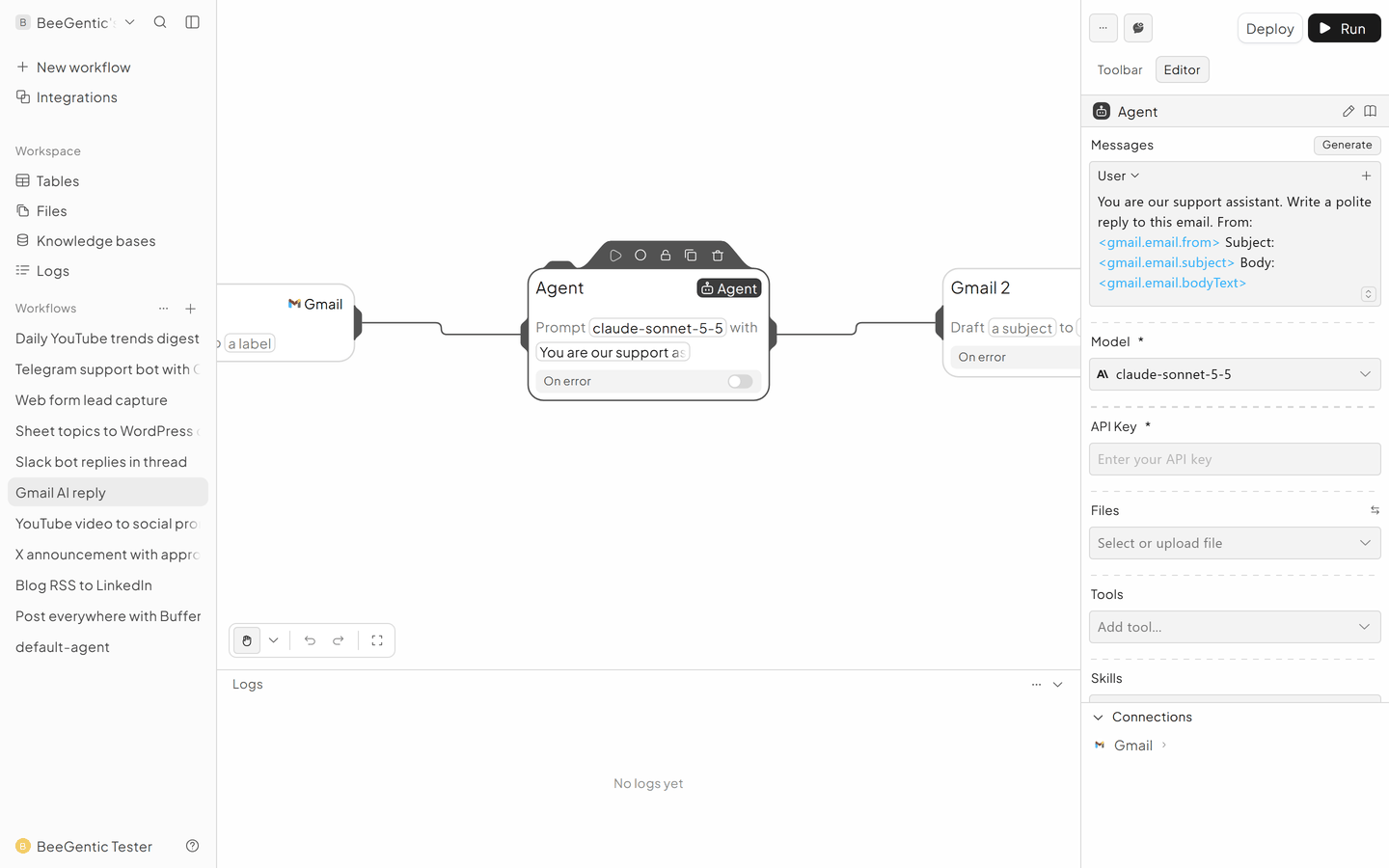
The Agent (AI) block
- Messages: System = who the AI is and its rules; User = the task.
- Model: e.g.
gpt-5-mini(fast and cheap) or a Claude model (strong writing). - API Key: use a saved secret such as
{{OPENAI_API_KEY}}(see References and secrets).
No AI key? Use the ChatterMate block instead; it runs on your CleverCreator credits.
Next
Build your first workflow: 5 minutes, with a real result.